Archive
Sanako Study 1200 Workshop Spring 2011
Those who wanted to, but did not make it to my introductory training for the newly installed Sanako Study-1200 in LRC COED434 might want to have a look at the unedited screencast footage of the teacher computer that I recorded during this session (for Windows Media Player on Windows, if necessary, resort to LRC PCs).
Grouping students using Sanako Study 1200 “sessions”
This sccreencast on grouping with Study 1200 demonstrates:
|
0:00
|
left activity pane – button:add
|
|
0:25
|
right classroom layout pane – click or drag frame
|
|
0:50
|
the effects of grouping
|
|
1:05
|
bottom link: show corridor
|
|
1:25
|
moving between session/groups with context menu (not shown)
|
|
1:30
|
You may have to start/end the current activity from the activity pane first
|
Sanako Study 1200: Student Basics II: The Screencast
This screencast covers the basics of Study 1200 for students
For a quick guide to the Student interface, see Student Basics I: The Screenshots
Using the MS-Word Quiz Template (and the MS-Excel subtitles spreadsheet)
Part I: quiz_dot_create_excel: Watch a screencast on How to ready target language subtitle source material for the quiz template:
|
0,00
|
Working with subtitle material from the source: time coding is not correct
|
|
1,40
|
spreadsheet formulae can fix the subtitle time codes
|
|
2,00
|
why using DVD chapters as learning units
|
|
2,20
|
filtering on chapters in the DVD
|
|
3,00
|
ready to copy paste the filtered learning unit text data into the quiz template
|
Part II: Watch a screencast on How you can apply your pedagogy with ease to a text and transform the same to a quiz, and how the student benefits from both
|
0,00
|
start quiz from word template (on file share)
|
|
0,35
|
paste text data, e.g. for listening comprehension, e.g. from target language movie subtitles
|
|
1,15
|
create markup from pedagogy
|
|
3,14
|
generate quiz from markup : parenthesis 1 {helpful hint}, parenthesis 2 [correct answer]
|
|
3,35
|
closing and saving the quiz, receiving a summary
|
|
3,55
|
create a backup
|
|
4,00
|
open the quiz to test the quiz from student perspective
|
|
4,30
|
what opening information the student receives
|
|
5,00
|
how the student inputs answers and receives feedback
|
|
5,20
|
language learning lookup menu , after pausing the quiz
|
|
6,30
|
or double-click words to look them up in the default dictionary for the set language
|
|
7,10
|
how the student resumes the quiz
|
|
7,20
|
how the student closes the quiz
|
Part III: Watch a screencast on How you can revise your pedagogy
|
0,15
|
open the quiz, enable macros
|
|
0,30
|
unprotect the quiz
|
|
0,45
|
office 2003: tools / macros / macros
|
|
1,00
|
now you can edit your pedagogical markup
|
|
1,10
|
regenerated the altered quiz
|
Video Library: Scheduling for Reserve Desk and Viewings
Lab staff instruction for editing the video-reserves spreadsheet H:\LLC\scheduling\video-reserves&mh441b-showing\video-reserves.xls:
- Lab supervisors build the spreadsheet for the reserve desk and viewing: video-reserves-reservedonthisday-unfold-schedule-viewing.wmv, video-reserves-viewing-selecting-timeslots&venues.wmv
- Lab assistants read the spreadsheet and handle the actual media (i.e. update the reserve desk and show the videos): video-reserves-reservedonthisday-filter-viewing-or-reserve.wmv
Interpreting Suite use: Policies
WHEN YOU BEGIN:
1. Always 1st log on PC
2. Ensure VCR Channel is on A1 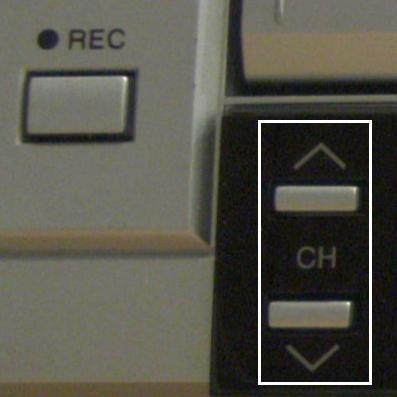
3. No food or drink (except water, on floor)
4. To speak, turn on DIS6132 microphone  (only 1 microphone per booth can be used at a time)
5. To record, wear 1-ear pad black headphones around neck
6. When listening to recorded video, adjust the BT928 volume 
WHEN YOU LEAVE:
7. Turn down the DIS6132 volume 
8. Log off the PC (do not power off)
9. Clean up your desk (handouts, water…)
How to enable your SMEs to collaboratively define and add metadata to learning materials
- We have been asked to manage digital assets (including web links) and enabling incorporating them as learning materials within a series of study programs.
- We researched a number of metadata schemas and controlled vocabularies that have been applied to language and social sciences learning materials before,
- and incorporated those into the below MS-Excel application, to allow for easy marking up of existing assets by SMEs – using collaborative tagging instead of the more familiar, but more easily conflicting, since mutually exclusive folder hierarchy (unidirectional-tree structure).
- In addition, SMEs can expand and develop the controlled vocabulary, by adding tags of their own, as you can see at the end of this demo:

MS Project training notes

- Course is about setting up a project, not tracking (but beginnings will be covered)
- file menu
- save as: e.g. webpage
- edit
- undo: only 1 undo level
- tasks
- split
- view
- calendar
- :base calendar: tools / options
- tools / change calendar [how does this relate?]
- these are company holidays
- can it load holidays like outlook – yes, from project central server
- attach the calendar to the project: project / project information
- many projects are built from finish date, but that leaves no slack time
- tasks pane
- used only with project central server?
- tool bars
- standard
- format
- ask pane
- project: quicker ways than that
- insert subtasks
- simply press insert key to insert rows
- 0 duration = milestone (can also have a milestone with a duration)
- constraints
- difference between a deadline and a constraint: deadline is less important
- review
- start
- project start date: menu / project:
- calendars:
- base calendar = tools / options / calendar
- project calendar = tools / change working time / new
- assign / attach that project calendar to the project: menu: project: project information
- show holidays on Gantt chart: context menu: Gantt chart: nonworking time (option: in front of the taskbars: interrupts the taskbars)
- recurring tasks: menu: insert: recurring task
- set duration: d = day, m = minute, mo = month, w = week
- creating link relation ships
- visually by dragging tasks onto each other in the Gantt chart
- writing in field predecessors (sf is default, s=stat, f=finish, relation ship), -lag and +lead time
- constraints and deadlines
- resources
- types
- WORK: REUSABLE
- MATERIAL: CONSUMABLE
- groups
- teams
- internal or external
- suppliers
- max units
- e.g. FULL TIME OR HALF TIME PERSON
- types
- start
- last hour
- resources – critical (overrun) tasks
- reallocating resources to reduce slack and slippage
- baseline
- set: menu: tools / tracking / baseline
- in the Gantt chart, the blackline is the baseline
- tracking
- recommended to always display the tracking toolbar
- reports
- menu: view / reports
- resources – critical (overrun) tasks
- Outlook: level 2 training
- tracking
- split task
- update task
- customization (views, reports, filters)
- master projects
- resource pools
- tracking


Questions? Read the About. Or just ask me a quick Our Databases: Resources with calendars -- Language learning material Moodle Sites, multimedia files -- films


FAQs for LRC student staff or for students or for teachers. To search our FAQs, in the browser addressbar, add after "https://plagwitz.wordpress.com/feed/?tag=faqs+/" "+TAG1" (from tag cloud below) OR "https://plagwitz.wordpress.com/feed/tag=faqs
&category_name=" "CAT1" (from category hierarchy below). OR search both categories and tags, and multiple TAGs/CATs (connect with "," for OR-search, with "+" for AND-search), like so: https://plagwitz.wordpress.com/feed/?tag=TAG1+TAG2+...TAGn&category_name=CAT1
+CAT2+...CATn"
Other ways to find help
If you cannot find it here, look there: 5,500 Language-Learning Links and Programs for learning or teaching 150 languages
Shortcuts:Our Lists, Our Maps, LRC Staff Moodle Site,LRC Project Moodle Site, 49erexpress, UNCC Moodle, Student Recordings: s:claslcslrcsanakostudent
Learning usage samples: Sanako oral exam, Kaltura webcam presentation, Dictation with speech recognition, Sanako written exam, Chinese and Japanese interactive stroke-order practice
Test the Sanako Installer, Webbrowser Popup Konfigurator for XP, or Windows7, faster LRC TeacherPC Log-in Let MS facilitate diacritics writing by installing for you US-International keyboard layout
This is my personal blog (Google+). The views expressed on these pages are mine alone and not those of my employer. The information in this weblog is provided “AS IS” with no warranties, and confers no rights.
 Thomas' Work Space