Archive
Mousewithoutborders, software KVM from Microsoft
- Mousewithoutborders, a free tool from Microsoft, allows you to control, from one keyboard and mouse two (or more) computers on the same network. These could be – as in my case – a laptop temporarily placed on the same desk as a desktop, or a desktop next to a server (if you do not run it headless anyway).
- Limitations
- Mousewithoutborders needs to control the Windows Firewall which is at work, in a domain administrator controlled windows network, disabled – so no luck getting it to work at the office desk, where it would be even more useful.
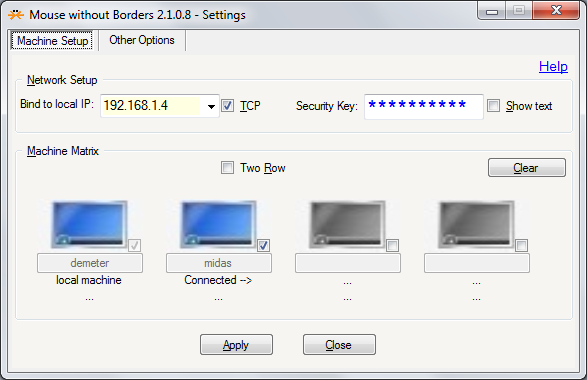
- For my Mousewithoutborders setup, to not exhibit connection issues, it seems crucial that both local and remote machine a checked in the matrix, and you even may have to type the network name of the remote computer.
- While initially, my network configuration was autodiscovered and the clients on the two computers that I try to control from one keyboard and mouse autoconnected, once I type the ID key into both installations
- Later, after I once used the “Clear”-button to cut the connection (when I temporarily had to physically reconfigure the arrangement of the two computers where the mouse movement across screens interrupted the new work flow)
- they lost their connection, and also could not discover the other client, when I requested reconnection (using the practical keyboard shortcut option form the “Other Options”tab: one client managed to remember the other, but “timed out”trying to connect; the other client I could not get to remember or autodiscover the other client), until I manually checked the checkbox next to the computer icon (screen icon turns blue) and typed the network name of the other computer into the textbox. Glad that I have the functionality back now…


How to display rows as percentage of grand total in Excel Pivot Tables
A few notes on Excel’s Version of OLAP cubes: Here is a note detailing the steps taken to display rows as percentage integers of the grand total.

Thoughts on use of MS-OneNote for Learner Portfolios in Interpreting?
What are aspects of portfolios, according to Wikipedia.org? Portfolios “document education, work samples and skills” “more in-depth than a resume” can. They come in different flavours: “developmental (e.g., working), reflective (e.g., learning), and representational (e.g., showcase)” and can contain “personal information, evaluations, sample work, and awards and acknowledgments”. If they are e-Portfolios, implying online, they can be “updated often” and with ease, and are “assembled and managed by a user” who controls the “varying degrees of audience access”. With this come “problems of exporting data and related interoperability issues” and the pros and cons of portfolios integrated into existing VLEs of educational institutions, who are initially easily available, but may lack in “learner-centered-ness” beyond the institutional affiliation.
In the OneNote ecosystem, there is a lot of student workbooks samples – may be closer to what I mean to be a portfolio, if they would groom it and reflect on their work –, plus a so called “Digital portfolio: Sample digital portfolio of a teacher that contains multiple sets of student work, stored and organized within OneNote. Includes homework, quizzes, tests and projects.”
“If you want to use recordings made in OneNote, be aware that the default recording quality for OneNote is not meant for speech recognition. We use a voice codec and bit rate/sample rate designed to compress spoken word audio as small as can be while still usable by human beings. In OneNote 2007 we increased the settings slightly to make audio search work better, but speech recognition (transcription) requires a much higher level of quality. To set up your future recordings in OneNote to be transcribable, first go to Tools/Options/Audio and Video. Switch the codec to Windows Media Audio 9.1 Professional. ”
8+x computers in the interpreting suite and maybe 8 extra in the language center could get us started. (an configuration of these computers which is different from the it labs configuration may save some money initially, but incurs maintenance cost permanently, which may be somewhat hidden, but is very real. so a site license for OneNote, if the licensing cost is reasonable at all, would probably be preferable. of course we are past the deadline for software image upgrades, i just managed to get the OneNote in the interpreting suite request in before the deadline).
if we want to enable students to work remotely, they need personal licenses. this is not necessarily expensive (ca 40 pounds for a full office 2007 suite from ms directly for students only which i recommend to any student just to get ms-word, much more so if you use more advanced office applications)..
one of the nicest features of ms-OneNote and which, even if i have not had a chance to test, would most likely strongly recommend using, is the following:
we can store these OneNote portfolios as shared files on our intranet so that students can keep editing /adding to them, and Danielle and other staff at the same time, without conflicts or need for copying and keeping files in synch, open for checking and giving feedback.
this seems much more usable than copying and transmitting (email is impossible, Weblearn, sans webdav and learner portfolio feature at least, very inconvenient) large multimedia files.
using this feature requires, however, a network share which the students can write to (which will also be required for the digitization of the interpreting suite, even my personal hack), and, if we want to support students doing this from home, probably VPN access (i do not think the current FTP access to the home drive would help us any with this task).
MS Project training notes

- Course is about setting up a project, not tracking (but beginnings will be covered)
- file menu
- save as: e.g. webpage
- edit
- undo: only 1 undo level
- tasks
- split
- view
- calendar
- :base calendar: tools / options
- tools / change calendar [how does this relate?]
- these are company holidays
- can it load holidays like outlook – yes, from project central server
- attach the calendar to the project: project / project information
- many projects are built from finish date, but that leaves no slack time
- tasks pane
- used only with project central server?
- tool bars
- standard
- format
- ask pane
- project: quicker ways than that
- insert subtasks
- simply press insert key to insert rows
- 0 duration = milestone (can also have a milestone with a duration)
- constraints
- difference between a deadline and a constraint: deadline is less important
- review
- start
- project start date: menu / project:
- calendars:
- base calendar = tools / options / calendar
- project calendar = tools / change working time / new
- assign / attach that project calendar to the project: menu: project: project information
- show holidays on Gantt chart: context menu: Gantt chart: nonworking time (option: in front of the taskbars: interrupts the taskbars)
- recurring tasks: menu: insert: recurring task
- set duration: d = day, m = minute, mo = month, w = week
- creating link relation ships
- visually by dragging tasks onto each other in the Gantt chart
- writing in field predecessors (sf is default, s=stat, f=finish, relation ship), -lag and +lead time
- constraints and deadlines
- resources
- types
- WORK: REUSABLE
- MATERIAL: CONSUMABLE
- groups
- teams
- internal or external
- suppliers
- max units
- e.g. FULL TIME OR HALF TIME PERSON
- types
- start
- last hour
- resources – critical (overrun) tasks
- reallocating resources to reduce slack and slippage
- baseline
- set: menu: tools / tracking / baseline
- in the Gantt chart, the blackline is the baseline
- tracking
- recommended to always display the tracking toolbar
- reports
- menu: view / reports
- resources – critical (overrun) tasks
- Outlook: level 2 training
- tracking
- split task
- update task
- customization (views, reports, filters)
- master projects
- resource pools
- tracking


Questions? Read the About. Or just ask me a quick Our Databases: Resources with calendars -- Language learning material Moodle Sites, multimedia files -- films


FAQs for LRC student staff or for students or for teachers. To search our FAQs, in the browser addressbar, add after "https://plagwitz.wordpress.com/feed/?tag=faqs+/" "+TAG1" (from tag cloud below) OR "https://plagwitz.wordpress.com/feed/tag=faqs
&category_name=" "CAT1" (from category hierarchy below). OR search both categories and tags, and multiple TAGs/CATs (connect with "," for OR-search, with "+" for AND-search), like so: https://plagwitz.wordpress.com/feed/?tag=TAG1+TAG2+...TAGn&category_name=CAT1
+CAT2+...CATn"
Other ways to find help
If you cannot find it here, look there: 5,500 Language-Learning Links and Programs for learning or teaching 150 languages
Shortcuts:Our Lists, Our Maps, LRC Staff Moodle Site,LRC Project Moodle Site, 49erexpress, UNCC Moodle, Student Recordings: s:claslcslrcsanakostudent
Learning usage samples: Sanako oral exam, Kaltura webcam presentation, Dictation with speech recognition, Sanako written exam, Chinese and Japanese interactive stroke-order practice
Test the Sanako Installer, Webbrowser Popup Konfigurator for XP, or Windows7, faster LRC TeacherPC Log-in Let MS facilitate diacritics writing by installing for you US-International keyboard layout
This is my personal blog (Google+). The views expressed on these pages are mine alone and not those of my employer. The information in this weblog is provided “AS IS” with no warranties, and confers no rights.
 Thomas' Work Space