Archive
Independent study with free language learning materials from the FSI?
The Foreign Service Institute language learning materials – consisting of scanned documents and digitized audio of multiple courses per language – were still a heavily-advertised resource when I visited the Defense Language Institute in Monterey in 2006.
It is nice to see these resources be made available for free. It is also nice to see the progress that has been made not only in technological adaptation of textbook learning materials since these materials were made available (post WW II?).
This, however, comes at a cost. If you shun it, and do not take a course that works which requires (and entitles you to the use of) a textbook, here are easily accessibleviewable learning materials for a large set of languages, including many LCTL: Amharic, Arabic, Bulgarian, Cambodian, Cantonese, Chinese, Chinyanja, Czech, Finnish, French, Fula, German, Greek, Hausa, Hebrew, Hindi, Hungarian, Igbo, Italian, Japanese, Kirundi, Kituba, Korean, Lao, Lingala, Luganda, Moré, Polish, Portuguese, Romanian, Russian, Serbo-Croatian, Shona, Sinhala, Spanish, Swahili, Swedish, Tagalog, Thai, Turkish, Twi, Vietnamese, Yoruba.
The Forums , however seem to indicate that not too many still use these options. The transformation into a (technologically superficially) more modern format here is limited to very few languages and courses (and crashed my web browser).
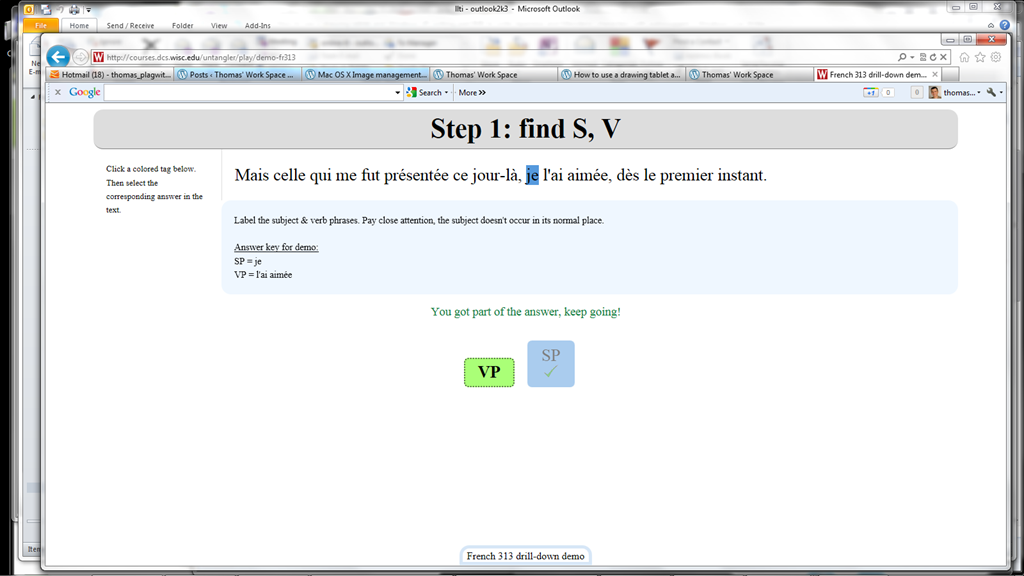
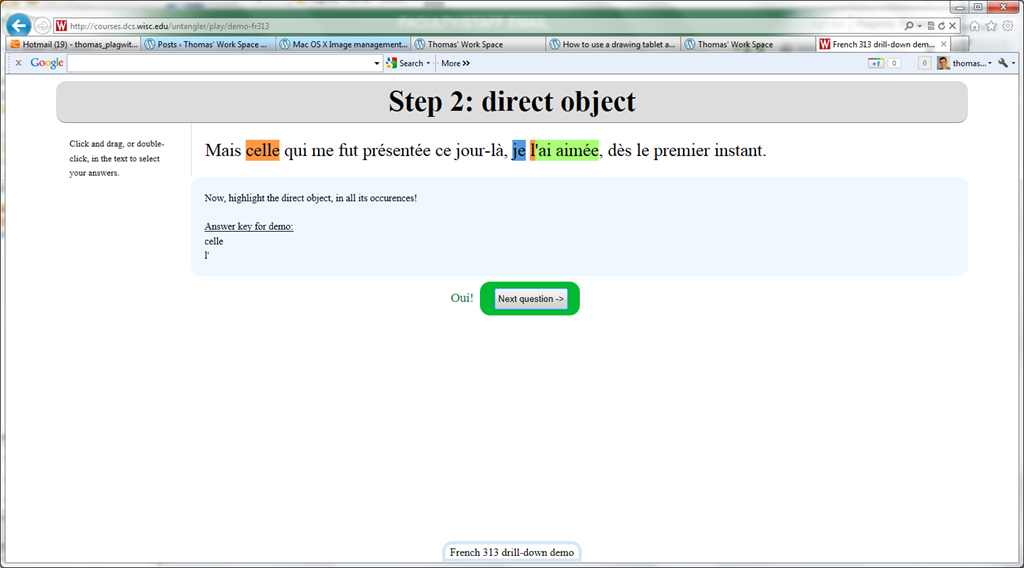
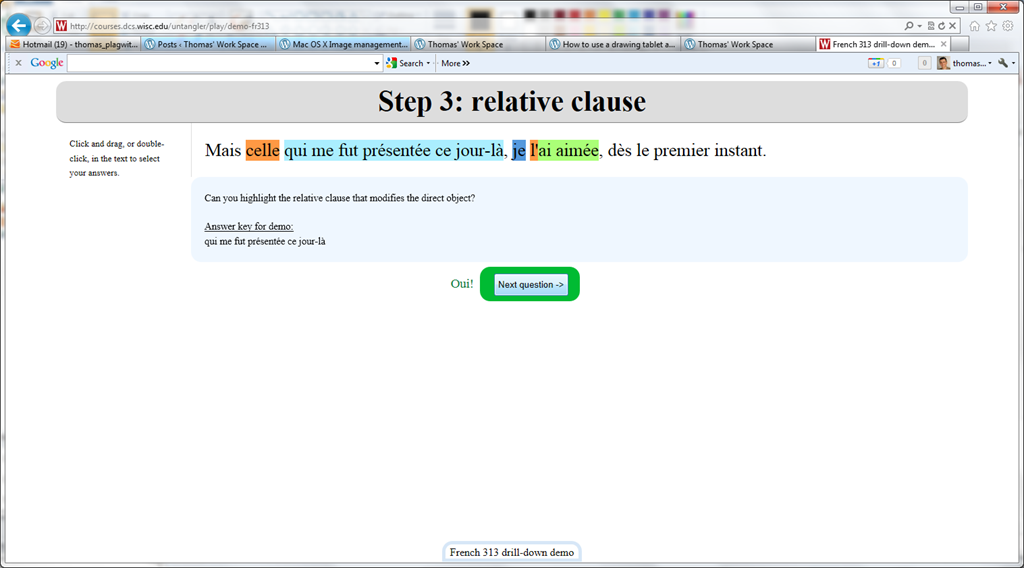
Nice Syntax highlighter tool from wisc.edu @ Madison
-
Wish my Latin teacher at home would have had such a nice tool when he analyzed the “Ante mare et terras et quod tegit omnia caelum / unus erat toto naturae vultus in orbe / quem dixere chaos”, he had only me:

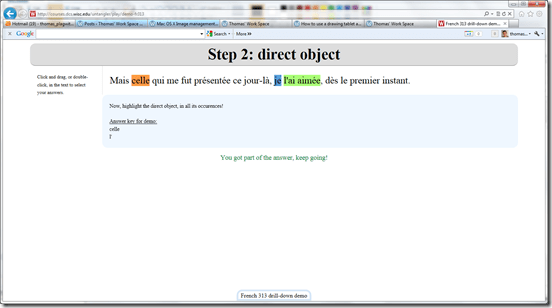

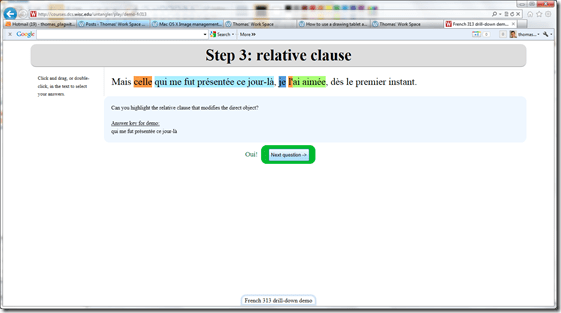

- Now how could such exercise creation made more automated by having it accept the output of NLP tools like Treetagger?


Treffpunkt Deutsch Companion Website with Online Exercises
- This first-year German textbook comes with a Companion Website with free online exercises, organized by chapter, on the publisher’s website (different from the Quia.com –based workbook and lab manual exercises).
- From the instructor guide: “The Companion Website is a robust online resource designed to give students a chance to practice and further explore the vocabulary, structures, and cultural themes introduced in the text. For each chapter, students will find self-grading practice exercises on vocabulary and grammar topics as well as Web-based reading and writing activities. Web links to carefully selected sites in Germany, Austria, Switzerland, Luxemburg, Liechtenstein, and South Tyrol (Italy), accompanied by interesting activities, provide additional interaction with the cultures of these German-speaking areas of Europe. Also available on the Website are the audio components of the Student Text and the SAM, as well as an interactive vocabulary flashcards tool. ”
- These exercises include vocabulary practice, even flash cards.
- The auto-correction feature provides:
- some useful feedback for further study,

- summary grades

- and an email to teacher function that should facilitate Syllabus integration of this useful resource:

- some useful feedback for further study,


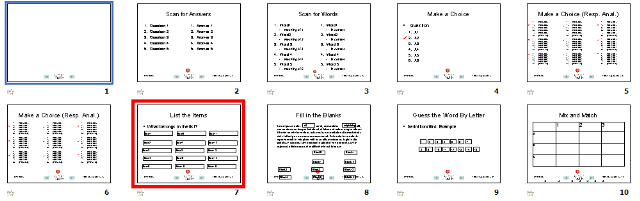
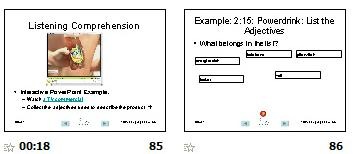
A PowerPoint Template to base your clicker-like face-to-face class exercises on
- Enables easy exercise creation:
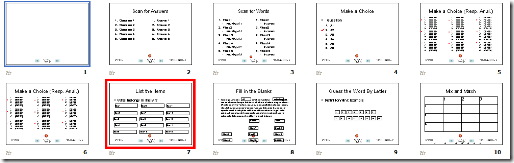
- Resides on S:\coas\lcs\labs\lrctest\templates\Teacher.pot;
- Requires MS-PowerPoint 2010, as installed on the teacher computer in LRCRoomCoed434.
- Training videos are available for download here (requires Windows Media Player on Windows, as installed in the LRCRoomCoed434).
- powerpoint_template_overview_default_slide.wmv
- powerpoint_template_sequential_slides.wmv
- powerpoint_template_interactive_slides.wmv
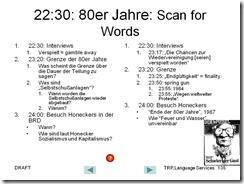
- Usage samples available on request from
- German Beginners,

- Intermediate

- and Advanced Classes.


How to use the online Spanish pronunciation help to generate phonetic alphabet transcriptions and text-to-speech
- Go to http://showroom.daedalus.es/es/tecnologias-de-la-lengua/phonetictrans/phonetictrans.php, enter your text, select your phonetic symbol set:
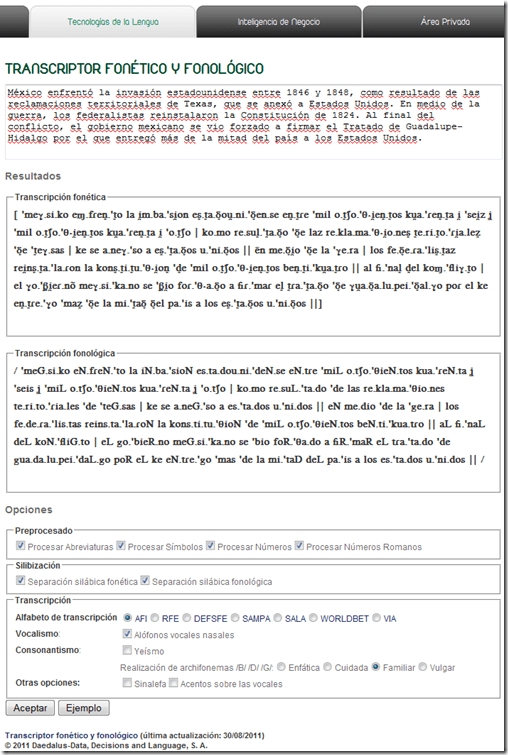
- Unlike with the Portuguese help, there is no text-to-speech option here.

How students access language learning materials on the Library ereserves system
- Note the important update in red below.
- This has been tested at post date with Firefox. ereserves seems to be not compatible with Internet Explorer 8: i

- On the Library home page, from the top menu: “Research & Course Help”, choose menu item: “Course Reserves” (or, if this menu changes again, I have a hunch that deeplinking may be more stable: http://library.uncc.edu/caos/coursereserve, what’s in a URL…),
- sign in with your Ninernet ID,
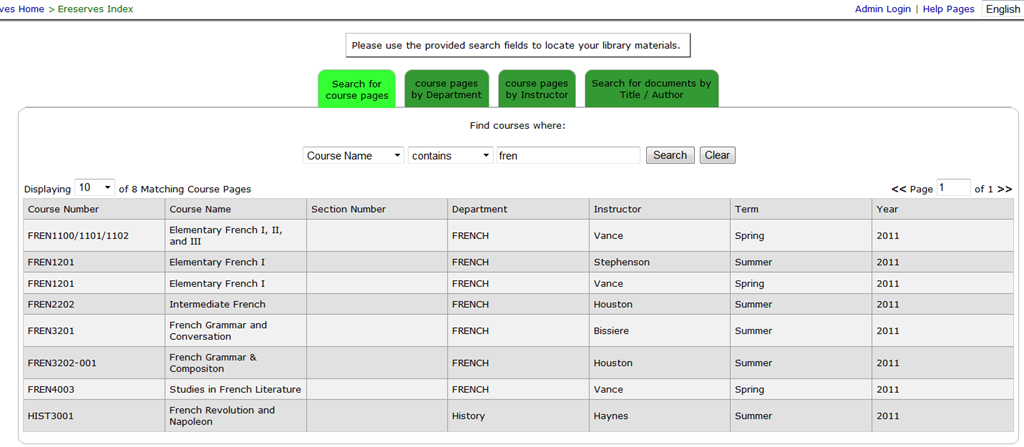
- enter search term
- select from the dropdown “search by name”, an enter part of your course name in the textbox,
- or click on tab:”Course Reserves Pages by Instructor”, and from the dropdown, select your instructor,
- click search,
- then select your course from the results grid.

- Enter the password, which has been given to your by your instructor.
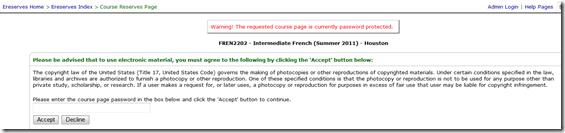
- In the results grid, click on the desired chapter and tracks. Note: You need to disable your web browser”s “popup blocker”.
- In the popup window, click on link: “More information”,
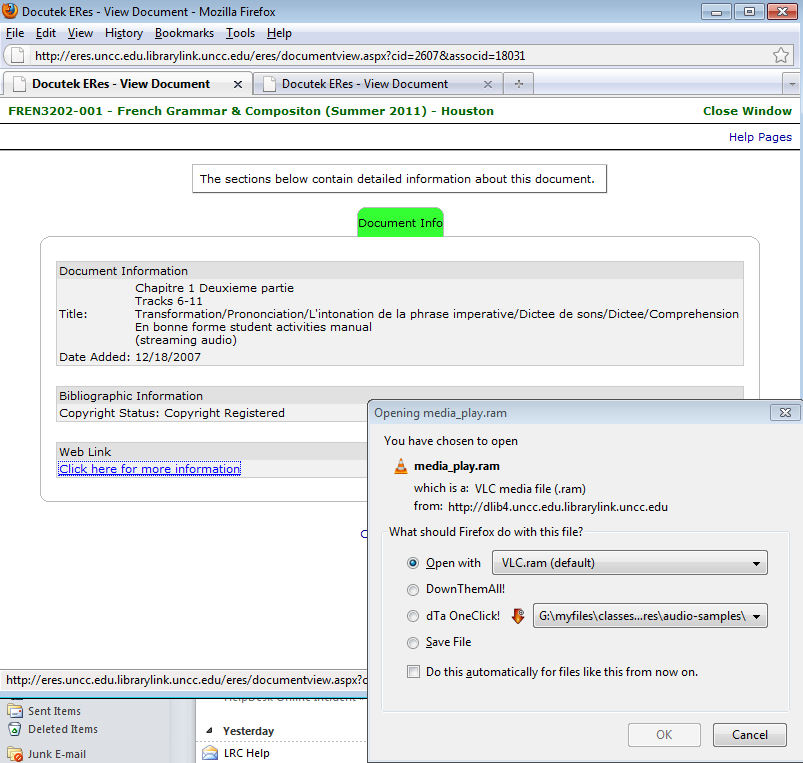
- when offered, , like in this screenshot:
- you cannot save the file, or rather: only a text file with links to the audio which you cannot play, like rtsp://dlib4.uncc.edu:554/e_reserves/CD1bonneforme12-16.rm). That is by design.
- Instead of trying to save, select to “open” the file. You need have a streaming audio playing software installed, like Real Player or the open source VLC-Player.
- instead of VLC, as offered by default, like so :

- choose “Open with”, “Other”, pick “RealPlayer” from the list, like so:

- Here is a more on what does not work with ereserves. The only combination I could get to work with eReserves streaming audio is – see resulting screencast (requires Windows Media Player) of streaming a long file successfully – is RealPlayer 14, Firefox 3.6 on Windows XP3, and that only after resetting the Winsock catalog which I can do for the entire LRC only nownext time the lab is reimaged. For now, use instead audio from Moodle metacourses where possible.



How to use the online Portuguese pronunciation help to generate phonetic alphabet transcriptions and text-to-speech
- Go to http://www.co.it.pt/~labfala/g2p/
- Write or paste your text into the textbox:“Grafemas”
- Choose your preferred phonetic alphabet (IPA, SAMPA) and other options.
- Press button: “Converter” to see results.
- Press button: “Sintetizar” to hear results.
- Like so:
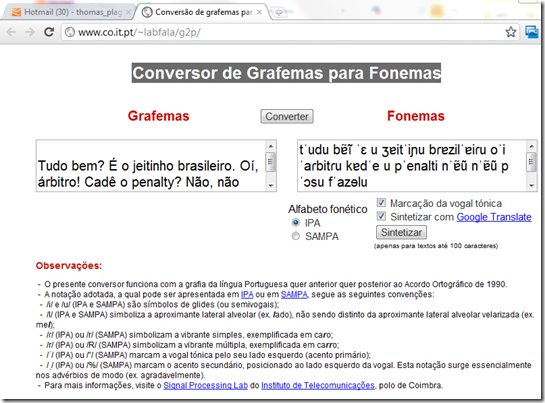
- Or click here to view a demo (requires Windows Media Player) with audio (download requires Windows Media Player). Our example was:
- Input: Tudo bem? É o jeitinho brasileiro. Oí, árbitro! Cadê o penalty? Não, não posso faze-lo.
- Output: tˈudu bɐ̃ĩ ˈɛ u ʒɐitˈiɲu bɾɐzilˈɐiɾu oˈi ˈaɾbitɾu kɐdˈe u pˈenalti nˈɐ̃ũ nˈɐ̃ũ pˈɔsu fˈazɘlu



Questions? Read the About. Or just ask me a quick Our Databases: Resources with calendars -- Language learning material Moodle Sites, multimedia files -- films


FAQs for LRC student staff or for students or for teachers. To search our FAQs, in the browser addressbar, add after "https://plagwitz.wordpress.com/feed/?tag=faqs+/" "+TAG1" (from tag cloud below) OR "https://plagwitz.wordpress.com/feed/tag=faqs
&category_name=" "CAT1" (from category hierarchy below). OR search both categories and tags, and multiple TAGs/CATs (connect with "," for OR-search, with "+" for AND-search), like so: https://plagwitz.wordpress.com/feed/?tag=TAG1+TAG2+...TAGn&category_name=CAT1
+CAT2+...CATn"
Other ways to find help
If you cannot find it here, look there: 5,500 Language-Learning Links and Programs for learning or teaching 150 languages
Shortcuts:Our Lists, Our Maps, LRC Staff Moodle Site,LRC Project Moodle Site, 49erexpress, UNCC Moodle, Student Recordings: s:claslcslrcsanakostudent
Learning usage samples: Sanako oral exam, Kaltura webcam presentation, Dictation with speech recognition, Sanako written exam, Chinese and Japanese interactive stroke-order practice
Test the Sanako Installer, Webbrowser Popup Konfigurator for XP, or Windows7, faster LRC TeacherPC Log-in Let MS facilitate diacritics writing by installing for you US-International keyboard layout
This is my personal blog (Google+). The views expressed on these pages are mine alone and not those of my employer. The information in this weblog is provided “AS IS” with no warranties, and confers no rights.
 Thomas' Work Space