Archive
Archive for the ‘documentation’ Category
How teachers can include a link to their metacourse content in their Moodle course
2013/10/21
Leave a comment
- How teachers get the metacourse link:
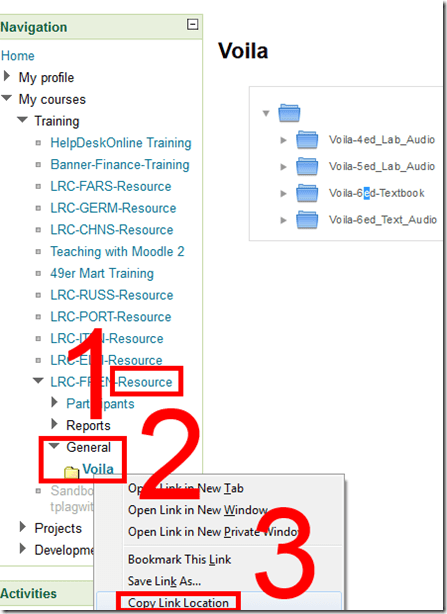
- Find your metacourse and expand (1).
- find your resource (the textbook is actually “Voilà”, but we want to make extra sure there are no non-ASCII compatibility issues) and right-click (2).
- Click “copy link location” (3).
- How to use the metacourse link in your actual course:
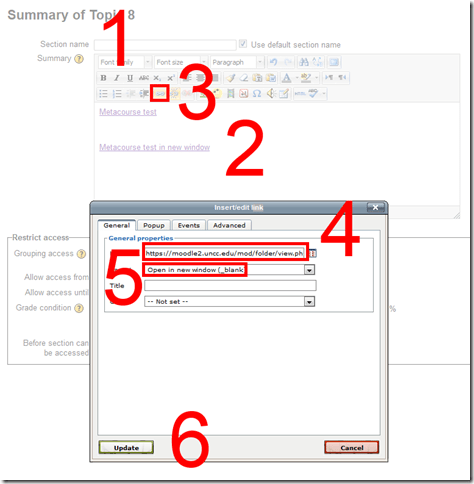
- You can e.g. start a new topic (0).
- Add title (1).
- Add text (2).
- Add link to text (3).
- Paste link from clipboard. (4)
- I you choose open in new window (5), following the link will not navigate the student away from your actual course in the main web browser window.
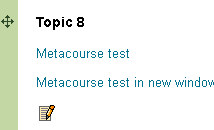
- Result:
 Caveats:
 - FireFox opens in a new tab, even if you in Moodle request to open in a new window.
- You can only link to the root folder of a Moodle Metacourse. If there are multiple content sets within your textbook folder, please advise your student of the name.

Categories: audience-is-teachers, documentation, learning-materials, lms, textbooks
audio, metacourses, moodle
How a teacher can use NanoGong’s plugin for the HTML editor to easily send their own audio to students
2013/10/17
Leave a comment
- The rich HTML editor recorder plug-in is supposed to make it easier for the teacher (than other recorders that require the teacher to save to file and upload the file to a Moodle activity). Here is how it can work:
- Add an activity which includes the rich HTML editor plugin, e.g. a page.
- Click on the loudspeaker icon denotes NanoGong among the editor tools.
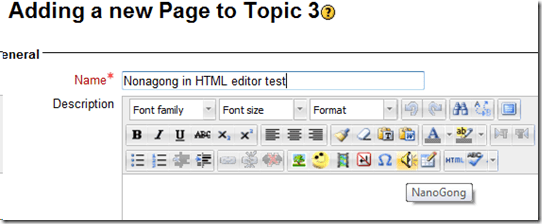
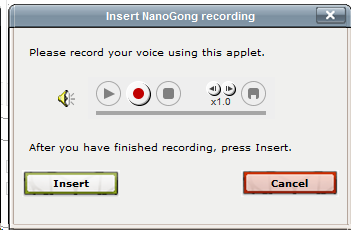
- A window will open that includes the recorder JAVA applet (you may have to bypass Java warnings):

- Click the red record button and speak.
- When done, click insert.
- Result:
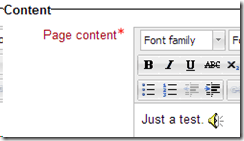
- Note, however, that so far I have run into issues actually displaying this teacher-added NanoGong recorder content.


Categories: audience-is-teachers, documentation, e-languages, Listening, lms, multimedia-recording, recording-software
audio, moodle, nanogong
How to use NanoGong in your Moodle course as an audio file recorder
2013/10/17
Leave a comment
- NanoGong is primarily meant for submitting audio recordings to the teacher and fellow students.
- However, it can also serve as a simple audio recorder that can save a recording to a files:
- accessible anywhere where you have internet access (on a JAVA-capable device. I have not tested NanoGong’s compatibility with smartphones or tablets, though) and a microphone – provided you/your teacher have added a NanoGong activity to the Moodle Course.
- Might be useful for collecting recordings as pieces for your language learner ePortfolios.
- To use NanoGong as an audio recorder: Instead of (or on top of/before) submitting your recording to the course, click the rightmost button:
 :
:
- and you can save your recording to a file
![image_thumb[17]_thumb[1]](https://thomasplagwitz.com/wp-content/uploads/2013/10/image_thumb17_thumb1_thumb.png?w=600&h=530 "image_thumb[17]_thumb[1]") ,
,- in a variety of formats (compressed WAV is likely most compatible),
- including in the different speeds:
![image_thumb[18]_thumb](https://thomasplagwitz.com/wp-content/uploads/2013/10/image_thumb18_thumb_thumb.png?w=244&h=68 "image_thumb[18]_thumb") that you de/increased the playback speed here:
that you de/increased the playback speed here: ![image_thumb[15]_thumb](https://thomasplagwitz.com/wp-content/uploads/2013/10/image_thumb15_thumb_thumb.png?w=129&h=103 "image_thumb[15]_thumb") .
.

![image_thumb[17]_thumb[1]](https://thomasplagwitz.com/wp-content/uploads/2013/10/image_thumb17_thumb1.png "image_thumb[17]_thumb[1]")
![image_thumb[18]_thumb](https://thomasplagwitz.com/wp-content/uploads/2013/10/image_thumb18_thumb1.png "image_thumb[18]_thumb")
![image_thumb[15]_thumb](https://thomasplagwitz.com/wp-content/uploads/2013/10/image_thumb15_thumb1.png "image_thumb[15]_thumb")
Categories: Arabic, audience-is-students, audience-is-teachers, documentation, English, eportfolio, Farsi, French, German, Greek (modern), Hebrew, Hindi, Italian, Japanese, Korean, Mandarin, multimedia-recording, Polish, Portuguese, recording-software, Russian, Spanish, Speaking, Swahili, Yoruba
audio, moodle, nanogong
How to retroactively remove comment option from WordPress posts
2013/10/07
Leave a comment
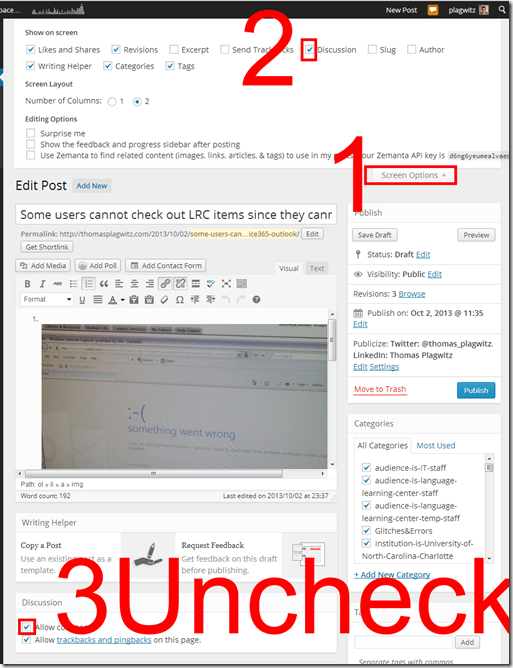
- Unchecking “Allow comments” does not affect past posts (you had better find that out early in your blogging career – I did not …)
- To disable comments for past posts, you have to uncheck “Allow comments”in each one of them.
- To even show “Allow comments” in the post editing interface, do this:

Categories: audience-is-teachers, documentation, e-infrastructure, Screenshots
wordpress
How to set up your computer to access ASCM URLS with Adobe Digital Edition for DRM-protected eBooks
2013/09/09
Leave a comment
-
I downloaded the Adobe digital Edition from here: http://www.adobe.com/products/digital-editions/download.html
-
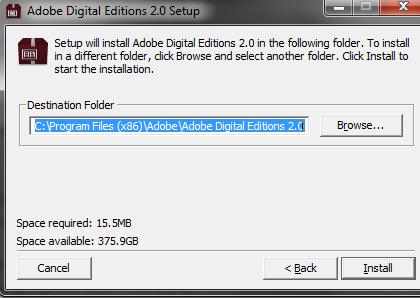
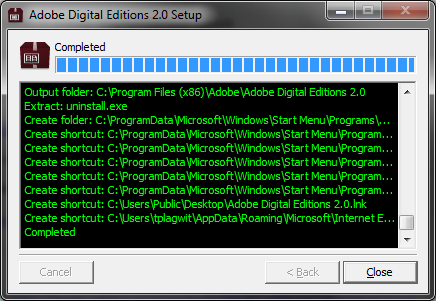
I installed the downloaded Adobe Digital edition like so:
-

-

-
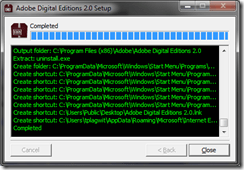
-
I can now run the Adobe Digital Edition program:
-
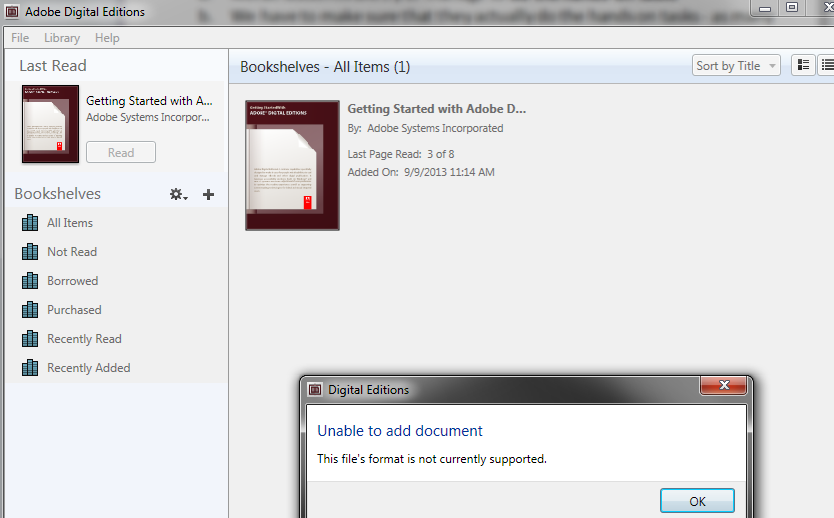
However, File / open / paste url won’t work.
-
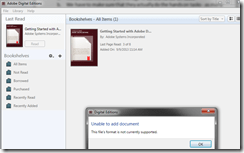
-
Also, if I download the ASCM file, Windows still does not know which application to open ASCM file with
-

-
I CAN HOWEVER DOWNLOAD AN ASCM FILE AND DRAG drop this into an open digital edition window, to get this at least
-

-
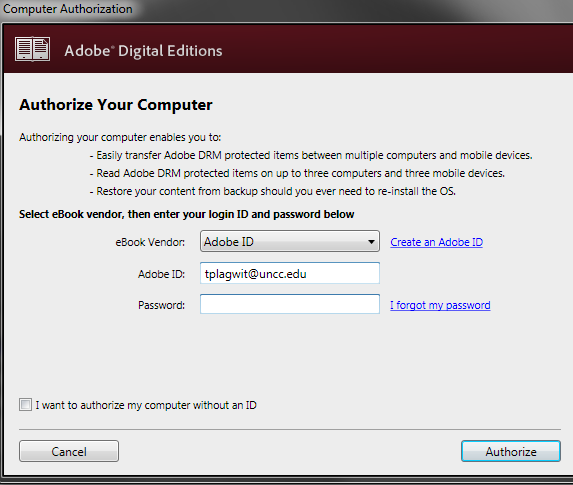
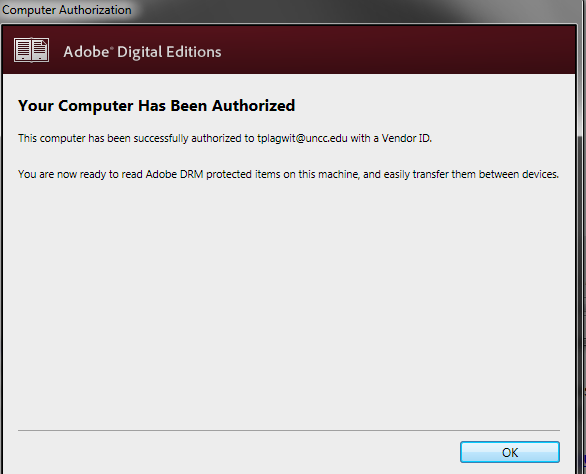
I went down the "authorize your computer" route:
-

-
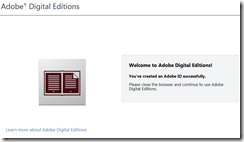
-
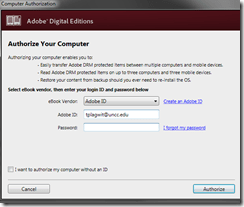
-
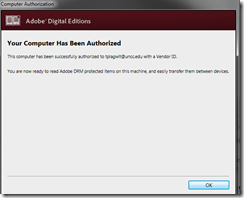
-
Here is my first example (from the Adobe samples website):
-
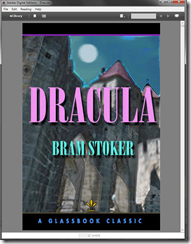
-
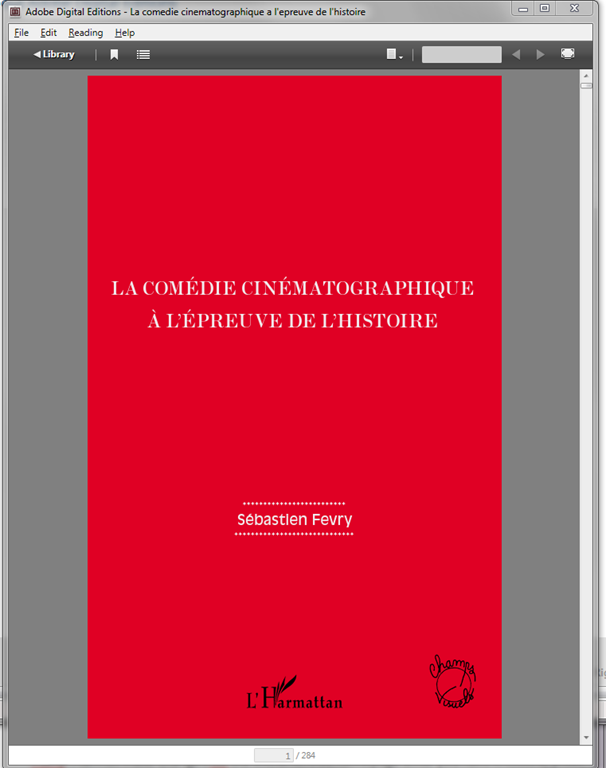
From now on, I can simply click on adobe digital edition links with ASCM files.
-
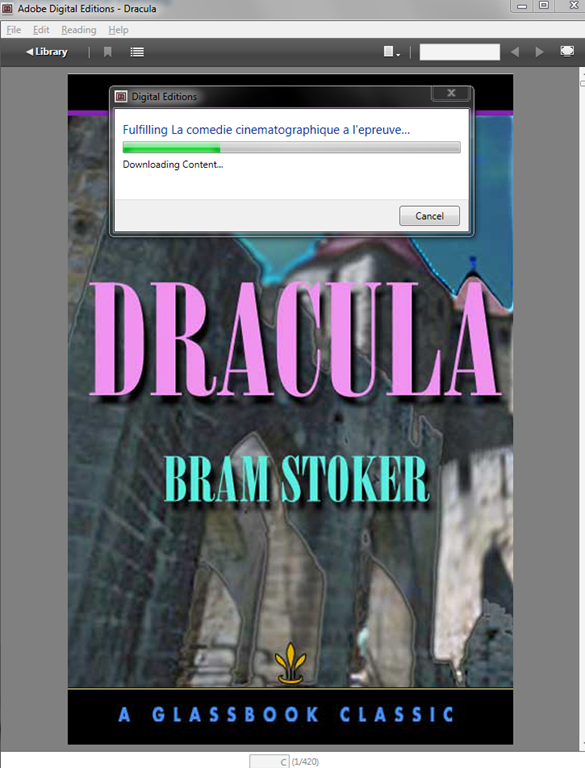
When getting the download dialogue, I can skip saving and click "open":
-

-
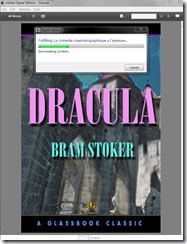
-
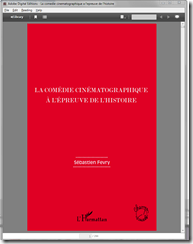
-
Note: you are consuming a license if you open te ebook with your account.





Protected: McGraw-Hill Connect Online Textbook Teacher Links
2013/08/20
Enter your password to view comments.
Categories: audience-is-teachers, documentation, Documents, e-languages, Spanish
Design options for the departmental WordPress-based website using Widgets and Pages
2013/07/28
Leave a comment
- For layout design:
- Go to http://[yo r site’s URL here]/wp-admin, e.g. http://lrc.unc.edu/wp-admin, and log in (you need site admin privileges , like I have for the LRC site).
- In the left-hand menu, click on “appearance”/ “widgets”
- You should see this:

- to design your right sidebar, follow the instructions on top of the widget list (i.e. drag and drop, then unfold the widget in question by clicking on the down arrow to the right
 to edit the appearance of the site.
- Go to http://[yo r site’s URL here]/wp-admin, e.g. http://lrc.unc.edu/wp-admin, and log in (you need site admin privileges , like I have for the LRC site).
- “Pages”(in the left hand menu)
- are an afterthought in wordpress which was originally based on dated posts (for a diary-like web logs), but can be useful for not time-sensitive , stable areas/sections of your site.
- You can include a bulleted or numbered list which you periodically update manually (click “edit” on the page)
- or, for frequently changing information (like lists of students), you can use a system that may have more initial learning curve, but in the long run makes updating easier
- embed an online spreadsheet from Google Apps or SkyDrive
- or embed an RSS feed like in the above example (if you have an RSS. provider).


LRC Teacher podium AV switch
2013/07/05
Leave a comment
- Even though we may soon swap the switch, here is how the AV switch needs to be connected for the teacher computer’s left screen to get projected to the dual projector screens:




Questions? Read the About. Or just ask me a quick Our Databases: Resources with calendars -- Language learning material Moodle Sites, multimedia files -- films


FAQs for LRC student staff or for students or for teachers. To search our FAQs, in the browser addressbar, add after "https://plagwitz.wordpress.com/feed/?tag=faqs+/" "+TAG1" (from tag cloud below) OR "https://plagwitz.wordpress.com/feed/tag=faqs
&category_name=" "CAT1" (from category hierarchy below). OR search both categories and tags, and multiple TAGs/CATs (connect with "," for OR-search, with "+" for AND-search), like so: https://plagwitz.wordpress.com/feed/?tag=TAG1+TAG2+...TAGn&category_name=CAT1
+CAT2+...CATn"
Other ways to find help
If you cannot find it here, look there: 5,500 Language-Learning Links and Programs for learning or teaching 150 languages
Shortcuts:Our Lists, Our Maps, LRC Staff Moodle Site,LRC Project Moodle Site, 49erexpress, UNCC Moodle, Student Recordings: s:claslcslrcsanakostudent
Learning usage samples: Sanako oral exam, Kaltura webcam presentation, Dictation with speech recognition, Sanako written exam, Chinese and Japanese interactive stroke-order practice
Test the Sanako Installer, Webbrowser Popup Konfigurator for XP, or Windows7, faster LRC TeacherPC Log-in Let MS facilitate diacritics writing by installing for you US-International keyboard layout
This is my personal blog (Google+). The views expressed on these pages are mine alone and not those of my employer. The information in this weblog is provided “AS IS” with no warranties, and confers no rights.
 Thomas' Work Space