Archive
Checklist for light kit (08-11)
- Are all Parts there(25)
- 4 plates (1)
- 2 more plates (2)
- 3 extension power cables (3)
- 3 lamps (4), containing 3 bulbs (not pictured)
- 2 thingamabobs (5)
- 8 clamps (6)
- 2 stands (7
- See also various documentation sheets included (not pictured below, but here)

- Test the Functionality
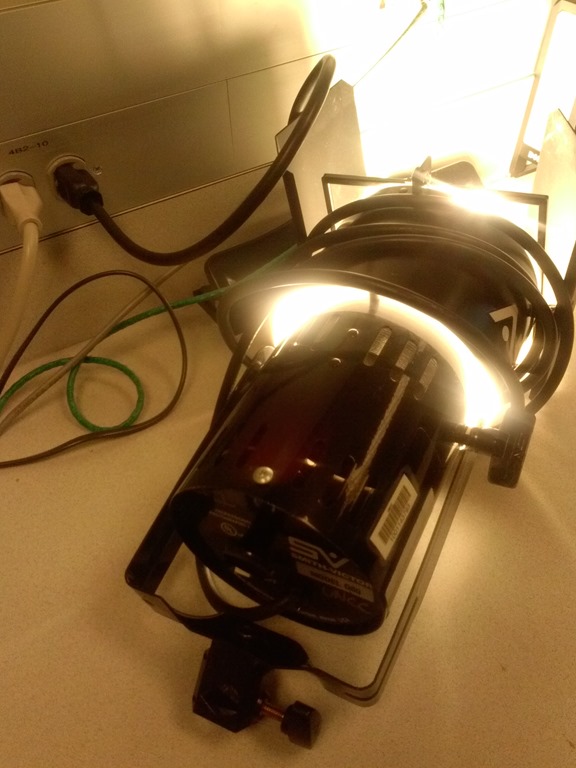
- Assemble light and stand, as shown:

- Plug in and turn light on
- Assemble light and stand, as shown:
- Maintenance
- If necessary, exchange bulb

LRC Wireless microphone basics
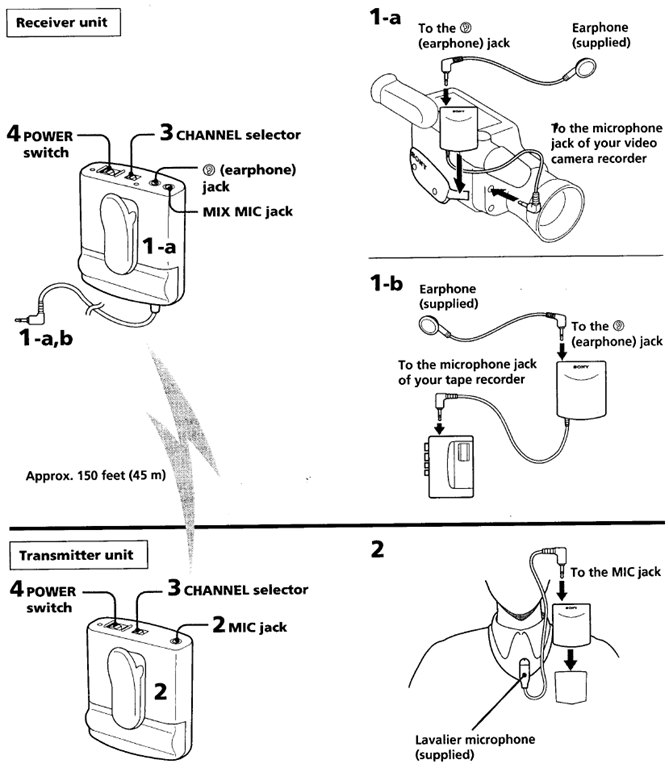
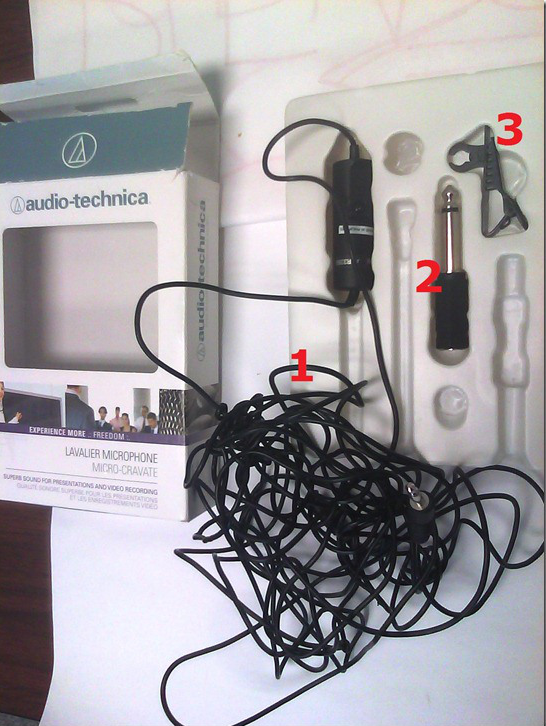
- Parts:

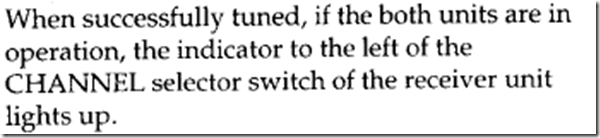
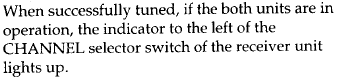
- Functionality test:
- In general, see here.
- For specifics:
- The lavaliere is optional, you can plug in another 3.5mm microphone.
- Maintenance:
- Check batteries
- Incidentally, in many classrooms, the Office of classroom technology can provide wireless microphones that connect to the teacher podium.
Checklist for lavaliere microphones (01-03)
- Are all Parts there?
- Microphone with 3.5 mm cable
- Phono adapter (1/4’’)
- Clip

- Battery (pictured below)

- Test the Functionality
- Maintenance:
- If needed, exchange battery (from box on shelves with sign "office supplies")
- Ensure that microphone is turned off. Have returning student make sure the microphone is turned off (wears down battery).


Checklist for light-kits
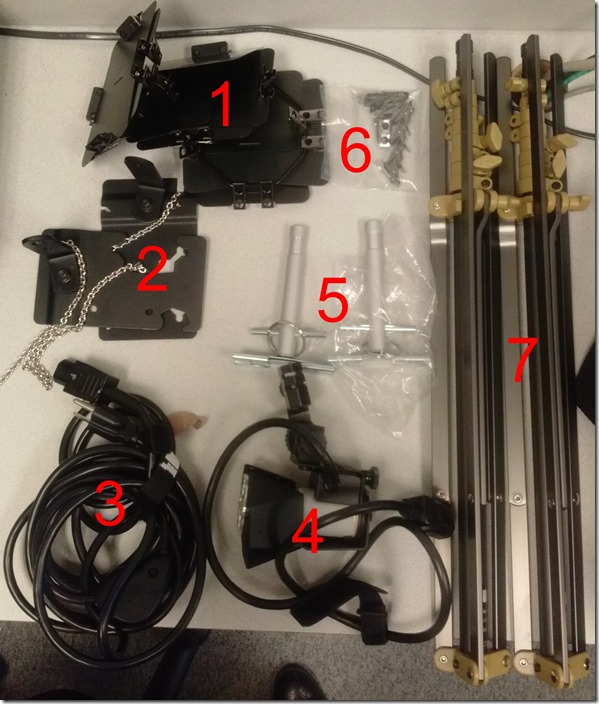
- Parts: 25 each, .i.e.:
- 4 plates (1)
- 2 more plates (2)
- 3 extension power cables (3)
- 3 lamps (4), containing 3 bulbs (not pictured)
- 2 thingamabobs (5)
- 8 clamps (6)
- 2 stands (7)
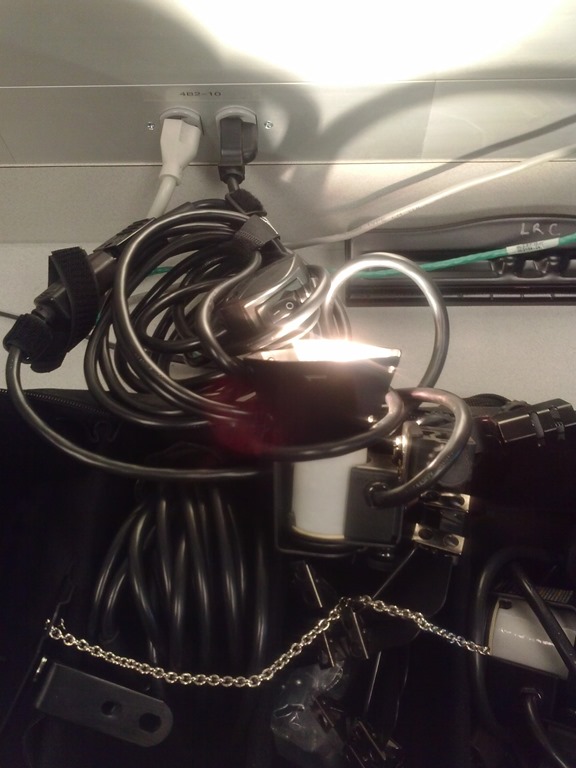
- Functionality: plug them in and turn them on, like so:


How to record your screen with MS-Community Clips
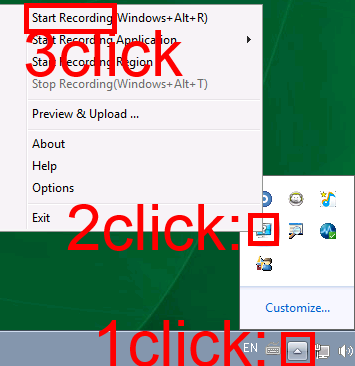
- During presentations, when creating demonstrations etc., it can be useful to record your screen (and your voice, if you speak into the headphone microphone). In the LRC, we have MS Community Clips pre-installed for this purpose. To start recording:
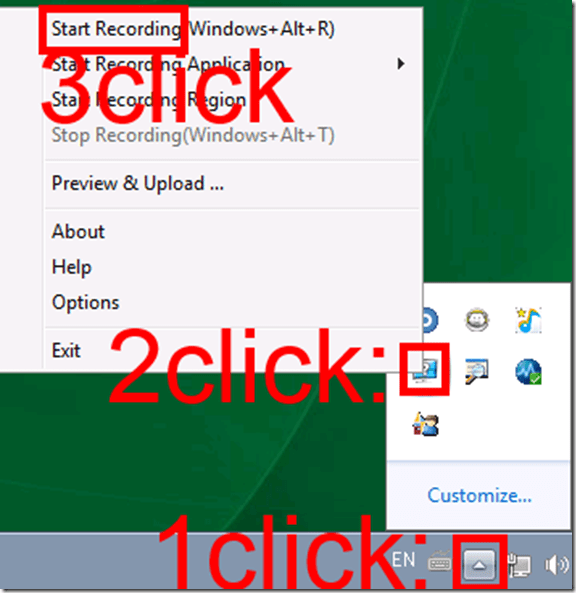
- To stop recording, follow the same steps, but in step 3 choose “stop”.
- Or forget about the menus and remember the keyboard shortcuts: WIN+ALT+R or T.
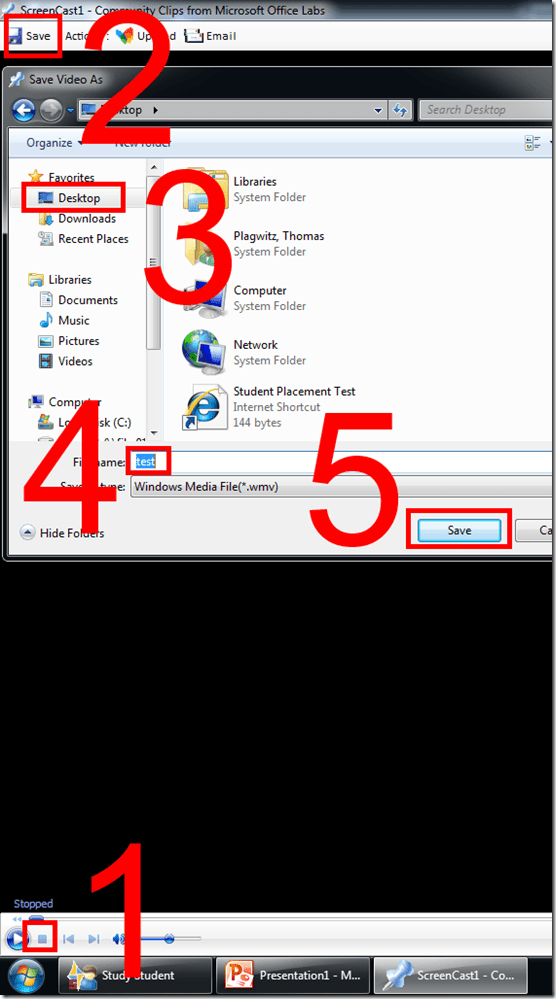
- The video will play automatically. Click stop, menu: Save, Save your recording where you need it (e.g. Desktop).
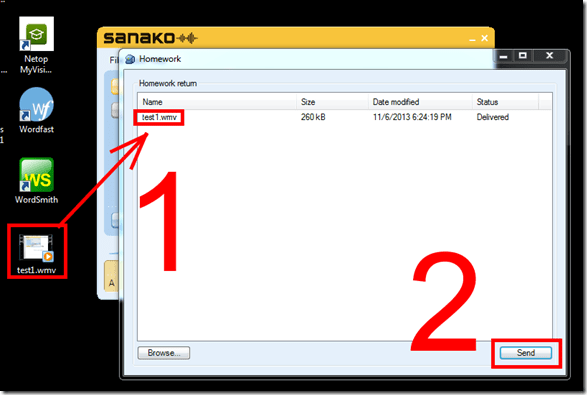
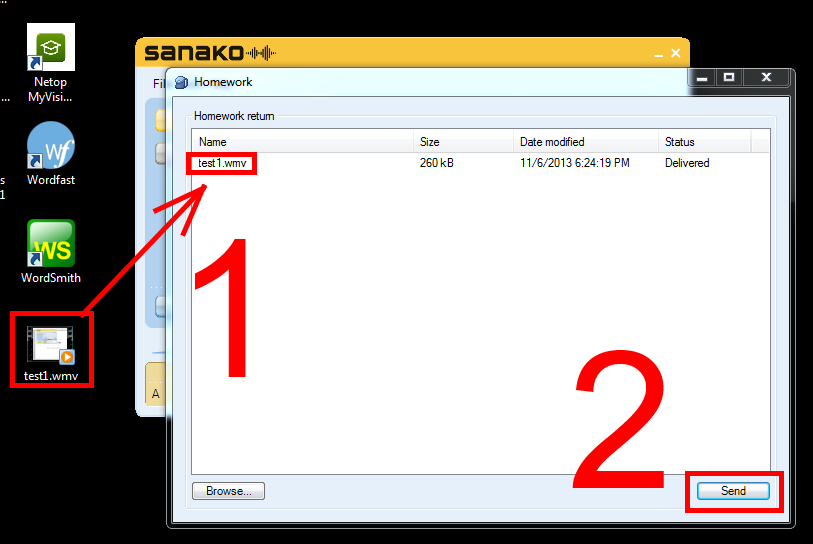
- If your teacher wants you to submit your recording, in the LRC you can drop it into the Sanako Homework window and “send” it:

How to shoot movies with the Canon Vixia–files sizes and limitations
Vixia 4:

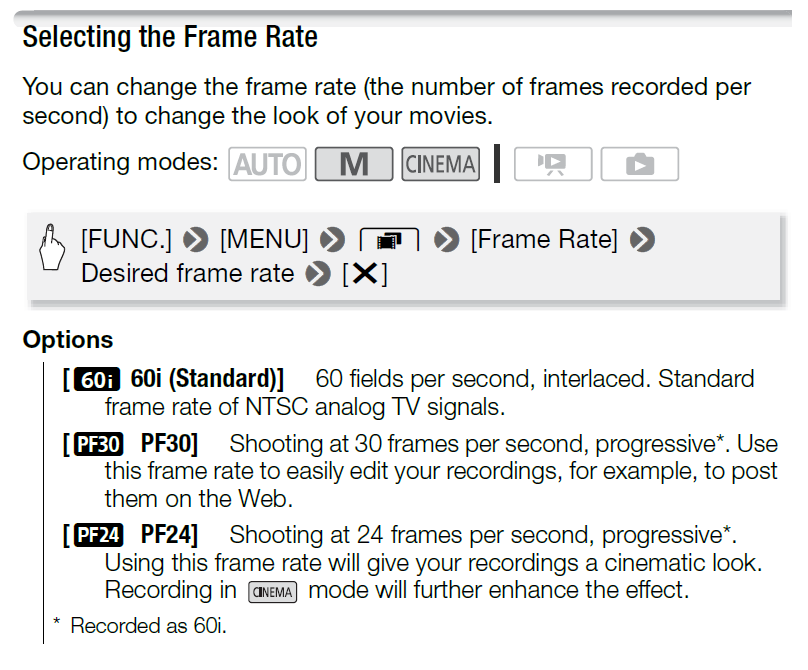
Vixia5:


Full overview:
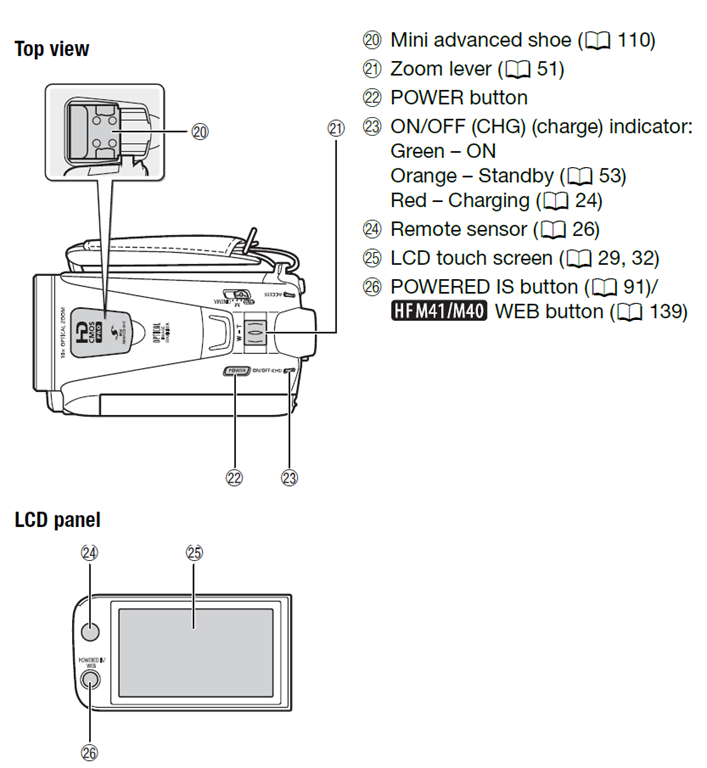

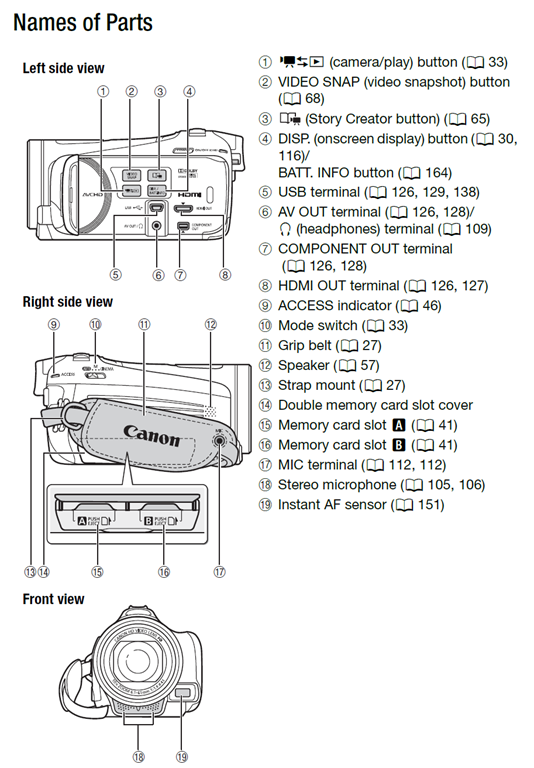
How to shoot movies with the Canon Eos Rebel T2i– and “movie recording has been stopped automatically”
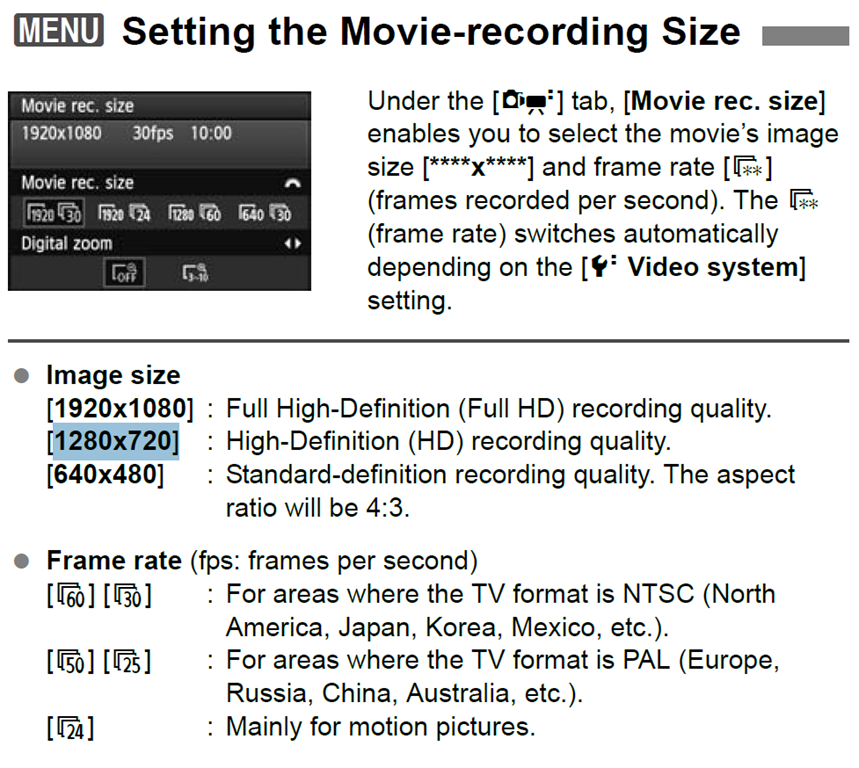
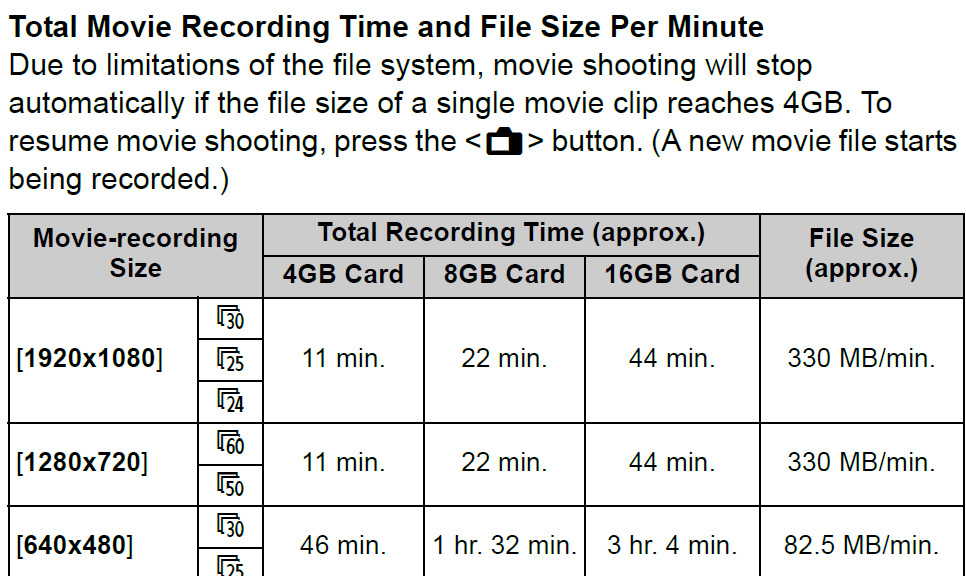
If the camera stops recording after a short while with the error “movie recording has been stopped automatically”, you most likely have an internal memory buffer overrun (there is a bar chart visible warning you off that shortly before the camera stops). This may be due to you not using a Class (6) or faster SDHC card. Try first a low level format inside the camera, or get a faster memory card. (Per the manual below, a lowering to standard HD should not help!).
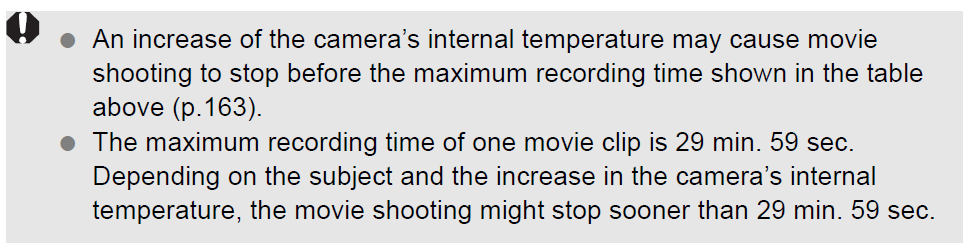
Note also: The camera stops the recording when the file size has reached 4GB (3.99 in Windows – FAT32 limit). It is left as an exercise for the reader when that point in time is. May be related to the fact that this camera is primarily meant for photos, not video. I felt I had to use the lowest HD setting with my untested SD card (the one that buffer overran slightly later with the earlier SD card: 1280*720, 60fps – which produces 1GB/3 minute).
Note finally: camera might stop also due to overheating.


Questions? Read the About. Or just ask me a quick Our Databases: Resources with calendars -- Language learning material Moodle Sites, multimedia files -- films


FAQs for LRC student staff or for students or for teachers. To search our FAQs, in the browser addressbar, add after "https://plagwitz.wordpress.com/feed/?tag=faqs+/" "+TAG1" (from tag cloud below) OR "https://plagwitz.wordpress.com/feed/tag=faqs
&category_name=" "CAT1" (from category hierarchy below). OR search both categories and tags, and multiple TAGs/CATs (connect with "," for OR-search, with "+" for AND-search), like so: https://plagwitz.wordpress.com/feed/?tag=TAG1+TAG2+...TAGn&category_name=CAT1
+CAT2+...CATn"
Other ways to find help
If you cannot find it here, look there: 5,500 Language-Learning Links and Programs for learning or teaching 150 languages
Shortcuts:Our Lists, Our Maps, LRC Staff Moodle Site,LRC Project Moodle Site, 49erexpress, UNCC Moodle, Student Recordings: s:claslcslrcsanakostudent
Learning usage samples: Sanako oral exam, Kaltura webcam presentation, Dictation with speech recognition, Sanako written exam, Chinese and Japanese interactive stroke-order practice
Test the Sanako Installer, Webbrowser Popup Konfigurator for XP, or Windows7, faster LRC TeacherPC Log-in Let MS facilitate diacritics writing by installing for you US-International keyboard layout
This is my personal blog (Google+). The views expressed on these pages are mine alone and not those of my employer. The information in this weblog is provided “AS IS” with no warranties, and confers no rights.
 Thomas' Work Space