Archive
Printing Problems in the LRC
- One problem
- Printer printing garbage like this?
_thumb.jpg "CIMG0002 (2)")
- To fix it, try power-cycling the printer
- Another problem
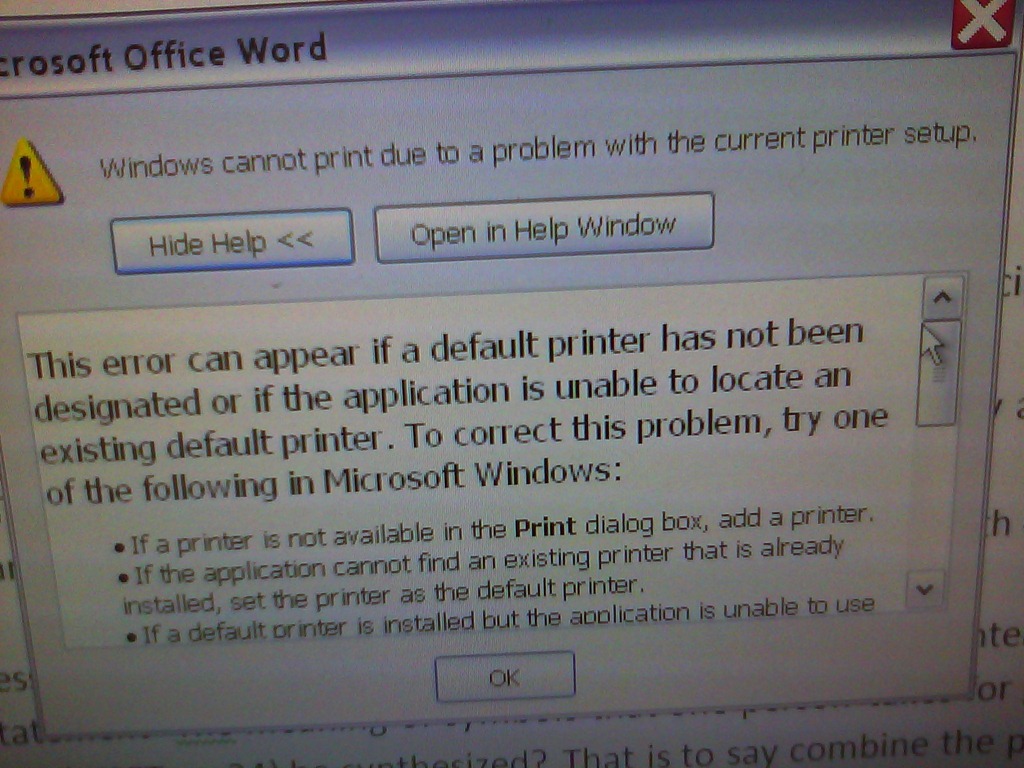
- Received this error, repeatedly with students trying from different LC computers.

- Until I told her to save the document (I thought she was authoring it), log out and log in on a different computer. Then miraculously she could print.
- Now I am left wondering: Did she open the document, maybe from Moodle, in her web browser, and the MS-Word browser plugin is not set up to print too our printer. Would be not a solution, but a workaround for this situation.
[3].jpg "CIMG0002 (2)")
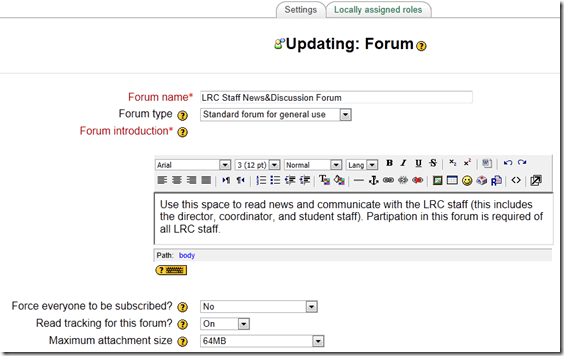
How to allow students to reply to News Forum posts in Moodle
- E.g. with this: “I have seen this post. I have followed the instructions. It worked for me.”

- Answered here: http://moodle.bath.ac.uk/faq/content/12/182/en/can-students-reply-to-news-forum-posts.html
- Does not work in our installation which is being investigated – maybe with good reason: I every study is forced to subscribe and can respond, their tend to be email floods which rather hide than surface important information.
- Workaround:
- Hide the news forum;
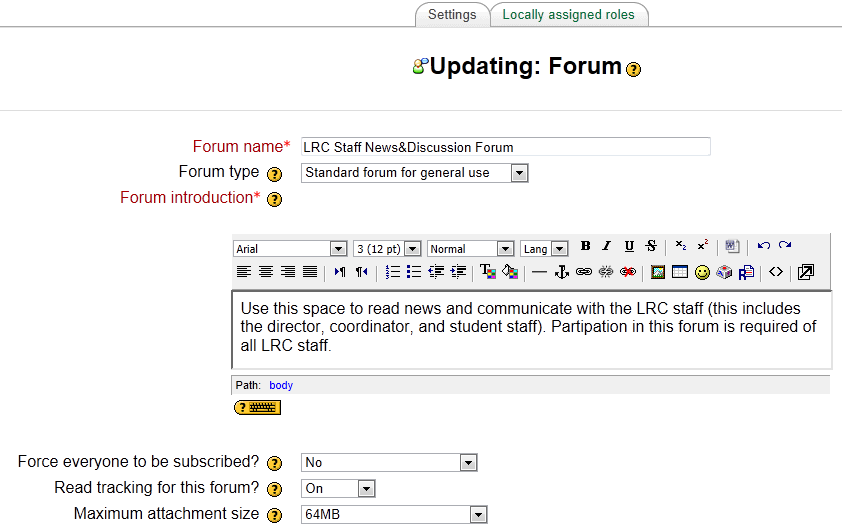
- create a regular Moodle Forum, where students can respond by default
- ask your users to read it and maybe monitor reading with tracking
- do not force them to subscribe = receive email
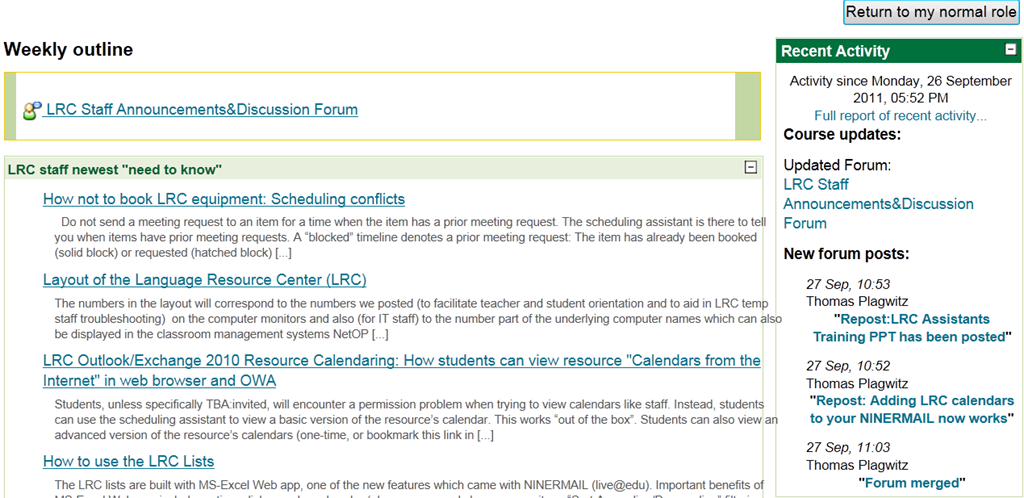
- I also hid the “Latest News” block, in the hope that the “Recent Activity” block can replace it:

MS-Exchange 2010 and OWA: Set Resource Calendar Response messages for Automateprocessing
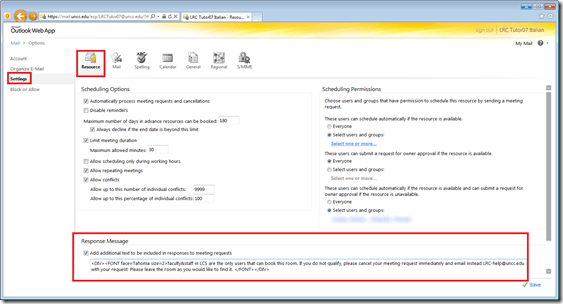
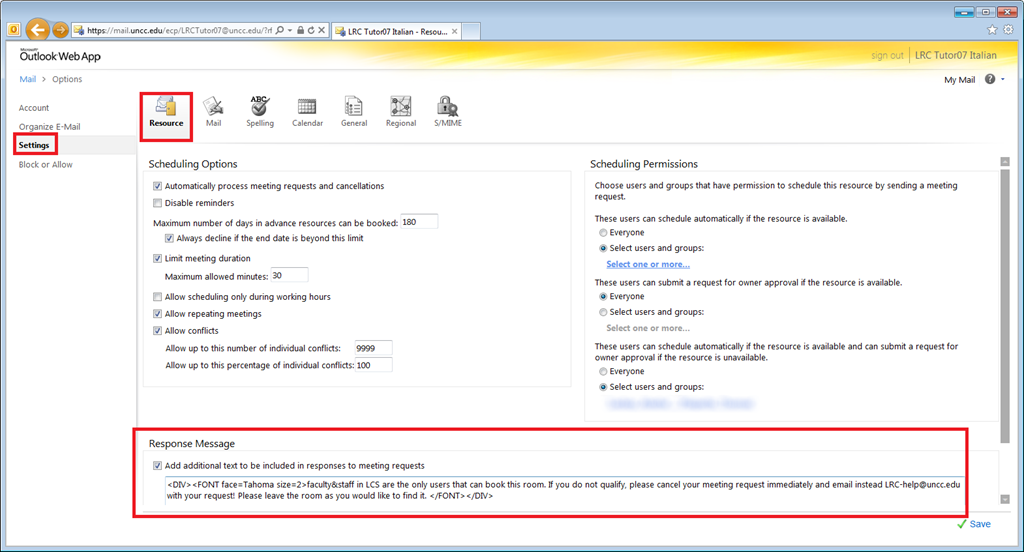
- You do not need your Exchange Admin to manage and change the ResponseMessages that your Resources Mailbox Assistants sent out by your Calendar Assistants.
- In OWA, impersonating the mailbox, in the upper right corner, go to “Options” / menu item: “see all options”, and then:
Exchange 2010 Internet Calendars Publishing: 404 and Access level restricted
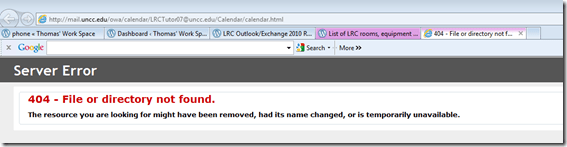
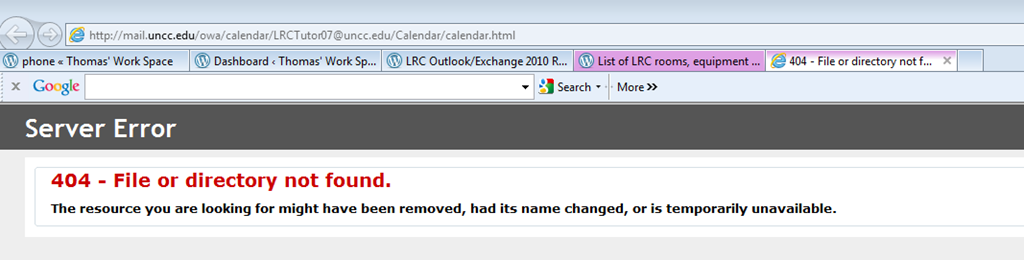
- to access a calendar by its friendly URL (with mailbox name) and get error “404 – File or directory not found. The resource you are looking for might have been removed, had its name changed, or is temporarily unavailable”, like here:
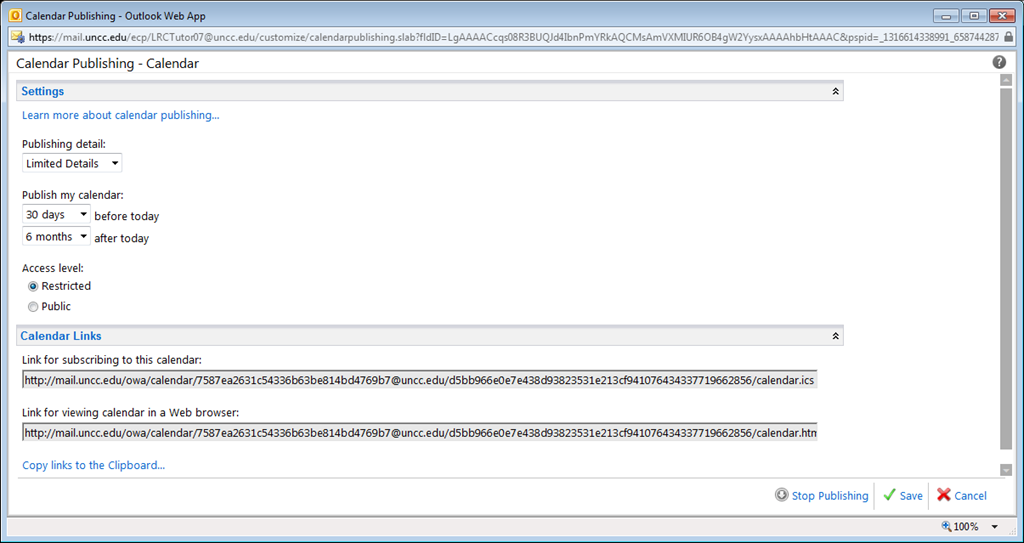
- Check your calendar publishing settings: They are likely set to “restricted”, as opposed to “public” which results in an obscure instead of memorable URL, like here:
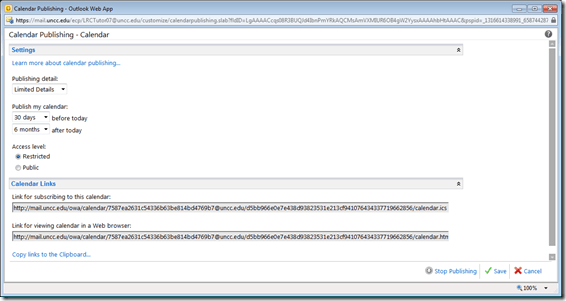
- Change the settings to “publish”and “save”, this will update the URLS, like here:


LRC Outlook/Exchange 2010 Resource Calendaring: How students can view resource "Calendars from the Internet" in web browser and OWA
- Want a shorter version?
- Students, unless specifically TBA:invited, will encounter a permission problem when trying to view calendars like staff.
- Instead, students can use the scheduling assistant to view a basic version of the resource’s calendar. This works “out of the box”.
- Students can also view an advanced version of the resource’s calendars (one-time, or bookmark this link in your web browser – hope you know how to synch your bookmarks between all the devices you use…). This requires little work: click on the “view” link in the “student calendar” column of our list of LRC resources that you can book or check out, to see the current calendar in your web browser:

- For students who check the calendar of a resource regularly (e.g. to see when the LRC main classroom is available for your self-access/the tutor in your language, for help), it is better to “bookmark” the resources’ calendars in NINERMAIL. Here is how:
- Copy the URL for the calendar you just opened, from the web browser address bar:
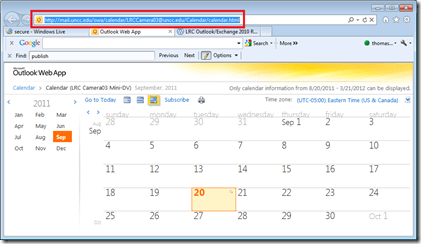
- Go to NINERMAIL, click on the lower left “Calendar-icon”
 to unfold the “My Calendars” list
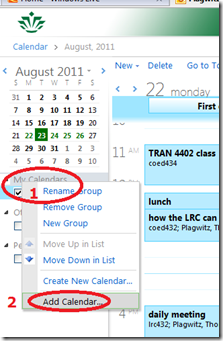
  in the left pane, then right-click on “My Calendars”, choose “Add Calendar”
 .
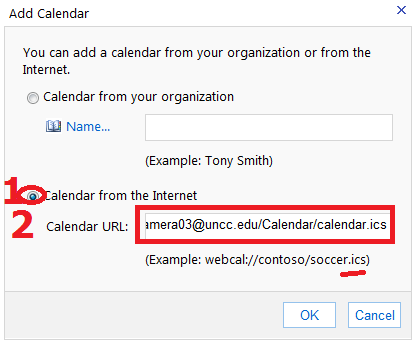
. - In the “Calendar URL” field, paste URL of the calendar you just opened, but replace “html” at the end with “ics”:
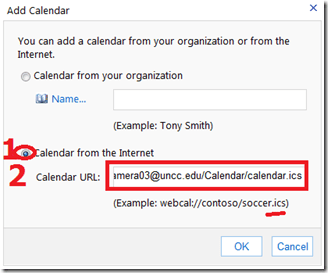 , click “OK”.
 - For on-premise users in OWA (seems OWA stirs on-premise users to the superior intranet calendars, which would be good. But what if the intranet calendar has not been shared with this user, but internet sharing is intended?), This may not work as advertised (neither with protocol http and webcal) OR just need a lot of time (~12hours?) to synchronize,
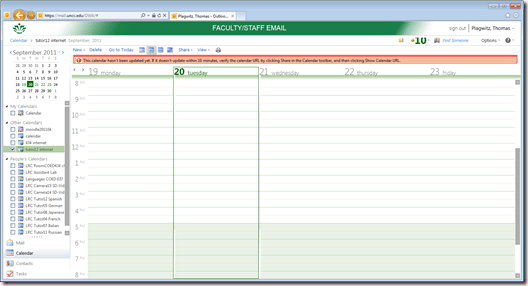 while it works (both with protocol http and webcal) when subscribing from Windows Live?
 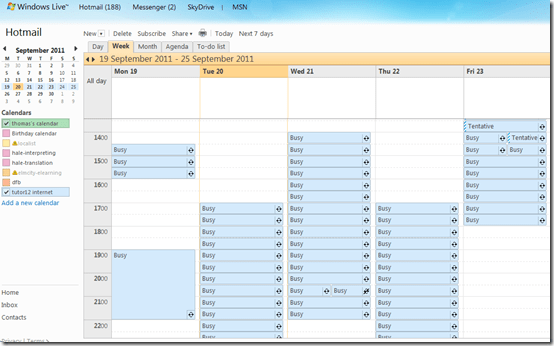 . Most importantly for us (as we have now tested), it works for students with accounts in the cloud from NINERMAI.
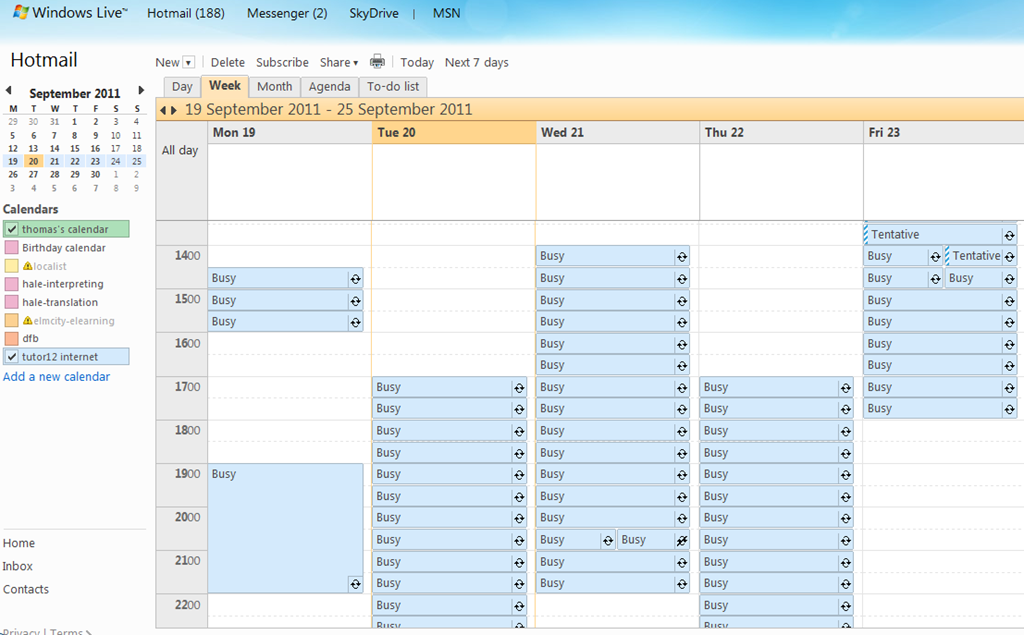
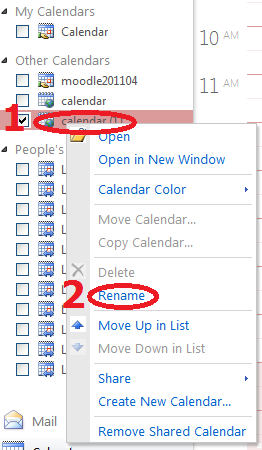
 - OWA remembers your internet calendar subscriptions, and you can easily display or hide them, using the checkboxes it provides. To keep an overview over your calendars added from the internet, you need to rename them, by right-clicking on them, like so:




How to use the LRC Lists
- The LRC lists are built with MS-Excel Web app, one of the new features which came with NINERMAIL (live@edu, try logging into http://skydrive.com .
- Important benefits of MS-Excel Web app include
- sorting: click on column header / down arrow, and choose menu item: “Sort Ascending/Descending”
- filtering: click on column header / down arrow, and choose menu item:
- either “filter”,
 , to choose from a condensed overview of all unique items that occur in the column, and e.g. filter out “Blanks” by removing the checkmark in front of it: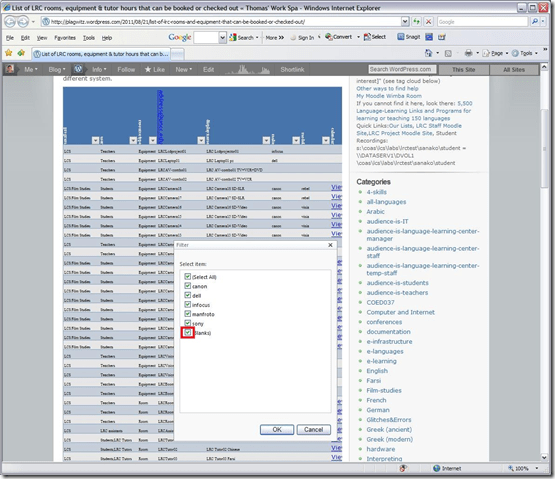
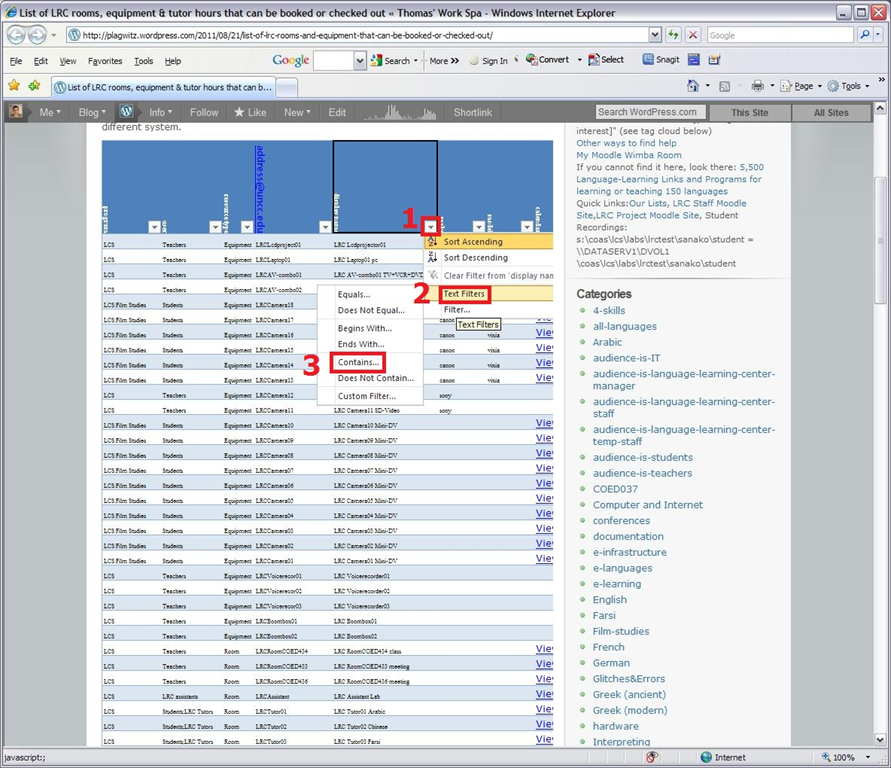
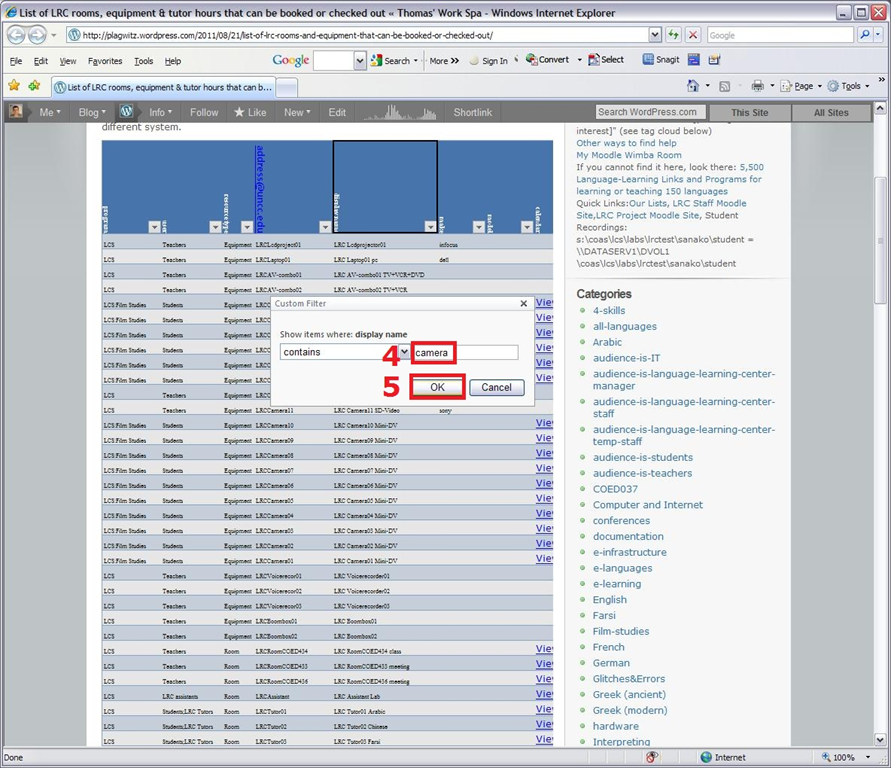
- or the advanced “number filter” (in columns with numbers) or “textfilter”,
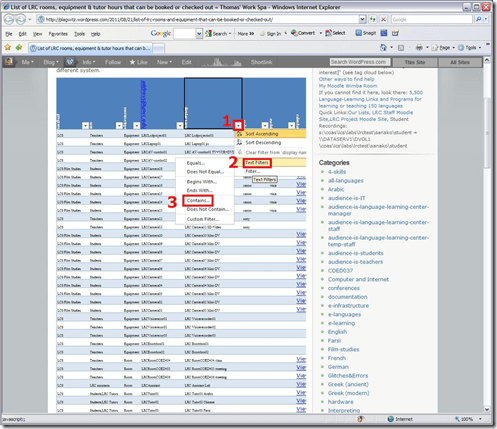 , to do more advanced searches, like for all items that contain “camera”: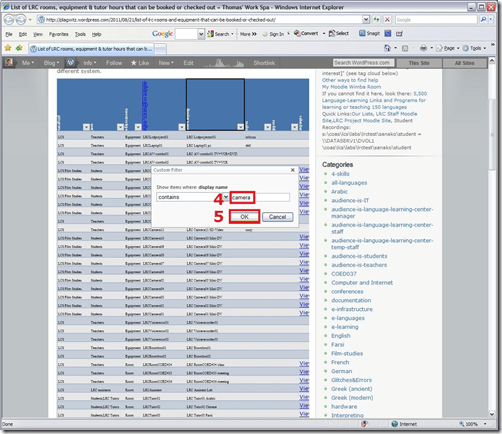
- sharing beyond viewing: Authorized users can click on an “edit link” below the list display to update the information from their web browser.
- either “filter”,


Our Office 2010 natural language features upgrade: A running log
- Just logging some notes, observations, issues, step-by-step instructions… – other than non-natural-language, most collaboration features, which are being logged here.
- Office 2010 proofing tools (proofing-tools2010-install.wmv),:
- again, we select custom install, “run all from Computers”
- install is extensive, but uneventful
- Office 2010 proofing tools (proofing-tools2010-first-run-German-set-language.wmv), first run:
- German is not autodetected. You have to set the language of the selected text manually, and first find the button on the ribbon:reviewing
- While choosing the language, you can see from the checkmark which languages now have proofing tools installed
- Foreign Language Support
- One of the strongest benefits of upgrading to MS-Office 2010 in the language center is the improved foreign language support licensing for so called “Language Packs”, and that we have a complete set of licenses to the MS-Proofing Tools.
- In addition MS-Office supports free download of so called “Language interface packs” which seem essentially downscaled language packs for LCTL (usually come only with (see feature list) a spell checker and help in the language). Compare: “If a language is available in a language pack or as a fully localized version, it is not available as a language interface pack”.
- Unfortunately multi-user (= learner of different language) support is not the primary usage scenario of these tools. It is, however, possible, to set the language to a default (e.g. Spanish, Arabic or Chinese, depending on your environment). Switching to another language is relatively easy for a user
- changing the screen-tip language: http://skydrive.live.com/embedicon.aspx/screencasts/office-2010-switch-screentip-language.wmv?cid=4fa3329905d7e1ce&sc=photos
Time-zone issues when creating meeting requests
Do the clouds change with the time zones you are in, or can the cloud also change your time zone?  We are seeing strange inconsistencies of time zones in meeting requests with on-premise resource mailboxes from hosted student accounts…
When students say they see the “correct” time in *their* calendar, they should verify their time zone settings. In OWA/NINERMAIL, upper right corner: Options / See All Options / left menu: Settings / top menu: Calendar / you can check your time zone. In OWA / upper right corner: Options / See All Options / left menu: Settings / top menu: Regional / bottom drop-down:, you can change your time zone, like in the last dropdown here:

From setting up calendaring infrastructure for a university using Windows Live Accounts only, I remember that users, when they manually created their accounts, failed to look at the time zone dropdown. So instead of at Greenwich time, they ended up at Pacific time which seems the default for MS products.
That’s one of the reasons why I am glad not having to use Windows Live Accounts for the enterprise anymore. Now how can time zones be not set up properly for student accounts in a hosted environment? And this time we see not only the Pacific, but also Monrovia… 
The answer seems to be: Even though large institutions may be creating 25000 accounts when they start using live@edu, there seems to be no way to set a default time zone in live@edu to where the client predominantly does business. It seems still the server time that sets the default offered to the new user on login. I could tell you a story or two why that needs fixing…


Questions? Read the About. Or just ask me a quick Our Databases: Resources with calendars -- Language learning material Moodle Sites, multimedia files -- films


FAQs for LRC student staff or for students or for teachers. To search our FAQs, in the browser addressbar, add after "https://plagwitz.wordpress.com/feed/?tag=faqs+/" "+TAG1" (from tag cloud below) OR "https://plagwitz.wordpress.com/feed/tag=faqs
&category_name=" "CAT1" (from category hierarchy below). OR search both categories and tags, and multiple TAGs/CATs (connect with "," for OR-search, with "+" for AND-search), like so: https://plagwitz.wordpress.com/feed/?tag=TAG1+TAG2+...TAGn&category_name=CAT1
+CAT2+...CATn"
Other ways to find help
If you cannot find it here, look there: 5,500 Language-Learning Links and Programs for learning or teaching 150 languages
Shortcuts:Our Lists, Our Maps, LRC Staff Moodle Site,LRC Project Moodle Site, 49erexpress, UNCC Moodle, Student Recordings: s:claslcslrcsanakostudent
Learning usage samples: Sanako oral exam, Kaltura webcam presentation, Dictation with speech recognition, Sanako written exam, Chinese and Japanese interactive stroke-order practice
Test the Sanako Installer, Webbrowser Popup Konfigurator for XP, or Windows7, faster LRC TeacherPC Log-in Let MS facilitate diacritics writing by installing for you US-International keyboard layout
This is my personal blog (Google+). The views expressed on these pages are mine alone and not those of my employer. The information in this weblog is provided “AS IS” with no warranties, and confers no rights.
 Thomas' Work Space