Archive
Archive for the ‘audience-is-teachers’ Category
Sanako Study 1200 student in-class web browsing activity caveats, errors&glitches
2012/03/01
Leave a comment
- If we put the full URI of the website (e.g. http://www.dict.cc), we experience the student web browser not opening up (either hanging at "verifying access" dialogue or empty browser window and definitely no table of contents browser window). Workaround: put just e.g. http://www.dict.cc.
- CAVEAT: make sure you actually know which sub-pages will be loaded (and thus need to be allowable) during your web browsing activity
- the address-bar is misleading when a your pages are loaded within a frameset. like in this example:
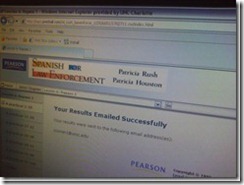 . In this example, allow all links in the left menu.
 - your list of allowable pages should cover the entire workflow, including feedback pages that the student may receive
- TBA: it is sufficient for a web page to be allowed/blocked if its URL string contains your listed URL as a substring
- the address-bar is misleading when a your pages are loaded within a frameset. like in this example:
- We have observed `the following issues:
- that the sanako web browser may hang, on startup or later, but a common workaround is closing a hanging sanako web browser which will reopen it on the table of contents page.
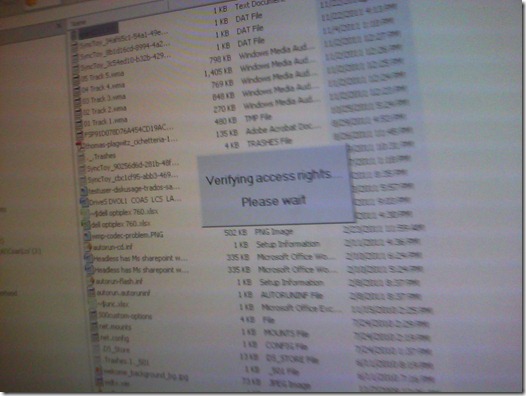
- that the “verifying access rights” window can disappear quickly, but may delay web browsing for a considerable time before your students are allowed to browse to a web page – please allow time for that (we are investigating whether the size of the class or the type of allow/deny list or individual allow/deny links cause this delay).
![sanako-webbrowsing-strict-policy_thumb[1]](https://thomasplagwitz.com/wp-content/uploads/2012/03/sanako-webbrowsing-strict-policy_thumb1_thumb.jpg?w=244&h=185 "sanako-webbrowsing-strict-policy_thumb[1]")
- that the sanako web browser on some computers (despite them have identical software images?) arbitrarily opening new windows which muddies the waters considerably – and also seems to require more time for the verifying –, but does not make the exercise fail:

![sanako-webbrowsing-strict-policy (1)_thumb[2]](https://thomasplagwitz.com/wp-content/uploads/2012/03/sanako-webbrowsing-strict-policy-1_thumb2_thumb1.jpg?w=600&h=451 "sanako-webbrowsing-strict-policy (1)_thumb[2]")

![sanako-webbrowsing-strict-policy_thumb[1]](https://thomasplagwitz.com/wp-content/uploads/2012/03/sanako-webbrowsing-strict-policy_thumb1.jpg "sanako-webbrowsing-strict-policy_thumb[1]")

![sanako-webbrowsing-strict-policy (1)_thumb[2]](https://thomasplagwitz.com/wp-content/uploads/2012/03/sanako-webbrowsing-strict-policy-1_thumb21.jpg "sanako-webbrowsing-strict-policy (1)_thumb[2]")
Protected: Mock exam for Spanish combines various learning technologies in the LRC
2012/03/01
Enter your password to view comments.
Categories: audience-is-teachers, classroom-management-system, e-languages, iMacs, learning-usage-samples, Listening, Listening-Stations, lms, LRCRoomCoed434, marketing, multimedia-recording, Photos, Practice&Demos, Reading, service-is-assessing, Spanish, Speaking, Vocabulary
kaltura, moodle, sanako-study-1200, web-browsing-activity
Clicker-like exercises: A comparison what the LRC has to offer
2012/03/01
Leave a comment
- PollEverywhere.com
- Sanako Study 1200
- Live Feedback
- Voting
- Exam (not currently installed)
- NetOp School: TBA
Face-to-face-teaching exam using Sanako Study 1200
2012/03/01
Leave a comment
- Sanako Exam is an add-on at additional cost and not currently available in our setup.
- Sanako Exam teacher-created content is stored locally, file management beyond that is up to the user. This makes such polls less portable, but potentially sharing within a department might be easier.
- Student Results can be identified by student, and saved.
 View here a screencast demo of how a Sanako Exam can be
- authored and
- deployed.
Replace clickers with students’ phones using PollEverywhere.com
2012/02/29
Leave a comment
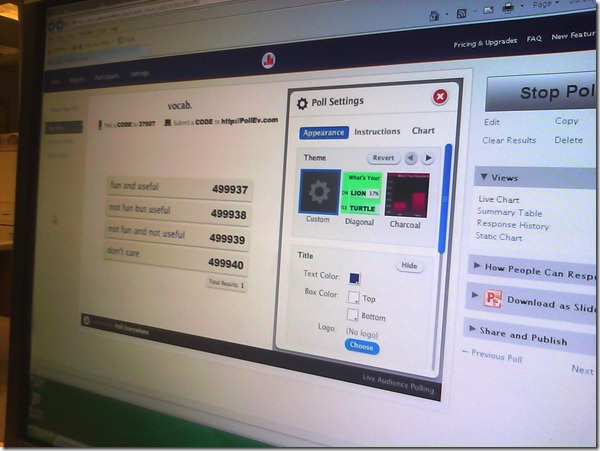
- PollEverywhere.com allows teachers to set up polls with answer options that students choose by sending a number code as text message.
- Pro’s
- Freemium.
- Low- to No- university infrastructure requirements. Best-used in a non-computerized classroom or during startup time of students’ computers.
- Content can be managed online.
- Con’s
- Freemium:
- “You get what you pay for”. “You may be the business”. What happens with your data
- Not free for students unless you consider a phone plan that comes with unlimited texts free. With increasing use of other messaging options over SMS, that may be not a given even if you deal mostly with an affluent student population.
- Low- to No- university infrastructure requirements:
- you are relying on students providing the infrastructure. Are they better keeping their phones in service (on them, charged, turned on) than we are keeping our computer labs up and running?
- you are relying on mobile network operators, including the choices of operator that your students made.
- Anonymous: Not useful for assessment purposes.
- The number codes are long (6 digits, while 1 could be sufficient).
- Freemium:
- Competitors
- The university has a clicker infrastructure which is partially outsourced to students (purchase and bring).
- The LRC has a Classroom Management system infrastructure which supports clicker-like activities.
- Sanako Study 1200 comes with Live Feedback and Voting.
- NetOp School comes with an examination/polling feature also.

Live Feedback and Voting for clicker-like activities in Sanako Study 1200
2012/02/29
Leave a comment
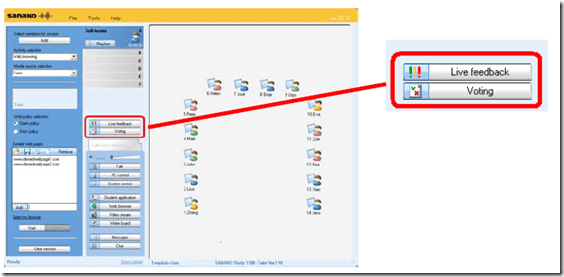 (Images are from the Sanako documentation, screencasts my own) .
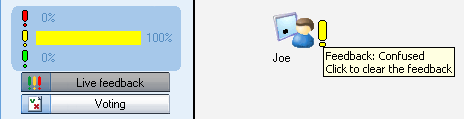
- Sanako Study 1200 comes with Live Feedback.
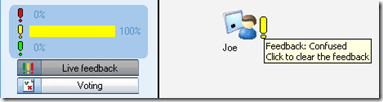
- This is what it looks like:
- The teacher enables students to give Live Feedback from their student player interface by pressing the Live Feedback button.
- Live Feedback is designed for students sending basic information whether they are following or confused or neutral.
- These up to 3 answer options could possibly be repurposed, and the question displayed by separate means. Polls can only be anonymous, results cannot be saved.
- More importantly, the results are not anonymous, but appear on the student icons in the classroom layout so that the teacher can attend to those students that are confused or otherwise struggling.
- This is what it looks like:
- Sanako Study 1200 also comes with Voting.
- A brief demo screencast of Voting is here:

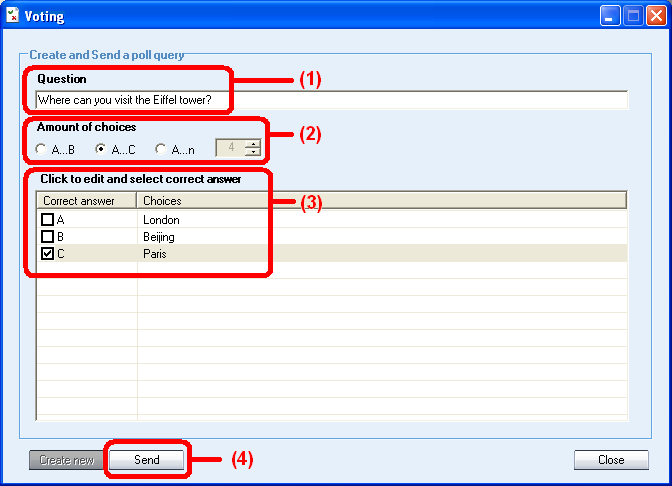
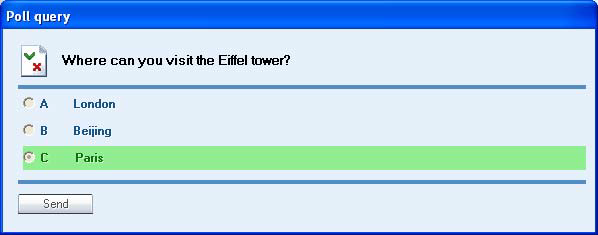
- The teacher enables students to give Voting from their student player interface by pressing the Voting button, entering questions, answer options, optionally marking one (and only one) answer as the right answer and clicking “send’ to the students,

- on whose computer a window with will pop up with question and answer option
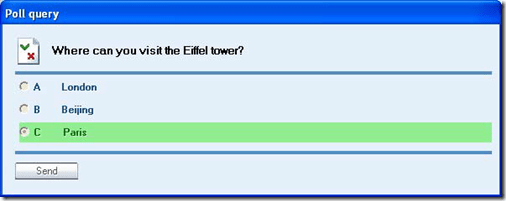
- while the feedback voting results window pops up on the teacher from where the teacher can “send the correct answer” to the students once everybody has voted, and “create new” polls.
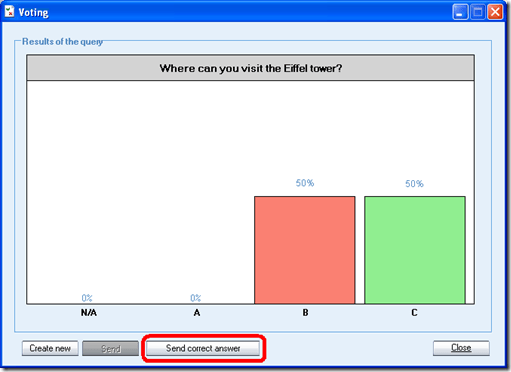
- Results can be viewed by the teacher and displayed to the class, but cannot be stored (there is no storing mechanism. One could however save a screenshot of the teacher voting result window).
- The Voting is also “live” insofar as no content can be archived and reloaded. Maybe this Live Voting can be both accelerated and extended through the use of a simple PowerPoint displayed on the classroom screen, by just using live Voting’s result aggregation features and forfeiting filling out/displaying the question and answer options within the live voting interface for the teacher/students.
- A brief demo screencast of Voting is here:
- Not free, but less limited: Sanako Exam.


How to restrict student in-class web browsing activity with Sanako Study 1200
2012/02/25
Leave a comment
- In the Group pane, from the Activity dropdown selector, choose web browsing.
- if your students
- do an open-ended web quest, choose radio button: open policy to be able to provide a list of non-allowable websites (e.g. YouTube.com may be useful for your students’ online research activity, but Facebook.com not)
- take a well-defined and –confined assessment like an online quiz, choose radio button: strict policy to be able to provide the list of allowable websites
- either way, put just the site address (e.g. http://www.dict.cc), without the protocol (NOT: http://www.dict.cc), or else…
- the web browsing activity,
- prevents any other browser from being opened by the student but IE
- begins with opening for the student the table of contents page in IE, listing the allowable websites; whenever the students closes the IE, Sanako reopens it on the table of contents page .
- each web activity of your student will be verified against your allow list:
- Note that
- there are some caveats, errors&glitches.
- the Respondus Lockdown browser (see screencast at min 18:00) installed in the LRC also can also be used to prevent students from accessing non-web-based programs on the computer they are working on; but can not be restricted to a number of web pages, nor can students receive a Table of Contents of the web pages they are allowed to go to .

Screencast showing how to “Add resource: link to a file” in Moodle, including file upload into file area
2012/02/23
Leave a comment
If you do not know how to make an MS-Word or audio or other file accessible to your course through Moodle, you can view a demo here.
Categories: audience-is-teachers, documentation, e-infrastructure, lms
link-to-a-file, moodle


Questions? Read the About. Or just ask me a quick Our Databases: Resources with calendars -- Language learning material Moodle Sites, multimedia files -- films


FAQs for LRC student staff or for students or for teachers. To search our FAQs, in the browser addressbar, add after "https://plagwitz.wordpress.com/feed/?tag=faqs+/" "+TAG1" (from tag cloud below) OR "https://plagwitz.wordpress.com/feed/tag=faqs
&category_name=" "CAT1" (from category hierarchy below). OR search both categories and tags, and multiple TAGs/CATs (connect with "," for OR-search, with "+" for AND-search), like so: https://plagwitz.wordpress.com/feed/?tag=TAG1+TAG2+...TAGn&category_name=CAT1
+CAT2+...CATn"
Other ways to find help
If you cannot find it here, look there: 5,500 Language-Learning Links and Programs for learning or teaching 150 languages
Shortcuts:Our Lists, Our Maps, LRC Staff Moodle Site,LRC Project Moodle Site, 49erexpress, UNCC Moodle, Student Recordings: s:claslcslrcsanakostudent
Learning usage samples: Sanako oral exam, Kaltura webcam presentation, Dictation with speech recognition, Sanako written exam, Chinese and Japanese interactive stroke-order practice
Test the Sanako Installer, Webbrowser Popup Konfigurator for XP, or Windows7, faster LRC TeacherPC Log-in Let MS facilitate diacritics writing by installing for you US-International keyboard layout
This is my personal blog (Google+). The views expressed on these pages are mine alone and not those of my employer. The information in this weblog is provided “AS IS” with no warranties, and confers no rights.
 Thomas' Work Space