Archive
Protected: Meet the Resource Attendants and their Scheduling Assistants– or Who are these people, anyway?
Query treebanks with Fangorn for English SLA?
To provide inductive empirical examples, SLA classes have benefitted from query interfaces to target language text corpora in SLA. But corpora are usually POS-tagged – and queried – at best, which constitutes a certain “impedance mismatch” to what SLA classes actually teach. The Fangorn very large treebank query language beta demonstration page

looks already interesting for analyzing English in SLA (hover over tree elements to highlight the corresponding text), including, thanks to its capability of editing and refining queries graphically from the search results, for demonstrations during face-to-face classes. Wondering whether other corpora than Penn Treebank, Wikipedia (5k and 5000k sentences) will be made available online, and other languages but English will be supported.
How to take roll in class using Sanako Study 1200
- Today:
- I had to work on getting my Sanako classroom layouts back up after a network cutover on the first day of the academic year.
- I could observe a teacher new to the Sanako lab taking roll on paper, reading out each student’s name and finding the student in the classroom . This is a known good way to learn to put a face to a students’ name. Once that is done (and maybe could be done also faster using student thumbnails in university computer systems like the LMS), one can save teaching time taking roll doing the following :
- At the beginning of each of your class meetings:
- You cannot start a sanako class before your students have logged in and their sanako student clients have started up – that is the first I always ask my students to do.
- In the initial Sanako tutor startup dialogue, open an empty class.
- Wait for the “corridor” to be fully populated, then select all.
- Have the sanako tutor populate the classroom layout.
- Choose menu file / save classroom layout as, and save in your tutor folder with the date as the filename.
- (Load your familiar class layout to actually begin your class – this will take little extra time, for Sanako tutor does not need to wait again for the Sanako student clients to start up).
- After the last day of classes:
- load each saved file into MS-Excel (as an XML table),
- first column will be class date, hide all columns in between that and your student login name,
- select and copy these 2 columns into an attendance spreadsheet (if you find a way to strip the xml wrapper, you can merge the files on the command line – after all, the classroom layout files are just plain text),
- in the attendance spreadsheet, calculate attendance
- either sort first by date, then by login name, and count attendance manually using the dates;
- or have Excel count for you with an array formula pasted into a third column that checks for and counts identical dates.
- Final thoughts: Your mileage may vary if you don’t teach all your classes in a Sanako lab – I used to and have come to appreciate an institutionally provided and maintained lab infrastructure which is stable – compared with complaints I have heard about having to rely on your students not forgetting their clickers if you want to use technology rather than class time for taking roll outside of a stable infrastructure.
Refine your pronunciation by operating the LRC Windows 7 PCs using voice commands
- No speech recognition assignment, and only a bit of spare time to practice the language you study in the LRC? Try the Command mode with these Try the Command mode with these voice commands that Windows 7 speech recognition recognizes
- Note there are some hoops to jump through, including some one-time setup: We have them/you covered in this step-by-step guide on using speech-recognition in the LRC
.
How to recycle your Moodle Course using backup/restore
Better do this before the first day of classes, but if you need a quick refresher:

How best to edit PDF here
The college provides each faculty and staff member with a full version of Adobe Acrobat (with editing capabilities) on their office computer. If it is not already installed, you can submit a request here.
Immerse yourself into your language of study by switching the user interface language on LRC PCs
- Ever imagine yourself studying or working in an e.g. Spanish– Japanese- or Chinese- speaking country? Then you will likely find yourself in front of a computer display that is in that language – what if you could get a sneak preview before you go?
- You can now switch the interface language of the LRC Windows 7 computers (including Internet Explorer and MS-Office (note that you have to change the editing language separately) to your language of study (How?).
- All non-classical languages studied here are supported:
Language Native name Arabic العربية Chinese (Simplified) 中文(简体) Chinese (Traditional) 中文 (繁體) English English French français German Deutsch Greek Ελληνικά Hebrew עברית Italian italiano Japanese 日本語 Korean 한국어 Polish polski Portuguese (Brazil) Português Portuguese (Portugal) português Russian Русский Spanish español - Some languages, however, come only with the limited support of a MS Language Interface Pack :
-
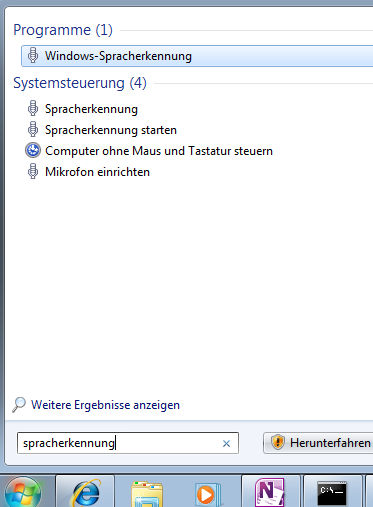
Hindi हिंदी KiSwahili Kiswahili Persian (Farsi) فارسی Yoruba ede Yorùbá - Below are examples (for German) what you get when you switch the operating system language:


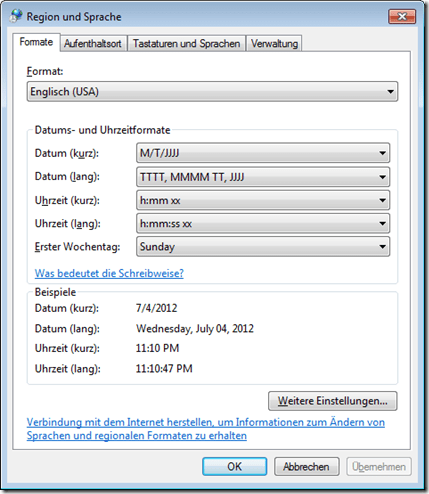

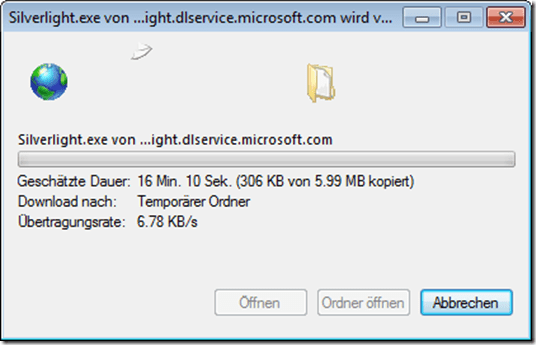

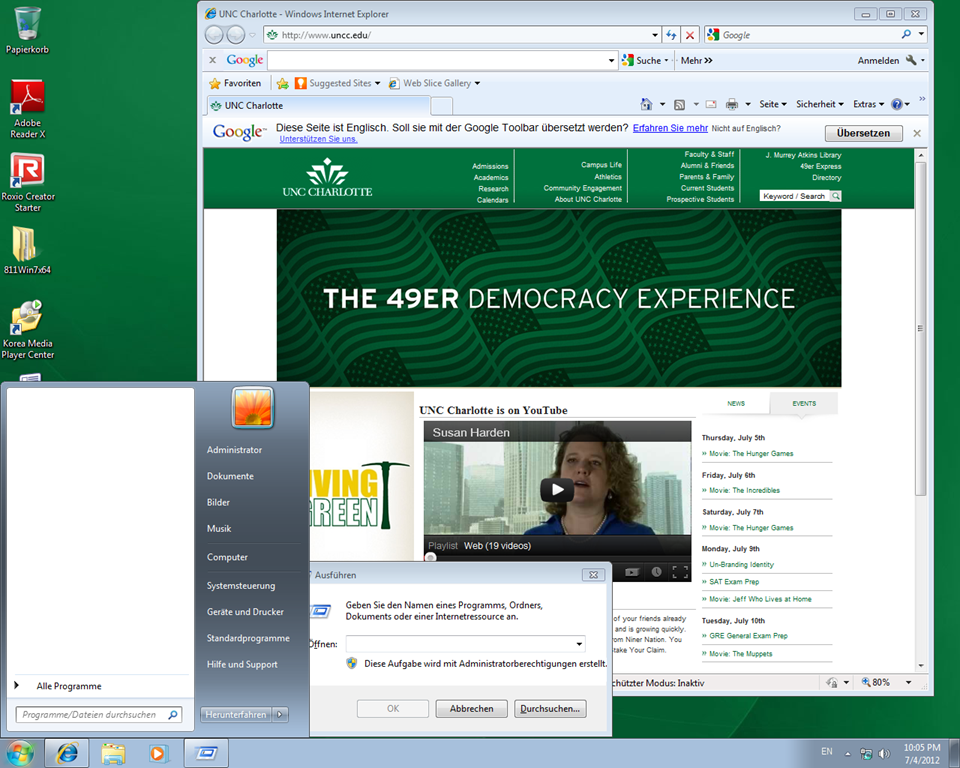
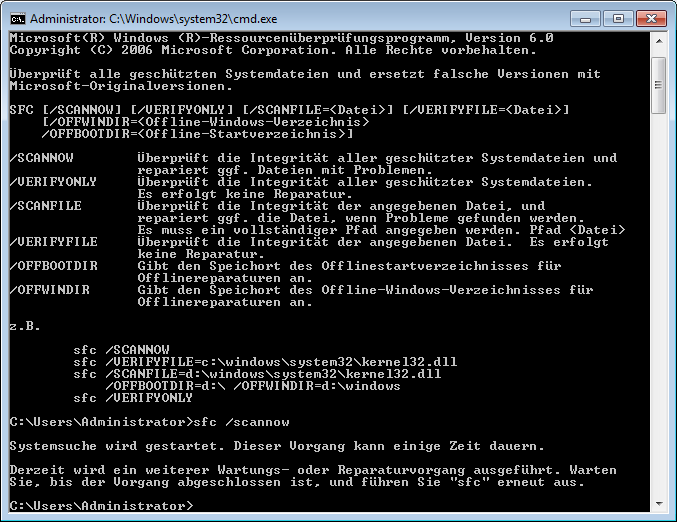





Questions? Read the About. Or just ask me a quick Our Databases: Resources with calendars -- Language learning material Moodle Sites, multimedia files -- films


FAQs for LRC student staff or for students or for teachers. To search our FAQs, in the browser addressbar, add after "https://plagwitz.wordpress.com/feed/?tag=faqs+/" "+TAG1" (from tag cloud below) OR "https://plagwitz.wordpress.com/feed/tag=faqs
&category_name=" "CAT1" (from category hierarchy below). OR search both categories and tags, and multiple TAGs/CATs (connect with "," for OR-search, with "+" for AND-search), like so: https://plagwitz.wordpress.com/feed/?tag=TAG1+TAG2+...TAGn&category_name=CAT1
+CAT2+...CATn"
Other ways to find help
If you cannot find it here, look there: 5,500 Language-Learning Links and Programs for learning or teaching 150 languages
Shortcuts:Our Lists, Our Maps, LRC Staff Moodle Site,LRC Project Moodle Site, 49erexpress, UNCC Moodle, Student Recordings: s:claslcslrcsanakostudent
Learning usage samples: Sanako oral exam, Kaltura webcam presentation, Dictation with speech recognition, Sanako written exam, Chinese and Japanese interactive stroke-order practice
Test the Sanako Installer, Webbrowser Popup Konfigurator for XP, or Windows7, faster LRC TeacherPC Log-in Let MS facilitate diacritics writing by installing for you US-International keyboard layout
This is my personal blog (Google+). The views expressed on these pages are mine alone and not those of my employer. The information in this weblog is provided “AS IS” with no warranties, and confers no rights.
 Thomas' Work Space