Archive
Archive for the ‘audience-is-students’ Category
How-to for the new Vixia HF M500 camera
2013/10/26
Leave a comment
Here it is, and available for checkout per instructions here. Also see the video size considerations.
Step-by-step for Basic Recording:


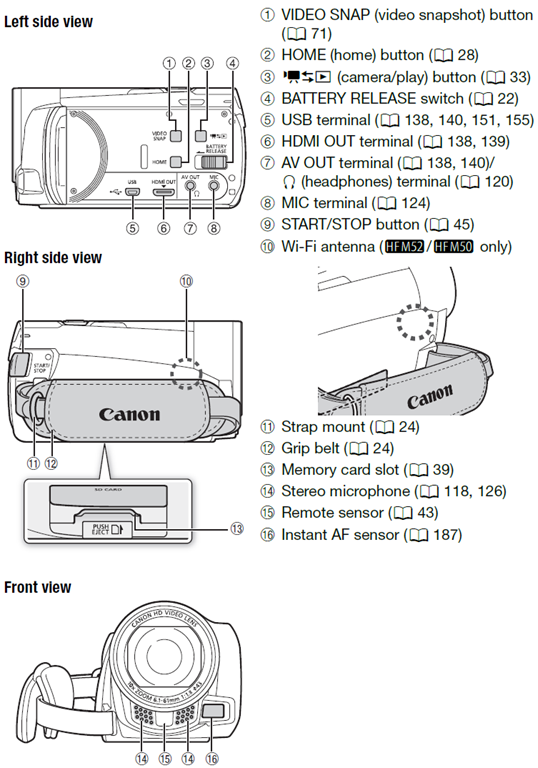
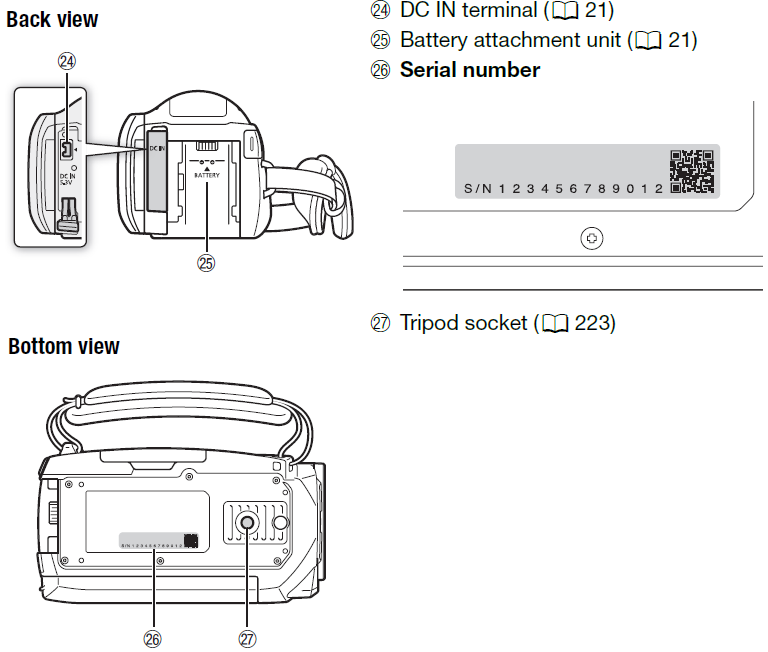
The Parts and Controls of the Camera:

How to workaround Moodle quiz audio not playing to the end in Respondus Lockdown Browser
2013/10/26
Leave a comment
- Problem:
- The Moodle 2 audio player
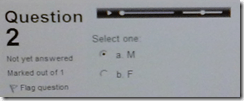 tends to get stuck (= does not play to end; not pictured) after you moved fast forward or backward on the timeline with your mouse.
 - Respondus Lockdown browser has is a page refresh button,
 but you cannot refresh the page since this might erase data you already inputted. .
- The Moodle 2 audio player
- Workaround:
- At the bottom of the page, click
 , or use the Quiz navigation
 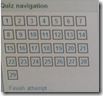 to browse to another page.
 - On the Submit page, click “Return to attempt”, or on another quiz page, use once more the “quiz navigation” to browse back.

- This seems to refresh the page, including the audio players, without erasing answers you already inputted.
- At the bottom of the page, click



How can I configure my PC to write in Arabic
2013/10/22
Leave a comment
- In Windows past XP, you can just choose – without first installing support for Right-to-left languages – by pressing +R, typing ïntl.cpl”, clicking ”OK”, clicking ”keyboards and languages”and “change keyboard”.
- An Arabic keyboard layout that is commonly preferred by Westerners (closer to the phonetic layout of the keyboard) is a separate download: https://thomasplagwitz.com/2013/01/06/imrans-phonetic-keyboard-for-arabic/
- A transliterating IME (type on a Western keyboard sounds as you speak, pick suggestions in Arabic letters from a dropdown menu).
- Popular choices are Google Input Arabic: http://www.google.com/inputtools/windows/
- Microsoft Maren: offers more, also morphological analysis. Transliteration tool is linked at the bottom of this post: https://thomasplagwitz.com/2011/06/09/ms-maren-morph-helps-read-arabic-web-pages/ .
Categories: Arabic, audience-is-students, audience-is-teachers, Writing
charinput, FAQs, ms-windows
How to use NanoGong in your Moodle course as an audio file recorder
2013/10/17
Leave a comment
- NanoGong is primarily meant for submitting audio recordings to the teacher and fellow students.
- However, it can also serve as a simple audio recorder that can save a recording to a files:
- accessible anywhere where you have internet access (on a JAVA-capable device. I have not tested NanoGong’s compatibility with smartphones or tablets, though) and a microphone – provided you/your teacher have added a NanoGong activity to the Moodle Course.
- Might be useful for collecting recordings as pieces for your language learner ePortfolios.
- To use NanoGong as an audio recorder: Instead of (or on top of/before) submitting your recording to the course, click the rightmost button:
 :
:
- and you can save your recording to a file
![image_thumb[17]_thumb[1]](https://thomasplagwitz.com/wp-content/uploads/2013/10/image_thumb17_thumb1_thumb.png?w=600&h=530 "image_thumb[17]_thumb[1]") ,
,- in a variety of formats (compressed WAV is likely most compatible),
- including in the different speeds:
![image_thumb[18]_thumb](https://thomasplagwitz.com/wp-content/uploads/2013/10/image_thumb18_thumb_thumb.png?w=244&h=68 "image_thumb[18]_thumb") that you de/increased the playback speed here:
that you de/increased the playback speed here: ![image_thumb[15]_thumb](https://thomasplagwitz.com/wp-content/uploads/2013/10/image_thumb15_thumb_thumb.png?w=129&h=103 "image_thumb[15]_thumb") .
.

![image_thumb[17]_thumb[1]](https://thomasplagwitz.com/wp-content/uploads/2013/10/image_thumb17_thumb1.png "image_thumb[17]_thumb[1]")
![image_thumb[18]_thumb](https://thomasplagwitz.com/wp-content/uploads/2013/10/image_thumb18_thumb1.png "image_thumb[18]_thumb")
![image_thumb[15]_thumb](https://thomasplagwitz.com/wp-content/uploads/2013/10/image_thumb15_thumb1.png "image_thumb[15]_thumb")
Categories: Arabic, audience-is-students, audience-is-teachers, documentation, English, eportfolio, Farsi, French, German, Greek (modern), Hebrew, Hindi, Italian, Japanese, Korean, Mandarin, multimedia-recording, Polish, Portuguese, recording-software, Russian, Spanish, Speaking, Swahili, Yoruba
audio, moodle, nanogong
JAVA warning dialogues to bypass during NanoGong activities
2013/10/17
Leave a comment
- You may be prompted to update JAVA – likely a not a bad idea:
![java outdated warning_thumb[1]](https://thomasplagwitz.com/wp-content/uploads/2013/10/java-outdated-warning_thumb1_thumb1.png?w=560&h=354 "java outdated warning_thumb[1]")
- Click “RUN”:
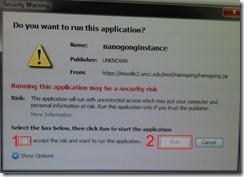
![image_thumb[8]_thumb[1]](https://thomasplagwitz.com/wp-content/uploads/2013/10/image_thumb8_thumb1_thumb1.png?w=461&h=542 "image_thumb[8]_thumb[1]")
- Check (1) “Accept”and Click (2) “Run”:

- Click “Don’t Block”:
![CAM03106_thumb[1]](https://thomasplagwitz.com/wp-content/uploads/2013/10/cam03106_thumb1_thumb1.jpg?w=556&h=294 "CAM03106_thumb[1]")
- Even more annoying when warning dialogues do not come to the foreground, and your computer/web browser simply seems to be stuck. Check your task bar/dock for blinking/jumping JAVA notifications, like here:
 .
. - You have to bypass these dialogues only once – per session (lab) or possibly per computer. Choose the right answer, for university assignments, it is safe to “Allow! Allow! Allow! (“run”, “don’t block:”, update”, what ever – use common sense).
- Remember, thinks could be worse, – like if you try to use NanoGong in a Firefox that has not been explicitly configured to allow JAVA applets – read more on our troubleshooting NanoGong page.
![java outdated warning_thumb[1]](https://thomasplagwitz.com/wp-content/uploads/2013/10/java-outdated-warning_thumb11.png "java outdated warning_thumb[1]")
![image_thumb[8]_thumb[1]](https://thomasplagwitz.com/wp-content/uploads/2013/10/image_thumb8_thumb11.png "image_thumb[8]_thumb[1]")
![CAM03106_thumb[1]](https://thomasplagwitz.com/wp-content/uploads/2013/10/cam03106_thumb11.jpg "CAM03106_thumb[1]")
How a student can easily complete an audio recording assignment in Moodle, using the new NanoGong plugin
2013/10/17
Leave a comment
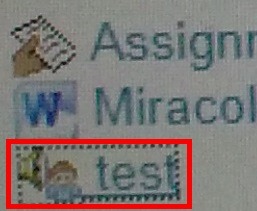
- Open your assignment (note the loudspeaker/dummy icon for NanoGong assignments/) from the Moodle landing page.
- Unfortunately, there are a considerable number JAVA warning dialogues to bypass during NanoGong activities before you can even see the recorder plugin on the page, and may be more when you try to submit.
- Once you are on the NanoGong assignment page: click red button to record,
![image_thumb[10]](https://thomasplagwitz.com/wp-content/uploads/2013/10/image_thumb10_thumb.png?w=400&h=278 "image_thumb[10]")
- Make sure the volume meter shows input when speaking (loud enough) or playing back:
![image_thumb[13]](https://thomasplagwitz.com/wp-content/uploads/2013/10/image_thumb13_thumb1.png?w=506&h=364 "image_thumb[13]")
- After recording, submit:

- After submitting,
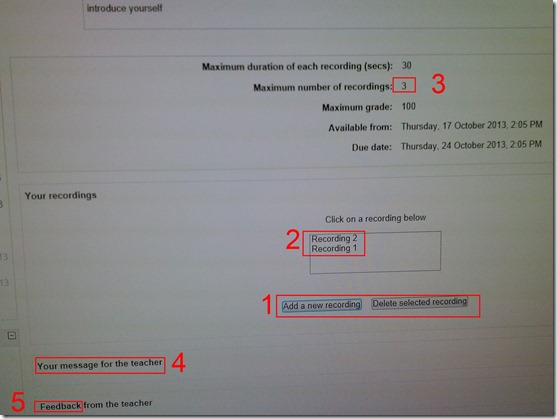
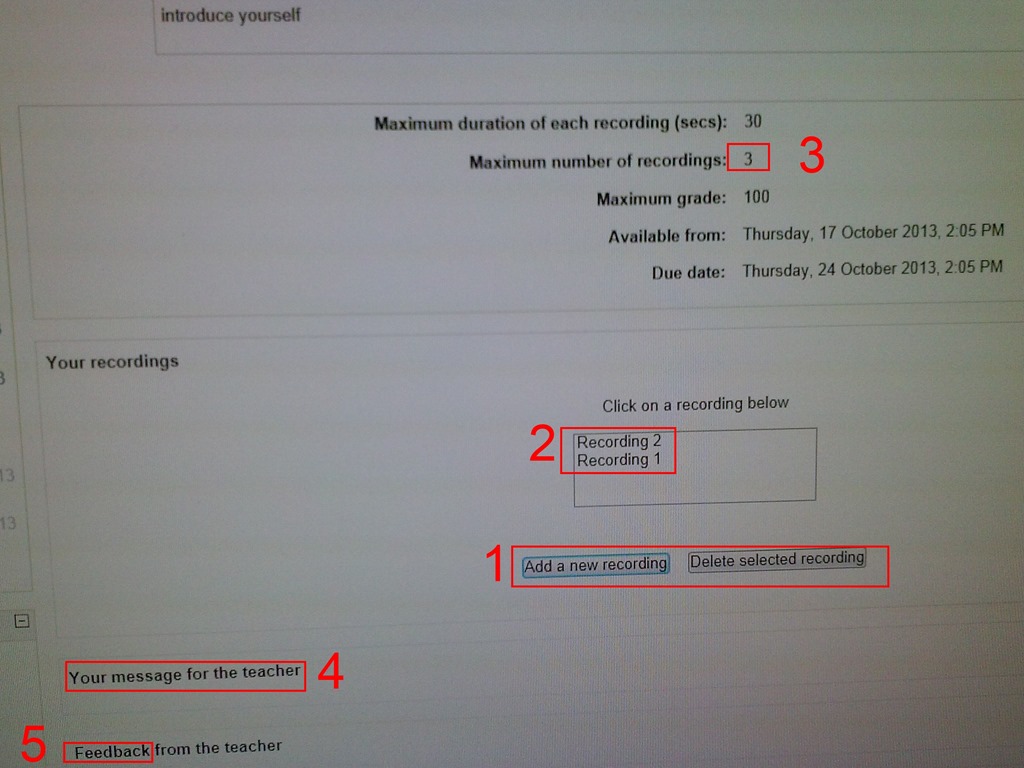
- You can still edit your submission, by
- (1) deleting your recording or
- re-adding – or (provided your teacher’s assignment allows for (3) multiple recordings) just adding – (2) your recordings
- or adding a (4) message to the teacher
- you can also revisit this page to read (5) feedback the teacher gives you about your recording:
- You can still edit your submission, by
- Experiencing issues? Check troubleshooting page here.
![image_thumb[10]](https://thomasplagwitz.com/wp-content/uploads/2013/10/image_thumb101.png "image_thumb[10]")
![image_thumb[13]](https://thomasplagwitz.com/wp-content/uploads/2013/10/image_thumb132.png "image_thumb[13]")

Categories: Arabic, assignments, audience-is-students, English, Farsi, French, German, Greek (modern), Hebrew, Hindi, Italian, Japanese, Korean, lms, Mandarin, multimedia-recording, Polish, Portuguese, Russian, Spanish, Speaking, Swahili, Yoruba
moodle, nanogong
How to book a resource in Office365–the ultimate training…
2013/10/14
Leave a comment

Don’t worry about uppercase letters when logging in to post an issue to the online Helpdesk
2013/10/03
Leave a comment
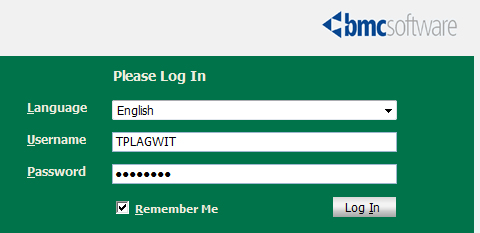
- The username input for our helpdesk system login is set to write uppercase letters, and this cannot be changed:

- Once you have made sure that your keyboard is indeed not set to uppercase (caps lock on, see light in upper right), which it most ikely is not, you can ignore the uppercasing, proceed as normal with entering your password.
- If you get a login error, it is not because of the uppercasing. Rather, you may have mistyped something else. A good strategy (when nobody is looking over your shoulder, that is) is to type your password somewhere else (word, notepad, google search box) where is it visible and copy/paste it onto the Password field.


Questions? Read the About. Or just ask me a quick Our Databases: Resources with calendars -- Language learning material Moodle Sites, multimedia files -- films


FAQs for LRC student staff or for students or for teachers. To search our FAQs, in the browser addressbar, add after "https://plagwitz.wordpress.com/feed/?tag=faqs+/" "+TAG1" (from tag cloud below) OR "https://plagwitz.wordpress.com/feed/tag=faqs
&category_name=" "CAT1" (from category hierarchy below). OR search both categories and tags, and multiple TAGs/CATs (connect with "," for OR-search, with "+" for AND-search), like so: https://plagwitz.wordpress.com/feed/?tag=TAG1+TAG2+...TAGn&category_name=CAT1
+CAT2+...CATn"
Other ways to find help
If you cannot find it here, look there: 5,500 Language-Learning Links and Programs for learning or teaching 150 languages
Shortcuts:Our Lists, Our Maps, LRC Staff Moodle Site,LRC Project Moodle Site, 49erexpress, UNCC Moodle, Student Recordings: s:claslcslrcsanakostudent
Learning usage samples: Sanako oral exam, Kaltura webcam presentation, Dictation with speech recognition, Sanako written exam, Chinese and Japanese interactive stroke-order practice
Test the Sanako Installer, Webbrowser Popup Konfigurator for XP, or Windows7, faster LRC TeacherPC Log-in Let MS facilitate diacritics writing by installing for you US-International keyboard layout
This is my personal blog (Google+). The views expressed on these pages are mine alone and not those of my employer. The information in this weblog is provided “AS IS” with no warranties, and confers no rights.
 Thomas' Work Space