Archive
How to workaround Moodle quiz audio not playing to the end in Respondus Lockdown Browser
- Problem:
- The Moodle 2 audio player
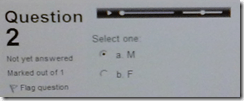 tends to get stuck (= does not play to end; not pictured) after you moved fast forward or backward on the timeline with your mouse.
 - Respondus Lockdown browser has is a page refresh button,
 but you cannot refresh the page since this might erase data you already inputted. .
- The Moodle 2 audio player
- Workaround:
- At the bottom of the page, click
 , or use the Quiz navigation
 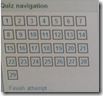 to browse to another page.
 - On the Submit page, click “Return to attempt”, or on another quiz page, use once more the “quiz navigation” to browse back.

- This seems to refresh the page, including the audio players, without erasing answers you already inputted.
- At the bottom of the page, click



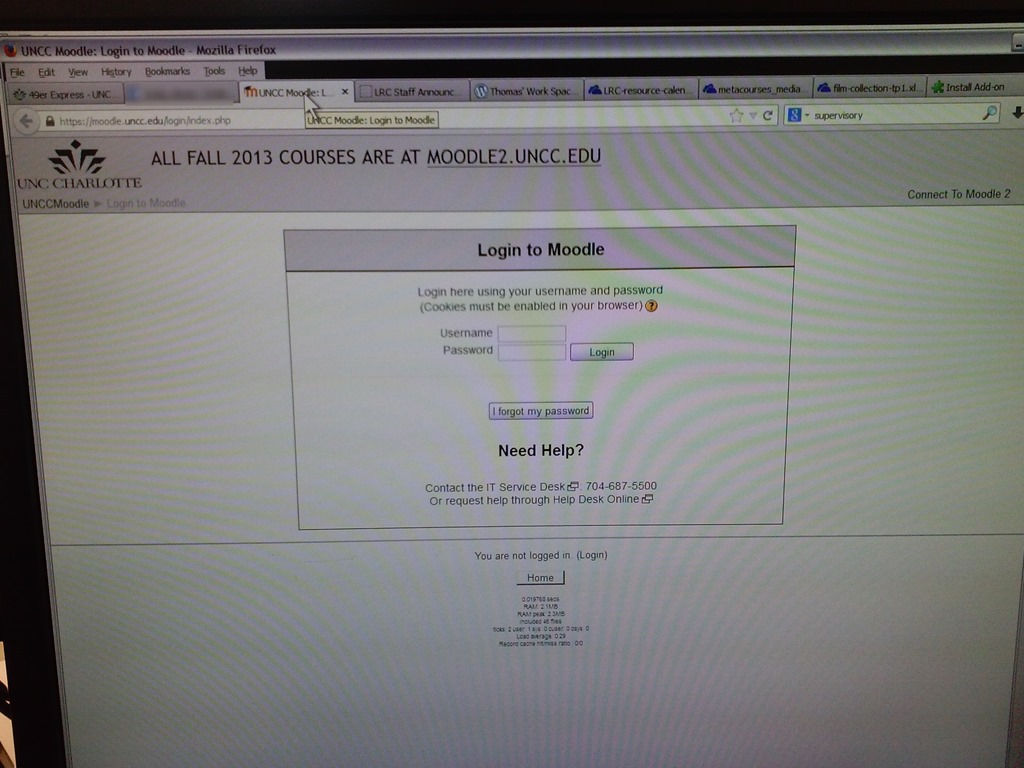
Upgrade to the Moodle 2 on the LRC reception desk computers is overdue…

It will be fixed eventually – let me know if not.
How to book a resource in Office365–the ultimate training…

Protected: A checklist for our regular equipment inventories
A checklist for our late hires in the LRC
- With the help of your colleagues at the reception desk, sign up for your work schedule by sending meeting requests from NINERMAIL to lrcassistant@uncc.edu,
- Plug any holes/weaknesses in the schedule Reception Staffing
- Uf you have $2000 FWS, not more than 10 hours /week even if you start late.
- Final approval from LRC coordinator required.
- Whenever starting/leaving your shift, log in at the reception desk computer, allow all windows to open, then clock in by entering your code for checkin/out from the spreadsheet checkoutin.xls into the meeting request (series) on your NINERMAIL calendar.
- Read/listen to the training materials you received –
- Word (goo.gl/5hgr7Y) printout : contains a checklist for your responsibilities during your shift.
- PowerPoint:
- Deck (goo.gl/OV45aF) printout explains how to help with booking LRC equipment and rooms using NINERMAIL meeting requests (which will constitute e most of your work at the help desk).
- Video of training session: goo.gl/nWDDro.
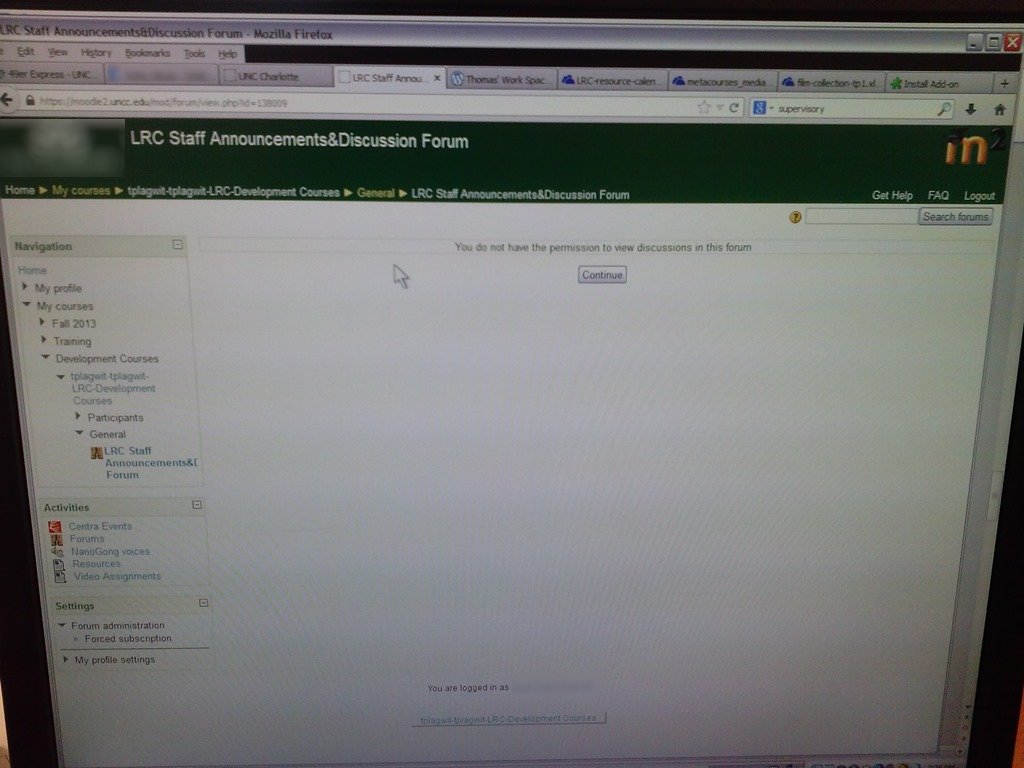
- NOTE: After your first 2 weeks at work, there will be a Moodle quiz (TBA) that you need to pass!
- Questions?
- First and foremost, follow the instructions and helpful hints of your more senior colleagues at the reception desk.
- Bring further questions to the LRC coordinator or director.
- If no one is available for questions: post questions in the LRC Moodle Forum.
Don’t worry about uppercase letters when logging in to post an issue to the online Helpdesk
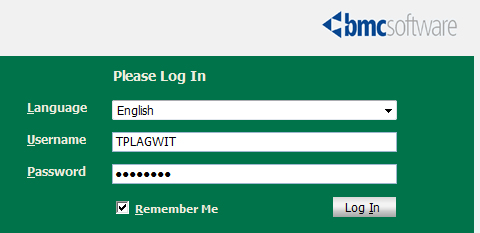
- The username input for our helpdesk system login is set to write uppercase letters, and this cannot be changed:

- Once you have made sure that your keyboard is indeed not set to uppercase (caps lock on, see light in upper right), which it most ikely is not, you can ignore the uppercasing, proceed as normal with entering your password.
- If you get a login error, it is not because of the uppercasing. Rather, you may have mistyped something else. A good strategy (when nobody is looking over your shoulder, that is) is to type your password somewhere else (word, notepad, google search box) where is it visible and copy/paste it onto the Password field.
LRC Tutors at check in take their signs…
… please , and put them on their desks prominently. We are reintroducing this signage, now that the group rooms often overflow..

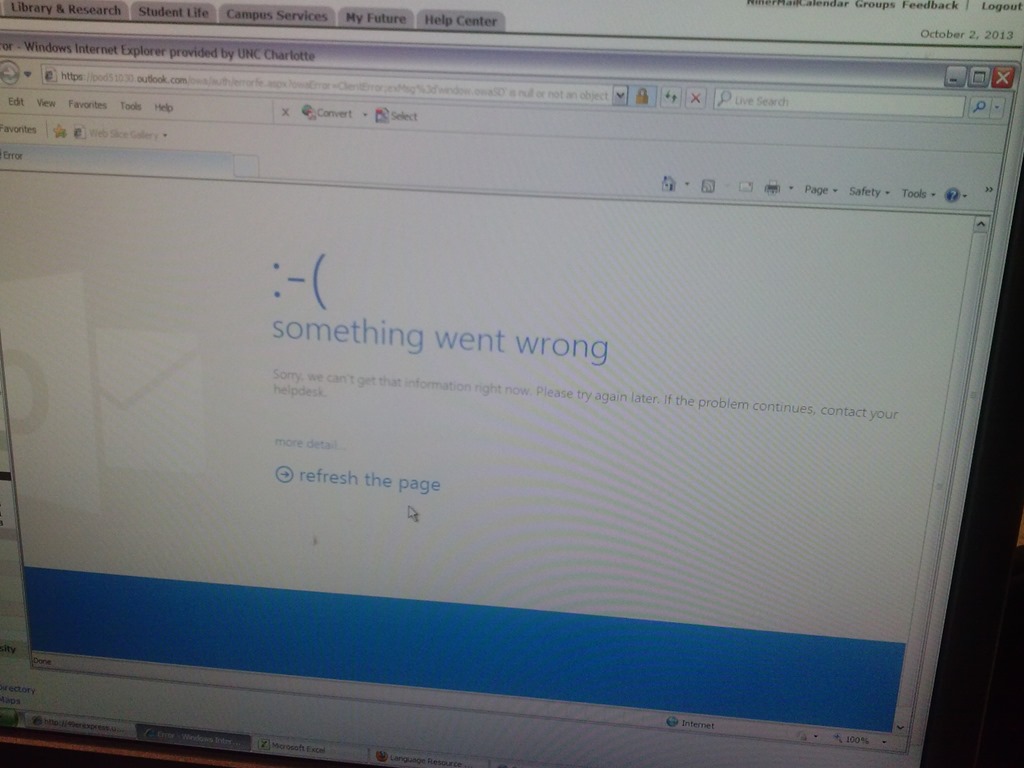
Some users cannot check out LRC items since they cannot log into their NINERMAIL Office365 Outlook

- This seems to have been going on for a while. We have no good way to use another browser on the computers that we use for our room booking and equipment circulation system. Besides,
- IE8 is the default browser on campus.
- Microsoft seems to say it not deprecate it without notice. Rather, pasted from http://community.office365.com/en-us/wikis/manage/office-365-and-internet-explorer-8.aspx states the following (they do not mention XP though, but that is also supported until April 2014):
- Why is Office 365 ending support for Internet Explorer 8? [in short, html5]
-
Why 8 April 2014? Office 365 provides customers 12 months’ notice of disruptive change under our Online Services Support Lifecycle. We announced Office 365 is ending support for Internet Explorer 8 on the System Requirements Wiki on 9 April 2013.
-
Will Internet Explorer 8 users be blocked from connecting to Office 365 after 8 April 2014? No, Office 365 will not deliberately block Internet Explorer 8 users from accessing the service after 8 April 2014. But after that date, users connecting to Outlook Web App will only be able to use Outlook Web App Light.
- ITS says Microsoft told them IE8 is not supported.
- The following change does not fix it here on XP SP3:
-
Windows Registry Editor Version 5.00
-
[HKLM and HKCU\SOFTWARE\Microsoft\Internet Explorer\Main]
“XMLHTTP”=dword:00000001
-
- Go figure.


Questions? Read the About. Or just ask me a quick Our Databases: Resources with calendars -- Language learning material Moodle Sites, multimedia files -- films


FAQs for LRC student staff or for students or for teachers. To search our FAQs, in the browser addressbar, add after "https://plagwitz.wordpress.com/feed/?tag=faqs+/" "+TAG1" (from tag cloud below) OR "https://plagwitz.wordpress.com/feed/tag=faqs
&category_name=" "CAT1" (from category hierarchy below). OR search both categories and tags, and multiple TAGs/CATs (connect with "," for OR-search, with "+" for AND-search), like so: https://plagwitz.wordpress.com/feed/?tag=TAG1+TAG2+...TAGn&category_name=CAT1
+CAT2+...CATn"
Other ways to find help
If you cannot find it here, look there: 5,500 Language-Learning Links and Programs for learning or teaching 150 languages
Shortcuts:Our Lists, Our Maps, LRC Staff Moodle Site,LRC Project Moodle Site, 49erexpress, UNCC Moodle, Student Recordings: s:claslcslrcsanakostudent
Learning usage samples: Sanako oral exam, Kaltura webcam presentation, Dictation with speech recognition, Sanako written exam, Chinese and Japanese interactive stroke-order practice
Test the Sanako Installer, Webbrowser Popup Konfigurator for XP, or Windows7, faster LRC TeacherPC Log-in Let MS facilitate diacritics writing by installing for you US-International keyboard layout
This is my personal blog (Google+). The views expressed on these pages are mine alone and not those of my employer. The information in this weblog is provided “AS IS” with no warranties, and confers no rights.
 Thomas' Work Space