Archive
Archive for the ‘audience-is-language-learning-center-staff’ Category
How the LRC can help you proctoring your computer-based make-up exams
2012/10/15
Leave a comment
- We are testing
- whether we can offer proctored make-up exams for students that missed scheduled (publisher website- or Moodle-based) computerized exams that were held in the LRC. We have not been given additional resources for this service, so we have to set it up as smoothly as possible – as you and your students will desire also.
- Alternatively, you could administer your exam in your office, like you used to, but now using your office computer (where presumably you tested the exam in the first place – the LRC can temporarily borrow you a headset
- or we could group schedule all remaining students for a make-up in the main LRC classroom maybe during class meeting (likely more secure and quicker, but taking away from contact hours). Both the presence of the teacher and the lrc director may be required.
- The teacher gives
- to the studentthe exam’s
- step-by-step instructions (depends on your exam website, look at my example here regarding mylanguagelab tests (version 2012-10): goo.gl/g8q5g),
- or, if the exam is self-explanatory to the student (nothing ever seems to be, so if you want to go this route, please be prepared to troubleshoot with your students, the LRC can only help with making step-by-step guides beforehand), the link, i.e. login (e.g. mygermanlab: goo.gl/JUSUC) and exact location of exam (either path for manual browsing or (preferably, if at all possible) a direct link);
- duration
- deadline
- to the LRC coordinator the exam password. The LRC coordinator publishes the password in LRC Moodle forum “sticky notes” (to which only LRC staff has access).
- to the studentthe exam’s
- The student
- From her NINERMAILcalendar
- prepares a new/meeting request,
- “subject: [your course number] make-up exam”,
- to “resource:” lrcroomcoed433c @uncc.edu AND lrcroomcoed433d@uncc.edu, our small group rooms,
- uses the tab:”scheduling assistant” to find a free (= white, not-blocked) time-slot with the exam duration and before the exam deadline,
- and deletes that group room that s/he does not need before actual sending the meeting request (For the quietest experience, s/he should also stir clear of tutoring hours, subject:”up to ####” in the other group room http://mail.uncc.edu/owa/calendar/LRCRoomCOED433c@uncc.edu/Calendar/calendar.html http://mail.uncc.edu/owa/calendar/LRCRoomCOED433d@uncc.edu/Calendar/calendar.html ).
- The student can get help withmaking this meeting request at the LRC reception desk, including booking the room on the fly, but no group room may be immediately available for walk-in clients).
- cancels the meeting request if s/he changes her mind, to make the room available to other (we record the check-in time to report offenders who prevent other students from taking their make-up exams). Only in our 2 group rooms next to the reception desk the student can be (loosely) monitored by LRC assistants serving as proctors from behind the reception desk. We can test before term start if your website can use additional security features like Sanako controlled web browsing or Respondus Lockdown browser.
- prepares a new/meeting request,
- comes to the LRC shortly before her scheduled time slot,
- logs in on the computer in her group room first (to speed things up);
- opens her meeting request on the reception desk computer to receive a check-in code from the LRC assistant into the meeting request and “sends update”;
- places any personal possession behind the reception desk;
- opens the exam instructions (e.g. goo.gl/g8q5g) on the group room computer;
- Following instructions therein, goes to the exam website on the group room computer, opens the exam, so that the LRC assistant can type in the password from the LRC Moodle forum “sticky notes” without letting the examinee know the password.
- TBA: Will we require students to get a checkout code? The LRC assistants are not in a position to enforce exam deadlines; your testing software likely should be.
- From her NINERMAILcalendar
How the LRC provides volunteer tutoring services
2012/10/10
Leave a comment
- The volunteer tutor student gets a tutor calendarto publicize her services (non-personal information only) online.
- The LRC assistants at the LRC reception desk will train and set up the tutor initially. If the volunteer tutor needs more practice in using her NINERMAIL calendar than her initial training provided her with, she can come in and log in for the LRC assistants at the LRC reception desk and the LRC assistants will guide her. During LRC opening hours, at any time we have 3 computers and 2-3 LRC assistants staffing the LRC reception desk which is right next to the group rooms where the volunteer tutors work, so there should be minimal delay and overhead with maximum administrative benefit.
- From then on, the volunteer tutor is in charge of her own tutor calendar. If the volunteer tutor needs to announce changes, the volunteer tutor goes to NINERMAIL, section: calendar, and
- for single cancellations, deletes her appointment, like so: http://plagwitz.blob.core.windows.net/content/lrc/owa-cancel-by-rightclick-delete-appointment.html
- for changing the schedule, opens her old appointment (series), cancels it (only future occurrences) and creates her new altered (recurring) appointment, like so: https://thomasplagwitz.com/2012/01/10/how-to-make-changes-to-a-meeting-request/
- The volunteer tutor logs in and out of her tutor calendar appointment, whenever she starts/ends her tutoring hours, so that the LRC assistants at the reception desk can check her in and out of the LRC (LRC Assistants have a special program for this), and so that she can enter a summary of whom she tutored and on what. A the end of the term, the LRC coordinator can provide tutor supervisors with a report on the tutoring log collected this way.
- To maximize learning and minimize missed connections, bottlenecks and delays throuhg intermediaries – including tutor supervisors and LRC staff -, the volunteer tutor – the authoritative source of her tutoring time – can communicate directly through http://mail.uncc.edu/owa/calendar/LRCTutor01@uncc.edu/Calendar/calendar.html (sample only, for actual Tutor## see https://thomasplagwitz.com/?tag=lists+resources), with her stakeholders:
- the tutees who need to know her tutorung times, can communicate directly via
- the tutor supervisors, who, if they do not approve of the live or end-of-semester report tutor schedule, can let the tutor know, by asking her to change her time, deny her credit, not rehiring her…
- Currently, all tutoring is walk-up only. Enabling tuteees to sign-up for tutor help to avoid pile-ups is still TBA. If you would like to see sign-up tutoring implemented, please drop us a line explaining how this would be helpful for you.
- As far as the LRC is concerned:
- Tutors have to be within the within the opening hours of the LRC: http://mail.uncc.edu/owa/calendar/LRCRoomCOED434@uncc.edu/Calendar/calendar.html.
- The LRC being increasingly busy with classes, exams, self-access assessments and distance education sessions these days, we also require all tutors to include one of the group rooms in the box “resources:” LRCRoomCOED433c, LRCRoomCOED433d of their tutor calendar meeting request. Doing so will secure the tutor and tutee a convenient work place.
- Summaries of our tutor training in LRC language learning technology facilities are available here: https://thomasplagwitz.com/?category_name=service-is-tutoring+training.
No audio on listening stations and group rooms, and workaround
2012/09/26
Leave a comment
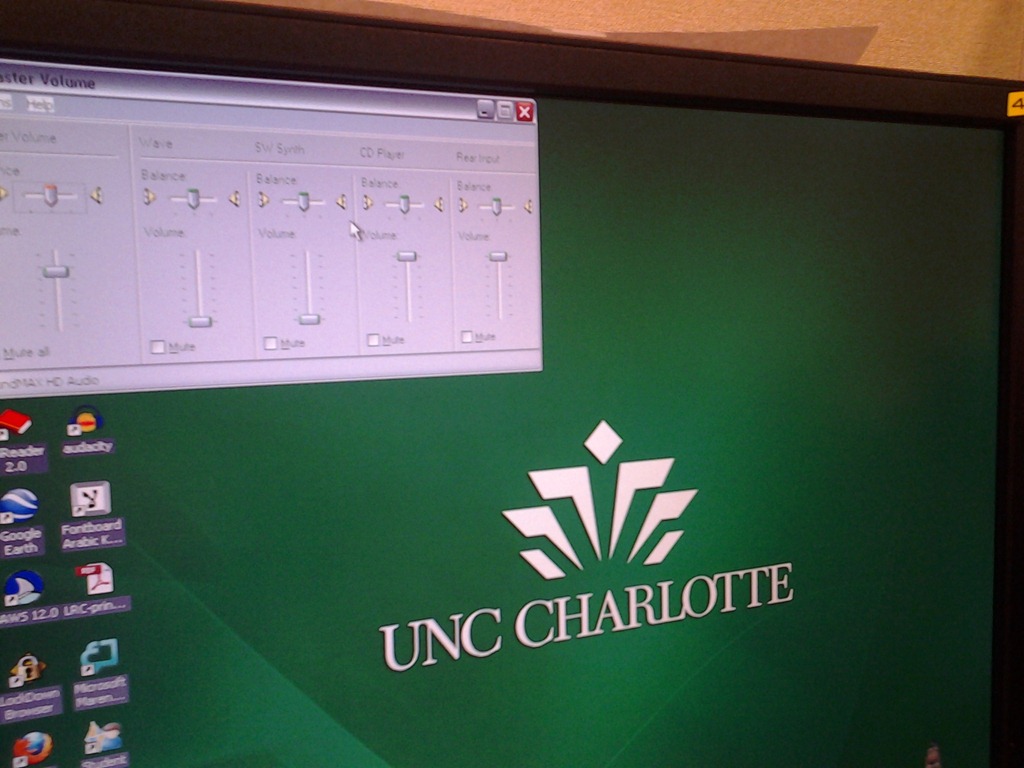
- Symptom: Headsets work (test feedback by putting microphone near headset speakers), but audio files from internet do not play with sound.
- Cause: having to support 2 different kinds of headsets (USB with built-in soundcard versus traditional analog) in one PC software image.
- The workaround
- for temp staff is to start / run / sndvol32.exe and up the low volume sliders here:

- for permanent staff is to unfreeze any computers that have been missed previously
 and put this script into the all users startup folder now: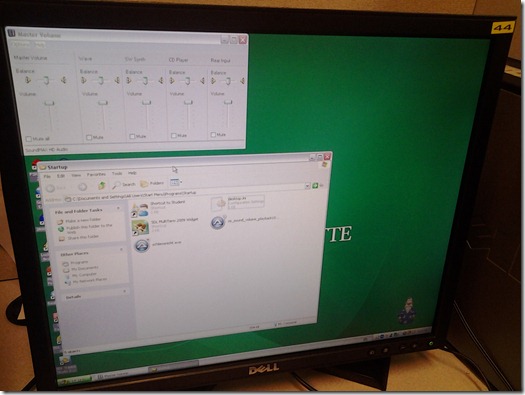
- The solution: standardize on USB headsets when you get a chance.


Categories: audience-is-language-learning-center-staff, audience-is-language-learning-center-temp-staff, e-infrastructure, Institution-is-University-of-North-Carolina-Charlotte, Listening-Stations, service-is-it-managing, service-is-testing-troubleshooting-debugging, small-group-work-spaces
audio, FAQs
Protected: How to share Exchange room and resource mailbox calendars
2012/09/25
Enter your password to view comments.
More ways of making minor changes to a domain-joined, deepfrozen computer lab image
2012/09/21
Leave a comment
- Re-imaging a domain-joined, deep-frozen Windows XP language lab using Symantec Ghost and Deepfreeze can be a drawn-out process.
- Minor fixes can be achieved by unfreezing and using a Symantec-Ghost file task and a script that loads the default user registry hive – here is how:
-
sTempHive = """HKEY_USERS\Test"""
'//vista and up: sDefaultUserHive = """%USERPROFILE%\..\Default\NTUSER.DAT"""sDefaultUserHive = """%USERPROFILE%\..\Default User\NTUSER.DAT"""
sSName = oUtility.ScriptName
set oShell = WScript.CreateObject ("Wscript.Shell")
- and alters it before freezing the lab again. Here are some examples of such fixes:
- change the default keyboard (after users logs in):
oLogging.CreateEntry sSName & ": Setting US-International as Default Keyboard Layout",LogTypeInfoRegPath = "HKEY_USERS\Test\Keyboard Layout\Substitutes\"oshell.RegWrite Regpath & "00000409", "00020409", "REG_SZ"
If Err<>0 Then
oLogging.CreateEntry sSName & ": Failed to update Default Keyboard Layout setting",LogTypeErrorZTIProcess=60
Exit Function
End If
- change visibility of the developer tab in the ribbon of MS-Word:
oLogging.CreateEntry sSName & ": Setting MS-Word Developer Toolbar to show",LogTypeInfoRegPath = "HKEY_USERS\Test\Software\Microsoft\Office\14.0\Word\Options\"oshell.RegWrite Regpath & "DeveloperTools", "1", "REG_SZ"
If Err<>0 Then
oLogging.CreateEntry sSName & ": Failed to update S-word developer tools settings",LogTypeErrorZTIProcess=40
Exit Function
End If
- change the SDL-Trados licensing server IP:
oLogging.CreateEntry sSName & ": Setting Default User Trados license server",LogTypeInfoRegPath = "HKEY_USERS\Test\Software\Trados\Shared\Licence"oshell.RegWrite Regpath & "Licence_file", "27000@10.18.189.231", "REG_SZ"
If Err<>0 Then
oLogging.CreateEntry sSName & ": Failed to update Default User Trados license server setting",LogTypeErrorZTIProcess=35
Exit Function
End If
oLogging.CreateEntry sSName & ": Setting Default User Screensaver timeout settings",LogTypeInfoRegPath = "HKEY_LOCAL_MACHINE\SOFTWARE\FLEXlm License Manager"oshell.RegWrite Regpath & "Trados_License_File", "27000@10.18.189.231;27000@xlcs4sbynj1www", "REG_SZ"
If Err<>0 Then
oLogging.CreateEntry sSName & ": Failed to update Screensaver to timeout settings",LogTypeErrorZTIProcess=30
Exit Function
End If
- change the default keyboard (after users logs in):
- On Ghost:
- We create a Ghost file task that points to the wsf file with the current changes we want to implement:

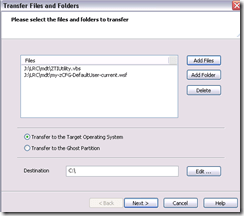
 To apply other changes, just change the filename of your script , e.g.:
- to apply to other computers, just change the target in the ghost task.
- Output:

- These scripts use the ZTIUtility.vbs from the MDT.
- You may have to update the location: <script language="VBScript" src="ZTIUtility.vbs"/>.
- For a while, the logging success made me believe I I had accessed the ntuser.dat and had run into registry permission settings loading it. In fact, I just did not resolve to the XP path of the ntuser.dat. Take advantage of the the logging facilities that come with MDT: Here are your logs on the client:
 .
. - Read the logs with TRACE32, part of the SMS 2003 Toolkit 2.
- Result: Provided the client has been cleanly frozen, and the domain user has no profile created before on this machine, and his profile is based on the altered default user profile, his HKCU will inherit the changes:





Protected: How to convert Friendly Russian web pages for better use with the Sanako Study 1200
2012/09/16
Enter your password to view comments.
How to query lab computers for new IPs after network reconfiguration using Symantec Ghost
2012/08/16
Leave a comment
Trados translation memory from TMX
2012/07/25
Leave a comment
- Open Trados studio professional 2011
- choose from the menu: file / new / translation memory
- in the create translation memory dialogue
- choose source and target language (the same as in the file name of the TMX files which follow the source-target naming convention)
- select “Allow multiple translation for the same source segment”
- choose as name for this translation memory the file name of the TMX files you are going to import (some include a year)
- click button: “create”,
- choose from the menu: file / import
- in the “import” dialogue window
- select “large import file”, “keep most recent”, “add to setup”
- click button “ok”
- select “large import file”, “keep most recent”, “add to setup”
- and in the dialogue “open import file”
- select as file type TMX 1.4b, if this does not work, 1.4, if this does not work, 1.1
- browse to C:\Temp\Trados to select one file (after the other)


Questions? Read the About. Or just ask me a quick Our Databases: Resources with calendars -- Language learning material Moodle Sites, multimedia files -- films


FAQs for LRC student staff or for students or for teachers. To search our FAQs, in the browser addressbar, add after "https://plagwitz.wordpress.com/feed/?tag=faqs+/" "+TAG1" (from tag cloud below) OR "https://plagwitz.wordpress.com/feed/tag=faqs
&category_name=" "CAT1" (from category hierarchy below). OR search both categories and tags, and multiple TAGs/CATs (connect with "," for OR-search, with "+" for AND-search), like so: https://plagwitz.wordpress.com/feed/?tag=TAG1+TAG2+...TAGn&category_name=CAT1
+CAT2+...CATn"
Other ways to find help
If you cannot find it here, look there: 5,500 Language-Learning Links and Programs for learning or teaching 150 languages
Shortcuts:Our Lists, Our Maps, LRC Staff Moodle Site,LRC Project Moodle Site, 49erexpress, UNCC Moodle, Student Recordings: s:claslcslrcsanakostudent
Learning usage samples: Sanako oral exam, Kaltura webcam presentation, Dictation with speech recognition, Sanako written exam, Chinese and Japanese interactive stroke-order practice
Test the Sanako Installer, Webbrowser Popup Konfigurator for XP, or Windows7, faster LRC TeacherPC Log-in Let MS facilitate diacritics writing by installing for you US-International keyboard layout
This is my personal blog (Google+). The views expressed on these pages are mine alone and not those of my employer. The information in this weblog is provided “AS IS” with no warranties, and confers no rights.
 Thomas' Work Space