Archive
Protected: Sanako Study 1200 hangs on “changing control method”?
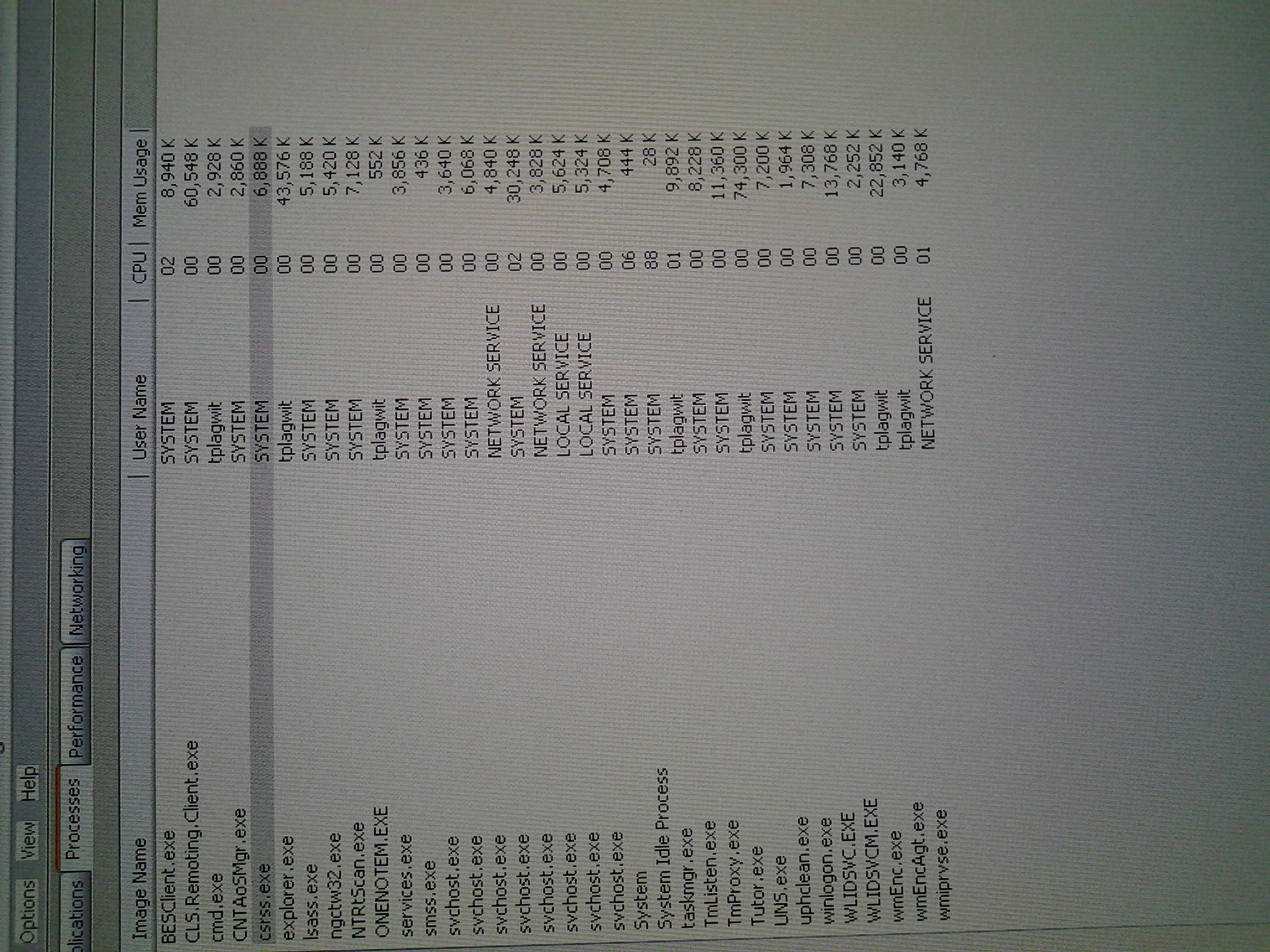
The process normally between ccrss.exe and explorer.exe prevents shutdown…
… and log-off on the teacher station. not always, but often?
Why do some room calendars refuse to synch in Outlook?
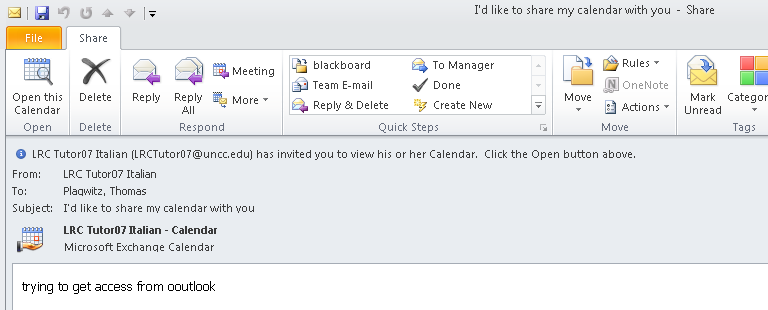
- Problem: I recently had to recreate ("Add calendar"/ "From address book") my calendar tree (groups) in Outlook 2010, and now I notice that
- some (especially all tutor "Room" calendars) steadfastly remain blank (e.g. LRCTutor07),
- while other room calendars do not (e.g. LRCRoomCOED433b).

- The offending calendars can be loaded from internet (being published – with limited details, so that is not a real workaround): e.g. “ITL up t to 2201”.
- In the Properties/ Permissions, I can see that for some calendars that synch, I am not listed as Editor (presumably being more than that? Owner?) – but not all calendars that synch (e.g. LRCRoomCOED433b) have this as a requirement.

- Is there maybe a limit of how many calendars can be loaded in Outlook at any given time?
- Impersonating the calendar and sharing it with myself does not help either:

- In the settings below (albeit a year old), I cannot see a substantial difference either:
type
room
Room
shortname/type
LRCRoomCOED433a
LRCTutor07
displayname
PSComputerName
rpitsexms1.its.uncc.edu
rpitsexms1.its.uncc.edu
RunspaceId
fc10f102-74a8-4edb-ace5-d13662b8da3e
fc10f102-74a8-4edb-ace5-d13662b8da3e
AutomateProcessing
AutoAccept
AutoUpdate
AllowConflicts
TRUE
TRUE
BookingWindowInDays
180
180
MaximumDurationInMinutes
1440
1440
AllowRecurringMeetings
TRUE
TRUE
EnforceSchedulingHorizon
TRUE
TRUE
ScheduleOnlyDuringWorkHours
FALSE
FALSE
ConflictPercentageAllowed
0
100
MaximumConflictInstances
0
9999
ForwardRequestsToDelegates
TRUE
TRUE
DeleteAttachments
TRUE
TRUE
DeleteComments
FALSE
FALSE
RemovePrivateProperty
TRUE
TRUE
DeleteSubject
FALSE
FALSE
AddOrganizerToSubject
TRUE
TRUE
DeleteNonCalendarItems
TRUE
TRUE
TentativePendingApproval
TRUE
TRUE
EnableResponseDetails
TRUE
TRUE
OrganizerInfo
TRUE
TRUE
ResourceDelegates
Microsoft.Exchange.Data.MultiValuedProperty`1[Microsoft.Exchange.Data.Directory.ADObjectId]
Microsoft.Exchange.Data.MultiValuedProperty`1[Microsoft.Exchange.Data.Directory.ADObjectId]
RequestOutOfPolicy
Microsoft.Exchange.Data.MultiValuedProperty`1[Microsoft.Exchange.Data.Directory.ADObjectId]
Microsoft.Exchange.Data.MultiValuedProperty`1[Microsoft.Exchange.Data.Directory.ADObjectId]
AllRequestOutOfPolicy
FALSE
FALSE
BookInPolicy
Microsoft.Exchange.Data.MultiValuedProperty`1[Microsoft.Exchange.Data.Directory.ADObjectId]
Microsoft.Exchange.Data.MultiValuedProperty`1[Microsoft.Exchange.Data.Directory.ADObjectId]
AllBookInPolicy
TRUE
FALSE
RequestInPolicy
Microsoft.Exchange.Data.MultiValuedProperty`1[Microsoft.Exchange.Data.Directory.ADObjectId]
Microsoft.Exchange.Data.MultiValuedProperty`1[Microsoft.Exchange.Data.Directory.ADObjectId]
AllRequestInPolicy
FALSE
TRUE
AddAdditionalResponse
TRUE
TRUE
AdditionalResponse
<DIV><FONT face=Tahoma size=2>Faculty,staff&students in LCS/ELTI are the only users that can book this resource. If you do not qualify, please cancel your meeting request immediately and email instead LRChelp@uncc.edu with your request! </FONT></DIV>
<DIV><FONT face=Tahoma size=2>LRC Staff (and possibly tutor-seeking students) in LCS are the only users that can book this resource. If you do not qualify, please cancel your meeting request immediately and email instead LRChelp@uncc.edu with your request! </FONT></DIV>
RemoveOldMeetingMessages
TRUE
FALSE
AddNewRequestsTentatively
TRUE
TRUE
ProcessExternalMeetingMessages
FALSE
FALSE
RemoveForwardedMeetingNotifications
FALSE
FALSE
MailboxOwnerId
its.uncc.edu/unccharlotte/Generic Accounts/LRCRoomCOED433a
its.uncc.edu/unccharlotte/Generic Accounts/LRCTutor07
Identity
its.uncc.edu/unccharlotte/Generic Accounts/LRCRoomCOED433a
its.uncc.edu/unccharlotte/Generic Accounts/LRCTutor07
IsValid
TRUE
TRUE


How you can fix student homework “file save errors” on Sanako Study 1200 and Windows XP
- Background: We recently got our Sanako network share permissions set up to vendor specifications, and the privileges tightened up appropriately. Fortunately, in the process of this, I was warned to make sure Windows XP has the registry key set: MoveSecurityAttributes, as otherwise XP does not update the permissions when moving files between folders:
- Symptom: Here is how this seems to have played out with Sanako ”homework” files (which get sent from the teacher to the student for writing and submitted back), specifically with files that I had:
- uploaded from my office PC (XP without the MoveSecurityAttributes key) to the Sanako teacher share
- tried to deploy as homework from the Sanako Study 1200 teacher station (also XP without the MoveSecurityAttributes key), resulting in a “file save” error:

- Additional context:
- sending files to students failed, but not to teachers;
- student had not run out of file space on the network share;
- students did not lack permissions to the Sanako network share in general;
- we did not run into issues with Sanako exam audio recordings which are sent from the student PCs to the network share.
- Resolution:
- adding HKLM\SOFTWARE\Microsoft\Windows\CurrentVersion\Explorer\MoveSecurityAttributes, DWORD ,1, to the computer the files originates from:
- first the office pc: this did not fix the issue.
- then the teacher PC: this seems to have fixed the issue:

- Here is hoping that this can fix your “file save”error also.
- adding HKLM\SOFTWARE\Microsoft\Windows\CurrentVersion\Explorer\MoveSecurityAttributes, DWORD ,1, to the computer the files originates from:
- Update: Also consult Raymond Chen’s "Wait, so does moving a file recalculate inherited permissions or doesn’t it?", and the hearty discussion that ensued.


What is “Content location” in Sanako Study Student Recorder (including Lite) for?


- While working on rolling out the free Sanako Light recorder to all faculty computers in a more systematic, automated way, the question has come up:
- What is “Content location” in Sanako Study Student Recorder (Ver 6, including Lite) “Administrative Settings” for, and how can it accept a URL?
- No such field in Ver 5.51; no mention in the help file; no manual this new (free) version would help seems included with the download.
- I am trying to point the “My files” to a more shared and LRC-accessible location on our SANAKO network share. Should I try the same with “Content Location”, or is this (defaults to “Application Data”) a strictly temporary location for during authoring?
- Answer: Sanako seems to be planning using this for distributing their own learning materials, esp. for ESL.
Export options in Tivoli Endpoint Manager
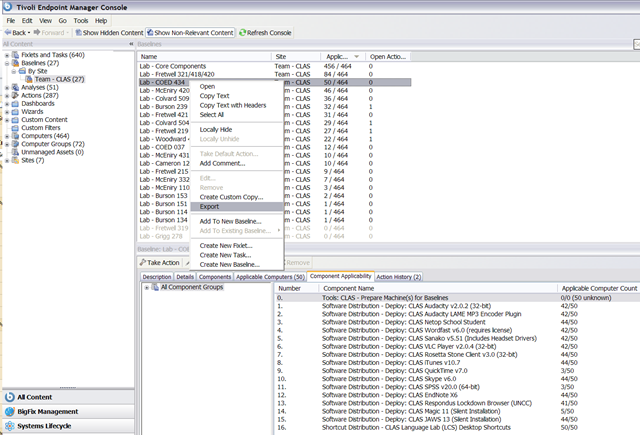
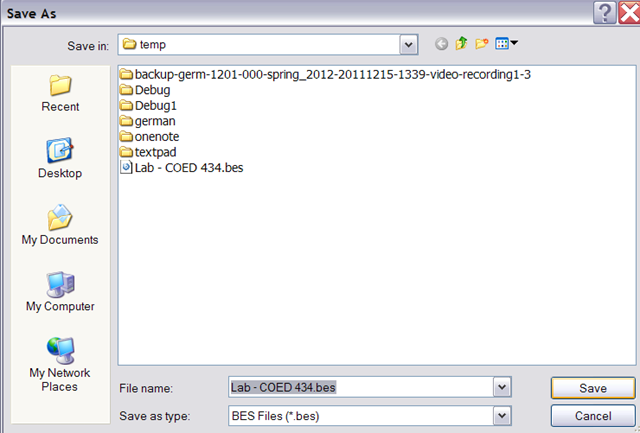
- You can batch export Baseline task sets by right-clicking the baseline and chooosing export from the context menu:

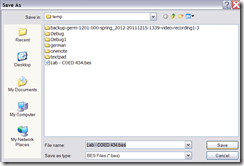
- Choose a download location:
- Open the BES file (which is an XML file) with MS-Excel for better human readability:

- Especially interesting information (highlighted in red here) for your documentation (tracking, potentially troubleshooting…) includes the task “name3” and the underlying Actionscript.

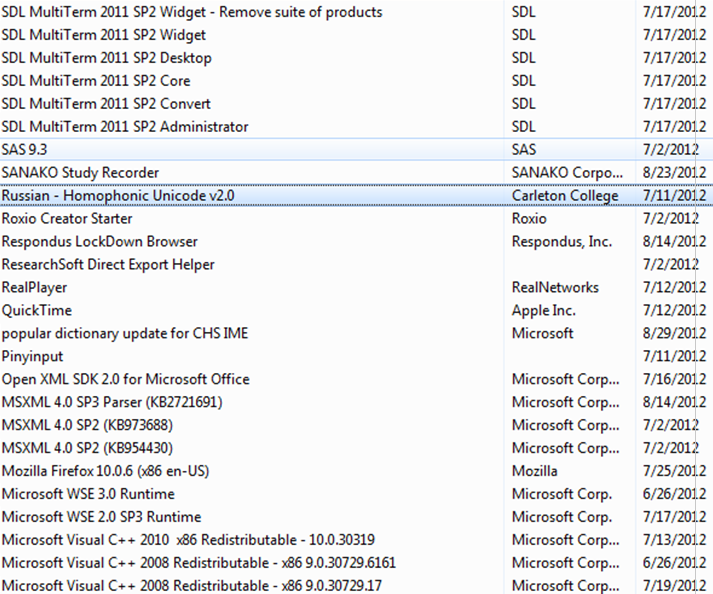
Software to be installed in LRC image
Click bottom right menu for large version:



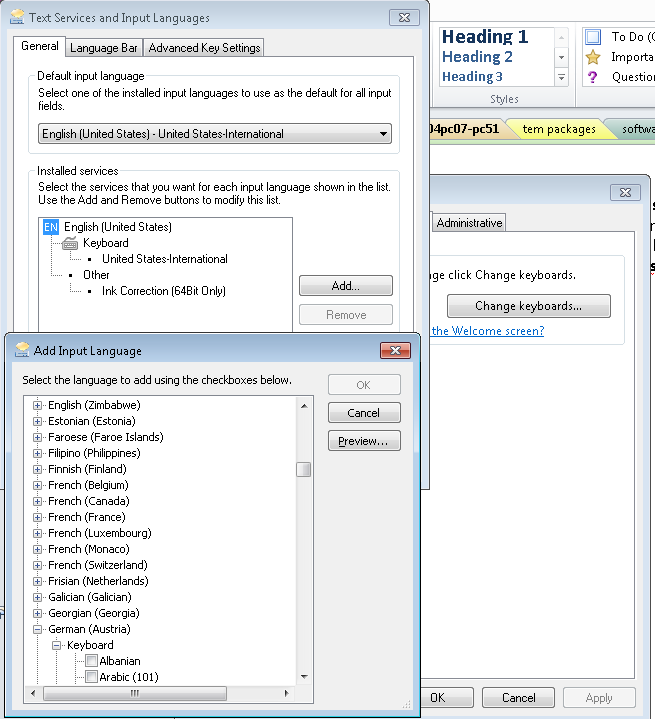
The LRC writing input methods (“keyboards”) are not configured right

- In intl.cpl, we do not want keyboards installed for western and central-European (= characters a-z, merely altered by diacritics) languages, including US. We type these languages, including US-English, with the us-international keyboard extended 2.1, which has to be set as default, and that US-English extended 2.1gets checked as the keyboard for all western languages ("show more"). The regular US keyboard gets removed/made invisible to the user, and with any reasonably recent version of MS Sysprep tools, that is no problem anymore.
- For non-Western languages, the built-in windows keyboards should be "checked", and also the alternate input that we had to download and install methods need to be "checked" under their languages: MS Maren, Google input methods nee to be enabled (checked): e.g. Farsi is not enabled (checked).


Questions? Read the About. Or just ask me a quick Our Databases: Resources with calendars -- Language learning material Moodle Sites, multimedia files -- films


FAQs for LRC student staff or for students or for teachers. To search our FAQs, in the browser addressbar, add after "https://plagwitz.wordpress.com/feed/?tag=faqs+/" "+TAG1" (from tag cloud below) OR "https://plagwitz.wordpress.com/feed/tag=faqs
&category_name=" "CAT1" (from category hierarchy below). OR search both categories and tags, and multiple TAGs/CATs (connect with "," for OR-search, with "+" for AND-search), like so: https://plagwitz.wordpress.com/feed/?tag=TAG1+TAG2+...TAGn&category_name=CAT1
+CAT2+...CATn"
Other ways to find help
If you cannot find it here, look there: 5,500 Language-Learning Links and Programs for learning or teaching 150 languages
Shortcuts:Our Lists, Our Maps, LRC Staff Moodle Site,LRC Project Moodle Site, 49erexpress, UNCC Moodle, Student Recordings: s:claslcslrcsanakostudent
Learning usage samples: Sanako oral exam, Kaltura webcam presentation, Dictation with speech recognition, Sanako written exam, Chinese and Japanese interactive stroke-order practice
Test the Sanako Installer, Webbrowser Popup Konfigurator for XP, or Windows7, faster LRC TeacherPC Log-in Let MS facilitate diacritics writing by installing for you US-International keyboard layout
This is my personal blog (Google+). The views expressed on these pages are mine alone and not those of my employer. The information in this weblog is provided “AS IS” with no warranties, and confers no rights.
 Thomas' Work Space