Archive
How to secure headphones on Lab PC
An LRC classic: In an attempt to improve, students will unplug/reseat and/or break headphone connectors, and render the LRC computers useless for even basic audio listening/recording use. In our attempt to prevent this and protect student users from themselves, here is what we have to work with on the rear of Dell Optiplex 760 (mini form factor): 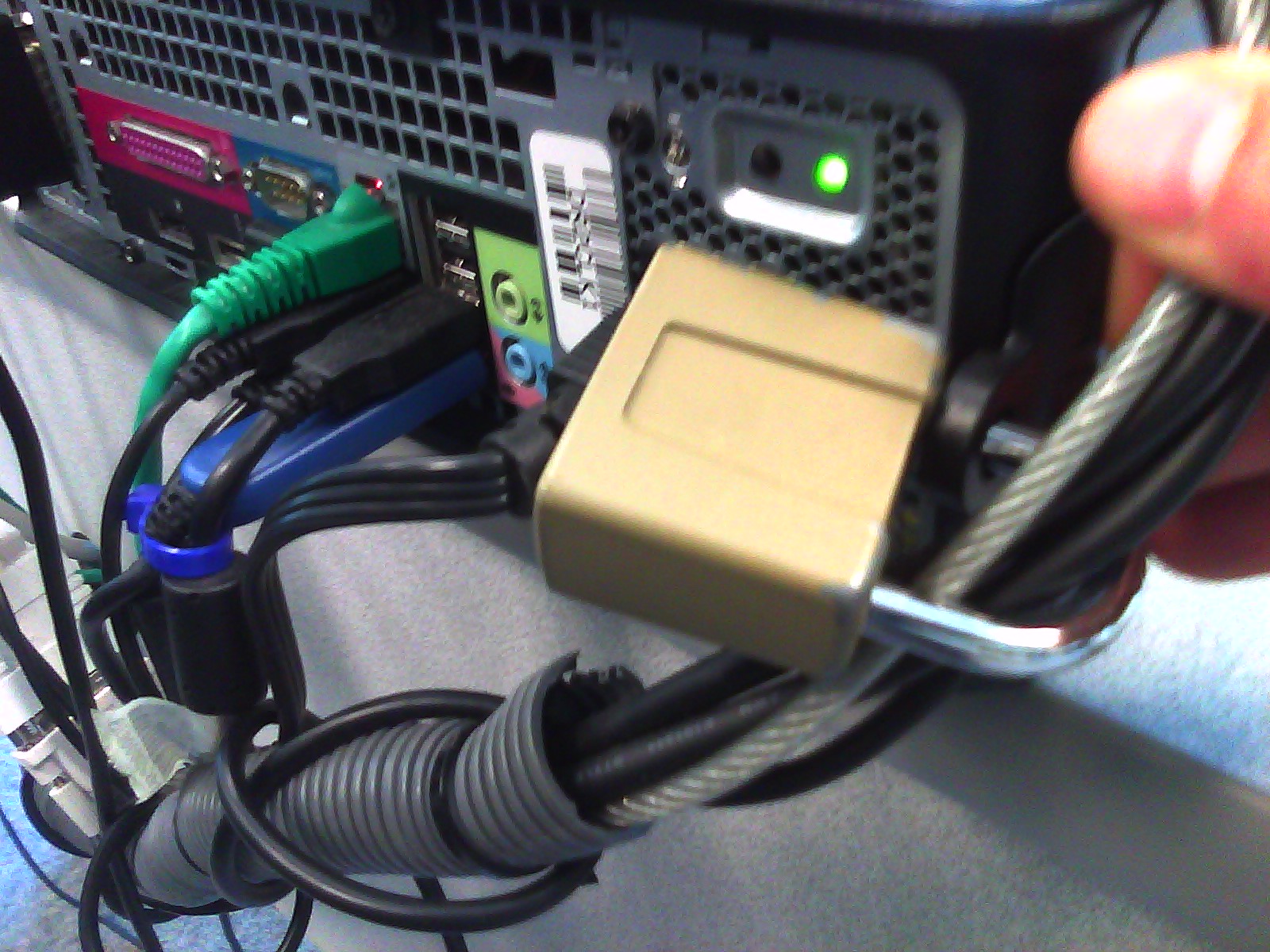 .
.
Cables tied to one another seems to be not stable neough. Maybe try, on top of the old (loop-headphone-cable-through-)washer-trick, a cable-tie looped through the rear grate openings which are closer and more accessible than the already installed lock?
NetOp School 6 not upgrading
- Here is what we have:
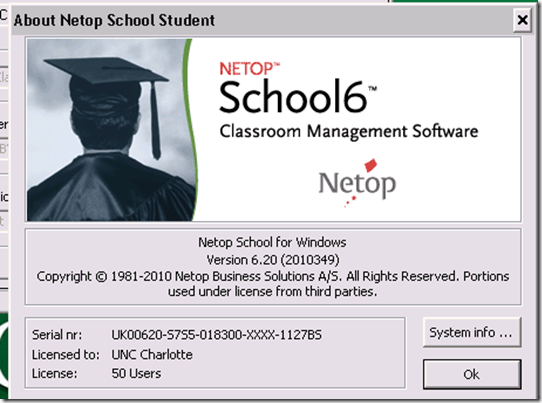
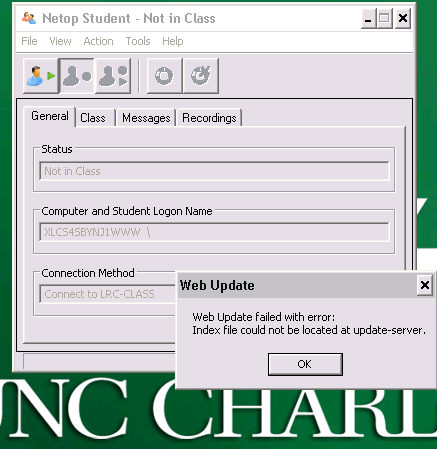
- Here is what get:

- And for the indexing servers: “ Web Update failed with error: Index file could not be located at update-server.”

Mac Mini (Mid 2010) Overview
Just trying to make the basic troubleshooting information more accessible from the field:

 Taken from: http://manuals.info.apple.com/en_US/Mac_mini_Mid2010_User_Guide.pdf
Protected: SelfReg – registration of devices on the UNCC network in 5 easy steps
How to use the MS-Office Labs Community Clips Screen Capture Tool
- I seem to remember this initiative of having MS-Office users sharing tips and tricks using screencasts has been faded out – but the screen capture tool is still available, and it is not restricted to recording MS-Office applications.
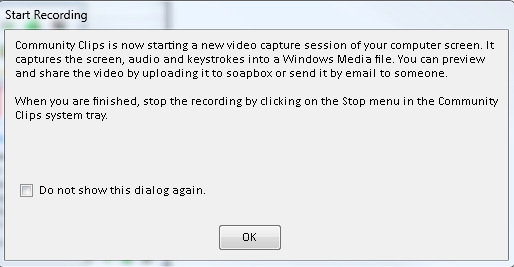
- After download and install (here on Windows 7),

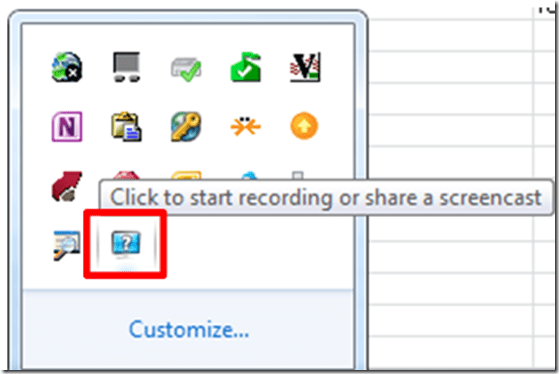
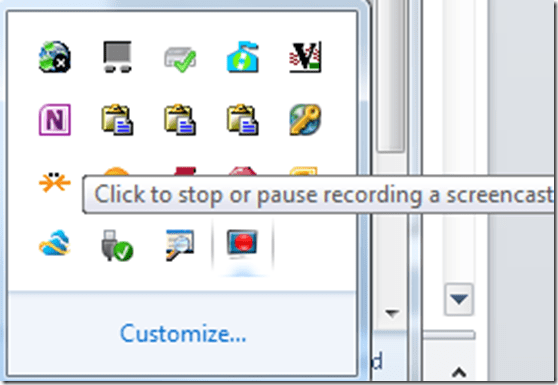
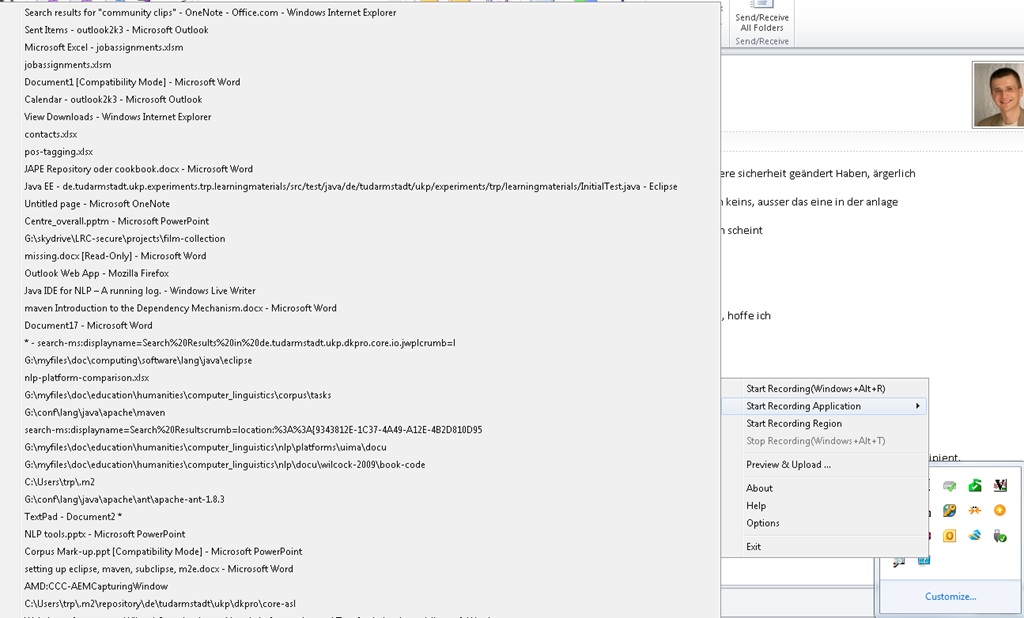
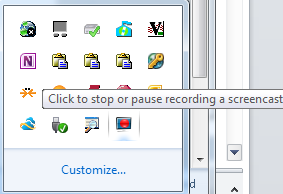
- click the community clips system tray icon to easily start a screen capture:
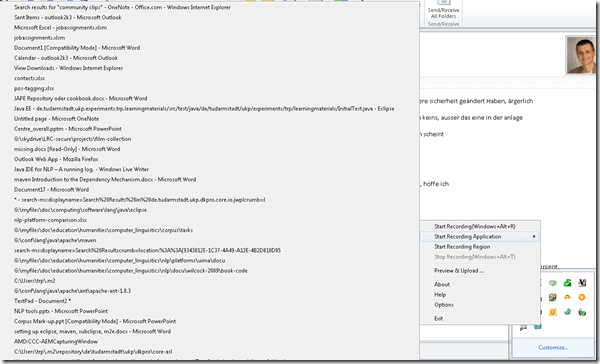
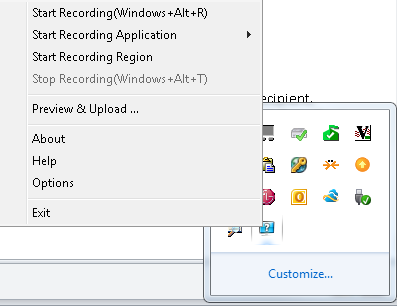
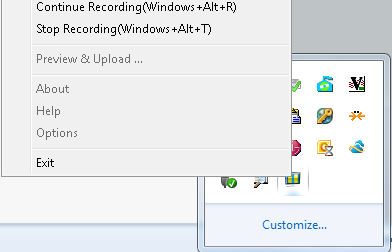
- Or access the context menu with advanced options:

- including restricting recording to specific windows:
- It does not start up very fast:

- It flashes a frame around the recorded area.
- This is a test…


- The preview starts automatically:
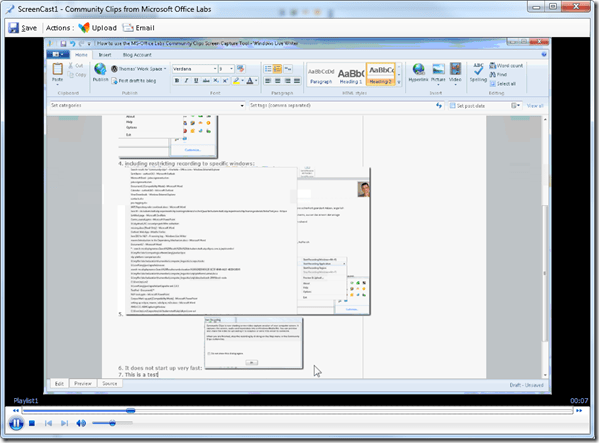
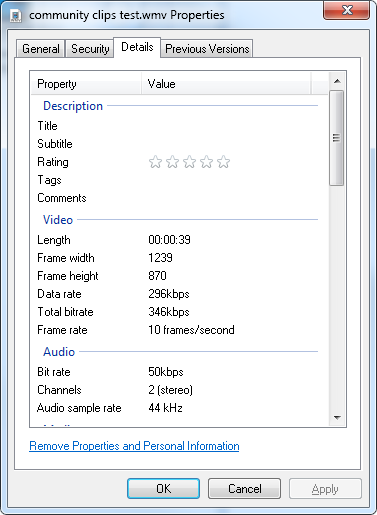
- About the file quality:

- Both the save and the email option
 work, only the built-in upload fails, likely due to the demise of MS-Soapbox:
  , but can be easily uploaded to other services, e.g. MS-SkyDrive
 - Unfortunately, like the Windows Media Encoder clips, it won’t preview without download on SkyDrive – unlike the (newer) MS-PowerPoint 2010-recorded screencasts:

- Still, the MS-Office Labs Community Clips Screen Capture Tool seems to have a friendlier interface than Windows Media Encoder, and is as free.






How in Windows 7 multiple windows can share in one screen, and multiple screens in one window
- The windows management improvement I use most in Windows 7, in order to view multiple windows simultaneously (after introduction of preemptive multi-tasking in the late 80s, the operating system was renamed from MS-DOS to MS-Windows, not to “MS-Window”) is the snap-to-edge which you can access
- either by “throwing” your window (drag the title bar) to the left or right edge of your screen (top or bottom will maximize or minimize your window);
- or if you rather use the keyboard,
 + left/right arrow (+ up/down arrow will maximize or minimize your window). Keep pressing the combination and you will cycle the window position. Note that this works also across dual-screens.
- Also a welcome relief: In Windows 7 dual screen environments, you can drag and drop maximized windows between screens.
- The fact that you could not in Windows XP (where you have to de-maximize the windows first before dragging it) has caused much confusion wherever I introduced multi screen computers for teachers;
- in spite of the fact that you could not drag a maximized window away in the single screen environment that our users are more accustomed to.
- Guess I can now rather focus on upgrading a 11-year old OS to Windows 7 than on coming up with a more memorable explanation. Actually, people are currently raving about the dual-screen management improvements in Windows 8, but I that will take a bit longer to trickle through.

How to play a DVD from the LRC teacher podium

- On the Control panel, click on “DVD”
- This makes the DVD controls appear, which include play and FF.
- By clicking on “Advanced Controls”, you can access another screen with more controls.
- Or you can play your DVDs from the teacher podium computer which is more integrated with the rest of the computer use, and you do not have to walk over to the AV cabinet to insert the DVD. Read in…
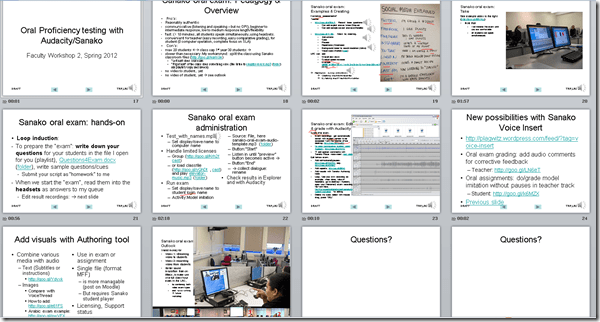
Spring 2012 Faculty Workshop II: Oral Proficiency testing with Audacity/Sanako
- View screens (best viewed side by side, but note that left and right screen are not synchronized):
- for full slide show (note the included short links for convenient further reading), left screen

- for Sanako interface and full audio track, right screen
 .
.
- for full slide show (note the included short links for convenient further reading), left screen
- Table of contents:
- Overview of a Sanako Oral Exam
- Examples of Exam teachers’ exam question recordings
- Example of a Sanako Exam
- Loop induction
- creating an exam question recording
- by taking a Sanako exam as a student
- Step-by-Step of administering a Sanako oral exam
- Grading Sanako oral exam student files
- Sanako voice insert for
- facilitating recording oral assignments for student without hard-coded pauses
- commenting on student responses during grading
- Sanako voice insert for
- Sanako authoring tool for providing visual on top of aural cues to students



Questions? Read the About. Or just ask me a quick Our Databases: Resources with calendars -- Language learning material Moodle Sites, multimedia files -- films


FAQs for LRC student staff or for students or for teachers. To search our FAQs, in the browser addressbar, add after "https://plagwitz.wordpress.com/feed/?tag=faqs+/" "+TAG1" (from tag cloud below) OR "https://plagwitz.wordpress.com/feed/tag=faqs
&category_name=" "CAT1" (from category hierarchy below). OR search both categories and tags, and multiple TAGs/CATs (connect with "," for OR-search, with "+" for AND-search), like so: https://plagwitz.wordpress.com/feed/?tag=TAG1+TAG2+...TAGn&category_name=CAT1
+CAT2+...CATn"
Other ways to find help
If you cannot find it here, look there: 5,500 Language-Learning Links and Programs for learning or teaching 150 languages
Shortcuts:Our Lists, Our Maps, LRC Staff Moodle Site,LRC Project Moodle Site, 49erexpress, UNCC Moodle, Student Recordings: s:claslcslrcsanakostudent
Learning usage samples: Sanako oral exam, Kaltura webcam presentation, Dictation with speech recognition, Sanako written exam, Chinese and Japanese interactive stroke-order practice
Test the Sanako Installer, Webbrowser Popup Konfigurator for XP, or Windows7, faster LRC TeacherPC Log-in Let MS facilitate diacritics writing by installing for you US-International keyboard layout
This is my personal blog (Google+). The views expressed on these pages are mine alone and not those of my employer. The information in this weblog is provided “AS IS” with no warranties, and confers no rights.
 Thomas' Work Space