Archive
Streaming Problems with Realmedia via RTSP from ereserves with VLC Player (and Internet Explorer. And NetOp School)
- VLC-player
- version 1.1.9, but also currently newest 1.1.11 as well on Windows CXP SP 3
- opens from IE8 and Firefox 3.6
- but is not able to play files (tested even multi) through. Rather, it nicely falls on its face, with the audio stream simply appearing to stop, mid-sentence, after 2:38 (pretty consistently – a buffering bug? A great way to slip through pre-testing).
- In the LRC, I could hardly bring the taskswitcher up, let alone (15 minutes of waiting) the task manager, to even find that vlc.exe is the culprit, with a CPU utilization of 99% solid (Ouch!).

- Not quite so bad in the office computer where it hovered slightly above 25%, maybe busying only one CPU core.

- My Google searches do not find anything quite similar.
- RealPlayer 14 to the rescue?
- In IE8, RealPlayer does not open when clicking on the web page link with the RM file which causes a dialogue to open if VLC-player is the default player, rather a strange unplayable content error..

- In Firefox, RealPlayer open and plays (and pre-buffers) the stream completely.

- Note that ereserves “download as zip” cannot serve as a workaround: gives you only the links like http://dlib4.uncc.edu/streaming/media_play.php?file=9364cb66b9e1cae26aed0f471e9eab5b, which require you to re-authenticate, even if in the same browser session, and do not redirect to the resource, neither audio nor web page form which you could launch the audio (in short, I do not get what this download as zip is good for)
- Next Problem: This may work on my office computer. In the lab we have NetOp School installed. That adds another layer of NetOp School problems which look like they can be resolved
next time the lab is reimaged. For now, use instead audio from Moodle metacourses where possible.next time I get around to design and run a Symantec-Ghost Software and File Action on the computers (all LRC lab PCs) and test the result (on PC10) which was now.


Solved: NetOp School NLSP.dll prevents streaming of Real Media via RTSP on student computers
- On a NetOp School system, Realplayer 14, when trying to load e.g. rtsp://dlib4.uncc.edu:554/e_reserves/CD4French1-7.rm (from Firefox, or disk, authenticated), crashes nlsp.dll (version 6, part of of NetOp School from Danware). This is the NetOp Browser Policy IP Filter.
- The MS-windows appcompat contains this:
-
NAME
RealPlay.exe
nlsp.dll
kernel32.dll
FILTER
GRABMI_FILTER_PRIVACY
GRABMI_FILTER_THISFILEONLY
GRABMI_FILTER_THISFILEONLY
NAME2
cddbcontrol.dll
nlsp.dll
kernel32.dll
SIZE
2041072
243728
989696
CHECKSUM
0x902F78A2
0xB9006E28
0x2D998938
BIN_FILE_VERSION
2.6.206.205
6.20.2010.349
5.1.2600.5781
BIN_PRODUCT_VERSION
2.6.206.205
6.20.2010.349
5.1.2600.5781
PRODUCT_VERSION
2, 6, 206, 205
6.20 (2010349)
5.1.2600.5781
FILE_DESCRIPTION
CDDBControl Core Module
NetOp Browser Policy IP Filter
Windows NT BASE API Client DLL
COMPANY_NAME
Gracenote, Inc.
Netop Business Solutions A/S
Microsoft Corporation
PRODUCT_NAME
CDDBControl Core Module
Netop School
Microsoft® Windows® Operating System
FILE_VERSION
2, 6, 206, 205
6.20 (2010349)
5.1.2600.5781 (xpsp_sp3_gdr.090321-1317)
ORIGINAL_FILENAME
CDDBControl.DLL
NLSP.DLL
kernel32
`
INTERNAL_NAME
CDDBControl
NLSP
kernel32
LEGAL_COPYRIGHT
Copyright 1999 – 2009
Copyright © 1981-2010 Netop Business Solutions A/S. All Rights Reserved. Portions used under license from third parties.
© Microsoft Corporation. All rights reserved.
VERFILEDATEHI
0x0
0x0
0x0
VERFILEDATELO
0x0
0x0
0x0
VERFILEOS
0x4
0x4
0x40004
VERFILETYPE
0x2
0x2
0x2
MODULE_TYPE
WIN32
WIN32
WIN32
PE_CHECKSUM
0x1F6508
0x4526B
0xFE572
LINKER_VERSION
0x0
0x0
0x50001
UPTO_BIN_FILE_VERSION
2.6.206.205
6.20.2010.349
5.1.2600.5781
UPTO_BIN_PRODUCT_VERSION
2.6.206.205
6.20.2010.349
5.1.2600.5781
LINK_DATE
04/13/2010 19:48:37
12/15/2010 19:38:53
03/21/2009 14:06:58
UPTO_LINK_DATE
04/13/2010 19:48:37
12/15/2010 19:38:53
03/21/2009 14:06:58
VER_LANGUAGE
English (United States) [0x409]
Language Neutral [0x0]
English (United States) [0x409]
- NetOp support advises to try, among other things, resetting the Winsock catalog via "netsh winsock reset", which seems to work on a testmachine.
Protected: Sharing the LRC main classroom, using LRC Calendar LRCRoomCoed434
Learn Chinese character stroke-order with slowed-down animated GIFs
Further to our prior tips on learning Chinese stroke order, now you can take your time, in the LRC: To facilitate your practicing of Chinese character stroke-order, we have used the most helpful site (also available by direct download) created by Tim Xie for the California State University, Long Beach, to create 100 different speed versions, and one comic strip like static image, for each of the several hundred of animated GIFs demonstrating Chinese character writing, and made them available on the LRC computers under Internet Explorer Favorites – Example:
 |
 |
 |
|
 |
|
 |
|
 |
|
 |
|
 |
|
 |
You can access the files with the stroke order speed of your preference from the LRCCOED434 student computers, like so:
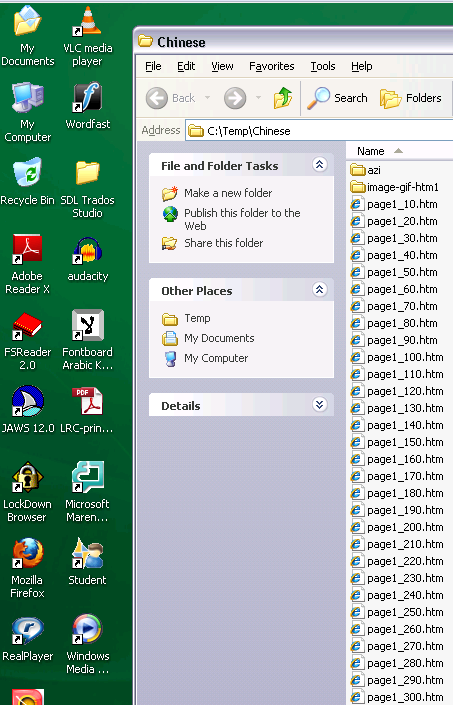
(Many thanks also to the authors of programmable ImageMagick image editor and corresponding Unix shell scripts that we could use in the production of the slowed down animated GIFs. To create your own version of these slowed down animated GIFs, or others similar websites, feel free to pick up and/or adapt our shell script here).
How to use the LRC Room Coed 434 Teacher Computer
- Teacher podium
- Even though the teacher computer may have 2 screens, log in as normal: Follow the instructions on the screen (press CTRL-ALT-DEL and enter your credentials).

- Also check our instructions for using the dual screen on the teacher computer.
- Even though the teacher computer may have 2 screens, log in as normal: Follow the instructions on the screen (press CTRL-ALT-DEL and enter your credentials).
- Connected computer to the right of the podium
- If you see this “Computer has been Locked” message, try and get hold of the person whose account name appears as the last logged in user when you press CTRL-ALT-DEL, to unlock the computer. If you cannot get hold off the person, or of somebody with an administrator account, you have to restart (power cycle) that computer.
- If the screens are black and do not come on when you move the mouse and type on the keyboard, turn that computer on using the Power button in front.
- If you want to use a CD, DVD, thumb drive, insert it into that computer.
- If you get this message when closing the Sanako Study1200, say “no”.

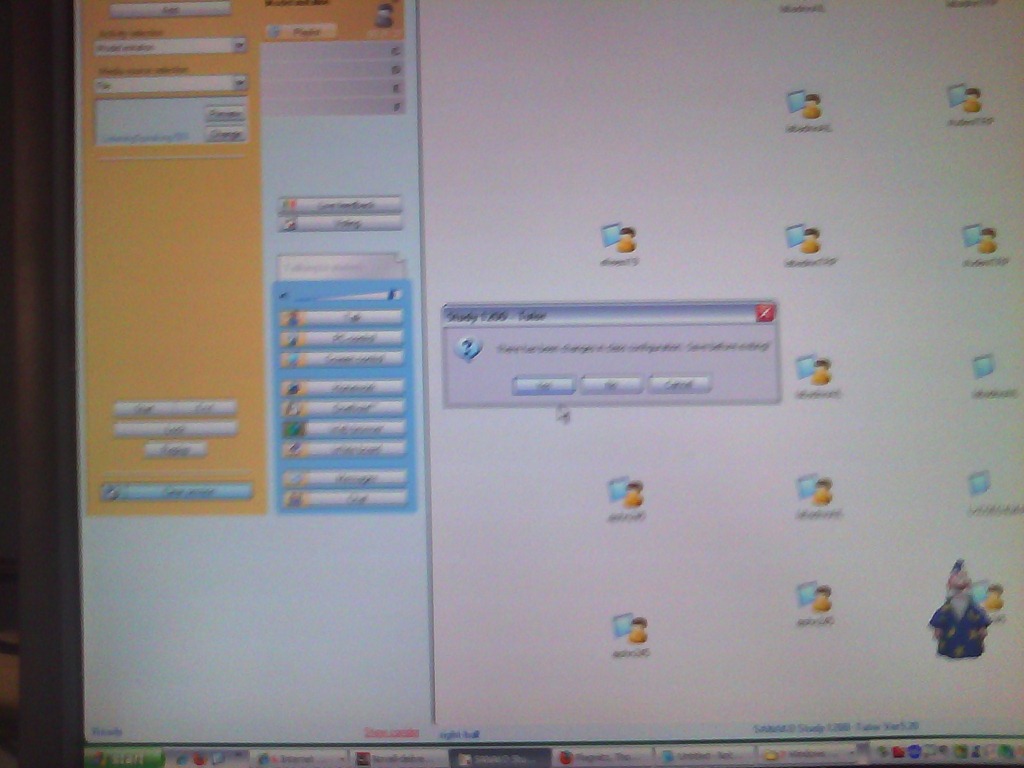
Sanako Study-1200 Oral Exams: More result examples
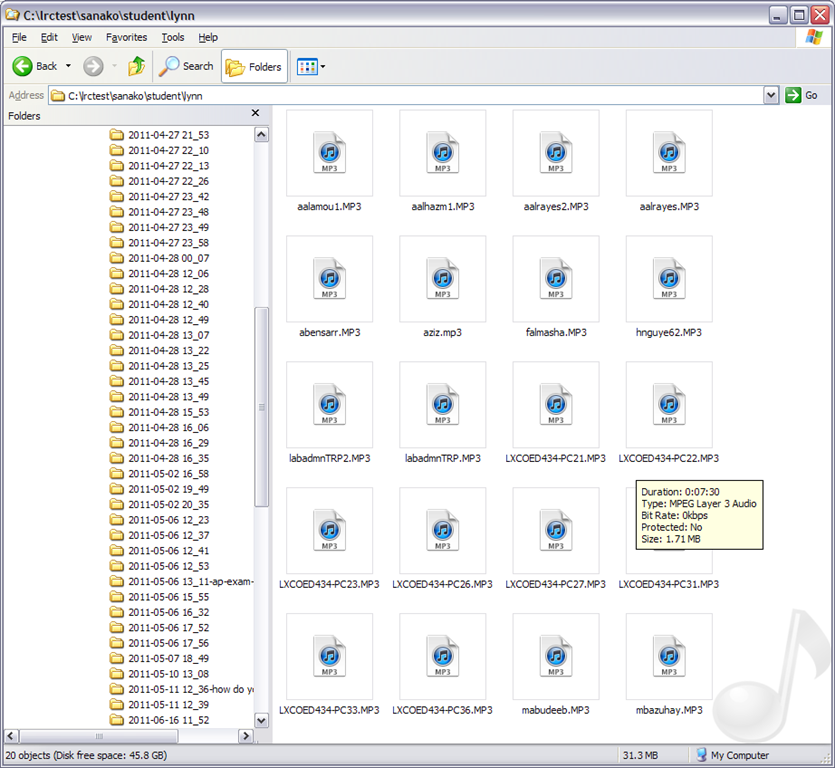
- Study 1200 will automatically save the exam recordings of each of your students under a distinct name (you can choose student email name or seat number) in a location which you can access from your office desktop:

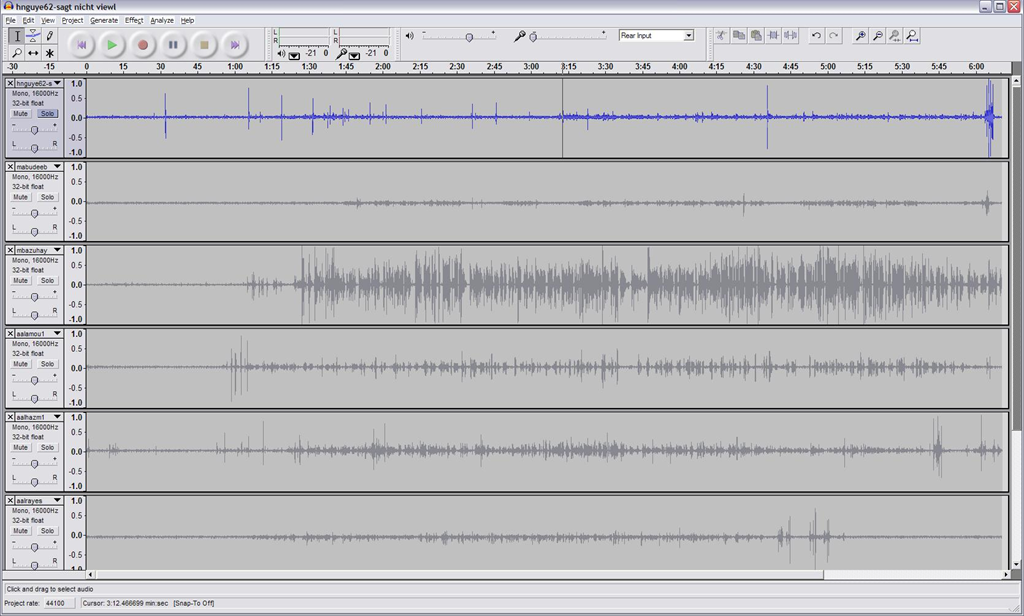
- You can load this recordings in Audacity to grade them, including skipping past the questions and increasing the play speed, but not the pitch, and easy comparison of students like in the picture below:
-


Just testing the post by email
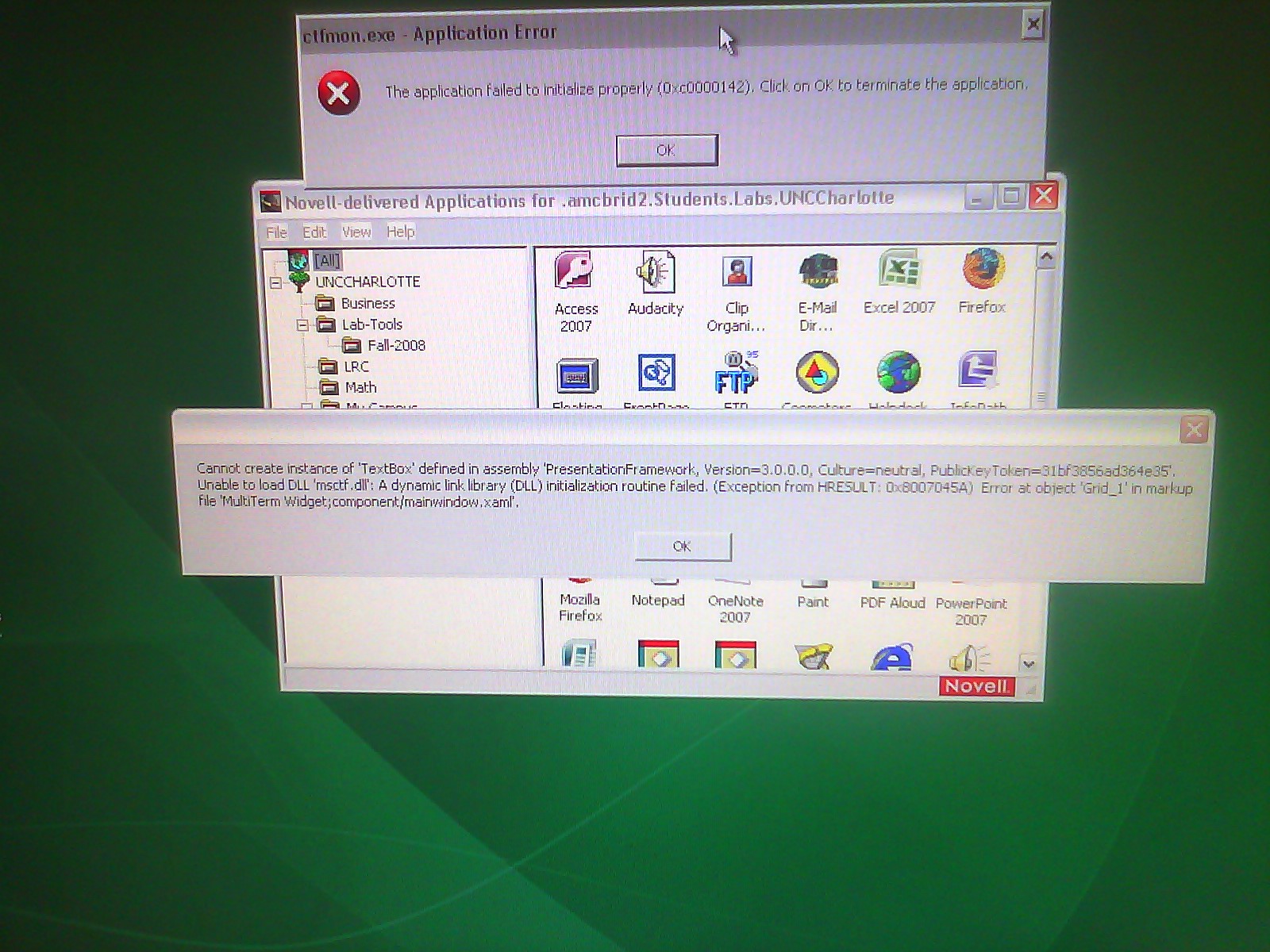
This appears to be a Trados error. Does it appear on every startup? On each Coed434 PC? We have to investigate.
How to set up PowerPoint show on dual screen computers
Before trying to show your PowerPoint on the classroom projector, with your PowerPoint file open on the teacher computer, go to the dialogue: “Set up Show” and choose from the dropdown: “secondary monitor”, click “OK”, like so:

Then proceed as normal.


Questions? Read the About. Or just ask me a quick Our Databases: Resources with calendars -- Language learning material Moodle Sites, multimedia files -- films


FAQs for LRC student staff or for students or for teachers. To search our FAQs, in the browser addressbar, add after "https://plagwitz.wordpress.com/feed/?tag=faqs+/" "+TAG1" (from tag cloud below) OR "https://plagwitz.wordpress.com/feed/tag=faqs
&category_name=" "CAT1" (from category hierarchy below). OR search both categories and tags, and multiple TAGs/CATs (connect with "," for OR-search, with "+" for AND-search), like so: https://plagwitz.wordpress.com/feed/?tag=TAG1+TAG2+...TAGn&category_name=CAT1
+CAT2+...CATn"
Other ways to find help
If you cannot find it here, look there: 5,500 Language-Learning Links and Programs for learning or teaching 150 languages
Shortcuts:Our Lists, Our Maps, LRC Staff Moodle Site,LRC Project Moodle Site, 49erexpress, UNCC Moodle, Student Recordings: s:claslcslrcsanakostudent
Learning usage samples: Sanako oral exam, Kaltura webcam presentation, Dictation with speech recognition, Sanako written exam, Chinese and Japanese interactive stroke-order practice
Test the Sanako Installer, Webbrowser Popup Konfigurator for XP, or Windows7, faster LRC TeacherPC Log-in Let MS facilitate diacritics writing by installing for you US-International keyboard layout
This is my personal blog (Google+). The views expressed on these pages are mine alone and not those of my employer. The information in this weblog is provided “AS IS” with no warranties, and confers no rights.
 Thomas' Work Space