Archive
How to display Furigana phonetic guide for Japanese Kanji in MS-Word 2010
- Furigana uses Kana (usually Hiragana) to phonetically transcribe Kanji, above (for horizontally written Kanji) or to the right (if in vertical writing mode), for special characters or audiences (children and second language learners).
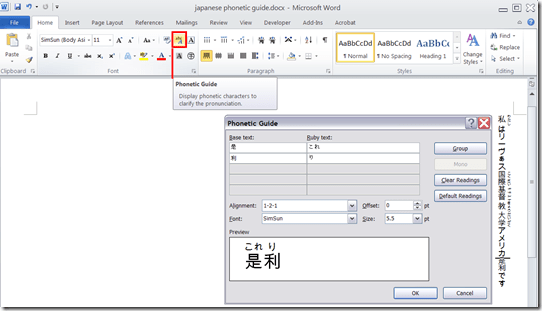
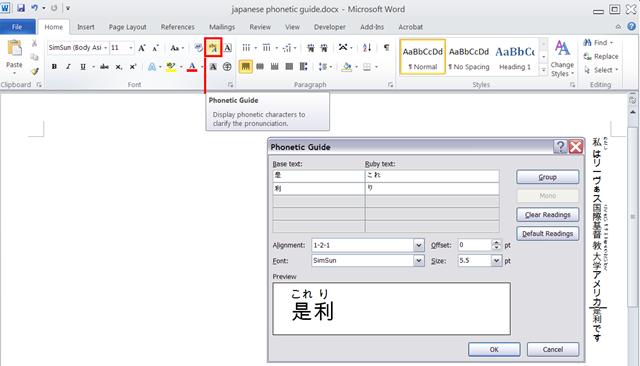
- In MS-Office, if you have a Japanese Input Method Editor selected in MS-Windows, select some Kanji and in the ribbon, under tab: home, section: font; click on the Phonetic guide, to bring up a dialogue that attempts to auto detect the furigana.
- You can make adjustments there, click “OK “to insert. Like so:
How we reorganized the reception area to improve support of circulation and small group work
The new reception desk is meant to secure the entrance to Coed436. To secure the circulation equipment, we do not let students into COED436 anymore, whether they are trying to check out equipment or for other reasons (except if they need to see the LRC coordinator). Hand all equipment to students over the counter. The door to Coed436 has to be locked when the LRC Assistant leaves the reception desk (it always can be unlocked from inside).
We also carved out 2 small group work spaces in the LRC entrance area. They can be used by language tutors with their students, and by other small student groups, including for assigned film viewing. These work spaces currently do not have to be booked, but they can be. Bookings take precedence over walk-ins. Send meeting requests to LRCRoomCoed433c@uncc.edu (Group1 next to entrance), LRCRoomCoed433d@uncc.edu (Group 2)). The calendar on the reception desk will display the bookings.
We moved 3 more iMacs (with built-in web cameras) into the main classroom (currently available to students only when all other iMacs are in use). All the iMacs in the main classroom actually have now also their own “room”: LRCroomCoed433b@uncc.edu (iMacs), but we are not requiring this “room” to be booked (yet). We are considering this in an attempt to avoid pile-ups of students trying to take video recording assignment. First we monitor actual usage patterns, especially nearing assignment dead-lines.
New “rooms”, and other equipment types are highlighted in green on our list of bookable resources.


Foreign Language Character Input on Windows XP in the LRC
The LRC offers the following foreign language characters writing support:
| American English | us international | not needed | us-int |
| Arabic | Google;MS;MS-maren;fontboard | maybe later, now osk | demo |
| British English | us international | not needed | us-int |
| Dutch | us international | not needed | us-int |
| Farsi | Google;MS | maybe later, now osk | demo |
| French | us international | not needed | us-int |
| German | us international | not needed | us-int |
| Greek | Google;MS | maybe later, now osk | demo |
| Italian | us international | not needed | us-int |
| Japanese | MS | not needed | |
| Korean | MS | maybe later, now osk | demo |
| Mandarin | MS;pinyinput | not needed | pinyin |
| Portuguese (Brazilian) | us international | not needed | us-int |
| Russian | Google;MS | maybe later, now osk | demo |
| Spanish | us international | not needed | us-int |
The support is best accessed from the “international toolbar”, like so: 
You can also use the windows on-screen keyboard to input non-Western characters on a computer that has not the corresponding keyboard overlay stickers. In the small-group workspaces, which have writing pads, you can also use the MS-Handwriting IME for East-Asian languages.
The on-screen keyboard (OSK) for foreign language character input on MS-Windows
A little known, but useful tool for non-western languages which can not be represented by the us-international keyboard layout, when no hardware keyboard is available:
The Windows on screen keyboard reflects the soft keyboard installed via Control panel / Regional and language options / Text input languages. and selected via the language toolbar, like so:

Easiest access, click Start, click Run, type “osk”, click “OK”. Or try this on XP: 


Questions? Read the About. Or just ask me a quick Our Databases: Resources with calendars -- Language learning material Moodle Sites, multimedia files -- films


FAQs for LRC student staff or for students or for teachers. To search our FAQs, in the browser addressbar, add after "https://plagwitz.wordpress.com/feed/?tag=faqs+/" "+TAG1" (from tag cloud below) OR "https://plagwitz.wordpress.com/feed/tag=faqs
&category_name=" "CAT1" (from category hierarchy below). OR search both categories and tags, and multiple TAGs/CATs (connect with "," for OR-search, with "+" for AND-search), like so: https://plagwitz.wordpress.com/feed/?tag=TAG1+TAG2+...TAGn&category_name=CAT1
+CAT2+...CATn"
Other ways to find help
If you cannot find it here, look there: 5,500 Language-Learning Links and Programs for learning or teaching 150 languages
Shortcuts:Our Lists, Our Maps, LRC Staff Moodle Site,LRC Project Moodle Site, 49erexpress, UNCC Moodle, Student Recordings: s:claslcslrcsanakostudent
Learning usage samples: Sanako oral exam, Kaltura webcam presentation, Dictation with speech recognition, Sanako written exam, Chinese and Japanese interactive stroke-order practice
Test the Sanako Installer, Webbrowser Popup Konfigurator for XP, or Windows7, faster LRC TeacherPC Log-in Let MS facilitate diacritics writing by installing for you US-International keyboard layout
This is my personal blog (Google+). The views expressed on these pages are mine alone and not those of my employer. The information in this weblog is provided “AS IS” with no warranties, and confers no rights.
 Thomas' Work Space