Archive
Archive for the ‘LRCRoomCoed433’ Category
LRC headset test on iMacs
2014/01/02
Leave a comment
- Logon to the iMac.
-
Double click Macintosh HD.
-
Click Application.
-
Find Garage band and double click it.
-
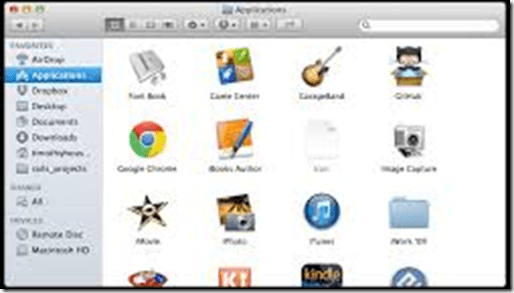
-
Save the file to the desktop
-
Press record

-
Speak into the microphone; then tab the microphone with your finger several times, to make sure you are recording through this source.
-
Stop then play
-
If there is no sound or you cannot hear anything, go to the Apple menu

-
and click system preferences
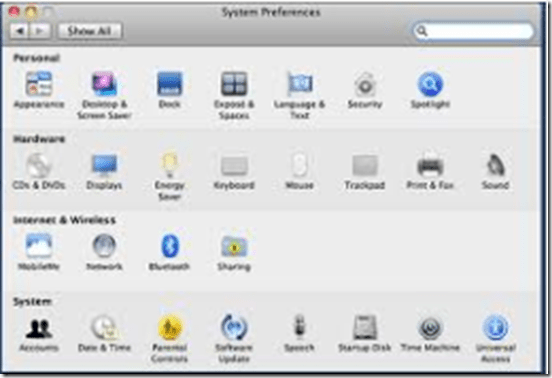
-
Click sound then select the output tab
-
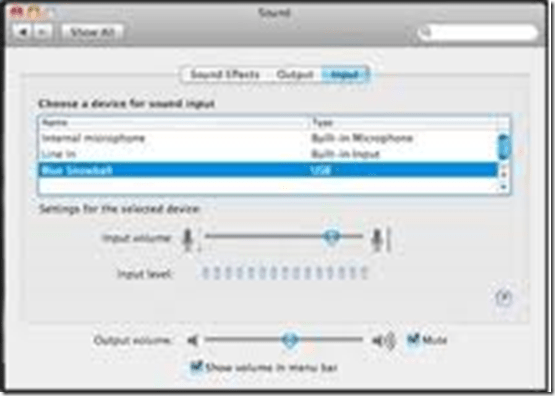
-
Choose the usb option
-
Select the input tab then again choose the usb option
-
Close system preferences
-
Try again to record then listen.
-
Still not working? Check the iMac headset hardware , as described here: LRC routine walkthrough for iMacs and printer.
-
If it still does not work, report Computer # on clip board.





Checklist for Vixia cameras (11-14)
2013/12/23
Leave a comment
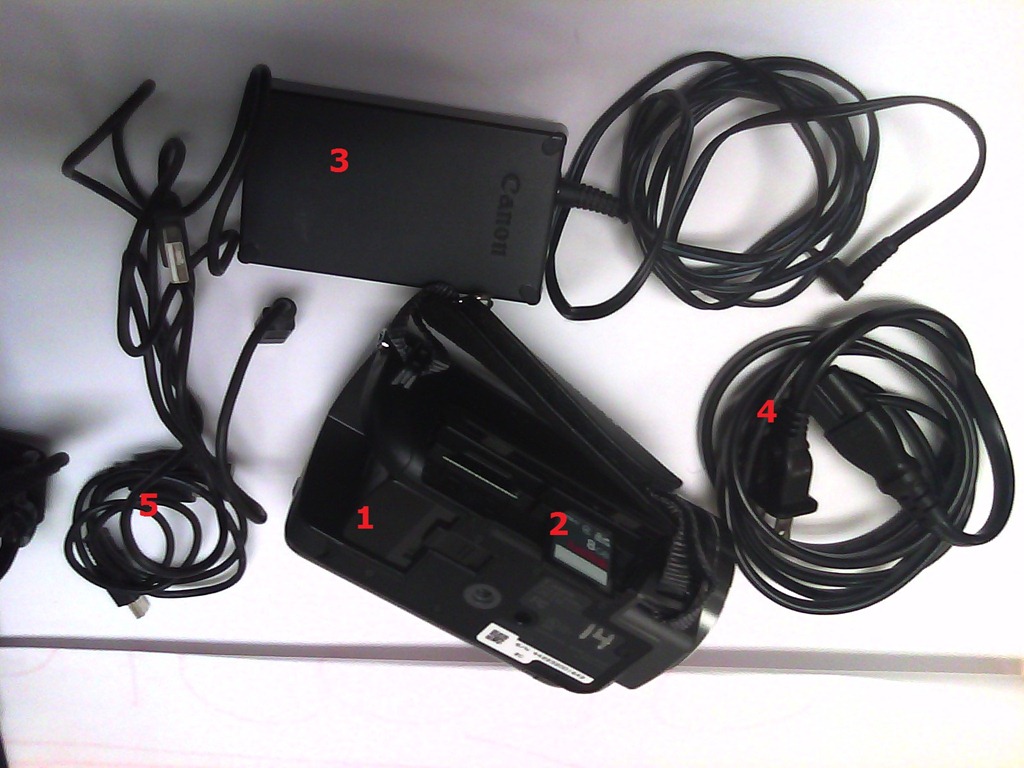
- Parts
- Battery
- SD Memory Card
- Battery Charger
- Power cable
- USB cable

- Test the Functionality
- Start camera
- Record for 5 seconds

- Playback:

- Maintenance
- Charge battery
- Initialize sd card: Sd-card like so.


Checklist for heavy tripods (01-04)
2013/12/23
Leave a comment
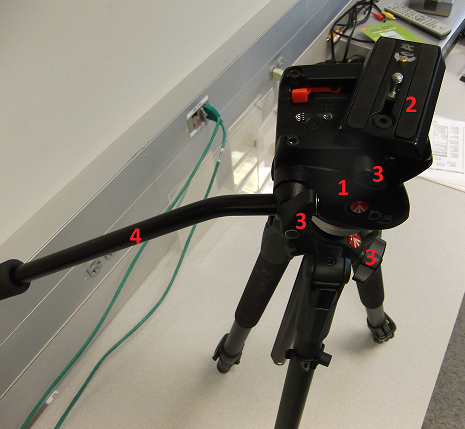
- Are all Parts there?
- Tripod
- Head plate
- Screws /wing nuts
- Handle
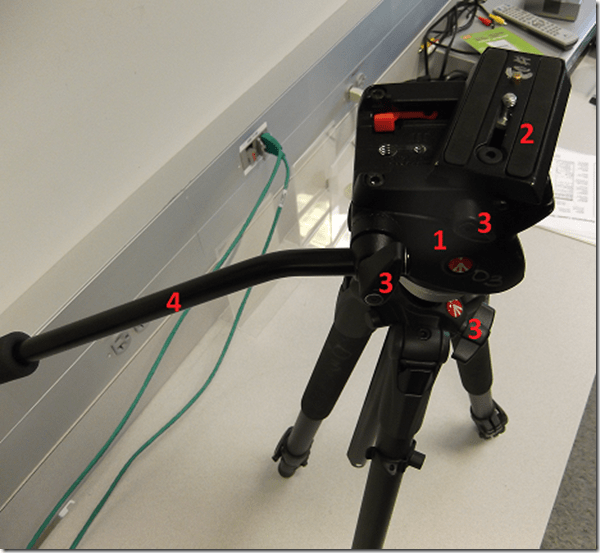
- Test the Functionality:
- Attach a camera to tripod.
- Move camera in all directions (top/bottom, left/right…)
- Maintenance:
- reduce tripod size again to its most compact position.
- Close all levers so that legs arrest.
Checklist for Rebel cameras (17/18/19/20)
2013/12/23
1 comment
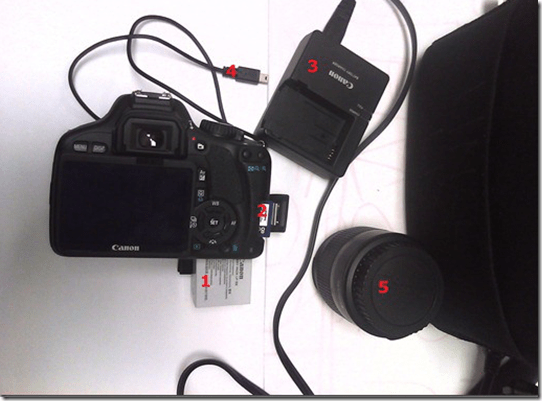
- Parts
- Battery
- SD Memory Card
- Battery Charger
- USB cable
- Lens
- Test the Functionality
- Turn camera on
- Set to video
- Take a 5sec video

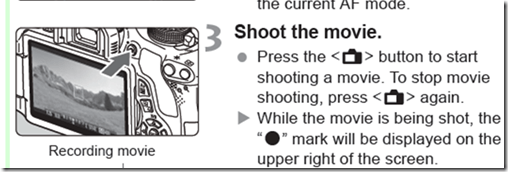
- Playback
- Maintenance
- Charge battery
- Initialize sd card like so.


Use CTRL+TAB to switch between tabs in Chrome kiosk fullscreen mode
2013/11/15
Leave a comment
- On the reception desk, when you open the NINERMAIL after logging into 49erexpress, Chrome opens NINERMAIL in another full screen tab (which hides the 49erexpress tab) – unlike full screen Internet Explorer, which opened NINERMAIL in a new window, but which we had to abandon with the introduction of offfice365.
- The 49erepxress tab is hidden, but still there, and you can switch between full screen tabs wit hthe keyboard shortcut CTRL+TAB (hold CTRL and pressing TAB repeatedly will cycle through all open Chrome tabs).
- So when a client is finished with NINEMAIL (meeting request), have them not only log out of NINERMAIL, but also CTRL+TAB back to the 49erexpress tab to log them out of 49express (and browse from the result window to the Sign-in link to be ready for the next client).
- No need to close the NINERMAIL tab. Next time somebody logs in to 49erexpress tab, Chrome will recycle the previous NINERMAIL tab.
Finding a balance between speed of log-in and readiness on help desk computers
2013/11/11
Leave a comment
- Problem:
- The LRC reception desk has 3 computers, each with 2 screens, one client-facing, that, when not shared during collaboration for clerical tasks, display (LRC assistants have been instructed which screen has to show which information) LRC-related information (LRC calendar, home page with news and FAQs, slide show with signs).
- However, when a teacher was bringing student to Spanish tutor after tutoring hours, I noticed, that no LRC calendar was visible at reception desk (SAFARI on rightmost computer), nor could be loaded easily.
- Upon my asking, LRC assistant reported, Firefox never comes up correctly on her computer.
- What I could observe: Firefox came up with 2 windows w/o preconfigured tabs.
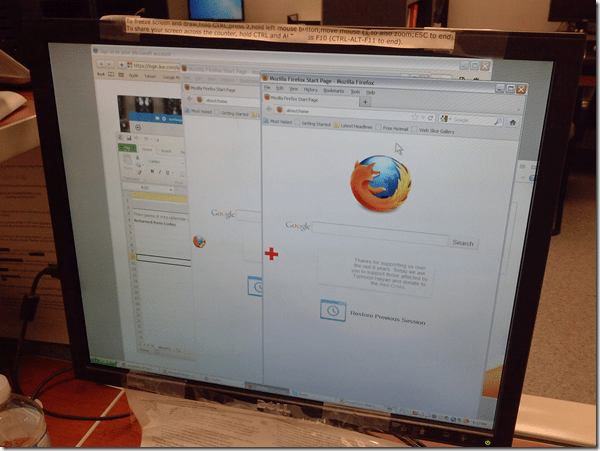
- Safari came up with 2 windows , also empty.

- Root cause:
- It turned out that other students did not have this issue when logging in on the computers.
-
It also turned out that the offending student’s profile had been frozen prematurely (in an obsolete state not incorporating changes we had to do during the term to maintain functionality of the reception desk computers in a changing campus IT environment).
- Workaround: Unfreeze the computer, delete the prematurely frozen profiles, have the student log in to recreate it using current default user settings, freeze the computer, to make the computer, 3 weeks before classes end…
- Solution: not sure I have one.
- Trying to have everything set up stably at term start is not the solution, but the problem.
- How can agility be increased?
- LRC assistants need to report problems. They may need better training to be aware of problems, and need an incentive to report problems, and a culture where reporting problems is not considered a problem in itself, but an achievement.
- The LRC lost its Symantec-Ghost imaging infrastructure which it could not only use for the lab PCs, but also to maintain 3 identical computers at its reception desk. This requirement for imaging was not considered during the recent upgrade of the labs imaging infrastructure, and we do not know how to get this capability back.


Categories: e-infrastructure, Reception-desk
ms-windows, profiles, symantec-ghos, t, xp
How to run a microphone test before taking an ACTFL exam on languagetesting.com
2013/10/28
Leave a comment
- To avoid having your test recordings rejected for quality reasons (and having to take the entire test again), please run this simple microphone test OUTSIDE of languagetesting.com:
- This microphone test can be run either
- at the listening stations (see sign 433a, brown headsets) or
- (PREFERABLY) in the main classroom (see sign 434, black headsets).
- After logging in, put the headphones on. No need to re-plug anything.
- From the desktop, open Audacity
 .
. - In Audacity, Press the red RECORD button
 .
. - Speak into the microphone.
- Check the results:
- You should see something like this:

- Press the green PLAY button
 and listen to your recording.
 - Does the recording look AND sound OK?
- NO: let the LRC staff at the reception desk know the computer number and switch computers.
- Yes: Save the recording using menu: File / Export / [name = number of computer].mp3 to your “my documents” folder (if your test gets rejected, you have evidence that you ran the test and that the LRC headset hardware you used was o.k.).
- You should see something like this:
- This microphone test can be run either
- You also need to run the test WITHIN languagetesting.com (which just tests for volume, not for quality).


Upgrade to the Moodle 2 on the LRC reception desk computers is overdue…
2013/10/18
Leave a comment
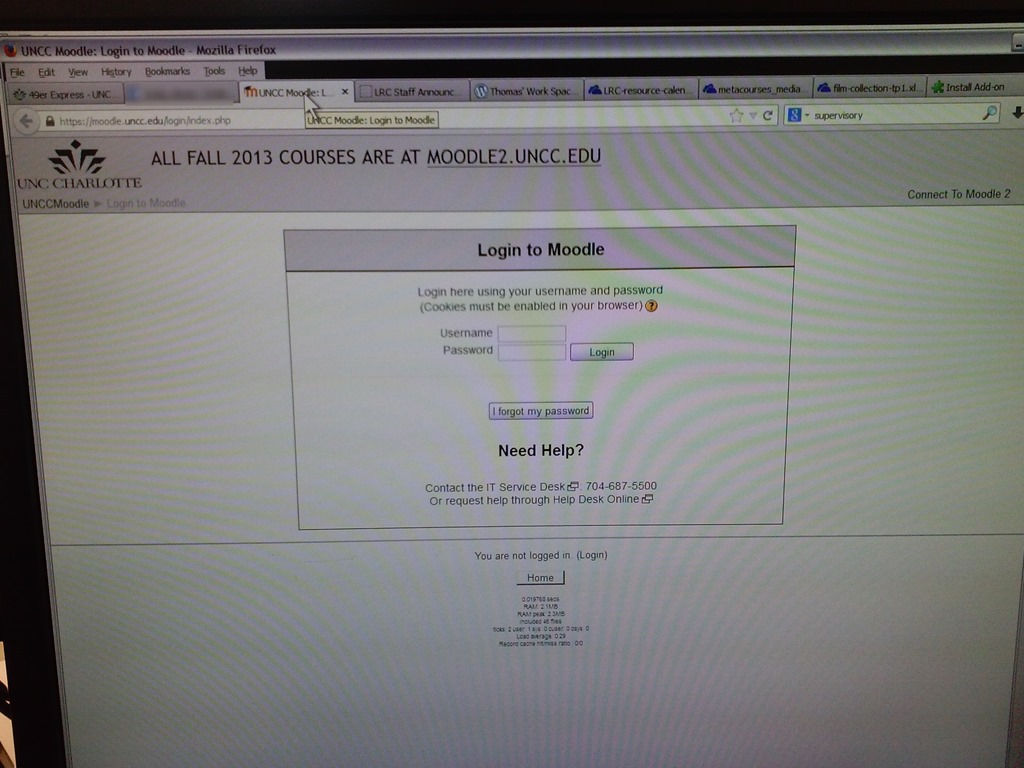
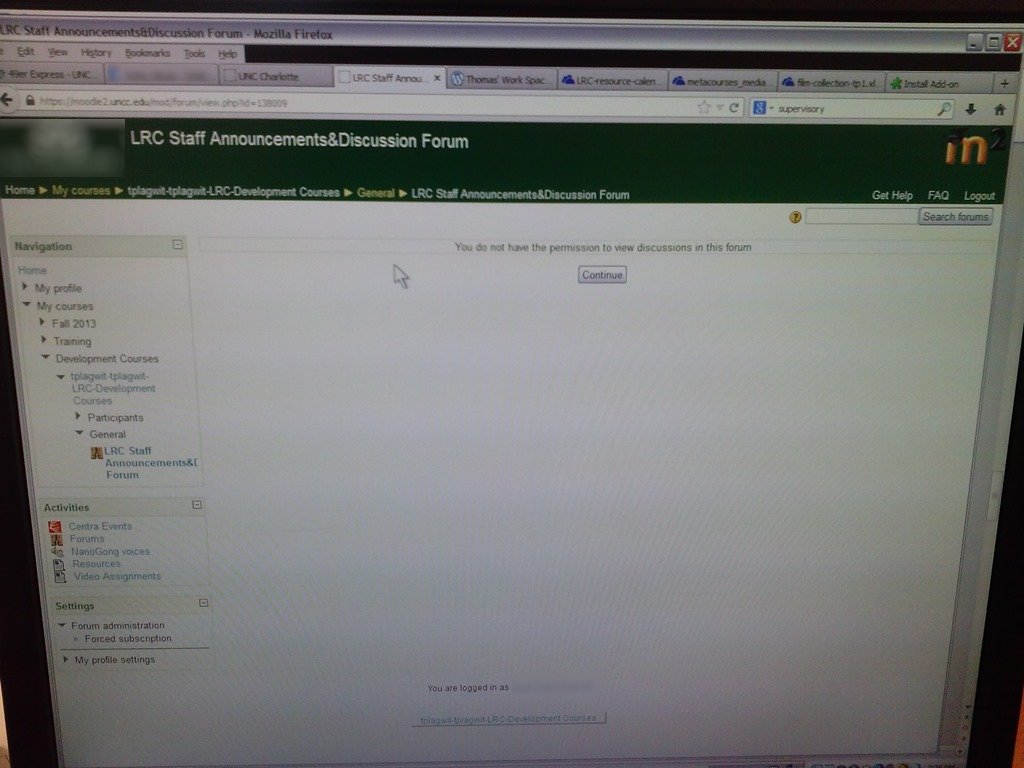

It will be fixed eventually – let me know if not.


Questions? Read the About. Or just ask me a quick Our Databases: Resources with calendars -- Language learning material Moodle Sites, multimedia files -- films


FAQs for LRC student staff or for students or for teachers. To search our FAQs, in the browser addressbar, add after "https://plagwitz.wordpress.com/feed/?tag=faqs+/" "+TAG1" (from tag cloud below) OR "https://plagwitz.wordpress.com/feed/tag=faqs
&category_name=" "CAT1" (from category hierarchy below). OR search both categories and tags, and multiple TAGs/CATs (connect with "," for OR-search, with "+" for AND-search), like so: https://plagwitz.wordpress.com/feed/?tag=TAG1+TAG2+...TAGn&category_name=CAT1
+CAT2+...CATn"
Other ways to find help
If you cannot find it here, look there: 5,500 Language-Learning Links and Programs for learning or teaching 150 languages
Shortcuts:Our Lists, Our Maps, LRC Staff Moodle Site,LRC Project Moodle Site, 49erexpress, UNCC Moodle, Student Recordings: s:claslcslrcsanakostudent
Learning usage samples: Sanako oral exam, Kaltura webcam presentation, Dictation with speech recognition, Sanako written exam, Chinese and Japanese interactive stroke-order practice
Test the Sanako Installer, Webbrowser Popup Konfigurator for XP, or Windows7, faster LRC TeacherPC Log-in Let MS facilitate diacritics writing by installing for you US-International keyboard layout
This is my personal blog (Google+). The views expressed on these pages are mine alone and not those of my employer. The information in this weblog is provided “AS IS” with no warranties, and confers no rights.
 Thomas' Work Space