Archive
Saba Centra on startup automatically selects the "microphone" as recording device…
- … But we in the language lab use the (dual function microphone/line-in) "rear input" for our headsets (for ergonomic, health&safety and security reasons). Workaround here.
- Apparently this startup behavior cannot be changed within Saba Centra:
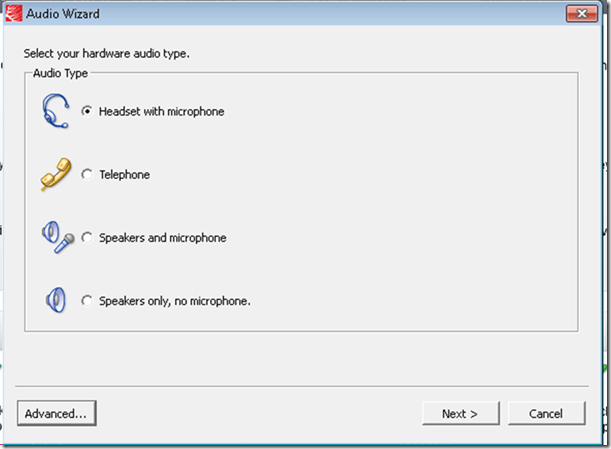
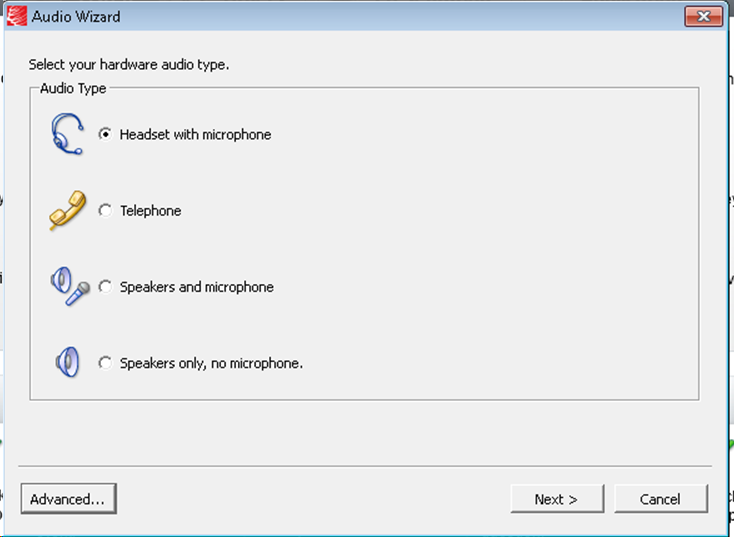
- Any startup will bring up the “Audio Wizard” asking users, even in a controlled lab environment, to configure their audio devices,
- and if users do (and choose what they have: headset), make wrong assumptions which audio plug to enable (“Microphone” front panel, even if your headset is plugged into the rear panel dual “line-in/microphone”)
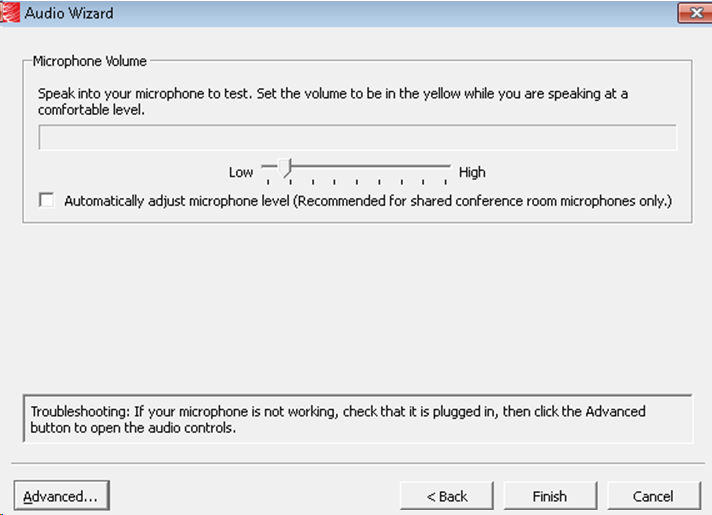
- The workaround according to these easily Googled instructions is using the “Advanced” audio wizard options to override this “Audio Wizard” error, like so:
- “Re-open the Audio Wizard, go to the third screen and change your recording device in your “Recording Device” menu. Advance two slides and determine if you can hear your recorded voice. ”
- 1st screen:
- 3rd screen:
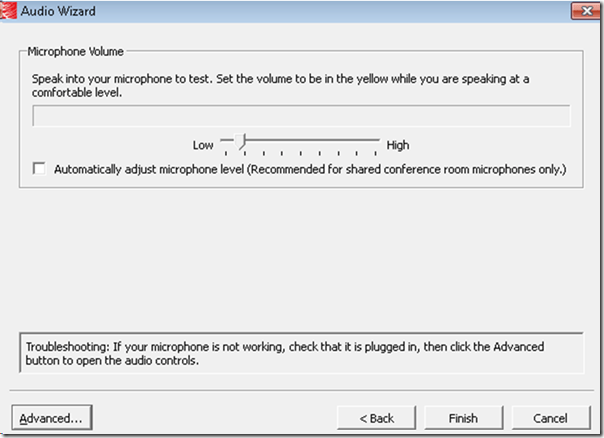
- note the instructions – Click “Advanced”. But it is easier to just use from the start our Workaround here.
- 1st screen:
- “Re-open the Audio Wizard, go to the third screen and change your recording device in your “Recording Device” menu. Advance two slides and determine if you can hear your recorded voice. ”
- The long-term solution is reconfigure your hardware and disable the front panel audio – but will Saba Centra understand you? Stay tuned…
How to prevent squealing noise on the brown headphones AKA audio feedback
- Symptom:high-pitched squealing sound, usually when logged into the computers along the wall (listening stations –other computers have different black headsets which are not as prone to this problem,) and not wearing the headset.
- Short answer: LRC Assistants will let the student who causes the squealing noise know:
- ”Turn the volume knob on the brown headset down!”
- “You can turn it back up once you have put the headset on”.
- Explanation:
- The brown (analog) headsets on the listening stations exhibit this squealing noise when
- the students do not wear the headset
- AND the microphone is too close to the headphone speakers
- AND the headphone volumne knob is turned up to high.
- This phenomenon is called an (audio) feedback loop:
- The headphone speakers echo what is spoken into the microphone (this is called sidetone).
- This is an important language learning feature (helps you control your pronunciation).
- However, it spirals out of control when students do not wear the headset. They also need to “wear the headset!” (general recommendation in the language lab) to have the benefit of the sidetone (and then their head insulates between speakers and microphones).
- The brown (analog) headsets on the listening stations exhibit this squealing noise when
If you cannot log into Windows because of accessibility dialogues offering you help
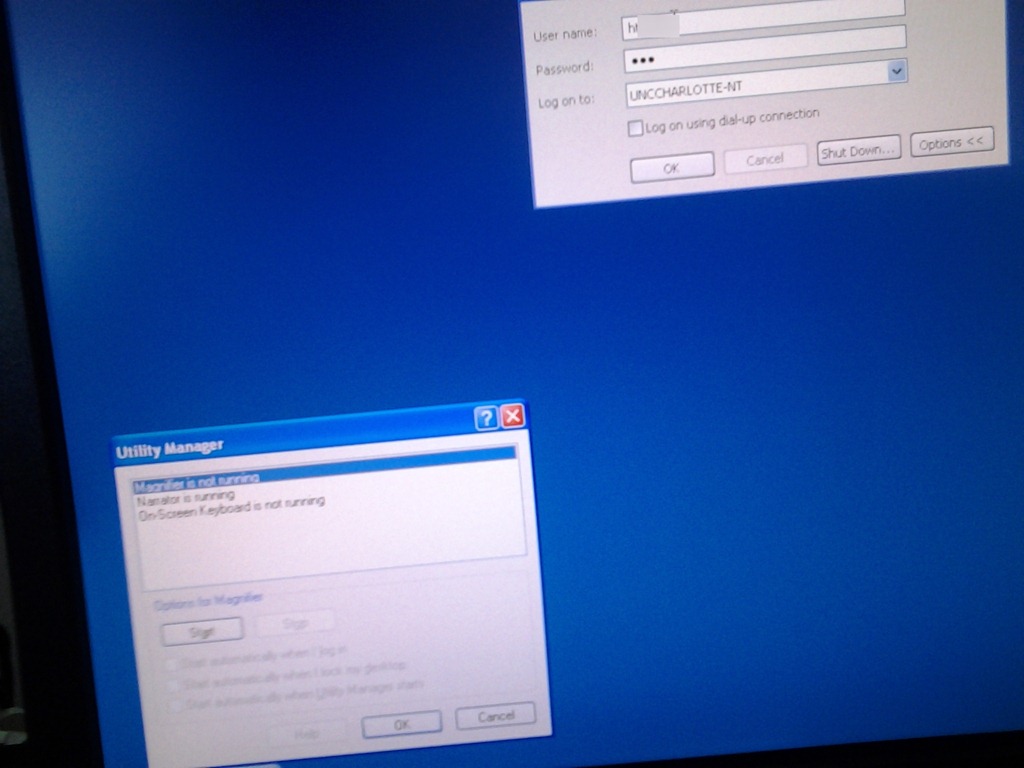
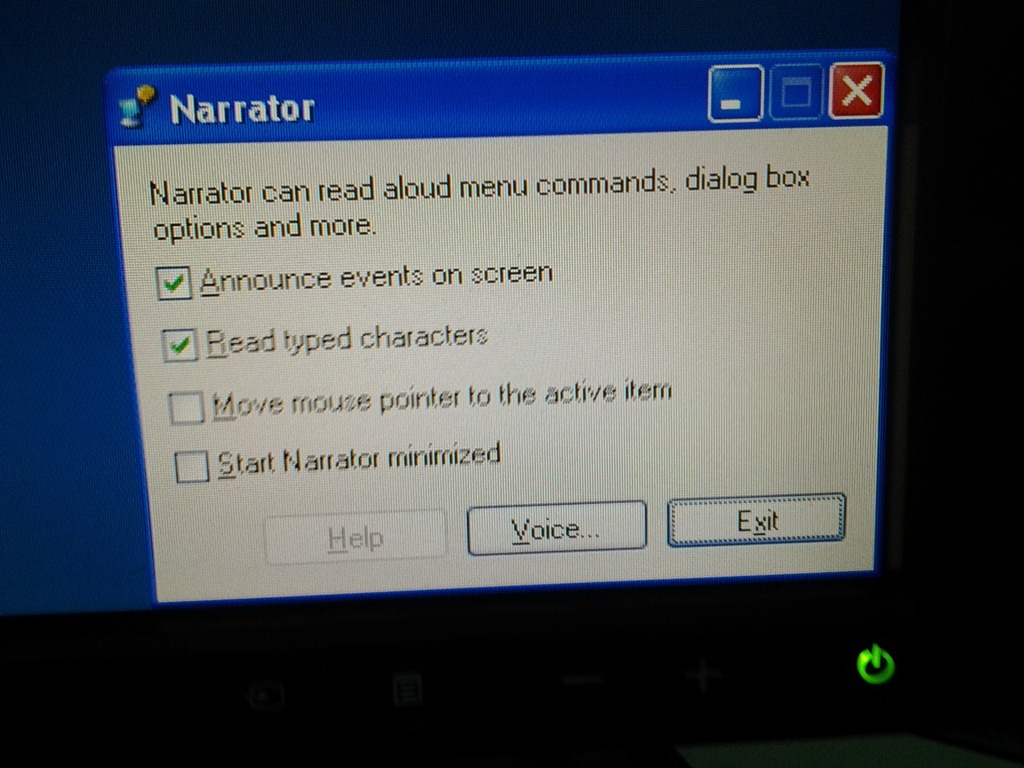
- Symptom: You cannot log in since accessibility tool dialogues (like above) come up when typing your password
- Workaround: Restart the computer (and make sure you have no item sitting on the keyboard while doing so, usual suspects: textbooks, bags). If you do not want to restart, but fix it immediately, you can read more about Windows XP accessibility features and keyboard shortcuts here.
- Root cause: You may have activated Windows accessibility features by erroneously depressing for a long time or repeatedly pressing a modifier key while the LRC computer was on the welcome screen. You may not run into this behavior from your personal computer (or read here how to disable Windows 7 Sticky and Filter Keys), but the LRC needs to be ADA compliant. Think of it as another LRC language tool that sometimes may get into your way temporarily if you do not study the language, but that you would not want to miss for the language you do study.
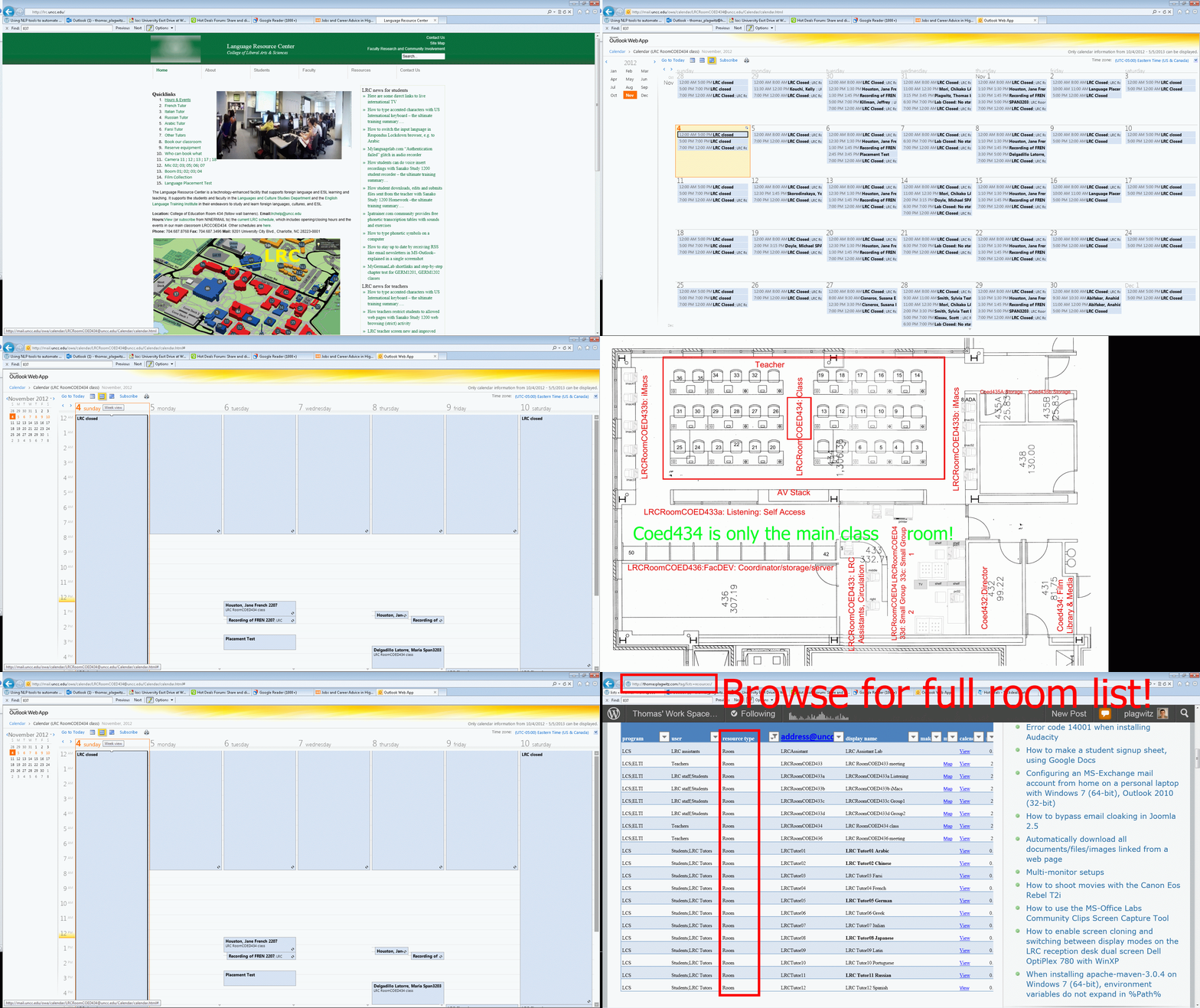
How to view LRC hours&events ….
How to switch the input language in Respondus Lockdown browser, e.g. to Arabic
- Short answer:
- Right-click the Language bar on the taskbar and choose “Restore the Language bar”, like so:

- This makes the language bar a floating toolbar on top of the screen, like here:
 . This floating toolbar you can still access when in Lockdown browser.
 - The language bar can be temperamental, you may need to bring it up again, try switching back and forth between input fields.
- Long Answer:
- Respondus Lockdown browser blocks many functionalities, including the shortcut combination to change input languages (usually LEFT ALT + SHIFT) and access to the Language bar on the task bar.
- This is not an issue when your quiz is in a western language and you have US- international keyboard layout configured as your default (which lets you type most Western diacritics without need for keys blocked by Respondus Lockdown browser )
- It is an issue with e.g. Arabic. You cannot even temporarily set Arabic to your default input language before starting lockdown browser, since then you cannot log in (with MS Maren IME, you can override the Arabic default to enter your username in western characters, but not the password. Respondus Lockdown Browser is built on Internet Explorer, but it does not share the cookies, so being logged into your LMS in Internet Explorer does not carry over to your Lockdown Browser session).
- Workaround: See above.


No audio on listening stations and group rooms, and workaround
- Symptom: Headsets work (test feedback by putting microphone near headset speakers), but audio files from internet do not play with sound.
- Cause: having to support 2 different kinds of headsets (USB with built-in soundcard versus traditional analog) in one PC software image.
- The workaround
- for temp staff is to start / run / sndvol32.exe and up the low volume sliders here:

- for permanent staff is to unfreeze any computers that have been missed previously
 and put this script into the all users startup folder now: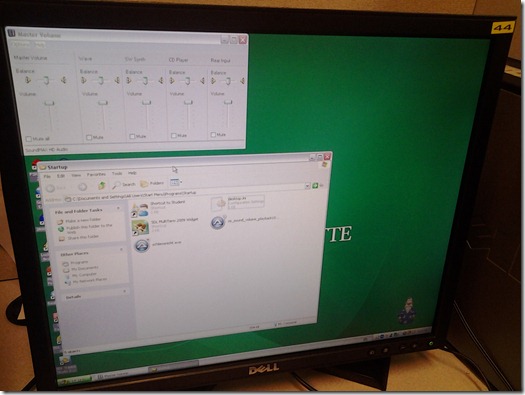
- The solution: standardize on USB headsets when you get a chance.


How to secure headphones on Lab PC
An LRC classic: In an attempt to improve, students will unplug/reseat and/or break headphone connectors, and render the LRC computers useless for even basic audio listening/recording use. In our attempt to prevent this and protect student users from themselves, here is what we have to work with on the rear of Dell Optiplex 760 (mini form factor): 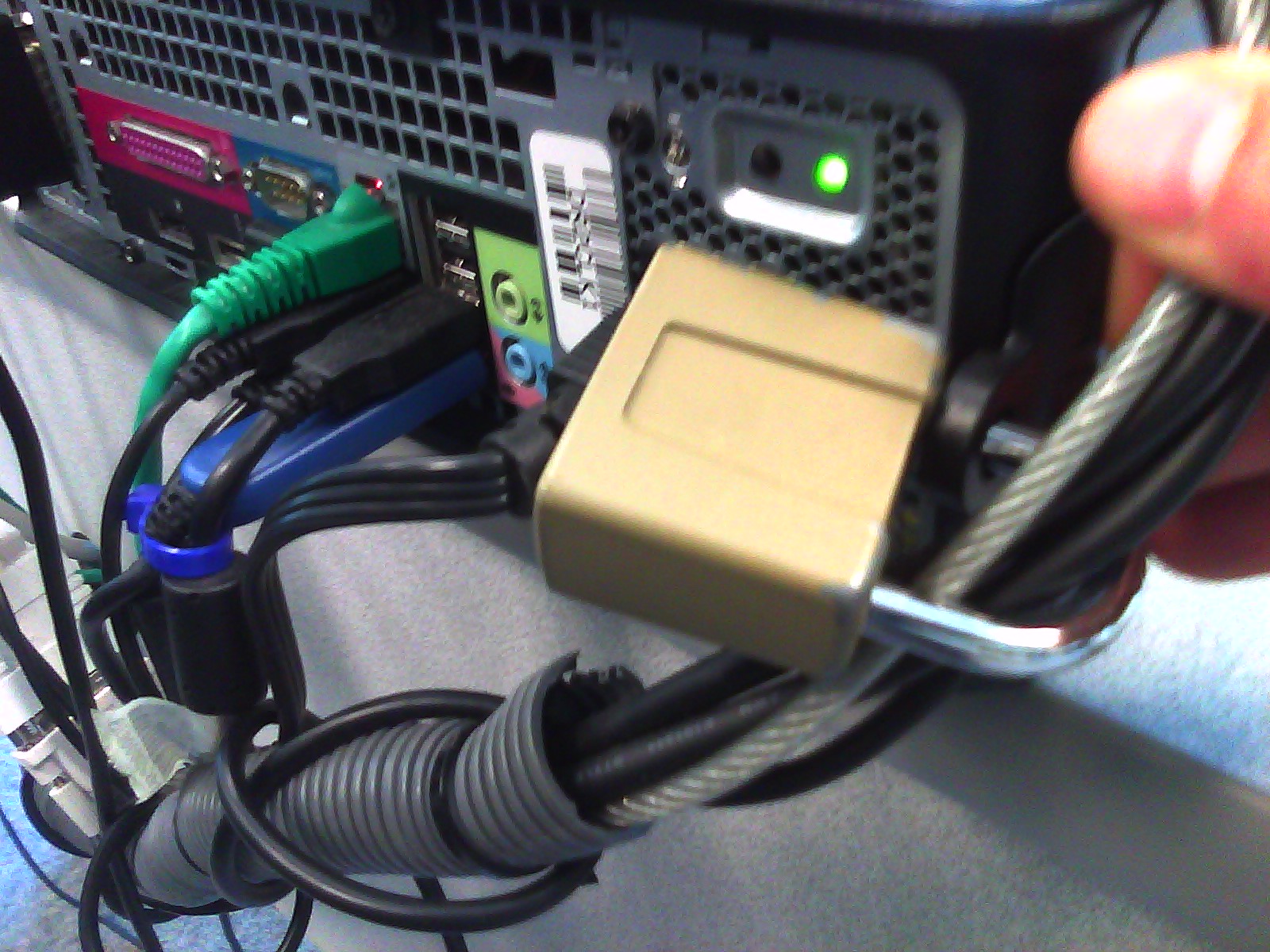 .
.
Cables tied to one another seems to be not stable neough. Maybe try, on top of the old (loop-headphone-cable-through-)washer-trick, a cable-tie looped through the rear grate openings which are closer and more accessible than the already installed lock?
If students have no mp3 audio on LRCRoomCoed433a Listening Stations
Problem: A Student that took the French Respondus Lockdown browser on PC 43, when playing to listening comprehension files, had no audio on her headset (except for her microphone input was played back for her. The test is single attempt only, and lockdown browser prevents us from troubleshooting.
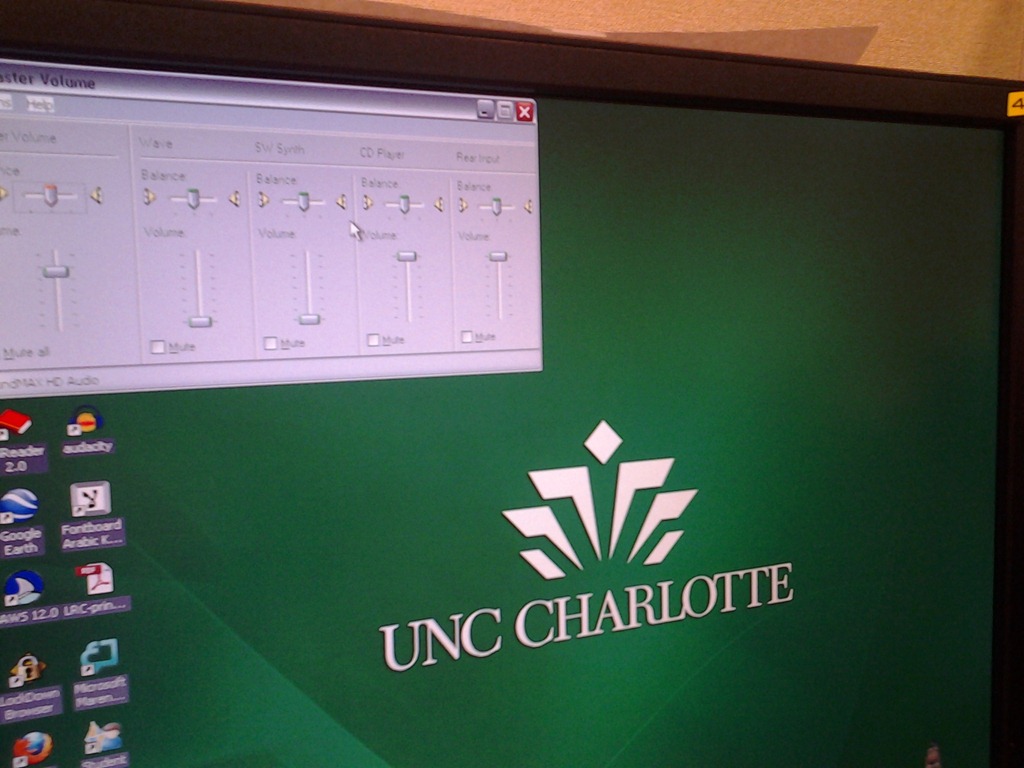
Cause: Master volume for Wave and SW Synth on lrcroomcoed433b back to 0, like so:

Workaround: plug in one of the black headsets (USB) temporarily (plugging in another brown headset did not resolve the issue).
Solution: None currently: even when the Respondus lockdown browser is not running, Deepfreeze will not allow making changes, and changes in the current user profile will not affect users whose profiels gets created upon login (which is all student users). Longterm: Don’t try to run identical software images on different hardware configurations. Not as longterm: Autoit FTW?


Questions? Read the About. Or just ask me a quick Our Databases: Resources with calendars -- Language learning material Moodle Sites, multimedia files -- films


FAQs for LRC student staff or for students or for teachers. To search our FAQs, in the browser addressbar, add after "https://plagwitz.wordpress.com/feed/?tag=faqs+/" "+TAG1" (from tag cloud below) OR "https://plagwitz.wordpress.com/feed/tag=faqs
&category_name=" "CAT1" (from category hierarchy below). OR search both categories and tags, and multiple TAGs/CATs (connect with "," for OR-search, with "+" for AND-search), like so: https://plagwitz.wordpress.com/feed/?tag=TAG1+TAG2+...TAGn&category_name=CAT1
+CAT2+...CATn"
Other ways to find help
If you cannot find it here, look there: 5,500 Language-Learning Links and Programs for learning or teaching 150 languages
Shortcuts:Our Lists, Our Maps, LRC Staff Moodle Site,LRC Project Moodle Site, 49erexpress, UNCC Moodle, Student Recordings: s:claslcslrcsanakostudent
Learning usage samples: Sanako oral exam, Kaltura webcam presentation, Dictation with speech recognition, Sanako written exam, Chinese and Japanese interactive stroke-order practice
Test the Sanako Installer, Webbrowser Popup Konfigurator for XP, or Windows7, faster LRC TeacherPC Log-in Let MS facilitate diacritics writing by installing for you US-International keyboard layout
This is my personal blog (Google+). The views expressed on these pages are mine alone and not those of my employer. The information in this weblog is provided “AS IS” with no warranties, and confers no rights.
 Thomas' Work Space