Archive
Can we get rid of Adobe Acrobat Reader’s Accessibility Setup Assistant dialogue?

For users not registered in AD as needing Accessibility this is distracting.
example os from the teacher station, assumed that is the same in the base image.
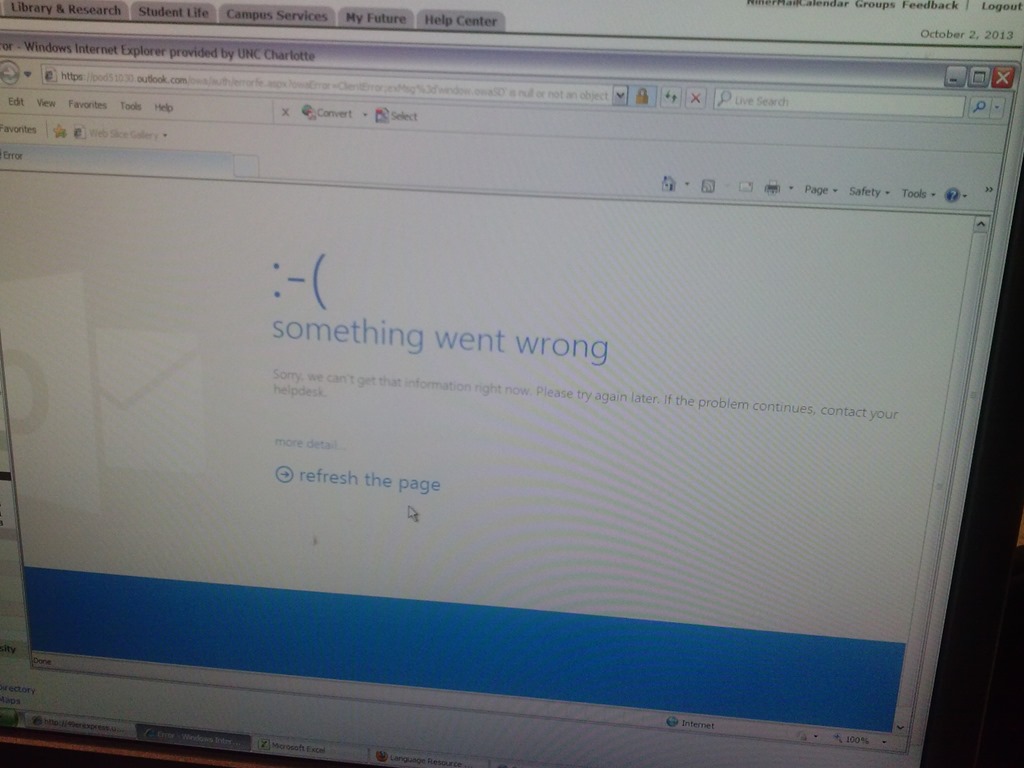
Some users cannot check out LRC items since they cannot log into their NINERMAIL Office365 Outlook

- This seems to have been going on for a while. We have no good way to use another browser on the computers that we use for our room booking and equipment circulation system. Besides,
- IE8 is the default browser on campus.
- Microsoft seems to say it not deprecate it without notice. Rather, pasted from http://community.office365.com/en-us/wikis/manage/office-365-and-internet-explorer-8.aspx states the following (they do not mention XP though, but that is also supported until April 2014):
- Why is Office 365 ending support for Internet Explorer 8? [in short, html5]
-
Why 8 April 2014? Office 365 provides customers 12 months’ notice of disruptive change under our Online Services Support Lifecycle. We announced Office 365 is ending support for Internet Explorer 8 on the System Requirements Wiki on 9 April 2013.
-
Will Internet Explorer 8 users be blocked from connecting to Office 365 after 8 April 2014? No, Office 365 will not deliberately block Internet Explorer 8 users from accessing the service after 8 April 2014. But after that date, users connecting to Outlook Web App will only be able to use Outlook Web App Light.
- ITS says Microsoft told them IE8 is not supported.
- The following change does not fix it here on XP SP3:
-
Windows Registry Editor Version 5.00
-
[HKLM and HKCU\SOFTWARE\Microsoft\Internet Explorer\Main]
“XMLHTTP”=dword:00000001
-
- Go figure.
How to work around Saba Centra not starting by using attend in browser
- Symptom: When you click on your Saba Centra Event in Moodle, you get only a blank frame within Moodle.
- Workaround:
- On your Moodle course page, in the "Activities" block, click the "Centra Events" link.
- Click the "Attend in Browser/Download Recordings" link on top.
- A new window, My Schedule, opens and there are 4 tab across the top: Upcoming, Ongoing, Recordings, Past.
- You will need to check the Upcoming, Ongoing and Past tabs to find your session.
- Click the "Attend in Browser" link. If it works, this is what the result looks like:

- This is per advise from ITS/CTL. They are still looking for root cause and a permanent solution for this campus-wide issue.
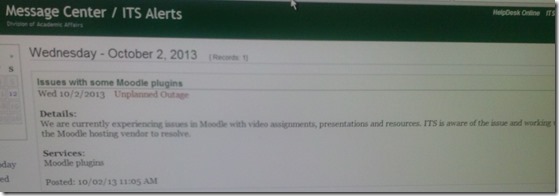


How you can report and get help with non-LRC-related computer issues
- First try to talk to temporary and permanent staff in the LRC. However, Computer issues that cannot be resolved within the LRC need to be reported to ITS – unless they are already known issues.
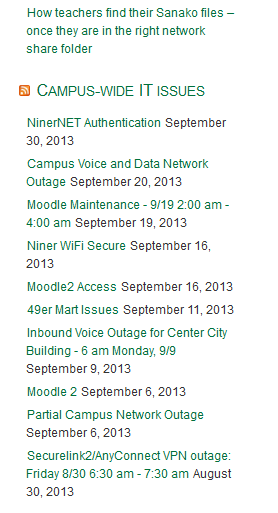
- To make it easy for you to check for known campus-wide issues, I added the ITS alerts to the bottom right of the LRC homepage (
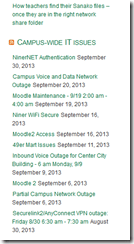 ). Depending on when this feed was last updated (simply refreshing the LRC homepage may NOT update it), you may also have to click on the title of this section, “Campus-wide IT issues”, to view the most recent updates.
 - If you find out this way that need to report an issue to ITS, you can find ways to contact them in the upper right corner of my blog:

Courseworld.org offers foreign language learning video clips
- Over a 100 videos currently available:
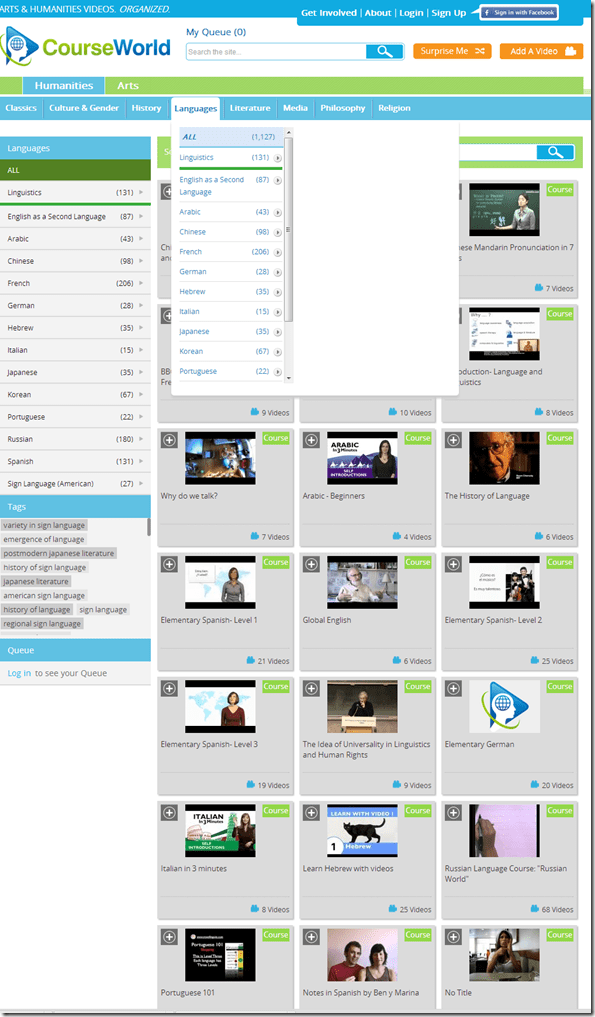
- Summaries show when you hover over a video tile:

- Can it beat YouTube.com for scope? Can it beat textbook-integrated videos for applicability? Likely not, but you may find an add-on for your course, and even more for self-study.


Search Rhapsodie, a syntactic and prosodic Treebank of spoken French
- The Rhapsodie Treebank is made up of “57 short samples of spoken French (5 minutes long on average, amounting to 3 hours of speech and a 33 000 word corpus)” endowed with an orthographical phoneme-aligned transcription”.
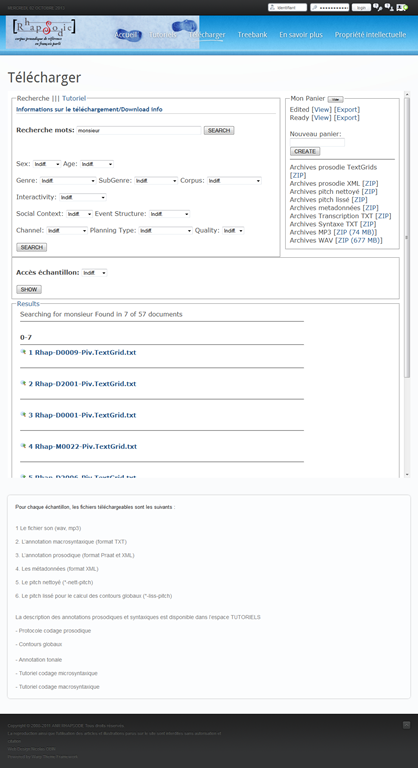
- Rhapsodie can be searched at http://www.projet-rhapsodie.fr/queryql.html:

- View list, read (1) text or (2”phonetic transcription, click (3) and (4) to listen to found segment

- You can also search for text and download:

- The best is obviously the markup and query language – and hence has a learning curve.


How to move an invisible window back onto the screen in Windows
- Normally you would drag the window by its title bar into its position with the mouse – but if the window is off the screen, the mouse cannot access it.
- Here is how to use the keyboard arrow-keys to do the same, after right-clicking the window’s task bar icon:

- This example is with our Sanako student (a bug or misconfiguration we are investigating), but works with most windows on most versions of MS-Windows.

Good that we just went
 Lincoln Memorial closing because of Sequester.


Questions? Read the About. Or just ask me a quick Our Databases: Resources with calendars -- Language learning material Moodle Sites, multimedia files -- films


FAQs for LRC student staff or for students or for teachers. To search our FAQs, in the browser addressbar, add after "https://plagwitz.wordpress.com/feed/?tag=faqs+/" "+TAG1" (from tag cloud below) OR "https://plagwitz.wordpress.com/feed/tag=faqs
&category_name=" "CAT1" (from category hierarchy below). OR search both categories and tags, and multiple TAGs/CATs (connect with "," for OR-search, with "+" for AND-search), like so: https://plagwitz.wordpress.com/feed/?tag=TAG1+TAG2+...TAGn&category_name=CAT1
+CAT2+...CATn"
Other ways to find help
If you cannot find it here, look there: 5,500 Language-Learning Links and Programs for learning or teaching 150 languages
Shortcuts:Our Lists, Our Maps, LRC Staff Moodle Site,LRC Project Moodle Site, 49erexpress, UNCC Moodle, Student Recordings: s:claslcslrcsanakostudent
Learning usage samples: Sanako oral exam, Kaltura webcam presentation, Dictation with speech recognition, Sanako written exam, Chinese and Japanese interactive stroke-order practice
Test the Sanako Installer, Webbrowser Popup Konfigurator for XP, or Windows7, faster LRC TeacherPC Log-in Let MS facilitate diacritics writing by installing for you US-International keyboard layout
This is my personal blog (Google+). The views expressed on these pages are mine alone and not those of my employer. The information in this weblog is provided “AS IS” with no warranties, and confers no rights.
 Thomas' Work Space