Archive
How to shoot movies with the Canon Eos Rebel T2i– and “movie recording has been stopped automatically”
If the camera stops recording after a short while with the error “movie recording has been stopped automatically”, you most likely have an internal memory buffer overrun (there is a bar chart visible warning you off that shortly before the camera stops). This may be due to you not using a Class (6) or faster SDHC card. Try first a low level format inside the camera, or get a faster memory card. (Per the manual below, a lowering to standard HD should not help!).
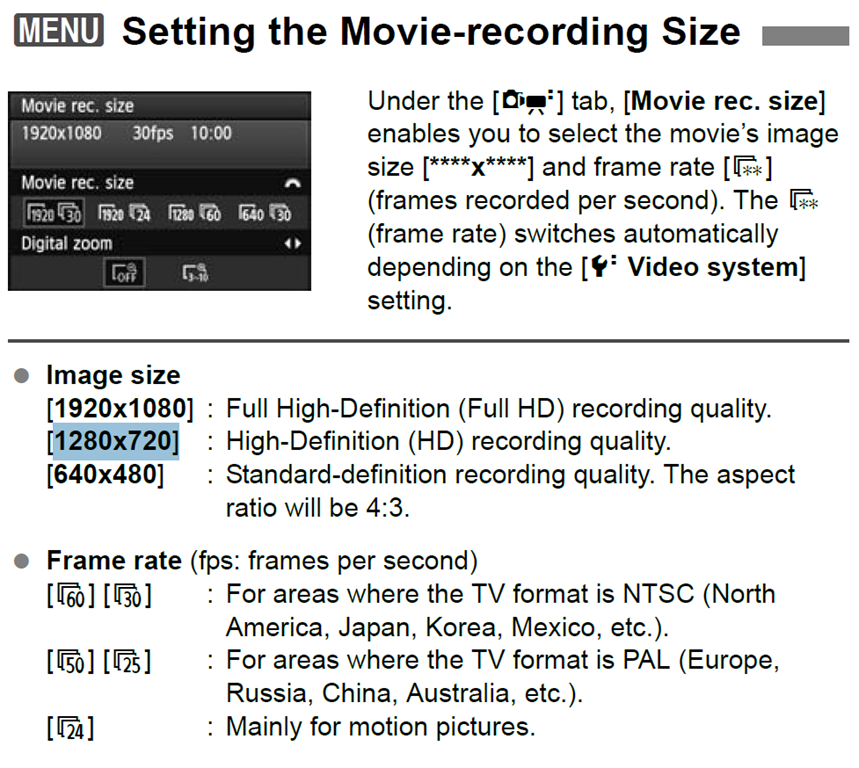
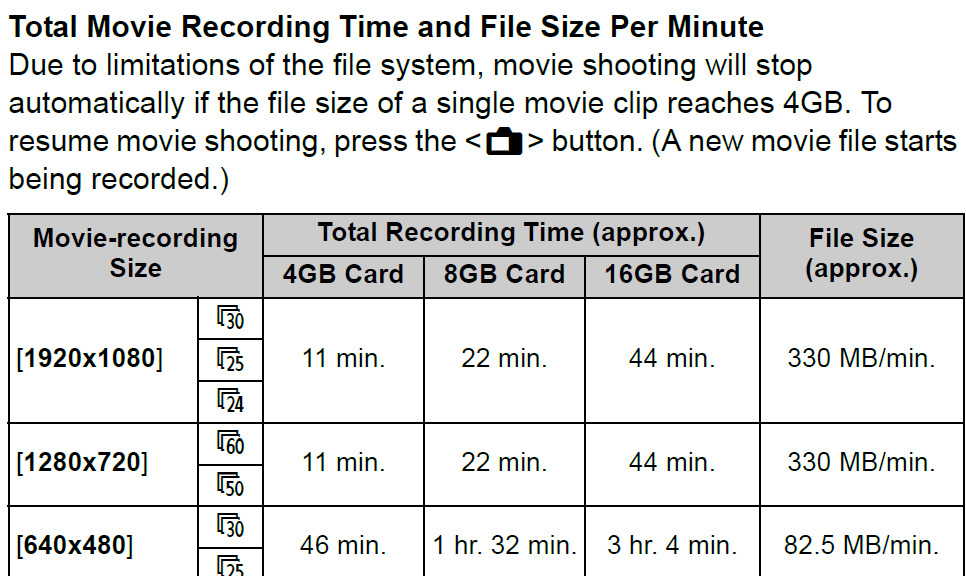
Note also: The camera stops the recording when the file size has reached 4GB (3.99 in Windows – FAT32 limit). It is left as an exercise for the reader when that point in time is. May be related to the fact that this camera is primarily meant for photos, not video. I felt I had to use the lowest HD setting with my untested SD card (the one that buffer overran slightly later with the earlier SD card: 1280*720, 60fps – which produces 1GB/3 minute).
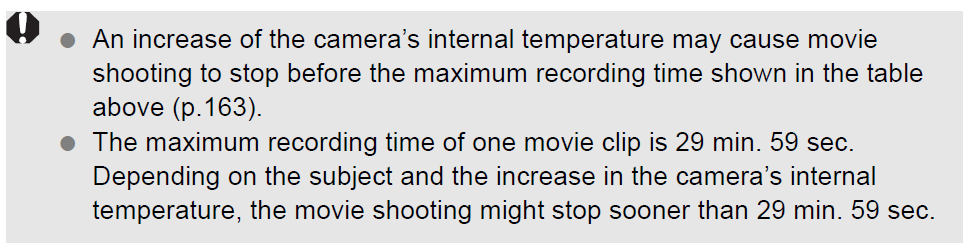
Note finally: camera might stop also due to overheating.
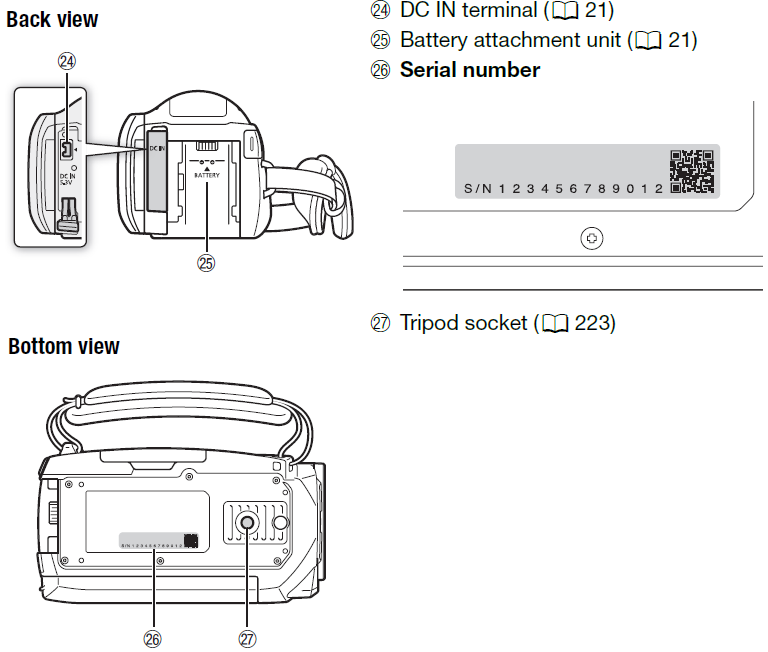
How-to for the new Vixia HF M500 camera
Here it is, and available for checkout per instructions here. Also see the video size considerations.
Step-by-step for Basic Recording:


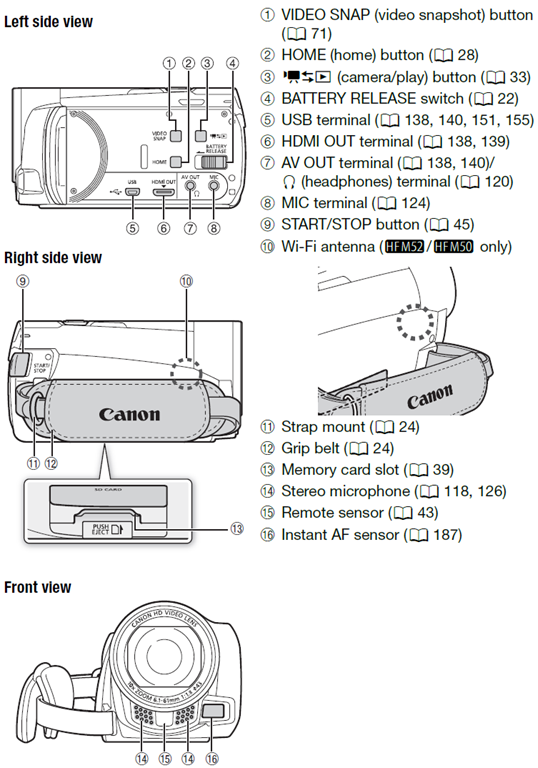
The Parts and Controls of the Camera:

How to workaround Moodle quiz audio not playing to the end in Respondus Lockdown Browser
- Problem:
- The Moodle 2 audio player
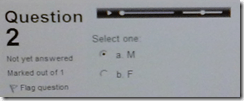 tends to get stuck (= does not play to end; not pictured) after you moved fast forward or backward on the timeline with your mouse.
 - Respondus Lockdown browser has is a page refresh button,
 but you cannot refresh the page since this might erase data you already inputted. .
- The Moodle 2 audio player
- Workaround:
- At the bottom of the page, click
 , or use the Quiz navigation
  to browse to another page.
 - On the Submit page, click “Return to attempt”, or on another quiz page, use once more the “quiz navigation” to browse back.

- This seems to refresh the page, including the audio players, without erasing answers you already inputted.
- At the bottom of the page, click



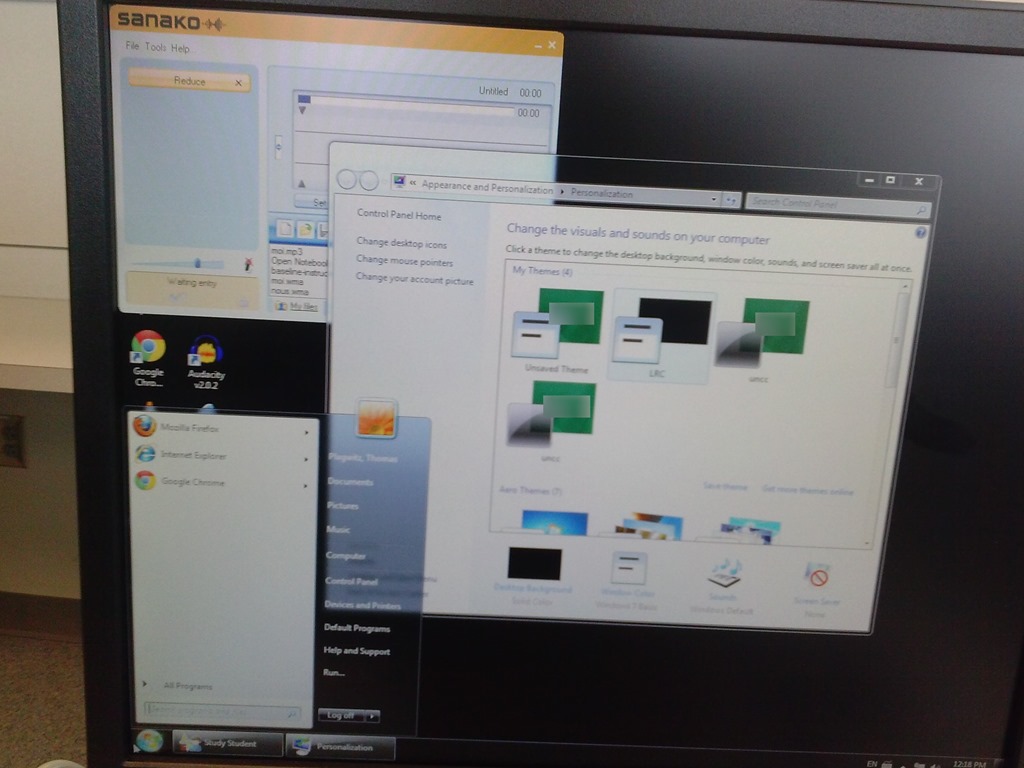
Switch to Color Scheme Basic not working for students
- Works for me:

- Does not work for students for whom it primarily has to work:

- Strangely, student seems to be not stuck on the original, but on an unsaved theme:


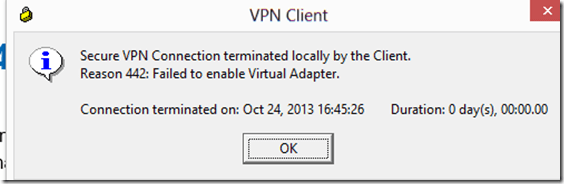
How to bypass error 442 when trying to connect to your office network with Cisco VPN Client 5 from Windows 8
- Problem:
- Solution:
- in [HKEY_LOCAL_MACHINE\SYSTEM\CurrentControlSet\Services\CVirtA]
"DisplayName"="@oem25.inf,%CVirtA_Desc%;Cisco Systems VPN Adapter for 64-bit Windows" - remove: “@oem25.inf,%CVirtA_Desc%;”.

Best way I found to merge WordPress.com tags
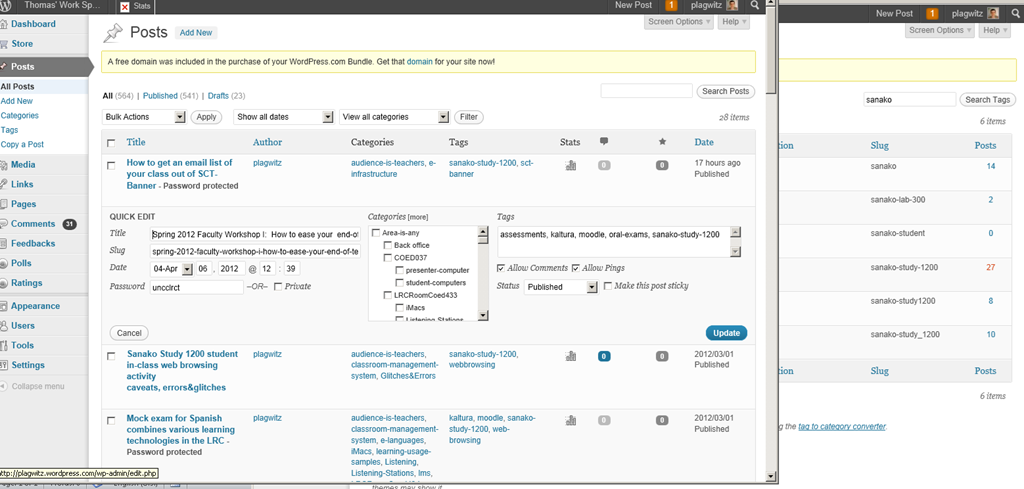
I am talking about merging spurious variant tags into one canonical form. This is a workaround for the fact that you cannot just update when the update could require wordpress.com to merge the article set form the old tag into an existing article set under the new tag. The work around involves accessing the spurious tags from the admin / tags interface (window on the right); then opening the "posts" for each spurious tag in a new window. In the posts window to the left, do the "quick edit". I tried saving myself some deleting in the left window by, after opening the left window, deleting the tag in the right window; but the old tag has already been preloaded for the Quick edit into the left window . Well, Quick edit makes it pretty painless. Is a global search/replace for wordpress.com conceivable? Warning: Don’t hit "Edit" after deleting the tag and try to go back – you will have to hunt for your posts manually.
How to work around “You do not have the permission to view discussions in this forum” in Moodle 2
- Problem: My student staff (not sure which subset, but more than 1) gets this error in a development course that I use as a groupware when they access a news forum (that they are even force-subscribed to).
![image_thumb[12]](https://thomasplagwitz.com/wp-content/uploads/2013/10/image_thumb12_thumb1.png?w=600&h=451 "image_thumb[12]")
![CAM03124_thumb[4]](https://thomasplagwitz.com/wp-content/uploads/2013/10/cam03124_thumb4_thumb.jpg?w=600&h=451 "CAM03124_thumb[4]")
- The answers for “you do not have the permission to view discussions in this forum moodle” can be found here: I actually had to deal with this issue within the last few months. I found that to allow users to see the “News” section on the front page, you must override the role to allow: mod/forum:viewdiscussion
- Do not seem to apply here: In https://moodle2.uncc.edu/admin/roles/permissions.php?contextid=466096, Permitted students are already allowed to “View discussionsmod/forum:viewdiscussion”
- Permitted students should probably have permissions also to “Reply to newsmod/forum:replynews”
![image_thumb[10]](https://thomasplagwitz.com/wp-content/uploads/2013/10/image_thumb10_thumb1.png?w=546&h=1389 "image_thumb[10]")
- Also for one of the student in question (I have spotchecked only 2), I can see no suspicious activity missing:
![image_thumb[7]](https://thomasplagwitz.com/wp-content/uploads/2013/10/image_thumb7_thumb.png?w=375&h=554 "image_thumb[7]")
- Root cause:
- Students have no role in a Moodle2 Development type course .
- Workarounds:
- Assign students a role manually (tedious, and you can only assign “course manager”.
- Change the course type to Project (but then you cannot quiz students).
- Solution: a more flexible design of Project and Development courses in a future version of Moodle?
![image_thumb[12]](https://thomasplagwitz.com/wp-content/uploads/2013/10/image_thumb122.png "image_thumb[12]")
![CAM03124_thumb[4]](https://thomasplagwitz.com/wp-content/uploads/2013/10/cam03124_thumb4.jpg "CAM03124_thumb[4]")
![image_thumb[10]](https://thomasplagwitz.com/wp-content/uploads/2013/10/image_thumb102.png "image_thumb[10]")
![image_thumb[7]](https://thomasplagwitz.com/wp-content/uploads/2013/10/image_thumb71.png "image_thumb[7]")
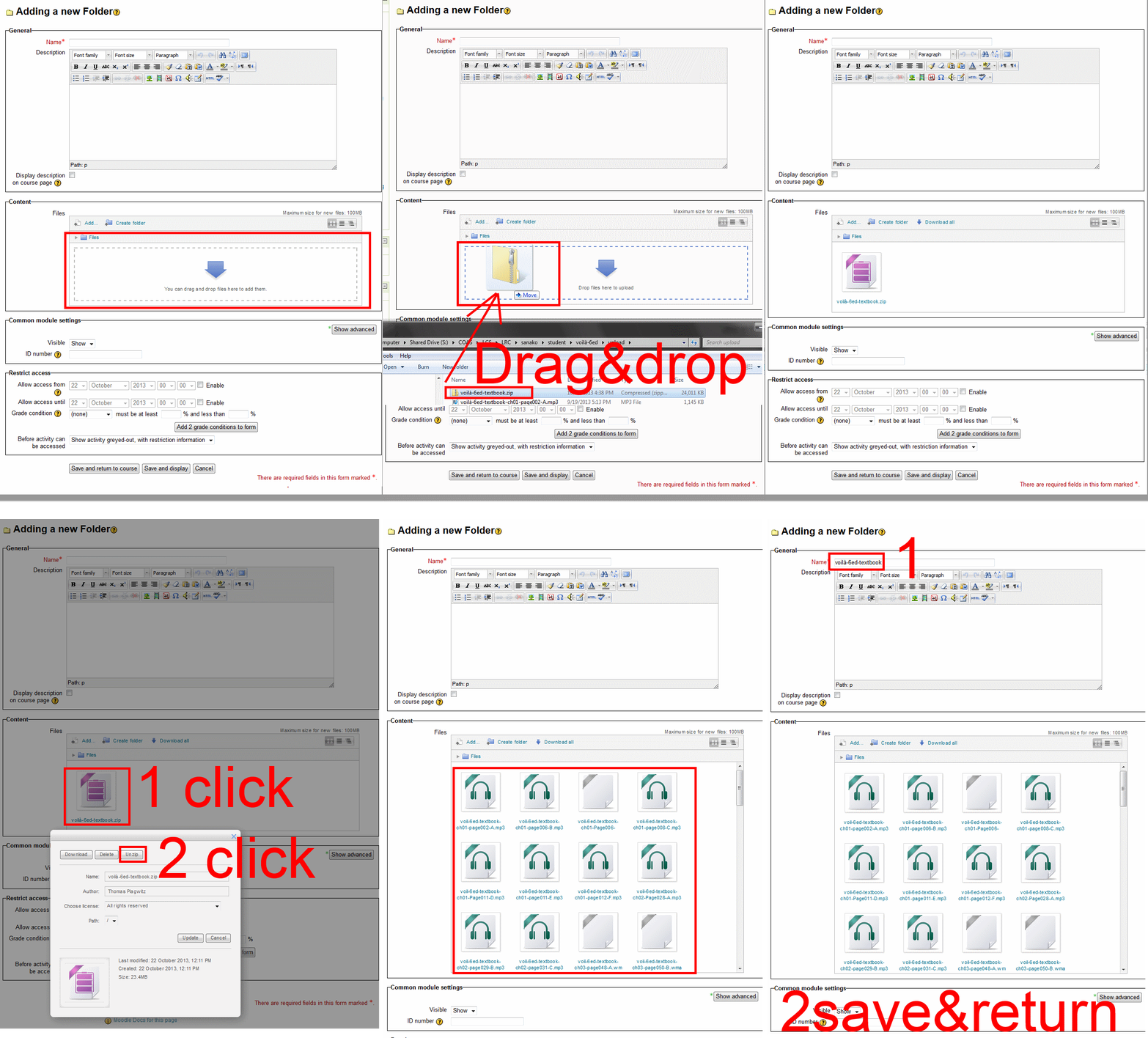
How to upload a folder with many files in Moodle 2–the ultimate training
- …using animated .gifs. Different speed? 0.25sec,0.5sec, 0.75sec, 1sec, , 2sec, 3sec, 4sec, 5sec, 6sec, 7sec, 8sec, 9sec, 10sec. 1.5sec

- And the answer is: You now can simply drag-and-drop a zip file (provided you are using a recent web browser). Start with “Turn editing on”, “Add resource”, “Folder”, and then proceed like so:
- Easy enough, but you can still save time: If your folder is reusable not only between terms, but also teachers (sections etc.), I suggest doing this in our Moodle metacourses (once).
- If you want to use an existing instead of adding a new folder, a slightly different way to manage your multiple files upload in Moodle 2 is described here.


Questions? Read the About. Or just ask me a quick Our Databases: Resources with calendars -- Language learning material Moodle Sites, multimedia files -- films


FAQs for LRC student staff or for students or for teachers. To search our FAQs, in the browser addressbar, add after "https://plagwitz.wordpress.com/feed/?tag=faqs+/" "+TAG1" (from tag cloud below) OR "https://plagwitz.wordpress.com/feed/tag=faqs
&category_name=" "CAT1" (from category hierarchy below). OR search both categories and tags, and multiple TAGs/CATs (connect with "," for OR-search, with "+" for AND-search), like so: https://plagwitz.wordpress.com/feed/?tag=TAG1+TAG2+...TAGn&category_name=CAT1
+CAT2+...CATn"
Other ways to find help
If you cannot find it here, look there: 5,500 Language-Learning Links and Programs for learning or teaching 150 languages
Shortcuts:Our Lists, Our Maps, LRC Staff Moodle Site,LRC Project Moodle Site, 49erexpress, UNCC Moodle, Student Recordings: s:claslcslrcsanakostudent
Learning usage samples: Sanako oral exam, Kaltura webcam presentation, Dictation with speech recognition, Sanako written exam, Chinese and Japanese interactive stroke-order practice
Test the Sanako Installer, Webbrowser Popup Konfigurator for XP, or Windows7, faster LRC TeacherPC Log-in Let MS facilitate diacritics writing by installing for you US-International keyboard layout
This is my personal blog (Google+). The views expressed on these pages are mine alone and not those of my employer. The information in this weblog is provided “AS IS” with no warranties, and confers no rights.
 Thomas' Work Space