Home
> audience-is-language-learning-center-staff, audience-is-language-learning-center-temp-staff, audience-is-teachers, e-learning, Glitches&Errors, lms > How to bypass a Moodle Popup Window when using Respondus lockdown browser
How to bypass a Moodle Popup Window when using Respondus lockdown browser
- Problem: when starting the Moodle Lockdown browser to take an online exam, it opens with a popup window about messages. Popup window prevents access to the underlying main Moodle browser window (and exam). When closing the popup window, the entire lockdown browser closes, including main Moodle browser window.
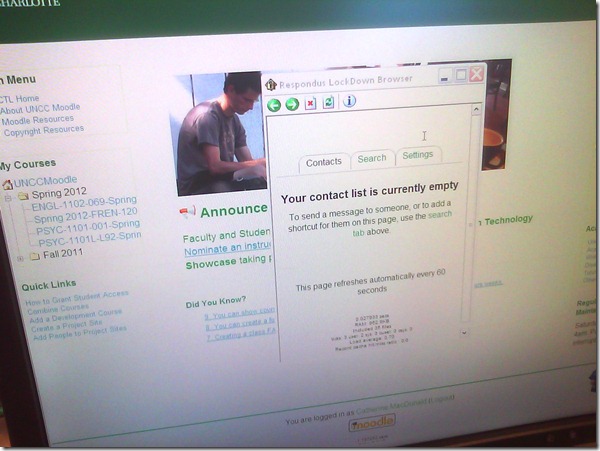
- Cause: Moodle can be configured to show a notification window when messages have arrived since your last login. This notification window has poor compatibility with the lockdown browser.
- Workaround: In the popup window, click on the tab: “Settings” and uncheck (at least for this exam session) the checkbox to show the message box as a popup when logging in. Close the popup window.

- Result: Even if this closes the main Moodle browser window once again, when you start the Moodle Lockdown browser again, the popup window will not appear again, and you can take your exam.


Comments (0)
Trackbacks (0)
Leave a comment
Trackback


Questions? Read the About. Or just ask me a quick Our Databases: Resources with calendars -- Language learning material Moodle Sites, multimedia files -- films


FAQs for LRC student staff or for students or for teachers. To search our FAQs, in the browser addressbar, add after "https://plagwitz.wordpress.com/feed/?tag=faqs+/" "+TAG1" (from tag cloud below) OR "https://plagwitz.wordpress.com/feed/tag=faqs
&category_name=" "CAT1" (from category hierarchy below). OR search both categories and tags, and multiple TAGs/CATs (connect with "," for OR-search, with "+" for AND-search), like so: https://plagwitz.wordpress.com/feed/?tag=TAG1+TAG2+...TAGn&category_name=CAT1
+CAT2+...CATn"
Other ways to find help
If you cannot find it here, look there: 5,500 Language-Learning Links and Programs for learning or teaching 150 languages
Shortcuts:Our Lists, Our Maps, LRC Staff Moodle Site,LRC Project Moodle Site, 49erexpress, UNCC Moodle, Student Recordings: s:claslcslrcsanakostudent
Learning usage samples: Sanako oral exam, Kaltura webcam presentation, Dictation with speech recognition, Sanako written exam, Chinese and Japanese interactive stroke-order practice
Test the Sanako Installer, Webbrowser Popup Konfigurator for XP, or Windows7, faster LRC TeacherPC Log-in Let MS facilitate diacritics writing by installing for you US-International keyboard layout
This is my personal blog (Google+). The views expressed on these pages are mine alone and not those of my employer. The information in this weblog is provided “AS IS” with no warranties, and confers no rights.
 Thomas' Work Space