Archive
Archive for 2011
How to restart the LRC student printer station
2011/11/16
Leave a comment
- On the computer keyboard of the print release station computer, press the windows-key.
- This will bring up ("It’s a Windows system! I know this!") the Start Menu.
- Choose Shutdown/ Restart from there.
Categories: audience-is-language-learning-center-temp-staff, printer
FAQs, printing
Calendaring: How to view all your Moodle course calendars in one place (like live@edu, Google calendar or MS-Outlook)
2011/11/16
Leave a comment
- UPDATE: this does work, just make sure to give it some time to update AND to have actual appointments in the time window (length of that window is a setting you can change in Moodle) that you are trying to display.
- Static inclusion of syllabus deadlines in your calendar
- Go to your Moodle Course / “Go to calendar…” / select from dropdown: “Upcoming Events”: “All courses”/ click on “Export Calendar/
 . Open with MS-Outlook (fails in IE8).
 - Here is showing how: screencast demo loading Moodle’s iCal into MS-Outlook (desktop).
- This is a static export of all your Moodle calendar information – taught and enrolled courses combined (despite
 showing in each of your courses. The dropdown: “Upcoming Events” does default to the current course, though).
 - The utility of this (= what “all” comprises, and how helpful the event information is) depends on how the course designers use the Moodle calendar functionality – or allow Moodle to do it for them: For setting a start/end (= deadline) for any assignment or assessment automagically adds this event to the Moodle course calendar.
- Go to your Moodle Course / “Go to calendar…” / select from dropdown: “Upcoming Events”: “All courses”/ click on “Export Calendar/
- A potentially even more useful dynamic subscription(that will reflect late-breaking changes, like extended deadlines in your courses or additional assignments)
- you can get if you right click on
 and choose “Copy link” from the context menu.
 - I have not found a way to feed the Moodle iCal link manually into MS-Outlook 2010 (Shared Calendars / Add Calendar / From Internet) or OWA (different problem comes and goes. Just subscribe while problem is gone
 ). In MS-Outlook, you can subscribe to this link via menu:tools / tab:internet calendars / button: new / dialogue new internet calendar subscription / paste the URL you copied.
 ![moodle-calendar-outlook-2010-subscri[1]](https://thomasplagwitz.com/wp-content/uploads/2012/01/moodle-calendar-outlook-2010-subscri1_thumb.png?w=244&h=180 "moodle-calendar-outlook-2010-subscri[1]")
- Don’t forget to rename your calendar to something more useful than the default, like “My classes”, by right-clicking and choosing “Rename”in OWA or “Properties” in Outlook2010.
![moodle-calendar-outlook-2010-subscri[3]](https://thomasplagwitz.com/wp-content/uploads/2012/01/moodle-calendar-outlook-2010-subscri3_thumb.png?w=244&h=228 "moodle-calendar-outlook-2010-subscri[3]")
![moodle-calendar-outlook-2010-subscri[2]](https://thomasplagwitz.com/wp-content/uploads/2012/01/moodle-calendar-outlook-2010-subscri2_thumb.png?w=195&h=244 "moodle-calendar-outlook-2010-subscri[2]")
- Your syllabus deadlines are now always only two clicks away in your Ninermail:
- click on “Calendar”
- click on checkbox “Moodle”.
- you can get if you right click on
- What seems not possible with any current version of Moodle is editing/updating your calendar in MS-Outlook and having the changes synch with Moodle, or any import actually – only the opposite direction works. So the tool is more useful for students (who don’t need to edit) than teachers (but still a nice aggregator of teaching information for the latter).
- More on Calendar you can find in the official 1.9 Moodle calendar doc and FAQ.
- I would prefer to use other calendaring software, but the export options of the Moodle (1.9 and 2.)) calendars are limiting. So I also find myself adjusting the settings when using the Moodle calendar:


![moodle-calendar-outlook-2010-subscri[1]](https://thomasplagwitz.com/wp-content/uploads/2012/01/moodle-calendar-outlook-2010-subscri1.png "moodle-calendar-outlook-2010-subscri[1]")
![moodle-calendar-outlook-2010-subscri[3]](https://thomasplagwitz.com/wp-content/uploads/2012/01/moodle-calendar-outlook-2010-subscri3.png "moodle-calendar-outlook-2010-subscri[3]")
![moodle-calendar-outlook-2010-subscri[2]](https://thomasplagwitz.com/wp-content/uploads/2012/01/moodle-calendar-outlook-2010-subscri2.png "moodle-calendar-outlook-2010-subscri[2]")

- Adjusting these settings may also fix the following error in OWA which reads like ICS link is invalid/broken, but may only mean that no events where returned for the time window that Moodle defaults to (with performance reasons, which, however, does not apply if Moodle does not have to return *any* events to your request). In other words: Try expanding the time window for events, e.g. to include the full term.


Categories: audience-is-students, audience-is-teachers, e-infrastructure
calendaring, moodle, ms-outlook
More printing problems in the LRC: How to deal with student swipe card not being read
2011/11/16
Leave a comment
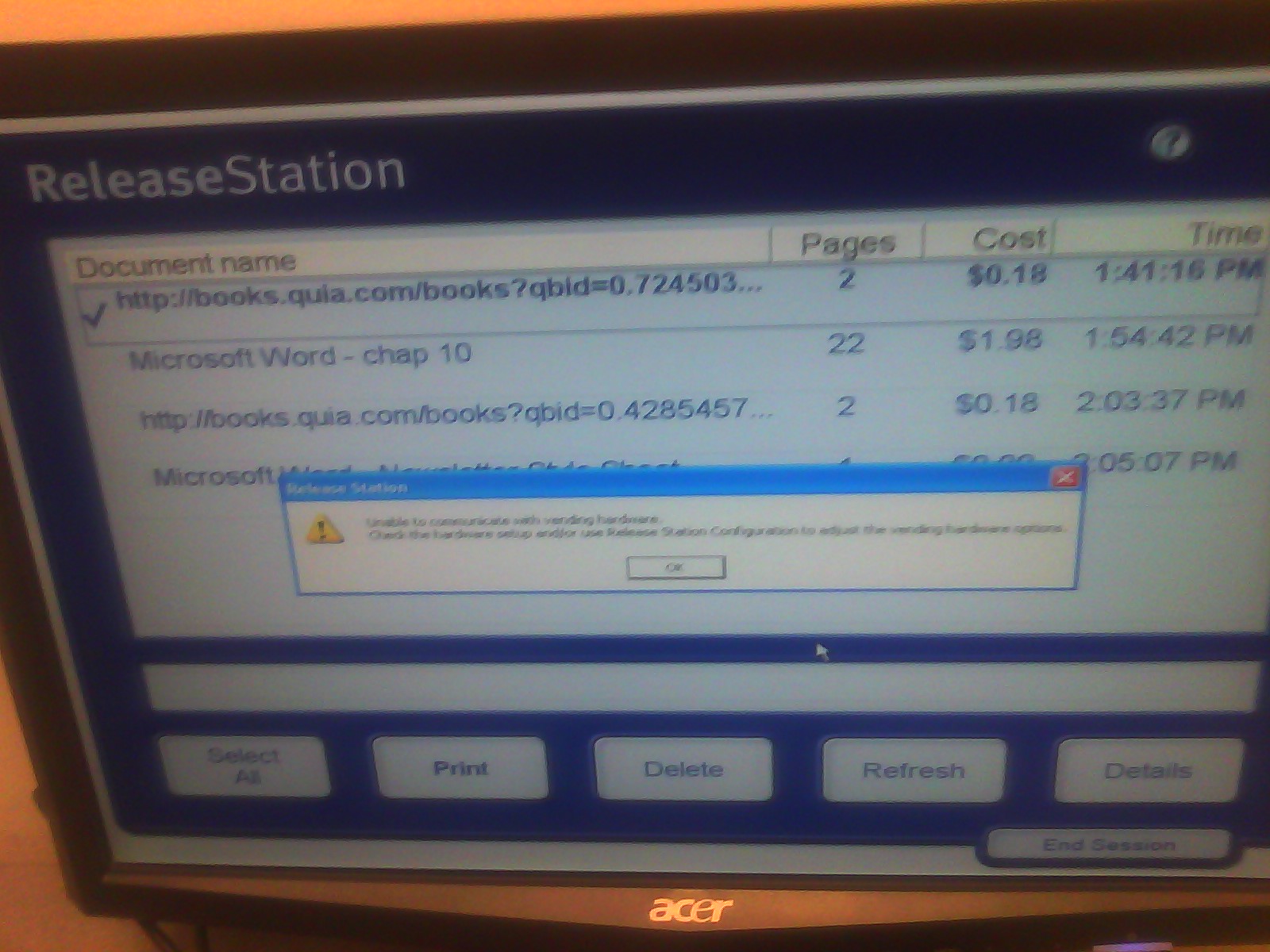
- Problem: You get this error message "Unable to communicate with vending hardware" (when student swipes the student id card):

- Things to try: Try first restarting the print release station computer (How?). If this does not help, in the past, this has indicated campus-wide problems. Call the HELPDESK to find out more. If they confirm, post a warning note for students on the print release station.
Is there a better way to cross-link within Joomla?
2011/11/15
Leave a comment
- I find my best bet to find anything in the hyperlink dialogue is to go to the published site and search for the article. Here I finally found the article in questions, knowing that it lived (“had been filed”?) in “uncategorized”, which the site search results kindly let me know:

- Obviously you do want to use the internal URL which should survive DNS-related changes.

Categories: audience-is-IT-staff, e-infrastructure
joomla
Microsoft Contextual Translator
2011/11/14
Leave a comment
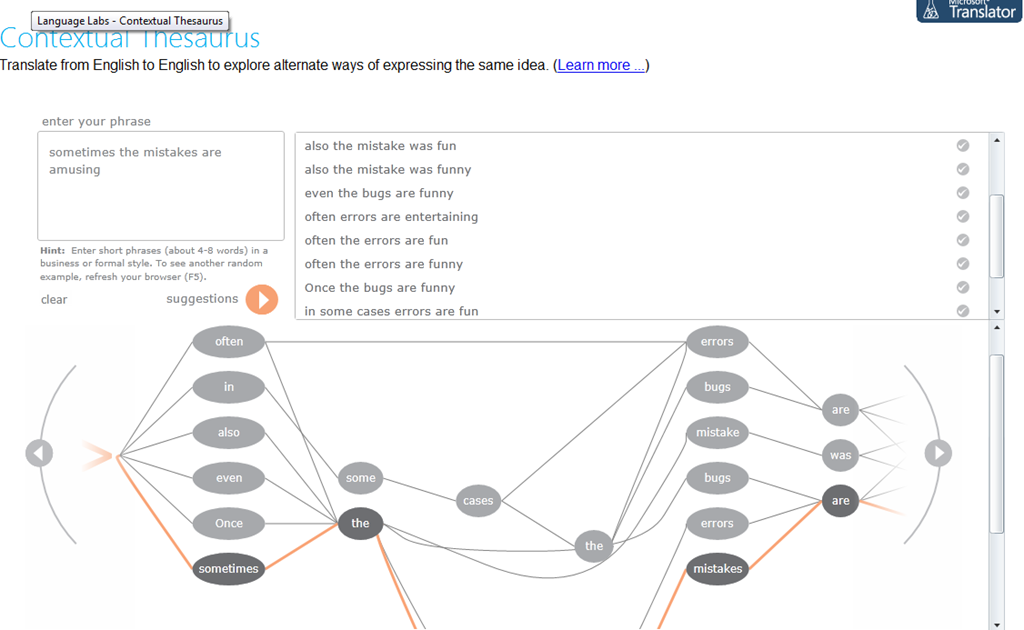
Certainly an advance over the MS-Word thesaurus (unlike the MS-Word 2007 and up spell check, still not contextual). Does this work at least well enough to serve as a fruitful pedagogical exercise: “Which phrase does not belong in the group?”
Categories: Advanced, audience-is-students, audience-is-teachers, Beginner, e-languages, English, Intermediate, Speaking, websites, Writing
links, thesaurus
How students access language learning materials on the Library ereserves system
2011/11/11
Leave a comment
- Note the important update in red below.
- This has been tested at post date with Firefox. ereserves seems to be not compatible with Internet Explorer 8: i

- On the Library home page, from the top menu: “Research & Course Help”, choose menu item: “Course Reserves” (or, if this menu changes again, I have a hunch that deeplinking may be more stable: http://library.uncc.edu/caos/coursereserve, what’s in a URL…),
- sign in with your Ninernet ID,
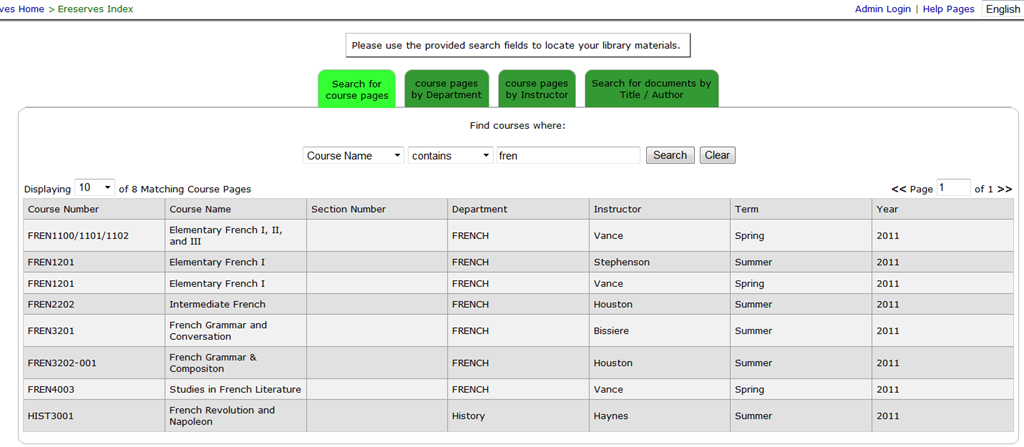
- enter search term
- select from the dropdown “search by name”, an enter part of your course name in the textbox,
- or click on tab:”Course Reserves Pages by Instructor”, and from the dropdown, select your instructor,
- click search,
- then select your course from the results grid.

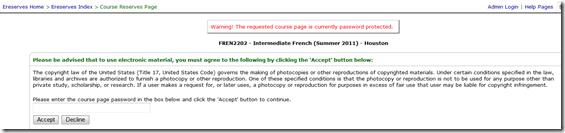
- Enter the password, which has been given to your by your instructor.
- In the results grid, click on the desired chapter and tracks. Note: You need to disable your web browser”s “popup blocker”.
- In the popup window, click on link: “More information”,
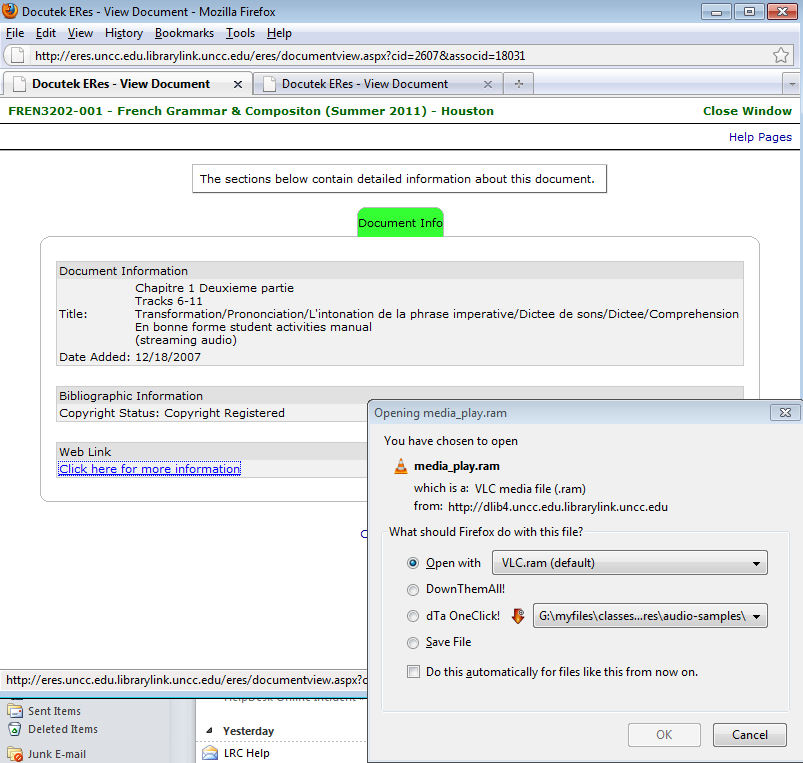
- when offered, , like in this screenshot:
- you cannot save the file, or rather: only a text file with links to the audio which you cannot play, like rtsp://dlib4.uncc.edu:554/e_reserves/CD1bonneforme12-16.rm). That is by design.
- Instead of trying to save, select to “open” the file. You need have a streaming audio playing software installed, like Real Player or the open source VLC-Player.
- instead of VLC, as offered by default, like so :

- choose “Open with”, “Other”, pick “RealPlayer” from the list, like so:

- Here is a more on what does not work with ereserves. The only combination I could get to work with eReserves streaming audio is – see resulting screencast (requires Windows Media Player) of streaming a long file successfully – is RealPlayer 14, Firefox 3.6 on Windows XP3, and that only after resetting the Winsock catalog which I can do for the entire LRC only nownext time the lab is reimaged. For now, use instead audio from Moodle metacourses where possible.



Streaming Problems with Realmedia via RTSP from ereserves with VLC Player (and Internet Explorer. And NetOp School)
2011/11/10
Leave a comment
- VLC-player
- version 1.1.9, but also currently newest 1.1.11 as well on Windows CXP SP 3
- opens from IE8 and Firefox 3.6
- but is not able to play files (tested even multi) through. Rather, it nicely falls on its face, with the audio stream simply appearing to stop, mid-sentence, after 2:38 (pretty consistently – a buffering bug? A great way to slip through pre-testing).
- In the LRC, I could hardly bring the taskswitcher up, let alone (15 minutes of waiting) the task manager, to even find that vlc.exe is the culprit, with a CPU utilization of 99% solid (Ouch!).

- Not quite so bad in the office computer where it hovered slightly above 25%, maybe busying only one CPU core.

- My Google searches do not find anything quite similar.
- RealPlayer 14 to the rescue?
- In IE8, RealPlayer does not open when clicking on the web page link with the RM file which causes a dialogue to open if VLC-player is the default player, rather a strange unplayable content error..

- In Firefox, RealPlayer open and plays (and pre-buffers) the stream completely.

- Note that ereserves “download as zip” cannot serve as a workaround: gives you only the links like http://dlib4.uncc.edu/streaming/media_play.php?file=9364cb66b9e1cae26aed0f471e9eab5b, which require you to re-authenticate, even if in the same browser session, and do not redirect to the resource, neither audio nor web page form which you could launch the audio (in short, I do not get what this download as zip is good for)
- Next Problem: This may work on my office computer. In the lab we have NetOp School installed. That adds another layer of NetOp School problems which look like they can be resolved
next time the lab is reimaged. For now, use instead audio from Moodle metacourses where possible.next time I get around to design and run a Symantec-Ghost Software and File Action on the computers (all LRC lab PCs) and test the result (on PC10) which was now.


MS Universal Language Input Tool offers correction and transliteration on any web page
2011/11/10
Leave a comment
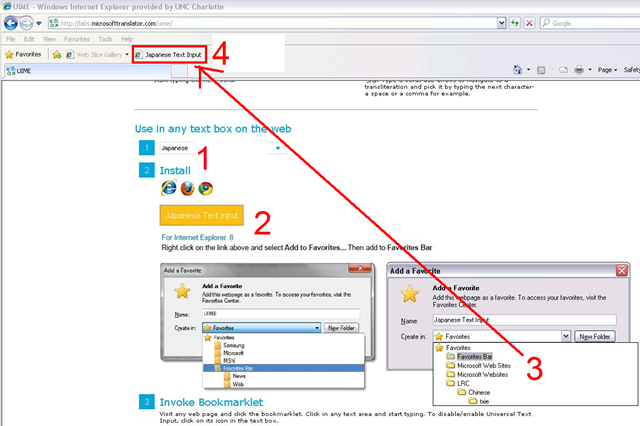
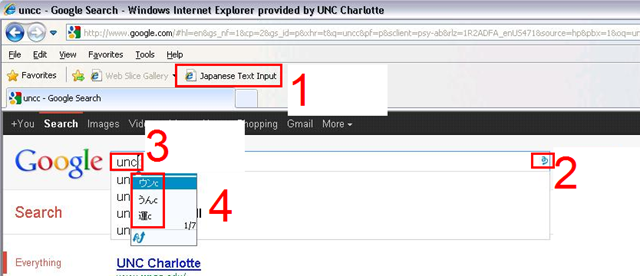
Using the UIME, you can “type any language with any keyboard on any web page, using only the Roman characters present on every keyboard.”

And you can install your favorite input language in your web browser, like so:
Categories: Absolute-Beginner, Advanced, Arabic, Beginner, e-languages, English, French, Greek (modern), Intermediate, Japanese, Mandarin, Russian, software, websites, Writing
character-input, ms-uime


Questions? Read the About. Or just ask me a quick Our Databases: Resources with calendars -- Language learning material Moodle Sites, multimedia files -- films


FAQs for LRC student staff or for students or for teachers. To search our FAQs, in the browser addressbar, add after "https://plagwitz.wordpress.com/feed/?tag=faqs+/" "+TAG1" (from tag cloud below) OR "https://plagwitz.wordpress.com/feed/tag=faqs
&category_name=" "CAT1" (from category hierarchy below). OR search both categories and tags, and multiple TAGs/CATs (connect with "," for OR-search, with "+" for AND-search), like so: https://plagwitz.wordpress.com/feed/?tag=TAG1+TAG2+...TAGn&category_name=CAT1
+CAT2+...CATn"
Other ways to find help
If you cannot find it here, look there: 5,500 Language-Learning Links and Programs for learning or teaching 150 languages
Shortcuts:Our Lists, Our Maps, LRC Staff Moodle Site,LRC Project Moodle Site, 49erexpress, UNCC Moodle, Student Recordings: s:claslcslrcsanakostudent
Learning usage samples: Sanako oral exam, Kaltura webcam presentation, Dictation with speech recognition, Sanako written exam, Chinese and Japanese interactive stroke-order practice
Test the Sanako Installer, Webbrowser Popup Konfigurator for XP, or Windows7, faster LRC TeacherPC Log-in Let MS facilitate diacritics writing by installing for you US-International keyboard layout
This is my personal blog (Google+). The views expressed on these pages are mine alone and not those of my employer. The information in this weblog is provided “AS IS” with no warranties, and confers no rights.
 Thomas' Work Space