Archive
CAOS ereserves not compatible with Sanako Study1200 Webbrowser
- Last week I noticed in the LRC that I cannot open the ereserves with language learning audio files to my students by using the Study1200 Webbrowser’s “follow” feature .
- While sending the audio listing page still works, including the login page which the students get redirected to, and which, upon successful login, redirects them to the listing;
- Getting to the actual audio file launcher page fails, since this is a popup window which the Sanako Webbrowser first blocks, while redirecting the launcher of the popup to the home page
- No pressing of modifier keys seems to be able to bypass the popup blocker. Is there a setting in the Study1200 Webbrowser to modify this behavior.
How LRC assistants can print LRC jobs from the reception desk
- If you have (ONLY! printing is tracked) work-related jobs to print from the reception desk, please use this method:
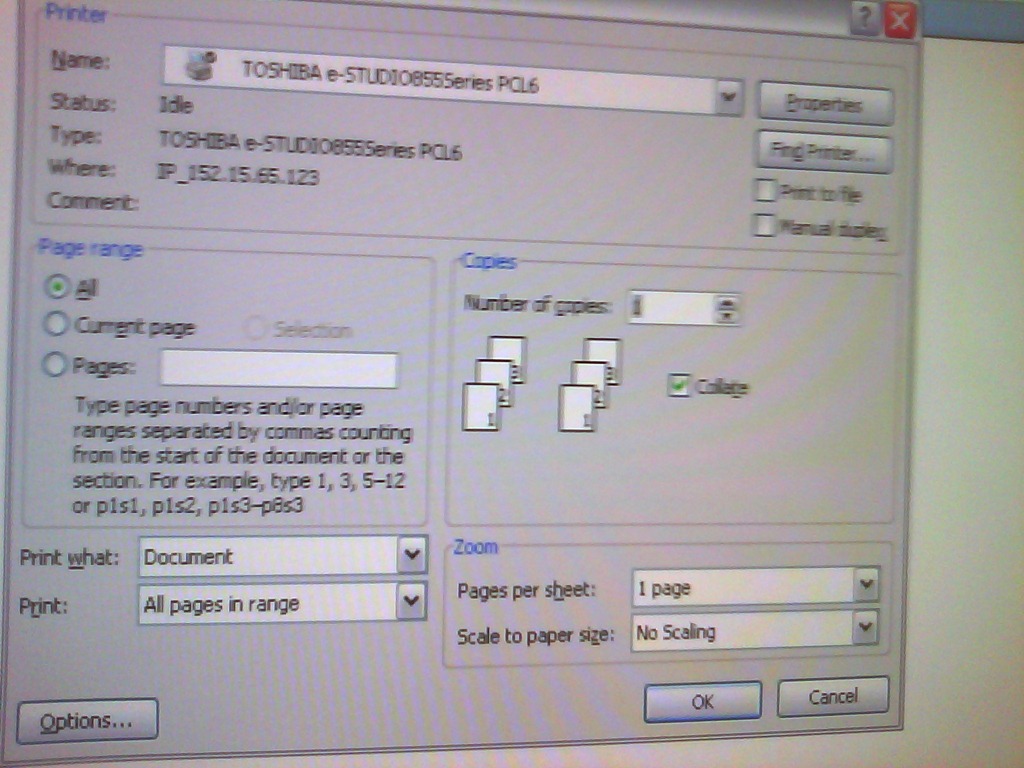
- Choose “print” as normal and then this Toshiba printer driver ONCE I HAVE IT INSTALLED:

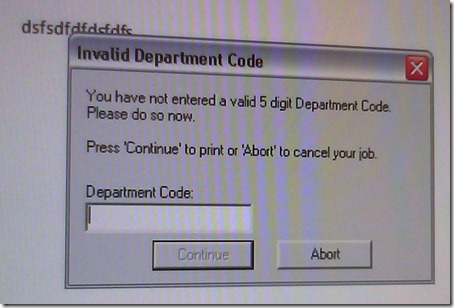
- the printer driver will ask you for a code; the code in the LRC Moodle announcement board sticky post, above the threads:
- You can pick up the print outs in the mailroom behind the LCS department’s main office.

Solved: NetOp School NLSP.dll prevents streaming of Real Media via RTSP on student computers
- On a NetOp School system, Realplayer 14, when trying to load e.g. rtsp://dlib4.uncc.edu:554/e_reserves/CD4French1-7.rm (from Firefox, or disk, authenticated), crashes nlsp.dll (version 6, part of of NetOp School from Danware). This is the NetOp Browser Policy IP Filter.
- The MS-windows appcompat contains this:
-
NAME
RealPlay.exe
nlsp.dll
kernel32.dll
FILTER
GRABMI_FILTER_PRIVACY
GRABMI_FILTER_THISFILEONLY
GRABMI_FILTER_THISFILEONLY
NAME2
cddbcontrol.dll
nlsp.dll
kernel32.dll
SIZE
2041072
243728
989696
CHECKSUM
0x902F78A2
0xB9006E28
0x2D998938
BIN_FILE_VERSION
2.6.206.205
6.20.2010.349
5.1.2600.5781
BIN_PRODUCT_VERSION
2.6.206.205
6.20.2010.349
5.1.2600.5781
PRODUCT_VERSION
2, 6, 206, 205
6.20 (2010349)
5.1.2600.5781
FILE_DESCRIPTION
CDDBControl Core Module
NetOp Browser Policy IP Filter
Windows NT BASE API Client DLL
COMPANY_NAME
Gracenote, Inc.
Netop Business Solutions A/S
Microsoft Corporation
PRODUCT_NAME
CDDBControl Core Module
Netop School
Microsoft® Windows® Operating System
FILE_VERSION
2, 6, 206, 205
6.20 (2010349)
5.1.2600.5781 (xpsp_sp3_gdr.090321-1317)
ORIGINAL_FILENAME
CDDBControl.DLL
NLSP.DLL
kernel32
`
INTERNAL_NAME
CDDBControl
NLSP
kernel32
LEGAL_COPYRIGHT
Copyright 1999 – 2009
Copyright © 1981-2010 Netop Business Solutions A/S. All Rights Reserved. Portions used under license from third parties.
© Microsoft Corporation. All rights reserved.
VERFILEDATEHI
0x0
0x0
0x0
VERFILEDATELO
0x0
0x0
0x0
VERFILEOS
0x4
0x4
0x40004
VERFILETYPE
0x2
0x2
0x2
MODULE_TYPE
WIN32
WIN32
WIN32
PE_CHECKSUM
0x1F6508
0x4526B
0xFE572
LINKER_VERSION
0x0
0x0
0x50001
UPTO_BIN_FILE_VERSION
2.6.206.205
6.20.2010.349
5.1.2600.5781
UPTO_BIN_PRODUCT_VERSION
2.6.206.205
6.20.2010.349
5.1.2600.5781
LINK_DATE
04/13/2010 19:48:37
12/15/2010 19:38:53
03/21/2009 14:06:58
UPTO_LINK_DATE
04/13/2010 19:48:37
12/15/2010 19:38:53
03/21/2009 14:06:58
VER_LANGUAGE
English (United States) [0x409]
Language Neutral [0x0]
English (United States) [0x409]
- NetOp support advises to try, among other things, resetting the Winsock catalog via "netsh winsock reset", which seems to work on a testmachine.
How a teacher creates and grades a Moodle streaming video assignment.
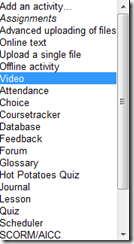
- Click button: “Turn editing on”, from the “add an activity dropdown, choose: “video”, like so:
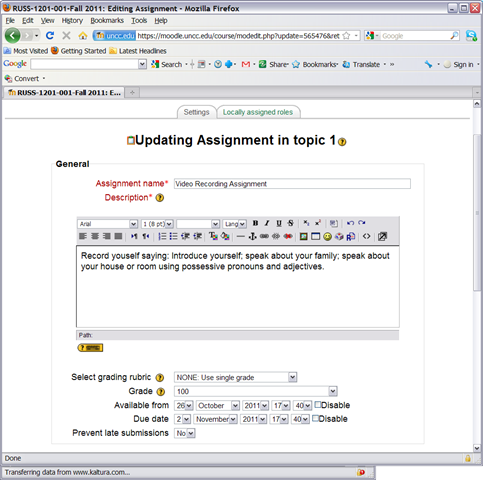
- Edit your assignment, like so:

- using the following options (or else expect problems)
- Due date: not DISABLED (is the default)
- Prevent late submissions: YES (is not the default)
- Allow resubmitting: NO (is the default)
- using the following options (or else expect problems)
- after you post your assignment and your students took it, like so,
- and if you turned notifications (not recommended; rather grade the assignment well after the deadline, or else expect problems) on (if you get already enough email, remember you can turn notifications off, rather send a deadline to the assignments which the students can see in their calendar, and until they get used to it, tell them there will be more video assignments, best: make it a routine and leave 2 for extra credit could be enough to get everybody to catch), you will get an email like this:

- where you click either on the link (1) to go to the assignment, then click through to the submissions (3)

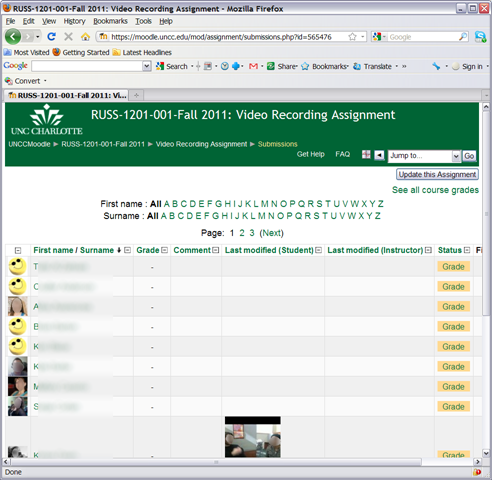
- or on (2) to go directly to the grade book:

- where you are best advised to click on the button: “grade” to view the video submission, , or else you might run into this bug.
- In the grading window,
 play the video, add helpful comments, if any, add final Grade and click “save and next” (but click “next” if no video submitted yet and you grade before the submission deadline. Better: do not grade before the submission deadline).
 - If video seems unwilling to play (frozen frame), drag the play cursor forward on the timeline underneath the video.
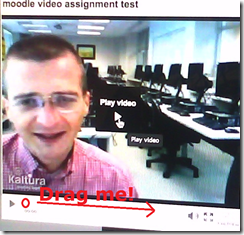 If this does not unfreeze the video, let the timeline run to the end (both workarounds have helped with Kaltura issues we encountered here).





Moodle Streaming Video Recording Assignment Glitch 2
- environment: win xp sp3, firefox 3.6
- If you view the Moodle video assignment from the grade book table, inline, in Firefox 3.6, how do you close the popup window?
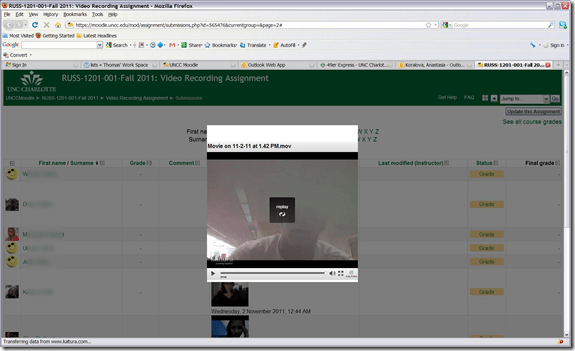
- no hovering around revelaed a close control to us, escape did not help eithe, nor the brwoser back button.
- workarounds:
- copy the url from the address bar, open a new tab, paste the url, close the old tab
- do not view the video in the grade book overview chart, but after opening the individual submission form the grade button.
- try a differnet browser than firefox. on the mac, safari solved a similar problem with firefox and kaltura.

How LRC assistants get paid: web time sheet entry
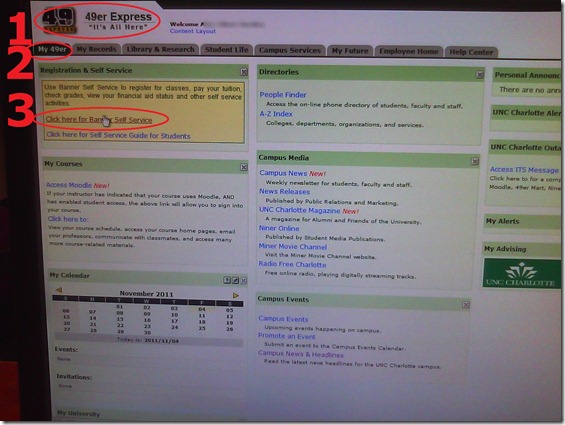
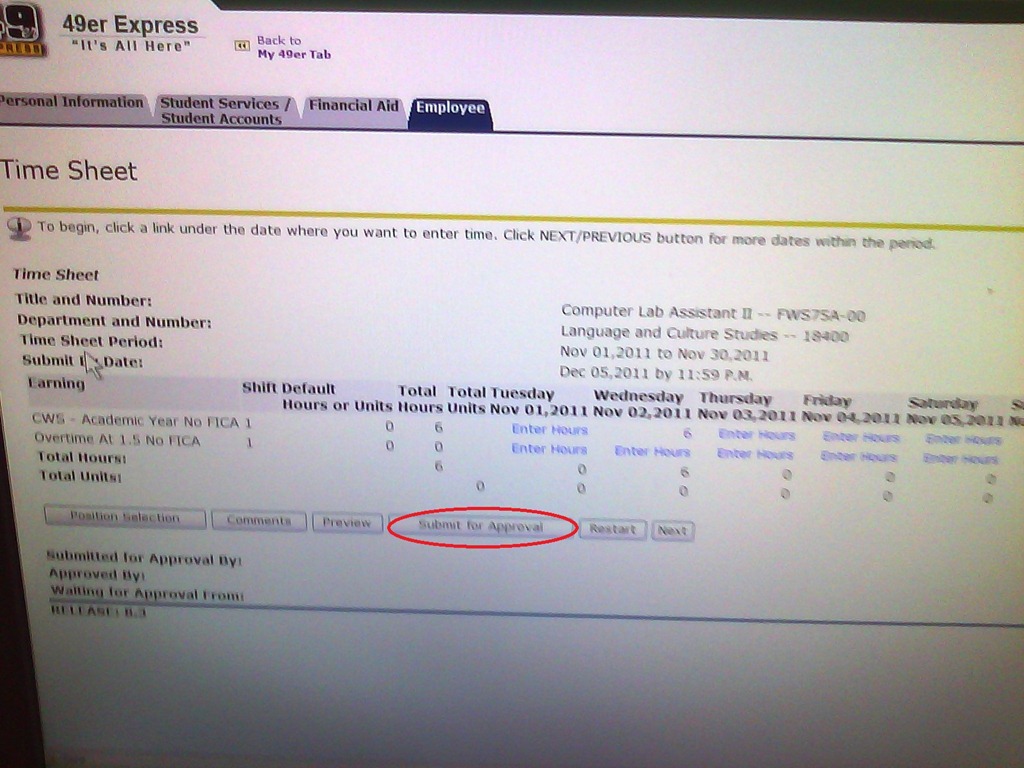
- log into your 49er express, click on “Banner Self Service”:
- click 1: tab employee, 2: click timesheet .

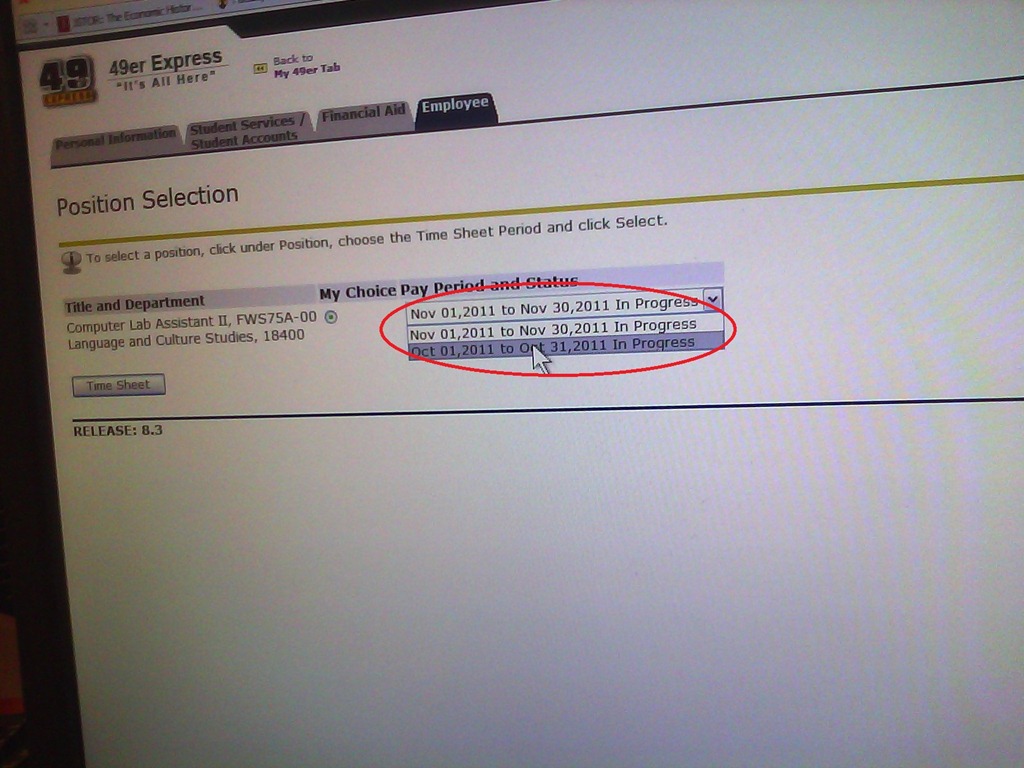
- select the pay period

- fill in your times…
- do not forget to click button “submit for approval”
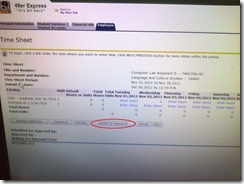
- if you don’t, you will remain “in limbo”: I cannot approve your times.
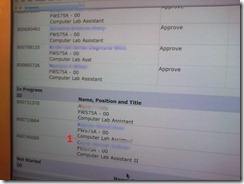
- if you do, you get moved up in line:




Location of the Language Resource Center (LRC) on the UNCC Campus Map

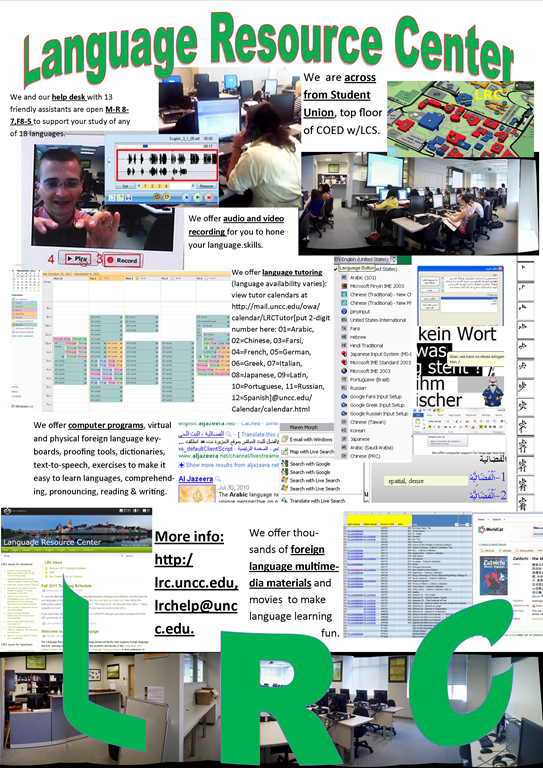
We are across from Student Union, in the COED building with Languages and Culture Studies (LCS), top floor – look for the banners on the wall.


Questions? Read the About. Or just ask me a quick Our Databases: Resources with calendars -- Language learning material Moodle Sites, multimedia files -- films


FAQs for LRC student staff or for students or for teachers. To search our FAQs, in the browser addressbar, add after "https://plagwitz.wordpress.com/feed/?tag=faqs+/" "+TAG1" (from tag cloud below) OR "https://plagwitz.wordpress.com/feed/tag=faqs
&category_name=" "CAT1" (from category hierarchy below). OR search both categories and tags, and multiple TAGs/CATs (connect with "," for OR-search, with "+" for AND-search), like so: https://plagwitz.wordpress.com/feed/?tag=TAG1+TAG2+...TAGn&category_name=CAT1
+CAT2+...CATn"
Other ways to find help
If you cannot find it here, look there: 5,500 Language-Learning Links and Programs for learning or teaching 150 languages
Shortcuts:Our Lists, Our Maps, LRC Staff Moodle Site,LRC Project Moodle Site, 49erexpress, UNCC Moodle, Student Recordings: s:claslcslrcsanakostudent
Learning usage samples: Sanako oral exam, Kaltura webcam presentation, Dictation with speech recognition, Sanako written exam, Chinese and Japanese interactive stroke-order practice
Test the Sanako Installer, Webbrowser Popup Konfigurator for XP, or Windows7, faster LRC TeacherPC Log-in Let MS facilitate diacritics writing by installing for you US-International keyboard layout
This is my personal blog (Google+). The views expressed on these pages are mine alone and not those of my employer. The information in this weblog is provided “AS IS” with no warranties, and confers no rights.
 Thomas' Work Space