Archive
How to power on iMacs
- How to turn on: look for the power-button which has been placed on on the rear. Can’t jump on the table? Here is a photo:


Sample of how students use the foreign language TTS (text-to-speech) in the LRC
Last week, I noticed this student in the LRC working on a speaking assignment in her SLA class. First, she wrote a draft of her presentation. She then had the Deskbot TTS wizard (in the lower right of her screen) read out the draft to her. She recorded her version, modeling after the Deskbot’s pronunciation. Then she had the Deskbot read out the draft again, to compare with her own recording.
Look for the little guy in the lower right corner of the screen with the cartoon bubble over his head.
I favor the use of the Deskbot TTS (a Windows XP technology) as an easily accessible speaking dictionary, including during face-to-face teaching, when students may otherwise be too shy to make an utterance because they are not sure about the pronunciation of a single word, or even ask the teacher to pronounce it for them. Prosodically, the deskbot TTS leaves many things to be desired. Let’s hope that Windows 7 will enable us to set up more advanced TTS support in the LRC.
How to use the online Portuguese pronunciation help to generate phonetic alphabet transcriptions and text-to-speech
- Go to http://www.co.it.pt/~labfala/g2p/
- Write or paste your text into the textbox:“Grafemas”
- Choose your preferred phonetic alphabet (IPA, SAMPA) and other options.
- Press button: “Converter” to see results.
- Press button: “Sintetizar” to hear results.
- Like so:
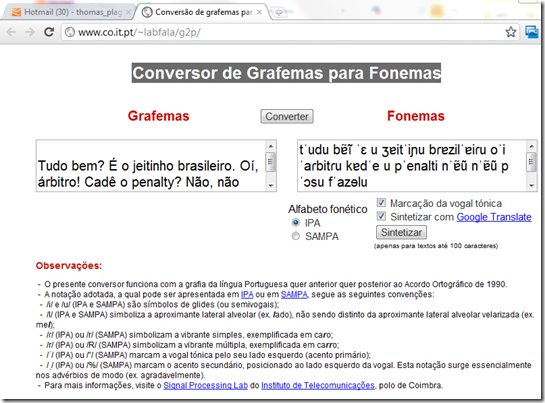
- Or click here to view a demo (requires Windows Media Player) with audio (download requires Windows Media Player). Our example was:
- Input: Tudo bem? É o jeitinho brasileiro. Oí, árbitro! Cadê o penalty? Não, não posso faze-lo.
- Output: tˈudu bɐ̃ĩ ˈɛ u ʒɐitˈiɲu bɾɐzilˈɐiɾu oˈi ˈaɾbitɾu kɐdˈe u pˈenalti nˈɐ̃ũ nˈɐ̃ũ pˈɔsu fˈazɘlu

LRC Assistant Start of Year Training: The Screencast
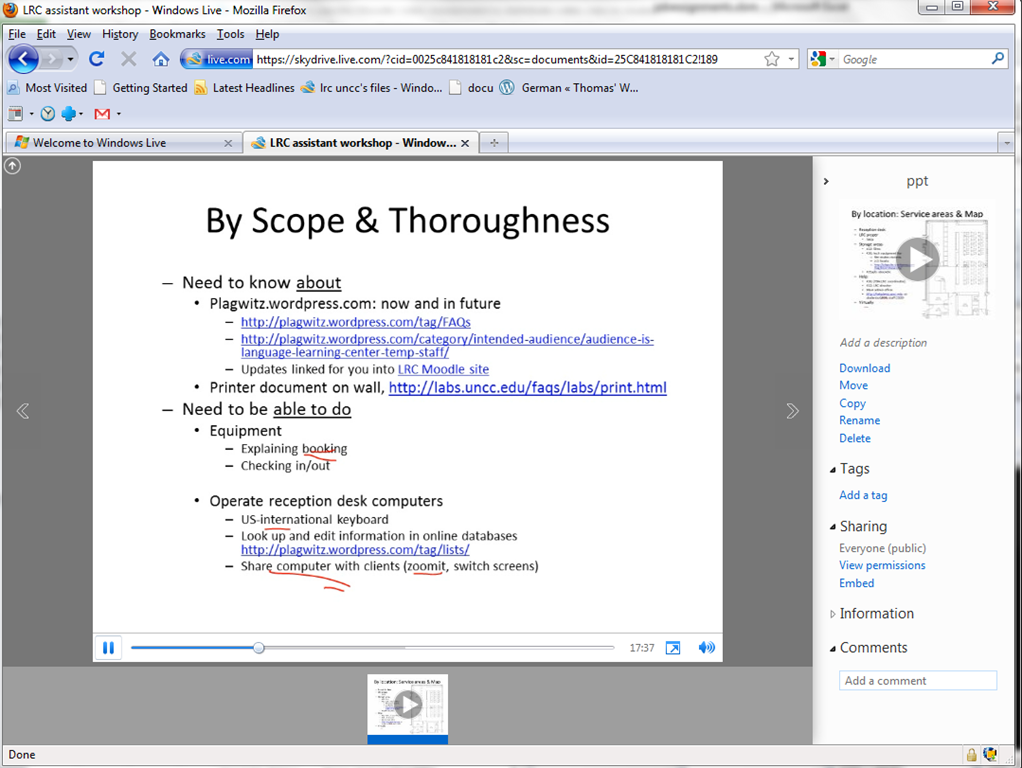
Click here to view a sample LRC assistant training presentation.
How to link screencasts from MS-SkyDrive
- I am trying to replace – in the routine cases that do not need post-editing, but where speed is of the essence – my practice to post-process my screencasts in MS-Expression Encoder (installed on one machine only) and upload the result with a page to load a Silverlight Control – all hosted on my MS-Windows Azure portfolio.
- Much easier and quicker would it be to store screencasts in MS-SkyDrive (mapping to drives in MS-Windows enables a more robust drag and drop than the still browser-specific web version on live.com), and top take advantage the embed links provided.
- Unfortunately, WordPress.com, my blogging platform, does not support iframes with videos from MS-SkyDrive.
- However, by linking to the URL in the embed code, to open in a new window (with the inelegant instruction to “click on the thumbnail that opens”; if it loads slow, the thumbnail ALT displays essentially the same),:
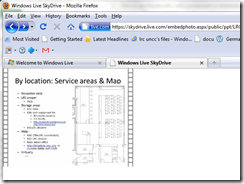
- I can get the user to an MS- Silverlight control which loads:
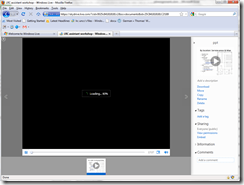
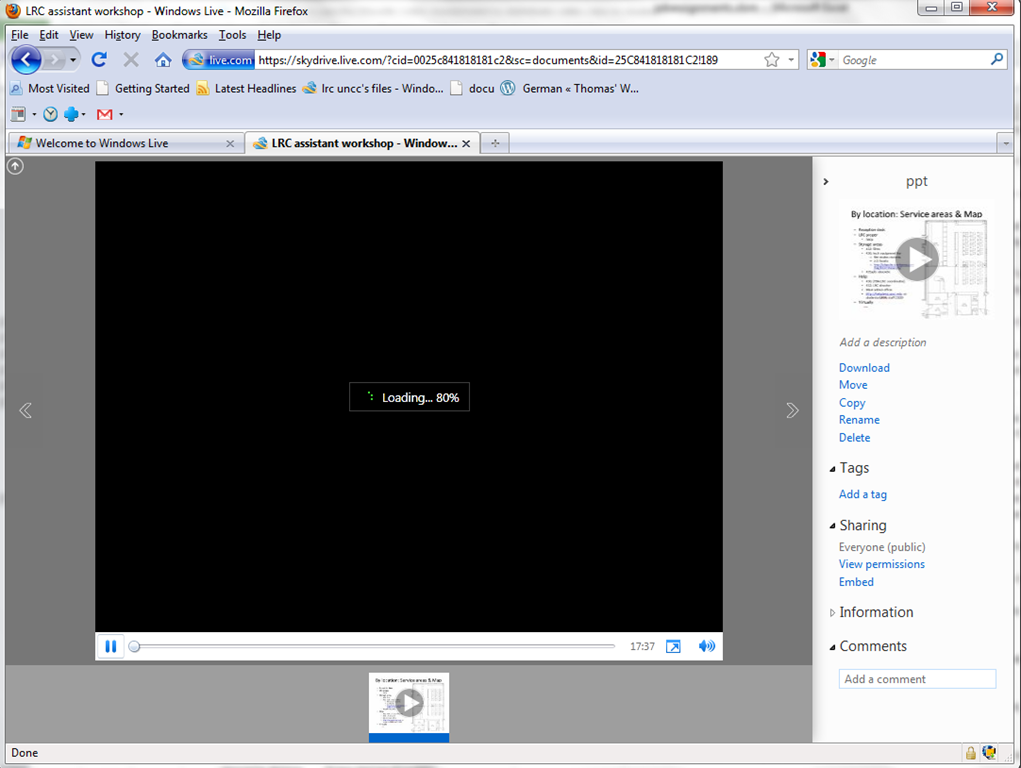
- and plays the video:

- more user-friendly and robustly (This has been tested to work on MS-Windows 7 with IE9 and Firefox 3.6) than distributing the bare WMVs of my screencasts directly.

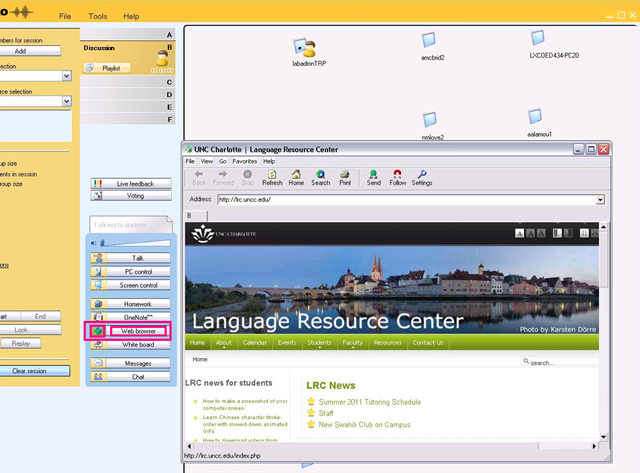
How to launch a webpage to students from Sanako Study 1200
- On the center buttons “Web browser”, use
- either the large grey rectangular right area to launch to all students in class
- or the small square colored (here brown) left area, to launch only to students in the brown group, like so,
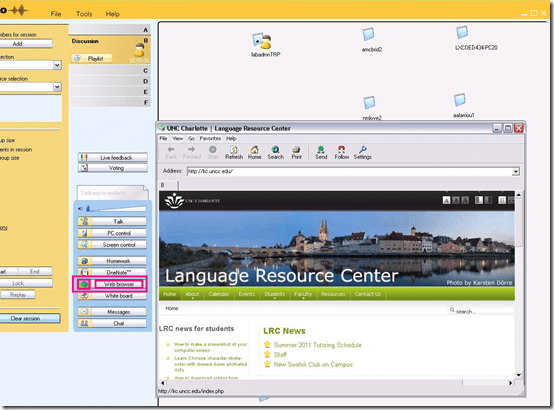
- unfortunately, you will have to click through number of errors on most web pages – the students do not see these

- eventually, the start page will show in your Sanako web browser

- then you can browse to a page from the address bar, click “send”, which will open it on the student computers
-

- clicking “follow”
 is like always clicking “send” after browsing to a new webpage. It allows you to guide the students through a number of web pages.


How to make a screenshot of your computer screen
- You can look it up, or:
- on Windows, press the “PrintScr” key (upper right corner of your keyboard)
- on Mac OS X, Command+Shift+3.
- Then paste the clipboard into an application that can handle images and that you are familiar with (your best bet may be MS-Word).
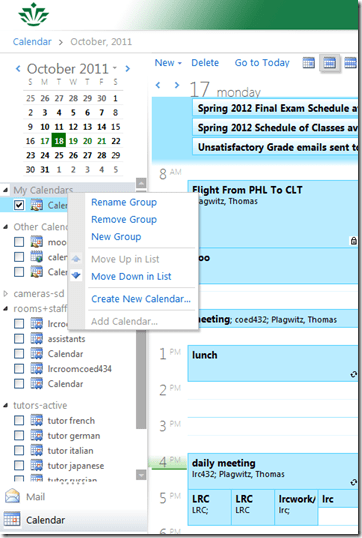
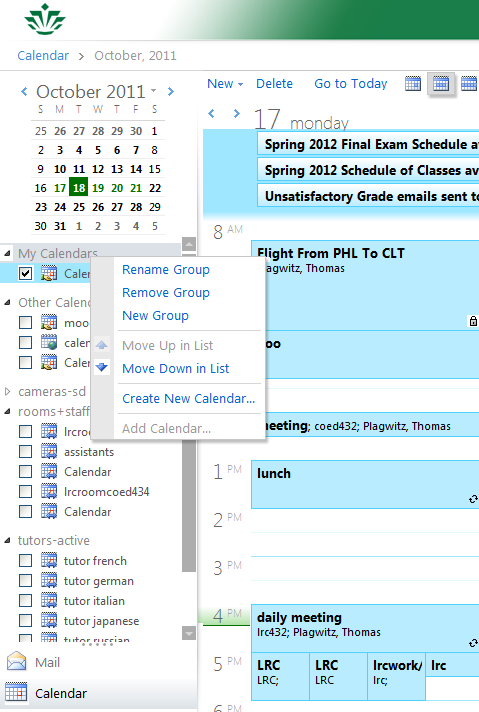
Why is the “Add calendar” item in the OWA’s My Calendars context menu often grayed out/not available
- This can been observed in IE8 and IE9.


Questions? Read the About. Or just ask me a quick Our Databases: Resources with calendars -- Language learning material Moodle Sites, multimedia files -- films


FAQs for LRC student staff or for students or for teachers. To search our FAQs, in the browser addressbar, add after "https://plagwitz.wordpress.com/feed/?tag=faqs+/" "+TAG1" (from tag cloud below) OR "https://plagwitz.wordpress.com/feed/tag=faqs
&category_name=" "CAT1" (from category hierarchy below). OR search both categories and tags, and multiple TAGs/CATs (connect with "," for OR-search, with "+" for AND-search), like so: https://plagwitz.wordpress.com/feed/?tag=TAG1+TAG2+...TAGn&category_name=CAT1
+CAT2+...CATn"
Other ways to find help
If you cannot find it here, look there: 5,500 Language-Learning Links and Programs for learning or teaching 150 languages
Shortcuts:Our Lists, Our Maps, LRC Staff Moodle Site,LRC Project Moodle Site, 49erexpress, UNCC Moodle, Student Recordings: s:claslcslrcsanakostudent
Learning usage samples: Sanako oral exam, Kaltura webcam presentation, Dictation with speech recognition, Sanako written exam, Chinese and Japanese interactive stroke-order practice
Test the Sanako Installer, Webbrowser Popup Konfigurator for XP, or Windows7, faster LRC TeacherPC Log-in Let MS facilitate diacritics writing by installing for you US-International keyboard layout
This is my personal blog (Google+). The views expressed on these pages are mine alone and not those of my employer. The information in this weblog is provided “AS IS” with no warranties, and confers no rights.
 Thomas' Work Space