Archive
How to access trprecord.exe
In the interpreting suite, students can click  , click
  , paste “\\lgu.ac.uk\lgu$\multimedia student\mmedia\mmedia1\language_services\software\trprecord.exe”, click
  . More help.
Blackboard VLE Training Videos Overview
|
2006 |
Video |
|
|
2006 |
Video |
|
|
2007 |
Video |
|
|
2007 |
Video |
|
|
2007 |
Video |
|
|
How to do a language lab recording exercise as Blackboard assignment |
2007 |
Video |
| Blackboard controlpanel_export_import_course_or_parts.wmv | 2008 |
Video |
| Blackboard dropbox_sort_filter.wmv | 2008 |
Video |
|
Blackboard Content System: Add a content item instead of attaching a file |
2009 |
Video |
|
2010 |
Video |
|
|
2010 |
Video |
|
|
2010 |
Video |
|
|
2010 |
Video |
Help with playing videos
- Some videos require special codecs to display properly/ at all.
- Here is info on the H.264 codec.
- Often, it is best to try, instead of Windows Media Player (which may be the default player that opens when you (double)click on a video, but not be able to display it without manual configuration),
- the free VLC player which you can download here, if you must, and install, if you are permitted. Then right-click video, “open with”, “VLC media player”, like here:


How to Join one of our Windows Live Groups at London Metropolitan
Go the group’s web address (not from your londonmet email client’s browser) and click “Sign in”. 
If you have a windows live account (hotmail or msn qualify), click “sign in”, otherwise click “sign up”.

Go through an account creation process (you only have to do this once): 
Afterwards, you will be automatically signed in (you may have to answer an email first at the address you have given during sign-up) and redirected to the invitation page for the group, click on “Ask to join”. 
Now you are done: 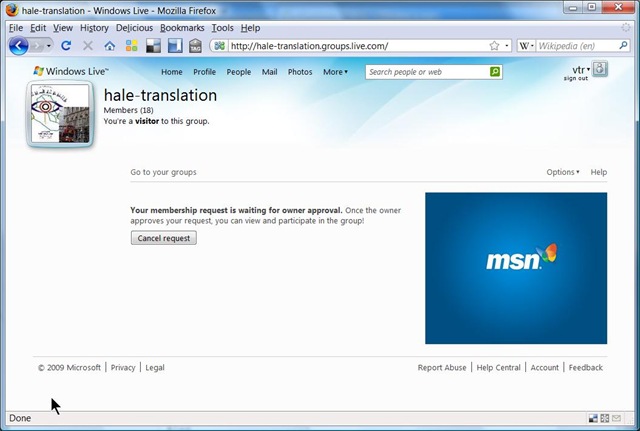
Don’t forget to write down your user name and password.
Vendors at BETT 2009
For the interpreting suite upgrade, here is my report from BETT 2009:
|
booth |
Artec = Televic |
Q36 |
ConnectED, SANS Virtuoso/Soloist |
N54 |
NETSUPPORT SOFTWARE LTD |
E100 |
SANAKO |
P69 |
Synchroneyes |
b50 |
Two types of vendors:
- Full-blown interpreting lab vendors
- Generic classroom management software vendors
Follow the links, talk to me if you want to know more and/or post questions/comments below.
Interpreting Lab Vendors at BETT 2009
artec_main_bett2009.AVI (big, and you can find help here on How to play videos) is a quick-and-dirty video I shot during my visit to the ARTEC/TELEVIC booth at the British Educational Technology Tradeshow (BETT) 2009 in London 16/01/2009.
ARTEC demonstrated certain lab features (they had a live setup of a teacher and a number of student computers) for face-to-face teaching.
They also tried to show off a web-based add-on for self-access interpreting practice which you better try out yourself here, then browse to Demo edumatic online / demo online / audio/video comparative / comparative recording : an online dual band recorder.
If I have time, I will post an outline of this video here. In the meantime, you can add points you find notable to the comments below.
I also visited the booth of CONNECTED (SONY VIRTUOSO – they have their own WMV Demo Video ) and SANAKO (I put the CD-Rom in a SkyDrive folder sanako for the Interpreting-Group).
Classroom management software Vendors at BETT 2009
I visited a number of more generic classroom management systems (NETSUPPORT, Synchroneyes).
These have limited audio (no recording) support, but provide all the essentials for computer use in class at a much lower cost. Could be a temporary solution, if we add some customizing through in-house programming.
Print to PDF with PDF Creator
For creating PDFs, we now have PDFCreator installed in Moorgate. It appears as a printer driver, so print whatever document you want converted, and choose “PdfCreator” as the printer.
Test

A dialogue will come up which will allow you to change some settings for the pdf file you are going to create.
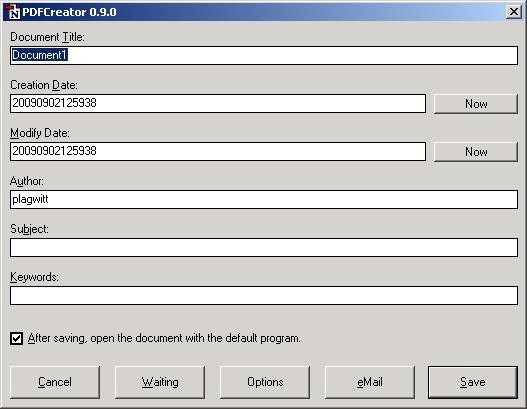
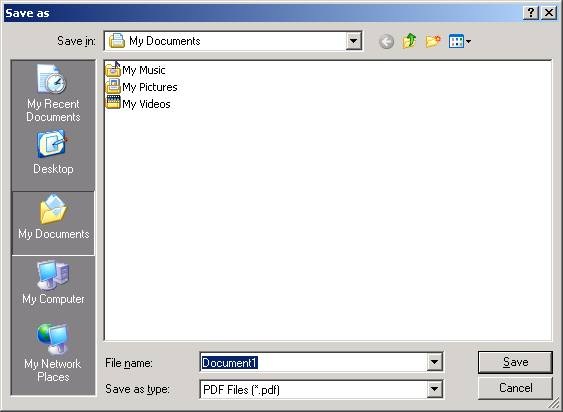
The next dialogue will ask you where you want to save your pdf file.
Here is the result file:

And here it is opened with Acrobat Reader:
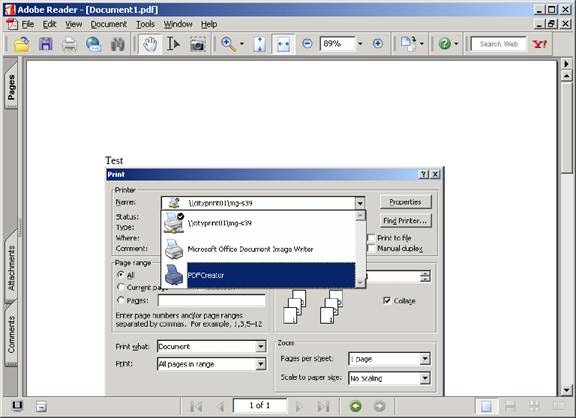
PdfCreator has limitations, like it does not create hot links. Once Office 2007 is installed in Moorgate, I would recommend using its built-in “Save as PDF” feature instead.


Questions? Read the About. Or just ask me a quick Our Databases: Resources with calendars -- Language learning material Moodle Sites, multimedia files -- films


FAQs for LRC student staff or for students or for teachers. To search our FAQs, in the browser addressbar, add after "https://plagwitz.wordpress.com/feed/?tag=faqs+/" "+TAG1" (from tag cloud below) OR "https://plagwitz.wordpress.com/feed/tag=faqs
&category_name=" "CAT1" (from category hierarchy below). OR search both categories and tags, and multiple TAGs/CATs (connect with "," for OR-search, with "+" for AND-search), like so: https://plagwitz.wordpress.com/feed/?tag=TAG1+TAG2+...TAGn&category_name=CAT1
+CAT2+...CATn"
Other ways to find help
If you cannot find it here, look there: 5,500 Language-Learning Links and Programs for learning or teaching 150 languages
Shortcuts:Our Lists, Our Maps, LRC Staff Moodle Site,LRC Project Moodle Site, 49erexpress, UNCC Moodle, Student Recordings: s:claslcslrcsanakostudent
Learning usage samples: Sanako oral exam, Kaltura webcam presentation, Dictation with speech recognition, Sanako written exam, Chinese and Japanese interactive stroke-order practice
Test the Sanako Installer, Webbrowser Popup Konfigurator for XP, or Windows7, faster LRC TeacherPC Log-in Let MS facilitate diacritics writing by installing for you US-International keyboard layout
This is my personal blog (Google+). The views expressed on these pages are mine alone and not those of my employer. The information in this weblog is provided “AS IS” with no warranties, and confers no rights.
 Thomas' Work Space