Archive
Posts Tagged ‘VBA’
Have your VBA Add-in autogenerate menus for easier access to your macros
2016/07/22
Leave a comment

- Storing your macros in add-ins (.xlam) has many advantages over personal.xlsm and similar document locations.
- One disadvantage however is that an Add-in macro is not accessible through the Excel macros dialogue.
- The community recommends assigning shortcuts for easy access. I did that and went a couple of steps further using VBE extensibility to
- depending on scope
- public procedures on your end users’ computer to whom you distribute your Add-in
- and also non-private on the developer machine
- list your modules alphabetically
- list your macros alphabetically under your modules
- for each, find & assign a free (free within Excel only – short of assigned windows-wide shortcuts since in my current work environment, I am unable run tools that allow you to list these shortcuts) shortcut combination,
- automatically generate an Add-Ins menu of all that , to serve as a cheat sheet.
- depending on scope
- Code TBA

Categories: service-is-documenting, service-is-programming, sourcecode
add-ins, MS-Excel, ribbon, VBA
Try “Stop Collecting” with Office Clipboard for Runtime Error 1004 “Paste Method of Worksheet Failed”
2016/05/30
Leave a comment
There seem plenty potential sources of error for method .Pastespecial, and a vast amount of questions and good advice online.
But I did not find this one, and only this one managed to make Pastespecial into Excel work for me. 
Extending an automated testing infrastructure through an Outlook Add-In to save, rename email attachments into a searchable archive
2016/02/29
Leave a comment
-
- Begin confronted with on average 250 daily emailed notification files per day, from varying sources – both custom test result messages and built-in default automation error messages –
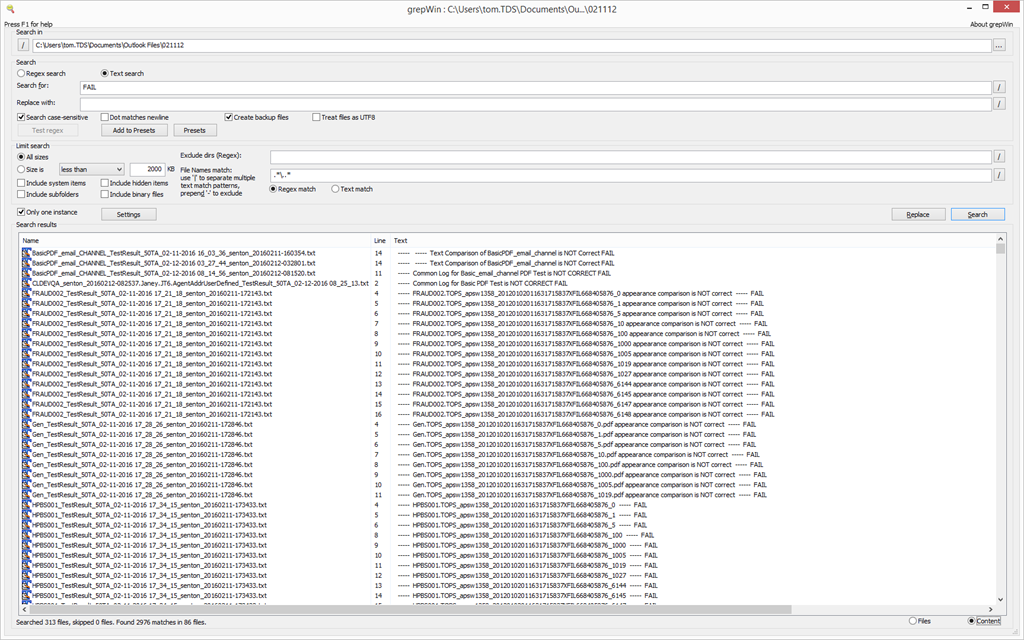
 I resorted to writing an outlook add-in that stores these attachments in a central repository that can be searched – both names following a more meaning full naming convention, and full text – with more powerful (regular expression capable) tools, like grepWin:

- The rules details evolved further, but here is an early version:
Public Sub SaveAttachmentsForSelectedMessagesToMyDocuments()
    Dim objOL As Outlook.Application
    Dim objMsg As Outlook.MailItem    'Object
    Dim objAttachments As Outlook.Attachments
    Dim objSelection As Outlook.Selection
    Dim I As Long
    Dim lngCount As Long
    Dim strFilePath As String
    Dim strFileName As String
    Dim strFolderPath As String
    Dim strDeletedFiles As String
    'add msgdate to atttachment
    Dim dtDate As Date
    Dim strFileExtendedName As String
    Dim strFileBasename As String
    Dim strExt As String
    Dim strSentTag As String
    Dim strSubject As String
    Dim strBody As String
    Dim strBasenamedate As String
    Dim strTESTCategory    'fail, warn, pass, finished=autom-error
    Dim allMatches As Object
    Dim objRE As Object
    Dim strTestnamefrombody As String

    ' Get the path to your My Documents folder
    strFolderPath = CreateObject("WScript.Shell").SpecialFolders(16)
    On Error Resume Next

    ' Instantiate an Outlook Application object.
    Set objOL = CreateObject("Outlook.Application")

    ' Get the collection of selected objects.
    Set objSelection = objOL.ActiveExplorer.Selection

    ' The attachment folder needs to exist
    ' You can change this to another folder name of your choice

    ' Set the Attachment folder.
    strFolderPath = strFolderPath & "\Outlook Files\"

    ' Check each selected item for attachments.
    For Each objMsg In objSelection 'msgs

        Set objAttachments = objMsg.Attachments
        lngCount = objAttachments.Count

        If (objMsg.SenderEmailAddress = "tdscautomation@gmail.com") And lngCount > 0 Then 'some other senders'mesages also end up in this folder
            strTESTCategory = ""
            strSourceCategory = ""
            Set objRE = CreateObject("vbscript.regexp")
            objRE.Global = True
            objRE.IgnoreCase = False
            objRE.Pattern = "(WARN|FAIL|PASS|finished)"    'ex: Testing Anywhere finished executing the test. / Version 5.2.1068 :- SQL03_TA_50 - STATUS= WARN / Version 5.2.1068 - System Tests - STATUS = PASS
            Set allMatches = objRE.Execute(objMsg.Subject)
            strTESTCategory = allMatches.Item(0).SubMatches.Item(0) + "~"

            objRE.Pattern = "(System|SQL03)"    'ex: Testing Anywhere finished executing the test. / Version 5.2.1068 :- SQL03_TA_50 - STATUS= WARN / Version 5.2.1068 - System Tests - STATUS = PASS / Version 5.2.1068 :- SQL03_TA_50 - STATUS= FAIL
            Set allMatches = objRE.Execute(objMsg.Subject)
            strSourceCategory = allMatches.Item(0).SubMatches.Item(0)
            If (LCase(strSourceCategory) = "system") Then
                strSourceCategory = "Server~"
            End If
            If (LCase(strSourceCategory) = "sql03") Then
                strSourceCategory = "Thinclient~"
            End If
            If (LCase(strSourceCategory) = "") Then
                strSourceCategory = "Testany~" ' correct: Testany~finished~Variable~sent-on~2016-02-12_18-39-21.txt
            End If

            objRE.IgnoreCase = True

            strSubjectOri = objMsg.Subject
            Debug.Print strSubjectOri

            For I = lngCount To 1 Step -1    'attachments
                ' Get the file name and other naming components for this attachment
                strFileName = objAttachments.Item(I).FileName
                strFileBasename = Mid(strFileName, 1, InStr(1, strFileName, ".") - 1)
                'Debug.Print strFileBasename
                strExt = Mid(strFileName, InStrRev(strFileName, "."), Len(strFileName))
                strBody = objMsg.Body
                dtDate = objMsg.SentOn    'add the msg date, to prevent overwriting undated files like testsuite.txt
                strSentTag = "~sent-on~" & Format(dtDate, "yyyy-mm-dd", vbUseSystemDayOfWeek, vbUseSystem) & "_" & Format(dtDate, "hh-mm-ss", vbUseSystemDayOfWeek, vbUseSystem)
                'excel can parse this date fromat to dtm , but not the time (all supported have chars illegal in filenames) - so go for sort and use excvel formula
                strSubject = ""    ' only 1 subject per message, but we don't check it for each attachment, and want it empty for some
                strBasenamedate = ""
                strTestnamefrombody = ""

                If (LCase(strExt) = ".zip") Then    'QA zip attachments don't indicate test script and date: we add from the subject (which does indicate) and msg
                    strSubject = Trim(strSubjectOri)
                    'strFileExtendedName = strSubject + strFileBasename + strSentTag + strExt
                Else
                    If (LCase(strExt) = ".txt") Then
                        If (LCase(strFileBasename) = "testsuite") Then    ' ex: attachment testsuite.txt"
                            'add no test name, since testsuite = summary for all tests
                            'add an extra ~ delimiter for excel column
                            'strSentTag = "~" + strSentTag
                            'todo: have to temp revert to regular send tag until i have more info about testsuite
                            'totest: sort by date asc: does not seem to work eith,er however, the testsuite is a mess anyway
                            'noworkie, saves from newest: so that most recent suite.txt overwrites previous summaries for this day (requires order by receiveddate desc display in outlook which is the norm)
                            'strFileExtendedName = strFileBasename + strSentTag + strExt
                            strSentTag = "~~sent-on~" & Format(dtDate, "yyyy-mm-dd", vbUseSystemDayOfWeek, vbUseSystem)    'using different strSentTag
                        Else    'not testsuite, but txt -> might (variable.txt) have a testname in the subject - split the tesname  out from what follows it
                        'todo: still
                            objRE.Pattern = "\_(January|February|March|April|May|June|July|August|September|October|November|December|\d{2,}\-)"    'need only start of datestring, for prepending delimiter
                            'done: not matching , is htis the inputSMAP_TestResult_50TA_02-07-2016_23_53_04

                            'no consistent formatmask: ex: SCE_OA_TestResult_50TA_02-11-2016_03_10_26
                            'BasicPDF_TestResult_50TA_01-04-2016 11_57_03.txt
                            'ST_HistoryTabs1_TestResult_SQL03_TA_50_January042016.txt
                             'ex: Testing Anywhere finished executing the test. / Version 5.2.1068 :- SQL03_TA_50 - STATUS= WARN / Version 5.2.1068 - System Tests - STATUS = PASS
                            Set allMatches = objRE.Execute(strFileBasename)
                            strBasenamedate = allMatches.Item(0).SubMatches.Item(0)
                            If (Len(strBasenamedate) > 0) Then strFileBasename = Replace(strFileBasename, "_" + strBasenamedate, "~" + strBasenamedate)  'todo:hack, use regex

                        End If
                    Else
                        If (LCase(strExt) = ".jpg") Then
                            If (LCase(strFileBasename) = "gogreen") Then    ' we know already, TU
                                GoTo NextIteration:    ' not having continueloop considered harmful
                            End If
                            'we do not seem to receive other jpg's?
                        Else
                            If (LCase(strExt) = ".png") Then
                                'TA's automation failure attachments have no originating script in filename, but the message body contains it
                                objRE.Pattern = "Test Name\s+:\s+(\S+)"    'ex: Test Name : Top10_INFO001.tamx
                                Set allMatches = objRE.Execute(strBody)
                                If allMatches.Count  0 Then
                                    strTestnamefrombody = allMatches.Item(0).SubMatches.Item(0)
                                End If
                            End If
                        End If
                    End If
                End If

                'components only initialized as "" will output nothing
                'prefer to add senton to all txt since even the ones that have a date have a hard to read/sort format mask
                ' add ~ as delimiters for  later parsing
                If (Len(strTestnamefrombody) > 0) Then
                    strTestnamefrombody = strTestnamefrombody + "~"
                End If
                If (Len(strSubject) > 0) Then
                    strSubject = strSubject + "~"
                End If
                strFileExtendedName = strSourceCategory + strTESTCategory + strTestnamefrombody + strSubject + strFileBasename + strSentTag + strExt
                strFileExtendedName = Replace(Replace(Replace(Replace(Replace(Replace(Replace(Replace(Replace(Replace(Replace(Replace(Replace(Replace(strFileExtendedName, "/", "_"), "\", "_"), "|", "_"), "", "_"), ":", "_"), "*", "_"), "?", "_"), """", "_"), "''", "_"), ",", "_"), " ", "_"), "__", "_"), "__", "_")
                ' Combine with the path to the folder.
                strFilePath = strFolderPath & strFileExtendedName
                If Dir(strFilePath) Then
                    If (FileLen(strFilePath) > objAttachments.Item(I).Size) Then
                    'todo: save attachment to temporary file  to compare sizes properly: keep only the largest = most recent one of undated files - should apply only testsuite.txt
                    Else
                    objAttachments.Item(I).SaveAsFile strFilePath
                    End If
                Else
                ' Save the attachment as a file.
                objAttachments.Item(I).SaveAsFile strFilePath
                End If
                'Debug.Print strFilePath + vbCrLf

NextIteration:
            Next I    'attachment
        End If 'if attachments
    Next    'message

ExitSub:

    Set objAttachments = Nothing
    Set objMsg = Nothing
    Set objSelection = Nothing
    Set objOL = Nothing
    Set objRE -= Nothing
End Sub
Categories: service-is-programming
automation-anywhere, ms-outlook, testing-anywhere, VBA
How to automate removing MS-Office VBA project protection for multiple files
2015/12/01
Leave a comment
- Problem:
- Need VBE extensibility to implement some tools and practices of the modern SDLC.
- Software consists of not only 1000s of Word templates which are anything but DRY, but also highly protected even during what should be the SDLC
- Not solvable by VBA automaton for security reasons:
- VBE password protection (OK, there is Sendkeys, but that is considered harmful).
- digitally signed.
- Developer tab read-only protection: this one is not covered here, since it can be dealt with through regular VBA automation.
- Not solvable by VBA automaton for security reasons:
- Workaround: PowerShell for starters:
- Get Unlock-OfficeMacro.ps1 – including the addition in the comments.
- Wrap the downloaded script like so:
Get-ChildItem -Include *.do?m* -Exclude *_unlocked* -Path "G:\imf\word templates\Quarterly Releases_unprotected_ps" -Recurse |` foreach{ $_.IsReadOnly = $false $output_filename = $_.Directory.ToString() + "\" + $_.BaseName + '_unlocked' + $_.Extension .\Unlock-OfficeMacro.ps1 $_.FullName $output_filename } Exit - NextProblem: The script removes the warning dialogues on opening the altered MS-Word files remain. This still hampers automation.
- Next workaround: this script automates the GUI:
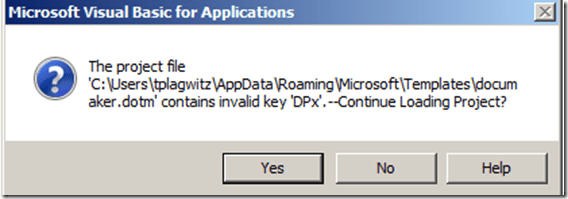
- “OK”’ing the warning dialogue: “The project file ‘C:\Users\tplagwitz\AppData\Roaming\Microsoft\Templates\documaker.dotm’ contains invalid key ‘DPx’.–Continue Loading Project?”
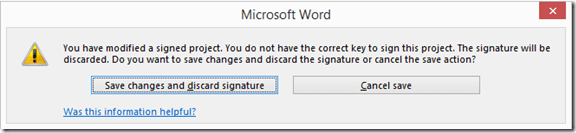
- making minor changes and saving the file (this also bypasses the "discard certificate" warning, if the file was also signed (as is my case).
-
Prerequisites: none, other than putting your word files in a folder the script (which the script will prompt you for, and for an (optional) substring, to filter file names) .
- Limitations:
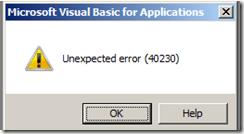
- I used to have also have, per module in the VBA project, warnings: “Microsoft Visual Basic for Applications Unexpected error (40230) ” and try to bypass these also, but since I cannot replicate the warnings, this remains untested.
- A superior approach (enabling round tripping) would be to attempt to automate entering the password, but the traditional SendKeys approach is unreliable, and newer approaches (using SendMessage from the the Win32 API or bypassing the intended negative effects of password protection, via an in-memory substitution).
- I used to have also have, per module in the VBA project, warnings: “Microsoft Visual Basic for Applications Unexpected error (40230) ” and try to bypass these also, but since I cannot replicate the warnings, this remains untested.
- And here is the AutoIt script:
- “OK”’ing the warning dialogue: “The project file ‘C:\Users\tplagwitz\AppData\Roaming\Microsoft\Templates\documaker.dotm’ contains invalid key ‘DPx’.–Continue Loading Project?”


include <Array.au3>
#include <debug.au3>
#include <File.au3>
#include <log4a.au3>
Opt("WinTitleMatchMode", 2)
Opt("MustDeclareVars", 1)
Dim $file, $runpath, $iPID, $i, $folderpath, $pattern, $files, $filepath, $files, $ret, $oAppl, $oDoc, $sFilter
_log4a_SetEnable()
_log4a_SetOutput($LOG4A_OUTPUT_BOTH)
$pattern = InputBox("File Pattern?", "Enter file pattern,  beyond (before) *.do?m (= Files with macros), that files have to match.", "_unlocked")
$folderpath = InputBox("Where?", "Enter folder to find files in...")
$sFilter = "*" & $pattern & "*.do?m|~*,Backup*"
If Not (FileExists($folderpath) And StringInStr(FileGetAttrib($folderpath), "D")) Then
	MsgBox(1, "Error", " The path you entered does Not seem To exist Or is Not a folder. Exiting....")
	Exit
Else
	$files = _FileListToArrayRec($folderpath, $sFilter, $FLTAR_FILES, $FLTAR_RECUR, $FLTAR_SORT, $FLTAR_RELPATH)
	For $i = 1 To UBound($files) - 1
		$file = $files[$i]
		If (StringRight($folderpath, 1) <> "\") Then $folderpath = $folderpath & "\"
		$filepath = $folderpath & $file
		Local $iPID = Run('"C:\Program Files\Microsoft Office 15\root\office15\WINWORD.EXE" /q /a /m "' & $filepath & '"', "", @SW_SHOWMAXIMIZED)
		$ret = WinActivate("- Word", "")
		$ret = WinWaitActive("- Word", "", 5)
		If ($ret = 0) Then
			_log4a_debug("cannot load: " & $filepath & @TAB & @ScriptLineNumber & @CRLF)
			$ret = ProcessClose($iPID)
			ContinueLoop
		Else
			_log4a_debug("processing: " & $filepath & @TAB & @ScriptLineNumber & @CRLF)
		EndIf
		If ($ret = 0) Then _log4a_debug("failure on: " & @ScriptLineNumber & @CRLF)
		Send("{SHIFTDOWN}{SHIFTUP}")
		Sleep(100)
		Send("!{f11}")
		$ret = WinActivate("Microsoft Visual Basic for Applications", "invalid key")
		If ($ret = 0) Then _log4a_debug("failure on: " & @ScriptLineNumber & @CRLF)
		$ret = WinWaitActive("Microsoft Visual Basic for Applications", "invalid key", 5)
		If ($ret = 0) Then
			_log4a_debug("nothing to do with invalid key, will close word and continue next file: " & @ScriptLineNumber & @CRLF)
			$ret = ProcessClose($iPID)
			If ($ret = 0) Then _log4a_debug("failure on: " & @ScriptLineNumber & @CRLF)
			ContinueLoop
		EndIf
		If $ret <> 0 Then
			$ret = ControlClick($ret, "", "Button1")
			If ($ret = 0) Then _log4a_debug("failure on: " & @ScriptLineNumber & @CRLF)
		Else
			If ($ret = 0) Then _log4a_debug("failure on: " & @ScriptLineNumber & @CRLF)
		EndIf
		Sleep(1000)
		$ret = 0
		Sleep(5000)
		While (0 <> WinActivate("Microsoft Visual Basic for Applications", "Unexpected error (40230)"))
			$ret = ControlClick("[CLASS:#32770
			If ($ret = 0) Then _log4a_debug("failure on: " & @ScriptLineNumber & @CRLF)
		WEnd
		Sleep(3000)
		$ret = WinActivate("Microsoft Visual Basic for Applications", "")
		$ret = WinWaitActive("Microsoft Visual Basic for Applications", "", 5)
		If ($ret = 0) Then _log4a_debug("failure on: " & @ScriptLineNumber & @CRLF)
		If ($ret = 0) Then WinActivate("Microsoft Visual Basic for Applications", "")
		$ret = WinWaitActive("Microsoft Visual Basic for Applications", "", 5)
		If ($ret = 0) Then _log4a_debug("failure on: " & @ScriptLineNumber & @CRLF)
		$ret = ControlSend("Microsoft Visual Basic for Applications", "", "VbaWindow1", "'dummy" & @CRLF)
		If ($ret = 0) Then _log4a_debug("failure on: " & @ScriptLineNumber & @CRLF)
		Sleep(1000)
		Send("!q")
		Sleep(1000)
		Send("!{f4}")
		Sleep(1000)

		$ret = WinWaitActive("Microsoft Word", "", 5)
		If ($ret = 0) Then _log4a_debug("failure on: " & @ScriptLineNumber & @CRLF)
		If ($ret = 0) Then $ret = WinActivate("Microsoft Word", "")
		If ($ret = 0) Then _log4a_debug("failure on: " & @ScriptLineNumber & @CRLF)
		$ret = WinWaitActive("Microsoft Word", "", 5)
		If ($ret = 0) Then _log4a_debug("failure on: " & @ScriptLineNumber & @CRLF)
		If ($ret <> 0) Then
			Send("!s")
			Sleep(1000)
			$ret = WinWaitActive("Microsoft Word", "discarded", 5)
			If ($ret = 0) Then
				_log4a_debug("the certificate dialogue is not up yet", True)
				$ret = WinWaitActive("Microsoft Word", "", 5)
				If ($ret <> 0) Then
					_log4a_debug("failure with !s: " & @ScriptLineNumber & @CRLF)
					Send("{Enter}")
				EndIf
			EndIf
			Sleep(1000)
		Else
			If ($ret = 0) Then _log4a_debug("failure on: " & @ScriptLineNumber & @CRLF)
		EndIf
		$ret = WinWaitActive("Microsoft Word", "discarded", 5)
		If ($ret = 0) Then _log4a_debug("failure on: " & @ScriptLineNumber & @CRLF)
		$ret = WinActivate("Microsoft Word", "discarded")
		If ($ret = 0) Then _log4a_debug("failure on: " & @ScriptLineNumber & @CRLF)
		$ret = WinWaitActive("Microsoft Word", "discarded", 5)
		If ($ret = 0) Then _log4a_debug("failure on: " & @ScriptLineNumber & @CRLF)
		If ($ret <> 0) Then
			$ret = ControlClick("Microsoft Word", "", "Button1")
			If ($ret = 0) Then _log4a_debug("failure on: " & @ScriptLineNumber & @CRLF)
			If $ret = 0 Then Send("!d")
		Else
			If ($ret = 0) Then _log4a_debug("failure on: " & @ScriptLineNumber & @CRLF)
		EndIf
		Sleep(1000)
		Send("{BACKSPACE}")
		Sleep(1000)
		Send("^s")
		Sleep(3000)
		ProcessClose($iPID)
		Sleep(1000)
	Next
	Sleep(1000)
EndIf
Categories: audience-is-IT-staff, e-infrastructure, service-is-programming, sourcecode
ms-office, ms-powershell, openxml, protection, security, VBA, vbe
How to split an Excel workbook into one file per sheet with VBA (reworked)
2015/09/24
1 comment
- There are other code snippets on stackoverflow.com, but I went with the top match in the Google search.
- Couldn’t get it to work (error # 424 Object required on xWS.copy in Excel 2013, with the VBA run from a separate utilities workbook) until I made these changes:
'TRP reworked http://www.extendoffice.com/documents/excel/628-excel-split-workbook.html
Sub Workbook_Split() 'Updated by TRP 20150924

    Dim xPath As String
    Dim myWorkSheet As Worksheet
    xPath = Application.ActiveWorkbook.Path 'the source workbook needs be saved first
    Application.ScreenUpdating = False
    Application.DisplayAlerts = False

    For Each xWS In ActiveWorkbook.Sheets    'trp: replaced ThisWorkbook.Sheets
        'trp: replaced xWS.Copy 'toask: this fails with 424: object required
        Set myWorkSheet = xWS
        myWorkSheet.Copy 'If you don't specify either Before or After, Microsoft Excel creates a new workbook that contains the copied sheet.
        Application.ActiveWorkbook.SaveAs FileName:=xPath & "\" & myWorkSheet.Name & ".xlsx"
        'trp: replaced xWS.Name & ".xls"
        Application.ActiveWorkbook.Close False    'trp:savechanges:=False
    Next
    Application.DisplayAlerts = True
    Application.ScreenUpdating = True
End Sub
Categories: service-is-programming
MS-Excel, VBA, worksheets
How to ease editing work in MS-Word by automating search/replace operations
2015/05/08
Leave a comment
- If you frequently have to edit documents according to a large number of editorial rules and regulations
- and if you can partially automate these edit operations (or at least highlight suspicious passages for human review) with Word’s search/replace,
- I can recommend an add-in that can automate even the repeated search/replace operations (like the 57 in the video below)
- and even help you manage your search/replace strings and regular expressions in a spreadsheet which it can load from:
- Greg Maxey’s VBA Find & Replace Word Add-in. See it in action (click for full size):

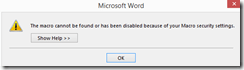
TwoThree Caveats: :- At this point, I cannot get the add-in to work only in Word 2010. Even if I lower Macro security and allow programmatic access to the VBA project, when trying to launch the add-in from the ribbon, Word 2013 complains: “The macro cannot be found or has been disabled due to your macro security settings”:
 .
. - The automation is only as good as your underlying search/replace operations. (Hint: “Some people, when confronted with a problem, think ‘I know, I’ll use regular expressions.’ Now they have two problems.”)
- I think I will refrain from search/replace during “Tracking changes” – as in the video – , and rather use “Compare documents” after the replace operations – too many quirks otherwise…
- At this point, I cannot get the add-in to work only in Word 2010. Even if I lower Macro security and allow programmatic access to the VBA project, when trying to launch the add-in from the ribbon, Word 2013 complains: “The macro cannot be found or has been disabled due to your macro security settings”:


Categories: service-is-documenting
2010, 2013, add-ins, automation, MS-Excel, MS-Word, regular-expressions, replacing, VBA
VBA script to more easily examine the properties of your Content Control-based forms
2014/10/09
Leave a comment
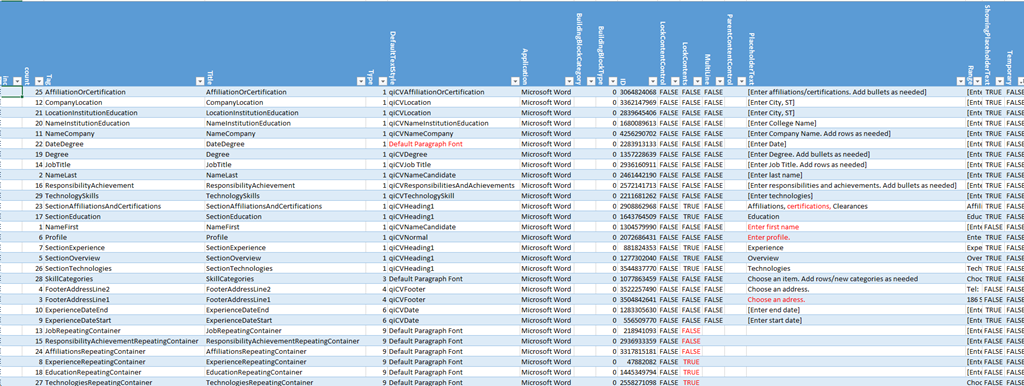
- The routine loops through the Content Controls and outputs properties as text into the VBA-Editor immediate window,
- from where it can be easily converted into an Excel-table which makes it easy t o spot and mark inconsistencies and outright oversights, like so:

Sub ccPropertiesPrint()
On Error Resume Next
Dim strHeadings, strProps As String
Dim count As Integer
Dim response

strHeadings = strHeadings & "~" & "count"
strHeadings = strHeadings & "~" & "Tag"
strHeadings = strHeadings & "~" & "Title"
strHeadings = strHeadings & "~" & "Type"
strHeadings = strHeadings & "~" & "DefaultTextStyle"
strHeadings = strHeadings & "~" & "Application"
strHeadings = strHeadings & "~" & "BuildingBlockCategory"
strHeadings = strHeadings & "~" & "BuildingBlockType"
'strHeadings = strHeadings & "~" & "Checked"
'strHeadings = strHeadings & "~" & "Creator"
'strHeadings = strHeadings & "~" & "DateCalendarType"
'strHeadings = strHeadings & "~" & "DateDisplayFormat"
'strHeadings = strHeadings & "~" & "DateDisplayLocale"
'strHeadings = strHeadings & "~" & "DateStorageFormat"
'strHeadings = strHeadings & "~" & "DropdownListEntries"
strHeadings = strHeadings & "~" & "ID"
strHeadings = strHeadings & "~" & "LockContentControl"
strHeadings = strHeadings & "~" & "LockContents"
strHeadings = strHeadings & "~" & "MultiLine"
'strHeadings = strHeadings & "~" & "Parent"
strHeadings = strHeadings & "~" & "ParentContentControl"
strHeadings = strHeadings & "~" & "PlaceholderText"
strHeadings = strHeadings & "~" & "Range"
strHeadings = strHeadings & "~" & "ShowingPlaceholderText"
strHeadings = strHeadings & "~" & "Temporary"
'strHeadings = strHeadings & "~" & "XMLMapping"
Debug.Print strHeadings
  If ActiveDocument.ContentControls.count > 0 Then
    For Each oCC In ActiveDocument.ContentControls
    'debug
    'If oCC.Type = 9 Then 'debug: repeating
count = count + 1
If count = 50 Then
'dim response = vbmsgboxresponse
    Exit For
End If

' useless cannot access immediate window If count = 15 Then response = MsgBox("paused", vbOKOnly) End If
strProps = "" 'start over
strProps = strProps & "~"
strProps = strProps & count 'CStr(count)
strProps = strProps & "~"
strProps = strProps & CStr(Replace(Replace(oCC.Tag, Chr(13), "#"), Chr(10), "#"))
strProps = strProps & "~"
strProps = strProps & CStr(Replace(Replace(oCC.Title, Chr(13), "#"), Chr(10), "#"))
strProps = strProps & "~"
strProps = strProps & CStr(Replace(Replace(oCC.Type, Chr(13), "#"), Chr(10), "#"))
strProps = strProps & "~"
strProps = strProps & CStr(Replace(Replace(oCC.DefaultTextStyle, Chr(13), "#"), Chr(10), "#"))
strProps = strProps & "~"
strProps = strProps & CStr(Replace(Replace(oCC.Application, Chr(13), "#"), Chr(10), "#"))
strProps = strProps & "~"
strProps = strProps & CStr(Replace(Replace(oCC.BuildingBlockCategory, Chr(13), "#"), Chr(10), "#"))
strProps = strProps & "~"
strProps = strProps & CStr(Replace(Replace(oCC.BuildingBlockType, Chr(13), "#"), Chr(10), "#"))
'strProps = strProps & "~"
'strProps = strProps & CStr(Replace(Replace(oCC.Checked, Chr(13), "#"), Chr(10), "#"))
'strProps = strProps & "~"
'strProps = strProps & CStr(Replace(Replace(oCC.Creator, Chr(13), "#"), Chr(10), "#"))
'strProps = strProps & "~"
'strProps = strProps & CStr(Replace(Replace(oCC.DateCalendarType, Chr(13), "#"), Chr(10), "#"))
'strProps = strProps & "~"
'strProps = strProps & CStr(Replace(Replace(oCC.DateDisplayFormat, Chr(13), "#"), Chr(10), "#"))
'strProps = strProps & "~"
'strProps = strProps & CStr(Replace(Replace(oCC.DateDisplayLocale, Chr(13), "#"), Chr(10), "#"))
'strProps = strProps & "~"
'strProps = strProps & CStr(Replace(Replace(oCC.DateStorageFormat, Chr(13), "#"), Chr(10), "#"))
'strProps = strProps & "~"
'strProps = strProps & CStr(Replace(Replace(oCC.DropdownListEntries.count, Chr(13), "#"), Chr(10), "#"))
strProps = strProps & "~"
strProps = strProps & CStr(Replace(Replace(oCC.ID, Chr(13), "#"), Chr(10), "#"))
strProps = strProps & "~"
strProps = strProps & CStr(Replace(Replace(oCC.LockContentControl, Chr(13), "#"), Chr(10), "#"))
strProps = strProps & "~"
strProps = strProps & CStr(Replace(Replace(oCC.LockContents, Chr(13), "#"), Chr(10), "#"))
strProps = strProps & "~"
strProps = strProps & CStr(Replace(Replace(oCC.MultiLine, Chr(13), "#"), Chr(10), "#"))
'strProps = strProps & "~"
'strProps = strProps & CStr(Replace(Replace(oCC.Parent, Chr(13), "#"), Chr(10), "#"))
strProps = strProps & "~"
strProps = strProps & CStr(Replace(Replace(oCC.ParentContentControl, Chr(13), "#"), Chr(10), "#"))
strProps = strProps & "~"
strProps = strProps & CStr(Replace(Replace(oCC.PlaceholderText, Chr(13), "#"), Chr(10), "#"))
strProps = strProps & "~"
strProps = strProps & CStr(Replace(Replace(oCC.Range, Chr(13), "#"), Chr(10), "#"))
strProps = strProps & "~"
strProps = strProps & CStr(Replace(Replace(oCC.ShowingPlaceholderText, Chr(13), "#"), Chr(10), "#"))
strProps = strProps & "~"
strProps = strProps & CStr(Replace(Replace(oCC.Temporary, Chr(13), "#"), Chr(10), "#"))
'strProps = strProps & "~"
'strProps = strProps & CStr(Replace(Replace(oCC.XMLMapping, Chr(13), "#"), Chr(10), "#"))
Debug.Print vbCrLf & strProps & vbCrLf
'End If 'oCC.Type=9  then 'debug: repeating
 Next
 End If
End Sub
Expanding the Review and Modify Content Control Properties to include Repeating Sections
2014/10/08
Leave a comment
- Greg Maxey provides a lot of useful information on MS-Word content Controls, including a VBA utility to more easily loop through the properties and placeholder text dialogue of Content Controls when building your MS-Word forms.
- Unfortunately, the latter bit fails with nested repeating (wdContentControlRepeatingSection):

- The debugger shows that it Errors on non placeholder text of repeating controls set to
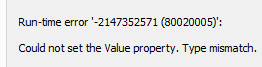
- “.txtPHText = oCC.PlaceholderText” which it breaks into, and a watch put on oCC shows:

- The form 1 (display of inbuilt form ) works and is useful also for wdContentControlRepeatingSection, while form 2 has no use for wdContentControlRepeatingSection. So as a workaround, we just do not show form 2 if placeholder text isNothing:
- We have no pretension to redistribute, get the utility from Greg’s website, it is open and you can extend it with above, if you need to.

Sub CCPropertiesReviewModify()
    Dim oFrm As frmCC
    bCancel = False

    If ActiveDocument.ContentControls.Count > 0 Then
        For Each oCC In ActiveDocument.ContentControls
            oCC.Range.Select
            Dialogs(wdDialogContentControlProperties).Show
            Set oFrm = New frmCC

            If Not isNothing(oCC.PlaceholderText) Then 'trp
                With oFrm
                    .Caption = oCC.Title
                    .txtPHText = oCC.PlaceholderText
                    .Show
                End With
           End If
        If bCancel Then Exit For
        Next oCC

        Unload oFrm
        Set oFrm = Nothing
    Else
    MsgBox "This document does not contain any Content Controls.", vbInformation, "Review\Set Content Control Properties"
    End If
lbl_Exit:       Exit Sub
End Sub
Now what about wdContentControlGroup?


Questions? Read the About. Or just ask me a quick Our Databases: Resources with calendars -- Language learning material Moodle Sites, multimedia files -- films


FAQs for LRC student staff or for students or for teachers. To search our FAQs, in the browser addressbar, add after "https://plagwitz.wordpress.com/feed/?tag=faqs+/" "+TAG1" (from tag cloud below) OR "https://plagwitz.wordpress.com/feed/tag=faqs
&category_name=" "CAT1" (from category hierarchy below). OR search both categories and tags, and multiple TAGs/CATs (connect with "," for OR-search, with "+" for AND-search), like so: https://plagwitz.wordpress.com/feed/?tag=TAG1+TAG2+...TAGn&category_name=CAT1
+CAT2+...CATn"
Other ways to find help
If you cannot find it here, look there: 5,500 Language-Learning Links and Programs for learning or teaching 150 languages
Shortcuts:Our Lists, Our Maps, LRC Staff Moodle Site,LRC Project Moodle Site, 49erexpress, UNCC Moodle, Student Recordings: s:claslcslrcsanakostudent
Learning usage samples: Sanako oral exam, Kaltura webcam presentation, Dictation with speech recognition, Sanako written exam, Chinese and Japanese interactive stroke-order practice
Test the Sanako Installer, Webbrowser Popup Konfigurator for XP, or Windows7, faster LRC TeacherPC Log-in Let MS facilitate diacritics writing by installing for you US-International keyboard layout
This is my personal blog (Google+). The views expressed on these pages are mine alone and not those of my employer. The information in this weblog is provided “AS IS” with no warranties, and confers no rights.
 Thomas' Work Space