Archive
Posts Tagged ‘speech-recognition’
“Server busy” dialogue on system startup and Speech recognition listening on by default
2014/01/14
Leave a comment
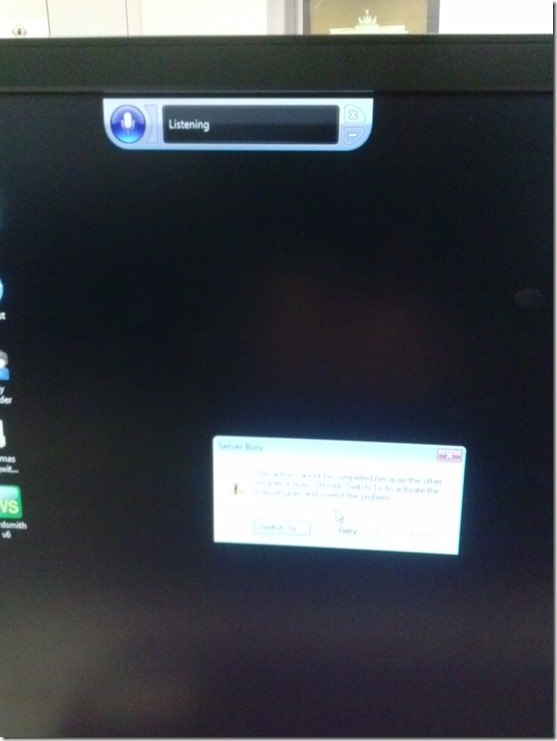
- How can one find the program that causes this error? It is not immediately obvious from the dialogue itself, including “Switch to”.
- Speech recognition should not be on (saying “listening”) by default (we have seen it freaking students out when it goes into command or typing mode).

Categories: e-infrastructure, os
image2014spring, speech-recognition
LRC Fall 2013 announcements
2013/08/16
Leave a comment
- The LRC has upgraded to Windows 7 and Office 2010.
- Benefits:
- Your students can use the computer interface from the default English to about 20 languages, including non-Western.
- Your students can also use speech recognition (in English, French, German, Japanese, Mandarin, and Spanish), e.g. for dictation exercises (Example videos: very bad French, decent German). Students can train the computers to their voice and take their training data with them. I’d love to explore with you possibilities for pronunciation practice with automated intelligent feedback .
- Your students can use old and new MS-Office Proofing tools.
- Caveat: W are still trying to restore some former functionality (e.g. no Google Arabic, Farsi and Russian IME etc.). Please bear with us while we deal with the new college tech infrastructure.
- Benefits:
- The LRC has upgraded its Sanako digital audio lab software.
- Because of budgetary constraints, our software agreement had to end with version 5 . This summer, the vendor presented us with a free upgrade to version 7, with compliments for my blog posts about using the Sanako.
- Benefits: We decided to implement the upgrade lest you and your students need relearn in the middle of the academic year and since Version 7 adds valuable language learning : which I would love to explore with you: Vocabulary exercises and Pronunciation exercises which make use of the computerized text-to-speech capabilities we just implemented with windows 7
- Caveats:
- We are still trying to restore the old Sanako configuration. E.g. Pairing recording is not working currently.
- I hope to upgrade my LanglabEmailer software to support the new version after the term is underway.
- For students attending distance classes with Saba Centra in the LRC, microphone audio on listening stations fixed, no more 30 minute delay when joining class.
- UNCC is upgrading to Moodle 2. The CTL is investigating how the LRC Metacourses for audio materials I created can be converted to Moodle 2. If you need the audio materials from the metacourses, we can help you upload them into your individual courses temporarily.
- Classroom AV: We found a temporary workaround for the projector image quality and are investigating permanent solutions. Currently no VHS video and doc cam display during classes (we would love to scan your text anyway and distribute them digitally).
- LRC Calendars and Booking:
- In the LRC Room and Equipment List, your will notice some new film studies equipment (calendars requested from ITS).
- We added new calendars to the Quicklinks on LRC home page : Tutors and LRC assistants. Please keep checking how we fill these open positions over the next few weeks, and use the help they can offer you.
- When booking, you can
- get help at the LRC reception desk;
- book yourself from anywhere,
- or have your “delegate” book (planned; setup requested from ITS).
- I will continue next week with the biweekly Sanako Clinic to aid teachers with their LRC class preparation. Please consult the LRC calendar if you want to drop in, or reschedule one with me for your needs.
- I am also offering LRC introductions for your class during the week 2 and 3 on a “first-come, first-served” basis, and à la carte (I suggest consulting a one-sheet menu with an overview of LRC facilities that I am preparing.) Please let me know if you are interested.
Example 6: How even a false beginner can work with foreign language Speech recognition on Windows 7 Enterprise
2013/08/14
Leave a comment
- Executive summary: Don’t let initial poor speech recognition results discourage your from using this feature. Results will much improve if you go through a few minutes of the built-in voice training for speech recognition. Like in the last 30 seconds of this video.
- With the upgrade to Windows 7 Enterprise in the LRC – and the continued availability of high-quality Sanako headphones on the majority of LRC PCs – , we can now offer speech recognition in a number of foreign languages – including French.
- This feature can be used for language learning exercises, including dictation, like in this example. How robust is windows 7 speech recognition?
- You can expose yourself to some embarrassingly bad French in this screencast – and that is the point. (My French is limited to a mere 2 high school years of 3-hour per week voluntary French studies, more than 30 years ago, no practice since).
- The screencast shows how even a (false) beginner can,
- 0:00-1:00: from terrible initial results,
- 11:45-12:10: considerably improve (not make perfect!) the foreign language (here French) speech recognition on Windows 7,
- 1:00-10:40: by going through the built-in voice training.
- The LRC computers are “frozen”between reboots, but students still need to train them only once, since they can back up and restore their training data easily.

- (This is not proof of the overall validity of the recognition – for that, you are better off watching this screencast with Windows 7 Enterprise speech recognition in German).
How to provide students with blended human/computer-automated feedback on their speaking using a dictation with speech recognition assignment screencast
2013/05/08
Leave a comment
- Teachers often feel there is never enough time for grading students’ speaking proficiency. Fortunately, we can now automate feedback on pronunciation using Windows 7 dictation with speech recognition.
- This feature will be available for 7 languages on Windows 7 in the LRC, here is a demo for a reading exercise dictating German.
- An assignment step-by-step could look like this: Students
- record a screencast of their dictation,
- read a text to the computer in MS-Word,
- turn track changes on in MS-Word and correct the text (immediately or after dictation) where the computer could not recognize their speech,
- upload their screencast to Kaltura in Moodle.
- To grade the performance, the teacher has to review only at the very end of the screencast to see how many corrections the student needed to make (when it doubtabout the speech recognition validiiy, the teacher can easily jump to the screencast segment in question and, if necessary, override the speech recognition).
- This could be a regular assignment type since it provides the following benefits:
- immediate automated intelligent feedback for the student
- little grading overhead for the teacher, so that the teacher can concentrate her work on providing aural feedback on student recorded speech as a highlight maybe twice per term, maybe after mock exams before a midterm and final exam
- some multimedia pieces demonstrating language proficiency for the student’s ePortfolio.
- Requirements:
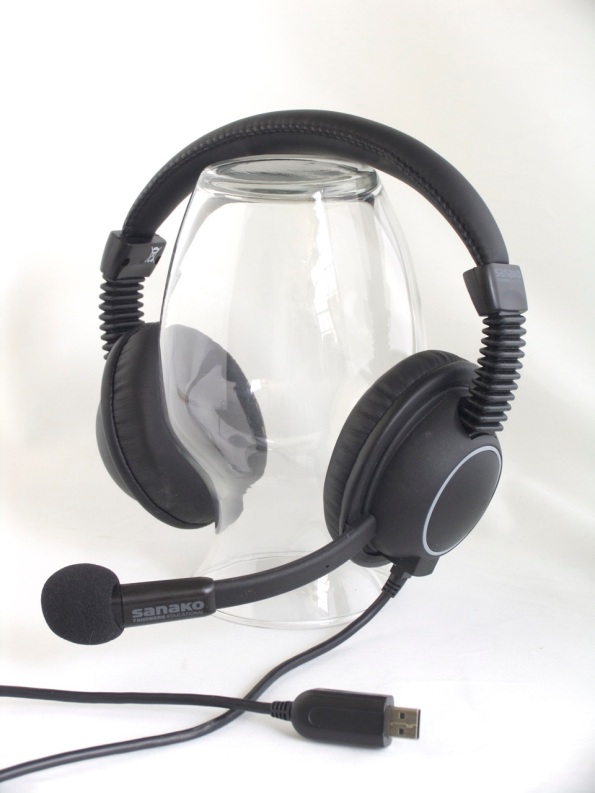
- a quality headset (we use Sanako SLH-07
 )
) - Windows 7 Enterprise/Ultimate with Language Packs,
- knowing how to switch the display language, (optional/recommended:) TBA:a simplified language switching facility,
- individual voice training data: speech recognition users have to train the computer – once, even in a deepfrozen computer enviroinment, since we enabled you to save this data to and restore it from a flash drive or personal network share space,
- a reading text (often authentic texts can be taken straight from the textbook, to fit in with the syllabus, like in this example from Treffpunkt-Deutsch 1st-year German),
- MS-Word with track changes
- screencast software (we use MS community clips)
- a way to submit the results to the teacher (we use Moodle with Kaltura video uploading (example for teachers, students do it similarly), but email could be sufficient depending on screencast length and attachment size allowance).
- a quality headset (we use Sanako SLH-07

How to set text-to-speech to a different language on LRC Windows XP computers
2013/01/29
Leave a comment
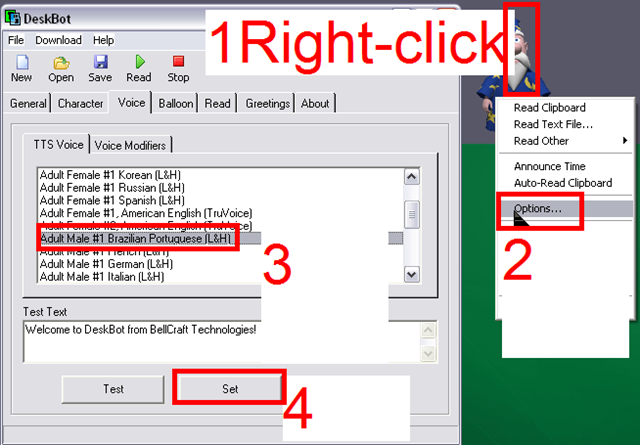
Example for Portuguese – choose your own language instead.
Categories: audience-is-students, audience-is-teachers, Screenshots, Speaking
deskbot, speech-recognition
Refine your pronunciation by operating the LRC Windows 7 PCs using voice commands
2012/08/20
Leave a comment
- No speech recognition assignment, and only a bit of spare time to practice the language you study in the LRC? Try the Command mode with these Try the Command mode with these voice commands that Windows 7 speech recognition recognizes
- Note there are some hoops to jump through, including some one-time setup: We have them/you covered in this step-by-step guide on using speech-recognition in the LRC
.
How to change the display language and speech recognition language on LRC Windows 7 computers (and which languages are available)
2012/08/15
Leave a comment
- UPDATE: Since this page seems to be getting a lot of hits, I want to clarify: The step-by-step guide below only applies after you installed (free) language (or language interface) packs (see list here) on Windows 7 Enterprise or Ultimate SKU (others SKUs cannot add multiple language interfaces). UPDATE2: Things got much easier with Windows 8.
- In order to
- view the GUI of Windows and Internet Explorer in a foreign language,
- use the speech recognition in (a subset of the below) foreign languages,
- and also switch the default language of MS-Office
- Double-click the desktop shortcut “Region and language – Keyboards and languages”.
- Select the desired language from the dropdown box, click “OK”.

- Click: “Log off now”:
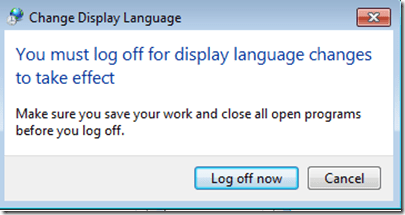
- “Log back in” (without restarting).
- And if you want the available display languages in English,
- here are the fully supported (MS Language packs):
Language Native name Arabic العربية Chinese (Simplified) 中文(简体) Chinese (Traditional) 中文 (繁體) English English French français German Deutsch Greek Ελληνικά Hebrew עברית Italian italiano Japanese 日本語 Korean 한국어 Polish polski Portuguese (Brazil) Português Portuguese (Portugal) português Russian Русский Spanish español - and here the partially supported (MS-Language Interface packs):
Hindi हिंदी KiSwahili Kiswahili Persian (Farsi) فارسی Yoruba ede Yorùbá - And here are the languages that support speech recognition:


Categories: Arabic, documentation, e-languages, English, French, German, Greek (modern), Hebrew, Hindi, Italian, Japanese, Korean, Mandarin, office-software, Operating-system, Polish, Portuguese, Reading, Russian, Spanish, Speaking, step-by-step-guides, Uncategorized, web-browsers, Writing
language-interface-packs, language-packs, office-2010, speech-recognition, windows-7
How you can reuse your speech profile even on deepfrozen Language resource center computers
2012/08/15
Leave a comment
- “A [Windows Speech] profile is basically the collection of all settings and information about how to recognize your voice when using Windows Speech Recognition. Before changing the language used or letting other persons use Windows Speech Recognition it is best to create a new profile so that your current one will remain unaltered”.
- To be able reuse your effort training the computer to recognize your voice speaking in your study language – even though the LRC Windows 7 computers get reset when restarted -, you can backup, and later reload, your Speech Profile, preferably to your H:-drive.
- The Microsoft tool that allows you to do that has been put on WSRProfile.exe desktop of the LRC Windows 7 PCs. I can copy these instructions directly from the Microsoft blog page:
- Double-click WSRProfile.exe to start the WSR Profile tool wizard.

- To back up a speech profile using the WSR Profile tool, select Backup my speech profile.
- In the Select your Speech Profile dialog box, choose the speech profile you wish to back up and then click Next.
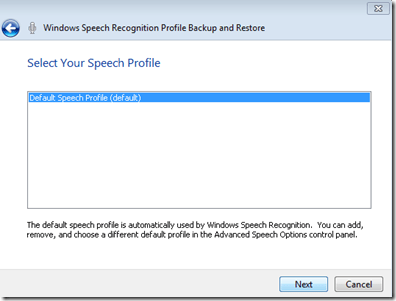
- The wizard will prompt you for a filename and location to save the file. When you have entered this information, click Next. The WSR Profile tool wizard will start the backup process of the selected speech profile.

- After the backup operation successfully finishes, click Close .

- In the Select your Speech Profile dialog box, choose the speech profile you wish to back up and then click Next.
- To restore a speech profile using the WSR Profile tool, select Restore my Speech Profile.
- On the File to Restore wizard page, click Browse and locate the backed up speech profile, and then click Next.
- Choose the speech profile you want to restore to.
- Select Use the current speech profile if you want to overwrite the current default speech profile.
- Select Create a new speech profile if you want to restore to a new speech profile. If you choose to restore to a new speech profile you will be prompted to provide a name for the new profile.
- After the restore operation successfully finishes, click Close.


Categories: audience-is-students, documentation, e-languages, English, French, German, Italian, Japanese, Korean, Mandarin, Operating-system, Spanish, Speaking
ms-windows-7, speech-recognition


Questions? Read the About. Or just ask me a quick Our Databases: Resources with calendars -- Language learning material Moodle Sites, multimedia files -- films


FAQs for LRC student staff or for students or for teachers. To search our FAQs, in the browser addressbar, add after "https://plagwitz.wordpress.com/feed/?tag=faqs+/" "+TAG1" (from tag cloud below) OR "https://plagwitz.wordpress.com/feed/tag=faqs
&category_name=" "CAT1" (from category hierarchy below). OR search both categories and tags, and multiple TAGs/CATs (connect with "," for OR-search, with "+" for AND-search), like so: https://plagwitz.wordpress.com/feed/?tag=TAG1+TAG2+...TAGn&category_name=CAT1
+CAT2+...CATn"
Other ways to find help
If you cannot find it here, look there: 5,500 Language-Learning Links and Programs for learning or teaching 150 languages
Shortcuts:Our Lists, Our Maps, LRC Staff Moodle Site,LRC Project Moodle Site, 49erexpress, UNCC Moodle, Student Recordings: s:claslcslrcsanakostudent
Learning usage samples: Sanako oral exam, Kaltura webcam presentation, Dictation with speech recognition, Sanako written exam, Chinese and Japanese interactive stroke-order practice
Test the Sanako Installer, Webbrowser Popup Konfigurator for XP, or Windows7, faster LRC TeacherPC Log-in Let MS facilitate diacritics writing by installing for you US-International keyboard layout
This is my personal blog (Google+). The views expressed on these pages are mine alone and not those of my employer. The information in this weblog is provided “AS IS” with no warranties, and confers no rights.
 Thomas' Work Space