Archive
Posts Tagged ‘resources’
LRC Outlook/Exchange 2010 Resource Calendaring: How staff view resource “Calendars from your organization” in OWA
2011/08/30
6 comments
- Note: Students that have not been specifically invited to share a calendar, must use (staff may also) this approach to view calendars, to avoid a permission problem .
- Staff can load resource calendars, but as somebody who books the resource (except where you still cannot book/schedule/sign up: Tutors), you normally neither need nor want to (unless you manage the resources).
- To preview the free/busy schedule of the resource, use the scheduling assistant instead.
- To make sure that you have booked the resource, load your OWN calendar instead: Since it is you who “meets” with the resource, your meeting will be reflected on there. If you also loaded the resource’s calendar, you would see your “meeting” twice. A meeting always appears in the calendar of all “participants” – only that, other than for resource calendars, you normally do not view the calendar of the other participants who are “human resources”(or maybe you are, at least in the scheduling assistant, but not with details beyond “busy”).

- You may want to load the resource calendar to learn details about the other “meetings”of the resource (e.g. which conflicting meeting organizer you can contact in an emergency, or to know how many tentative meeting requests are already pending for a tutor). Below is how:
-
Similarly to in Outlook (desktop):
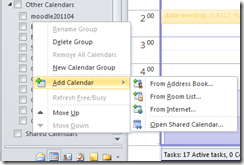 , in OWA, click on the lower left “Calendar-icon”
  to unfold the “My Calendars” list
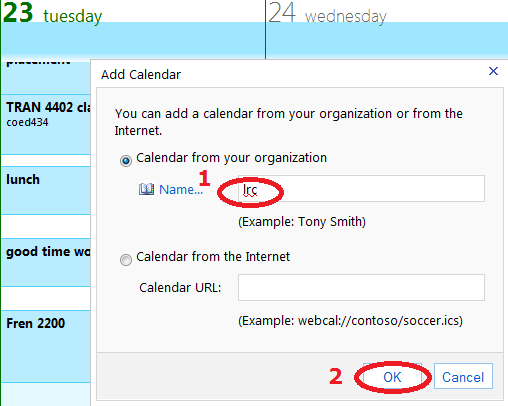
  in the left pane, then right-click on “My Calendars”, choose “Add Calendar”
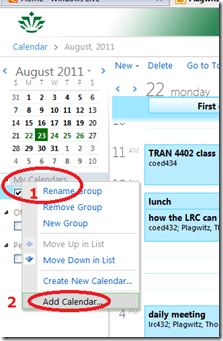 .
. -
put (part of) the name, click “ok”
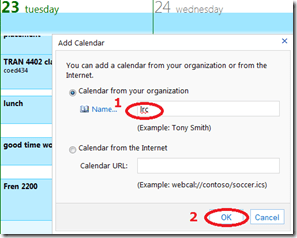
-
if there are multiple matches, select the correct one (you can only select one at a time)

-
press “OK” again:
 .
. -
As explained above, there is little reason to go overboard and add too many calendars, unless you have to manage:

-
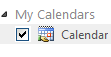
However, you can also easily remove calendars, through the context menu item “Remove shared calendar”








Questions? Read the About. Or just ask me a quick Our Databases: Resources with calendars -- Language learning material Moodle Sites, multimedia files -- films


FAQs for LRC student staff or for students or for teachers. To search our FAQs, in the browser addressbar, add after "https://plagwitz.wordpress.com/feed/?tag=faqs+/" "+TAG1" (from tag cloud below) OR "https://plagwitz.wordpress.com/feed/tag=faqs
&category_name=" "CAT1" (from category hierarchy below). OR search both categories and tags, and multiple TAGs/CATs (connect with "," for OR-search, with "+" for AND-search), like so: https://plagwitz.wordpress.com/feed/?tag=TAG1+TAG2+...TAGn&category_name=CAT1
+CAT2+...CATn"
Other ways to find help
If you cannot find it here, look there: 5,500 Language-Learning Links and Programs for learning or teaching 150 languages
Shortcuts:Our Lists, Our Maps, LRC Staff Moodle Site,LRC Project Moodle Site, 49erexpress, UNCC Moodle, Student Recordings: s:claslcslrcsanakostudent
Learning usage samples: Sanako oral exam, Kaltura webcam presentation, Dictation with speech recognition, Sanako written exam, Chinese and Japanese interactive stroke-order practice
Test the Sanako Installer, Webbrowser Popup Konfigurator for XP, or Windows7, faster LRC TeacherPC Log-in Let MS facilitate diacritics writing by installing for you US-International keyboard layout
This is my personal blog (Google+). The views expressed on these pages are mine alone and not those of my employer. The information in this weblog is provided “AS IS” with no warranties, and confers no rights.
 Thomas' Work Space