Archive
Students get an error when trying to open links from MS-Word file
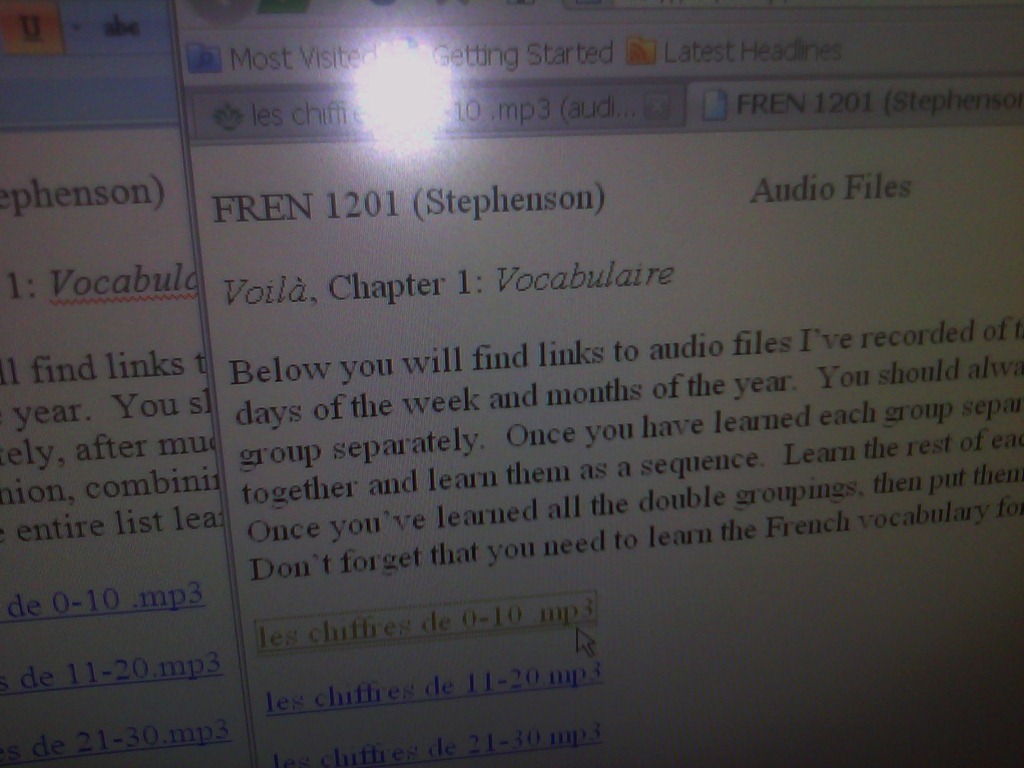
- Error reads: “”this operation has been cancelled due to restrictions in effect on this computer”.
- Immediate workaround:
- right-click on the link, choose copy, open a web browser window
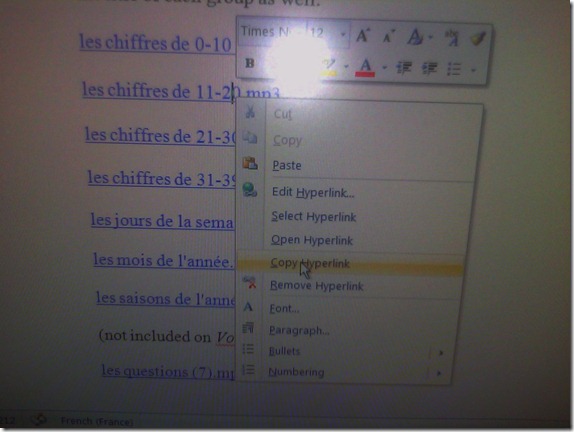 and paste the link into the address bar, browse to it from there.
 - File / Save as / Web page. From where you saved the web page, double click to open it in the your web browser, click the links form within there.

- Have you tried saving your MS-Word files to the new SkyDrive.live.com (login with your NINERNET password) yet? Students can choose to open MS-Word documents in either MS-Word or their web browser which should also bypass the problem.
- right-click on the link, choose copy, open a web browser window
- Solution: Investigating. Seems related to no “default browser set” in XP Control Panel / Internet options. If you cannot live with the workaround, do ask your System Administrator. Or stay tuned

How a student takes a Moodle MS-Word file upload assignment for writing
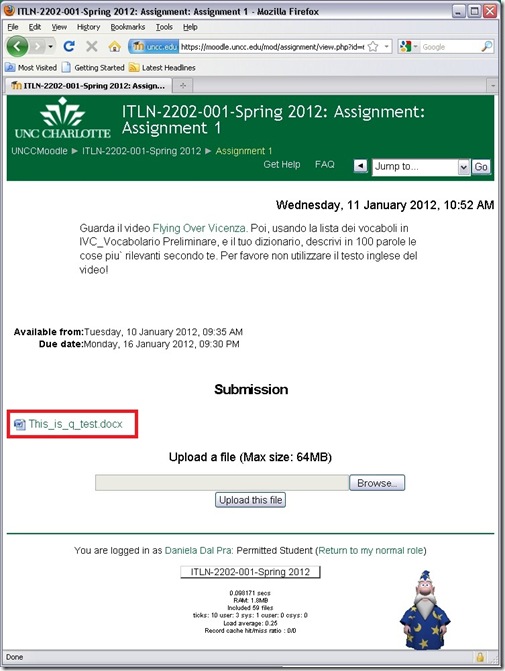
- Find your file upload writing assignment and click on it:

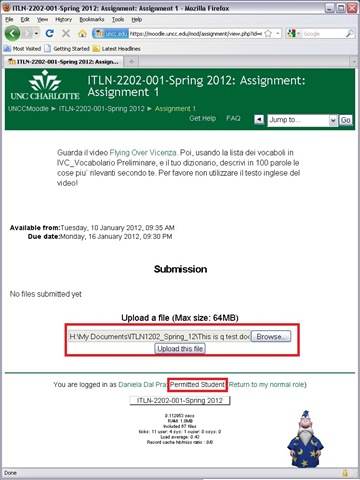
- Read the assignment text, write an MS-Word file (format not required, but your teacher will likely send you MS-Word back if she uses track changes) and attach it, like so:

- If this shows, you have finished the assignment:
- Wait for notification, then go TBA:review your teacher’s comments.


ECAR National Study of Undergraduate Students and Information Technology, 2011 Report released
- The Educause ECAR for 2011 Lists among its top actionable survey results: “Nail the basics. Help faculty and administrators support students’ use of core productivity software for academic work.
- Not a language learning specific result , but a reminder also for the LRC to prioritize:
- LRC posts on “productivity software”,
- and most of our students’ “academic work” lives online in Moodle.
Examples of Quizzes based on MS-Word template
You can view a series of examples for formative assessments, used during face-to-face teaching (German) settings, in this screencast: .
.
How to use the MS-Word Quiz Template (and the MS-Excel subtitles spreadsheet)
How to make formative assessment quizzes for face-to-face teaching settings like in the examples here?
Part I: quiz_dot_create_excel: Watch a screencast on How to ready target language subtitle source material for the quiz template
|
0,00 |
Working with subtitle material from the source: time coding is not correct
1,40
spreadsheet formulae can fix the subtitle time codes
2,00
why using DVD chapters as learning units
2,20
filtering on chapters in the DVD
3,00
ready to copy paste the filtered learning unit text data into the quiz template
Part II: Watch a screencast on How you can apply your pedagogy with ease to a text and transform the same to a quiz, and how the student benefits from both
|
0,00 |
start quiz from word template (on file share)
0,35
paste text data, e.g. for listening comprehension, e.g. from target language movie subtitles
1,15
create markup from pedagogy
3,14
generate quiz from markup : parenthesis 1 {helpful hint}, parenthesis 2 [correct answer]
3,35
closing and saving the quiz, receiving a summary
3,55
create a backup
4,00
open the quiz to test the quiz from student perspective
4,30
what opening information the student receives
5,00
how the student inputs answers and receives feedback
5,20
language learning lookup menu , after pausing the quiz
6,30
or double-click words to look them up in the default dictionary for the set language
7,10
how the student resumes the quiz
7,20
how the student closes the quiz
Part III: Watch a screencast on How you can revise your pedagogy
|
0,15 |
open the quiz, enable macros
0,30
unprotect the quiz
0,45
office 2003: tools / macros / macros
1,00
now you can edit your pedagogical markup
1,10
regenerated the altered quiz
Using the MS-Word Quiz Template (and the MS-Excel subtitles spreadsheet)
Part I: quiz_dot_create_excel: Watch a screencast on How to ready target language subtitle source material for the quiz template:
|
0,00
|
Working with subtitle material from the source: time coding is not correct
|
|
1,40
|
spreadsheet formulae can fix the subtitle time codes
|
|
2,00
|
why using DVD chapters as learning units
|
|
2,20
|
filtering on chapters in the DVD
|
|
3,00
|
ready to copy paste the filtered learning unit text data into the quiz template
|
Part II: Watch a screencast on How you can apply your pedagogy with ease to a text and transform the same to a quiz, and how the student benefits from both
|
0,00
|
start quiz from word template (on file share)
|
|
0,35
|
paste text data, e.g. for listening comprehension, e.g. from target language movie subtitles
|
|
1,15
|
create markup from pedagogy
|
|
3,14
|
generate quiz from markup : parenthesis 1 {helpful hint}, parenthesis 2 [correct answer]
|
|
3,35
|
closing and saving the quiz, receiving a summary
|
|
3,55
|
create a backup
|
|
4,00
|
open the quiz to test the quiz from student perspective
|
|
4,30
|
what opening information the student receives
|
|
5,00
|
how the student inputs answers and receives feedback
|
|
5,20
|
language learning lookup menu , after pausing the quiz
|
|
6,30
|
or double-click words to look them up in the default dictionary for the set language
|
|
7,10
|
how the student resumes the quiz
|
|
7,20
|
how the student closes the quiz
|
Part III: Watch a screencast on How you can revise your pedagogy
|
0,15
|
open the quiz, enable macros
|
|
0,30
|
unprotect the quiz
|
|
0,45
|
office 2003: tools / macros / macros
|
|
1,00
|
now you can edit your pedagogical markup
|
|
1,10
|
regenerated the altered quiz
|
How to save MS-Word files in Wordperfect format.
- Teachers receive new computers with MS-Word 2007, but need to send files to publishers that accept only Wordperfect format.
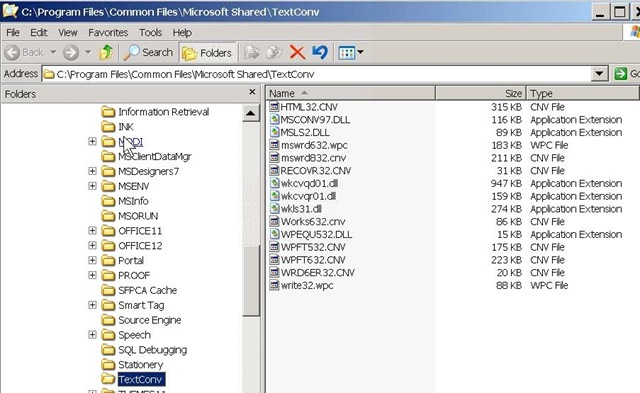
- I located and installed an old (= not supported in MS-Office2007 anymore) WP-converter for Word 2003 which is the MS-word version we still have, side-by-side with MS-Word 2007, installed on the teacher computer in the Sanako LAB 300 (MH441).

- Now you can save the MS-Word files created on your new office computer on the shared network drive (H: in your office). Here is how:
- From the MH441 teacher computer, open the saved file: First open Ms-Word 2003 from the start-button. Then open the H-drive. I made this drive accessible as start-button / “h-drive”on the MH441 teacher computer:


- Browse to your document, drag it into the MS-Word 2003 window. Click Menu: “File”/ “Save As””. From the dropdown: “Save as type”, you can now choose one of the old Wordperfect format.

- Assuming you do not publish more than a handful of papers per year, this should keep you afloat until your publisher (I suggest sending them the URL of this webpage) accepts other file formats (RTF is a widely supported minimum standard, and MS-Word 2007 can save as RTF, Word Perfect can read it).


How to prevent accidental deletion of files
Hard drives tend to fail occasionally. We recommend working with the institution-provided personal network shares which are regularly backed up by IT.
However, backups can only ever be run so often (normally overnight), and if you create a file during the day and accidentally delete it, there is no Windows Recycle Bin like functionality for network shares.
I am not making recommendations, especially not to bypass institutionally provided services, but I have worked with these additional (free and MS-backed) tools to extend these services:
1. Microsoft Synctoy 2.1: You can create folder pairs (between local and network drives and portable drives). You can have these folder pairs synchronized on the click of a button. This implies that this is not tool does not completely automate synchronization, but you could e.g. do this every morning and evening when you start/stop working. You will have to wait for the synchronization to finish. You could work on the local drive during the day – being able to benefit form the existence of the Recucle bin – and synchronize with your personal network drive at night.
2. Microsoft Live Mesh Beta: You can sign up with a Windows Live ID and designate a folder on your (multiple) PC(s) to be synchronized via a web folder. This happens automatically. Space is limited (5GB?).
3. There are also some settings in MS-Word you may want to consider, which you can access by clicking the Office button / Word options / Advanced:
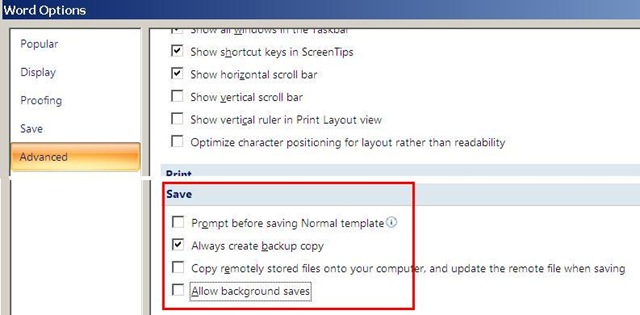
I always have a backup file created on save (in the same folder) and do not allow background saves which helps against file corruptions. I have not tested working with the option of keeping local copies of network share files.
Be aware that you are on your own with this, and that your mileage may vary.


Questions? Read the About. Or just ask me a quick Our Databases: Resources with calendars -- Language learning material Moodle Sites, multimedia files -- films


FAQs for LRC student staff or for students or for teachers. To search our FAQs, in the browser addressbar, add after "https://plagwitz.wordpress.com/feed/?tag=faqs+/" "+TAG1" (from tag cloud below) OR "https://plagwitz.wordpress.com/feed/tag=faqs
&category_name=" "CAT1" (from category hierarchy below). OR search both categories and tags, and multiple TAGs/CATs (connect with "," for OR-search, with "+" for AND-search), like so: https://plagwitz.wordpress.com/feed/?tag=TAG1+TAG2+...TAGn&category_name=CAT1
+CAT2+...CATn"
Other ways to find help
If you cannot find it here, look there: 5,500 Language-Learning Links and Programs for learning or teaching 150 languages
Shortcuts:Our Lists, Our Maps, LRC Staff Moodle Site,LRC Project Moodle Site, 49erexpress, UNCC Moodle, Student Recordings: s:claslcslrcsanakostudent
Learning usage samples: Sanako oral exam, Kaltura webcam presentation, Dictation with speech recognition, Sanako written exam, Chinese and Japanese interactive stroke-order practice
Test the Sanako Installer, Webbrowser Popup Konfigurator for XP, or Windows7, faster LRC TeacherPC Log-in Let MS facilitate diacritics writing by installing for you US-International keyboard layout
This is my personal blog (Google+). The views expressed on these pages are mine alone and not those of my employer. The information in this weblog is provided “AS IS” with no warranties, and confers no rights.
 Thomas' Work Space