Archive
Posts Tagged ‘ms-powerpoint’
Live Feedback and Voting for clicker-like activities in Sanako Study 1200
2012/02/29
Leave a comment
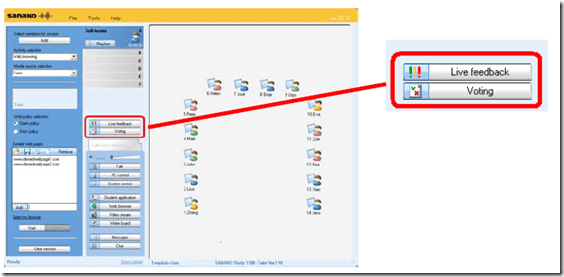 (Images are from the Sanako documentation, screencasts my own) .
- Sanako Study 1200 comes with Live Feedback.
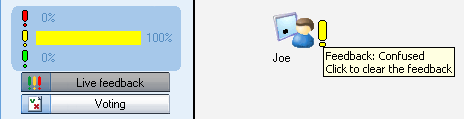
- This is what it looks like:
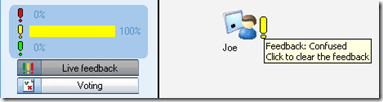
- The teacher enables students to give Live Feedback from their student player interface by pressing the Live Feedback button.
- Live Feedback is designed for students sending basic information whether they are following or confused or neutral.
- These up to 3 answer options could possibly be repurposed, and the question displayed by separate means. Polls can only be anonymous, results cannot be saved.
- More importantly, the results are not anonymous, but appear on the student icons in the classroom layout so that the teacher can attend to those students that are confused or otherwise struggling.
- This is what it looks like:
- Sanako Study 1200 also comes with Voting.
- A brief demo screencast of Voting is here:

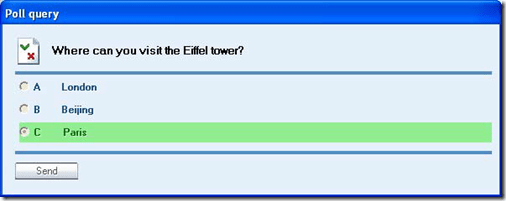
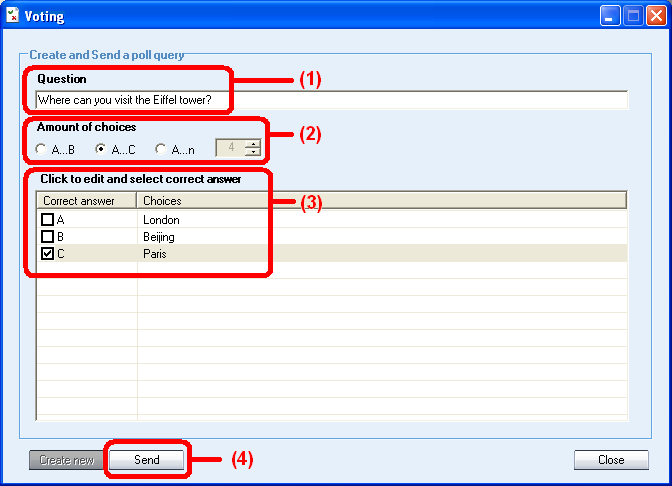
- The teacher enables students to give Voting from their student player interface by pressing the Voting button, entering questions, answer options, optionally marking one (and only one) answer as the right answer and clicking “send’ to the students,

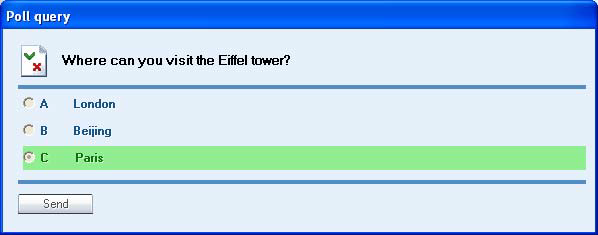
- on whose computer a window with will pop up with question and answer option
- while the feedback voting results window pops up on the teacher from where the teacher can “send the correct answer” to the students once everybody has voted, and “create new” polls.
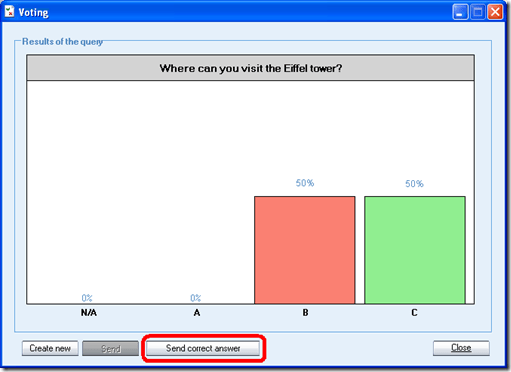
- Results can be viewed by the teacher and displayed to the class, but cannot be stored (there is no storing mechanism. One could however save a screenshot of the teacher voting result window).
- The Voting is also “live” insofar as no content can be archived and reloaded. Maybe this Live Voting can be both accelerated and extended through the use of a simple PowerPoint displayed on the classroom screen, by just using live Voting’s result aggregation features and forfeiting filling out/displaying the question and answer options within the live voting interface for the teacher/students.
- A brief demo screencast of Voting is here:
- Not free, but less limited: Sanako Exam.


Screencasts for Fall 2011 Workshop: Computer classroom management in the LRC using Sanako Study 1200
2011/12/08
Leave a comment
- The workshop stayed “this side of the digital audio lab”, i.e. focused on those generic teaching tasks that the Sanako Study 1200 can facilitate which have the widest teaching application (including in, but also beyond language-skill-courses):
- remote controlling student computers,
- screen sharing, collaborating with students,
- launching applications on students computers,
- sending students to webpages,
- launching handout files to students and collecting their input back
- locking their computers, screens or keyboards,
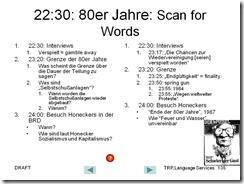
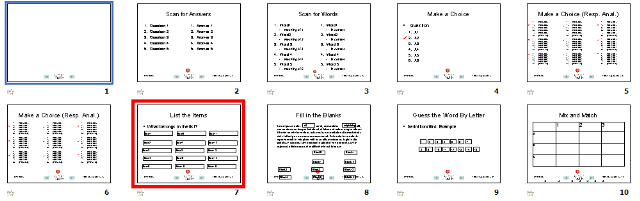
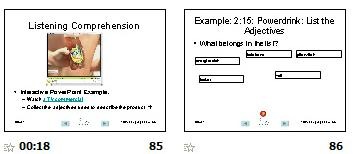
- “clicker” classroom polls, for which I have written a PowerPoint Template you can base your own clicker-like face-to-face class exercises on.
- and more…
- Here are two screencasts of my presentation:
- one for the right screen/participant screen (using the Study1200 teacher to student screen casting). Requires Windows Media Player on PC, like in the LRC: download from MS-SkyDrive.
- one for the left screen/projector, where I displayed mostly a PowerPoint. You can watch this in parallel using another player, e.g. the VLC player, like in the LRC. However, it can also stream from MS-SkyDrive.
A PowerPoint Template to base your clicker-like face-to-face class exercises on
2011/12/08
2 comments
- Enables easy exercise creation:
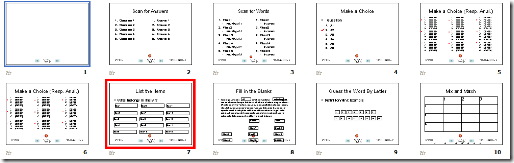
- Resides on S:\coas\lcs\labs\lrctest\templates\Teacher.pot;
- Requires MS-PowerPoint 2010, as installed on the teacher computer in LRCRoomCoed434.
- Training videos are available for download here (requires Windows Media Player on Windows, as installed in the LRCRoomCoed434).
- powerpoint_template_overview_default_slide.wmv
- powerpoint_template_sequential_slides.wmv
- powerpoint_template_interactive_slides.wmv
- Usage samples available on request from
- German Beginners,

- Intermediate

- and Advanced Classes.


PowerPoint 2010 upgrade from 2007 disables setup show display on secondary screen
2011/12/06
Leave a comment
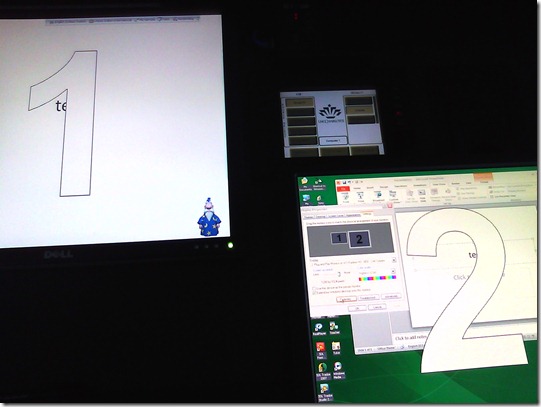
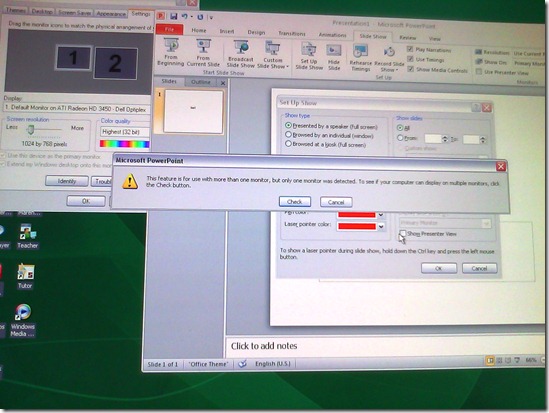
- Symptom: Without hardware changes (a visualizer that seemed to enter into the equation as an AV source seems to have been ruled out as culprit), PowerPoint cannot display show from primary right screen to secondary left screen.
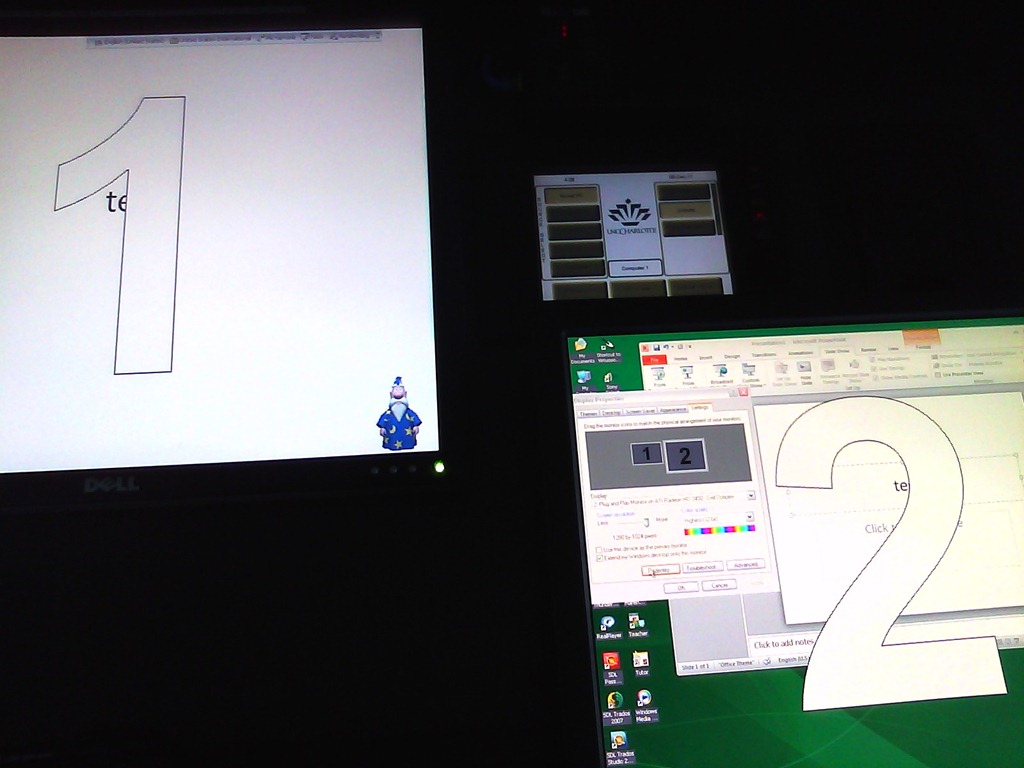
- Cause: Upgrade to PowerPoint 2010 from 2007, but seems really an underlying video driver limitation that has given us grieve in our – admittedly uncommon: 1024*768 on secondary, projector-connected screen, dictated by the projector – setup before.
- Workaround: Make the 1024*768 left screen the primary screen.
- Upside: this allows to project the show to the class, but teacher can still move the underlying PowerPoint presentation onto the right screen (for previewing answers. The PowerPoint 2010 upgrade did fix the PowerPoint 2007 bug that interactive animations from PowerPoint 2003 where briefly revealed on slide load before they went into the default hidden state).
- Downsides:
- Presenter view is still not possible, complains about seeing only one screen connected, even though “Check” button brings up the windows screen properties dual screen.
- The Windows taskbar displays on the left screen, so teacher staging is visible to the class when projector is on (as it always was with a single screen. Only the secondary right screen added a staging area for the teacher).
- Presenter view is still not possible, complains about seeing only one screen connected, even though “Check” button brings up the windows screen properties dual screen.
- Upside: this allows to project the show to the class, but teacher can still move the underlying PowerPoint presentation onto the right screen (for previewing answers. The PowerPoint 2010 upgrade did fix the PowerPoint 2007 bug that interactive animations from PowerPoint 2003 where briefly revealed on slide load before they went into the default hidden state).

ECAR National Study of Undergraduate Students and Information Technology, 2011 Report released
2011/10/28
Leave a comment
- The Educause ECAR for 2011 Lists among its top actionable survey results: “Nail the basics. Help faculty and administrators support students’ use of core productivity software for academic work.
- Not a language learning specific result , but a reminder also for the LRC to prioritize:
- LRC posts on “productivity software”,
- and most of our students’ “academic work” lives online in Moodle.
How to set up your laptop to use with the LRC portable Projector
2011/10/12
Leave a comment
- re LCD projector
- First, book the projector from this list of bookable items (manual included).
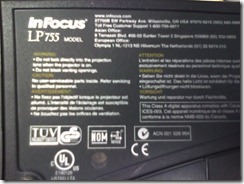
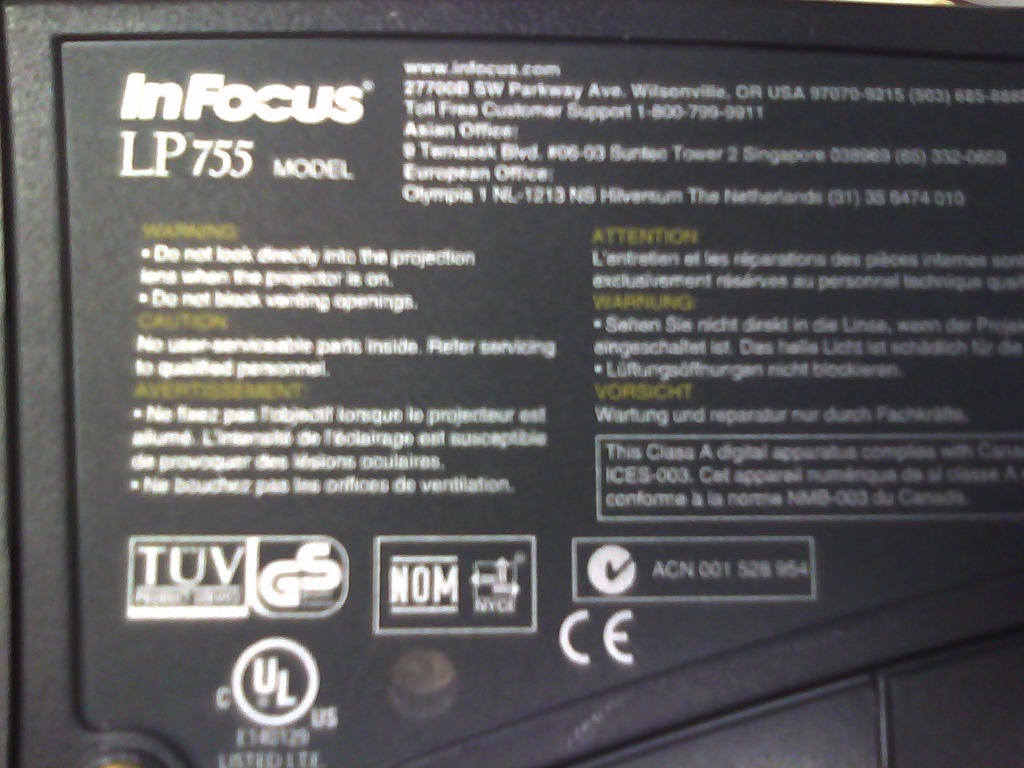
- Here is what we have as Projector:
 <
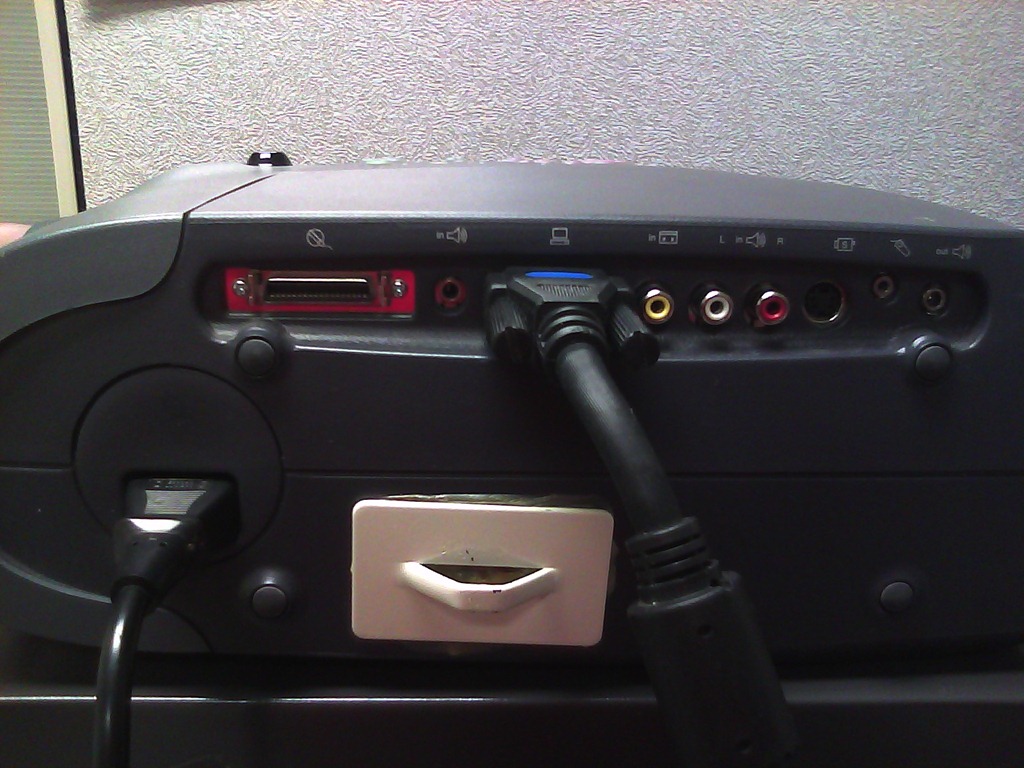
< - connect the VGA-adapter which is in the package:

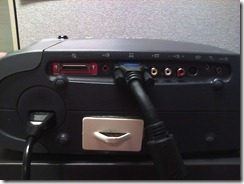 (if your laptop does not have a secondary VGA connector, you may need to bring an adapter).
 - power the projector on:
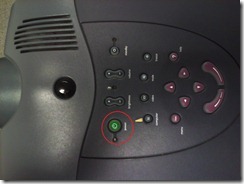 (also always power it off using the power button; never just pull the power plug).
- on your laptop:
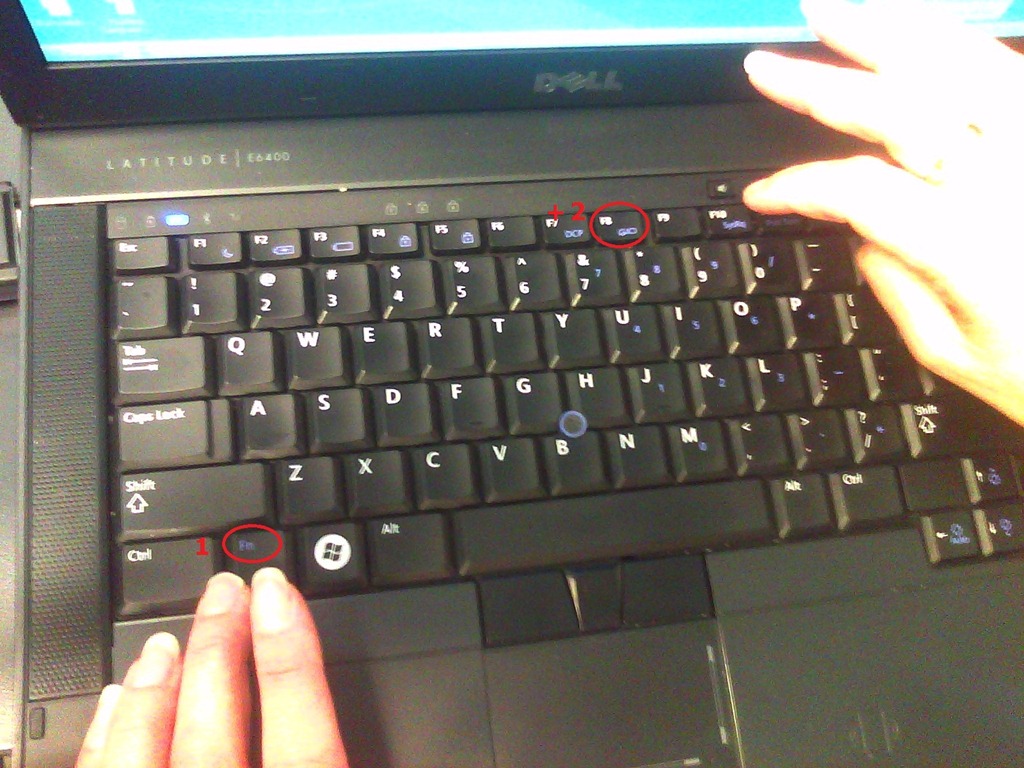
- find the key combination to enable the secondary output
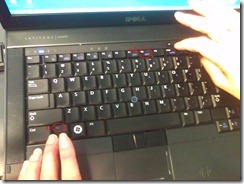

- right-click the windows desktop, access the graphics card settings;

- Enable the graphics card to send a video signal to the projector you just connected.
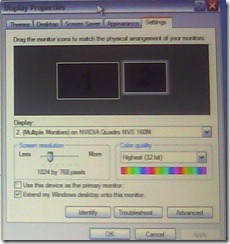 . I the projector native resolution is not automatically recognized, it is 1024*768.
- If you want to show a slideshow on the projector, go to PowerPoint
- ribbon, (1) Slide Show/ item: (2)) set up show, and bring up the (3) set up show dialogue
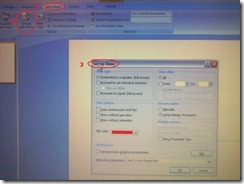
- here you can configure to show on monitor 2 (numbers correspond toe the numbers 1 and 2 in the graphics card dialogue above):
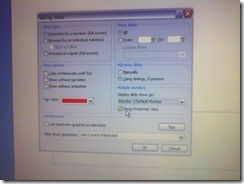 . Same principle as with other dual screen computers, like the teacher station in LRCCOED434.
- ribbon, (1) Slide Show/ item: (2)) set up show, and bring up the (3) set up show dialogue




How do I make a video out of my PowerPoint Presentation?
2011/09/14
Leave a comment
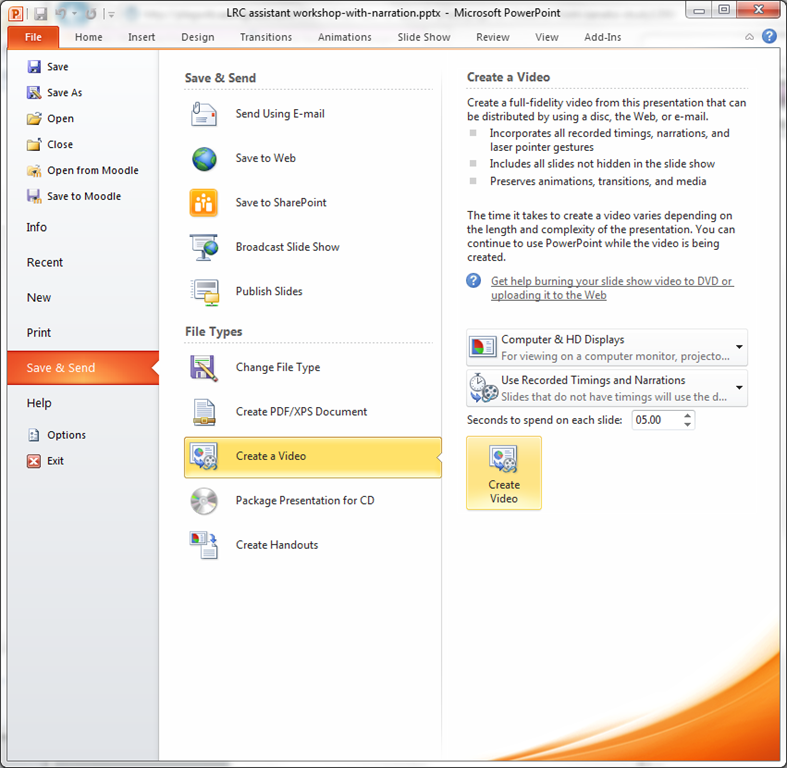
- Many streets may lead to Rome, but here is the "One Microsoft way”, built into PowerPoint 2010: http://office.microsoft.com/en-us/powerpoint-help/turn-your-presentation-into-a-video-HA010336763.aspx: You can essentially “save as” video, including recorded narrations. You have to have your media inserted in 2010 format. Here is a walk-through:
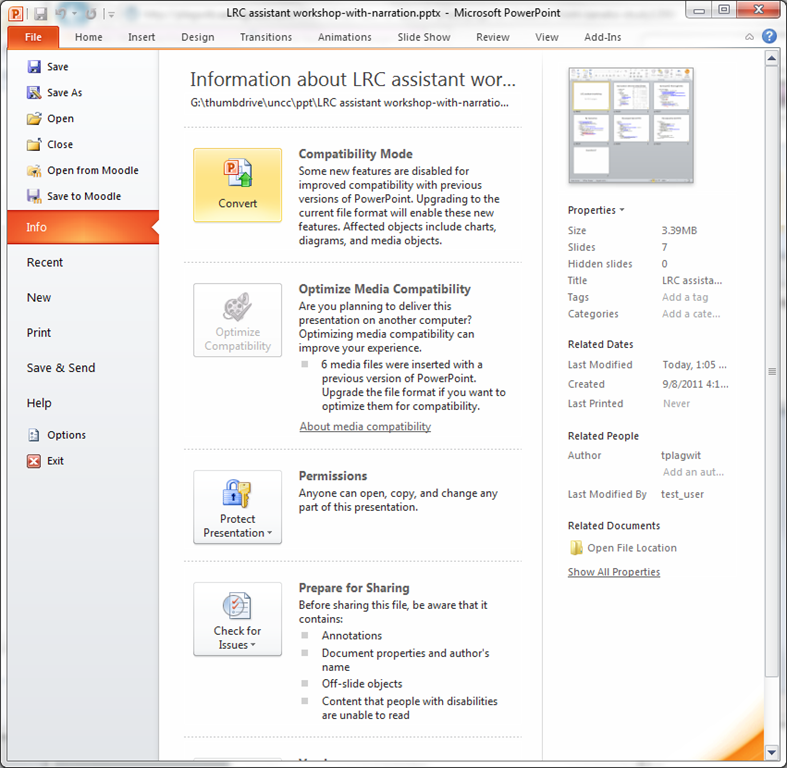
- under “file”, “save&send”, use “create video”

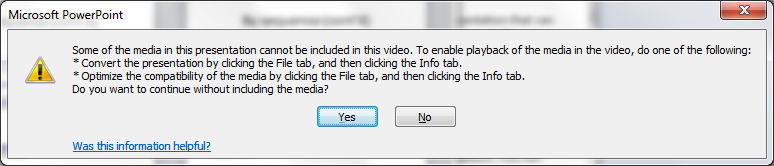
- if you get a compatibility error like so:
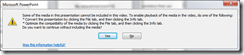
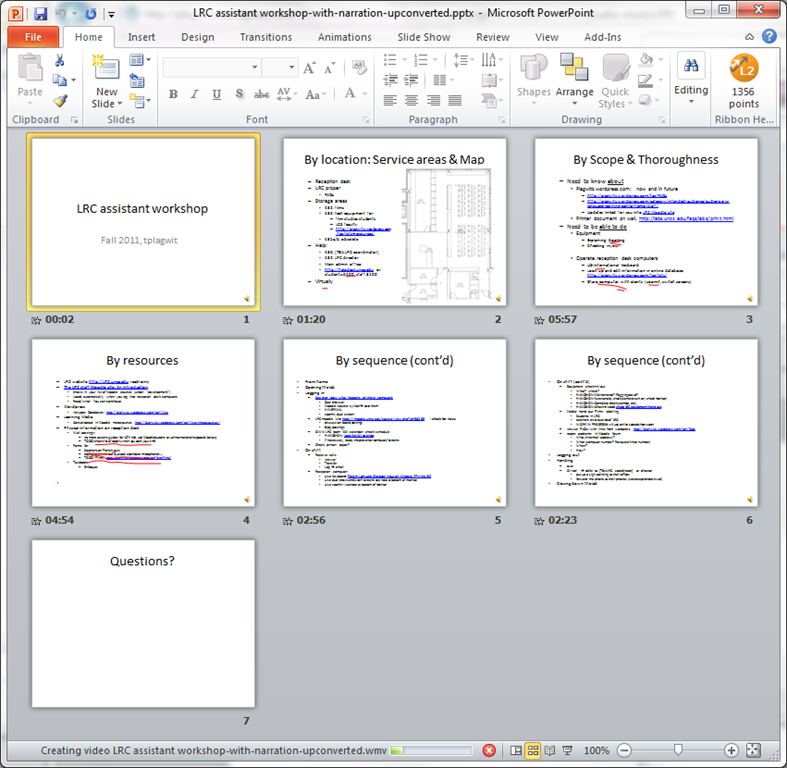
- follow the instructions given;

- watch the progress bar:
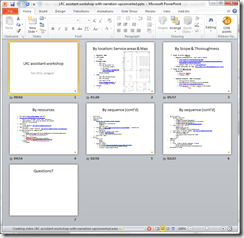
- Takes over 60 minutes with on average over 50% CPU of an Intel i5 with 8 GB Ram, to produce a 75MB file of 920*760 and less than 18 minutes in length. But this video streams from MS-SkyDrive.
Categories: audience-is-teachers, documentation, e-infrastructure, learning-materials
2010, FAQs, ms-powerpoint, narrration, recording, video
Testing embedding the MS-PowerPoint Web App
2011/09/13
Leave a comment
- In WordPress, a SkyDrive embed code for PowerPoint
iframe src="http://r.office.microsoft.com/r/rlidPowerPointEmbed?p1=1&p2=1&p3=SD25C841818181C2!132&p4=&kip=1"
width="402" height="327" frameborder="0" scrolling="no">/iframe
gets converted to:
office src="http://r.office.microsoft.com/r/rlidPowerPointEmbed?p1=1&p2=1&p3=SD25C841818181C2!132&p4=&kip=1"
width="402" height="327"
(similar to the behaviour shown with Excel Web App. Likely here also, you will have to replace a secure protocol "https", if it occurs in your embed code, with "http").
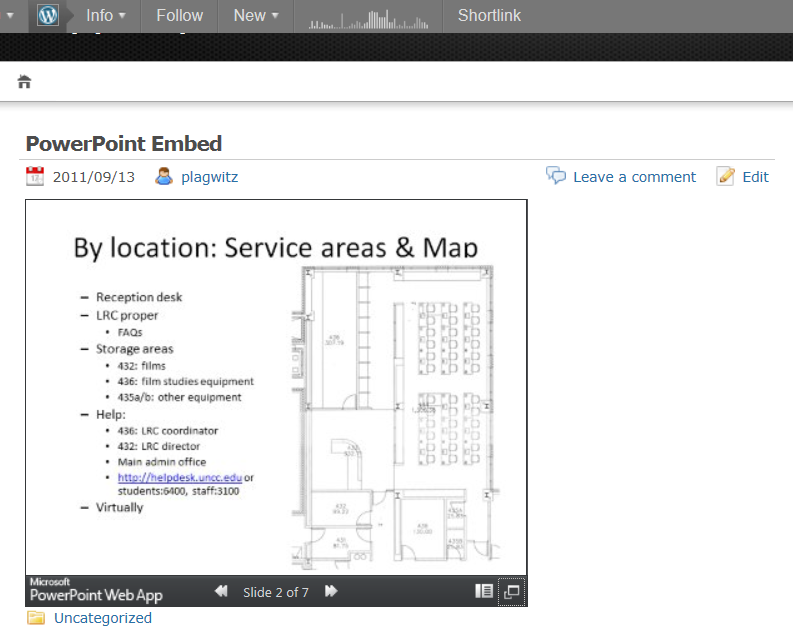
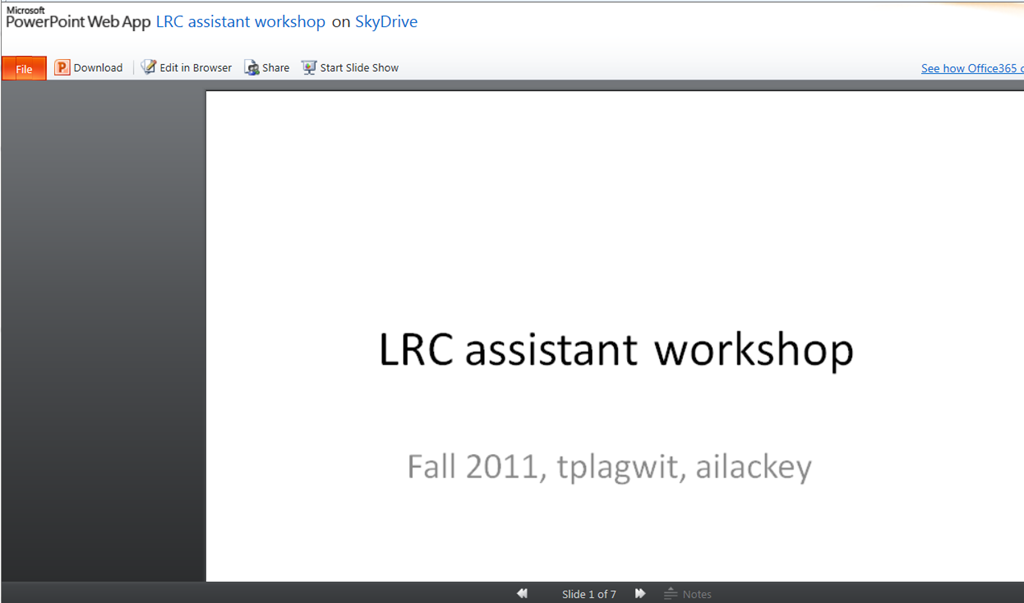
- WordPress displays this like so:

- And you can full-screen to SkyDrive like so:
- Online editing is also possible, but not part of this test.
Categories: e-infrastructure
ms-office-365, ms-office-live, ms-powerpoint, powerpoint-web-app


Questions? Read the About. Or just ask me a quick Our Databases: Resources with calendars -- Language learning material Moodle Sites, multimedia files -- films


FAQs for LRC student staff or for students or for teachers. To search our FAQs, in the browser addressbar, add after "https://plagwitz.wordpress.com/feed/?tag=faqs+/" "+TAG1" (from tag cloud below) OR "https://plagwitz.wordpress.com/feed/tag=faqs
&category_name=" "CAT1" (from category hierarchy below). OR search both categories and tags, and multiple TAGs/CATs (connect with "," for OR-search, with "+" for AND-search), like so: https://plagwitz.wordpress.com/feed/?tag=TAG1+TAG2+...TAGn&category_name=CAT1
+CAT2+...CATn"
Other ways to find help
If you cannot find it here, look there: 5,500 Language-Learning Links and Programs for learning or teaching 150 languages
Shortcuts:Our Lists, Our Maps, LRC Staff Moodle Site,LRC Project Moodle Site, 49erexpress, UNCC Moodle, Student Recordings: s:claslcslrcsanakostudent
Learning usage samples: Sanako oral exam, Kaltura webcam presentation, Dictation with speech recognition, Sanako written exam, Chinese and Japanese interactive stroke-order practice
Test the Sanako Installer, Webbrowser Popup Konfigurator for XP, or Windows7, faster LRC TeacherPC Log-in Let MS facilitate diacritics writing by installing for you US-International keyboard layout
This is my personal blog (Google+). The views expressed on these pages are mine alone and not those of my employer. The information in this weblog is provided “AS IS” with no warranties, and confers no rights.
 Thomas' Work Space