Archive
Posts Tagged ‘MS-Excel’
VBA script to more easily examine the properties of your Content Control-based forms
2014/10/09
Leave a comment
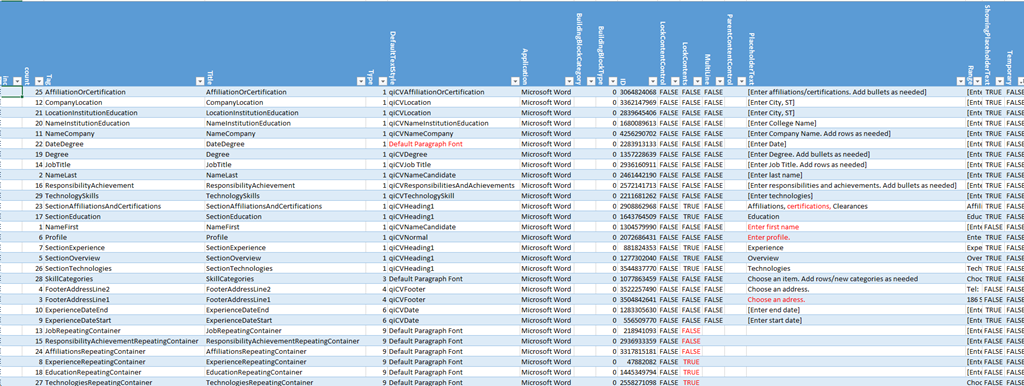
- The routine loops through the Content Controls and outputs properties as text into the VBA-Editor immediate window,
- from where it can be easily converted into an Excel-table which makes it easy t o spot and mark inconsistencies and outright oversights, like so:

Sub ccPropertiesPrint()
On Error Resume Next
Dim strHeadings, strProps As String
Dim count As Integer
Dim response

strHeadings = strHeadings & "~" & "count"
strHeadings = strHeadings & "~" & "Tag"
strHeadings = strHeadings & "~" & "Title"
strHeadings = strHeadings & "~" & "Type"
strHeadings = strHeadings & "~" & "DefaultTextStyle"
strHeadings = strHeadings & "~" & "Application"
strHeadings = strHeadings & "~" & "BuildingBlockCategory"
strHeadings = strHeadings & "~" & "BuildingBlockType"
'strHeadings = strHeadings & "~" & "Checked"
'strHeadings = strHeadings & "~" & "Creator"
'strHeadings = strHeadings & "~" & "DateCalendarType"
'strHeadings = strHeadings & "~" & "DateDisplayFormat"
'strHeadings = strHeadings & "~" & "DateDisplayLocale"
'strHeadings = strHeadings & "~" & "DateStorageFormat"
'strHeadings = strHeadings & "~" & "DropdownListEntries"
strHeadings = strHeadings & "~" & "ID"
strHeadings = strHeadings & "~" & "LockContentControl"
strHeadings = strHeadings & "~" & "LockContents"
strHeadings = strHeadings & "~" & "MultiLine"
'strHeadings = strHeadings & "~" & "Parent"
strHeadings = strHeadings & "~" & "ParentContentControl"
strHeadings = strHeadings & "~" & "PlaceholderText"
strHeadings = strHeadings & "~" & "Range"
strHeadings = strHeadings & "~" & "ShowingPlaceholderText"
strHeadings = strHeadings & "~" & "Temporary"
'strHeadings = strHeadings & "~" & "XMLMapping"
Debug.Print strHeadings
  If ActiveDocument.ContentControls.count > 0 Then
    For Each oCC In ActiveDocument.ContentControls
    'debug
    'If oCC.Type = 9 Then 'debug: repeating
count = count + 1
If count = 50 Then
'dim response = vbmsgboxresponse
    Exit For
End If

' useless cannot access immediate window If count = 15 Then response = MsgBox("paused", vbOKOnly) End If
strProps = "" 'start over
strProps = strProps & "~"
strProps = strProps & count 'CStr(count)
strProps = strProps & "~"
strProps = strProps & CStr(Replace(Replace(oCC.Tag, Chr(13), "#"), Chr(10), "#"))
strProps = strProps & "~"
strProps = strProps & CStr(Replace(Replace(oCC.Title, Chr(13), "#"), Chr(10), "#"))
strProps = strProps & "~"
strProps = strProps & CStr(Replace(Replace(oCC.Type, Chr(13), "#"), Chr(10), "#"))
strProps = strProps & "~"
strProps = strProps & CStr(Replace(Replace(oCC.DefaultTextStyle, Chr(13), "#"), Chr(10), "#"))
strProps = strProps & "~"
strProps = strProps & CStr(Replace(Replace(oCC.Application, Chr(13), "#"), Chr(10), "#"))
strProps = strProps & "~"
strProps = strProps & CStr(Replace(Replace(oCC.BuildingBlockCategory, Chr(13), "#"), Chr(10), "#"))
strProps = strProps & "~"
strProps = strProps & CStr(Replace(Replace(oCC.BuildingBlockType, Chr(13), "#"), Chr(10), "#"))
'strProps = strProps & "~"
'strProps = strProps & CStr(Replace(Replace(oCC.Checked, Chr(13), "#"), Chr(10), "#"))
'strProps = strProps & "~"
'strProps = strProps & CStr(Replace(Replace(oCC.Creator, Chr(13), "#"), Chr(10), "#"))
'strProps = strProps & "~"
'strProps = strProps & CStr(Replace(Replace(oCC.DateCalendarType, Chr(13), "#"), Chr(10), "#"))
'strProps = strProps & "~"
'strProps = strProps & CStr(Replace(Replace(oCC.DateDisplayFormat, Chr(13), "#"), Chr(10), "#"))
'strProps = strProps & "~"
'strProps = strProps & CStr(Replace(Replace(oCC.DateDisplayLocale, Chr(13), "#"), Chr(10), "#"))
'strProps = strProps & "~"
'strProps = strProps & CStr(Replace(Replace(oCC.DateStorageFormat, Chr(13), "#"), Chr(10), "#"))
'strProps = strProps & "~"
'strProps = strProps & CStr(Replace(Replace(oCC.DropdownListEntries.count, Chr(13), "#"), Chr(10), "#"))
strProps = strProps & "~"
strProps = strProps & CStr(Replace(Replace(oCC.ID, Chr(13), "#"), Chr(10), "#"))
strProps = strProps & "~"
strProps = strProps & CStr(Replace(Replace(oCC.LockContentControl, Chr(13), "#"), Chr(10), "#"))
strProps = strProps & "~"
strProps = strProps & CStr(Replace(Replace(oCC.LockContents, Chr(13), "#"), Chr(10), "#"))
strProps = strProps & "~"
strProps = strProps & CStr(Replace(Replace(oCC.MultiLine, Chr(13), "#"), Chr(10), "#"))
'strProps = strProps & "~"
'strProps = strProps & CStr(Replace(Replace(oCC.Parent, Chr(13), "#"), Chr(10), "#"))
strProps = strProps & "~"
strProps = strProps & CStr(Replace(Replace(oCC.ParentContentControl, Chr(13), "#"), Chr(10), "#"))
strProps = strProps & "~"
strProps = strProps & CStr(Replace(Replace(oCC.PlaceholderText, Chr(13), "#"), Chr(10), "#"))
strProps = strProps & "~"
strProps = strProps & CStr(Replace(Replace(oCC.Range, Chr(13), "#"), Chr(10), "#"))
strProps = strProps & "~"
strProps = strProps & CStr(Replace(Replace(oCC.ShowingPlaceholderText, Chr(13), "#"), Chr(10), "#"))
strProps = strProps & "~"
strProps = strProps & CStr(Replace(Replace(oCC.Temporary, Chr(13), "#"), Chr(10), "#"))
'strProps = strProps & "~"
'strProps = strProps & CStr(Replace(Replace(oCC.XMLMapping, Chr(13), "#"), Chr(10), "#"))
Debug.Print vbCrLf & strProps & vbCrLf
'End If 'oCC.Type=9  then 'debug: repeating
 Next
 End If
End Sub
How to get dkRandomdata to run on 64-bit Excel
2014/08/22
Leave a comment
- Dick Kusleika made this very useful random data generator for Excel (more random data sources I plan to list here).
- To get this to run on 64-bit Excel 2013, I need to make a few quick changes in the source (which will break on 32-bit Excel):
- First, the usual “must be updated for use on 64-bit systems”:
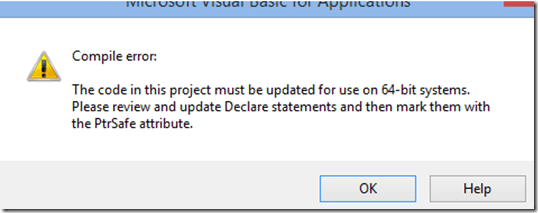 , fixed by this (but note the 1st line):
Private mlParentPtr As LongPtr 'trp:Long
#If VBA7 Then
Private Declare PtrSafe Sub CopyMemory Lib "kernel32" Alias "RtlMoveMemory" _
	(dest As Any, Source As Any, ByVal bytes As Long)
#Else
Private Declare Sub CopyMemory Lib "kernel32" Alias "RtlMoveMemory" _
(dest As Any, Source As Any, ByVal bytes As Long)
#End If
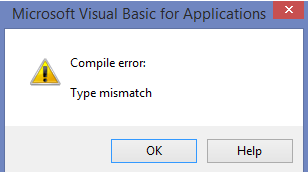
- Then, to fix the various “Type mismatch” errors
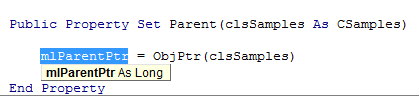
 , e.g. at
  , change Lomg into PtrLong: in these locations:
-
above: Private mlParentPtr As LongPtr 'trp:Long
-
Private Function ObjFromPtr(ByVal pObj As LongPtr) As Object
'trp Private Function ObjFromPtr(ByVal pObj As Long) As Object
-
- First, the usual “must be updated for use on 64-bit systems”:
- Then I am finally getting to the xmlDoc As MSXML2.DOMDocument error on Windows 8.1, but that has been solved in the comments here earlier this year (also for Windows 8.1, but apparently with Excel 32-bit): I changed MSXML2.DOMDocument to MSXML2.DOMDocument60 where I could:
-
Dim xmlDoc As MSXML2.DOMDocument60 'trp: Dim xmlDoc As MSXML2.DOMDocument
-
WriteToFile:
-
Dim xmlDoc As MSXML2.DOMDocument60 'here it is already fixed? Dim xmlDoc As MSXML2.DOMDocument6
-
Dim xmlStyle As MSXML2.DOMDocument60
-
Dim xmlOutput As MSXML2.DOMDocument60
-
-
LoadFromFile(): Dim xmlDoc As MSXML2.DOMDocument60
'trp: Dim xmlDoc As MSXML2.DOMDocument
-
testxml() (looks like the XML issue has been worked on since the comments):
-
Dim xmlDoc As MSXML2.DOMDocument60 'trp: Dim xmlDoc As MSXML2.DOMDocument
-
Set xmlDoc = New MSXML2.DOMDocument60 'trp: New MSXML2.DOMDocument
-
-
test_writetofile():
-
Set xmlDoc = New MSXML2.DOMDocument60 'here it is already fixed, and here
-
Set xmlStyle = New MSXML2.DOMDocument60
-
Set xmlOutput = New MSXML2.DOMDocument60
-
-
- Finally, if you have trouble getting the add-in buttons to show in Excel 2013 ribbon, close all workbooks, and you may (but I did not) have to restart Excel (KB2761240):

- Viola. And I sure like me some Seinfeld references in my sample data….



Categories: e-infrastructure, office-software, service-is-programming
64-bit, addins, Dkrandomdata, MS-Excel, VBA
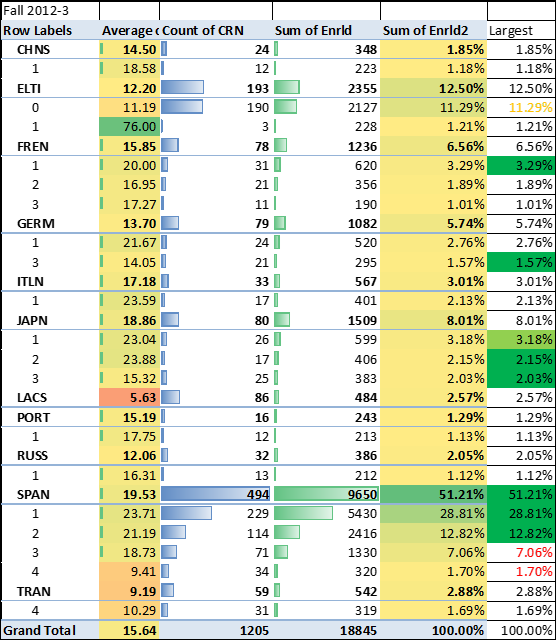
How to sort a Pivot table by a calculated field column
2014/07/12
Leave a comment
(Click on image for original size version, now bigger.)

Categories: animated-GIFs, e-infrastructure, mental-notes
2013, MS-Excel, pivot-tables
Mapping of Language Student Locations using PowerView
2014/03/09
Leave a comment
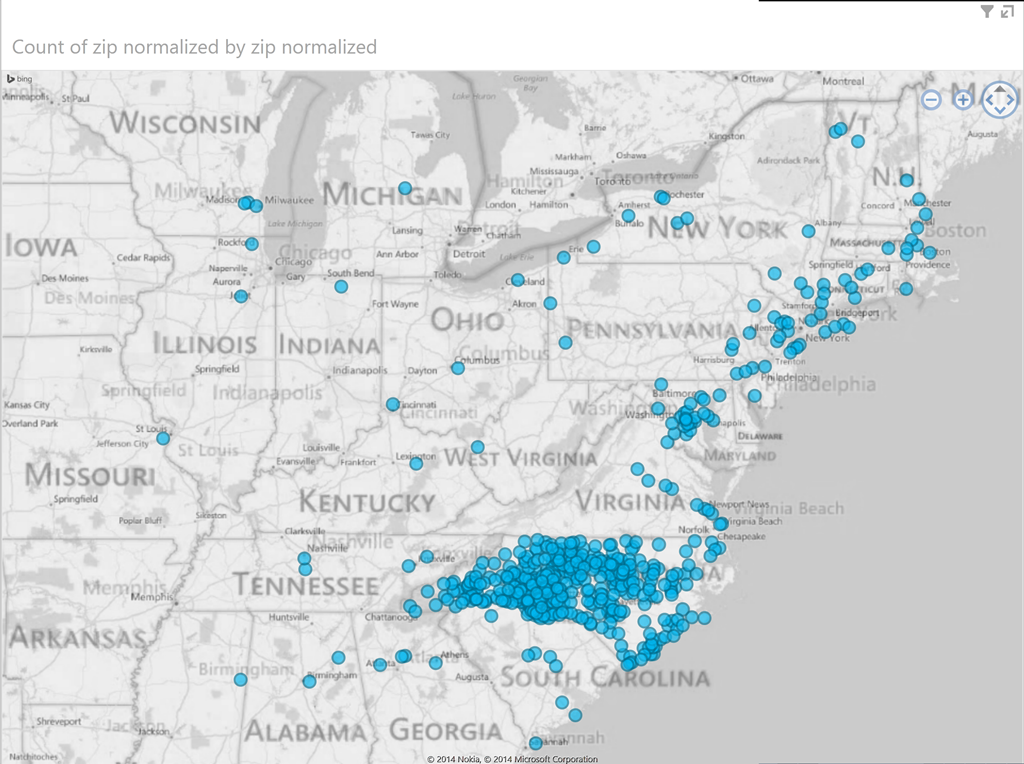
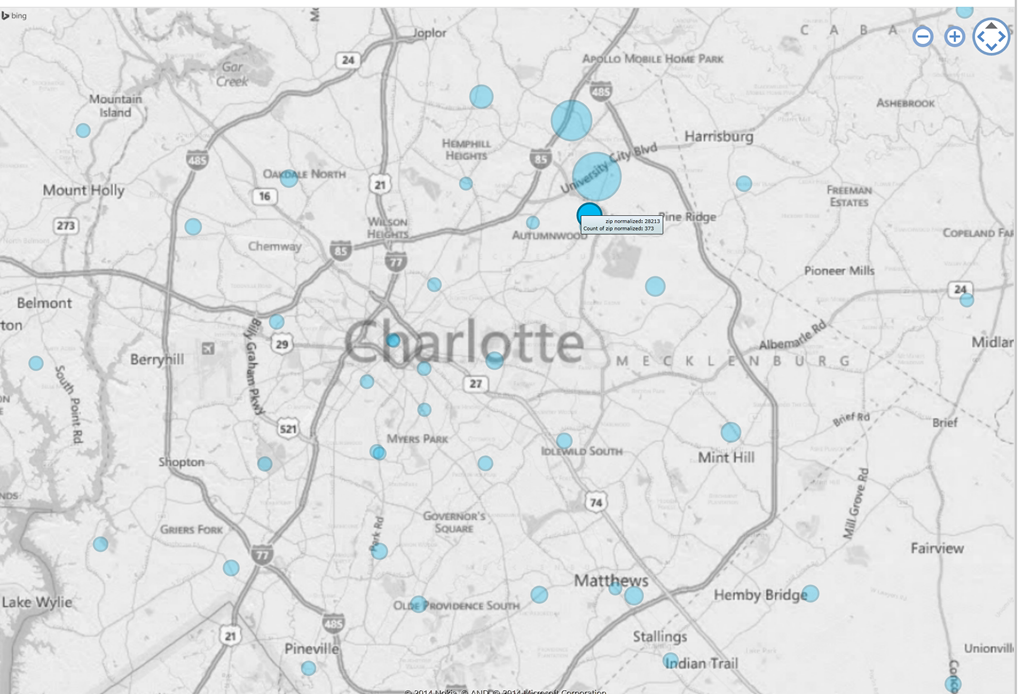
- What do our language students call home? Based on a pivot-table that counts zip codes, let PowerView tell you, which is can now distributed as a free add-in for Excel 2013 Prof, but you need to enable it (under File / Options / Add-Ins).

- Comes with a nifty zoom:
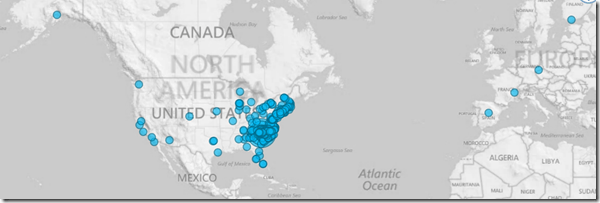
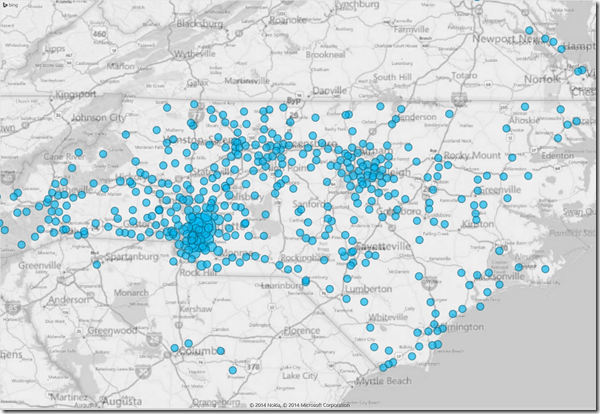
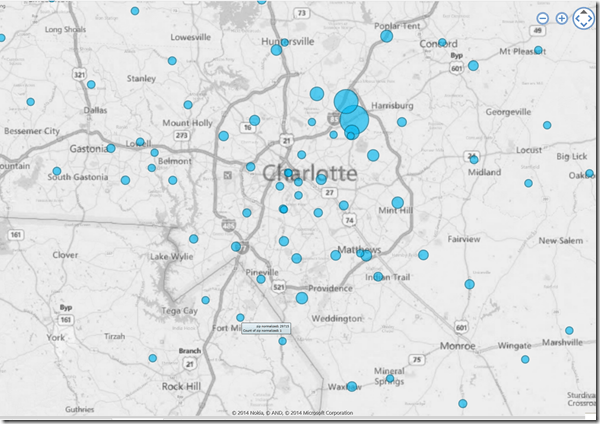
- Click, then Hover a data bubble for more info;

- Like with Bing Maps Visualization, the weighting is surprising:



First steps with MS-Calendar Analytics
2013/06/22
2 comments
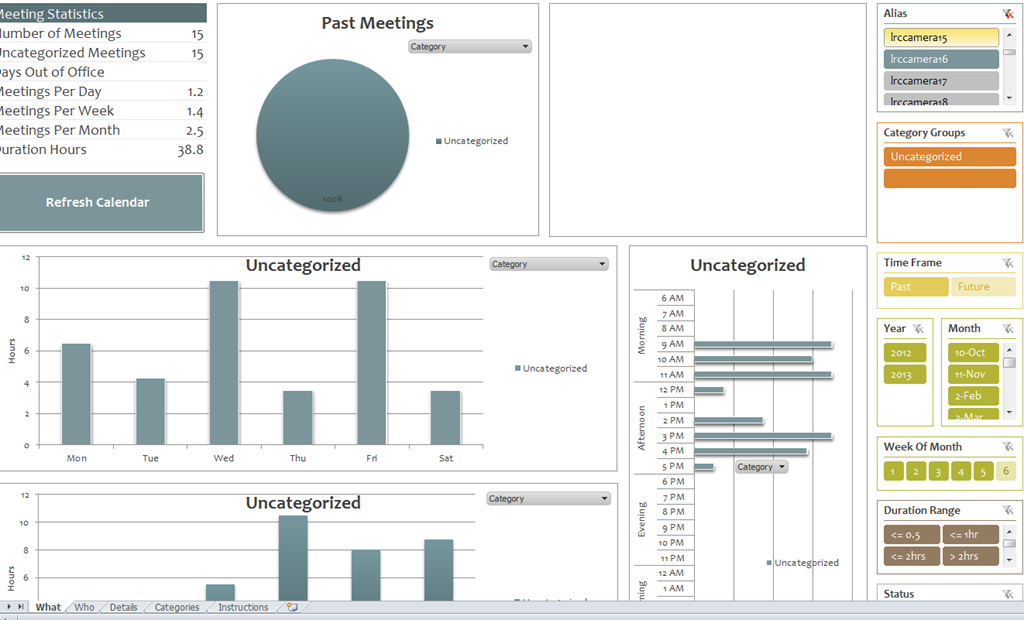
- After installing Calendar analytics (and, if you do not already have it, PowerPivot), open the Calendaranalytics spreadsheet from your desktop and click on “Refresh Calendar”.
- “Enter your full email address. Users with more than 1 email address may need to try each of them.”


- “Enter a start date and end date for the timeframes for the Dashboard to reflect”/
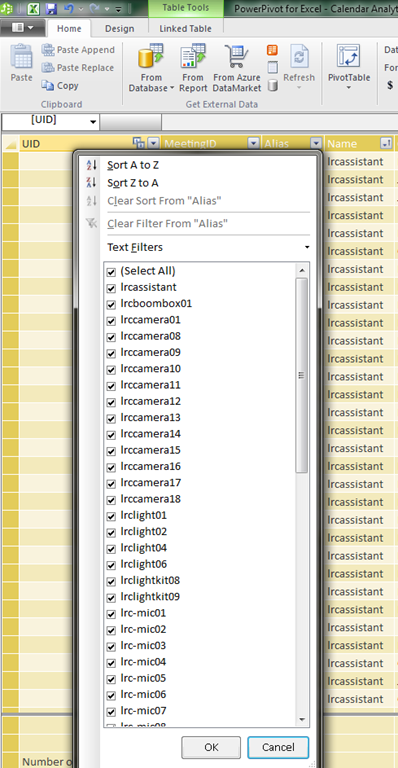
- “The interface will prompt you for the user’s aliases to add. You can add multiple.”
- “Type in users’ aliases of whom you have permission (i.e. “Full details”) to access their Outlook calendar and click Add”
-

- Do not use the fully qualified email address for the alias, or else:

- You cannot comma delimit (so AutoIt to the rescue).

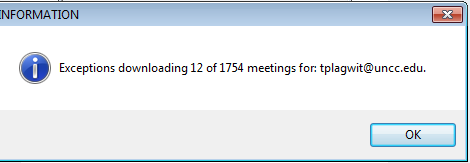
- You can continue after such a non-fatal error:


- Is your “Update all” greyed out ? Restart Excel.

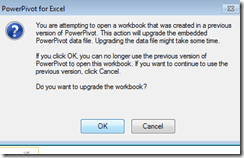
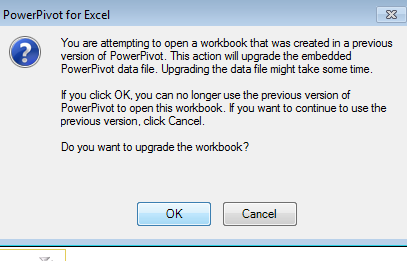
- Accept the offer to upconvert:
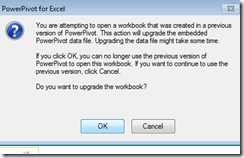


- Update all becoame available after restart of excel, even with download exceptions – maybe the unsaved update of the spreadsheet form powerpivot 1 was the root cause ?
- Not that here upconversion to the new powerpivot version does not “take”:

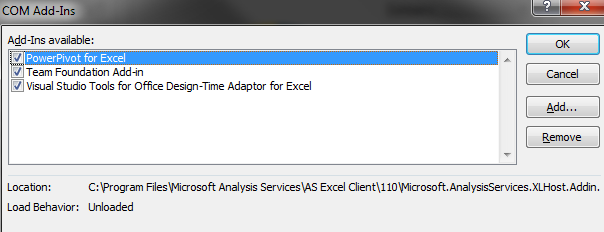
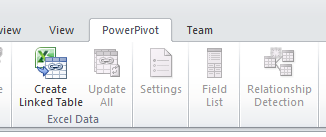
- If after a restart of excel your powerpivot tab on the ribbon does not show, reenable the powerpivot addin.
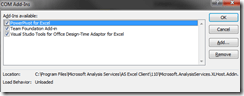
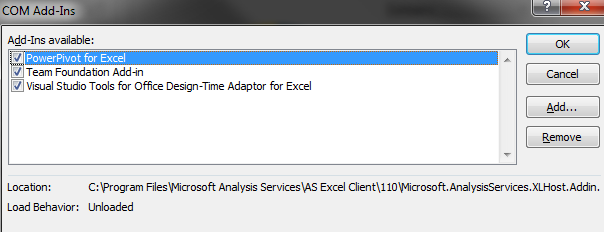
- How to reenable: excel file/ options / select dropwdown: addins, button:go, check the Checkbox in front of powerpivot:
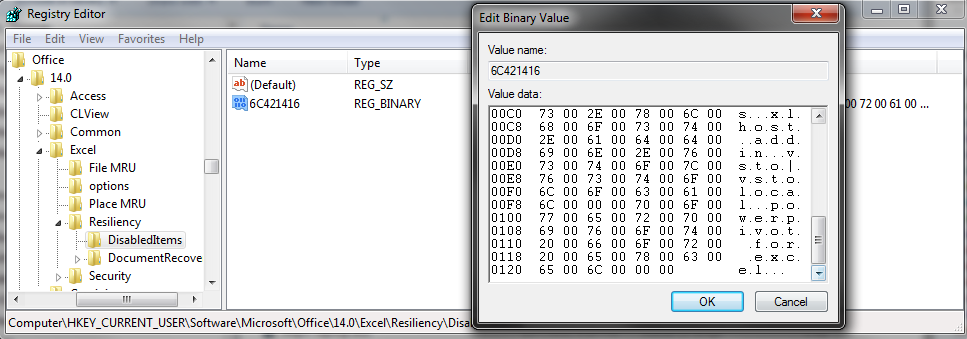
- What if even after a restart of excel, this does not “take”? See whether in the registry the key CURRENT_USER\Software\Microsoft\Office\14.0\Excel\Resiliency\DisabledItems contains the path to your powerpivot add-in,like here:
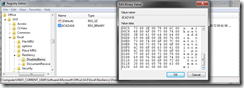
- Delete the key and restart excel, your powerpivot ribbon tab =should be back. Hope this will last?

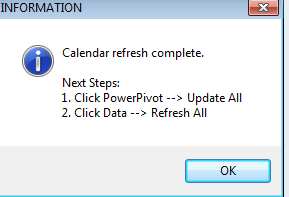
- Now updating does something:

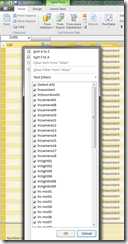
- This opens the powerpivot window with the meeting data collected fro mms-exchange:
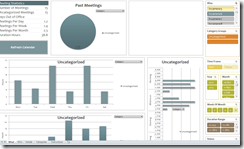
- Which can be interactively: visualized in the calendaranalytics sheet
- More results here.









Code documentation for a job ticket assignment and reporting application
2013/01/28
Leave a comment
- JobAssignments allows for managing job tickets with easy tagging and filtering of task assignments, and for aggregate analysis and reporting.
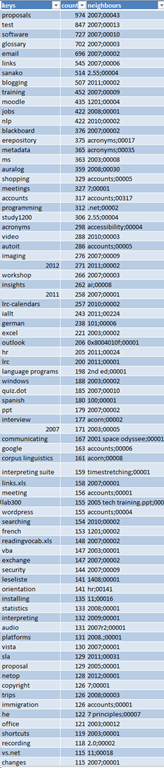
- Originally developed only for simple tag aggregation reports (watch a demo), JobAssignments can now also analyze the tag graph:

- Click the table of contents on the right to browse the VBA documentation built with Aivosto.




Questions? Read the About. Or just ask me a quick Our Databases: Resources with calendars -- Language learning material Moodle Sites, multimedia files -- films


FAQs for LRC student staff or for students or for teachers. To search our FAQs, in the browser addressbar, add after "https://plagwitz.wordpress.com/feed/?tag=faqs+/" "+TAG1" (from tag cloud below) OR "https://plagwitz.wordpress.com/feed/tag=faqs
&category_name=" "CAT1" (from category hierarchy below). OR search both categories and tags, and multiple TAGs/CATs (connect with "," for OR-search, with "+" for AND-search), like so: https://plagwitz.wordpress.com/feed/?tag=TAG1+TAG2+...TAGn&category_name=CAT1
+CAT2+...CATn"
Other ways to find help
If you cannot find it here, look there: 5,500 Language-Learning Links and Programs for learning or teaching 150 languages
Shortcuts:Our Lists, Our Maps, LRC Staff Moodle Site,LRC Project Moodle Site, 49erexpress, UNCC Moodle, Student Recordings: s:claslcslrcsanakostudent
Learning usage samples: Sanako oral exam, Kaltura webcam presentation, Dictation with speech recognition, Sanako written exam, Chinese and Japanese interactive stroke-order practice
Test the Sanako Installer, Webbrowser Popup Konfigurator for XP, or Windows7, faster LRC TeacherPC Log-in Let MS facilitate diacritics writing by installing for you US-International keyboard layout
This is my personal blog (Google+). The views expressed on these pages are mine alone and not those of my employer. The information in this weblog is provided “AS IS” with no warranties, and confers no rights.
 Thomas' Work Space
A little addendum about data types to the +N(“comment”) in-cell formula comment trick in Excel
=IF(
OR(
ISBLANK(
[Related issues]
),
( ISERR(
FIND(
“#“,
[Related issues]
)
) )
) +
N(
“do nothing if no related task in col:related issues“
),
““,
IF(
NOT(
ISERR(
FIND(
“,“,
[Related issues]
)
)
) +
N(
“do nothing if no 2nd value in col:related issues“
),
CONCATENATE(
MID(
MID(
[Related issues],
FIND(
“,“,
[Related issues]
) + 2,
LEN(
[Related issues]
) –
FIND(
“,“,
[Related issues]
) + 1 +
N(
“extracted the 2nd value from col:related issues“
)
),
FIND(
“#“,
MID(
[Related issues],
FIND(
“,“,
[Related issues]
) + 2,
LEN(
[Related issues]
) –
FIND(
“,“,
[Related issues]
) + 1
)
) + 1,
4
) +
N(
“extracted the 4# of id of related issue“
),
MID(
MID(
[Relatedissues],
FIND(
“,“,
[Relatedissues]
) + 2,
LEN(
[Relatedissues]
) –
FIND(
“,“,
[Relatedissues]
) + 1
),
FIND(
“ “,
MID(
[Related issues],
FIND(
“,“,
[Related issues]
) + 2,
LEN(
[Related issues]
) –
FIND(
“,“,
[Related issues]
) + 1
)
) + 1,
2 +
N(
“appended to or from to the 4# of id of related issue“
)
)
),
““
)
)