Archive
Posts Tagged ‘moodle’
Screencast showing how to “Add resource: link to a file” in Moodle, including file upload into file area
2012/02/23
Leave a comment
If you do not know how to make an MS-Word or audio or other file accessible to your course through Moodle, you can view a demo here.
Categories: audience-is-teachers, documentation, e-infrastructure, lms
link-to-a-file, moodle
How to identify graded participants in Moodle Course Activity Reports using Vlookup
2012/02/23
Leave a comment
- Having a chart of full names, Moodle id # and usernames would be useful (e.g. for debugging with the Activity Reports that in some cases do not resolve Moodle id# so Excel vlookup has to rescue the day once again…)
- The Moodle “Participants” affords the instructor a convenient list, with paging, sort, filter (by role), and different detail-level views.
- However, the overview does link course and student id #, but not institutional username while the detail view contain the username as part of the email, but is not truly tabular (consists of an array of tables, each containing one user; at least you can avoid the paging).
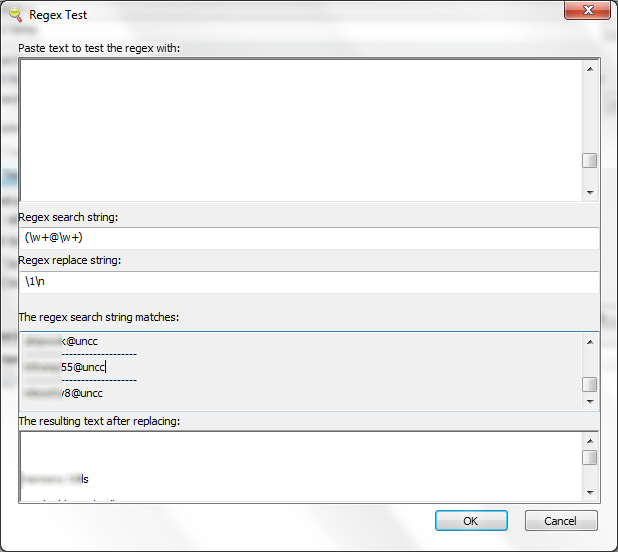
- Enter grepwin to extract the emails:

- and copy paste them into the Excel created from the tabular overview:
 Is there an easier way?

Protected: Moodle streaming video recording assignment glitches 3, 4, 5, 6, 7 & 8: A running log
2012/02/21
Enter your password to view comments.
Protected: Moodle-Kaltura webcam recording assignment results
2012/02/20
Enter your password to view comments.
Categories: assessments, assignments, audience-is-teachers, Beginner, e-languages, German, iMacs, lms, multimedia-recording, Practice&Demos, Speaking, Videos
kaltura, moodle
How to navigate your Moodle gradebook more easily by hiding columns
2012/02/09
Leave a comment
- Clicking on the minus-icon next to aggregate columns will hide the assignments in this category; clicking the plus-icon will unhide:

- before (wide)

- after (narrow, better overview)


Categories: audience-is-teachers, documentation, e-learning, lms
gradebook, moodle
How a teacher creates a Moodle file upload assignment for writing
2012/01/30
1 comment
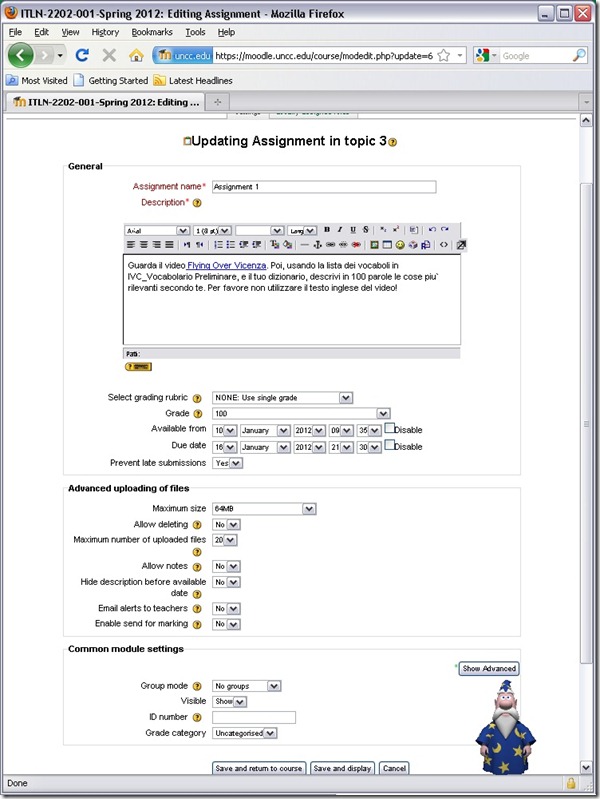
- In your Moodle course, turn editing on, choose Assignment: Advanced upload of files (required for response file from teacher).
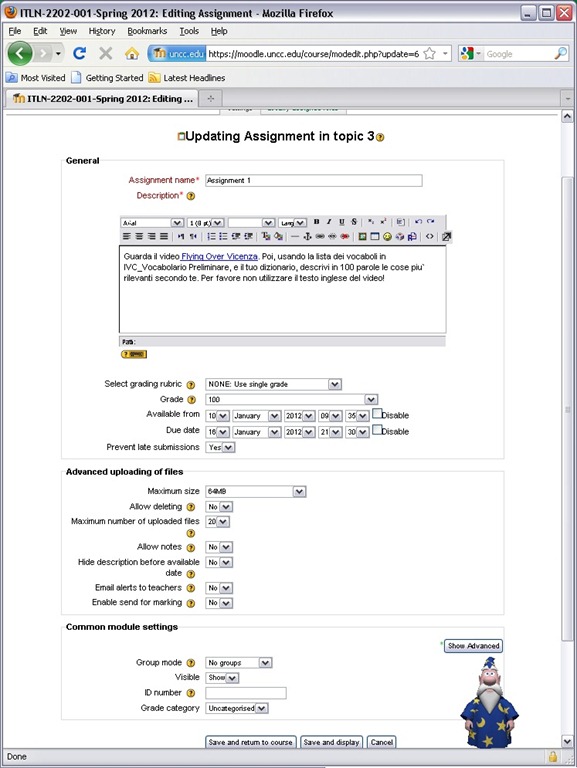
- Provide name and instructions. Choose the desired options (uploading one file is enough):
- A gradebook column will be automatically created, and will be initially empty.

- Instruct your students how to take the MS-Word upload assignment, and when (if you leave the default availability/due date on, the assignment will automatically appear in their Moodle Calendar, and can appear in their Ninermail calendar).

How to bypass a Moodle Popup Window when using Respondus lockdown browser
2012/01/24
Leave a comment
- Problem: when starting the Moodle Lockdown browser to take an online exam, it opens with a popup window about messages. Popup window prevents access to the underlying main Moodle browser window (and exam). When closing the popup window, the entire lockdown browser closes, including main Moodle browser window.
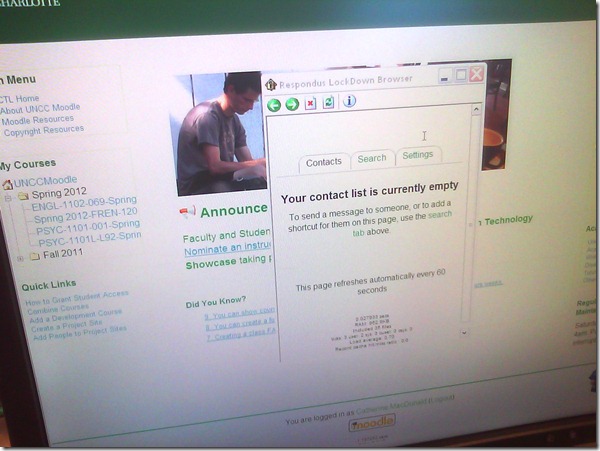
- Cause: Moodle can be configured to show a notification window when messages have arrived since your last login. This notification window has poor compatibility with the lockdown browser.
- Workaround: In the popup window, click on the tab: “Settings” and uncheck (at least for this exam session) the checkbox to show the message box as a popup when logging in. Close the popup window.

- Result: Even if this closes the main Moodle browser window once again, when you start the Moodle Lockdown browser again, the popup window will not appear again, and you can take your exam.


How to enforce deadlines on your language syllabus using Moodle
2012/01/23
1 comment
- Experience seems to make teachers much prefer if students “try and fight with the computer over deadlines”, or rather spend their time studying instead of arguing about excuses why not study (“Dog ate my homework"- syndrome).
- When you create a Moodle assignment, in each assignment type you will find a fields that allow you to create a time window
- before
- and after which the assignment is not available to students.
- For easier remembering, assignments with deadlines
- automatically appear in the Moodle Calendar
- and can be made to automatically show in the NINERMAIL calendar
- Hint: provide some extra credit to ease the pain of learning how to meet deadlines which are a requirement for progression in learning a language, especially when not doing independent study, but interacting within a cohort.
- Suggested: “Best 3 out of 5” for first-time users, “4 out of 5” for tech-savvy.
Categories: audience-is-teachers, e-languages, lms
calendaring, moodle, syllabus


Questions? Read the About. Or just ask me a quick Our Databases: Resources with calendars -- Language learning material Moodle Sites, multimedia files -- films


FAQs for LRC student staff or for students or for teachers. To search our FAQs, in the browser addressbar, add after "https://plagwitz.wordpress.com/feed/?tag=faqs+/" "+TAG1" (from tag cloud below) OR "https://plagwitz.wordpress.com/feed/tag=faqs
&category_name=" "CAT1" (from category hierarchy below). OR search both categories and tags, and multiple TAGs/CATs (connect with "," for OR-search, with "+" for AND-search), like so: https://plagwitz.wordpress.com/feed/?tag=TAG1+TAG2+...TAGn&category_name=CAT1
+CAT2+...CATn"
Other ways to find help
If you cannot find it here, look there: 5,500 Language-Learning Links and Programs for learning or teaching 150 languages
Shortcuts:Our Lists, Our Maps, LRC Staff Moodle Site,LRC Project Moodle Site, 49erexpress, UNCC Moodle, Student Recordings: s:claslcslrcsanakostudent
Learning usage samples: Sanako oral exam, Kaltura webcam presentation, Dictation with speech recognition, Sanako written exam, Chinese and Japanese interactive stroke-order practice
Test the Sanako Installer, Webbrowser Popup Konfigurator for XP, or Windows7, faster LRC TeacherPC Log-in Let MS facilitate diacritics writing by installing for you US-International keyboard layout
This is my personal blog (Google+). The views expressed on these pages are mine alone and not those of my employer. The information in this weblog is provided “AS IS” with no warranties, and confers no rights.
 Thomas' Work Space