Archive
Student peer assessment options for a more “social learning” experience in Moodle 1.9.
- The most simple solution, briefly explained:
- Add a forum: button: “Turn editing on”, dropdown: “Add activity: “discussion”, Set dropdown “Forum type”: “a single simple discussion”/ section: grade, dropdown: “aggregate type”: “average rating” (also set your max attachment size if you want uploads of multimedia recordings).
- Set Permissions: course administration block / item:assign roles / tab: override permissions (we do not have this!) / section:forum, enable checkbox:”rate posts”, disable checkbox: “view any ratings”, “view ratings” .
- Visually explained (notes deviously: “if you do not have tab: override permissions, ask your admin”. If she says “no”, ask to enable the workshop module in Moodle 1.9. If she says “no”, ask to upgrade to the workshop module in Moodle 2.0. If she says “no”, ask her for other ideas how to do “social learning” in Moodle…
 ).
).
How a Student takes a Moodle Video Assignment in the LRC
- On one of the LRC iMacs, in the Safari web browser (open new window with COMMAND-key+n),
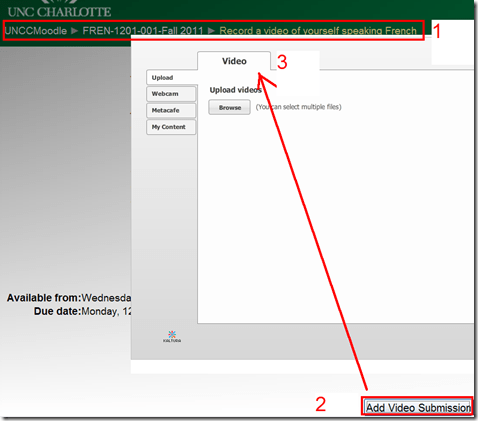
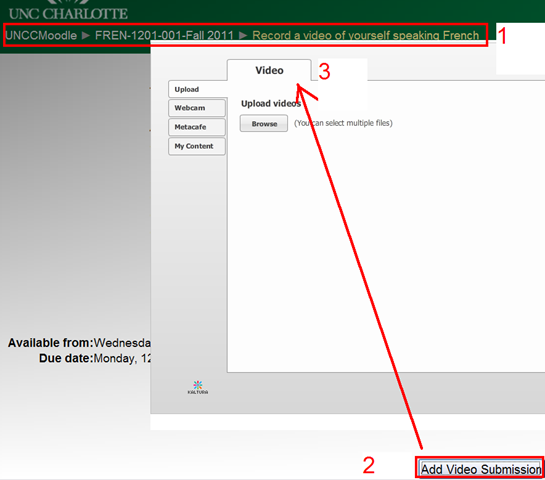
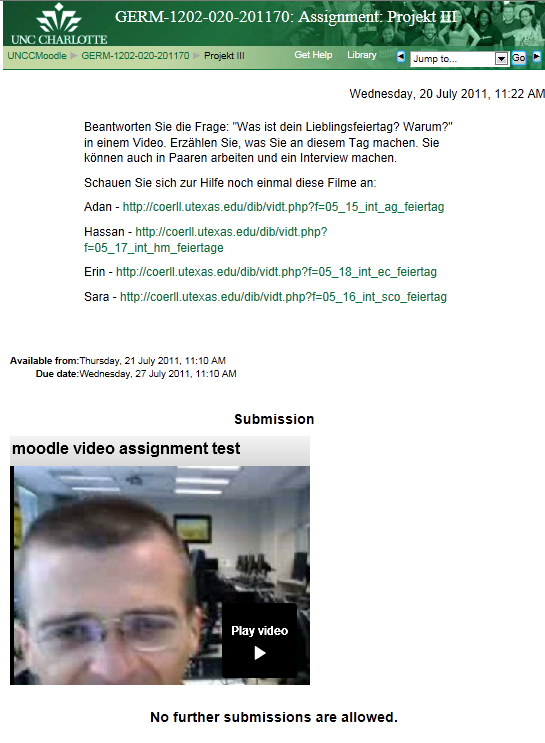
- go to your Moodle course, (1) find the video Assignment, read the assignment instructions (what your teacher wants you to record). Then click underneath the (2) button: “Add video Assignment”, to open the (3) submission window:
- Note that she will also have to allow the flash player to interact with her webcam first.
 If you see no web cam video window, only a black frame, read in.
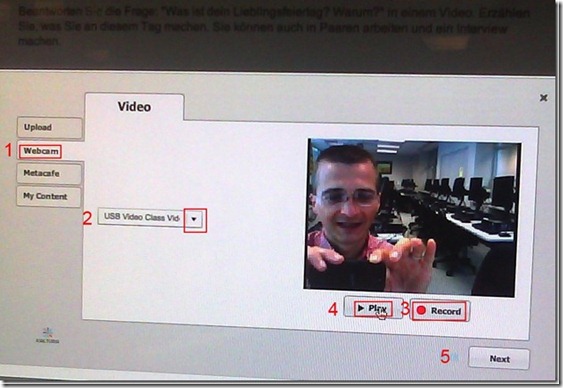
- In the submission window, choose the tab “Webcam” (1), use the dropdown to select the camera hardware (2).

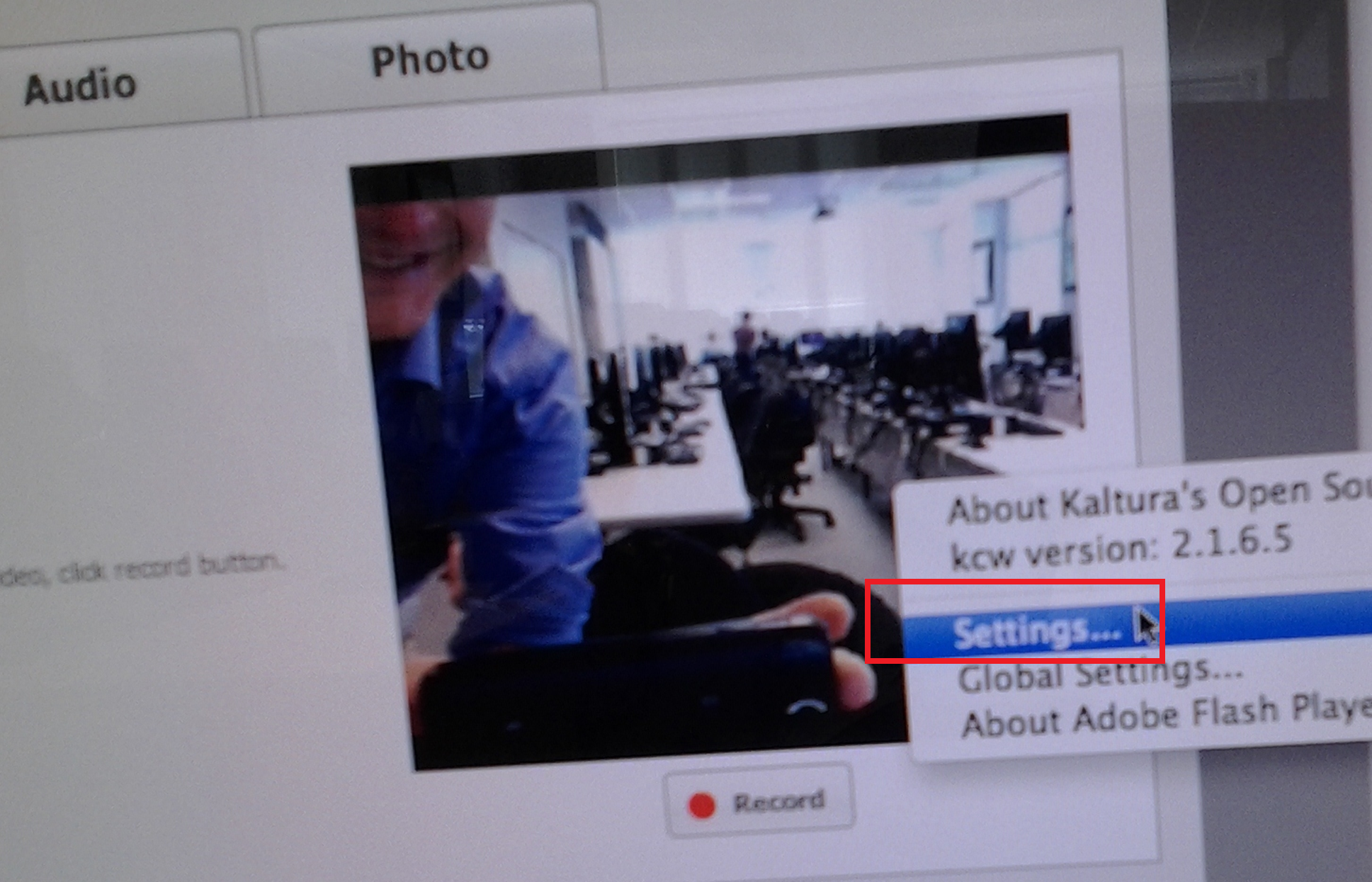
- Check the headset microphone audio: The external headset microphone on the iMacs did not work., but now it does, provided you do this: control-click on Flash’s a video preview window (= the window where you see yourself like in a mirror) for the web camera, and click on “settings”.
-

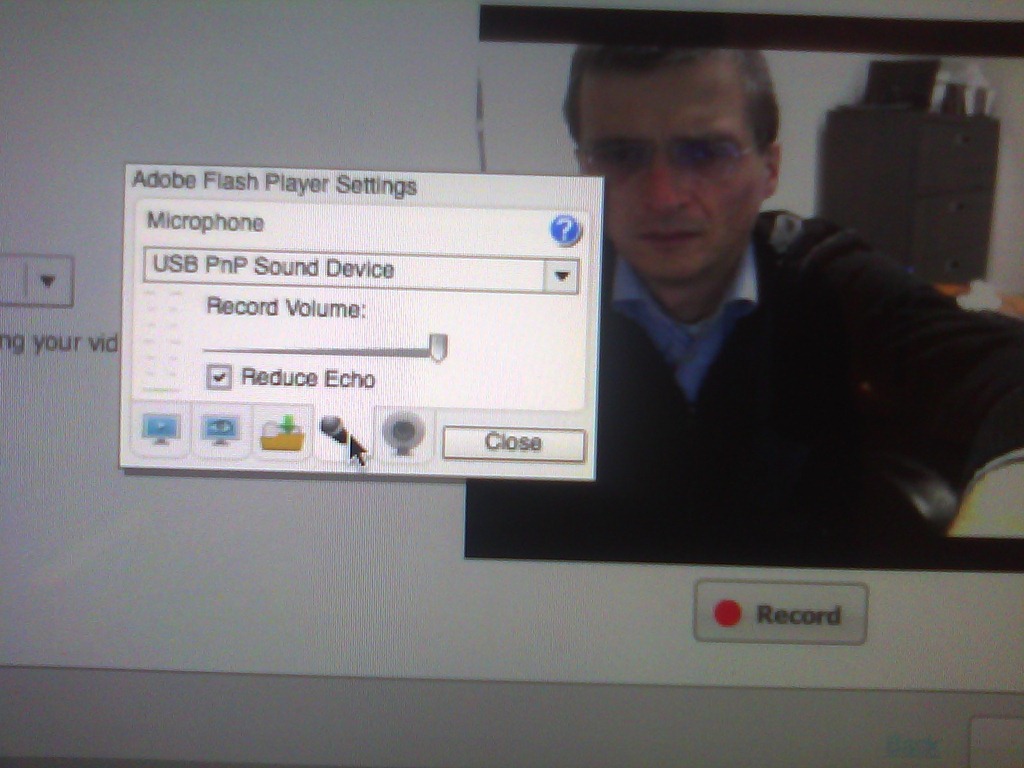
- Click on the microphone icon :

- Make sure the USB PnP device is selected.

- You can bring up the settings dialogue, make sure the USB PnP device is chosen for audio and CRANK up the microphone input sensitivity! Then, by tabbing (don’t speak yet) on the headset microphone, test the volume levels with the built-in volume meter (should show lots of green bars when you tab). Unlike in the picture, do not choose “reduce echo ”.
-
- Start (3) the video recording.
- Afterwards, the student can review (4) her submission.
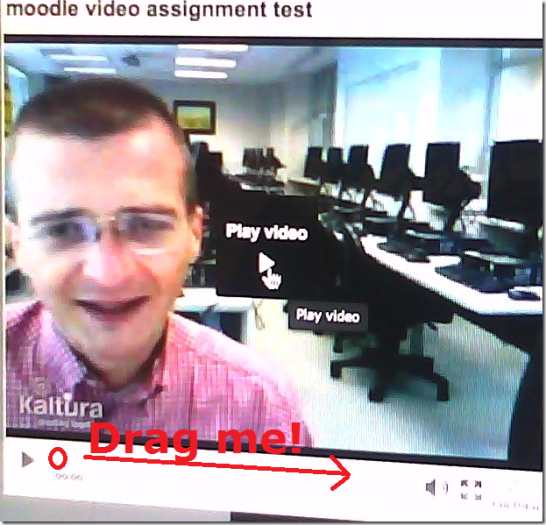
- If you don’t like your first recording, (3) “record” over it and review again with (4) “Play”. If you do this and the video appears frozen, drag the timeline cursor forward to get the re-recorded video to play. If this does not seem to work, you are likely still able to submit your 2nd attempt, just not review it again.
- Click through all the “Next”etc. buttons:
-


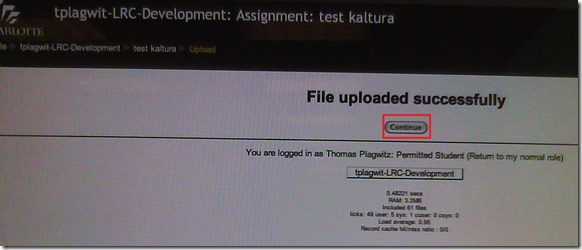
- until you get to the feedback page for the student (caveat: in IE9, the video does not fit into the frame provided on the page).

- Note, it warns you to be patient now:
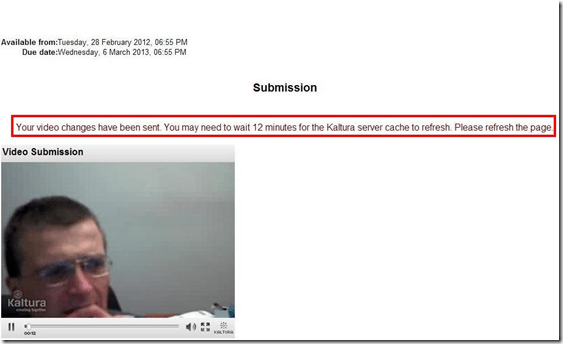
-
- LRC support:
- Depending on your hardware (webcam), software and network support, you can record your language speaking video assignments on any device that has a webcam and a browser that supports flash – and even more devices, if you are willing to post process and upload the video clip.
- If you run into problems or want to use a tested setup, we recommend using the LRC. Since our PCs have no built-in or added webcam (proposed), we can currently only use our 5 8 iMacs (see LRC Layout, see Classroom Calendar and iMacs Calendar for availability). Our (limited) tests worked better in Safari than Firefox.





How to allow students to reply to News Forum posts in Moodle
- E.g. with this: “I have seen this post. I have followed the instructions. It worked for me.”

- Answered here: http://moodle.bath.ac.uk/faq/content/12/182/en/can-students-reply-to-news-forum-posts.html
- Does not work in our installation which is being investigated – maybe with good reason: I every study is forced to subscribe and can respond, their tend to be email floods which rather hide than surface important information.
- Workaround:
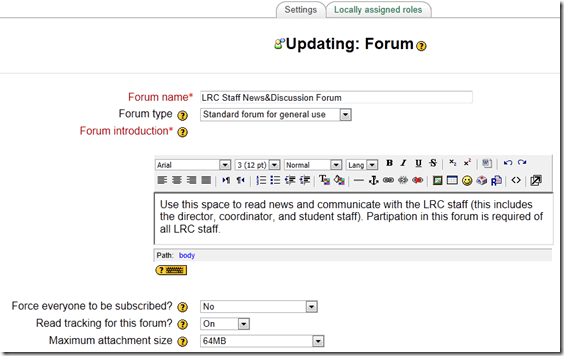
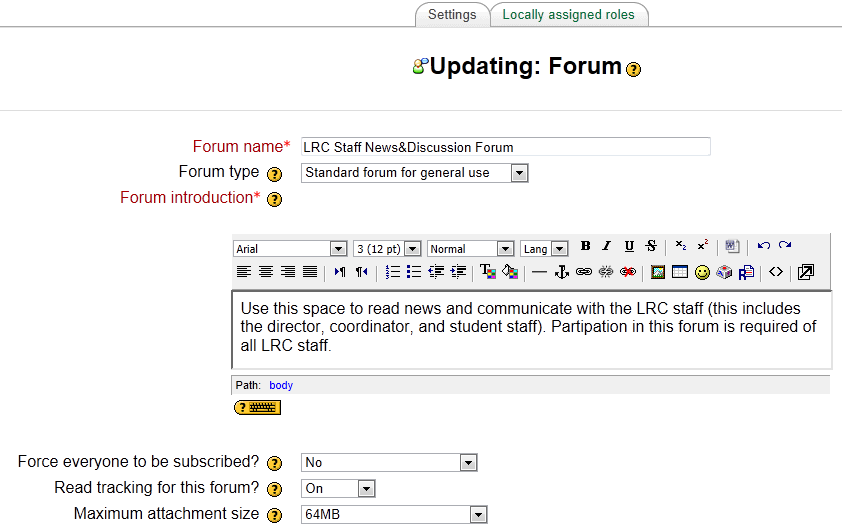
- Hide the news forum;
- create a regular Moodle Forum, where students can respond by default
- ask your users to read it and maybe monitor reading with tracking
- do not force them to subscribe = receive email
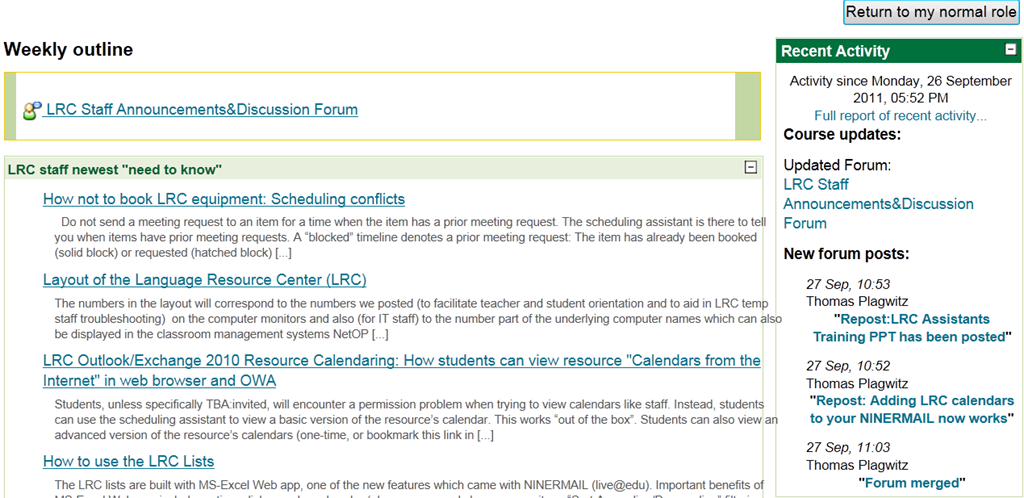
- I also hid the “Latest News” block, in the hope that the “Recent Activity” block can replace it:

Trying out the new Moodle layout options by integrating my blog via an RSS block
- Running a blog? Feeding a twitter account? It could be worthwhile narrowcasting your (teaching-related) postings (presumably more substantial than tweets about tardiness for class) by integrating it with your Moodle course, via RSS.
- As of today, UNCC-Moodle offers new layout options, including putting blocks into the content (center) column, as a “sticky” post underneath the header.
- This is timely, since I have created a Moodle site for the LRC staff and have been wondering how I can use it to quickly update the LRC staff on new technological opportunities or issues and solutions around the LRC.
- Moodle’s RSS block – linking to the feeds that my blog feed/Twitter hash tag for LRC staff emit – makes that easy.
- Except that up until now, outside the center column, there has not been enough space to display also the teaser of blog posts – an area I invest some thought in, in accordance with age old publishing principles transferred into the internet age.
- The layout options upgrade allows me to fix that – here is how:
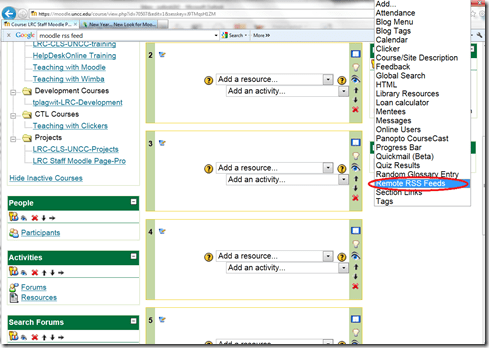
- After pressing button: editing on, choose from the dropdown “blocks”: remote RSS feeds

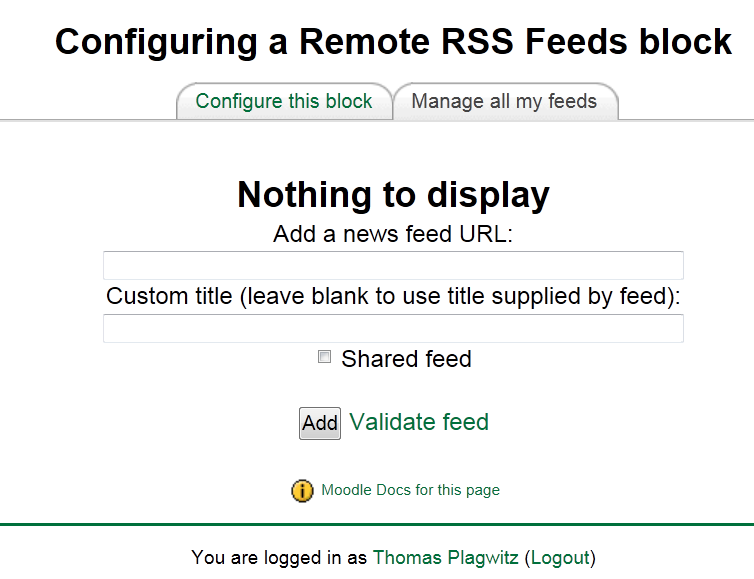
- Don’t be confused by the inability to add your feed source – you need to change to the tab: “manage my feeds” first:
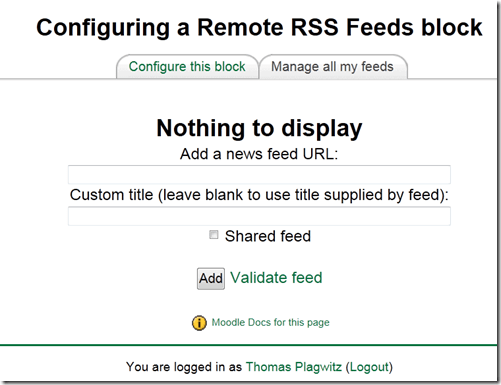
- if you make your feed a “share feed”, it becomes an option for all institutional Moodle sites.
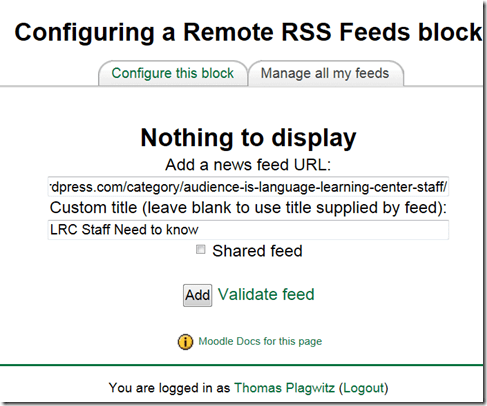
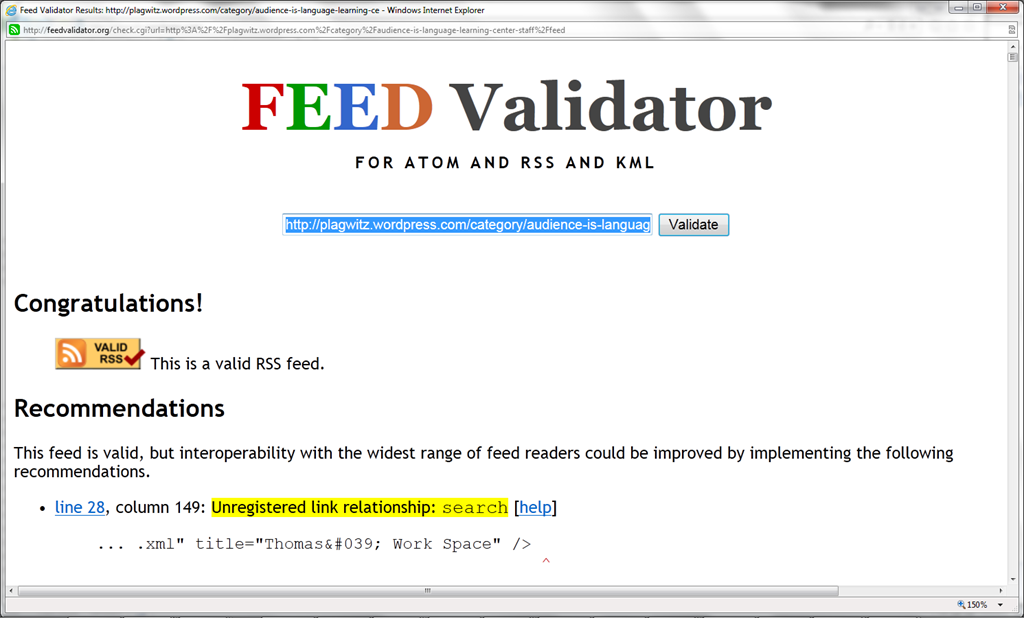
- Validate your feed so that Moodle doe not outright refuse to display (the linked validator will give you error information that can help you fix your feed).

- After moving your feed to the center with the “left arrow”, you can

- You can see more of the Moodle RSS block results here.

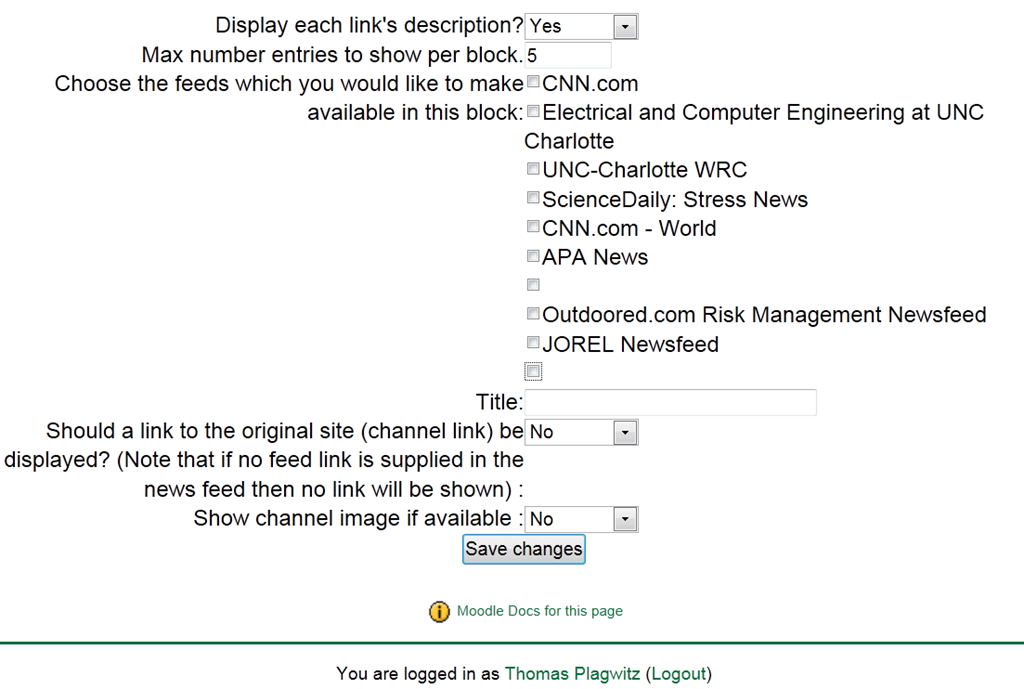
Adjust the settings: for me it is important to display descriptions.


The LRC staff Moodle site: An Introduction
- The LRC has now a Moodle site for staff. All permanent and temporary LRC staff members will be enrolled in this site.
- All permanent and temporary LRC staff members will participate in this site. This means logging in at shift start and reviewing the following sections for new items:
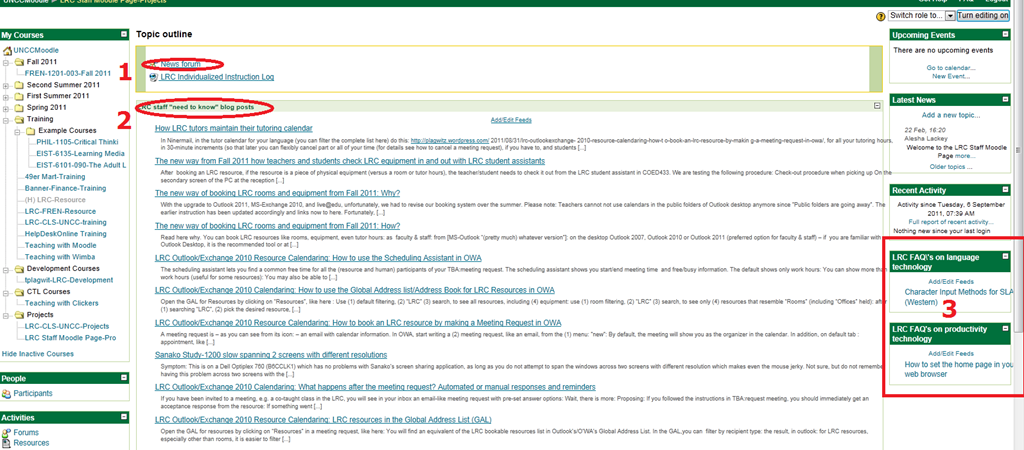
- The news forum: here LRC assistants can find announcements and assigned jobs, as well as post notes of their own for all colleagues and responses.
- The most recent LRC assistant training articles appear here. In these tasks, LRC assistants are supposed to assist clients hands-on with more general
- LRC FAQ’s: LRC assistants have to monitor this block to be in the know about what the LRC has in terms of answer guides to FAQs about technology use in learning, and be able to point clients with questions to these answer guides (i.e. identify an applicable answer guide, display it on the reception computer, email the client the link for the client to review the guide).
Webinar: Respondus 4.0 for Moodle by Vendor
In case you could not make it to this live online presentation shortly before the term start, I taped this respondus-4-moodle-webinar (plays for sure in Windows Media Player on the Lab PCs) for your review. I also made this transcript which can help you jump to the information that interests you most:
|
0: 00 |
question editor |
|
1: 00 |
signing up for a test bank |
|
4: 00 |
importing questions from a test bank (example: human biology) |
|
6: 30 |
editing the quiz based on the test bank |
|
7: 00 |
adding another question, multiple choice |
|
07: 00 |
question types in Moodle and Respondus are similar |
|
08: 00 |
ad advanced formatting, like bold or html or multimedia |
|
09: 00 |
from a local computer or on the web, like youtube.com |
|
10: 00 |
equations |
|
12: 00 |
printing exams |
|
14: 00 |
publishing exams directly into Moodle |
|
14: 00 |
enter your Moodle server information (once; or never, if your administrator has prepopulated these fields for you) |
|
16: 00 |
summary |
|
18: 00 |
lockdown browser: can’t print, capture screen as image or video, can’t browse web or instant messaging programs |
|
20: 00 |
integration with Moodle (Moodle block if hosted, module if self-hosted) |
|
21: 00 |
within Moodle, on the update quiz link, in the section: Respondus lockdown browser |
|
21: 30 |
students perspective: local client software install |
|
23: 30 |
example of taking an exam with the lockdown browser |
|
28: 30 |
what the exam will look like if the students tries to access it with another browser |
|
30: 30 |
admin perspective: info for the lockdown browser license administrator, including for lab administrators with imaging and answer files |
|
34: 30 |
summary |
|
36: 30 |
online documentation |
|
37: 30 |
pricing |
|
38: 30 |
q&a: support for Moodle: 2.0,2.1 yes |
|
39: 30 |
q&a: the admin can in the admin portal prepopulate the server settings for the teachers’ Respondus |
|
40: 30 |
q&a: question types in Moodle are different from blackboard : these get dropped when you change the personality (blackboard/Moodle) within Respondus, but most basic question types simply carry over back and forth |
|
41: 30 |
q&a: default font size: menu: file / menu item: preferences/ tab: edit&publish |
|
42: 30 |
q&a: convert exam view files – go through the publisher of the text bank – or export to word, put the Respondus import markup in, import word into Respondus |
|
44: 30 |
q&a: lockdown browser system requirements: see online http://www.Respondus.com/lockdown/faq.shtml |
|
44: 30 |
q&a: timed exams? Yes, but through Moodle, lockdown browser just passes this through |
|
45: 30 |
q&a: virtual machine: lockdown browser prevents it (no need for vm with windows with new mac version of lockdown browser) |
|
46: 30 |
q&a: dual screen: lockdown browser prevents it , beyond enforcing full screen |
|
47: 30 |
q&a: how to push out the lockdown browser to your students during the first quiz? Best set up a test quiz with just this purpose |
|
48: 30 |
q&a: will the timer from Moodle show in the lockdown browser: yes |
|
49: 30 |
q&a: about hosting |
|
50: 30 |
q&a: multiple questions to a single image |
|
51: 30 |
q&a: publishers |
While I like the impetus of Respondus to facilitate formative assessment, its utility seems limited if you do not have pre-authored publisher test bank for your topic. Or rather the functionality of preformatting text in MS-Word and importing it – not demonstrated in this screencast – seems more convenient (and partially could be automated, especially in SLA quizzes by using NLP) than actually authoring quizzes in Respondus – but is also available in Moodle itself.
Or use a simple quiz-generating MS-Word template if you do not need an LMS, but rather feedback so much faster than on the WWW, as implemented in current LMS, that a difference in quantity difference forms a new quality).
And I can also not say that I see much new in Respondus since 2004, except for the Moodle support, which naturally did not exist then. In the area of Web 2.0, one would wish for more than just publisher-driven test banks (where language are largely absent except for the most popular courses).


Questions? Read the About. Or just ask me a quick Our Databases: Resources with calendars -- Language learning material Moodle Sites, multimedia files -- films


FAQs for LRC student staff or for students or for teachers. To search our FAQs, in the browser addressbar, add after "https://plagwitz.wordpress.com/feed/?tag=faqs+/" "+TAG1" (from tag cloud below) OR "https://plagwitz.wordpress.com/feed/tag=faqs
&category_name=" "CAT1" (from category hierarchy below). OR search both categories and tags, and multiple TAGs/CATs (connect with "," for OR-search, with "+" for AND-search), like so: https://plagwitz.wordpress.com/feed/?tag=TAG1+TAG2+...TAGn&category_name=CAT1
+CAT2+...CATn"
Other ways to find help
If you cannot find it here, look there: 5,500 Language-Learning Links and Programs for learning or teaching 150 languages
Shortcuts:Our Lists, Our Maps, LRC Staff Moodle Site,LRC Project Moodle Site, 49erexpress, UNCC Moodle, Student Recordings: s:claslcslrcsanakostudent
Learning usage samples: Sanako oral exam, Kaltura webcam presentation, Dictation with speech recognition, Sanako written exam, Chinese and Japanese interactive stroke-order practice
Test the Sanako Installer, Webbrowser Popup Konfigurator for XP, or Windows7, faster LRC TeacherPC Log-in Let MS facilitate diacritics writing by installing for you US-International keyboard layout
This is my personal blog (Google+). The views expressed on these pages are mine alone and not those of my employer. The information in this weblog is provided “AS IS” with no warranties, and confers no rights.
 Thomas' Work Space
