Archive
Protected: Why we need autoaccept messages from on-premise equipment mailboxes to students in the Office365/live@edu cloud
Protected: Meet the Resource Attendants and their Scheduling Assistants– or Who are these people, anyway?
How users can change their time zone in OWA

Or as screenshot: 
You know: You just have to know what to look for – considerably easier than knowing *when* to look for pretty much anything once you have been put in the wrong time zone… 
Setting time zone for all and for all misconfigured OWA users
live@edu/Office365 Exchange in the cloud does not seem to allow setting a default time zone, but rather leaves it to the user to change the time zone (defaulting to the time zone the cloud server is in that the user happens to hit) on first login – in the world I operate in, большая ошибка!
How to use the cmdlet set-MailboxRegionalConfiguration with parameter TimeZone to change the time zone of all your mailboxes is nicely explained on the blog How Exchange Works here, including screenshot and PowerShell command.
Unfortunately such an operation is reported to have needed 3 days for updating all mailboxes in an educational live@edu installation with 30000 users… You can restrict the mailboxes touched by examining first which are not in your local time zone (consult the MS TimeZone table for syntax, e.g. US “Eastern Standard Time”):
$mymailboxes = get-mailbox
ForEach ($examinedmailbox in $mymailboxes){
$regionalconfig = get-MailboxRegionalConfiguration –identity $examinedmailbox.identity
if ($regionalconfig.timezone -ne “Eastern Standard Time”){
Set-MailboxRegionalConfiguration -identity $examinedmailbox.identity -TimeZone “Eastern Standard Time” -confirm:$false
}
}
Computer-aided scheduling in HE
LRC Calendars setup, documentation and training
I have written dozens of posts on the MS-Exchange/Outlook/OWA/Ninermail calendaring system that I set up for room reservation, equipment circulation, and staff timetabling in the LRC, the most recent 50 of which you also can view here – which should display like below in Firefox feed display. If you use Internet Explorer which has a nicer RSS feed display, you get to a list of articles where you cannot only browse, but search within the search results:

How to bypass email cloaking in Joomla 2.5
- If you have URLs on your Joomla site that contain @-signs, Joomla 2.5 will mangle them, since it seems to think out of the box that these are email addresses that need to be protected (anybody else using Joomla 2.5 with MS-Exchange 2010 calendars…?).
- If you do not want to give directive {emailcloak=off} on top of the article, try url-encoding the @-sign (%40). May be more difficult for your users to memorize, though.
How to load the university Drupal calendars into your favorite calendar application
- If you go to our university calendar webpages, you may see

- a top menu allowing you to select either Year,Month,Week, or Day
- a bottom right corner calendar icon (why not the well established ics icon?) which, changing with the view you selected, points to the same (directory) link as the views, but resolves to an ICS file when clicked in your browser
- The default action on click is an open/save option: either way, AFAIK, you will download and point your desktop calendar application (e.g. MS-Outlook) to this file. Even if you do this only per year, this is not only tedious, but the hope that nothing will change in the course of things seems futile.
- The best way that I have found to make this a live calendar subscription is this: in your ICS-compatible calendar application, where it asks you for the calendar URL, load one of the links provided under the calendar icon, e.g. that for the year. But before clicking “OK”, remove anything (= any filter) after “ical” portion of the link.
- In MS-Outlook, this procedure looks like this:

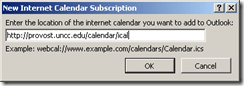 , and the result looks like this: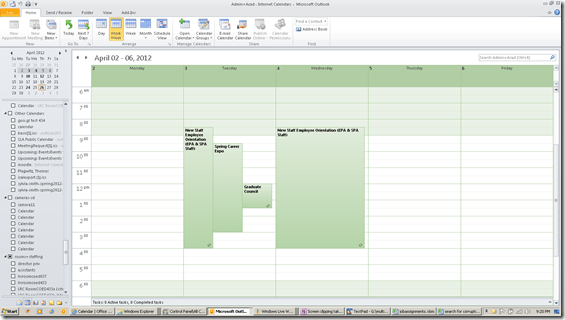
- If you open the downloadable ICS, an open it (mental note: are there other iCAL readers to examine the data, short of loading the calendar into your desktop, phone or cloud calendar software?) you will notice that these calendars are a Drupal-based offering: “PRODID:-//Drupal iCal API//EN”
- Sample Links
- Calendar examples for your web browser: http://provost.uncc.edu/calendar, http://registrar.uncc.edu/calendar
- Calendar year ICS examples for your calendar reader: http://provost.uncc.edu/calendar/ical/2012, http://registrar.uncc.edu/calendar/ical/2012
- The provost’s calendar includes the registrar’s calendar: Administrative and Academic. the color-coding will be lost in translation when loading via ICS. I have not found a way to load the Administrative calendar separately, to use my calendar application to manage the coloring.
- Are there more calendar pages that are of general interest?




Questions? Read the About. Or just ask me a quick Our Databases: Resources with calendars -- Language learning material Moodle Sites, multimedia files -- films


FAQs for LRC student staff or for students or for teachers. To search our FAQs, in the browser addressbar, add after "https://plagwitz.wordpress.com/feed/?tag=faqs+/" "+TAG1" (from tag cloud below) OR "https://plagwitz.wordpress.com/feed/tag=faqs
&category_name=" "CAT1" (from category hierarchy below). OR search both categories and tags, and multiple TAGs/CATs (connect with "," for OR-search, with "+" for AND-search), like so: https://plagwitz.wordpress.com/feed/?tag=TAG1+TAG2+...TAGn&category_name=CAT1
+CAT2+...CATn"
Other ways to find help
If you cannot find it here, look there: 5,500 Language-Learning Links and Programs for learning or teaching 150 languages
Shortcuts:Our Lists, Our Maps, LRC Staff Moodle Site,LRC Project Moodle Site, 49erexpress, UNCC Moodle, Student Recordings: s:claslcslrcsanakostudent
Learning usage samples: Sanako oral exam, Kaltura webcam presentation, Dictation with speech recognition, Sanako written exam, Chinese and Japanese interactive stroke-order practice
Test the Sanako Installer, Webbrowser Popup Konfigurator for XP, or Windows7, faster LRC TeacherPC Log-in Let MS facilitate diacritics writing by installing for you US-International keyboard layout
This is my personal blog (Google+). The views expressed on these pages are mine alone and not those of my employer. The information in this weblog is provided “AS IS” with no warranties, and confers no rights.
 Thomas' Work Space