Archive
How we provide more computer support for walk-up clients at the LRC reception desk
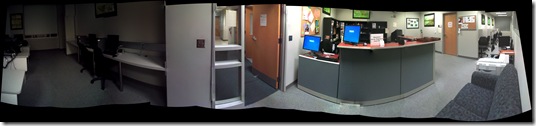
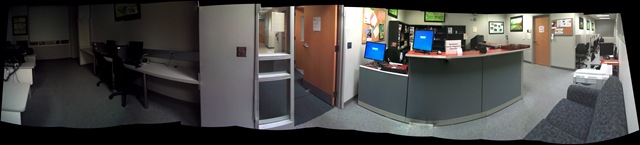
- We have set up 3 PCs at the reception desk. They all contain an exactly identical software configuration (based on Symantec Ghost imaging and Faronics Deepfreeze).
- Except that two (we could not get hold of another monitor) have a secondary screen connected that can extend the Windows Desktop, or mirror it (use CTRL-ALT-F11 and CTRL-ALT-F10 to switch between the modes of the )

- To aid in this communication over the counter, press CTRL-2 to freeze and on the screen (uses MS-ZoomIt) which helps when pointing out screen elements.
- So that LRC staff and clients can both use the university’s most important web applications, the computers have been configured to automatically launch a number of web browsers on startup, and within each browser, open a number of home pages with(LRC website, Moodle, NINERNET, faculty&staff Mail, WordPress, Excel Web App with he LRC databases for hardware, software, media and learning materials inventories). (When done, instead of closing the browser, use the “sign out” link of each web application).
- As a reminder, the most basic instructions (with keyboard shortcuts) have been posted on both primary and secondary monitor.
- Can we also implement a screen sharing solution allowing for MS-remote assistance, to enable reception desk LRC staff to escalate client questions they cannot resolve, like our IT department?

How to enable screen cloning and switching between display modes on the LRC reception desk dual screen Dell OptiPlex 780 with WinXP
Short, non-technical answer: on the keyboards of the reception desk computers, press key combination
- ALT+CTRL+F10 to mirror the same image on both monitors;
- ALT+CTRL+F11 to return to extending the primary screen, i.e. showing something different on the second screen.
- if this stops working, restart the computer.
We do not use any more key combination ALT+CTRL+F10 to cycle through the different desktop configurations, which include cloning/mirroring the same image on both screens (also keep pressing the key combination, in order to get back to extending the image to the 2nd screen, for running an informational display (calendar, PowerPoint) to display on the 2nd screen after mirroring the lab assistant’s screen onto the 2nd screen when interacting with a client on the other side of the help desk counter).
Longer, technical answer: You have to configure this. But the Win XP dialogue: Display Properties / tab: Settings only allows for “extending” the desktop to the secondary screen. However, button: Advanced leads to another dialogue, with a tab: ATI Control Center, by the graphics card manufacturer.
If you also enable the advanced settings in this dialogue, you can get to the hotkey settings where, among other things, you can enter a key combination for cycling through Display Configurations, one of which being cloning.

In addition, you can save this configuration as such:

Why all these minutiae? You cannot have LRC clients and staff at the help desk communicate with the help of a computer (and all the goodies accessible now, from intranet to interwebs) if they cannot easily share the screen (and, in order to both even interact with the screen, share keyboard and mouse, which are easy to duplicate, if you have some spare USB input devices lying around). If you can make them share, you have applied AI to business problems (compare dual screen system in the LLC entrance area here). If calling the after state “AI” sounds too lofty to you, you may call the before state “flying blind” instead: I just care about the delta which remains the same.


Questions? Read the About. Or just ask me a quick Our Databases: Resources with calendars -- Language learning material Moodle Sites, multimedia files -- films


FAQs for LRC student staff or for students or for teachers. To search our FAQs, in the browser addressbar, add after "https://plagwitz.wordpress.com/feed/?tag=faqs+/" "+TAG1" (from tag cloud below) OR "https://plagwitz.wordpress.com/feed/tag=faqs
&category_name=" "CAT1" (from category hierarchy below). OR search both categories and tags, and multiple TAGs/CATs (connect with "," for OR-search, with "+" for AND-search), like so: https://plagwitz.wordpress.com/feed/?tag=TAG1+TAG2+...TAGn&category_name=CAT1
+CAT2+...CATn"
Other ways to find help
If you cannot find it here, look there: 5,500 Language-Learning Links and Programs for learning or teaching 150 languages
Shortcuts:Our Lists, Our Maps, LRC Staff Moodle Site,LRC Project Moodle Site, 49erexpress, UNCC Moodle, Student Recordings: s:claslcslrcsanakostudent
Learning usage samples: Sanako oral exam, Kaltura webcam presentation, Dictation with speech recognition, Sanako written exam, Chinese and Japanese interactive stroke-order practice
Test the Sanako Installer, Webbrowser Popup Konfigurator for XP, or Windows7, faster LRC TeacherPC Log-in Let MS facilitate diacritics writing by installing for you US-International keyboard layout
This is my personal blog (Google+). The views expressed on these pages are mine alone and not those of my employer. The information in this weblog is provided “AS IS” with no warranties, and confers no rights.
 Thomas' Work Space