Archive
Archive for the ‘Uncategorized’ Category

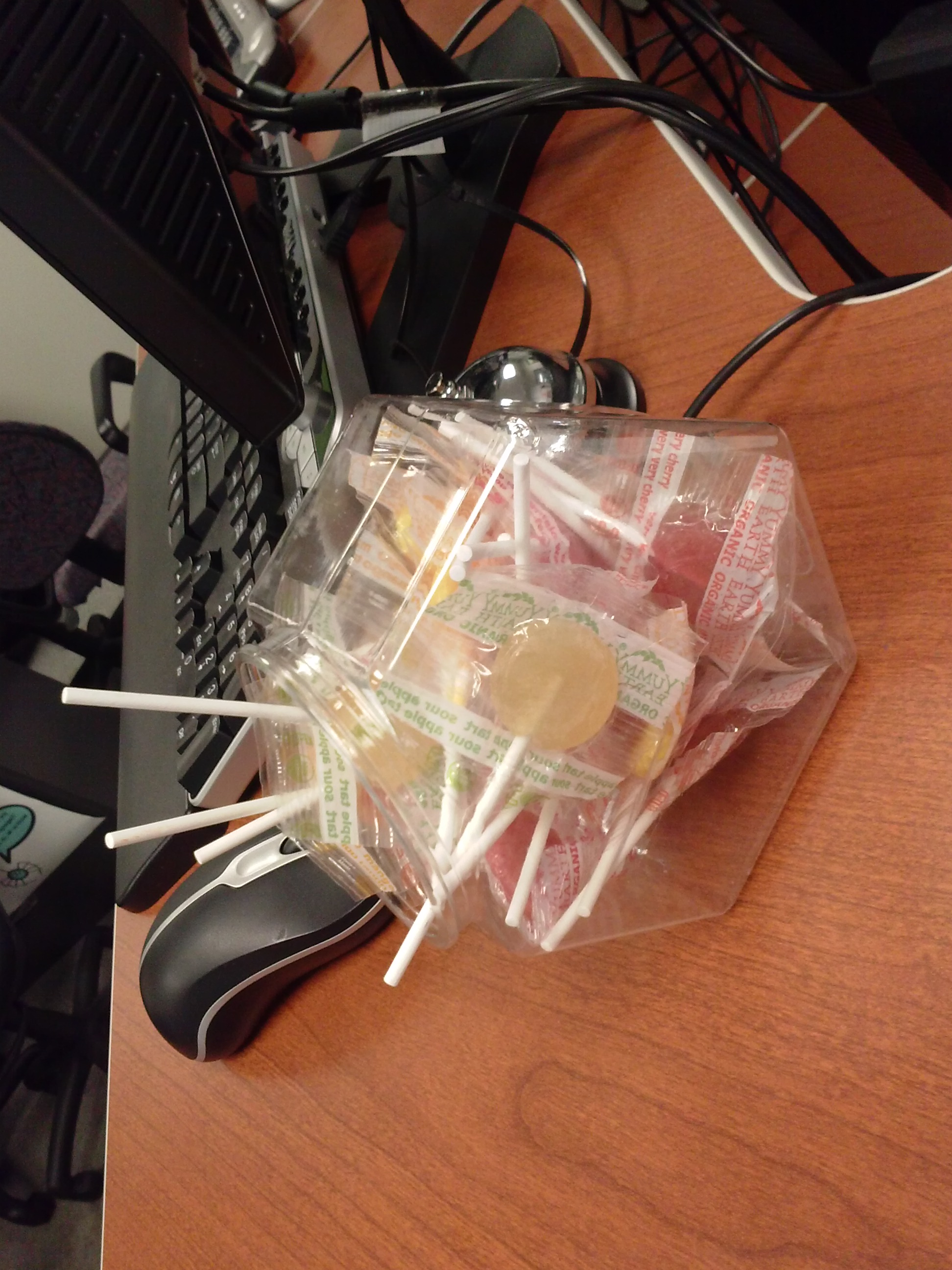
Lollipops on reception desk…
2013/10/03
Leave a comment
… are reserved for staff and clients that fill out their meeting requests properly. 😎
Categories: Uncategorized
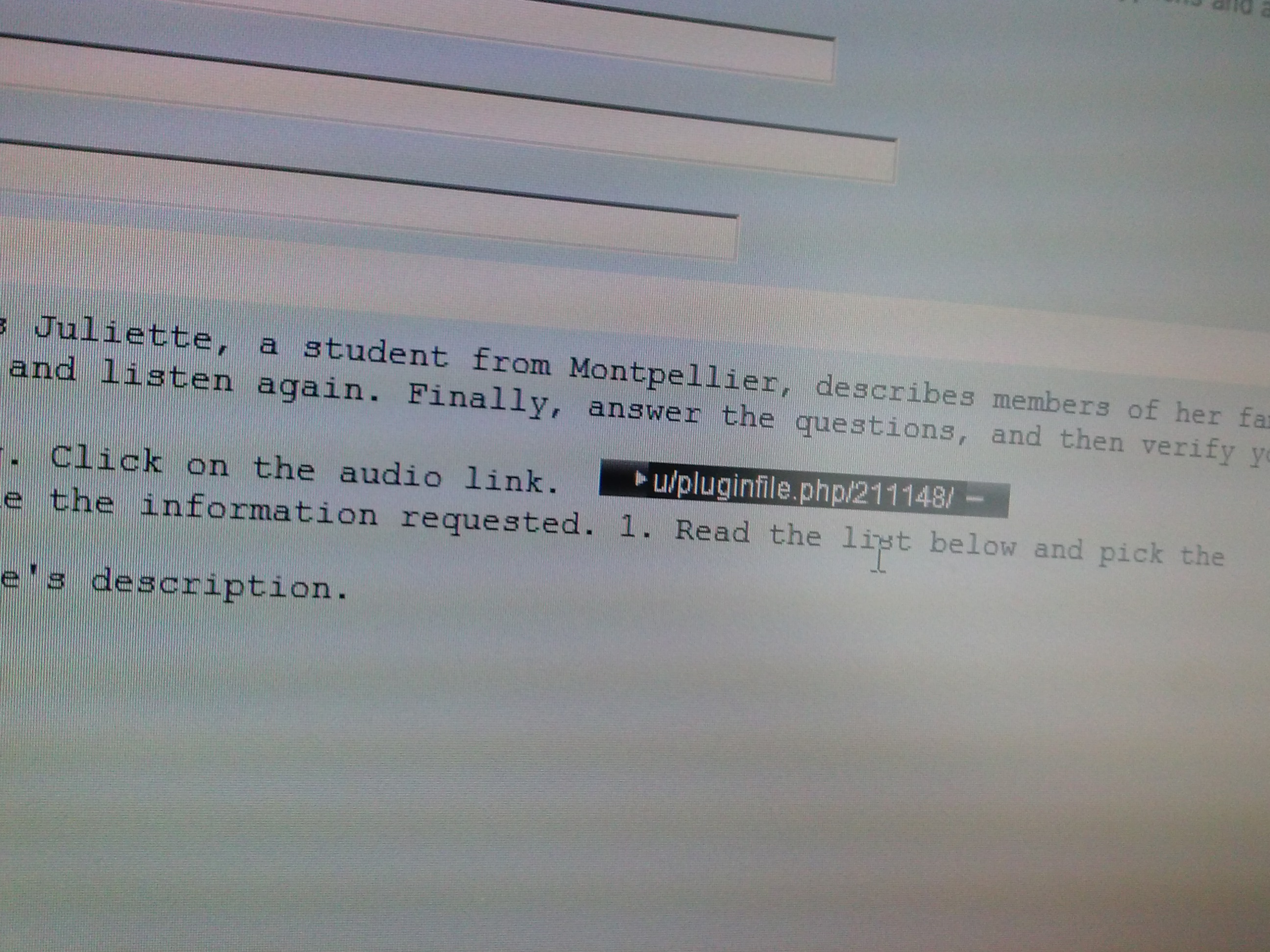
French Quiz audio not playing
2013/10/03
Leave a comment
LRC assistants will advise to skip the questions
Categories: Uncategorized
Protected: “Student audio is not available”, Teacher can not hear students
2013/08/21
Enter your password to view comments.
Categories: Uncategorized
Workaround for Sanako study 1200 tutor v7 window limitations
2013/08/06
Leave a comment
- Problem: Window maximizes only to size of,and location defaults to, primary screen. This is now on windows7.
- Workaround: make the screen whose size you desire the primary (and live with the side effects).
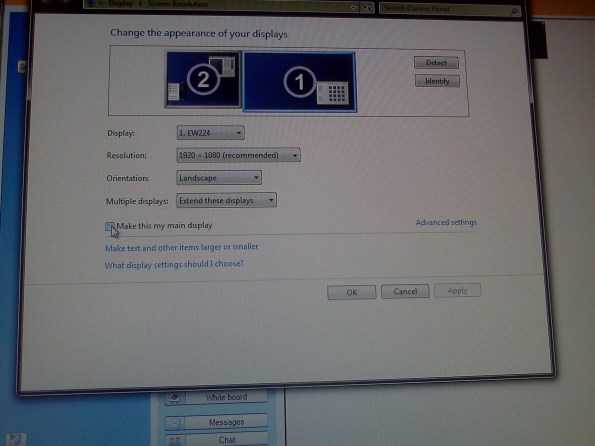
- Downside:
- Screencast recordings of instruction won’t work: Community Clips can only record the primary screen, which is not the screen displayed to students during regular teaching. Windows Media Encoder does not work with our non-standard dual screen configuration on Windows7.
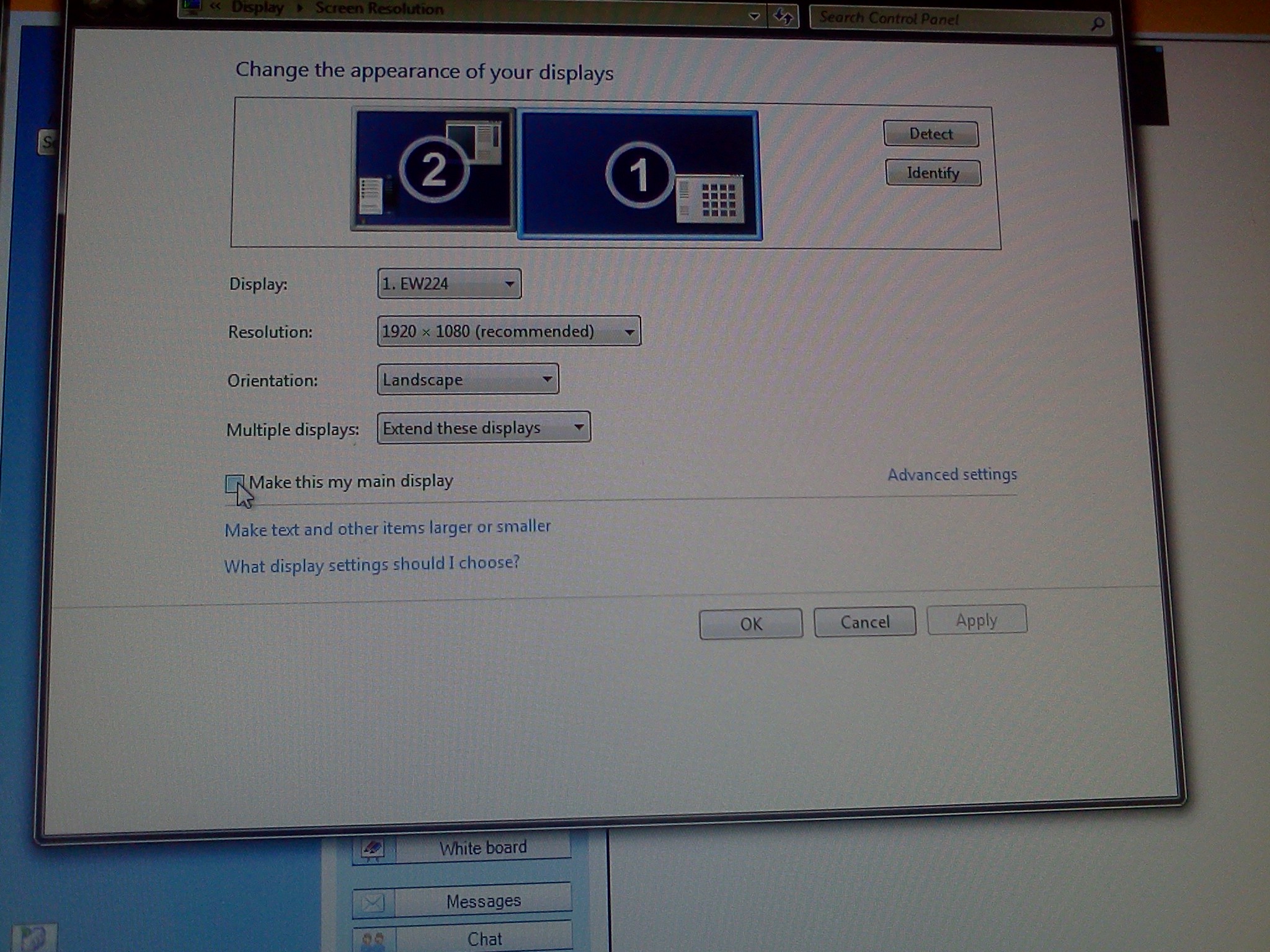
Sanako student lite recorder needs reconfiguration
2013/08/06
Leave a comment
- Because of a misconfiguration, students now always have to make these two changes (on teacher screen) from the default configuration (on student screen) before their Sanako will become operational:

- If you made the default, but wrong choice “Lite recorder”, you will get stuck with this:
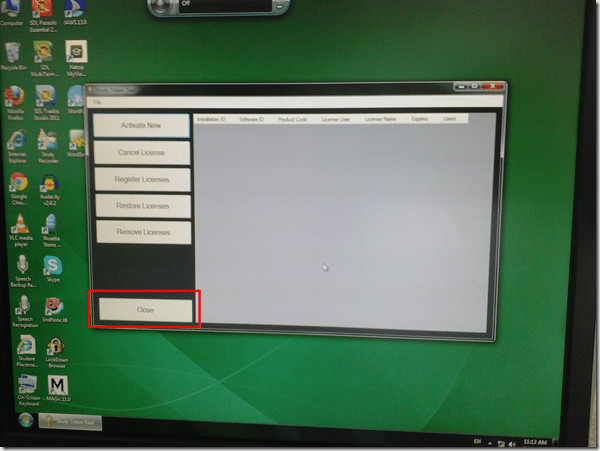
- To get out of it, click button:”close”and start over.


Saba Centra on startup automatically selects the "microphone" as recording device…
2013/05/03
Leave a comment
- … But we in the language lab use the (dual function microphone/line-in) "rear input" for our headsets (for ergonomic, health&safety and security reasons). Workaround here.
- Apparently this startup behavior cannot be changed within Saba Centra:
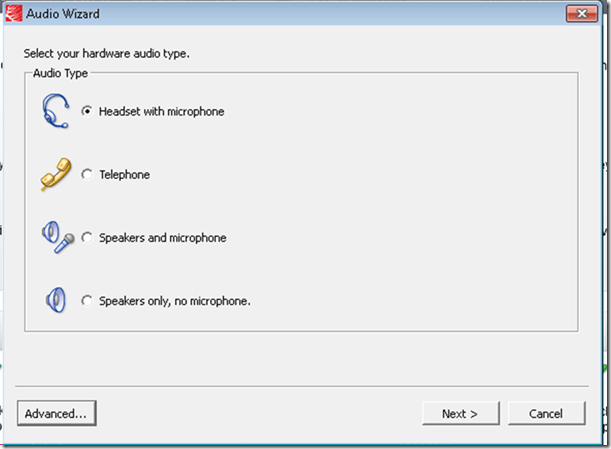
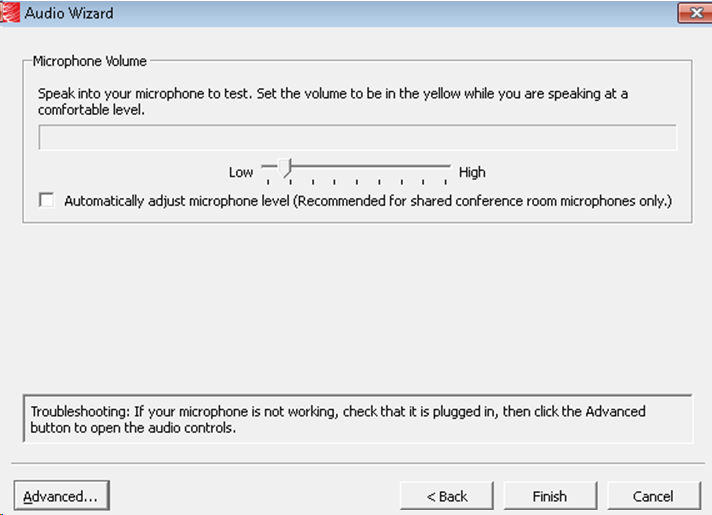
- Any startup will bring up the “Audio Wizard” asking users, even in a controlled lab environment, to configure their audio devices,
- and if users do (and choose what they have: headset), make wrong assumptions which audio plug to enable (“Microphone” front panel, even if your headset is plugged into the rear panel dual “line-in/microphone”)
- The workaround according to these easily Googled instructions is using the “Advanced” audio wizard options to override this “Audio Wizard” error, like so:
- “Re-open the Audio Wizard, go to the third screen and change your recording device in your “Recording Device” menu. Advance two slides and determine if you can hear your recorded voice. ”
- 1st screen:
- 3rd screen:
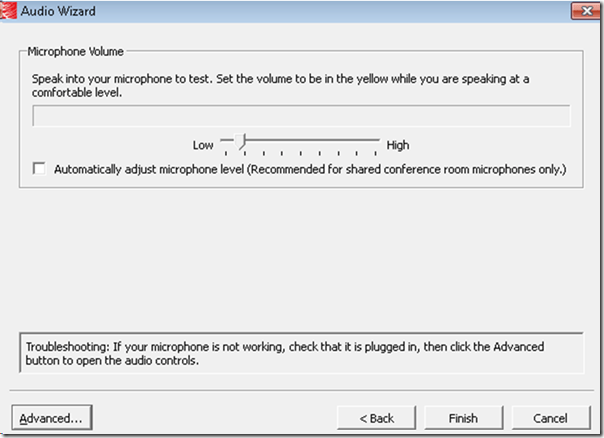
- note the instructions – Click “Advanced”. But it is easier to just use from the start our Workaround here.
- 1st screen:
- “Re-open the Audio Wizard, go to the third screen and change your recording device in your “Recording Device” menu. Advance two slides and determine if you can hear your recorded voice. ”
- The long-term solution is reconfigure your hardware and disable the front panel audio – but will Saba Centra understand you? Stay tuned…


Questions? Read the About. Or just ask me a quick Our Databases: Resources with calendars -- Language learning material Moodle Sites, multimedia files -- films


FAQs for LRC student staff or for students or for teachers. To search our FAQs, in the browser addressbar, add after "https://plagwitz.wordpress.com/feed/?tag=faqs+/" "+TAG1" (from tag cloud below) OR "https://plagwitz.wordpress.com/feed/tag=faqs
&category_name=" "CAT1" (from category hierarchy below). OR search both categories and tags, and multiple TAGs/CATs (connect with "," for OR-search, with "+" for AND-search), like so: https://plagwitz.wordpress.com/feed/?tag=TAG1+TAG2+...TAGn&category_name=CAT1
+CAT2+...CATn"
Other ways to find help
If you cannot find it here, look there: 5,500 Language-Learning Links and Programs for learning or teaching 150 languages
Shortcuts:Our Lists, Our Maps, LRC Staff Moodle Site,LRC Project Moodle Site, 49erexpress, UNCC Moodle, Student Recordings: s:claslcslrcsanakostudent
Learning usage samples: Sanako oral exam, Kaltura webcam presentation, Dictation with speech recognition, Sanako written exam, Chinese and Japanese interactive stroke-order practice
Test the Sanako Installer, Webbrowser Popup Konfigurator for XP, or Windows7, faster LRC TeacherPC Log-in Let MS facilitate diacritics writing by installing for you US-International keyboard layout
This is my personal blog (Google+). The views expressed on these pages are mine alone and not those of my employer. The information in this weblog is provided “AS IS” with no warranties, and confers no rights.
 Thomas' Work Space