Archive
How to display rows as percentage of grand total in Excel Pivot Tables
A few notes on Excel’s Version of OLAP cubes: Here is a note detailing the steps taken to display rows as percentage integers of the grand total.

Blackboard: Content System: Ancillary digital textbook material reuse (publish to course participants, roll-over between terms)
If you have a well administered language program, your admin should have uploaded all digital (text, audio, textbook and table of contents) materials that come with your textbook for convenient reuse between sections and terms into the Blackboard content system.
As a Blackboard course administrator, you can easily give all course participants access in 1 step (as course administrator, you can also access the audio materials during classes from the Blackboard content system directly).
Here is a video recording of a real-world walkthrough of this process – voice-over is in German, but Blackboard interface is in English: blackboard-content-system-finding-adding-existing-content-item-to-course-access-play.wmv
|
Start Time |
Topic |
|
0,0 |
overview of teaching and learning procedure |
|
0,1 |
course add item / content collection link |
|
1,30 |
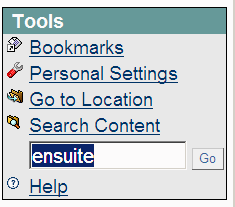
how to search for content. Remember: Search is your friend, if you have a consistent metadata system for your content (start with meaningful file names): |
|
3,15 |
hot to add permissions for other users |
|
5,3 |
add to course for for students |
|
5,4 |
listen to an example audio from course |
Once you have given course participants access to the audio materials, and you teach the course again next term, it is even easier to roll over the access: Just use the Copy link in the Blackboard Control Panel.
Face-to-face and beyond: Smart-board with digitized textbooks and classroom protocols, using MS_Remote Desktop, MS_Zoomit, wireless keyboard, network shares and the Blackboard: Content System
- This post strings together some already supported or freely available technologies for an effortless way to integrate technology into teaching and learning.
- I had lab assistants scan my textbook. I stored the scans on the teacher-only network share.
- In the classroom, I connect to my office computer with mstsc.
- you may have to change screen resolution in mstsc. You can save your connection settings on the teacher network share.
- To save precious class contact time, on my office computer, I have already opened and prepared the class outline and relevant textbook scan pages with the default windows viewer.
- Using zoomit, I can mark on the textbook scan pages for my students, and save the resulting pages, later easily (drag and drop all pages at once) store them in the content system or my students to review my notes.
- you may want to adjust the font size in zoomit options.
- this technique may also help with fading out document cameras which may, among other things, help with finding enough space to put.
Language Lab Web Portal, University of Michigan – Dearborn
For lack of even an LMS – which in post-secondary language lab environments in the US in the “noughties” commonly has had to double as CMS and Groupware -, the lab web portal in the post title had to fulfill many functions.
While the technically most advanced features probably was full text search against both database and file system (uploaded documents) – which I could relatively easily implement thanks to MS-SQL-Server and a limited number of database tables –, I liked best the collaborative building of a bank of language learning exercises using authentic materials, i.e. interactive websites from the target culture.
A few sample illustrations of the use in both language lab and affiliated computerized classrooms you can see here:

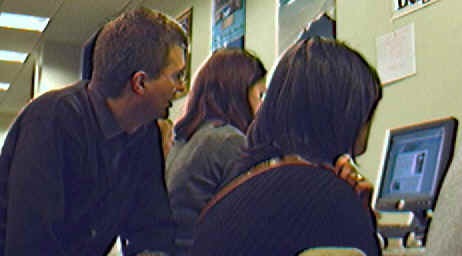


The list below links to a series screencasts of the Language Lab Web Portal that I made for training and demonstration purposes. They show the language lab web portal software in action:


MS-Office Communicator: Tips for using: Presence
No time for playing phone-tag (or “Phone-tag: Next generation”, aka email-tag)? “Presence” is your friend.
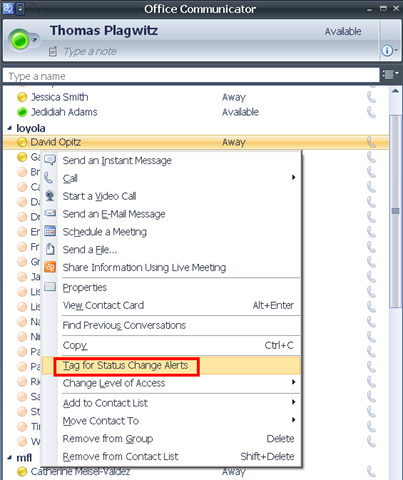
In Communicator, from your contact-list, right-click on a contact, choose “tag-for-status-change-alerts”.
From MS-Help: Tag a contact so you are notified when they are available: “Communicator can notify you of changes in a contact’s availability by displaying an alert whenever their presence status changes to Available or Offline. The alert shows the contact’s name, title, instant messaging address, and new presence status. You can click the alert to start an instant messaging session with the contact. Configuring Communicator to display this alert for a given contact is called tagging.”
Like in these screenshots:

Videoconferencing: Tandberg Conference-Me Test
While we initially ran into a glitch during the client install:
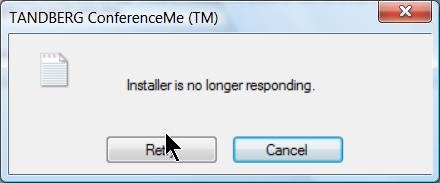
The application did seem to install correctly.
The video quality was acceptable even with low bandwidth settings. The application provides well-structured documentation as well as convenient interface, including through context menus:
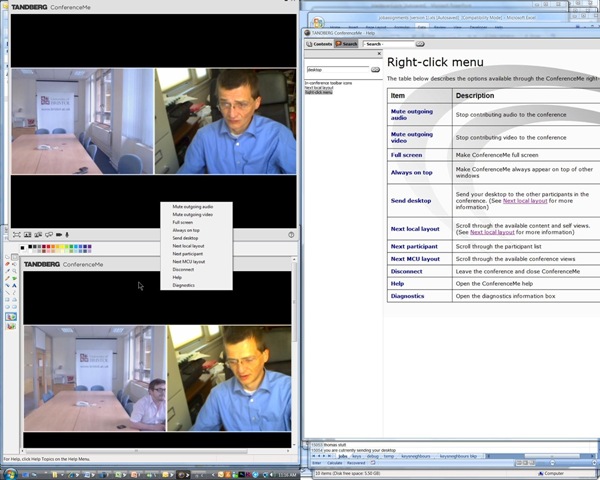
The diagnostic tools also seems strong:

Overall, Tandberg’s Conference-Me application looks like an attractive package.




Questions? Read the About. Or just ask me a quick Our Databases: Resources with calendars -- Language learning material Moodle Sites, multimedia files -- films


FAQs for LRC student staff or for students or for teachers. To search our FAQs, in the browser addressbar, add after "https://plagwitz.wordpress.com/feed/?tag=faqs+/" "+TAG1" (from tag cloud below) OR "https://plagwitz.wordpress.com/feed/tag=faqs
&category_name=" "CAT1" (from category hierarchy below). OR search both categories and tags, and multiple TAGs/CATs (connect with "," for OR-search, with "+" for AND-search), like so: https://plagwitz.wordpress.com/feed/?tag=TAG1+TAG2+...TAGn&category_name=CAT1
+CAT2+...CATn"
Other ways to find help
If you cannot find it here, look there: 5,500 Language-Learning Links and Programs for learning or teaching 150 languages
Shortcuts:Our Lists, Our Maps, LRC Staff Moodle Site,LRC Project Moodle Site, 49erexpress, UNCC Moodle, Student Recordings: s:claslcslrcsanakostudent
Learning usage samples: Sanako oral exam, Kaltura webcam presentation, Dictation with speech recognition, Sanako written exam, Chinese and Japanese interactive stroke-order practice
Test the Sanako Installer, Webbrowser Popup Konfigurator for XP, or Windows7, faster LRC TeacherPC Log-in Let MS facilitate diacritics writing by installing for you US-International keyboard layout
This is my personal blog (Google+). The views expressed on these pages are mine alone and not those of my employer. The information in this weblog is provided “AS IS” with no warranties, and confers no rights.
 Thomas' Work Space