Archive
Archive for the ‘e-languages’ Category
Sanako Study 1200 classroom map can now scroll to fit on small screens
2013/08/09
Leave a comment
- We are now on Sanako Study 1200 ver 7.
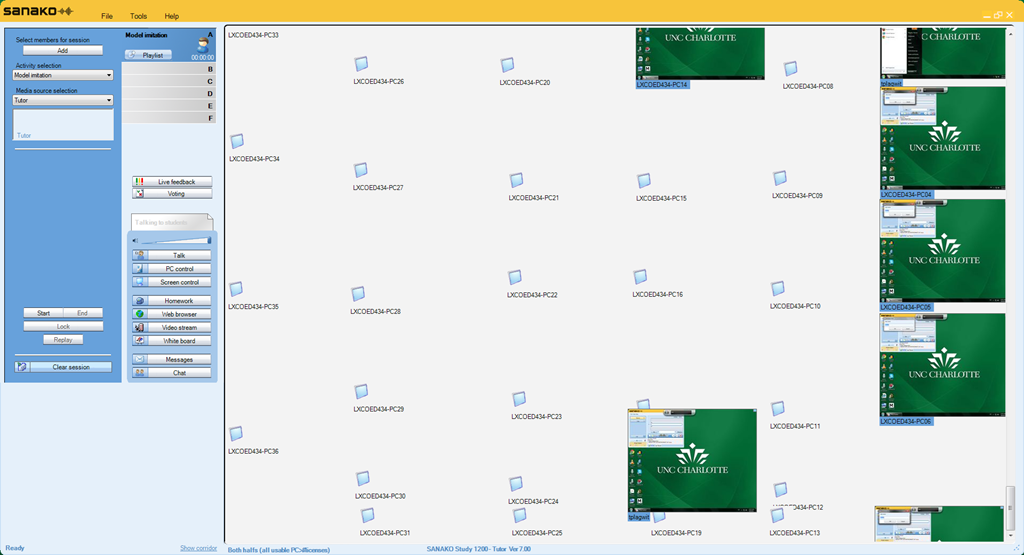
- As you can see in this thumbnail view (note the vertical scrollbar on the right), it does help,
-

-
but not enough. Here is why:
-
I can get it to scroll only vertically.
-
I can only marginally move the student icons off the map when I use the GUI (ctrl-shift drag&drop). Wondering whether I have to dig into the XML source to force an even wider layout…
Categories: e-languages, Presenter-Computer
classroom-layout, sanako-study-1200
Workaround for Sanako study 1200 tutor v7 window limitations
2013/08/06
Leave a comment
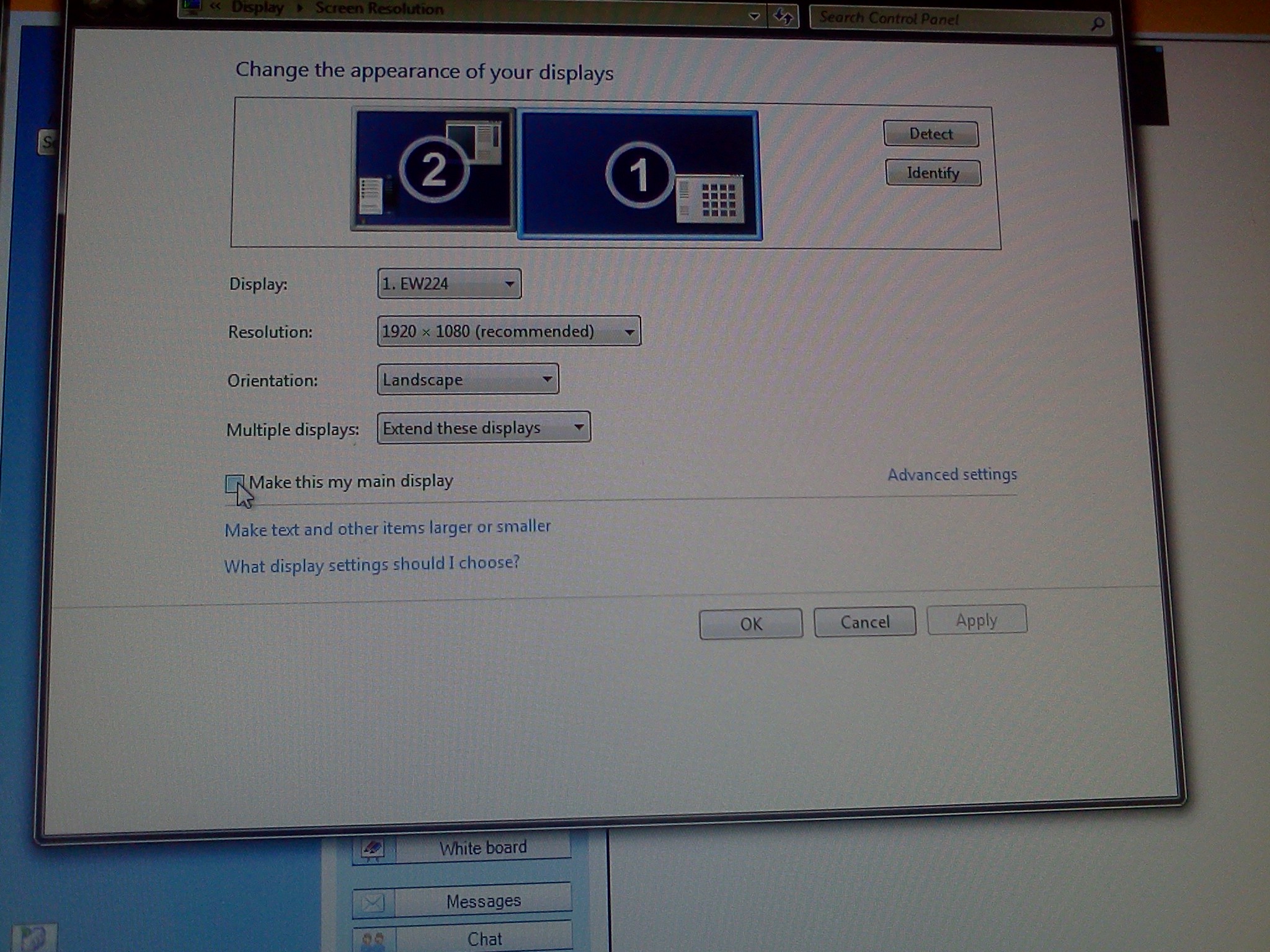
- Problem: Window maximizes only to size of,and location defaults to, primary screen. This is now on windows7.
- Workaround: make the screen whose size you desire the primary (and live with the side effects).
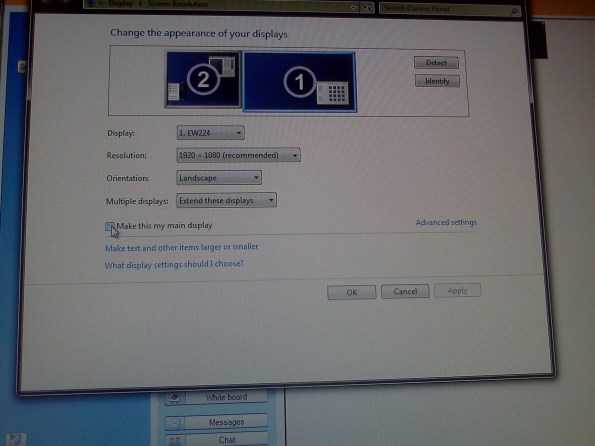
- Downside:
- Screencast recordings of instruction won’t work: Community Clips can only record the primary screen, which is not the screen displayed to students during regular teaching. Windows Media Encoder does not work with our non-standard dual screen configuration on Windows7.
How to fix exception: Sanako Graph Data not installed
2013/07/05
Leave a comment
- Problem: When trying to administer an oral exam, using model imitation, source: file, I could not, but rather I got this error
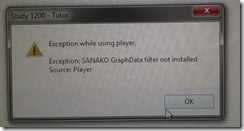
- Root: The same feature had worked in the morning – however, then the Sanakorecorder interfered with the Sanako tutor. Turned out that the Sanako tutor had been installed over a Sanako Student recorder which caused the tutor pc to connect to itself (distracting, also potentially a liability since it eats up licenses if not managed). In between morning and afternoon exam, the student recorder was uninstalled, but without the required functionality testing afterwards. So this exam had to become the test.
- Workaround: Reinstall the student recorder. We used the “test the Sanako installer” program on my home page to not delay the exam too much.

- Solution: do not install the Sanako tutor over a student installation in the first place.
- Either remove the Student recorder after imaging the teacher station with the student image,
- or better, image the PC without the added baseline task “Student recorder”.


Protected: How to configure the LangLabEmailer for your school, and share back
2013/06/07
Enter your password to view comments.
Categories: Arabic, assessments, assignments, audience-is-language-learning-center-manager, compiledcode, digital-audio-lab, e-languages, English, Farsi, French, German, Greek (modern), Hebrew, Hindi, Italian, Japanese, Latin, Mandarin, Polish, Portuguese, Russian, service-is-programming, Spanish, Speaking, Swahili, Writing, Yoruba
configuring, langlabemailer
How to get access to the LRC Sanako (teacher materials, student recordings) from your office or home PC
2013/05/15
1 comment
- Run the Sanako Installer (first meant for faculty offices only, but now faculty also want to have access from home, so I added that functionality).
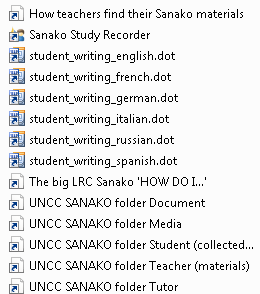
- On your office and or home PC, you get a folder “SANAKO” on your desktop. This folder will contain all you need to access student assessments from past classes or upload learning materials for future classes:
- In the office:
 : It is sufficient to click the additional “UNCC…” links at the bottom of the list .
 - At home:
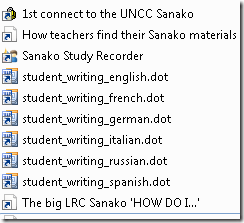
- Click “1st connect…” and log into the campus.
- Click “How teachers find…”, log in with the blog password, open the PDF, click the links in the PDF to the Sanako off-campus folders, log in again with the network credentials as shown in the PDF (sigh…).
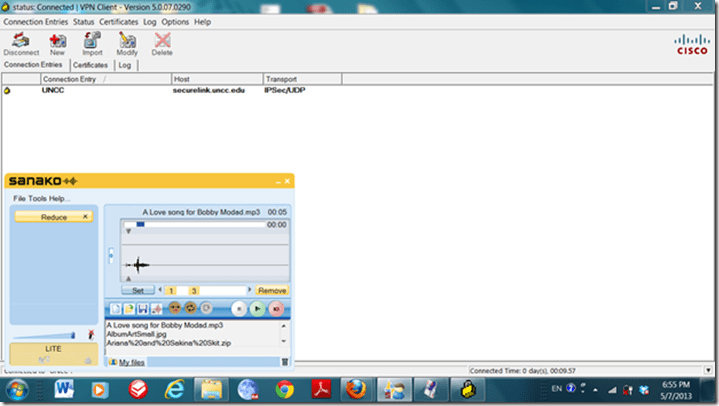
- EXAMPLE: Here you can see on a faculty home PC:
- the sanako recorder and campus connector:
- the SANAKO desktop folder shortcuts:

- You get the Word templates only if you can use them (have WORD installed – remember you can install MS-Office with your free faculty license from here).
- (No, you won’t get the “UNCC…”shortcuts at home, we simplified since.)
- the sanako recorder and campus connector:
- Both office and home:
- Drag any audio files into the Sanako study recorder window (further reading on why the Sanako study recorder is useful for teachers).
- Need to record? configure your microphone in Sanako study recorder, menu Tools.
- In the office:


Categories: audience-is-teachers, documentation, e-infrastructure, e-languages, faculty-offices, Institution-is-University-of-North-Carolina-Charlotte, service-is-configuring-learning-tools, service-is-it-managing, service-is-programming
autoit, iallt2013, MS-Word, sanako-study-1200, sanakorecorderinstall.exe, student.exe, vpn
How NLP and IR and LG are used by spammers now
2013/04/27
Leave a comment

You need to know a little bit about “yours truly” to find this spam comment interesting (which, if you follow the links, eventually leads to a discount wrist watches site).
Categories: e-languages, Learning-logs
information-retrieval, language-generation, nlp, personalization, spam


Questions? Read the About. Or just ask me a quick Our Databases: Resources with calendars -- Language learning material Moodle Sites, multimedia files -- films


FAQs for LRC student staff or for students or for teachers. To search our FAQs, in the browser addressbar, add after "https://plagwitz.wordpress.com/feed/?tag=faqs+/" "+TAG1" (from tag cloud below) OR "https://plagwitz.wordpress.com/feed/tag=faqs
&category_name=" "CAT1" (from category hierarchy below). OR search both categories and tags, and multiple TAGs/CATs (connect with "," for OR-search, with "+" for AND-search), like so: https://plagwitz.wordpress.com/feed/?tag=TAG1+TAG2+...TAGn&category_name=CAT1
+CAT2+...CATn"
Other ways to find help
If you cannot find it here, look there: 5,500 Language-Learning Links and Programs for learning or teaching 150 languages
Shortcuts:Our Lists, Our Maps, LRC Staff Moodle Site,LRC Project Moodle Site, 49erexpress, UNCC Moodle, Student Recordings: s:claslcslrcsanakostudent
Learning usage samples: Sanako oral exam, Kaltura webcam presentation, Dictation with speech recognition, Sanako written exam, Chinese and Japanese interactive stroke-order practice
Test the Sanako Installer, Webbrowser Popup Konfigurator for XP, or Windows7, faster LRC TeacherPC Log-in Let MS facilitate diacritics writing by installing for you US-International keyboard layout
This is my personal blog (Google+). The views expressed on these pages are mine alone and not those of my employer. The information in this weblog is provided “AS IS” with no warranties, and confers no rights.
 Thomas' Work Space