Archive
Archive for the ‘Yoruba’ Category
New keyboard shortcuts for diacritics on LRC Teacher PC
2013/01/23
Leave a comment
- The US international keyboard layout that has come with MS-Windows for many years (though – except in the LRC – not set as default, you need to enable it in the control panel) greatly facilitates typing of characters for most languages that use Roman script with common diacritical marks, but does not cover Pinyin and similar diacritical marks.
- Carly from Carleton, as avid a language teacher as a technologist, had the great idea to extend Microsoft’s US-international keyboard so as to include all the Pinyin tone marks (and other accents useful for linguists). Here is the upshot, extracted from her instructions, but excluding what (either shortcut or (use of common accents within Pinyin is now covered also below) purpose) has not changed from the shortcuts of the non-extended US-international keyboard that used to be the default in the LRC:
-
What you want Which keys you press (before comma is “dead” key = no result until after next key) Example acute accent, pinyin 2nd tone
‘(=apostrophe), vowel
á é í ó ú
grave accent, pinyin 4th tone
`(=grave), vowel
à è ì ò ù
macron accent, pinyin 1st tone
hyphen, vowel
ā ē ī ō ū
pinyin 3rd tone
%(=shift+5), vowel
e.g. ǎ ě ǐ ǒ ǔ
ü with pinyin tones
Accent, double-quote
e.g. ǖ ǘ ǚ ǜ
letter with dot below
; (=shift+period), letter
e.g.

letter with double acute
: (=shift+;) , o or u
ő, ű, Ő, Ű
- We are offering the extended US-international keyboard this as an optional keyboard on the teacher and student PCs with Windows 7.
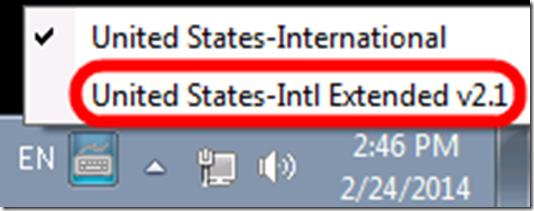
- To select the new keyboard layout, use the language toolbar, click on 2nd option:
- To explore the new keyboard layout use the Windows On-screen keyboard which will let you peek ahead after your pressed a dead key.
- To bypass a special dead key (= get the normal behavior of the key), press SPACE after it.

Categories: audience-is-teachers, e-languages, English, French, German, Institution-is-University-of-North-Carolina-Charlotte, Italian, Operating-system, Polish, Portuguese, Presenter-Computer, Russian, service-is-applying-learning-tools, service-is-configuring-learning-tools, Spanish, Student-Computers, Swahili, Writing, Yoruba
extended, foreign-language-character-input, ms-windows, pinyin, us-international
How students can record their picture or photo presentations with PowerPoint 2010
2013/01/17
Leave a comment
- The screencast shows the necessary steps:

- inserting a photo album,
- presenting while recording the presentation with narration
- saving as a show (.ppsx) – make sure you have ribbon:”Slide show”/ “Play narrations” checked:

- to prepare an assignment for a Moodle single-file-upload (How a student takes a Moodle Simple file upload assignment).

Categories: Arabic, assignments, audience-is-students, documentation, e-languages, English, Farsi, French, German, Greek (modern), Hebrew, Hindi, Italian, Japanese, Korean, Latin, Mandarin, multimedia-recording, office-software, Polish, Portuguese, recording-software, Russian, Screencasts, service-is-applying-learning-tools, Spanish, Speaking, Swahili, Yoruba
2010, ms-powerpoint, narration
Ipatrainer.com community provides free phonetic transcription tables with sounds and exercises
2012/10/11
Leave a comment
- This is looking good, but …
- There seem to be some coding issues, I am getting server errors 500 after registering.
- The site is advertisement-based.
- There is no content beyond the IPA sound which would put these bare basics in phonetics into language learning context and practice.
- Site Contains:
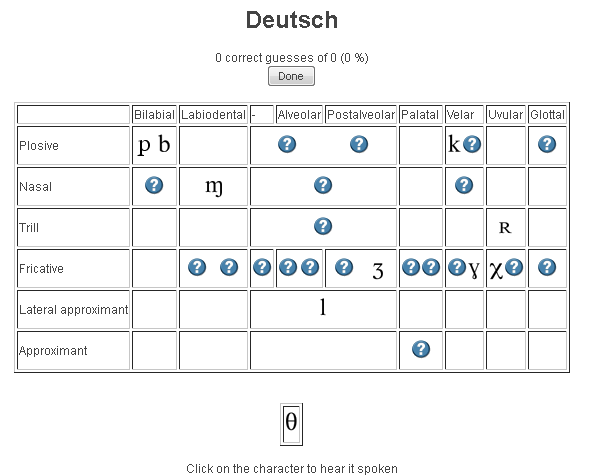
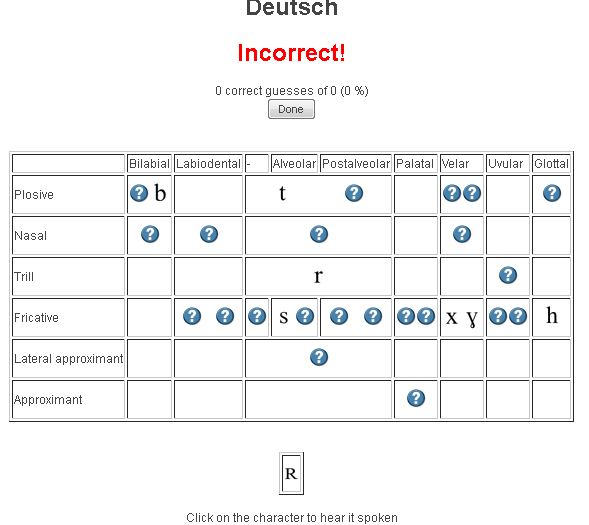
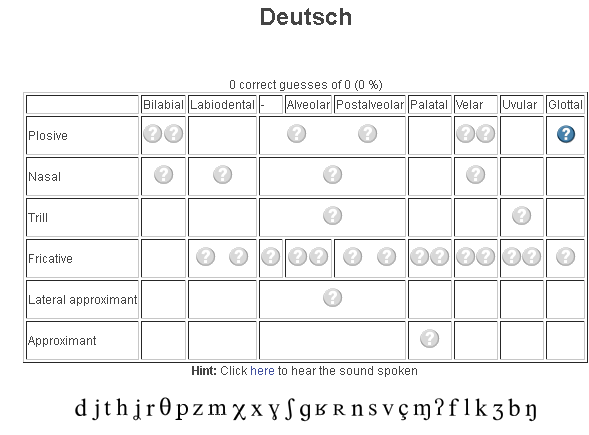
- tables for teaching your language – complete with phonetic symbols and sound samples

- and exercises for your students (e.g. Memory games, Identifying characters


 , places,
  and sounds.
- tables for teaching your language – complete with phonetic symbols and sound samples
- You can
- Create your own, after free registration,
- or assign one of the ones from many other teachers.
- Most popular ones are listed here: http://www.ipatrainer.com/user/site/?language=, and if the use numbers are accurate, there must be really some serious IPA learning going on here…
- I see no way to browse other tables without having the username of the teacher who created and assigned it.
- There is also a phonetic writer.
- And a user forum, in its infancy.



Categories: Arabic, audience-is-students, audience-is-teachers, e-languages, English, Farsi, French, German, Greek (modern), Hebrew, Hindi, Italian, Japanese, Korean, Latin, learning-materials, Mandarin, Polish, Portuguese, Russian, service-is-evaluating-learning-tools, Spanish, Speaking, Swahili, websites, Yoruba
ipa, phonetics
Immerse yourself into your language of study by switching the user interface language on LRC PCs
2012/08/17
Leave a comment
- Ever imagine yourself studying or working in an e.g. Spanish– Japanese- or Chinese- speaking country? Then you will likely find yourself in front of a computer display that is in that language – what if you could get a sneak preview before you go?
- You can now switch the interface language of the LRC Windows 7 computers (including Internet Explorer and MS-Office (note that you have to change the editing language separately) to your language of study (How?).
- All non-classical languages studied here are supported:
Language Native name Arabic العربية Chinese (Simplified) 中文(简体) Chinese (Traditional) 中文 (繁體) English English French français German Deutsch Greek Ελληνικά Hebrew עברית Italian italiano Japanese 日本語 Korean 한국어 Polish polski Portuguese (Brazil) Português Portuguese (Portugal) português Russian Русский Spanish español - Some languages, however, come only with the limited support of a MS Language Interface Pack :
-
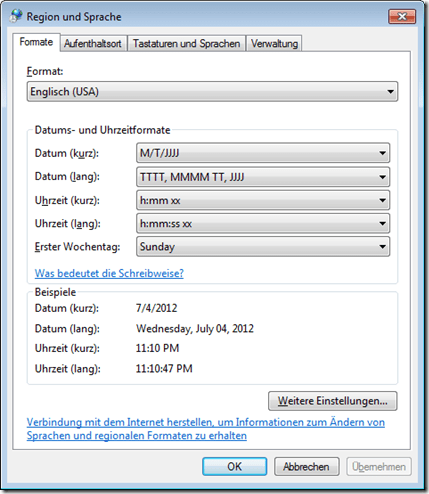
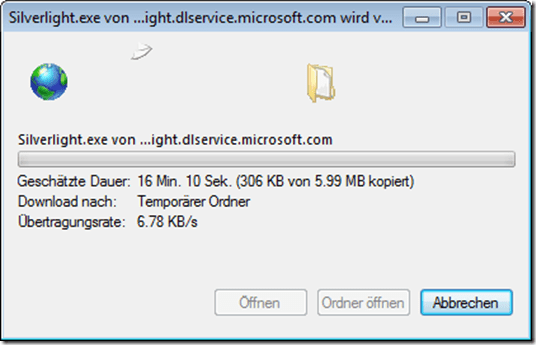
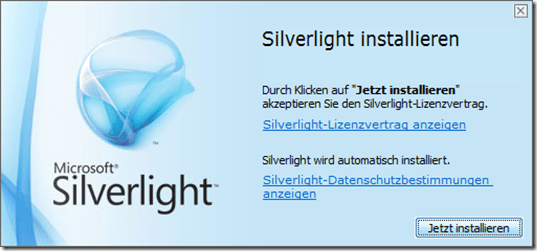
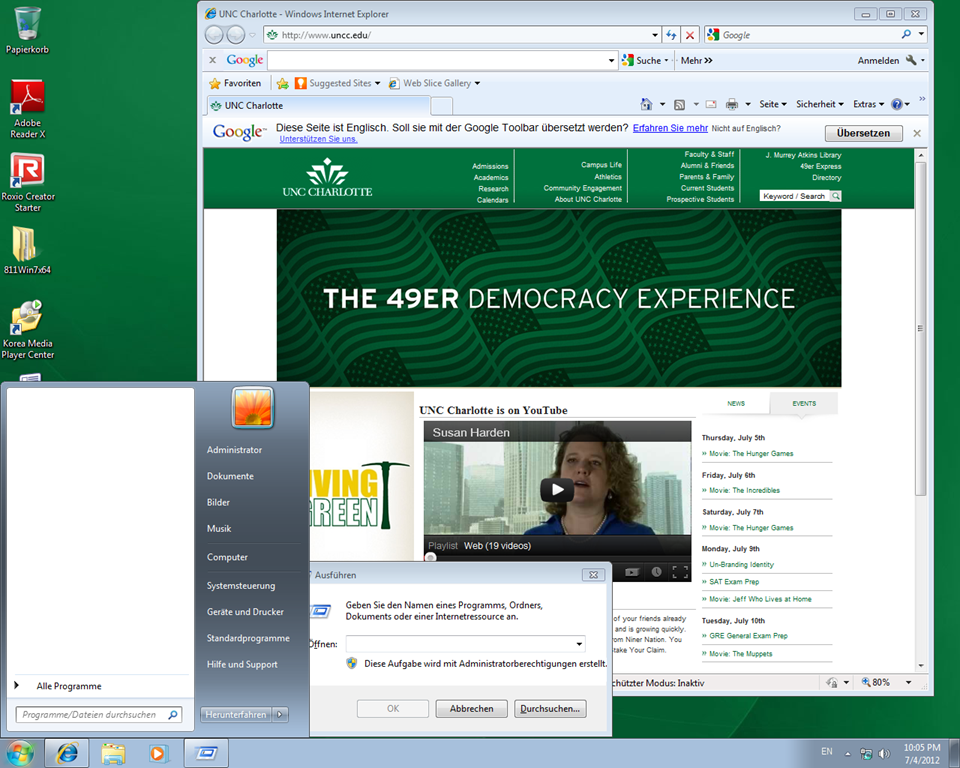
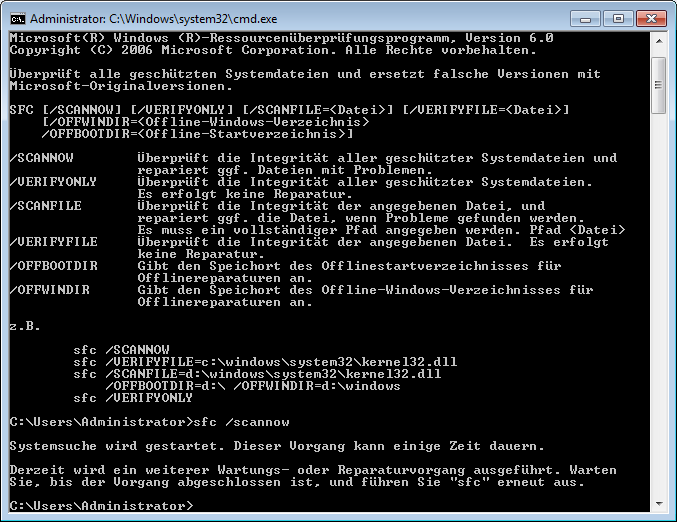
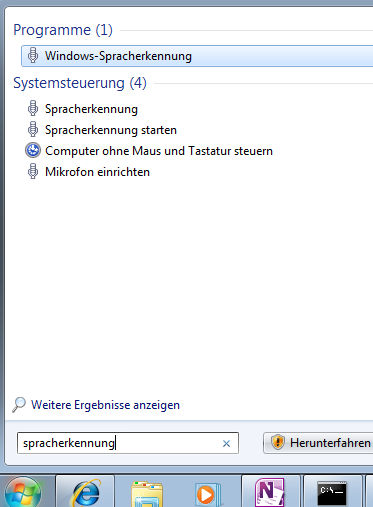
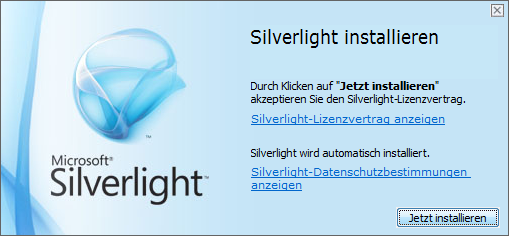
Hindi हिंदी KiSwahili Kiswahili Persian (Farsi) فارسی Yoruba ede Yorùbá - Below are examples (for German) what you get when you switch the operating system language:





Categories: Arabic, audience-is-students, audience-is-teachers, Farsi, French, German, Greek (modern), Hindi, Italian, Japanese, Korean, Mandarin, office-software, Operating-system, Polish, Portuguese, Reading, Russian, Spanish, Student-Computers, Swahili, Yoruba
language-interface-packs, language-packs, windows-7
Foreign language support in LRC MS-Office 2010
2012/08/17
Leave a comment
- A full set of proofing tools is available, thanks to MS-Office Language Packs installed on the Windows 7 computers, for all non-classical languages studied here:
-
Language Native name Arabic العربية Chinese (Simplified) 中文(简体) Chinese (Traditional) 中文 (繁體) English English French français German Deutsch Greek Ελληνικά Hebrew עברית Hindi हिंदी Italian italiano Japanese 日本語 Korean 한국어 Polish polski Portuguese (Brazil) Português Portuguese (Portugal) português Russian Русский Spanish español - Some languages have only limited features provided by the MS-Language Interface Pack:
-
KiSwahili Kiswahili Persian (Farsi) فارسی Yoruba ede Yorùbá
Categories: Arabic, audience-is-students, audience-is-teachers, English, Farsi, French, German, Greek (modern), Hindi, Italian, Japanese, Korean, office-software, Polish, Portuguese, Russian, Spanish, Swahili, Writing, Yoruba
2010, language-interface-packs, language-packs, ms-office


Questions? Read the About. Or just ask me a quick Our Databases: Resources with calendars -- Language learning material Moodle Sites, multimedia files -- films


FAQs for LRC student staff or for students or for teachers. To search our FAQs, in the browser addressbar, add after "https://plagwitz.wordpress.com/feed/?tag=faqs+/" "+TAG1" (from tag cloud below) OR "https://plagwitz.wordpress.com/feed/tag=faqs
&category_name=" "CAT1" (from category hierarchy below). OR search both categories and tags, and multiple TAGs/CATs (connect with "," for OR-search, with "+" for AND-search), like so: https://plagwitz.wordpress.com/feed/?tag=TAG1+TAG2+...TAGn&category_name=CAT1
+CAT2+...CATn"
Other ways to find help
If you cannot find it here, look there: 5,500 Language-Learning Links and Programs for learning or teaching 150 languages
Shortcuts:Our Lists, Our Maps, LRC Staff Moodle Site,LRC Project Moodle Site, 49erexpress, UNCC Moodle, Student Recordings: s:claslcslrcsanakostudent
Learning usage samples: Sanako oral exam, Kaltura webcam presentation, Dictation with speech recognition, Sanako written exam, Chinese and Japanese interactive stroke-order practice
Test the Sanako Installer, Webbrowser Popup Konfigurator for XP, or Windows7, faster LRC TeacherPC Log-in Let MS facilitate diacritics writing by installing for you US-International keyboard layout
This is my personal blog (Google+). The views expressed on these pages are mine alone and not those of my employer. The information in this weblog is provided “AS IS” with no warranties, and confers no rights.
 Thomas' Work Space