Archive
LRC learning resources Moodle metacourses: Our list
UPDATE: The LRC Metacourses are being rolled over to MOODLE2. Metacourses having only an OldID are currently still unavailable in Moodle2. And the student enrollment needs to be updated manually until the end of add/drop. On the upside, teachers do not need to make course available to students anymore. The LRC can do this (Metacourses for languages saying #Ref are waiting to be rolled over, tell me if you need them)..
The following LRC Moodle metacourses for teaching materials are available to LCS and ELTI (including LRC-Resource with training materials for using language learning technology in and outside of the LRC, as well as for independent study languages).
The naming scheme follows the course abbreviations taught in the departments that the LRC supports:
These courses appear in the Training branch of the Moodle-courses tree-menu on the left (for all study programs you teach in):

The metacourse for a language (or field of study) is accessible to all students studying this language during the term of their study.
How students can record their picture or photo presentations with PowerPoint 2010
- The screencast shows the necessary steps:

- inserting a photo album,
- presenting while recording the presentation with narration
- saving as a show (.ppsx) – make sure you have ribbon:”Slide show”/ “Play narrations” checked:

- to prepare an assignment for a Moodle single-file-upload (How a student takes a Moodle Simple file upload assignment).

Ipatrainer.com community provides free phonetic transcription tables with sounds and exercises
- This is looking good, but …
- There seem to be some coding issues, I am getting server errors 500 after registering.
- The site is advertisement-based.
- There is no content beyond the IPA sound which would put these bare basics in phonetics into language learning context and practice.
- Site Contains:
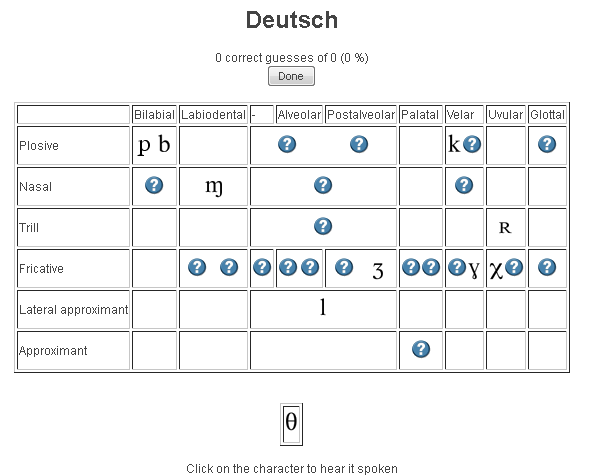
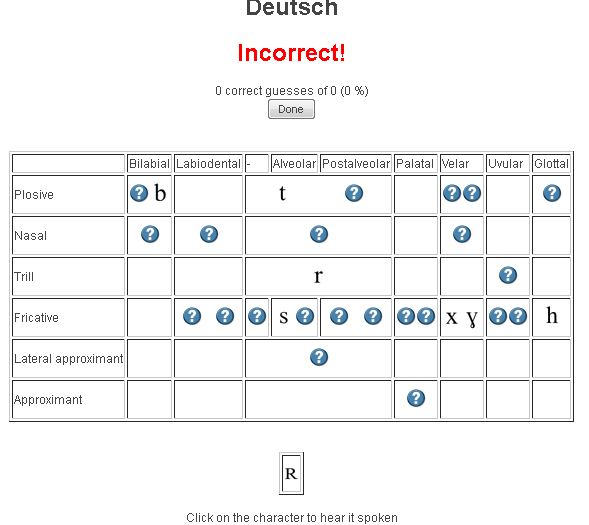
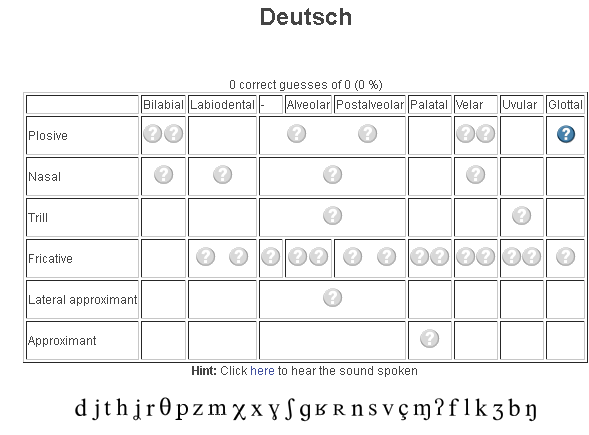
- tables for teaching your language – complete with phonetic symbols and sound samples

- and exercises for your students (e.g. Memory games, Identifying characters


 , places,
  and sounds.
- tables for teaching your language – complete with phonetic symbols and sound samples
- You can
- Create your own, after free registration,
- or assign one of the ones from many other teachers.
- Most popular ones are listed here: http://www.ipatrainer.com/user/site/?language=, and if the use numbers are accurate, there must be really some serious IPA learning going on here…
- I see no way to browse other tables without having the username of the teacher who created and assigned it.
- There is also a phonetic writer.
- And a user forum, in its infancy.



Character Input Methods for SLA (Western)
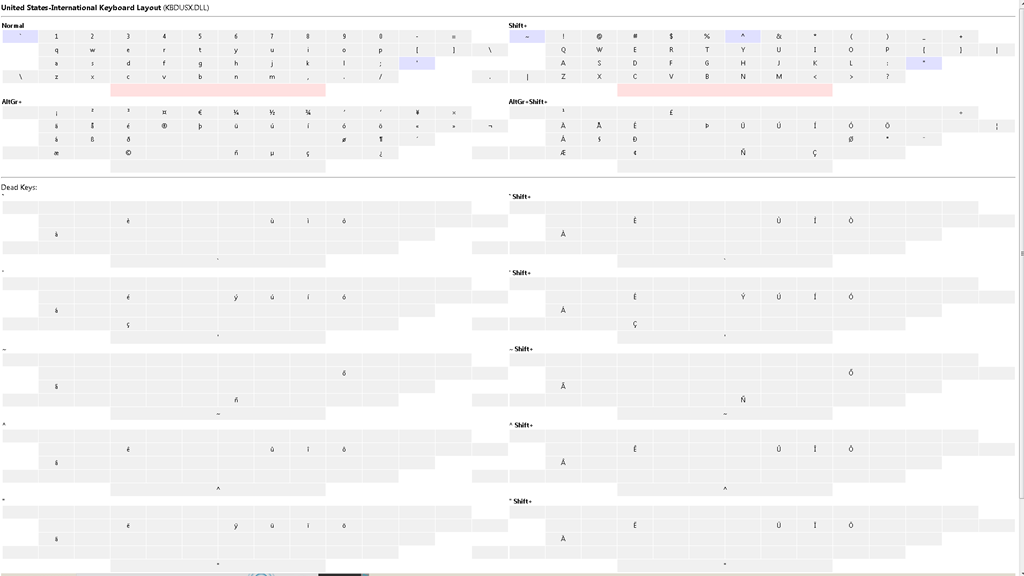
For studying (typing) Western Languages (= need for diacritics only; whether you have a US keyboard hardware or UK which is pretty similar), we recommend the MS Windows US International Keyboard layout which is based on “dead keys”.
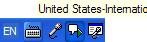
Currently installed in the LLC are the Language Bar (floating on top of screen or accessible from the taskbar) with these keyboard layouts:
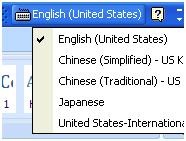
Keyboard layout settings are application/window specific, and “US” (non-international) is still the default for new applications/windows, so prepare to switch after you start a new application;
There are keyboard shortcuts for switching, however, “Key settings”: “switch between input languages” , using LEFT ALT + SHIFT, does not work. Workaround: use the language bar for switching:
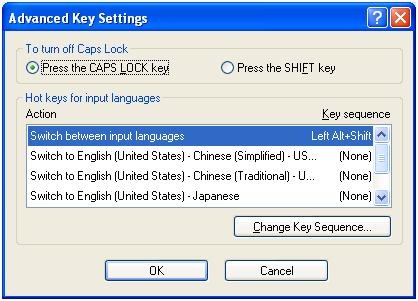
Windows keyboard layout settings can be temperamental – if you find you cannot switch to a certain layout anymore, you may have to restart the computer.
Use the following keyboard shortcuts to enter diacritics more easily:
|
Press (together, then release) |
then press |
Example Result |
|
` (accent grave) |
any letter that can have this accent, e.g. "a”, also cedilla ç |
à |
|
‘ (apostrophe) |
á |
|
|
^ (caret)- |
â |
|
|
~ (tilde) |
ã |
|
|
” (double quotation marks) |
ä |
|
|
CTRL+& |
Z or z |
æ |
|
rightALT+ |
X or x |
œ |
|
rightAlt+n |
|
ñ |
|
ALT+CTRL+? |
|
¿ |
|
rightAlt+? |
|
|
|
ALT+CTRL+! |
|
¡ |
|
rightAlt+1 |
|
|
|
rightAlt+s |
S |
ß |
To access the original, now dead keys, press space bar after pressing the dead key.
|
Modifiers(blue)/Layout |
Note the new modifier = “dead” keys, indicated by light blue color (click to enlarge) |
|
Normal |
|
|
|
|
|
Shift |
|
|
|
US International |
|
|
|
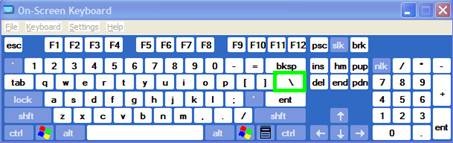
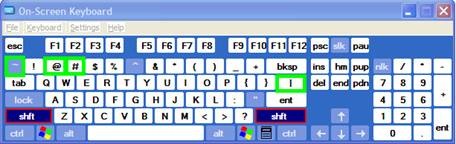
Screencast of US International in action here: deadkeys.wmv
Interactive Demo of installation procedure (personal computers outside of the LLC) here: keyboard_usinternational.swf
Planned improvements:
- Use LEFT ALT+Shift to switch to (Software) “Keyboard Layout” “United-States International”.
- Use other keyboard short cuts to access a desired keyboard layout directly
- Dock the “Language Bar” in the Taskbar, then hover over it to make sure you selected the proper “Keyboard Layout”.
· 


Questions? Read the About. Or just ask me a quick Our Databases: Resources with calendars -- Language learning material Moodle Sites, multimedia files -- films


FAQs for LRC student staff or for students or for teachers. To search our FAQs, in the browser addressbar, add after "https://plagwitz.wordpress.com/feed/?tag=faqs+/" "+TAG1" (from tag cloud below) OR "https://plagwitz.wordpress.com/feed/tag=faqs
&category_name=" "CAT1" (from category hierarchy below). OR search both categories and tags, and multiple TAGs/CATs (connect with "," for OR-search, with "+" for AND-search), like so: https://plagwitz.wordpress.com/feed/?tag=TAG1+TAG2+...TAGn&category_name=CAT1
+CAT2+...CATn"
Other ways to find help
If you cannot find it here, look there: 5,500 Language-Learning Links and Programs for learning or teaching 150 languages
Shortcuts:Our Lists, Our Maps, LRC Staff Moodle Site,LRC Project Moodle Site, 49erexpress, UNCC Moodle, Student Recordings: s:claslcslrcsanakostudent
Learning usage samples: Sanako oral exam, Kaltura webcam presentation, Dictation with speech recognition, Sanako written exam, Chinese and Japanese interactive stroke-order practice
Test the Sanako Installer, Webbrowser Popup Konfigurator for XP, or Windows7, faster LRC TeacherPC Log-in Let MS facilitate diacritics writing by installing for you US-International keyboard layout
This is my personal blog (Google+). The views expressed on these pages are mine alone and not those of my employer. The information in this weblog is provided “AS IS” with no warranties, and confers no rights.
 Thomas' Work Space