Archive
Archive for the ‘4-skills’ Category
How to use Google translate for writing Cyrillic letters with a western keyboard, pronunciation help, and text-to-speech
2012/02/16
Leave a comment
Go to Google translate and do like so. Useful for learning, as well as typing when teaching.
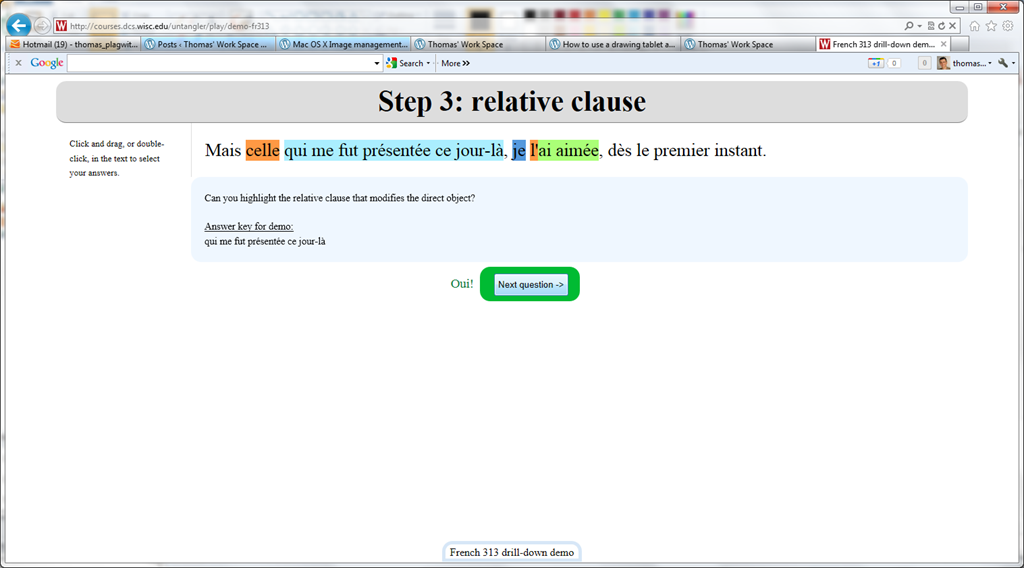
Nice Syntax highlighter tool from wisc.edu @ Madison
2012/02/10
Leave a comment
-
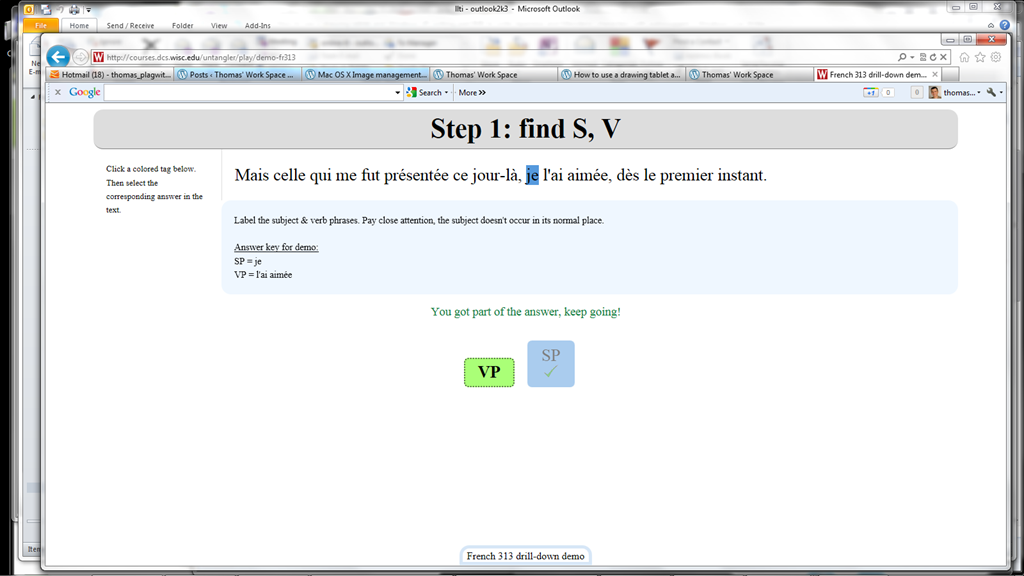
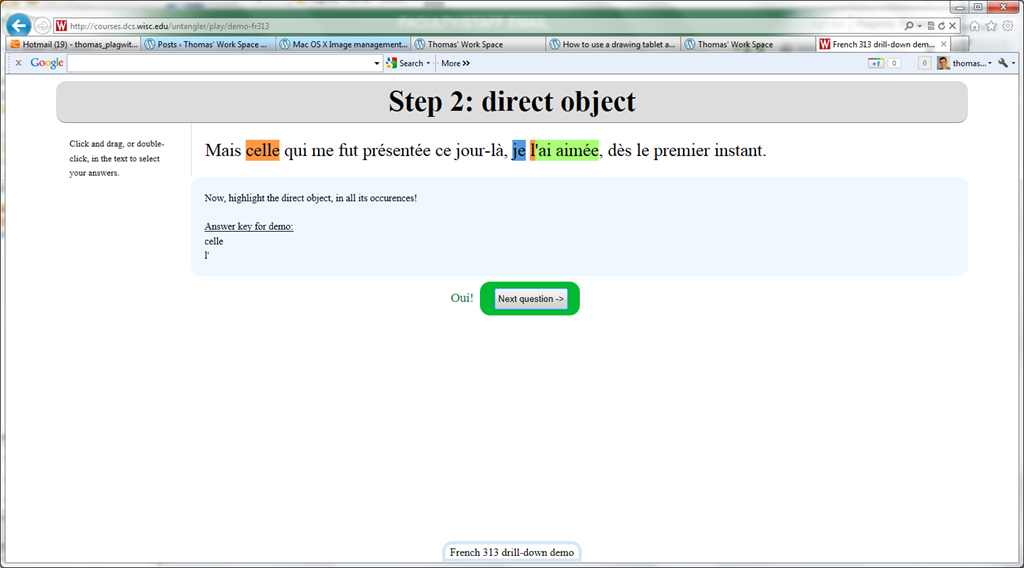
Wish my Latin teacher at home would have had such a nice tool when he analyzed the “Ante mare et terras et quod tegit omnia caelum / unus erat toto naturae vultus in orbe / quem dixere chaos”, he had only me:

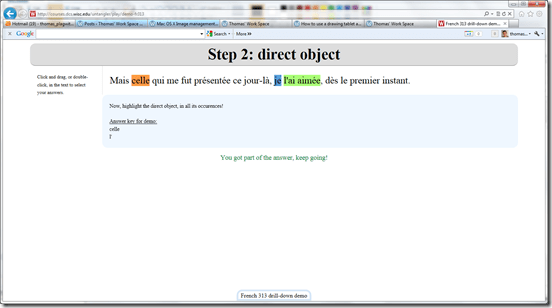

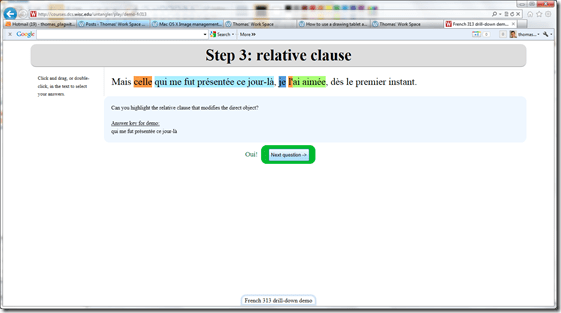

- Now how could such exercise creation made more automated by having it accept the output of NLP tools like Treetagger?


How to use a drawing tablet and Windows XP writing pad IME to write Japanese and Mandarin characters with autosuggest
2012/02/04
2 comments
- Our small group work spaces each now have a Wacom Bamboo drawing tablet installed.
- You can use these tablets in conjunction with the Windows XP writing pad IME to input Mandarin/Kanji character strokes and receive autosuggest options you can pick you character from which make not only writing faster, but also reward you for remembering your characters, expose you to more and help you identify the correct one from a list of options.
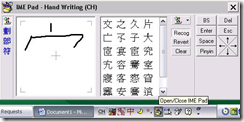
- Here is what the Windows XP writing pad IME and Wacom tablet looks like in action:
 (behind the pen: our Japanese tutor).
 - Here is how to access Windows XP Japanese IME keyboard and handwriting:
- Open the application you want to write in, e.g. MS Word (the language input option is specific to the current window and defaults to”English-US international” in the LRC if you open a new window).
- In the taskbar, in the language toolbar section, select Japanese or Chinese or Korean.
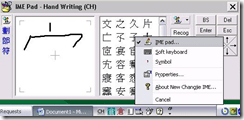
- If only the language identifier is showing in the language toolbar, right-click on it and choose “Show additional icons”
- Select as input method for the chosen language from icon “Options” or “Tools”” , the “IME pad” / “Handwriting”
- Prerequisites
- you need to have the handwriting IME installed for Japanese or Chinese or Korean in Control Panel / Regional and Language Options / Text Input, and East Asian language support).
- For simplified Chinese, the IME Pad may not be checked to be displayed by default. Access the Tools icon menu to check it.
- For both simplified and traditional Chinese, if checked, the IME Pad becomes a separate top-level ion in the language bar.
- Some screenshots may help:




How a teacher creates a Moodle file upload assignment for writing
2012/01/30
1 comment
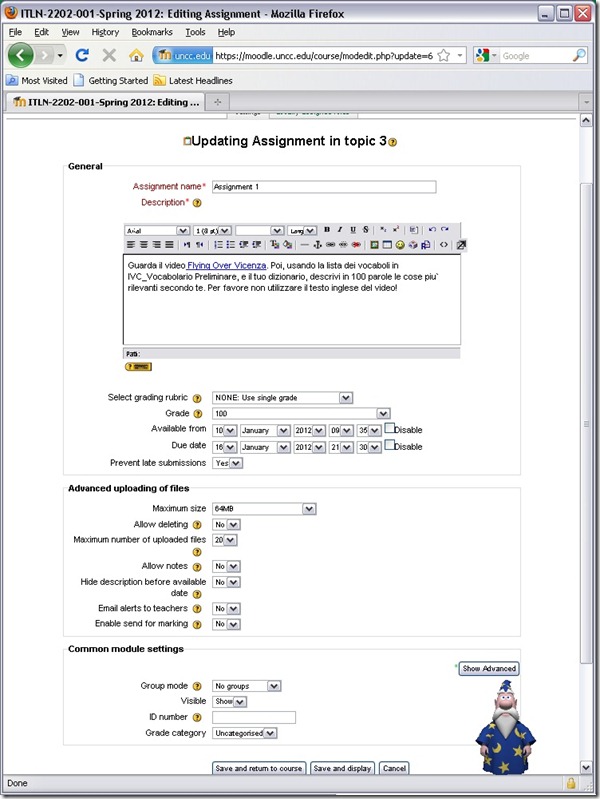
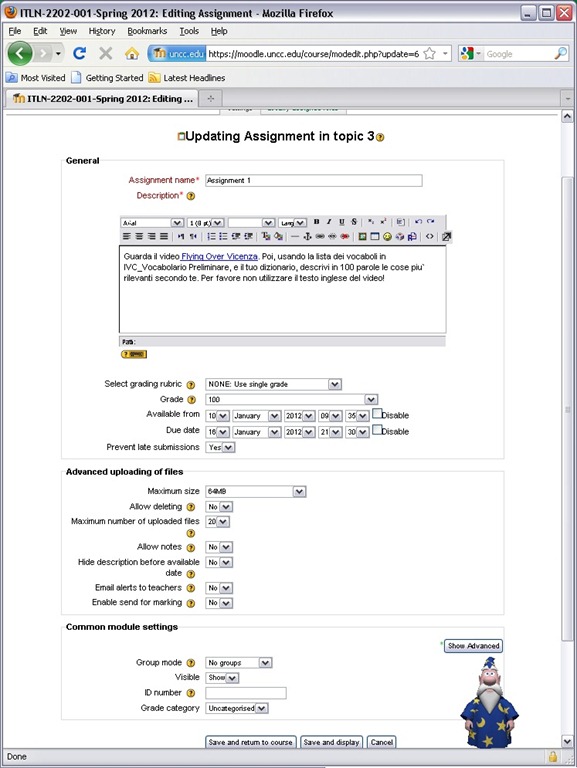
- In your Moodle course, turn editing on, choose Assignment: Advanced upload of files (required for response file from teacher).
- Provide name and instructions. Choose the desired options (uploading one file is enough):
- A gradebook column will be automatically created, and will be initially empty.

- Instruct your students how to take the MS-Word upload assignment, and when (if you leave the default availability/due date on, the assignment will automatically appear in their Moodle Calendar, and can appear in their Ninermail calendar).

How a student uses the Sanako Recorder Voice Insert mode for Moodle comparative recording exercises
2012/01/25
2 comments
- to load a file
- from Moodle:
- Find your assignment with the model audio file, presumably in your Moodle course.
- download the model audio file
- open the Sanako Student Recorder (introduction).
- go to menu: file / open, and open the file you downloaded
- from student recorder playlist: double-click the file.
- from Moodle:
- enable voice insert:
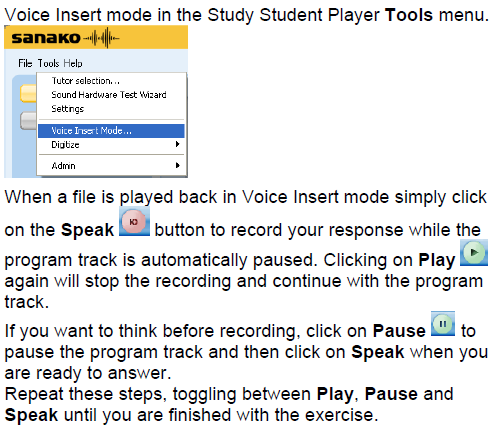
- To activate voice insert (which is a toggle that changes the behavior of the other buttons)
- either go to tools/ voice insert mode
- or click the voice insert button
 (darker shade of brown = OFF; tooltip should say “Toggle Voice Insert OFF”, meaning: it is ON now)
- To activate voice insert (which is a toggle that changes the behavior of the other buttons)
- press the green play button to listen until you reach the point (your teacher may have inserted a pause or aural cue) where you can repeat or respond.
- Then click the red speak-button
 to repeat after/respond to the source/teacher
 - When you are done repeating/responding, press the green play-button.
- At the end, press the blue stop-button.
- Rewind and review your recording (e.g. compare your pronunciation with the teacher’s model).
- When done, click file / save as and save only your, the student track, as mp3 or wma.
- Additional notes:
- TBA: you can overwrite your pronunciation where you deem necessary.
- Fixed in Sanako 7:
you cannot show the voice graph when in Voice insert mode – both are incompatible. - To see in action how to record with voice insert and save the student track, view
- The previous is just a step-by-step for our environment based on the Sanako Study 1200 documentation which follows here:


How a teacher best adds cues and pauses to an mp3-recording with Audacity to create student language exercises
2012/01/25
1 comment
- The first screencast example uses insert tones and a gut amount of pause, for an interpreting exercise, into an authentic German political speech
- 1:00 search for a break (button: play/stop – pause prevents edits)
- 1:05 move the cursor to the break (mouse left-click on timeline)
- 1:20 insert a pause (menu:Generate / Silence )
- 1:25 zoom in (button:magnifying glass, CTRL + mouse scroll wheel)
- 1:45 generate a tone (menu:Generate / Noise), change the duration
- 2:10 do not replace the selection
- 2:20 use undo, just like in MS-word and other programs
- 2:30 move the cursor to the start of the selection (mouse left-click on timeline)
- 2:40 generate a tone (menu:Generate / Noise)
- don’t forget to review results before distributing to students
- the second screencast example, of post-editing a questions/response exercise in ESL, takes the amount of pause inserted from the recorded teacher instruction for the student, and uses copy/paste to speed things up even more.
- You can also only insert tones and not pauses, as in the 3rd screencast, and allow the students flexible pause lengths, if you can rely on the Sanako Student recorder Voice insert. Or if you must, let students use audacity for recording also, and have them learn how to move the recording cursor around manually, and throw away the source track.
How a teacher creates audio recordings for use with Sanako Student Voice Insert mode
2012/01/24
Leave a comment
- One of the Sanako Student player’s useful features geared toward language learning activities, is that it can save the teacher the time and effort for inserting pauses into their audio recordings, so that students can record responses into them.
- Meaning the teacher can just press the red speak button
 and record through the entire file in one sitting.
 - The teacher can still help students finding their way around the file, especially where to insert their own audio recording responses, by adding aural cues.
- This can be done in minimal time: I once saw a teacher use a bicycle bell – and why not, if it saves time.
- A spoken instruction “Respond”/”Answer in 10 seconds” is not more difficult to spot (unless only the voice graph is being browsed) and might be even better.
- If you have spare time:
- You can post-edit the file with audacity, generating and inserting sinus tones.
- You can use the Sanako player to insert bookmarks instead of cues.
- Meaning the teacher can just press the red speak button
- As long as students have been instructed to how to use voice insert recording mode with the Sanako student recorder.
- This is for self access of students to teacher recorded files – be it during class or homework.
- If you want to record students under exam conditions, a similar insert recording feature is available within the activity: Model imitation, but not with a pre-recorded file, only when the live teacher is the program source students listen to for cues.

Categories: Arabic, audience-is-teachers, documentation, English, Farsi, French, German, Greek (modern), Hindi, Italian, Japanese, Korean, Listening, Mandarin, Polish, Portuguese, presenter-computer, Russian, service-is-learning-materials-creation, software, Spanish, Speaking, Student-Computers, Swahili, Yoruba
audio, recording, sanako-study-1200, student.exe, voice-insert
How to do writing assignments in Moodle with deadlines, file and response file upload and MS-Word tracked changes
2012/01/20
Leave a comment
- Benefits
- Keep the cohort in shape and focus it on studying by enforcing deadlines.
- You can have students automatically receive reminders of the upcoming deadlines from their calendar (in NINERMAIL, no need to even look at the Moodle Calendar)
- You can save time managing the assignment.
- Moodle does it for you; you will save even more time once you begin recycling your assignment across terms) and rather provide more timely feedback, and improve changes that your feedback arrives during a teachable moment.
- Automatic email notifications, which are available in Moodle for teachers (if you do not prefer to grade student submissions in a batch) and students to (automatic correction and grading is not ready for prime-time when it comes to essay writing; you may however consider teaching some more basic writing skills using it with close-exercises in Moodle).
- Costs
- You need to TBA:create a Moodle file upload assignment for writing (once)
- You need to grade a Moodle file upload assignment for writing (any time you assign; depending on your preference as submissions arrive or conveniently as a batch from the gradebook past the deadline)
- I prefer the MS-Word reviewing features for grading writing assignments,
- but other tools have other affordances, e.g. like recently described here for Adobe Acrobat Professional.
- Moodle does not automatically add unique usernames to student submitted files like Blackboard. It also does not afford the TBA:convenience of a shared network storage that the WebDAV-based Blackboard Content system provides. However, as long as you do not need to maintain a local archive of student submissions, you can rely on the Moodle gradebook managing the archive of assignment files (student submissions and teacher response files).
- How? These 4 posts guide you through the entire workflow from teacher to student back to teacher to student:
Categories: assignments, audience-is-teachers, e-languages, lms, office-software, Writing
1.9, gradebook, moodle, MS-Word, reviewing, simple-file-upload


Questions? Read the About. Or just ask me a quick Our Databases: Resources with calendars -- Language learning material Moodle Sites, multimedia files -- films


FAQs for LRC student staff or for students or for teachers. To search our FAQs, in the browser addressbar, add after "https://plagwitz.wordpress.com/feed/?tag=faqs+/" "+TAG1" (from tag cloud below) OR "https://plagwitz.wordpress.com/feed/tag=faqs
&category_name=" "CAT1" (from category hierarchy below). OR search both categories and tags, and multiple TAGs/CATs (connect with "," for OR-search, with "+" for AND-search), like so: https://plagwitz.wordpress.com/feed/?tag=TAG1+TAG2+...TAGn&category_name=CAT1
+CAT2+...CATn"
Other ways to find help
If you cannot find it here, look there: 5,500 Language-Learning Links and Programs for learning or teaching 150 languages
Shortcuts:Our Lists, Our Maps, LRC Staff Moodle Site,LRC Project Moodle Site, 49erexpress, UNCC Moodle, Student Recordings: s:claslcslrcsanakostudent
Learning usage samples: Sanako oral exam, Kaltura webcam presentation, Dictation with speech recognition, Sanako written exam, Chinese and Japanese interactive stroke-order practice
Test the Sanako Installer, Webbrowser Popup Konfigurator for XP, or Windows7, faster LRC TeacherPC Log-in Let MS facilitate diacritics writing by installing for you US-International keyboard layout
This is my personal blog (Google+). The views expressed on these pages are mine alone and not those of my employer. The information in this weblog is provided “AS IS” with no warranties, and confers no rights.
 Thomas' Work Space