Archive
Archive for the ‘Multimedia-is-any’ Category
Request to download the digital audio lab classroom audio configuration on the fly, program and source for Windows 7
2013/12/09
Leave a comment


A few examples of recessed aka downview computer screens in face-to-face learning environments
2013/12/04
Leave a comment
Receded computer screens would save us having to rename the LRC learning environment from “face-to-face” to “face-hidden-behind-screen-from-face”,  and are especially good for communicative language class activities that are not computer-mediated, but only –aided. Receded screens also provide pretty good privacy, and are essential for written exam integrity.
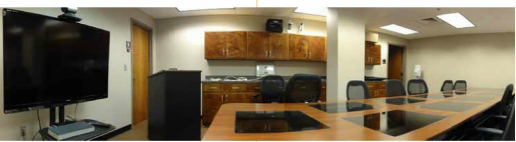


Newer design claim ergonomic problems of older designs and are not as recessed, but make it easier to cheat in exams:


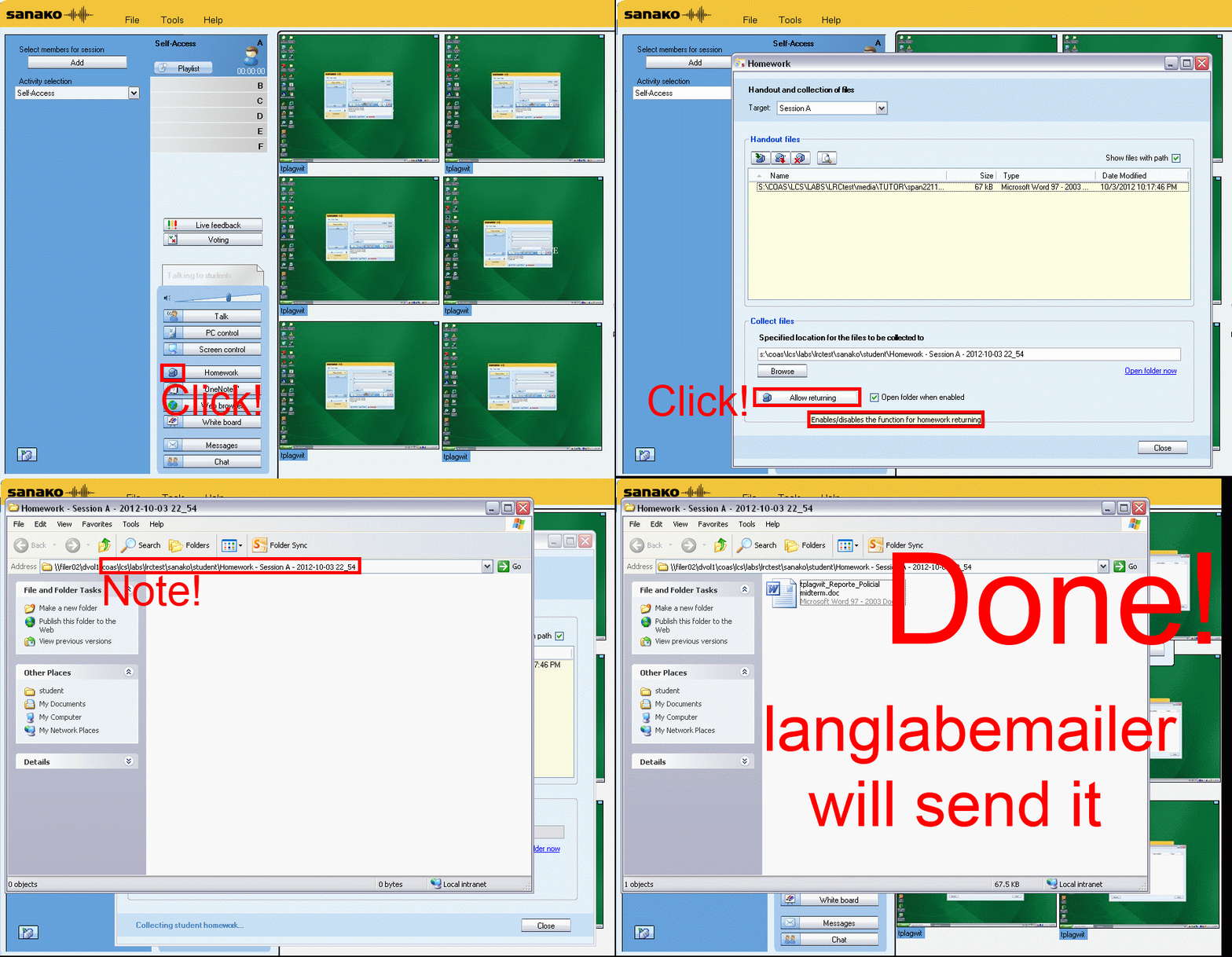
How teachers can collect any file from students’ computers with Sanako Study 1200 homework–the ultimate training…
2013/11/22
Leave a comment
How to record screencasts with Kaltura in Moodle 2
2013/11/18
Leave a comment
- Go to your video assignment in Moodle:
 .
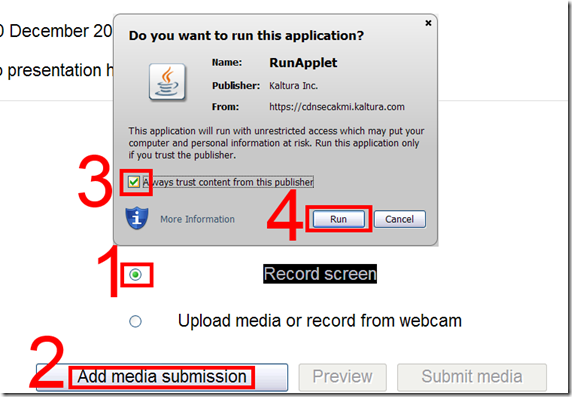
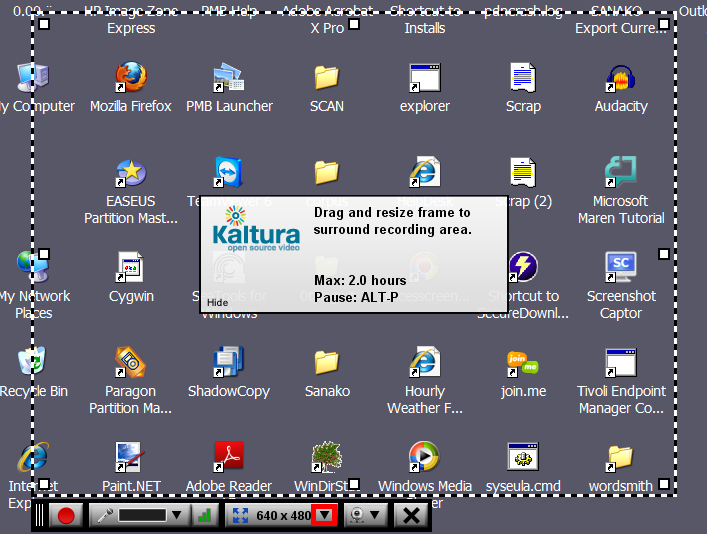
. - Click “Record screen”, “Add”, and pass the Java security Dialogues:
- The default video resolution is 640*480, but you can change this by unfolding the drop down menu:
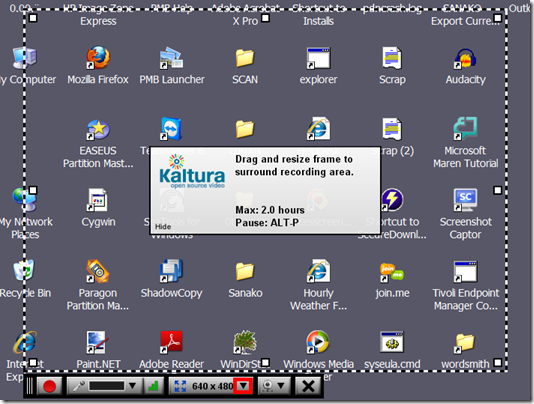
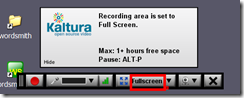
- Full screen is recommended for a Slideshow:
- To start, click the red record button:
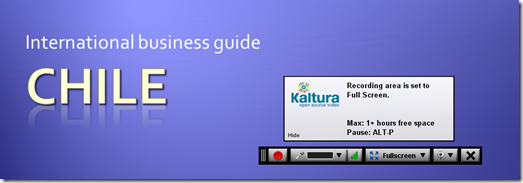
- You will get a few seconds to collect your thoughts:

- After finishing your slide show, stop the recording from the taskbar icon, and stop the recording:
 .
. - From the video window that opens:
- You can preview it
![clip_image001[4]](https://thomasplagwitz.com/wp-content/uploads/2013/11/clip_image0014_thumb1.png?w=541&h=373 "clip_image001[4]")
And upload it which includes encoding which takes a bit of time (but not as much as encoding of webcam footage).
![clip_image002[4]](https://thomasplagwitz.com/wp-content/uploads/2013/11/clip_image0024_thumb1.png?w=548&h=385 "clip_image002[4]")
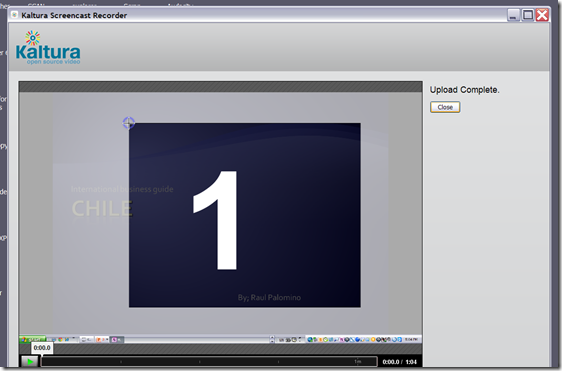
- You can preview it
- Finally,
- you can see the result in your media library
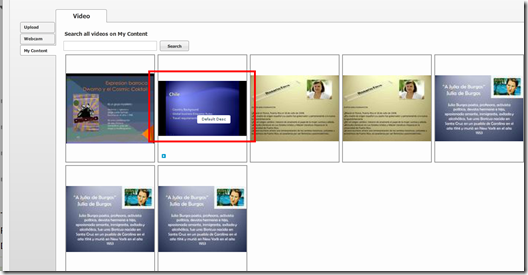
- preview it once more:
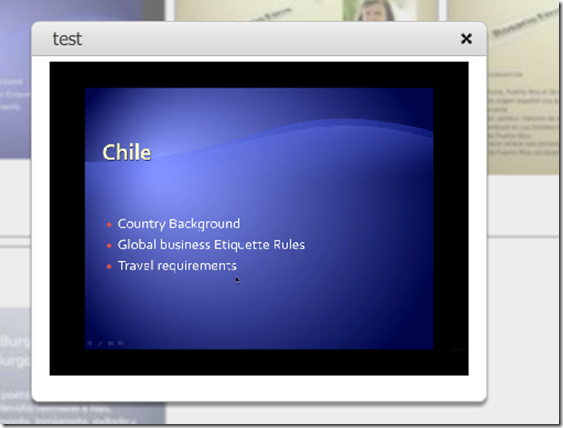
- and submit your video content from the media library.
- Kaltura screencasts can be used from any Java-compatible device. In the LRC, however, you can also record screencasts to files, using MS-Community Clips which you can still upload to Kaltura – extra step, though –, while maintaining compatibility with Mahara.




![clip_image001[4]](https://thomasplagwitz.com/wp-content/uploads/2013/11/clip_image00141.png "clip_image001[4]")
![clip_image002[4]](https://thomasplagwitz.com/wp-content/uploads/2013/11/clip_image00241.png "clip_image002[4]")


Categories: assignments, audience-is-students, lms, multimedia-recording, Screencasts
kaltura, moodle
How to find out whether you have access to your classroom early (e.g. for setup tasks), by using the R25 calendar
2013/10/31
Leave a comment
- Go to http://calendar.uncc.edu/, and follow these steps:
- (1) switch to view by “locations” instead of (the default) “events”,
- (2) select your building,
- (3) find your classroom,
- (4) see whether it is blocked=booked before your class (hover over the block to see by what) –

- in order to browse to your classroom’s schedule – for example, you could also just (5) search for your classroom.
- Sorry, unlike in the LRC calendars from MS-Exchange, here
- no direct links to your room’s schedule;
- no simple flexible booking, even though there seems to be a need for one-time bookings (AFAIK, I did not venture behind the screen after top menu: “Reservation request” since I do not know how to answer its question).



Questions? Read the About. Or just ask me a quick Our Databases: Resources with calendars -- Language learning material Moodle Sites, multimedia files -- films
FAQs for LRC student staff or for students or for teachers. To search our FAQs, in the browser addressbar, add after "https://plagwitz.wordpress.com/feed/?tag=faqs+/" "+TAG1" (from tag cloud below) OR "https://plagwitz.wordpress.com/feed/tag=faqs
&category_name=" "CAT1" (from category hierarchy below). OR search both categories and tags, and multiple TAGs/CATs (connect with "," for OR-search, with "+" for AND-search), like so: https://plagwitz.wordpress.com/feed/?tag=TAG1+TAG2+...TAGn&category_name=CAT1
+CAT2+...CATn"
Other ways to find help
If you cannot find it here, look there: 5,500 Language-Learning Links and Programs for learning or teaching 150 languages
Shortcuts:Our Lists, Our Maps, LRC Staff Moodle Site,LRC Project Moodle Site, 49erexpress, UNCC Moodle, Student Recordings: s:claslcslrcsanakostudent
Learning usage samples: Sanako oral exam, Kaltura webcam presentation, Dictation with speech recognition, Sanako written exam, Chinese and Japanese interactive stroke-order practice
Test the Sanako Installer, Webbrowser Popup Konfigurator for XP, or Windows7, faster LRC TeacherPC Log-in Let MS facilitate diacritics writing by installing for you US-International keyboard layout
This is my personal blog (Google+). The views expressed on these pages are mine alone and not those of my employer. The information in this weblog is provided “AS IS” with no warranties, and confers no rights.
 Thomas' Work Space