Archive
Archive for the ‘Multimedia-is-any’ Category
Protected: How to configure the LangLabEmailer for your school, and share back
2013/06/07
Enter your password to view comments.
Categories: Arabic, assessments, assignments, audience-is-language-learning-center-manager, compiledcode, digital-audio-lab, e-languages, English, Farsi, French, German, Greek (modern), Hebrew, Hindi, Italian, Japanese, Latin, Mandarin, Polish, Portuguese, Russian, service-is-programming, Spanish, Speaking, Swahili, Writing, Yoruba
configuring, langlabemailer
How to uninstall the LangLabEmailer
2013/06/06
Leave a comment
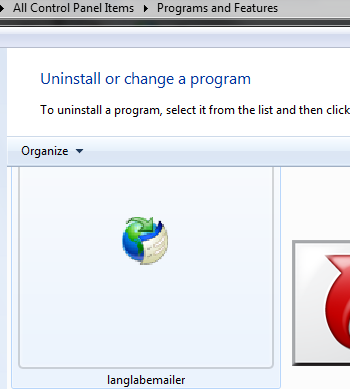
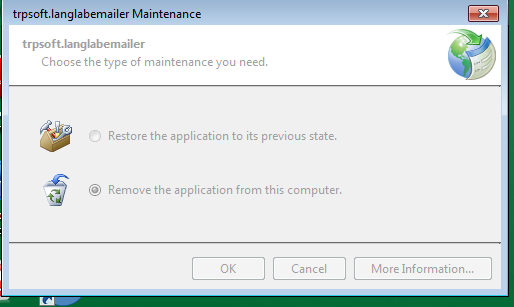
- Either from the control panel / add remove programs:
 .
. - To get these options:
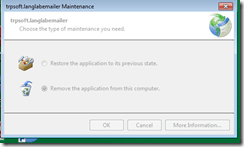 .
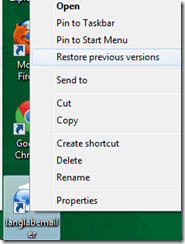
. - To restore, you can also right-click on the desktop icon:

- Next: Requests. Or Langlabemailer (table of contents).

How to update the LangLabEmailer
2013/06/06
Leave a comment
- LangLabEmailer updates automatically if an update is available when you start it.
- Your langlabemailer.exe.config should not be affected by an update. you can access and back up the previous version by restoring, the previous version from the context menu of the desktop shortcut:
 .
. - You may need to reapply changes after an update (automatic on application run that need not, but may overwrite your local settings, but will keep a backup (look for ".pre" files in a subdirectory of the data directory (= directory with the langlabmailer.exe.config and without the many other (MANIFEST, DLL) files).
- Next: uninstalling. Or up Langlabemailer (table of contents)

Request to download the LangLabEmailer
2013/06/06
Leave a comment


Next: Download. Or up:Langlabemailer table of contents
How to provide students with blended human/computer-automated feedback on their speaking using a dictation with speech recognition assignment screencast
2013/05/08
Leave a comment
- Teachers often feel there is never enough time for grading students’ speaking proficiency. Fortunately, we can now automate feedback on pronunciation using Windows 7 dictation with speech recognition.
- This feature will be available for 7 languages on Windows 7 in the LRC, here is a demo for a reading exercise dictating German.
- An assignment step-by-step could look like this: Students
- record a screencast of their dictation,
- read a text to the computer in MS-Word,
- turn track changes on in MS-Word and correct the text (immediately or after dictation) where the computer could not recognize their speech,
- upload their screencast to Kaltura in Moodle.
- To grade the performance, the teacher has to review only at the very end of the screencast to see how many corrections the student needed to make (when it doubtabout the speech recognition validiiy, the teacher can easily jump to the screencast segment in question and, if necessary, override the speech recognition).
- This could be a regular assignment type since it provides the following benefits:
- immediate automated intelligent feedback for the student
- little grading overhead for the teacher, so that the teacher can concentrate her work on providing aural feedback on student recorded speech as a highlight maybe twice per term, maybe after mock exams before a midterm and final exam
- some multimedia pieces demonstrating language proficiency for the student’s ePortfolio.
- Requirements:
- a quality headset (we use Sanako SLH-07
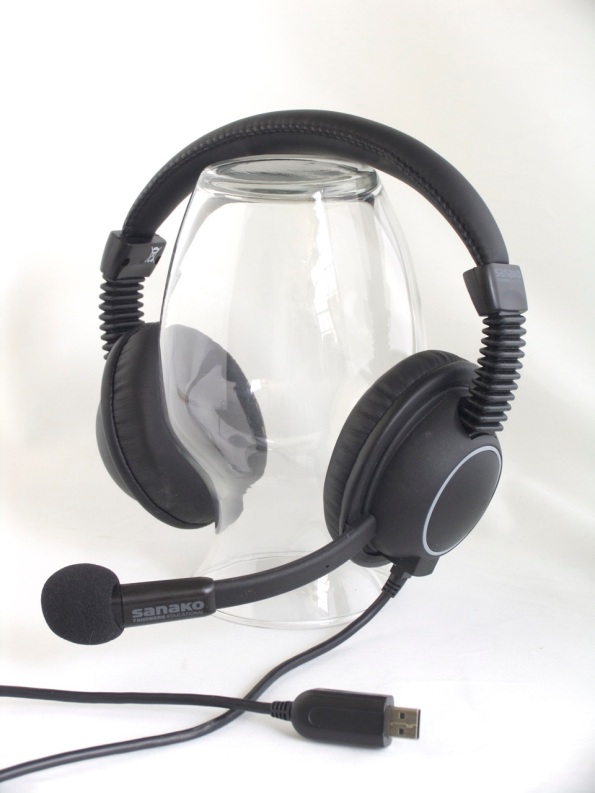 )
) - Windows 7 Enterprise/Ultimate with Language Packs,
- knowing how to switch the display language, (optional/recommended:) TBA:a simplified language switching facility,
- individual voice training data: speech recognition users have to train the computer – once, even in a deepfrozen computer enviroinment, since we enabled you to save this data to and restore it from a flash drive or personal network share space,
- a reading text (often authentic texts can be taken straight from the textbook, to fit in with the syllabus, like in this example from Treffpunkt-Deutsch 1st-year German),
- MS-Word with track changes
- screencast software (we use MS community clips)
- a way to submit the results to the teacher (we use Moodle with Kaltura video uploading (example for teachers, students do it similarly), but email could be sufficient depending on screencast length and attachment size allowance).
- a quality headset (we use Sanako SLH-07

Protected: How you can automate giving your teachers access to your Sanako language lab in the offices and from home
2013/04/26
Enter your password to view comments.
Categories: service-is-programming, sourcecode
autoit, automation, ms-windows-installer, msi, sanako-study-1200


Questions? Read the About. Or just ask me a quick Our Databases: Resources with calendars -- Language learning material Moodle Sites, multimedia files -- films
FAQs for LRC student staff or for students or for teachers. To search our FAQs, in the browser addressbar, add after "https://plagwitz.wordpress.com/feed/?tag=faqs+/" "+TAG1" (from tag cloud below) OR "https://plagwitz.wordpress.com/feed/tag=faqs
&category_name=" "CAT1" (from category hierarchy below). OR search both categories and tags, and multiple TAGs/CATs (connect with "," for OR-search, with "+" for AND-search), like so: https://plagwitz.wordpress.com/feed/?tag=TAG1+TAG2+...TAGn&category_name=CAT1
+CAT2+...CATn"
Other ways to find help
If you cannot find it here, look there: 5,500 Language-Learning Links and Programs for learning or teaching 150 languages
Shortcuts:Our Lists, Our Maps, LRC Staff Moodle Site,LRC Project Moodle Site, 49erexpress, UNCC Moodle, Student Recordings: s:claslcslrcsanakostudent
Learning usage samples: Sanako oral exam, Kaltura webcam presentation, Dictation with speech recognition, Sanako written exam, Chinese and Japanese interactive stroke-order practice
Test the Sanako Installer, Webbrowser Popup Konfigurator for XP, or Windows7, faster LRC TeacherPC Log-in Let MS facilitate diacritics writing by installing for you US-International keyboard layout
This is my personal blog (Google+). The views expressed on these pages are mine alone and not those of my employer. The information in this weblog is provided “AS IS” with no warranties, and confers no rights.
 Thomas' Work Space