Archive
Sample of how students use the foreign language TTS (text-to-speech) in the LRC
Last week, I noticed this student in the LRC working on a speaking assignment in her SLA class. First, she wrote a draft of her presentation. She then had the Deskbot TTS wizard (in the lower right of her screen) read out the draft to her. She recorded her version, modeling after the Deskbot’s pronunciation. Then she had the Deskbot read out the draft again, to compare with her own recording.
Look for the little guy in the lower right corner of the screen with the cartoon bubble over his head.
I favor the use of the Deskbot TTS (a Windows XP technology) as an easily accessible speaking dictionary, including during face-to-face teaching, when students may otherwise be too shy to make an utterance because they are not sure about the pronunciation of a single word, or even ask the teacher to pronounce it for them. Prosodically, the deskbot TTS leaves many things to be desired. Let’s hope that Windows 7 will enable us to set up more advanced TTS support in the LRC.
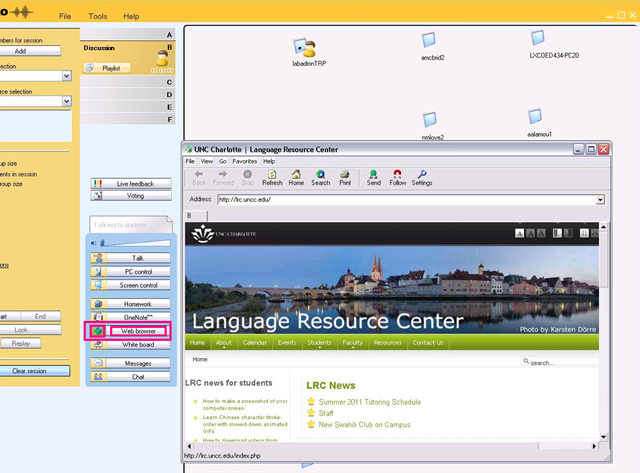
How to launch a webpage to students from Sanako Study 1200
- On the center buttons “Web browser”, use
- either the large grey rectangular right area to launch to all students in class
- or the small square colored (here brown) left area, to launch only to students in the brown group, like so,
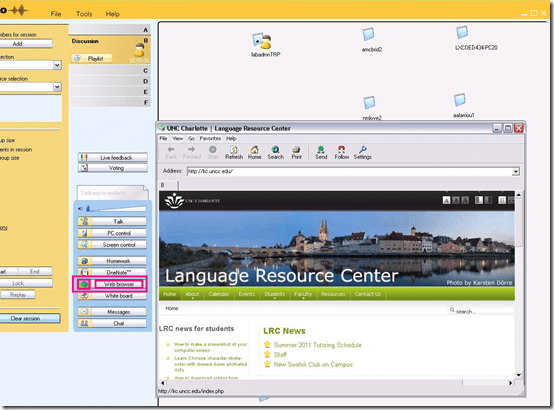
- unfortunately, you will have to click through number of errors on most web pages – the students do not see these

- eventually, the start page will show in your Sanako web browser

- then you can browse to a page from the address bar, click “send”, which will open it on the student computers
-

- clicking “follow”
 is like always clicking “send” after browsing to a new webpage. It allows you to guide the students through a number of web pages.


How to make a screenshot of your computer screen
- You can look it up, or:
- on Windows, press the “PrintScr” key (upper right corner of your keyboard)
- on Mac OS X, Command+Shift+3.
- Then paste the clipboard into an application that can handle images and that you are familiar with (your best bet may be MS-Word).
How to download videos from YouTube.com, and other video sites
- Don’t know what this institution recommends – here is a list of software that I have accumulated over time – I stopped a while ago, since there is always something newer coming out - try googling what is currently most popular.
- http://www.viloader.net/addon.htm: You have to click on download, and save the file with the name you want and in the end you have to add .flv that its the video format. Then when the video has been saved to your PC you have to convert the video in a comercial format like wmv, mpg, etc. or download a flv player to be able to see the videos.
- Youtube Catcher can download videos from Youtube, Google Video, Myspace Video, Yahoo video Dailymotion Stage6 Veoh. The downloaded videos can be exported to various formats like MPG,AVI, MP4,3GP, 3G2, WMV, PSP, MOV, FLV with the quality you choose: http://www.teknobites.com/2007/08/23/youtube-catcher-youtube-and-other-video-downloader-tool/
- zamzar.com
- http://userscripts.org/scripts/show/25105,
- http://www.googlewatchblog.de/2008/04/13/youtube-video-als-mp4-herunterladen/
- MPEG Streamclip can download YouTube files. They are always opened or downloaded in MP4 (MPEG-4) format, so they can be used in MPEG Streamclip.
- this works well as of 8/17/2009 1.Go to http://edtech.nwresd.org/?q=node/157 . You will see the words ""download script"" (in blue – a hyperlink). Right click on that text and then on ""Bookmark this link"" (at least that’s what it says using Mozilla Firefox as a browser). You can move this bookmark within your Bookmarks or Favorites Folder wherever you want. 2.Go to YouTube and locate a video you want to save. While the video is actually playing, go to your Bookmarks Folder and click on the ""download script"" link you saved there.3.Next look in the right hand column on the screen – to the right of the video playing. Just below the section that says URL, and EMBED (right below URL) you will see a text that says download as MP4. 4.Right click on that text and then click on SAVE LINK AS. You can choose where you want the file to be saved and you can even rename the file (for me the default name is ""video""). Just to be sure I’d let the video play to the end before checking to see if it actually where you put it.
-
if (document.getElementById(‘download-youtube-video’)==null && !!(document.location.href.match(/http:\/\/[a-zA-Z\.]*youtube\.com\/watch/))) {var yt_mp4_path=’http://www.youtube.com/get_video?fmt=18&video_id=’+swfArgs%5B‘video_id’%5D+’&t=’+swfArgs%5B‘t’%5D; var div_embed=document.getElementById(‘watch-embed-div’);if(div_embed){var div_download=document.createElement(‘div’);div_download.innerHTML=’ <br /><span id="\’download-youtube-video\’"><a href="\”+yt_mp4_path+’\’">Download as MP4</a> ‘+ ((navigator.userAgent.indexOf(‘Safari’)!=-1)?'(control-click and select <i>Download linked file as</i>)’:(‘(right-click and select <i>Save ‘+ (navigator.appName==’Microsoft Internet Explorer’?’target’:’link’) +’ as)</i>’))+’</span>’;div_embed.appendChild(div_download);}}void(0)
-
- Updates for the the 2013/4 academic year:
- YouTube Center, includes download functionality, more on YouTube center here.
- Orbit downloader:
- Claims to be a generic downloader, and looks complicated enough to convince me of that
 .
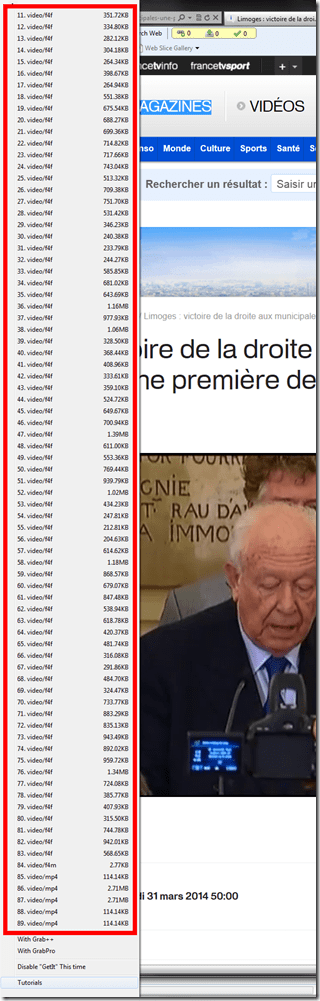
. - However, I did not have any luck here, at least I did not find a practical (=automated) way to cobbling these clips together (are media outlets, even if they are under non-US legislation and trying so hard, still bound by the fair use legislation?):
- Also changes your browser home page without asking – I can’t say I like the territory I get myself into with these teacher download requests.
- Claims to be a generic downloader, and looks complicated enough to convince me of that

How we provide more computer support for walk-up clients at the LRC reception desk
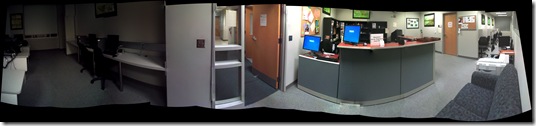
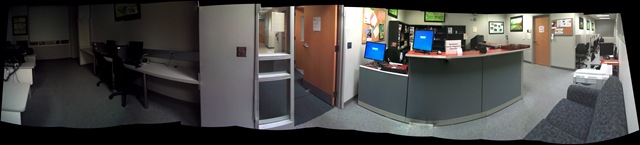
- We have set up 3 PCs at the reception desk. They all contain an exactly identical software configuration (based on Symantec Ghost imaging and Faronics Deepfreeze).
- Except that two (we could not get hold of another monitor) have a secondary screen connected that can extend the Windows Desktop, or mirror it (use CTRL-ALT-F11 and CTRL-ALT-F10 to switch between the modes of the )

- To aid in this communication over the counter, press CTRL-2 to freeze and on the screen (uses MS-ZoomIt) which helps when pointing out screen elements.
- So that LRC staff and clients can both use the university’s most important web applications, the computers have been configured to automatically launch a number of web browsers on startup, and within each browser, open a number of home pages with(LRC website, Moodle, NINERNET, faculty&staff Mail, WordPress, Excel Web App with he LRC databases for hardware, software, media and learning materials inventories). (When done, instead of closing the browser, use the “sign out” link of each web application).
- As a reminder, the most basic instructions (with keyboard shortcuts) have been posted on both primary and secondary monitor.
- Can we also implement a screen sharing solution allowing for MS-remote assistance, to enable reception desk LRC staff to escalate client questions they cannot resolve, like our IT department?

Exchange 2010 and Live@edu: How to use resource calendar publishing to implement a help desk timetable and signup sheet
- Calendar sharing with students that have only cloud accounts in live@edu requires them to be mail-enabled users in on-premise AD and only works if a users privileged to share shares with individuals through the GUI (in our circumstances: no groups, no PowerShell access).
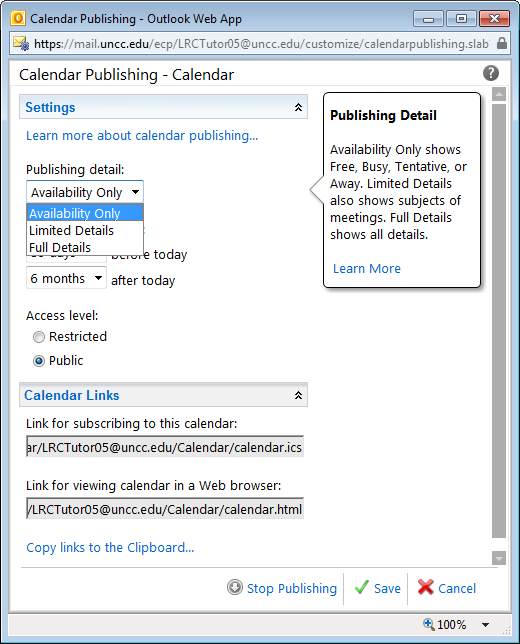
- Workaround to share resource calendar information is: publish calendars to the internet. This needs careful consideration of privacy issues, but Exchange 2010 provides you with a number of helpful options, including “availability only”.

- If you publish, you can easily generate the links from the resource mailbox name, and manage large sets of calendars e.g. in an MS-Excel Web app.
- As you can see in the below LRCTutor12 calendar subscribed to in either OWA or Windows Live, the Exchange 2010 ICS does not seem to provide the calendar name, users have to update it manually (maybe use the resource mailbox account name from the calendar URL).
![student-internet-calendar-in-owa-error_thumb[2]](https://thomasplagwitz.com/wp-content/uploads/2011/09/student-internet-calendar-in-owa-error_thumb2_thumb.png?w=526&h=287 "student-internet-calendar-in-owa-error_thumb[2]")
![student-internet-calendar-in-windows-live-works_thumb[2]](https://thomasplagwitz.com/wp-content/uploads/2011/09/student-internet-calendar-in-windows-live-works_thumb2_thumb.png?w=545&h=342 "student-internet-calendar-in-windows-live-works_thumb[2]")
- If you “hack” resource calendars to be a help desk timetable (support personnel, like lab assistants/tutors, one calendar per language, sharing the support role), and have personnel update their availability with late-breaking changes through their Outlook calendars (“cancel this occurrence”) and automatically get these changes pushed out to all users over the internet.
- You can also “hack” a signup sheet “on steroids”:
- enforce a MaximumDurationInMinutes suitable for a sign-up appointment duration)
- set the AutomateProcessing option to AutoUpdate,
- accept the meeting requests of lab assistants/tutors at term start, so that they appear as solid blocks in the calendar, and advise clients trying to sign-up that only 1 client can sign-up during any given solid block with the office.
- Then ignore meeting requests of clients during the term (but communicate the rule to clients: only one client can sign up for support from the “office” during any given time slot. There is in my knowledge no way to set a number in Exchange 2010. Neither MaximumConflictInstances nor ResourceCapacity are applicable). The client meeting requests will remain tentative and appear hatched in the calendar for any other client to see.
- It is advisable to publish the calendar not with “Availability” only, but with “Limited Detail”, so that additional information (office hours dedicated to specific support topics/clinics, specific requests by clients) can be passed back and forth between support personnel and clients (and anything is better than “Free/Busy” which is especially misleading for such office calendars). Note that even if OrganizerInfo is included on-premise, it seems not included on calendars published to the internet (option “public”; “restricted” has not been tested), which makes Limited Detail possible in our environment.
- Publishing the calendar to the internet with “Full details” could be used for passing additional information, like special handling instructions to student workers,
- like this:
 (this is the publically viewable HTML – oddly)
 - This notes passing does not work with cloud-accounts that are subscribed to the calendar ICS that are not mail-enabled in AD: no notes field gets through to them in OWA)
- But the one-size-fits-all approach is unsatisfactory. If the group of student workers is small, it could (once mail-enabled in AD) be shared the calendar with instead.
- incidentally, what happens with the organizer field under “full details”
- Ìt appears that a calendar can not simultaneously be published "public" and "restricted" (need to know the obscure URL), let alone with different levels of information included.
![student-internet-calendar-in-owa-error_thumb[2]](https://thomasplagwitz.com/wp-content/uploads/2011/09/student-internet-calendar-in-owa-error_thumb2.png "student-internet-calendar-in-owa-error_thumb[2]")
![student-internet-calendar-in-windows-live-works_thumb[2]](https://thomasplagwitz.com/wp-content/uploads/2011/09/student-internet-calendar-in-windows-live-works_thumb2.png "student-internet-calendar-in-windows-live-works_thumb[2]")

How to use the LRC Lists
- The LRC lists are built with MS-Excel Web app, one of the new features which came with NINERMAIL (live@edu, try logging into http://skydrive.com .
- Important benefits of MS-Excel Web app include
- sorting: click on column header / down arrow, and choose menu item: “Sort Ascending/Descending”
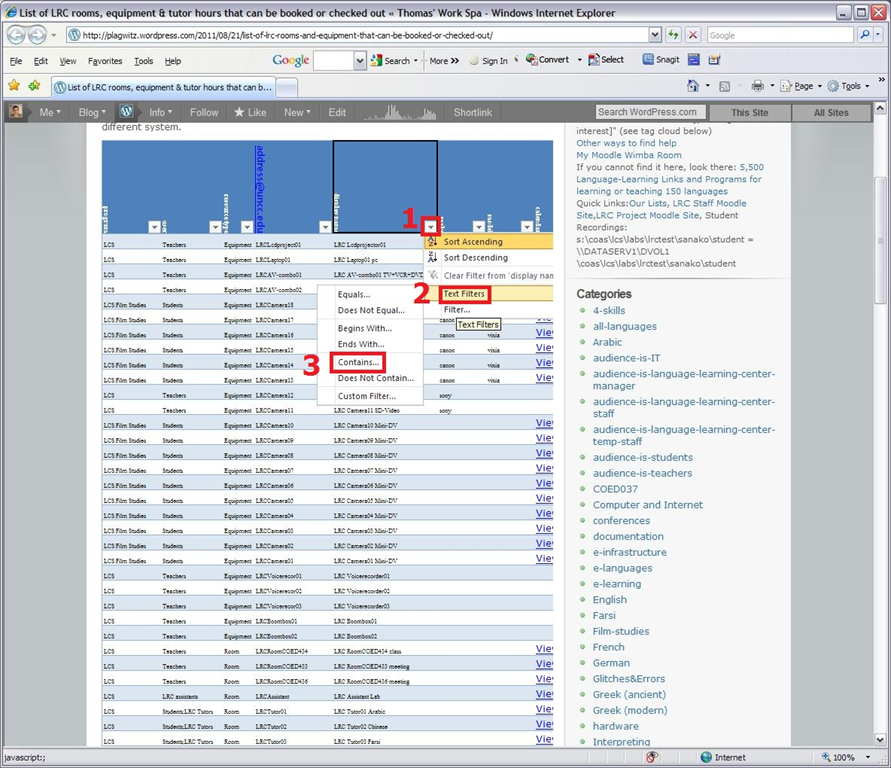
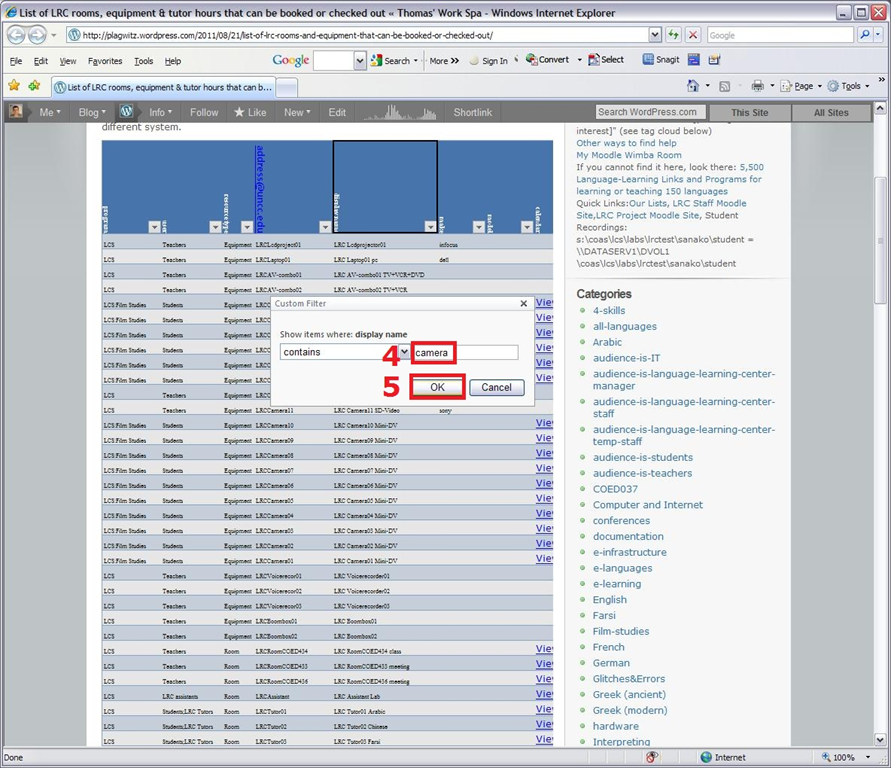
- filtering: click on column header / down arrow, and choose menu item:
- either “filter”,
 , to choose from a condensed overview of all unique items that occur in the column, and e.g. filter out “Blanks” by removing the checkmark in front of it: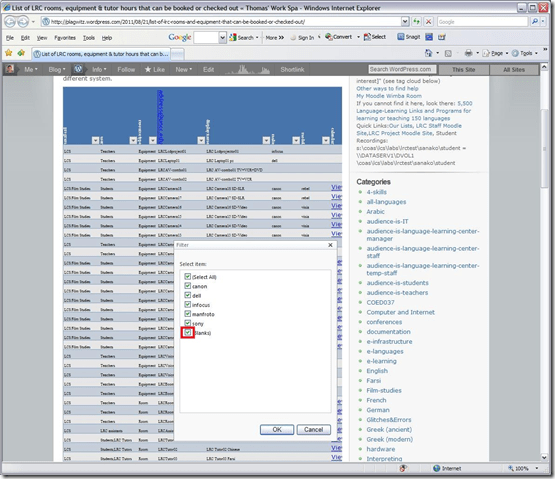
- or the advanced “number filter” (in columns with numbers) or “textfilter”,
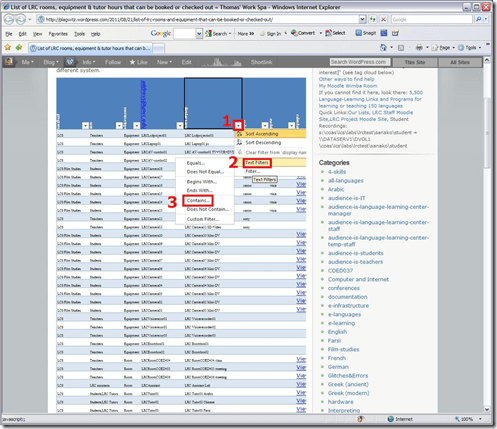 , to do more advanced searches, like for all items that contain “camera”: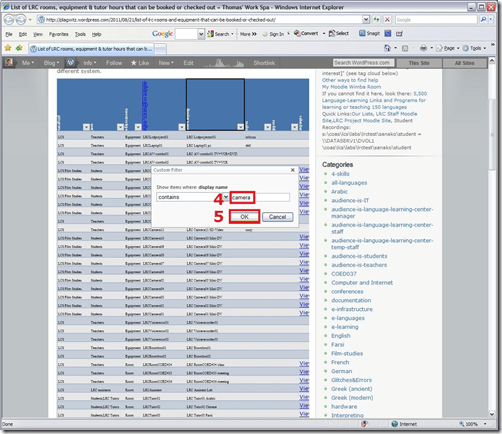
- sharing beyond viewing: Authorized users can click on an “edit link” below the list display to update the information from their web browser.
- either “filter”,


Our Office 2010 natural language features upgrade: A running log
- Just logging some notes, observations, issues, step-by-step instructions… – other than non-natural-language, most collaboration features, which are being logged here.
- Office 2010 proofing tools (proofing-tools2010-install.wmv),:
- again, we select custom install, “run all from Computers”
- install is extensive, but uneventful
- Office 2010 proofing tools (proofing-tools2010-first-run-German-set-language.wmv), first run:
- German is not autodetected. You have to set the language of the selected text manually, and first find the button on the ribbon:reviewing
- While choosing the language, you can see from the checkmark which languages now have proofing tools installed
- Foreign Language Support
- One of the strongest benefits of upgrading to MS-Office 2010 in the language center is the improved foreign language support licensing for so called “Language Packs”, and that we have a complete set of licenses to the MS-Proofing Tools.
- In addition MS-Office supports free download of so called “Language interface packs” which seem essentially downscaled language packs for LCTL (usually come only with (see feature list) a spell checker and help in the language). Compare: “If a language is available in a language pack or as a fully localized version, it is not available as a language interface pack”.
- Unfortunately multi-user (= learner of different language) support is not the primary usage scenario of these tools. It is, however, possible, to set the language to a default (e.g. Spanish, Arabic or Chinese, depending on your environment). Switching to another language is relatively easy for a user
- changing the screen-tip language: http://skydrive.live.com/embedicon.aspx/screencasts/office-2010-switch-screentip-language.wmv?cid=4fa3329905d7e1ce&sc=photos


Questions? Read the About. Or just ask me a quick
Thank you for your response. ✨

FAQs for LRC student staff or for students or for teachers. To search our FAQs, in the browser addressbar, add after "https://plagwitz.wordpress.com/feed/?tag=faqs+/" "+TAG1" (from tag cloud below) OR "https://plagwitz.wordpress.com/feed/tag=faqs
&category_name=" "CAT1" (from category hierarchy below). OR search both categories and tags, and multiple TAGs/CATs (connect with "," for OR-search, with "+" for AND-search), like so: https://plagwitz.wordpress.com/feed/?tag=TAG1+TAG2+...TAGn&category_name=CAT1
+CAT2+...CATn"
Other ways to find help
If you cannot find it here, look there: 5,500 Language-Learning Links and Programs for learning or teaching 150 languages
Shortcuts:Our Lists, Our Maps, LRC Staff Moodle Site,LRC Project Moodle Site, 49erexpress, UNCC Moodle, Student Recordings: s:claslcslrcsanakostudent
Learning usage samples: Sanako oral exam, Kaltura webcam presentation, Dictation with speech recognition, Sanako written exam, Chinese and Japanese interactive stroke-order practice
Test the Sanako Installer, Webbrowser Popup Konfigurator for XP, or Windows7, faster LRC TeacherPC Log-in Let MS facilitate diacritics writing by installing for you US-International keyboard layout
This is my personal blog (Google+). The views expressed on these pages are mine alone and not those of my employer. The information in this weblog is provided “AS IS” with no warranties, and confers no rights.
 Thomas' Work Space

