Archive
Archive for the ‘software’ Category
LRC Outlook/Exchange 2010 Resource Calendaring: How to alter meeting times in OWA
2012/01/23
Leave a comment
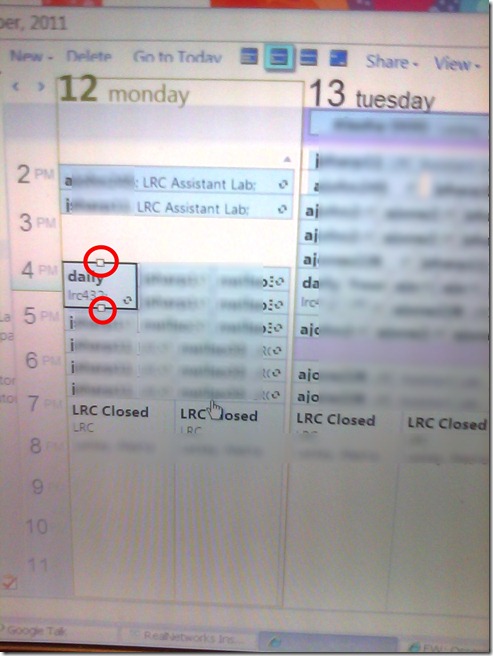
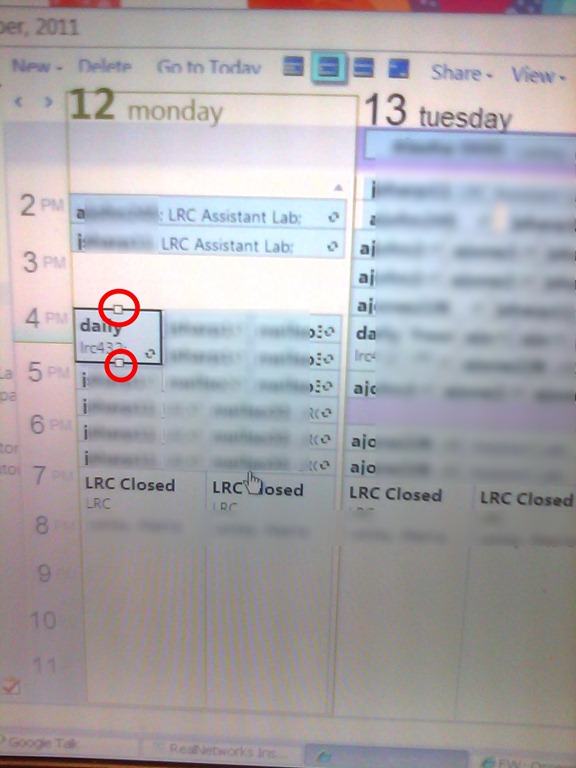
- If you are the meeting organizer (you initiated the meeting request), in your NINERMAIL/OWA calendar, just click on the meeting and drag the meeting start and/or end time with your left mouse button in the desired new location (works like in Outlook), and send updates (this will not affect for the series of a recurring meeting, only the current occurence):
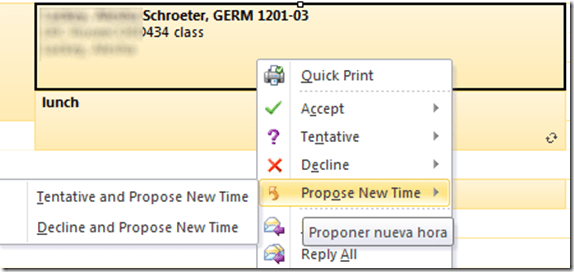
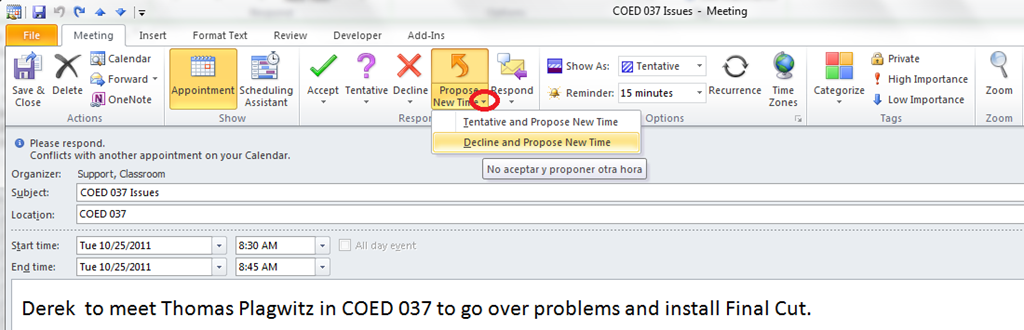
- If you are not the meeting organizer, the meeting organizer, when requesting a meeting with you, may have allowed you to “Request a new time”: use the corresponding button (screenshots are for Outlook):
- in the meeting request:
 .
.
- in the meeting request:
- or in the calendar item context menu

Categories: audience-is-language-learning-center-staff, audience-is-language-learning-center-temp-staff, audience-is-students, audience-is-teachers, e-infrastructure, office-software, service-is-documenting
2007, 2010, 2011, calendaring, changing, meeting-requests, ms-exchange, ms-outlook, resources, scheduling
How to do writing assignments in Moodle with deadlines, file and response file upload and MS-Word tracked changes
2012/01/20
Leave a comment
- Benefits
- Keep the cohort in shape and focus it on studying by enforcing deadlines.
- You can have students automatically receive reminders of the upcoming deadlines from their calendar (in NINERMAIL, no need to even look at the Moodle Calendar)
- You can save time managing the assignment.
- Moodle does it for you; you will save even more time once you begin recycling your assignment across terms) and rather provide more timely feedback, and improve changes that your feedback arrives during a teachable moment.
- Automatic email notifications, which are available in Moodle for teachers (if you do not prefer to grade student submissions in a batch) and students to (automatic correction and grading is not ready for prime-time when it comes to essay writing; you may however consider teaching some more basic writing skills using it with close-exercises in Moodle).
- Costs
- You need to TBA:create a Moodle file upload assignment for writing (once)
- You need to grade a Moodle file upload assignment for writing (any time you assign; depending on your preference as submissions arrive or conveniently as a batch from the gradebook past the deadline)
- I prefer the MS-Word reviewing features for grading writing assignments,
- but other tools have other affordances, e.g. like recently described here for Adobe Acrobat Professional.
- Moodle does not automatically add unique usernames to student submitted files like Blackboard. It also does not afford the TBA:convenience of a shared network storage that the WebDAV-based Blackboard Content system provides. However, as long as you do not need to maintain a local archive of student submissions, you can rely on the Moodle gradebook managing the archive of assignment files (student submissions and teacher response files).
- How? These 4 posts guide you through the entire workflow from teacher to student back to teacher to student:
Categories: assignments, audience-is-teachers, e-languages, lms, office-software, Writing
1.9, gradebook, moodle, MS-Word, reviewing, simple-file-upload
Students get an error when trying to open links from MS-Word file
2012/01/18
Leave a comment
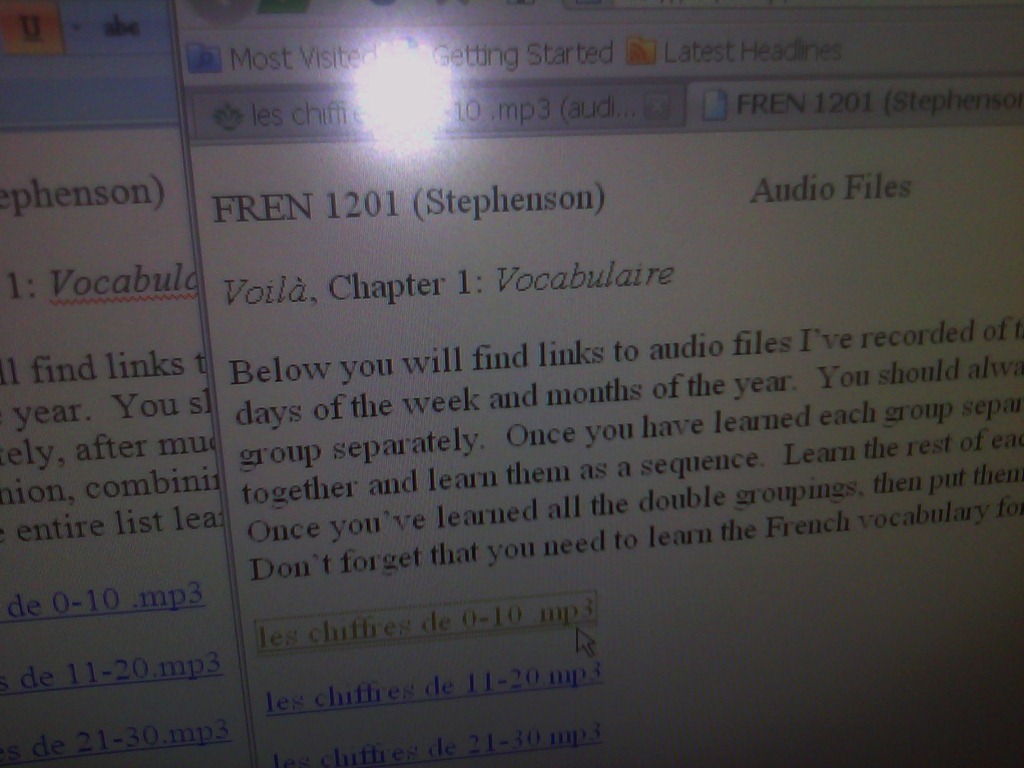
- Error reads: “”this operation has been cancelled due to restrictions in effect on this computer”.
- Immediate workaround:
- right-click on the link, choose copy, open a web browser window
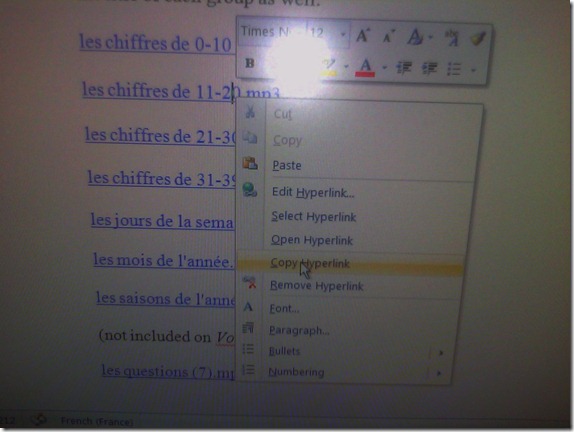 and paste the link into the address bar, browse to it from there.
 - File / Save as / Web page. From where you saved the web page, double click to open it in the your web browser, click the links form within there.

- Have you tried saving your MS-Word files to the new SkyDrive.live.com (login with your NINERNET password) yet? Students can choose to open MS-Word documents in either MS-Word or their web browser which should also bypass the problem.
- right-click on the link, choose copy, open a web browser window
- Solution: Investigating. Seems related to no “default browser set” in XP Control Panel / Internet options. If you cannot live with the workaround, do ask your System Administrator. Or stay tuned

Sanako comparative recording exercises using Moodle
2012/01/13
Leave a comment
- Comparative recordings are one of the best-established practices in SLA with technology. We can implement them here using:
- The Sanako Study 1200 language lab software installed in LRCRoomCoed434 facilitates comparative recordings by students, based on a teacher-provided model audio, with its student dual track recorder software.
- Moodle’s Simple file upload assignment aids in managing the workflow,
- from delivering the audio file with the model recording to the student
- to organizing, assessing and grading the student input.
- For the teacher
- to create such an exercise, she
- creates an audio recording that serves as a model for the student pronunciation – a special application of our Audacity recording introduction. It is advised, however, to insert clear cues for the student to start his repetition.
- creates a Moodle’s Simple file upload assignment to which she attaches the audio recording
- continue with How a teacher grades a Moodle simple file upload assignment
- to create such an exercise, she
-
For the students to take such an exercise:
- How a student takes a Moodle Simple file upload assignment
- TBA: Sanako Student Recorder
Categories: Absolute-Beginner, Arabic, audience-is-teachers, Beginner, documentation, e-languages, English, Farsi, French, German, Greek (modern), Intermediate, Italian, Japanese, Korean, Mandarin, Polish, Portuguese, Russian, software, Spanish, Speaking, Student-Computers, Yoruba
moodle, sanako-study-1200, student.exe
How to batch convert image files with IrfanView
2012/01/11
Leave a comment
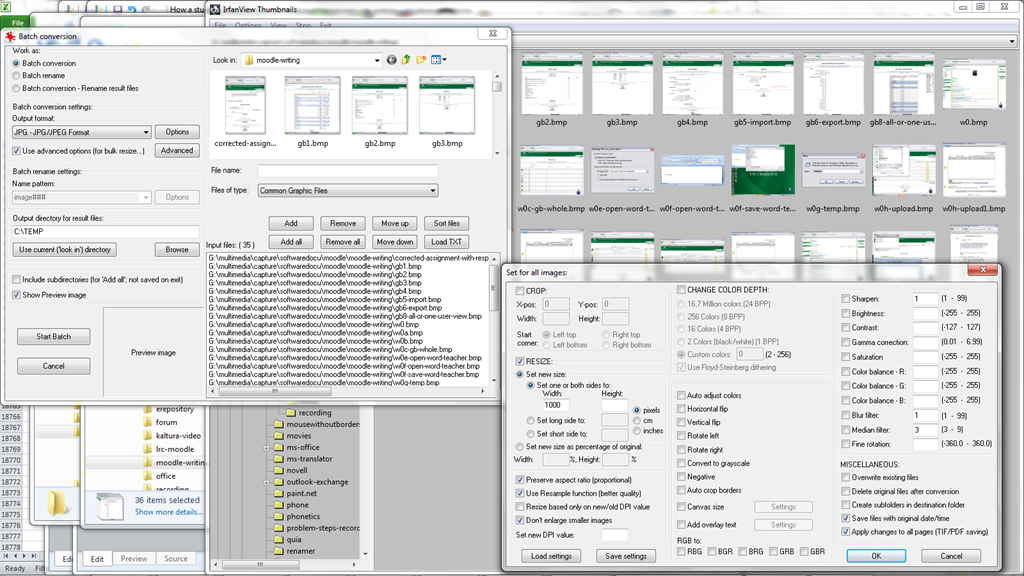
- Had to make a large number of screenshots recently without being able to set the most convenient file format.
- Fortunately, IrfanView has powerful conversion options:

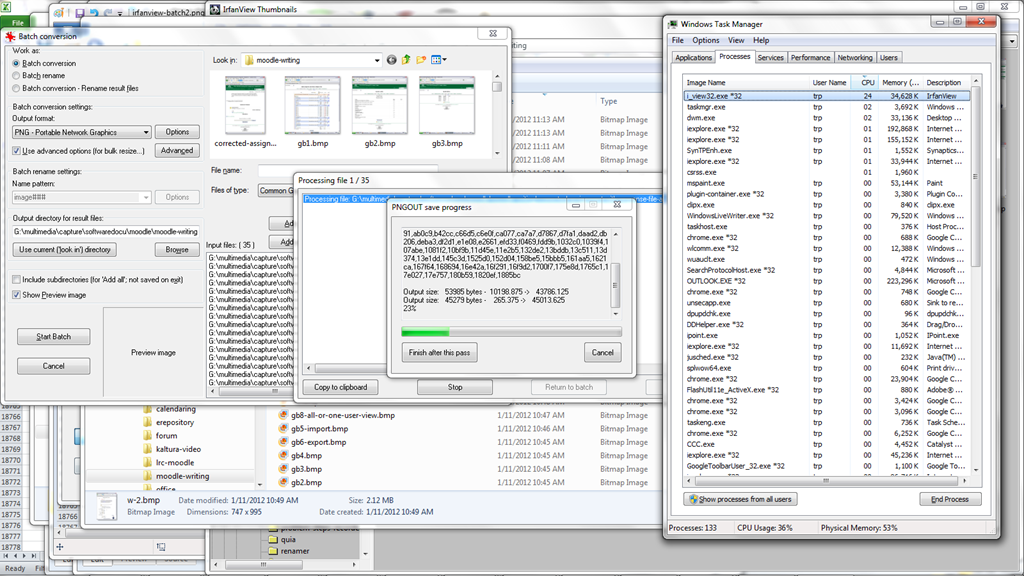
- and makes batch-converting easy:

- Limitation: IrfanView uses only one processor core here (Windows7 home):


How to record your speech with Audacity
2012/01/11
Leave a comment
- For a cut-and-dry recording session, the LRC has a simple instruction on
- For more advanced editing with Audacity, I have a detailed screencast here.
Windows Live Messenger Advanced Options
2012/01/04
Leave a comment

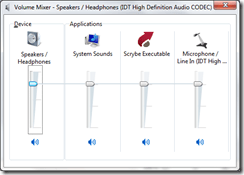
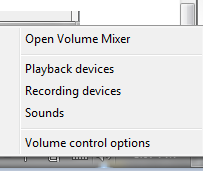
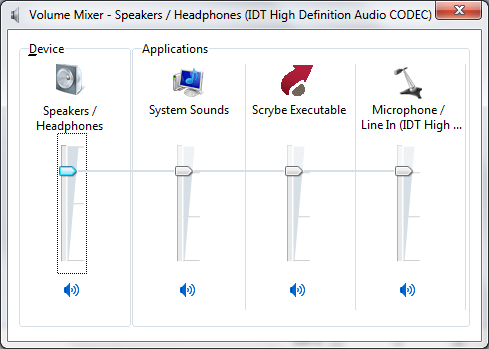
- mixer:
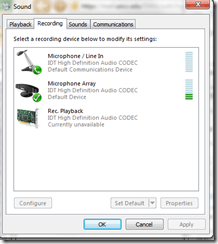
- recording devices (playback is the other tab) : does your input volume meter show activity? Can you press a button: “configure to activate/turn on the microphone? meter
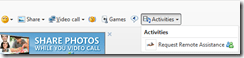
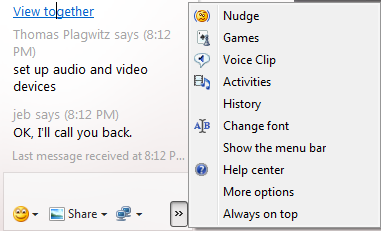
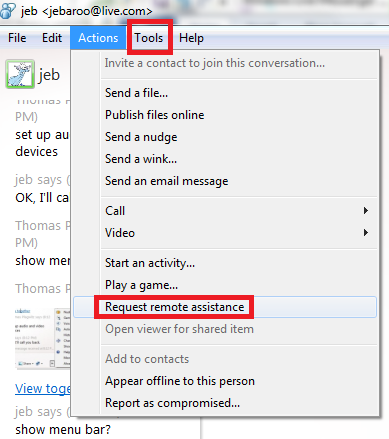
- how to request remote assistance ( via screen and control sharing)
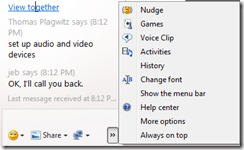

- or so


Categories: software, web-conferencing
audio, ms-live-messenger
Screencasts for Fall 2011 Workshop: Computer classroom management in the LRC using Sanako Study 1200
2011/12/08
Leave a comment
- The workshop stayed “this side of the digital audio lab”, i.e. focused on those generic teaching tasks that the Sanako Study 1200 can facilitate which have the widest teaching application (including in, but also beyond language-skill-courses):
- remote controlling student computers,
- screen sharing, collaborating with students,
- launching applications on students computers,
- sending students to webpages,
- launching handout files to students and collecting their input back
- locking their computers, screens or keyboards,
- “clicker” classroom polls, for which I have written a PowerPoint Template you can base your own clicker-like face-to-face class exercises on.
- and more…
- Here are two screencasts of my presentation:
- one for the right screen/participant screen (using the Study1200 teacher to student screen casting). Requires Windows Media Player on PC, like in the LRC: download from MS-SkyDrive.
- one for the left screen/projector, where I displayed mostly a PowerPoint. You can watch this in parallel using another player, e.g. the VLC player, like in the LRC. However, it can also stream from MS-SkyDrive.


Questions? Read the About. Or just ask me a quick
Thank you for your response. ✨

FAQs for LRC student staff or for students or for teachers. To search our FAQs, in the browser addressbar, add after "https://plagwitz.wordpress.com/feed/?tag=faqs+/" "+TAG1" (from tag cloud below) OR "https://plagwitz.wordpress.com/feed/tag=faqs
&category_name=" "CAT1" (from category hierarchy below). OR search both categories and tags, and multiple TAGs/CATs (connect with "," for OR-search, with "+" for AND-search), like so: https://plagwitz.wordpress.com/feed/?tag=TAG1+TAG2+...TAGn&category_name=CAT1
+CAT2+...CATn"
Other ways to find help
If you cannot find it here, look there: 5,500 Language-Learning Links and Programs for learning or teaching 150 languages
Shortcuts:Our Lists, Our Maps, LRC Staff Moodle Site,LRC Project Moodle Site, 49erexpress, UNCC Moodle, Student Recordings: s:claslcslrcsanakostudent
Learning usage samples: Sanako oral exam, Kaltura webcam presentation, Dictation with speech recognition, Sanako written exam, Chinese and Japanese interactive stroke-order practice
Test the Sanako Installer, Webbrowser Popup Konfigurator for XP, or Windows7, faster LRC TeacherPC Log-in Let MS facilitate diacritics writing by installing for you US-International keyboard layout
This is my personal blog (Google+). The views expressed on these pages are mine alone and not those of my employer. The information in this weblog is provided “AS IS” with no warranties, and confers no rights.
 Thomas' Work Space