Archive
My little Ode to Excel
Since about 2003, I have spent a good portion of my days analyzing data in Excel, and I enjoy it.
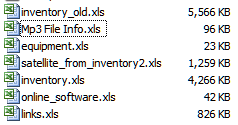
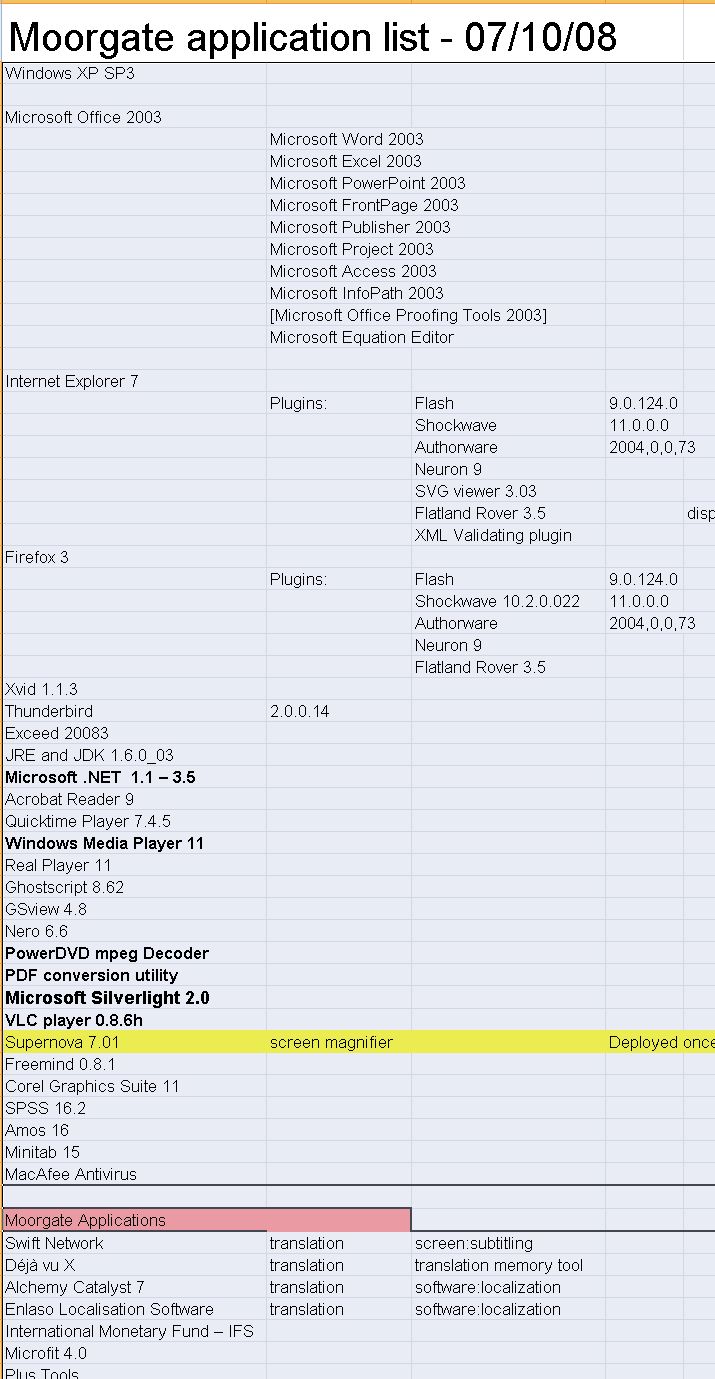
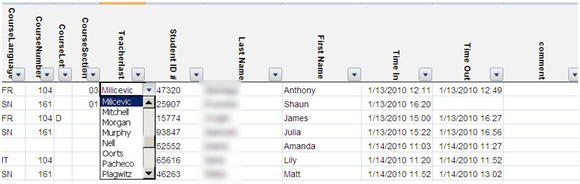
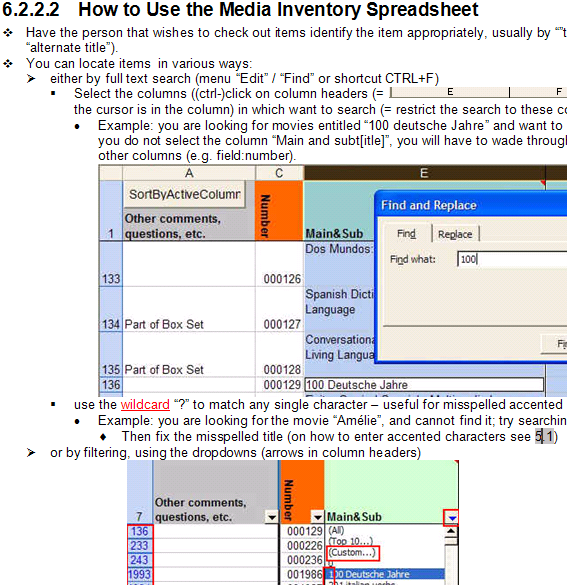
Specifically, I have written and administered many inventory databases: for software, various learning materials, media products, content feeds, departmental equipment, work tickets, for user timesheets and user accounts and other user management tasks. I have of course also maintained budgets and various schedules applications in MS-Excel and technology projects.
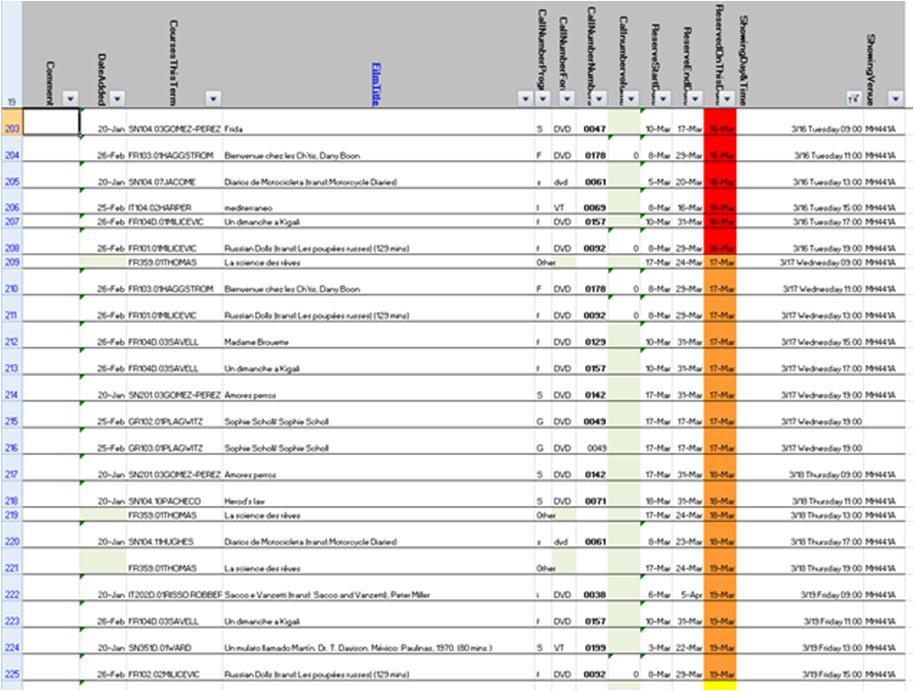
I have also programmed learning and other LOB applications in MS-Excel: automated account creation from the university student database, subtitle exercise creation, vocabulary learning based on word frequency, collaborative learning material repository catalogue, automated video metadata reading and import or automated multimedia learning material cataloguing system in MS-Excel.
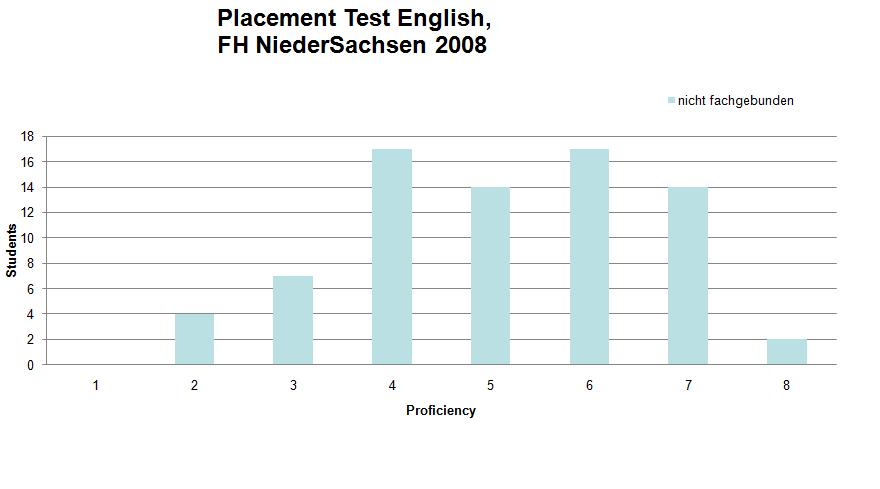
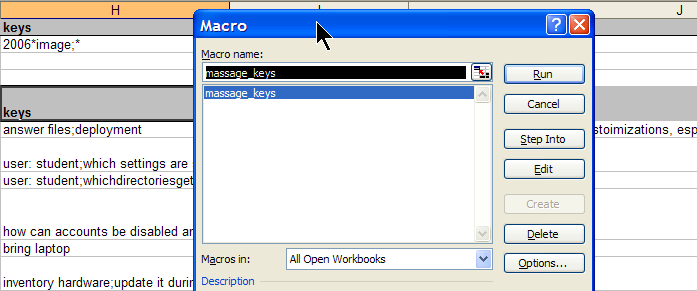
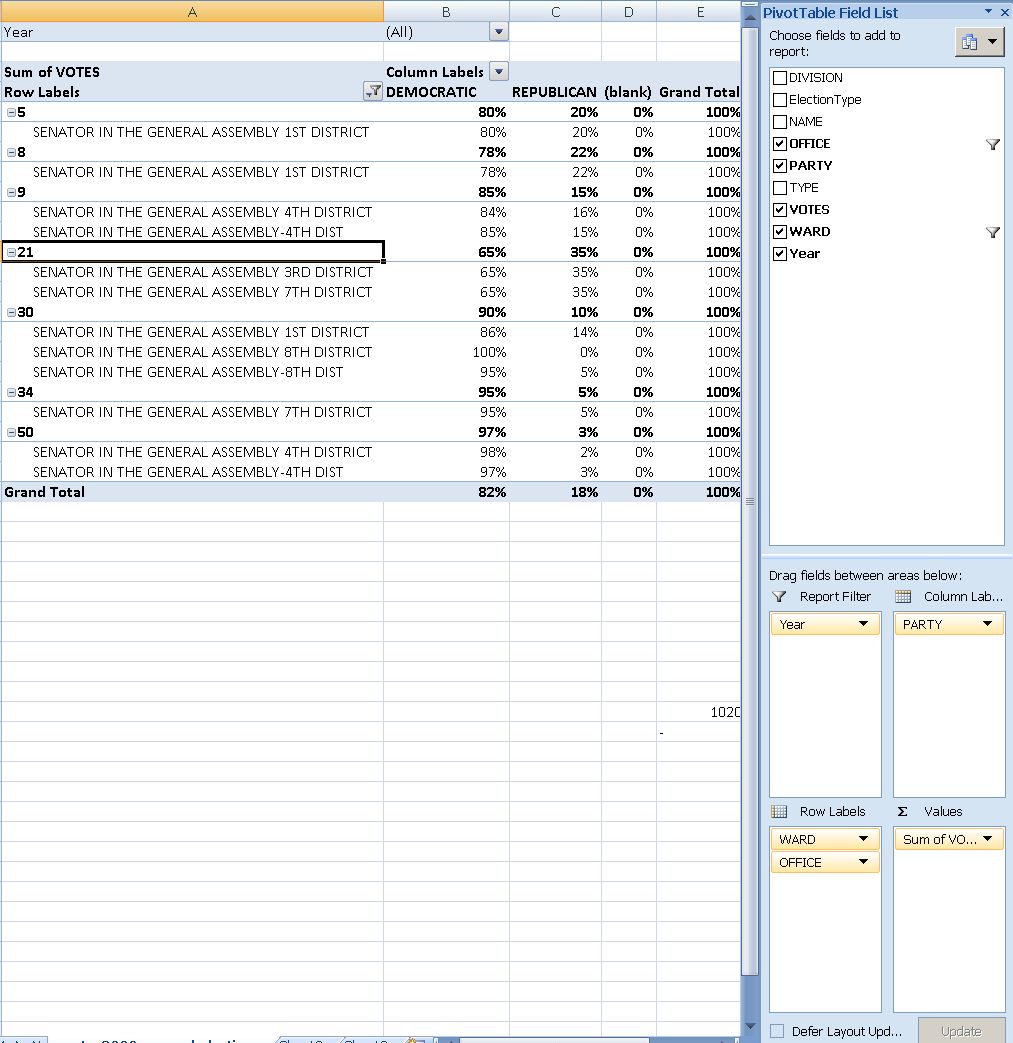
From work, I am proficient in using MS-Excel features array formulas for aggregating/summarizing numerical data, v-lookups, data visualization and chart plotting. I routinely write VBA macros, including my own worksheet formulas/functions to enforce complex data integrity requirements (ISBN13), created a VBA-driven automated backup solution for shared workbooks, and data-mine complex dependencies, including network graphs. Most recently, I have set up pivot tables against multi-million record election database for a large political organization in Philadelphia.
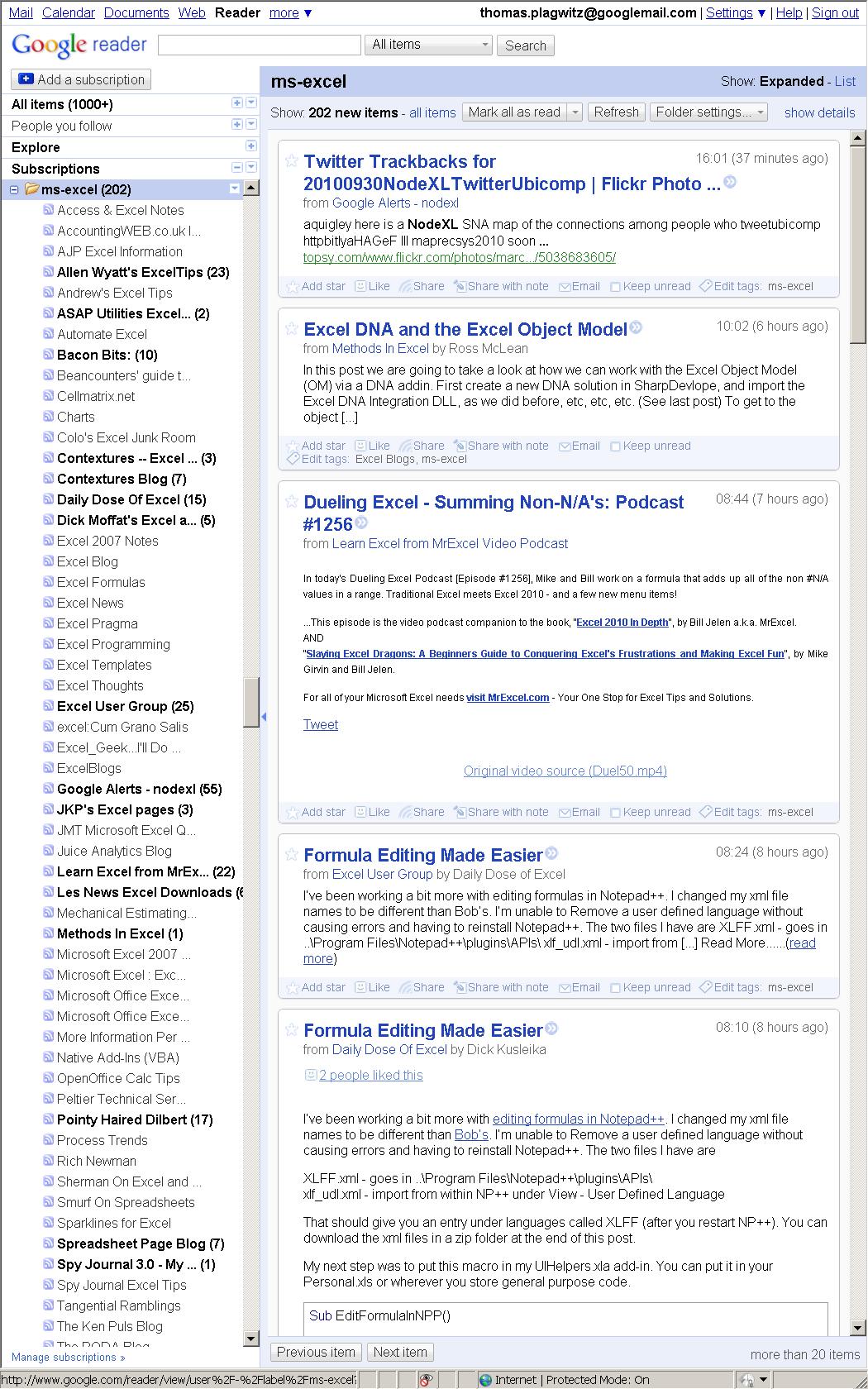
For many years, I have been subscribed to the lists and blogs that are most popular in the MS-Excel user community. Finally, I also have experience in documenting of and training staff in MS-Excel, e.g. on sharing workbooks, and I blog MS-Excel how-to’s, e.g. on pivot-tables or scheduling.
Please also have a look at my Excel portfolio.
How to save MS-Word files in Wordperfect format.
- Teachers receive new computers with MS-Word 2007, but need to send files to publishers that accept only Wordperfect format.
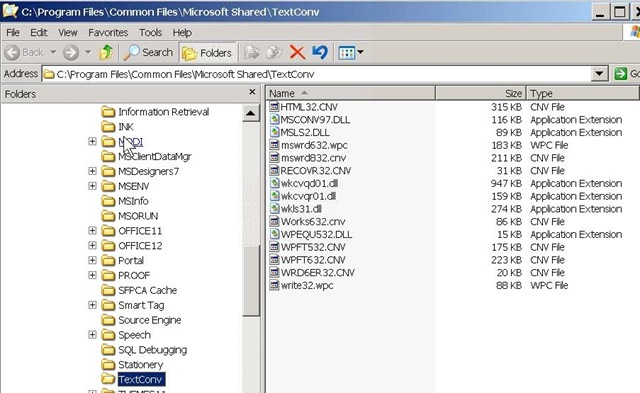
- I located and installed an old (= not supported in MS-Office2007 anymore) WP-converter for Word 2003 which is the MS-word version we still have, side-by-side with MS-Word 2007, installed on the teacher computer in the Sanako LAB 300 (MH441).

- Now you can save the MS-Word files created on your new office computer on the shared network drive (H: in your office). Here is how:
- From the MH441 teacher computer, open the saved file: First open Ms-Word 2003 from the start-button. Then open the H-drive. I made this drive accessible as start-button / “h-drive”on the MH441 teacher computer:


- Browse to your document, drag it into the MS-Word 2003 window. Click Menu: “File”/ “Save As””. From the dropdown: “Save as type”, you can now choose one of the old Wordperfect format.

- Assuming you do not publish more than a handful of papers per year, this should keep you afloat until your publisher (I suggest sending them the URL of this webpage) accepts other file formats (RTF is a widely supported minimum standard, and MS-Word 2007 can save as RTF, Word Perfect can read it).


Renaming Outlook Calendars
Calendaring is still an underutilized data source, but sharing of and collaboration on calendars are picking up.
If you find yourself juggling more and more calendars of your own and others that are shared with you, you will want to organize your calendars by naming them.
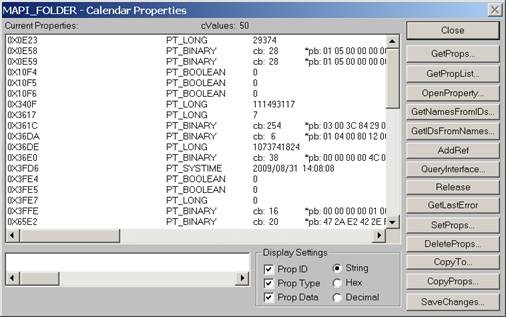
In MS-Outlook, however, you may find that the renaming option is grayed out and disabled when trying to rename your Calendar:  .
.
To work around this issue, do this:
-
Download the Exchange 2003 Information Store Viewer to your computer.http://www.microsoft.com/downloads/details.aspx?FamilyId=3D1C7482-4C6E-4EC5-983E-127100D71376&displaylang=en, unpack Mdbvu32.exe (CAUTION: THIS IS A POWERFUL UTILIITY THAT CAN ALTER YOUR DATA IN MANY WAYS, INCLUDING DELETING IT. HANDLE WITH CARE!).
-
Create an Outlook profile that can connect to the problem mailbox.[If you work on your own mailbox, you can skip this].
-
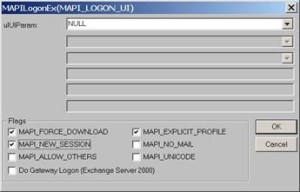
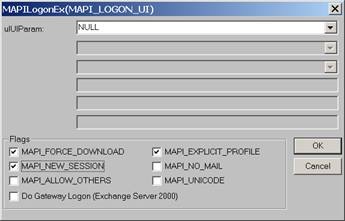
Run Mdbvu32.exe. Select the following three options and click OK: MAPI_FORCE_DOWNLOAD, MAPI_EXPLICIT_PROFILE, MAPI_NEW_SESSION
-
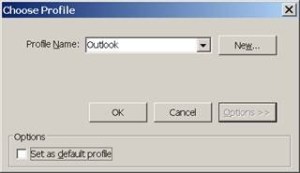
Make sure that the profile you have created in Step 2 [or your default profile] is selected. Click OK.
-
Click MDB -> OpenMessageStore.
-
Make sure the problem mailbox is selected and click Open.

-
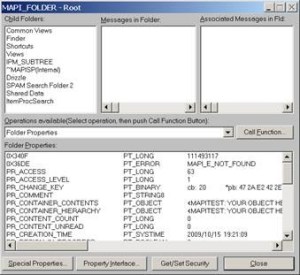
Click MDB -> Open Root Folder.
-
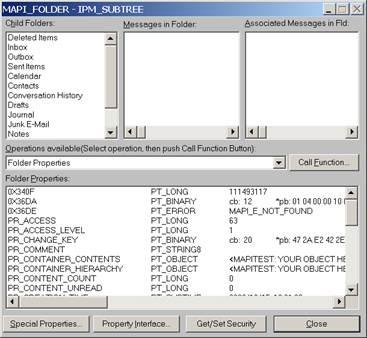
Double-click “IPM_SUBTREE” in the left list (if for some reason you don’t see this double click each entry in the top/left until you get a folder list.)

-
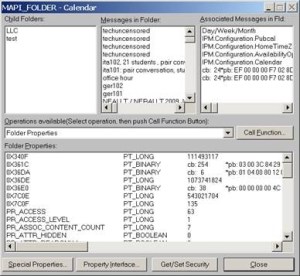
Double-click the Calendar.
-
Click the “Call Function” button.

-
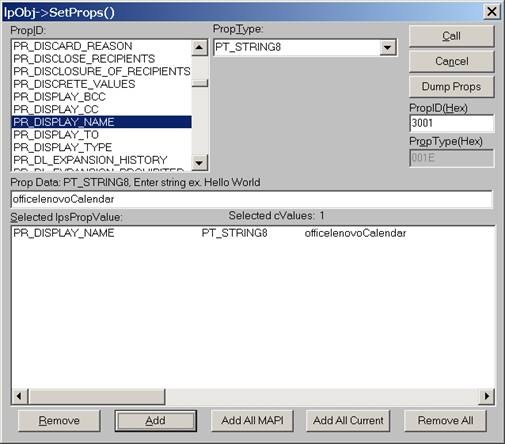
Click the “SetProps” button.

-
Make sure the “PR_Display_Name” is selected from the PropID list. Change its name to <whatever> in the textbox below and click the ”Add” button. You will see that the change action is added to the list. Click the “Call” button on the right-top corner to apply the change.

-
4. Click Close until you drop out of the windows, then close the MDBVU utility and OK to the logoff. From:
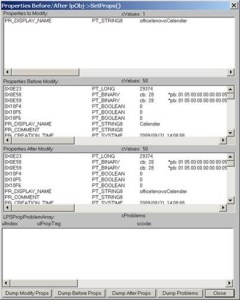 To:
To: 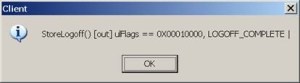
-
You may need to close and reopen Outlook to refresh the folder name.
-
And voilà:







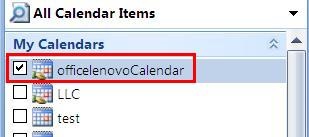
I just verified this to work on MS-Outlook 2007 against MS-Exchange 2007 (and assume it to work on stand-alone PST files also), and added the screenshots to clarify this. My thanks go to user traval and MS for the heavy lifting (although I wish MS would make my lifting still easier).
PowerPoint: Can you apply a different Master Slide by “ Copy and paste a slide master from one presentation to another”
I am not too much into form(atting beyond what follows function), so I lifted this straight from the PowerPoint 2007 Help file – is deleting the original master slide a way/the best way to apply the new master slide to all slides? Comments (below) welcome
- “ Open both the presentation that contains the slide master that you want to copy and the presentation that you will paste the slide master to.
- In the presentation that contains the slide master that you want to copy, on the View menu, in the Presentation Views group, click Slide Master.
- In the slide thumbnail (thumbnail: A miniature representation of a picture.) pane, right-click the slide master that you want to copy, and then click Copy. Notes
- In the slide thumbnail pane, the slide master represents the larger slide image, and the associated layouts are positioned beneath it.
- Many presentations contain more than one slide master, so you may have to scroll to find the one that you want.
This list of slide layout thumbnails contains one slide master and two layouts.
- On the View tab, in the Window group, click Switch Windows, and then select the presentation that you want to paste the slide master to.
- In the presentation that you want to paste the slide master to, on the View menu, in the Presentation Views group, click Slide Master.
- In the slide thumbnail pane, to click the location where you want the slide master to reside, do one of the following:
- If the destination presentation contains a blank slide master, right-click the blank slide master, and then click Paste.
- If the destination presentation contains one or more customized slide masters, scroll to the bottom where the last slide layout resides, right-click below it, and then click Paste.
- To copy and paste additional slide masters, follow steps 1 through 6.
- On the Slide Master tab, in the Close group, click Close Master View.” (PowerPoint 2007 Help – press F1).

Thoughts on use of MS-OneNote for Learner Portfolios in Interpreting?
What are aspects of portfolios, according to Wikipedia.org? Portfolios “document education, work samples and skills” “more in-depth than a resume” can. They come in different flavours: “developmental (e.g., working), reflective (e.g., learning), and representational (e.g., showcase)” and can contain “personal information, evaluations, sample work, and awards and acknowledgments”. If they are e-Portfolios, implying online, they can be “updated often” and with ease, and are “assembled and managed by a user” who controls the “varying degrees of audience access”. With this come “problems of exporting data and related interoperability issues” and the pros and cons of portfolios integrated into existing VLEs of educational institutions, who are initially easily available, but may lack in “learner-centered-ness” beyond the institutional affiliation.
In the OneNote ecosystem, there is a lot of student workbooks samples – may be closer to what I mean to be a portfolio, if they would groom it and reflect on their work –, plus a so called “Digital portfolio: Sample digital portfolio of a teacher that contains multiple sets of student work, stored and organized within OneNote. Includes homework, quizzes, tests and projects.”
“If you want to use recordings made in OneNote, be aware that the default recording quality for OneNote is not meant for speech recognition. We use a voice codec and bit rate/sample rate designed to compress spoken word audio as small as can be while still usable by human beings. In OneNote 2007 we increased the settings slightly to make audio search work better, but speech recognition (transcription) requires a much higher level of quality. To set up your future recordings in OneNote to be transcribable, first go to Tools/Options/Audio and Video. Switch the codec to Windows Media Audio 9.1 Professional. ”
8+x computers in the interpreting suite and maybe 8 extra in the language center could get us started. (an configuration of these computers which is different from the it labs configuration may save some money initially, but incurs maintenance cost permanently, which may be somewhat hidden, but is very real. so a site license for OneNote, if the licensing cost is reasonable at all, would probably be preferable. of course we are past the deadline for software image upgrades, i just managed to get the OneNote in the interpreting suite request in before the deadline).
if we want to enable students to work remotely, they need personal licenses. this is not necessarily expensive (ca 40 pounds for a full office 2007 suite from ms directly for students only which i recommend to any student just to get ms-word, much more so if you use more advanced office applications)..
one of the nicest features of ms-OneNote and which, even if i have not had a chance to test, would most likely strongly recommend using, is the following:
we can store these OneNote portfolios as shared files on our intranet so that students can keep editing /adding to them, and Danielle and other staff at the same time, without conflicts or need for copying and keeping files in synch, open for checking and giving feedback.
this seems much more usable than copying and transmitting (email is impossible, Weblearn, sans webdav and learner portfolio feature at least, very inconvenient) large multimedia files.
using this feature requires, however, a network share which the students can write to (which will also be required for the digitization of the interpreting suite, even my personal hack), and, if we want to support students doing this from home, probably VPN access (i do not think the current FTP access to the home drive would help us any with this task).
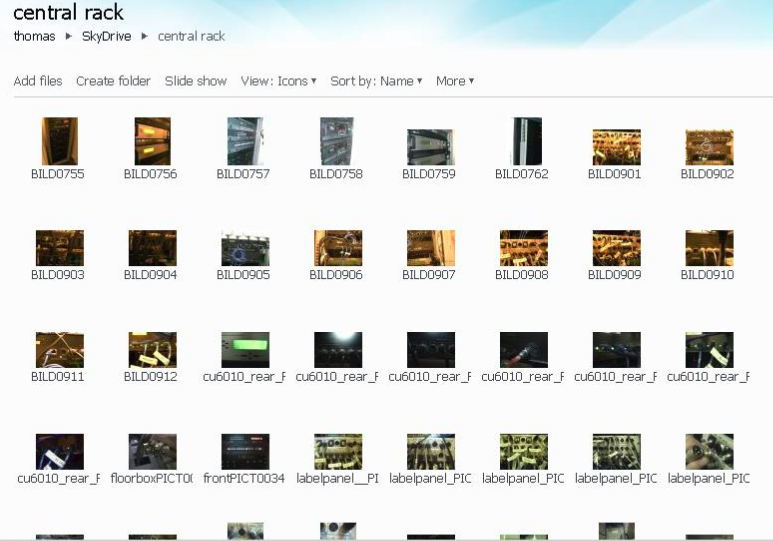
Saville Interpreting Suite layout diagram
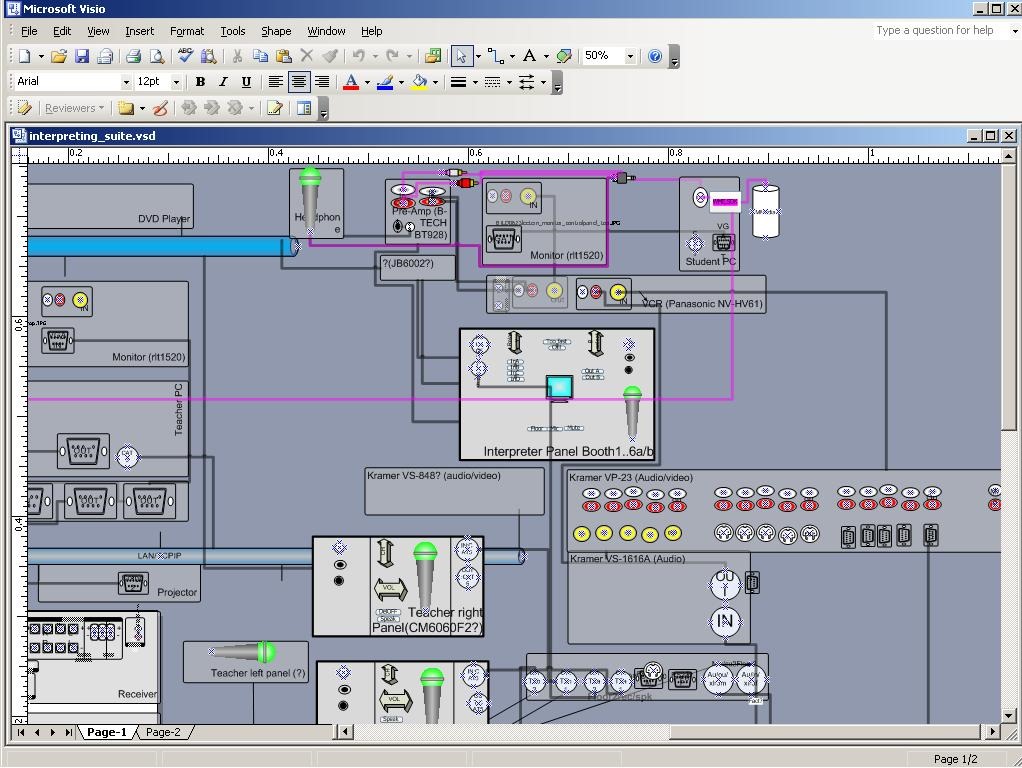
Which I had to derive from photos:
How to enable your SMEs to collaboratively define and add metadata to learning materials
- We have been asked to manage digital assets (including web links) and enabling incorporating them as learning materials within a series of study programs.
- We researched a number of metadata schemas and controlled vocabularies that have been applied to language and social sciences learning materials before,
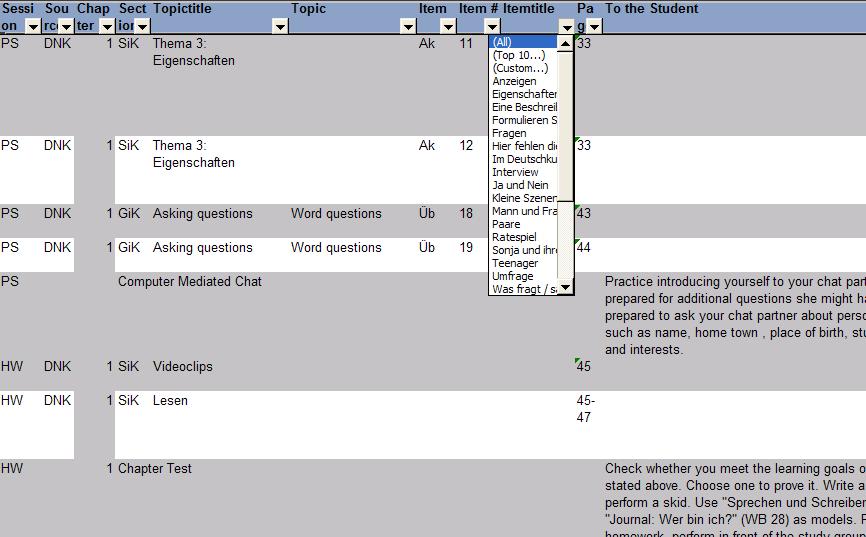
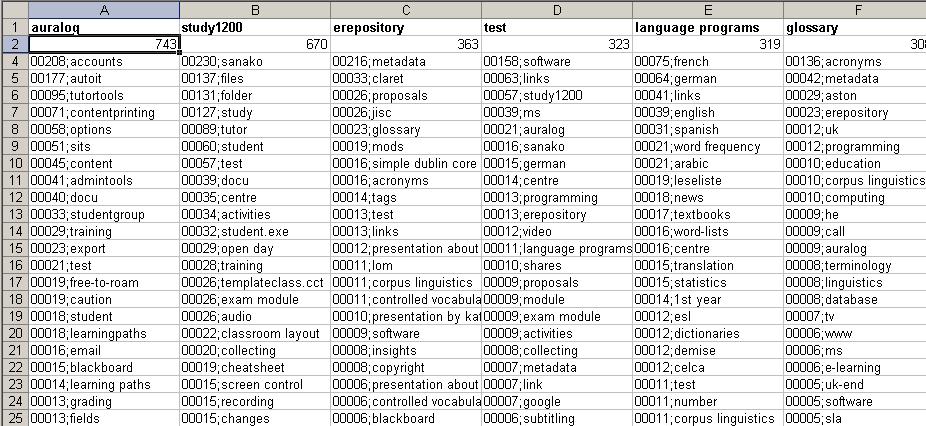
- and incorporated those into the below MS-Excel application, to allow for easy marking up of existing assets by SMEs – using collaborative tagging instead of the more familiar, but more easily conflicting, since mutually exclusive folder hierarchy (unidirectional-tree structure).
- In addition, SMEs can expand and develop the controlled vocabulary, by adding tags of their own, as you can see at the end of this demo:



Questions? Read the About. Or just ask me a quick Our Databases: Resources with calendars -- Language learning material Moodle Sites, multimedia files -- films


FAQs for LRC student staff or for students or for teachers. To search our FAQs, in the browser addressbar, add after "https://plagwitz.wordpress.com/feed/?tag=faqs+/" "+TAG1" (from tag cloud below) OR "https://plagwitz.wordpress.com/feed/tag=faqs
&category_name=" "CAT1" (from category hierarchy below). OR search both categories and tags, and multiple TAGs/CATs (connect with "," for OR-search, with "+" for AND-search), like so: https://plagwitz.wordpress.com/feed/?tag=TAG1+TAG2+...TAGn&category_name=CAT1
+CAT2+...CATn"
Other ways to find help
If you cannot find it here, look there: 5,500 Language-Learning Links and Programs for learning or teaching 150 languages
Shortcuts:Our Lists, Our Maps, LRC Staff Moodle Site,LRC Project Moodle Site, 49erexpress, UNCC Moodle, Student Recordings: s:claslcslrcsanakostudent
Learning usage samples: Sanako oral exam, Kaltura webcam presentation, Dictation with speech recognition, Sanako written exam, Chinese and Japanese interactive stroke-order practice
Test the Sanako Installer, Webbrowser Popup Konfigurator for XP, or Windows7, faster LRC TeacherPC Log-in Let MS facilitate diacritics writing by installing for you US-International keyboard layout
This is my personal blog (Google+). The views expressed on these pages are mine alone and not those of my employer. The information in this weblog is provided “AS IS” with no warranties, and confers no rights.
 Thomas' Work Space