Archive
How to conduct a Sanako Study 1200 functionality test before oral exams
- Why? Before high-stakes oral assessments, it is best practice to test the functionality of all computers in the digital audio lab.
- How?
- Log into 2 computers with your own account (these will serve as a backup computers. Should you need backup computers later, there will be no delay waiting for them to start up and become operational).
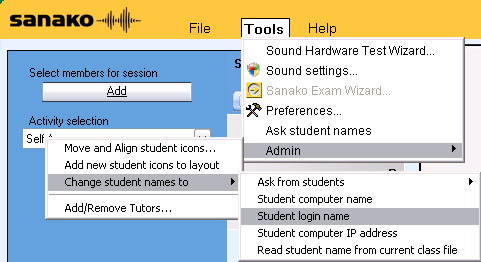
- Change Sanako classroom layout names to computer or position name (whatever makes it easier for you to identify any non-functioning machines).
- If you are doing this for a first time with a class, load your test exam audio into Audacity and display the voice graph to students on a projector. This way you make sure that students understand from the voice graph that they are supposed to
- hear an instruction over the headphones and
- respond to the instruction by saying their names into their microphones.
- Perform a name-test recording using Sanako activity:”Model imitation”and examine the results:
- Make sure the Sanako collection folder opens – meaning all student recordings could be collected. If not, identify the offending positions from the Sanako collection dialogue and open the folder with the remaining collected recordings manually from the Sanako collection dialogue
- Drag the recorded files into an empty Audacity window and examine the collected recordings visually, plus, where in doubt, aurally, by clicking “solo” and play on the track in question.
- React accordingly:
- If some positions show problems, move students to one of the backup machines that you logged into earlier.
- move backup machines not needed to a different session by right-clicking on their classroom layout icon.
- if more than one backup machine is indeed needed, Sanako – since it is you who are logged in on both – will ask you later for permission to number collected files for duplicate students sequentially. Allow that and rename the files manually.
- Don’t forget to change Sanako classroom layout names back to student login name.
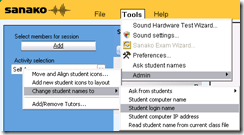 . Or else here is how you can later recover student recordings by student login names.
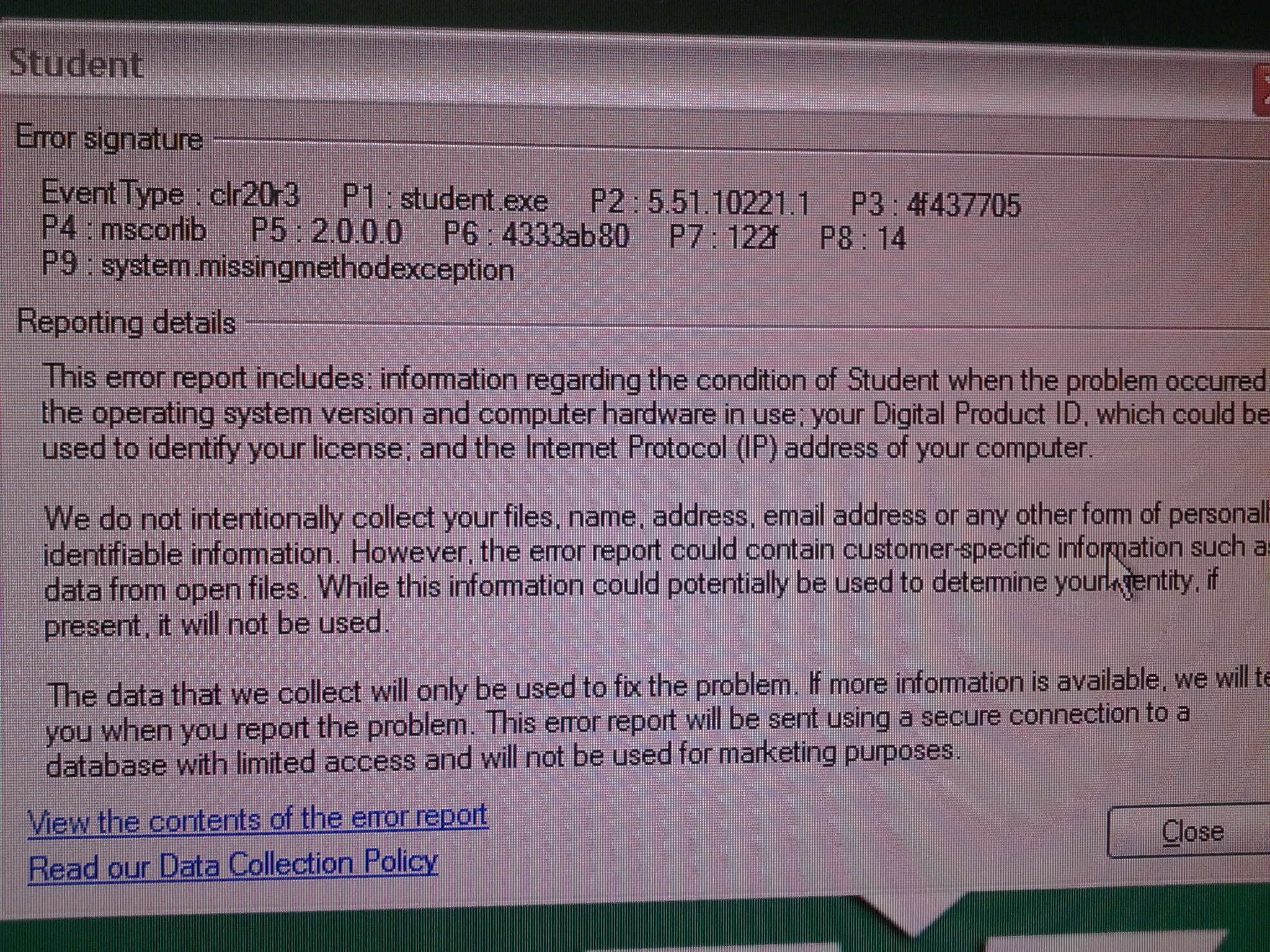
System.MissingMethodException error when installing recorder standalone light
Do we know why? – Still not, but looking into whether all prerequisites are fulfilled (this looks like a .Net error, but the my framework check says higher than version 2 is installed on that faculty computer).
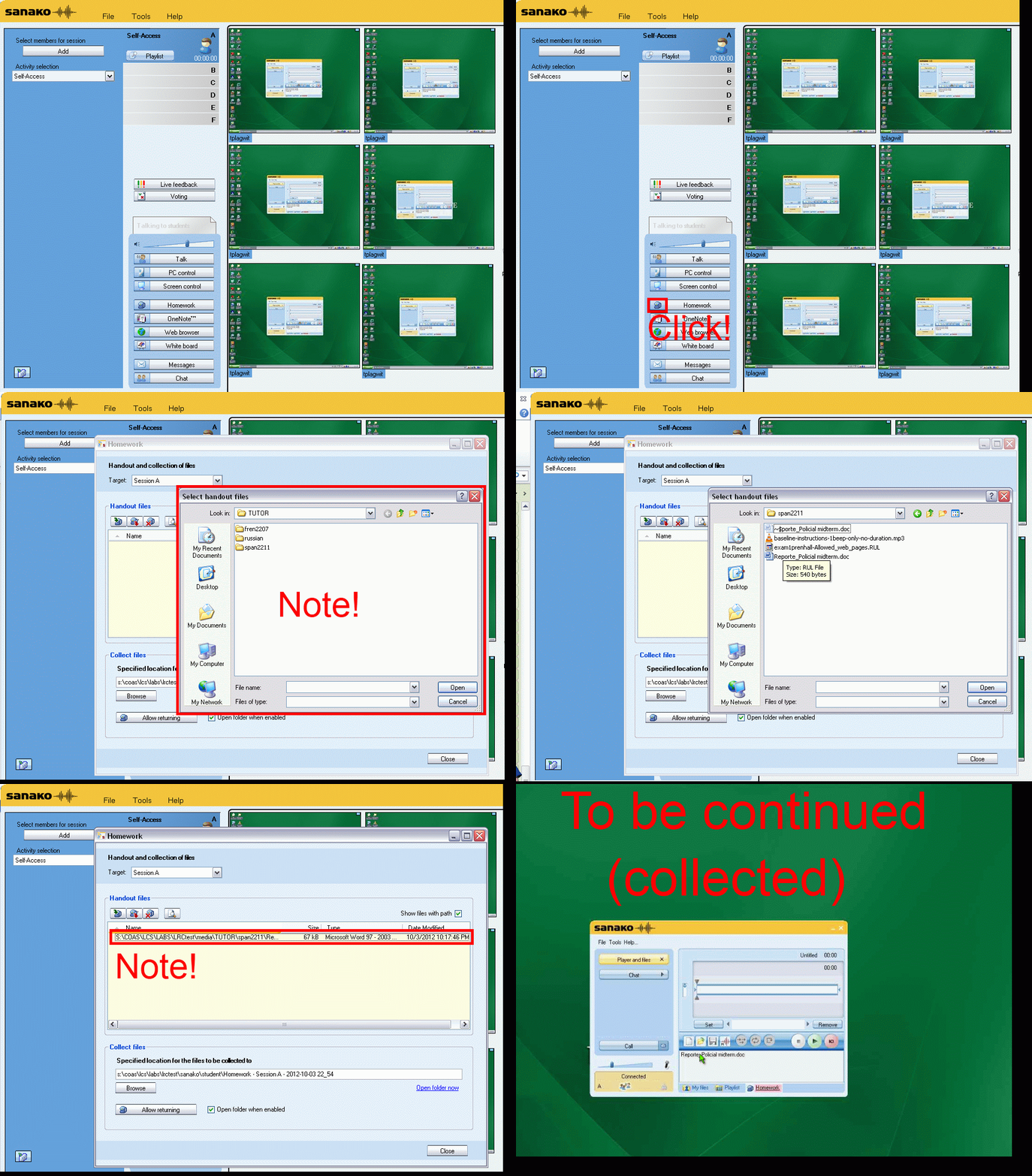
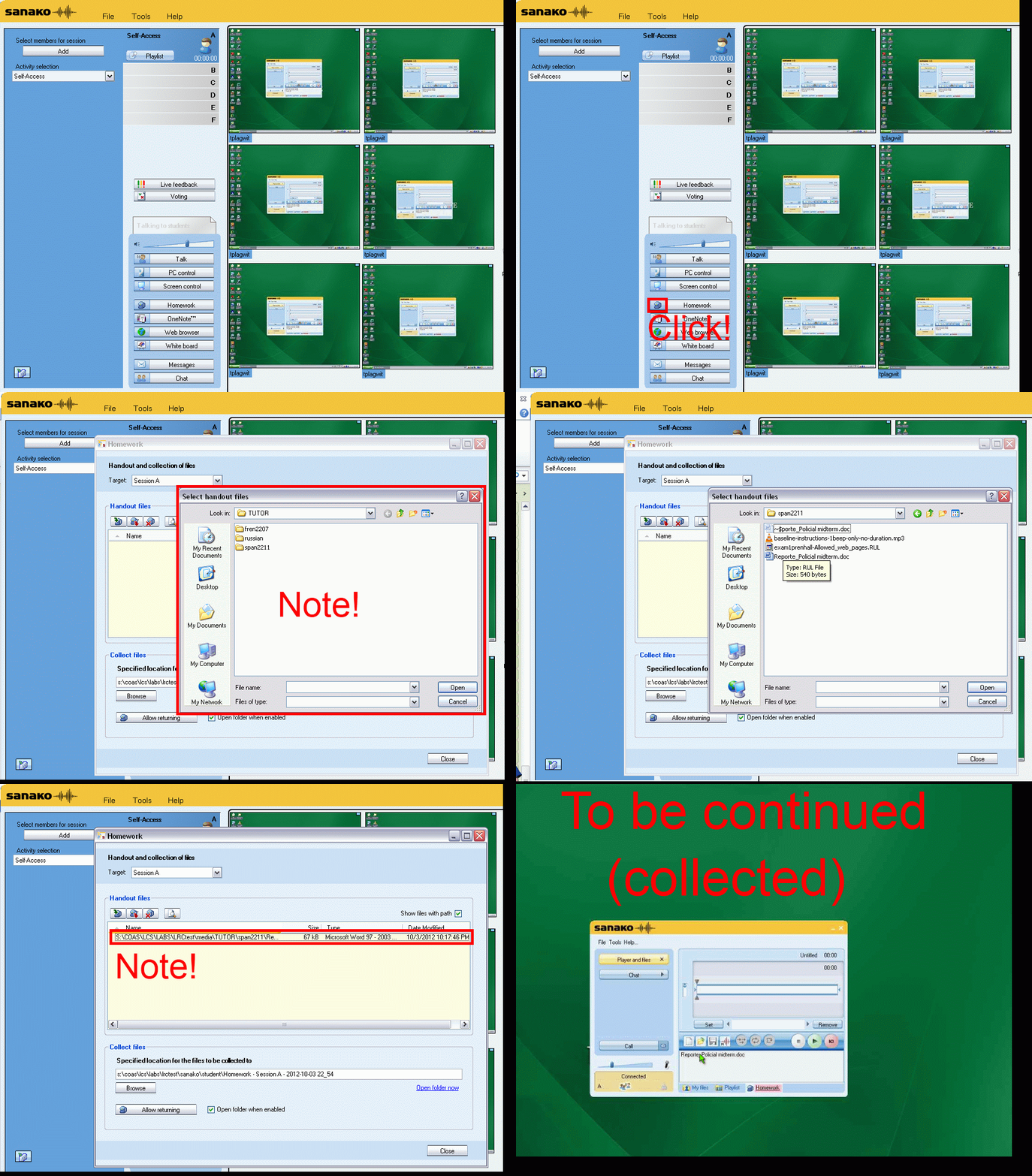
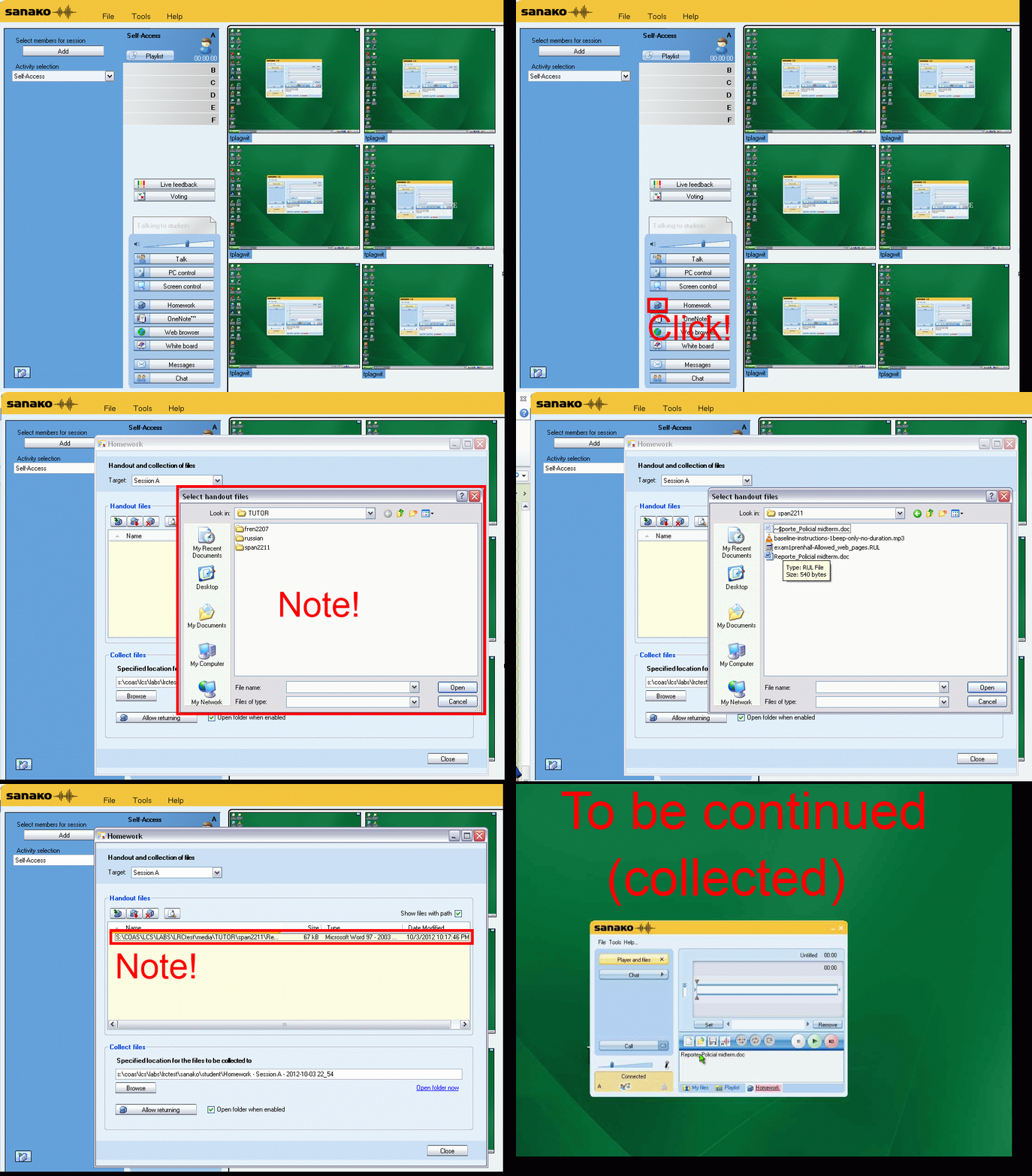
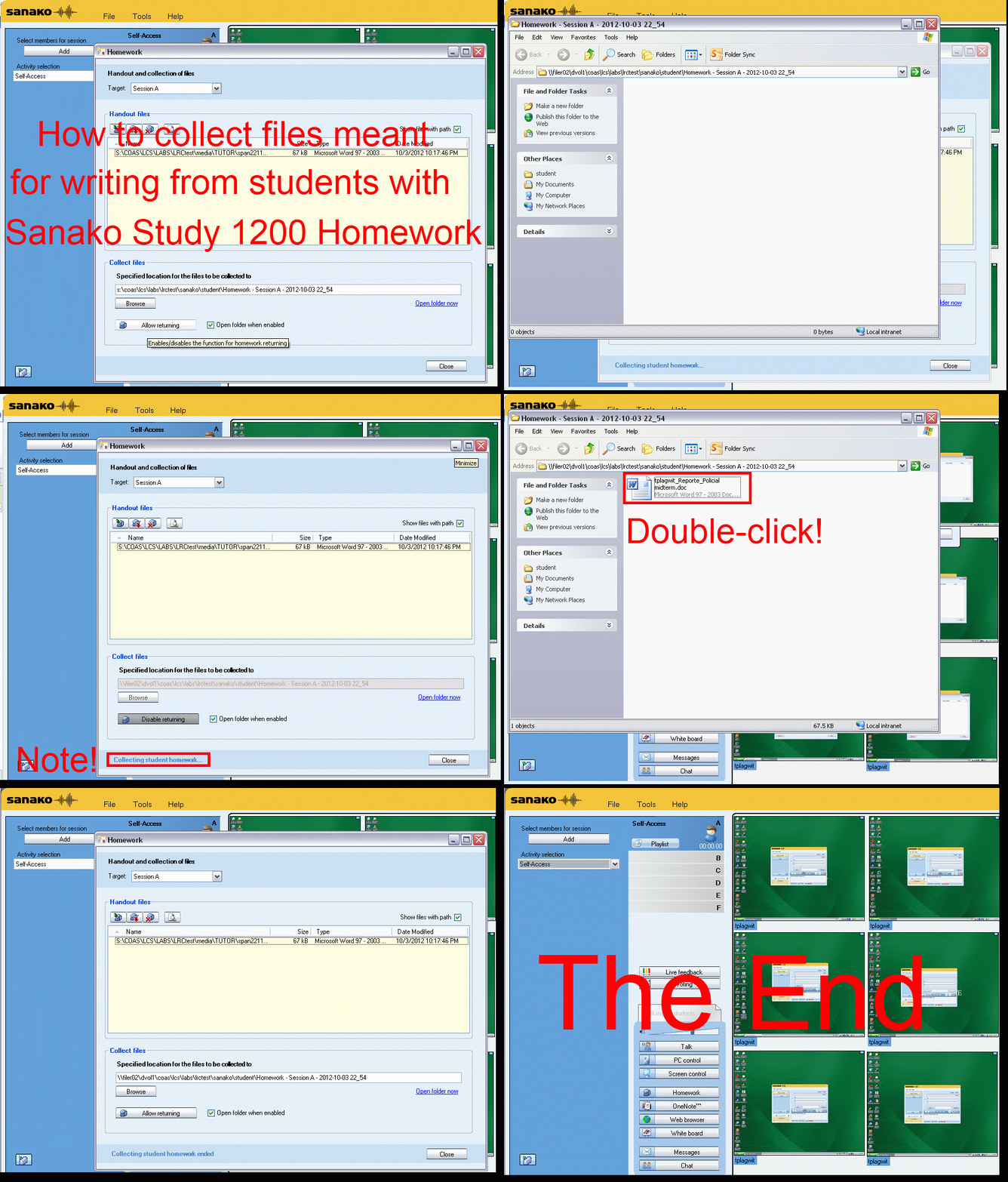
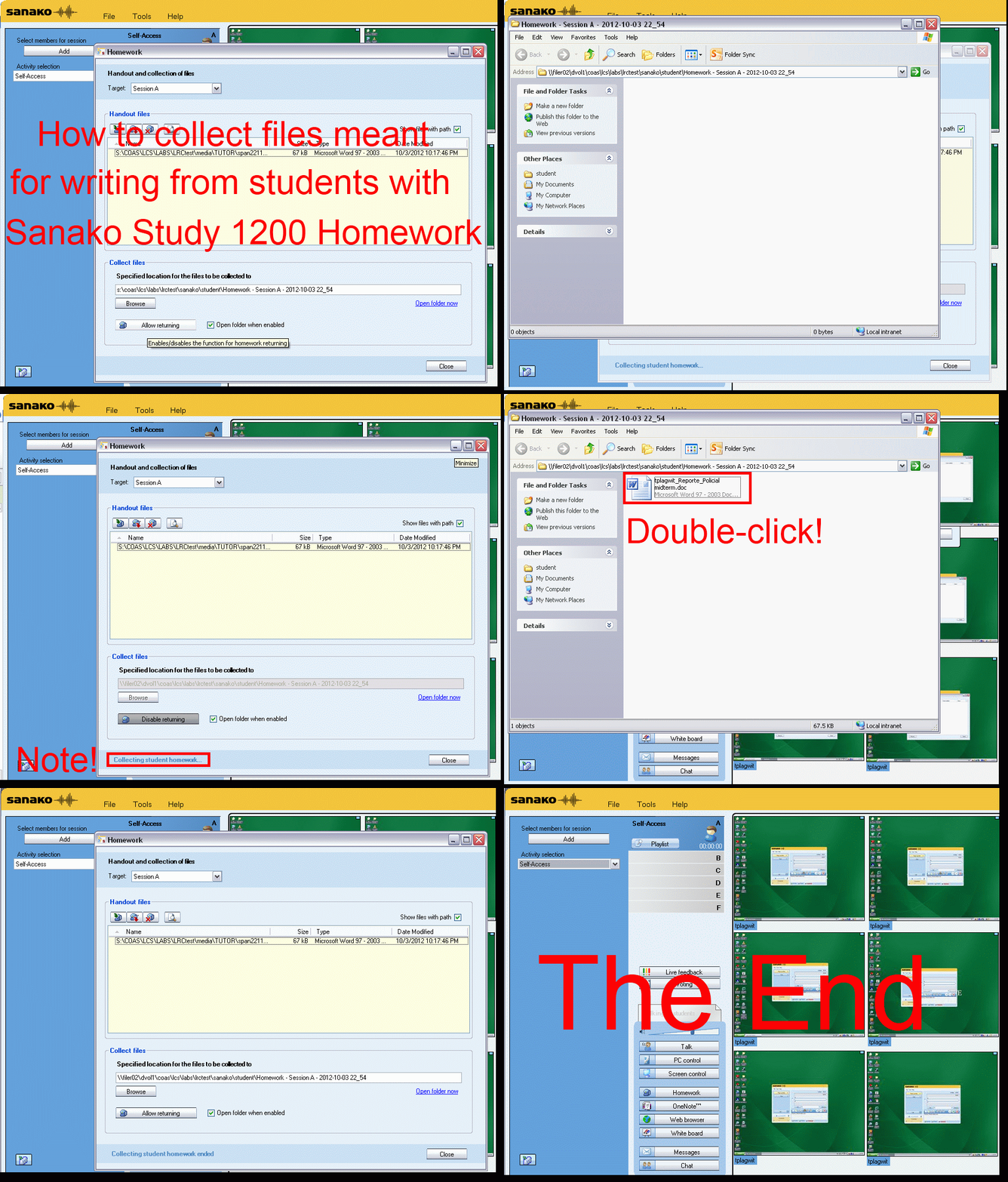
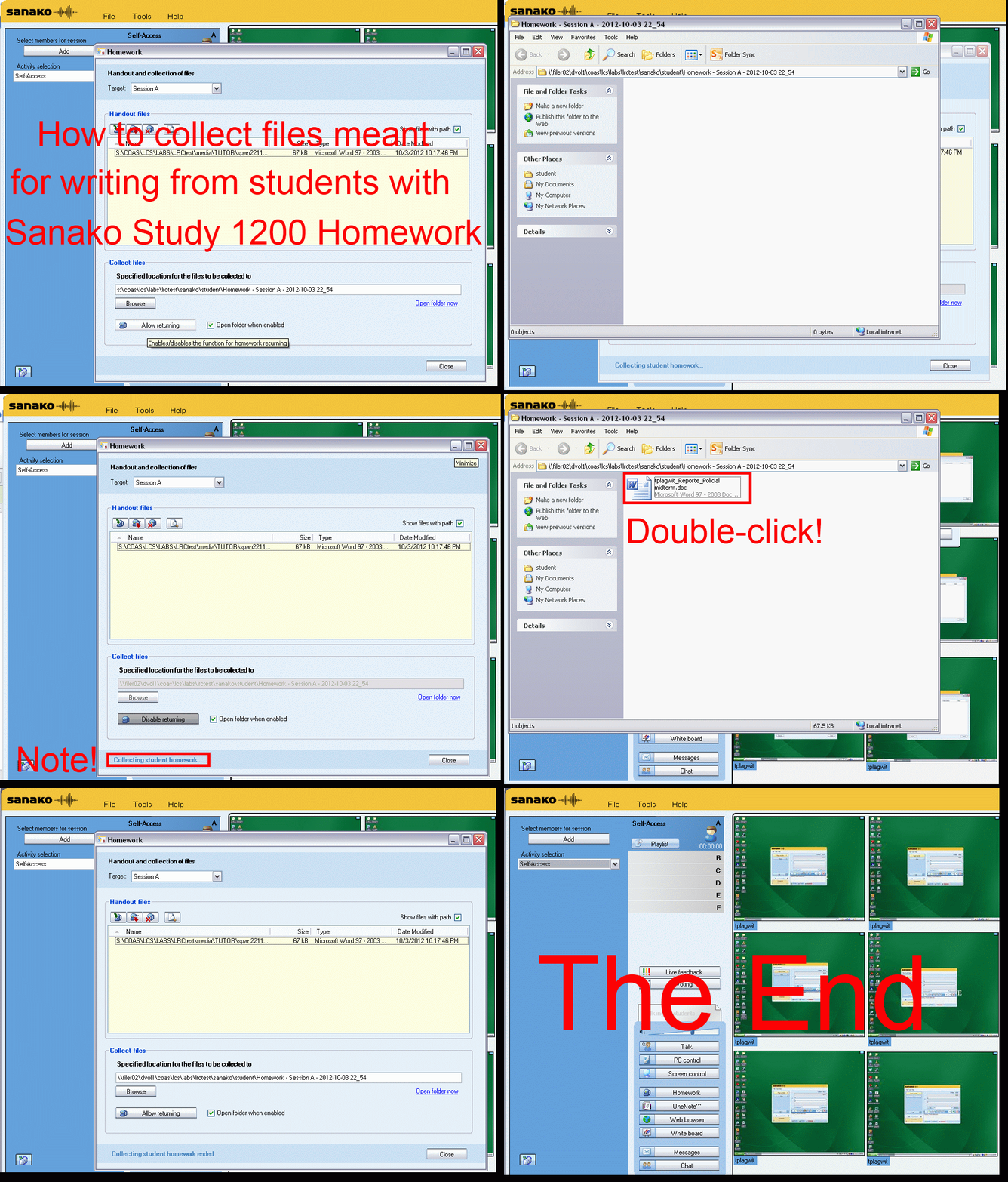
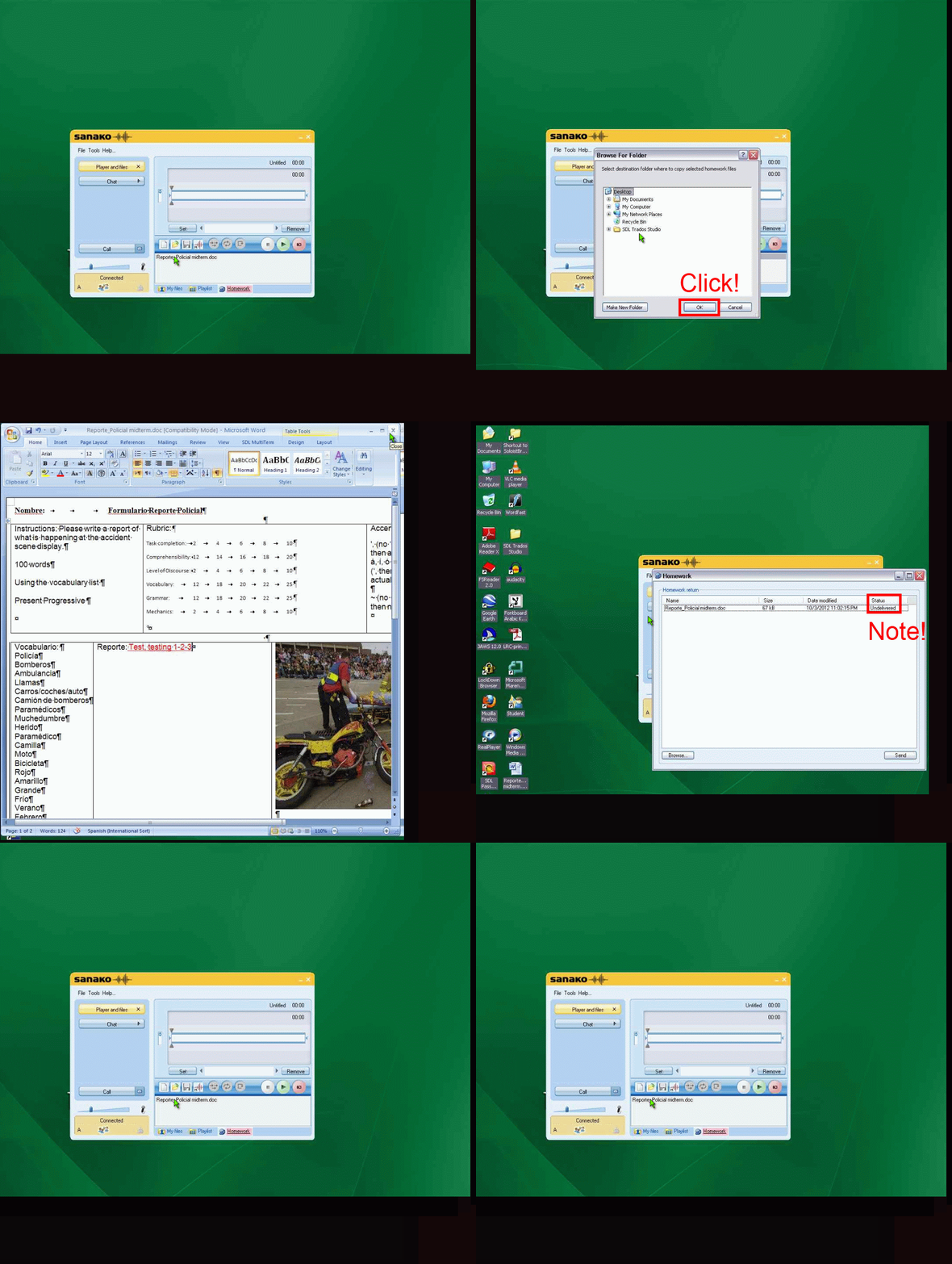
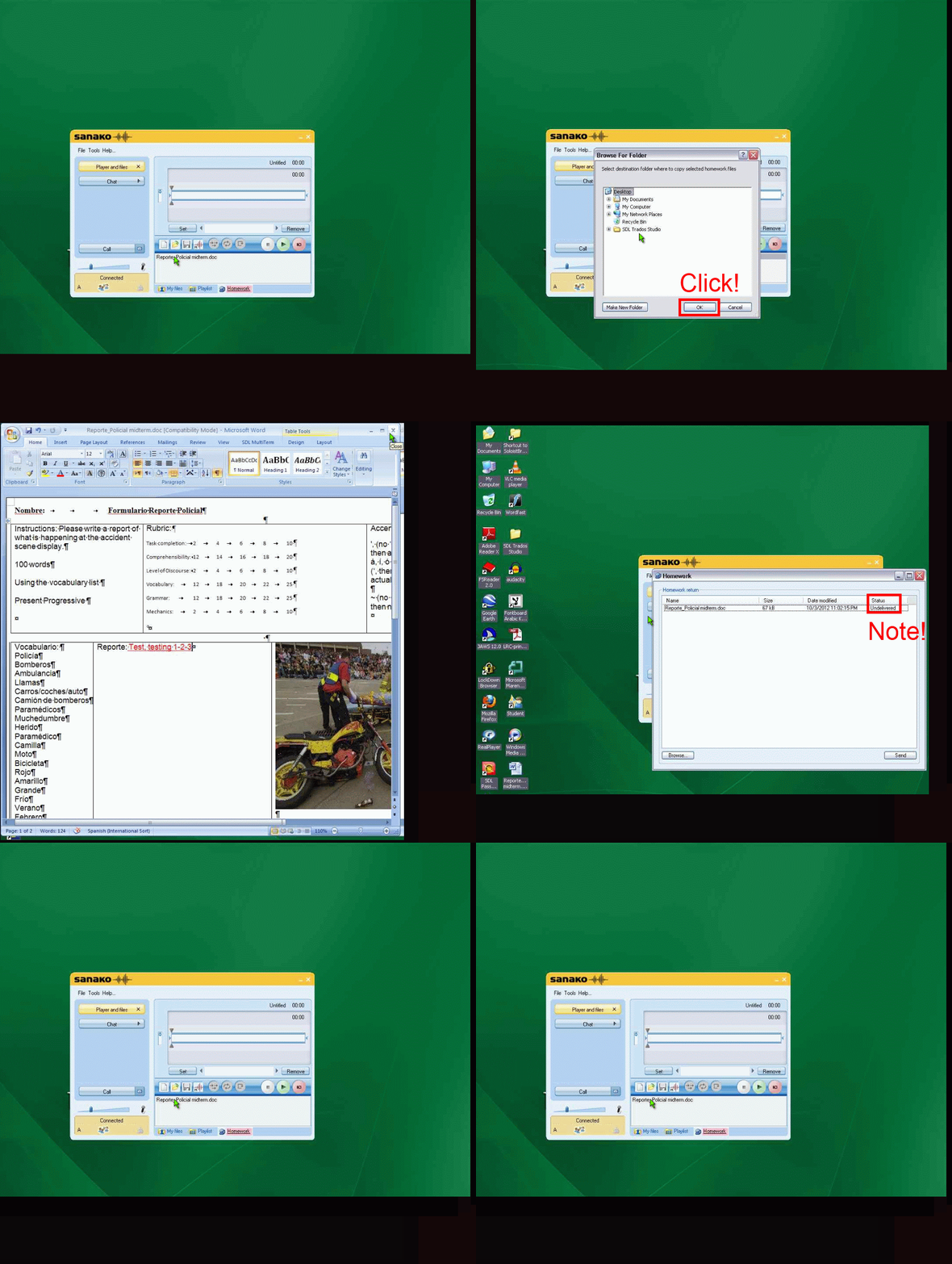
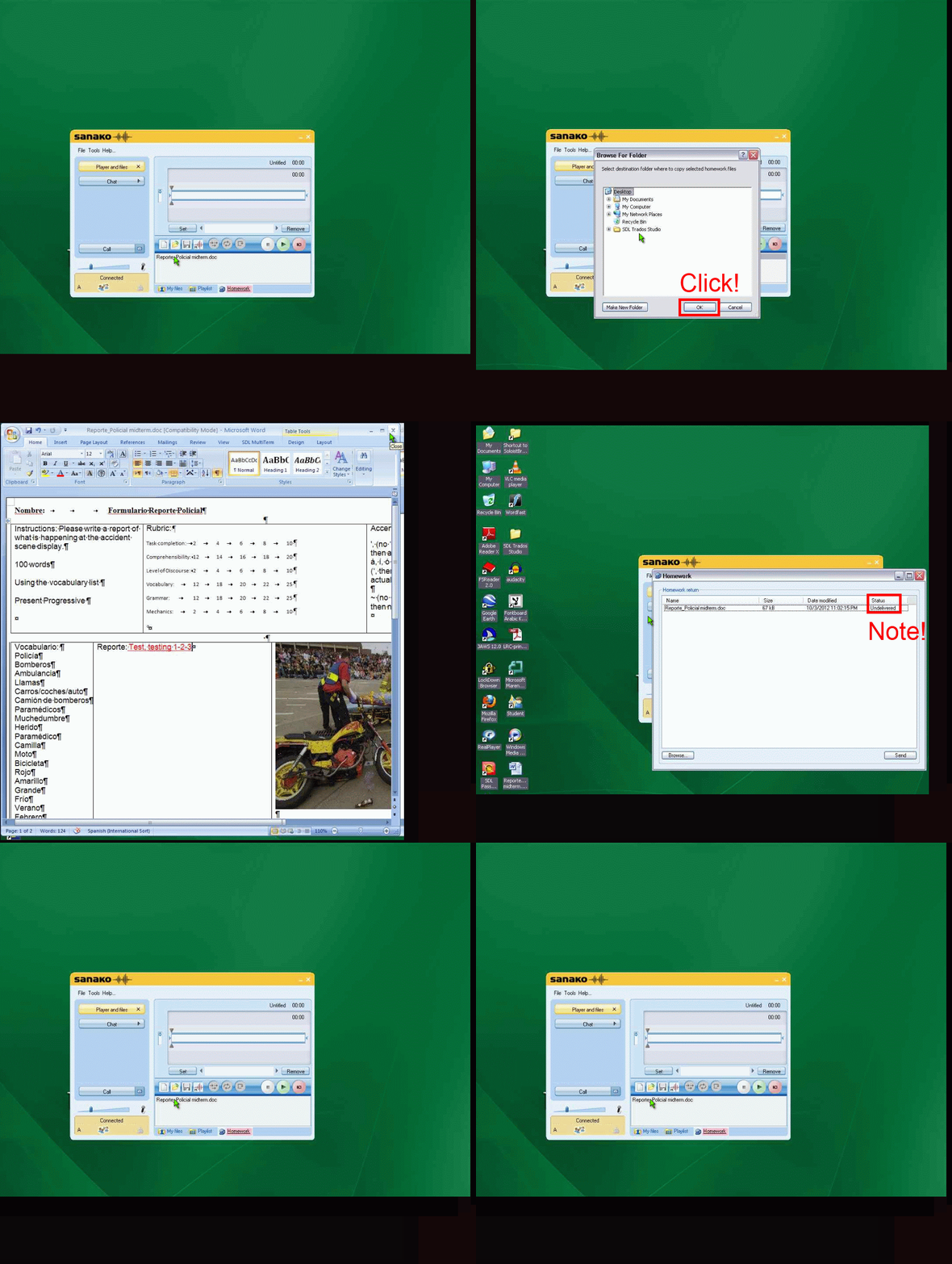
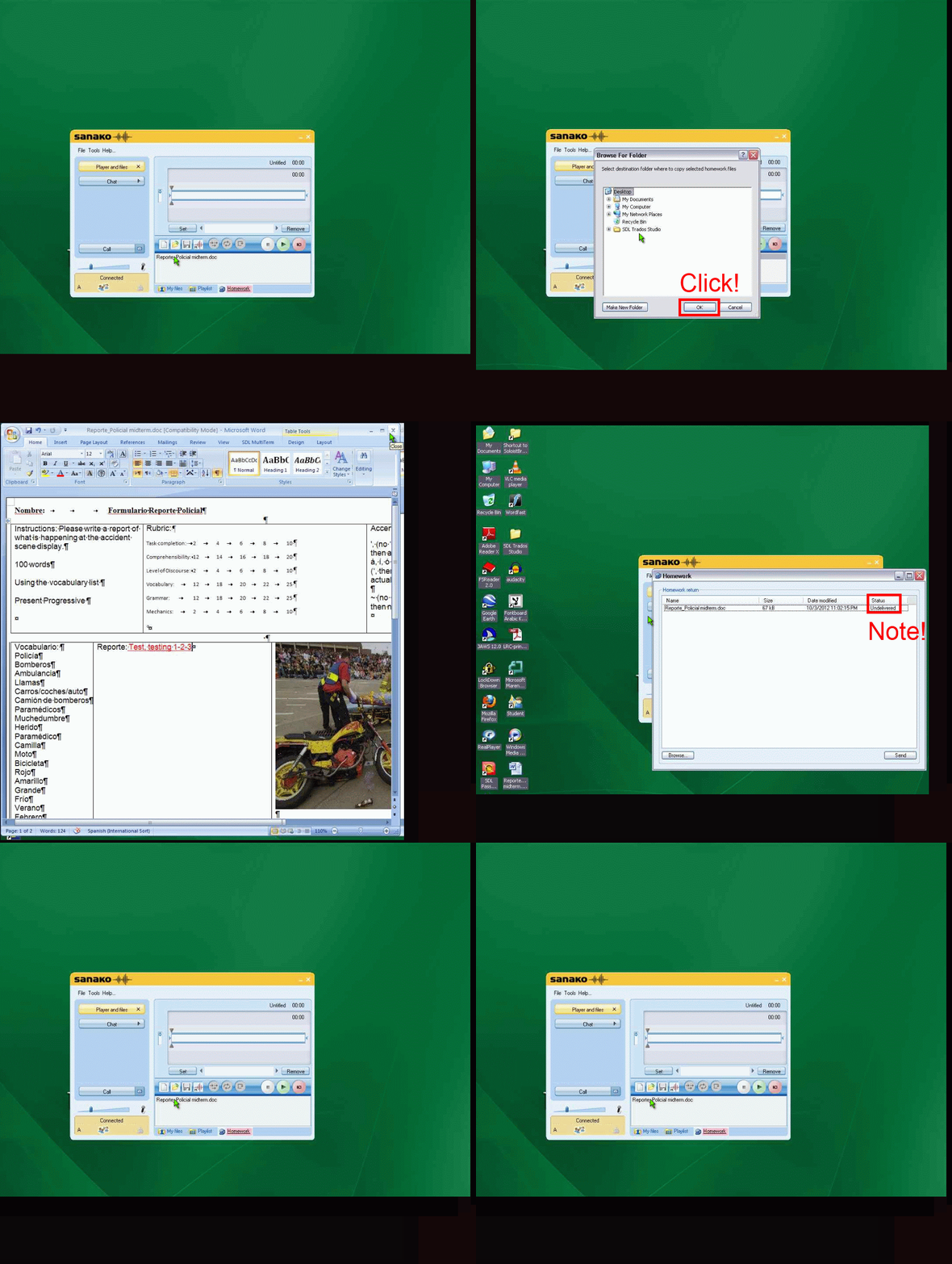
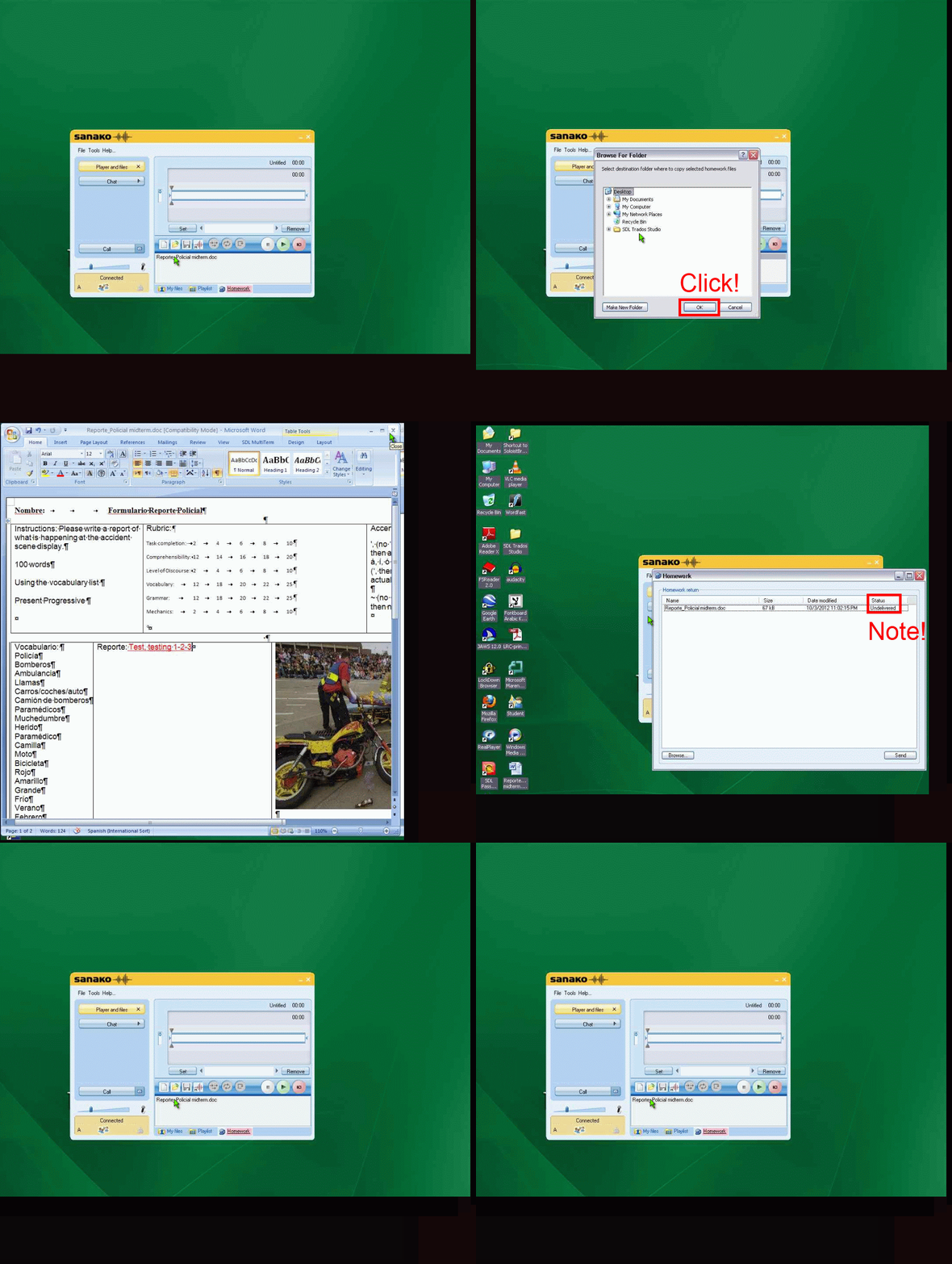
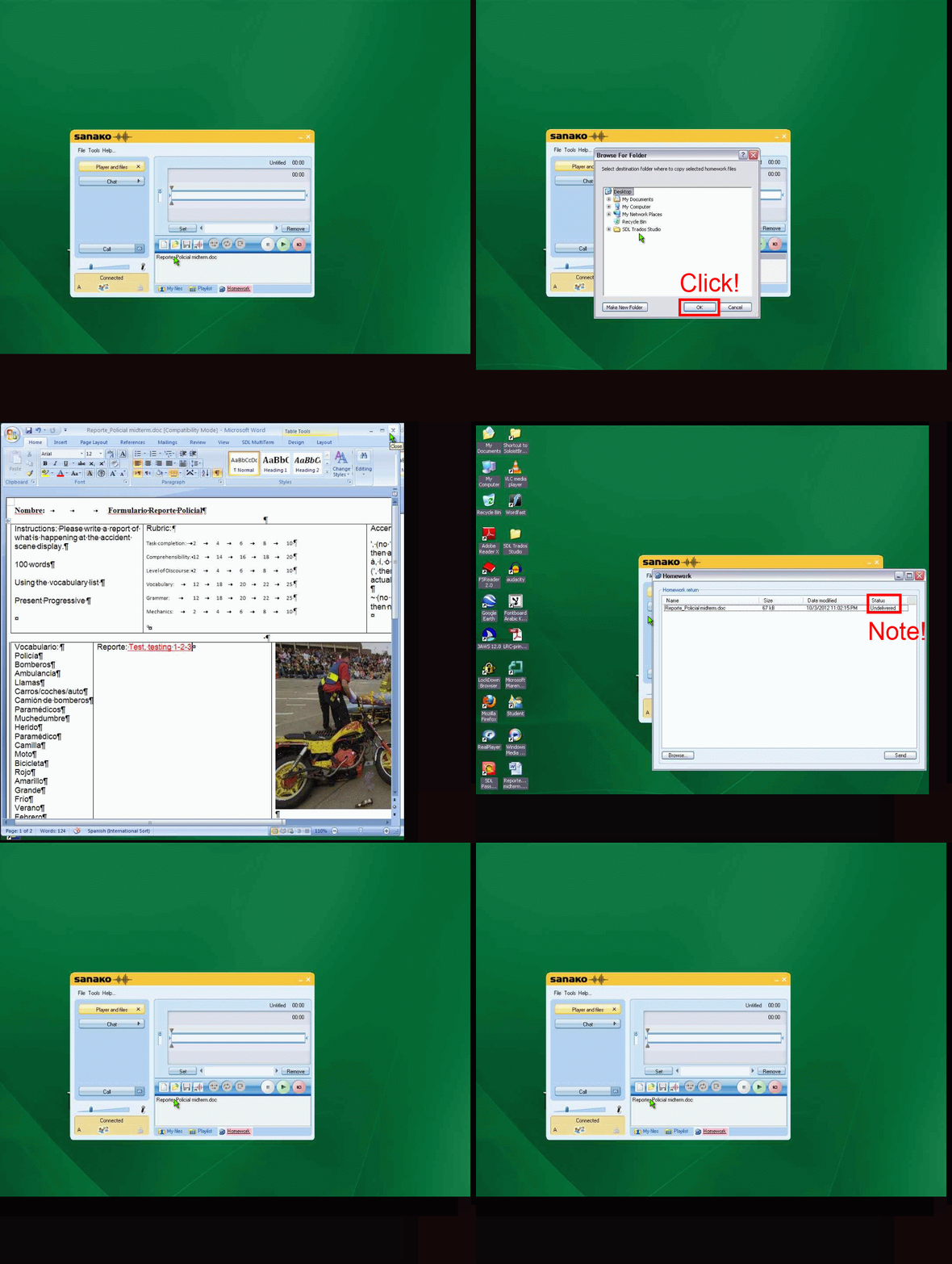
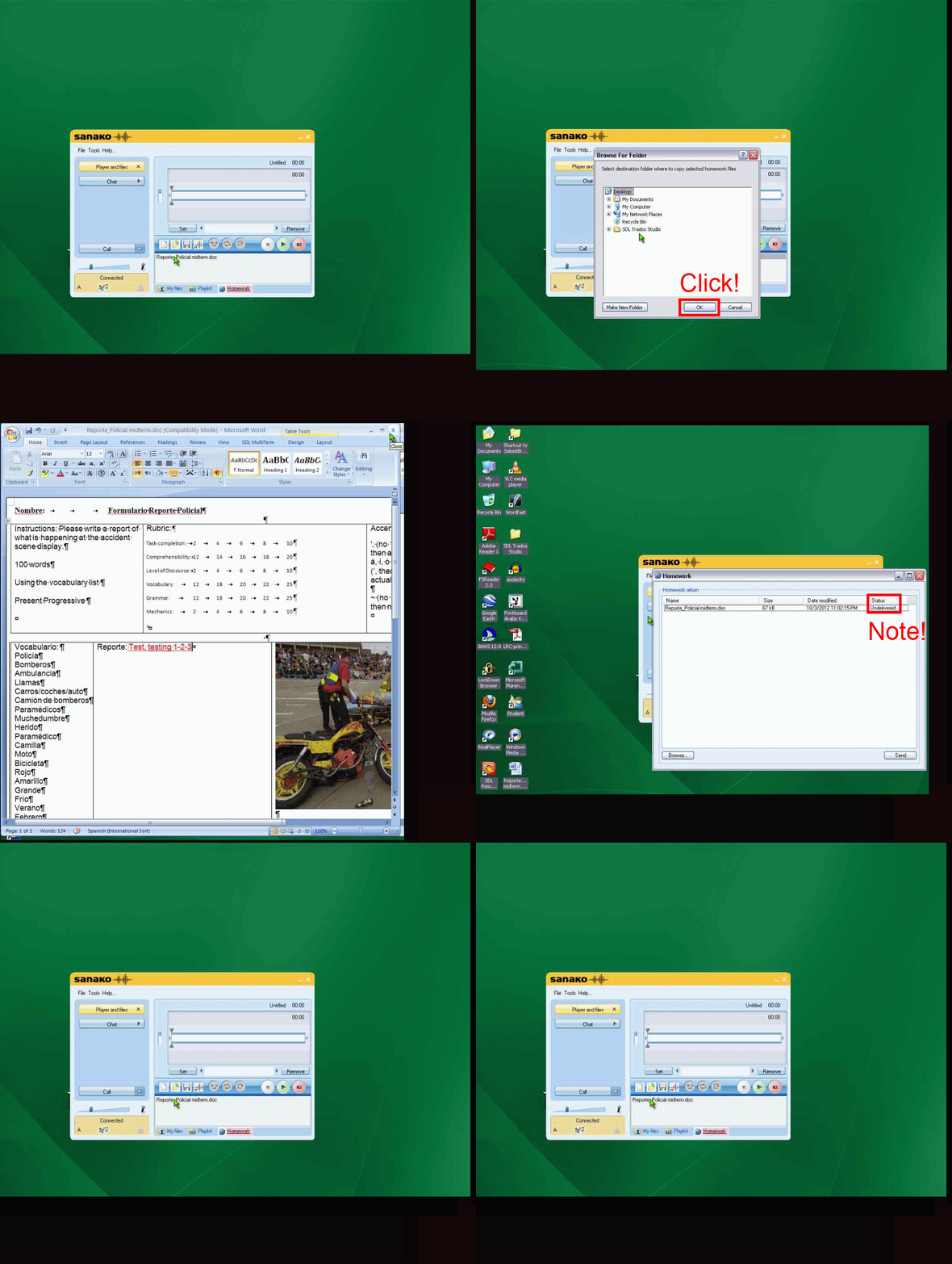
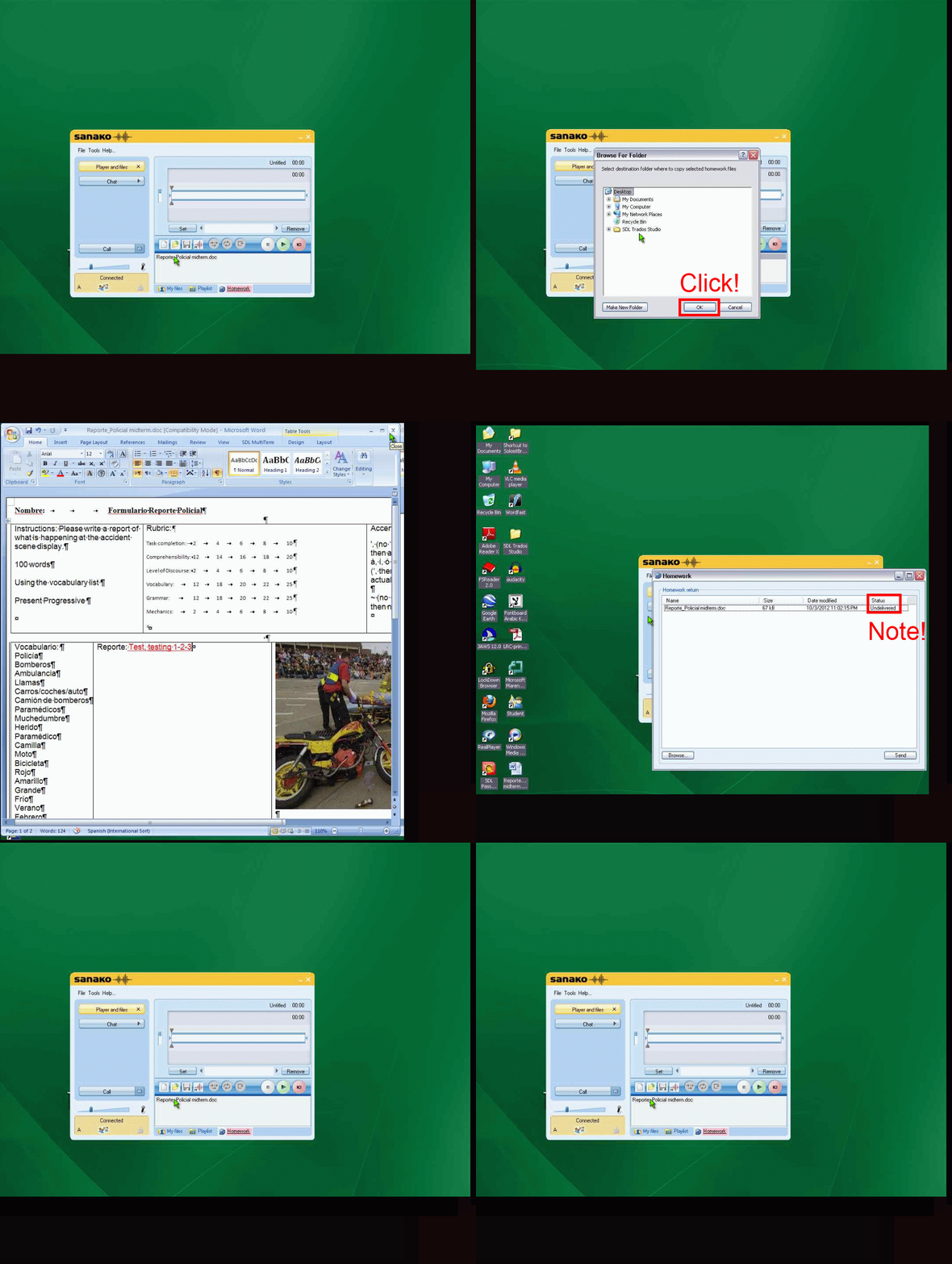
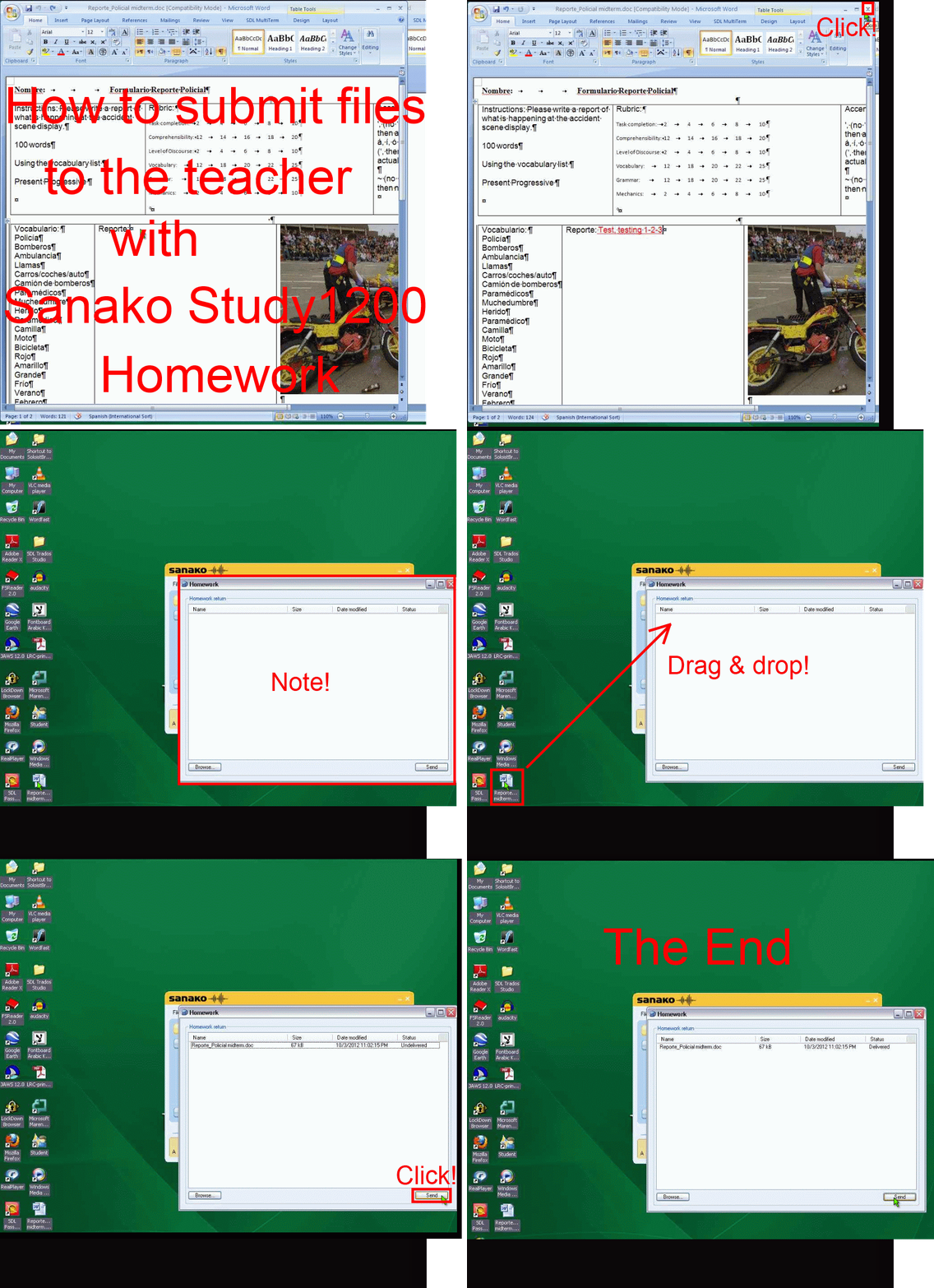
How teachers give files meant for writing to students with Sanako Study 1200 Homework, part 1(give)&2(collect)–the ultimate training summary….
…using animated GIFs. (Here is the part your students have to do). Load the speed of your choosing (or several, use CTRL-Click to open links in a new tab) into the left screen of the teacher station before administering an oral exam, with the window active, press F5 to restart the animation from the beginning at any time.
Part 1 (hand out files).
025ms, 050ms, 075ms, 75ms,100ms, 100ms, 200ms, 300ms, 400ms, 500ms, 600ms, 700ms, 800ms, 900ms, 800ms, 1000ms , 
Part 2 (collect files):
025ms, 050ms 075ms, 100ms 200ms, 300ms 400ms, 500ms 600ms, 700ms 800ms, 900ms 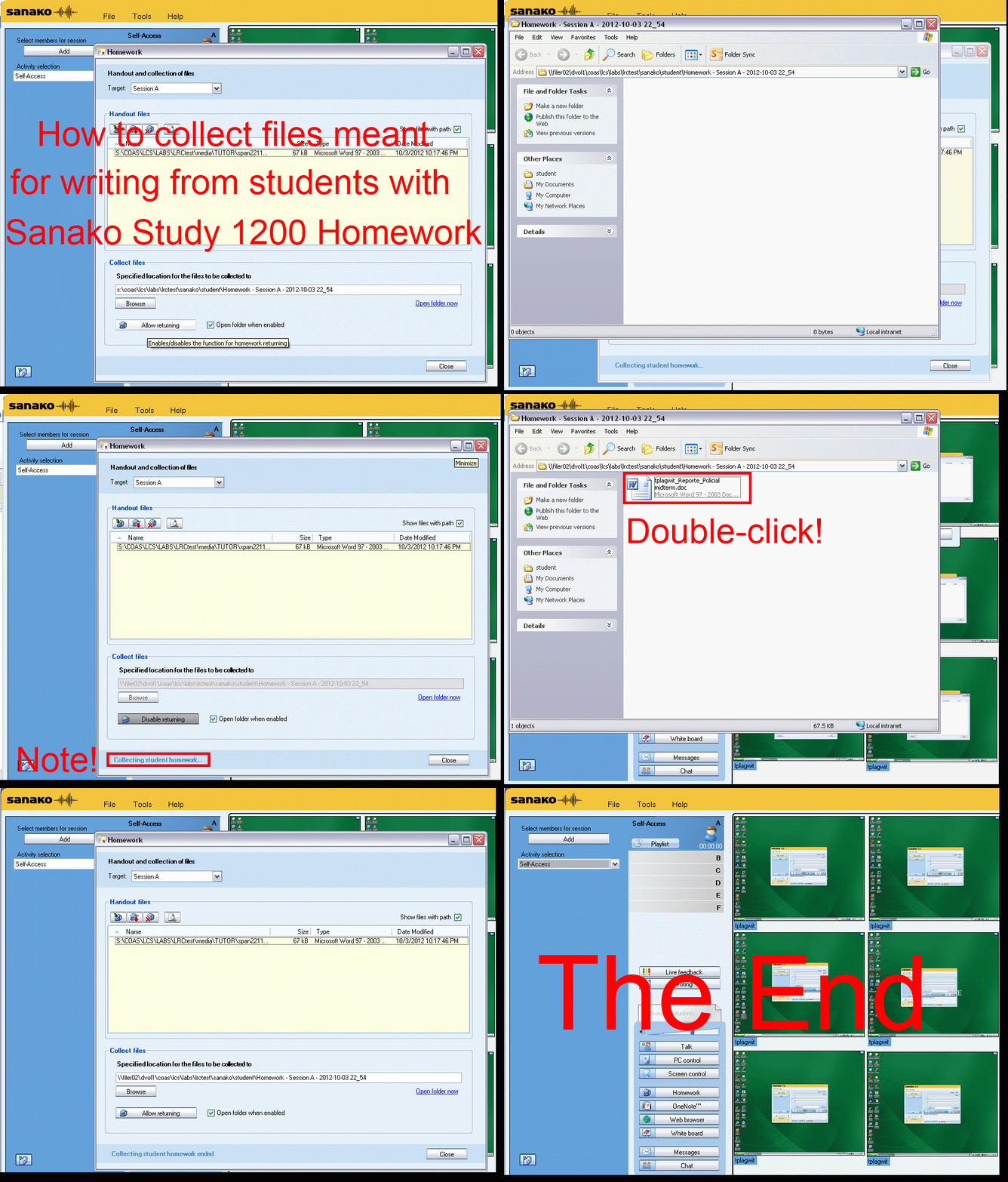
Replacing the Sanako Authoring Tool
- Problem: Oral exams with visual cues have been popular, but the Sanako Authoring Tool we used to create them has been faded out. How can we quickl replace it?
- Workaround:
- collect your files in my Word template (left part of screenshot) like before (question/cue, repetitions, response pause time), including your images
- Save your MS-Word files as html.
- This will create a subfolder with media (right-side of screenshot). All your images are numbered sequentially in the order they appear in your template. Some are duplicated: select the first ones (the duplicate is a size reduction), plus the unique ones, and copy them to a new folder, e.g. “pictures”, on the Sanako teacher share, somewhere underneath your course folder where also your audio exam files resides.
- During the exam , you can display the pictures while playing the audio portion of your oral exam, from this folder sorted by name (= numbered sequentially) with the default teacher computer image viewer. No need even to fling out PowerPoint….

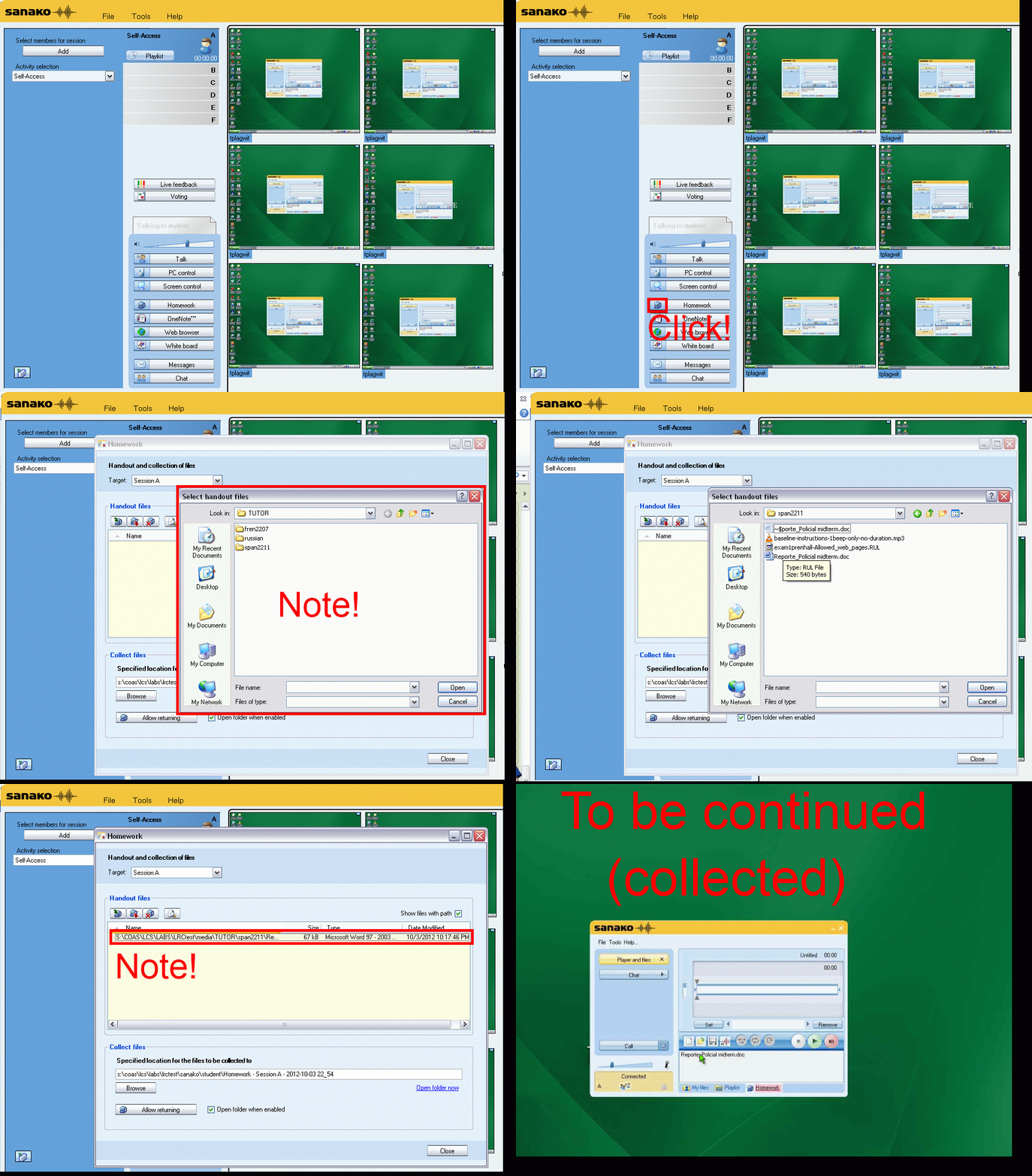
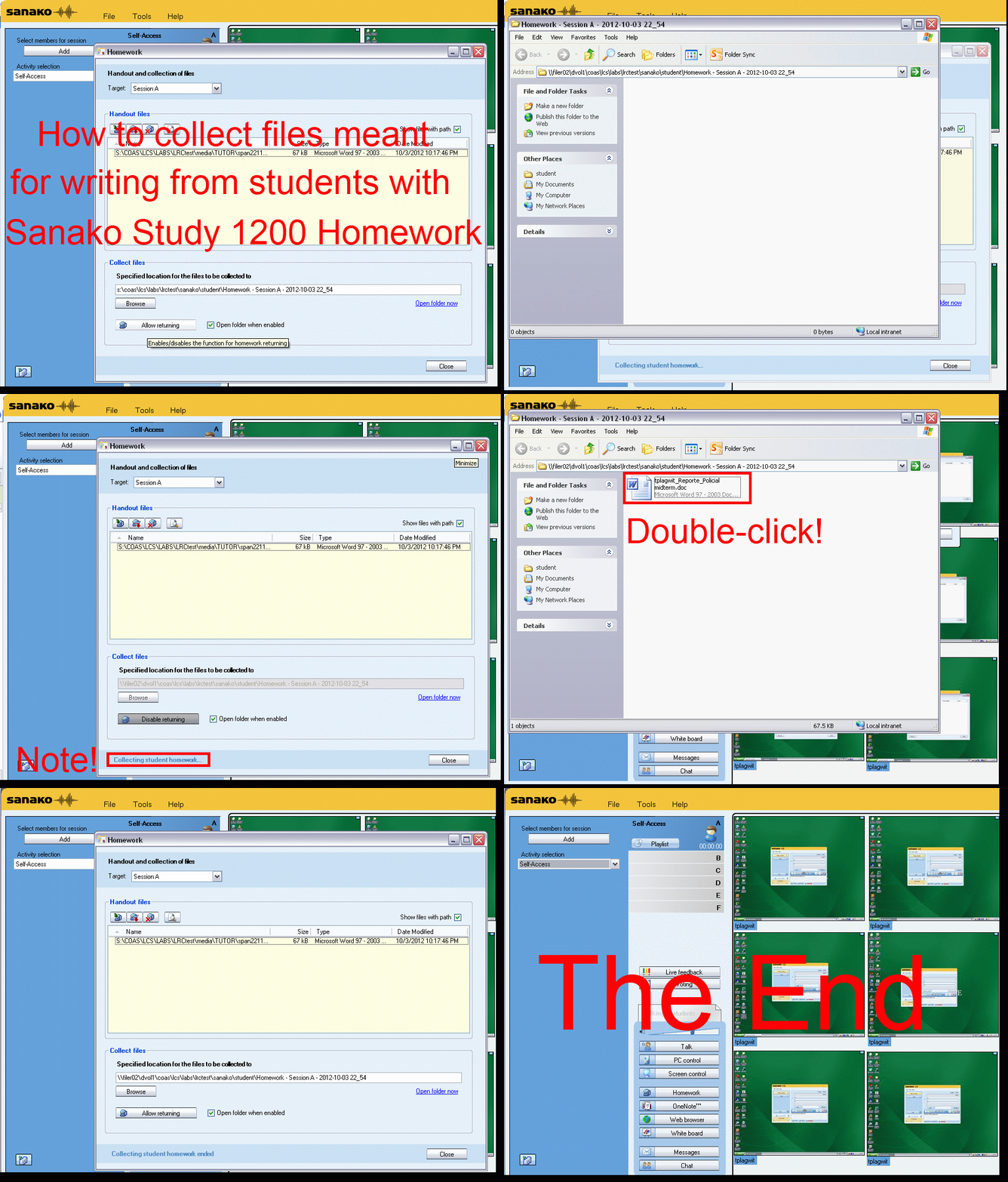
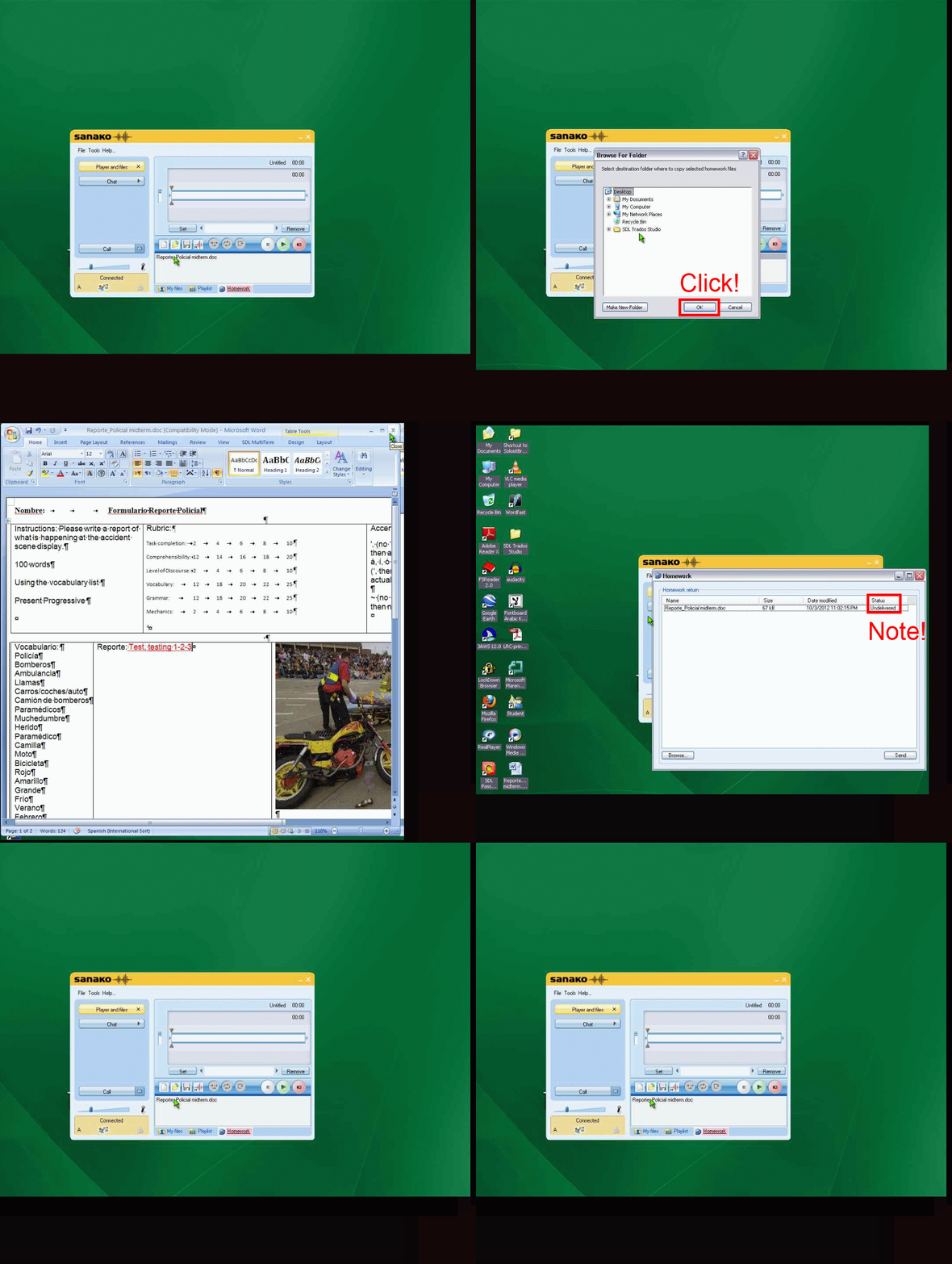
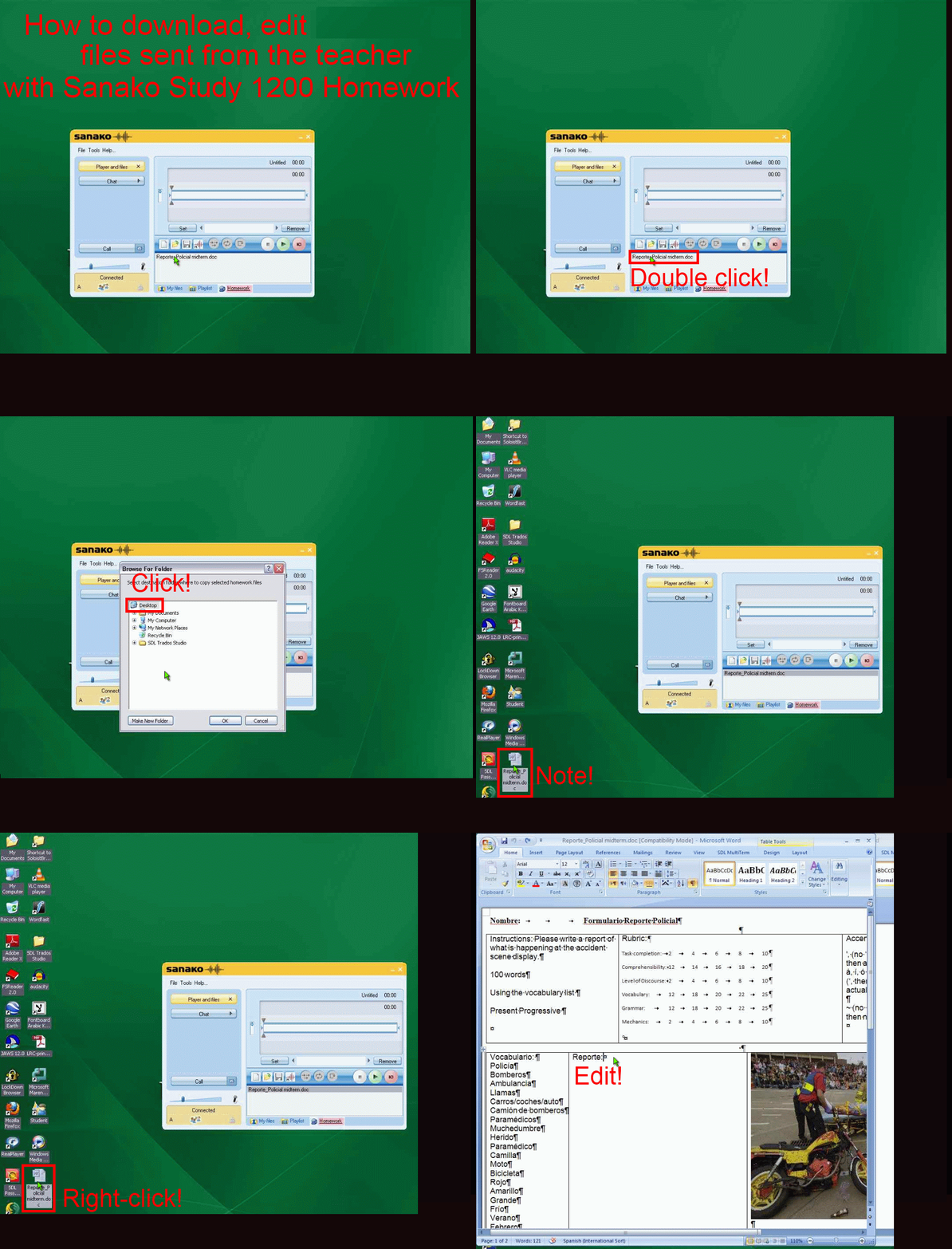
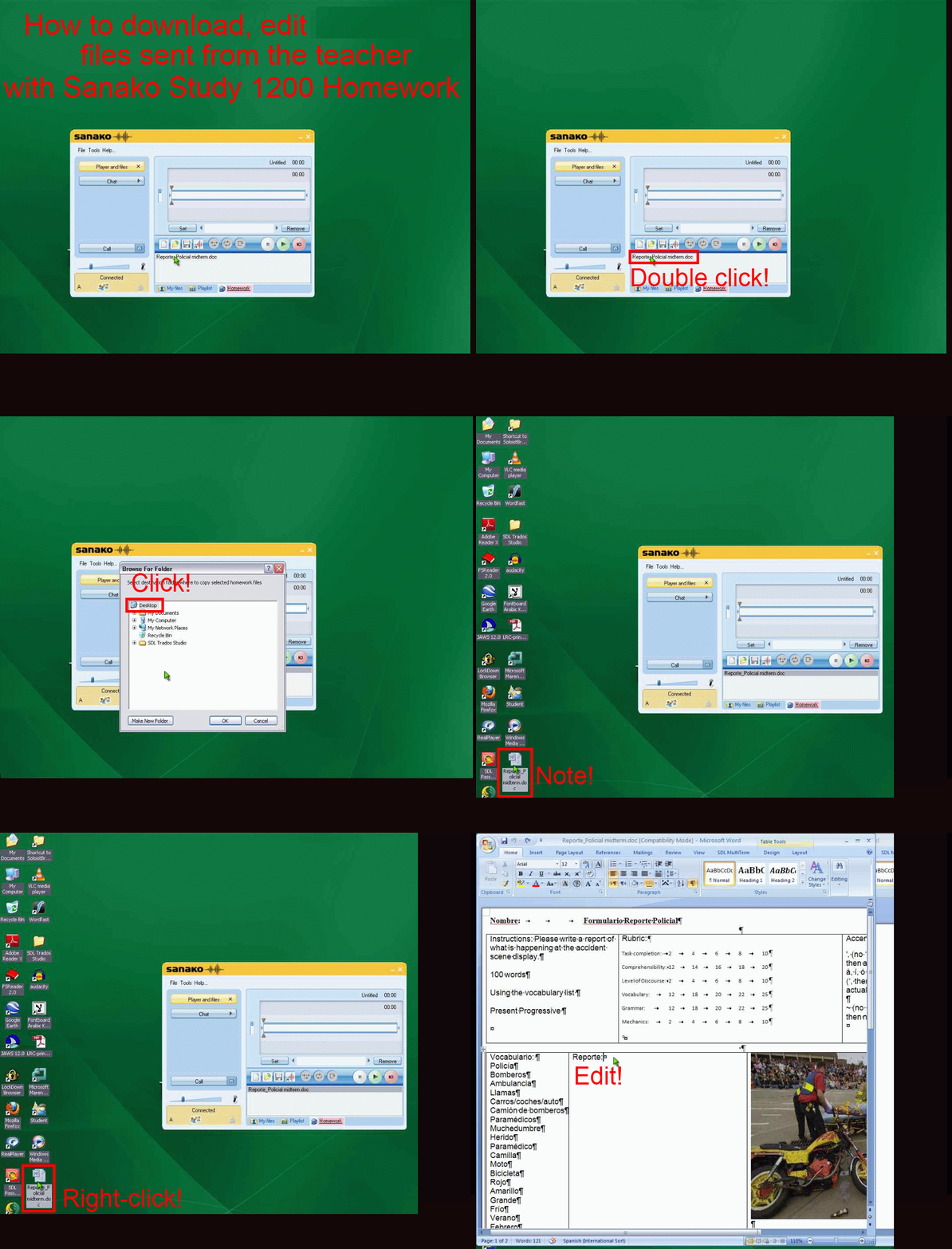
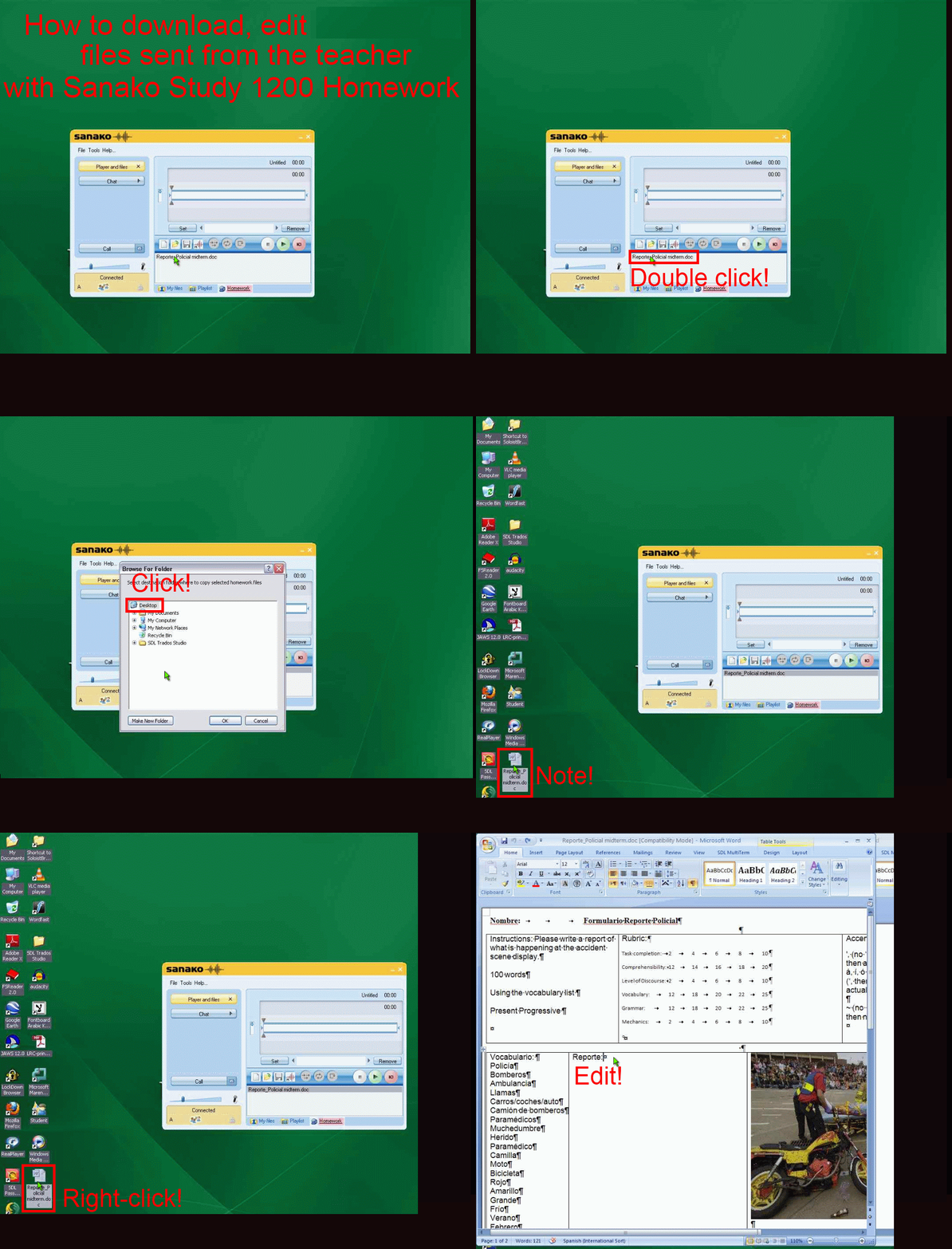
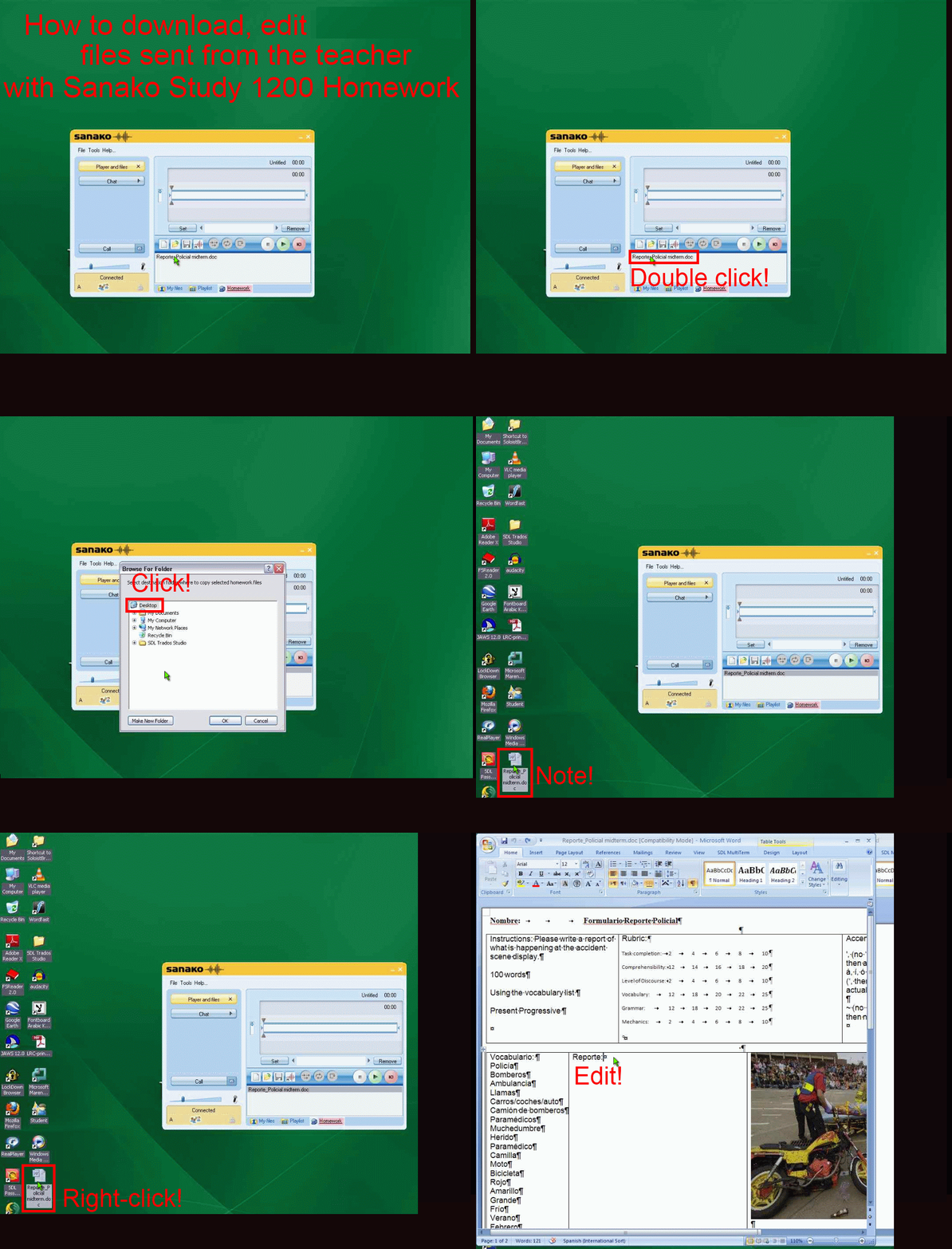
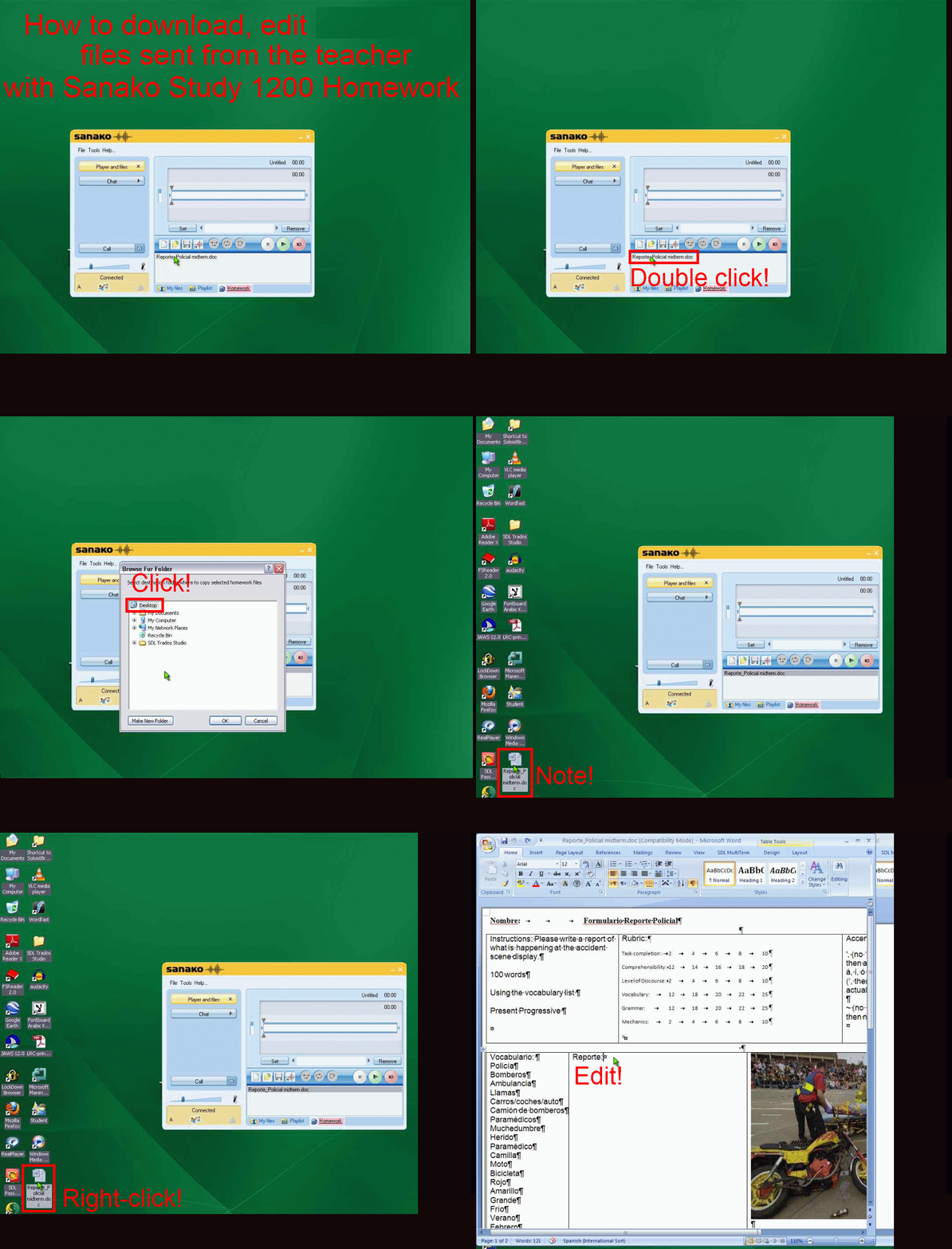
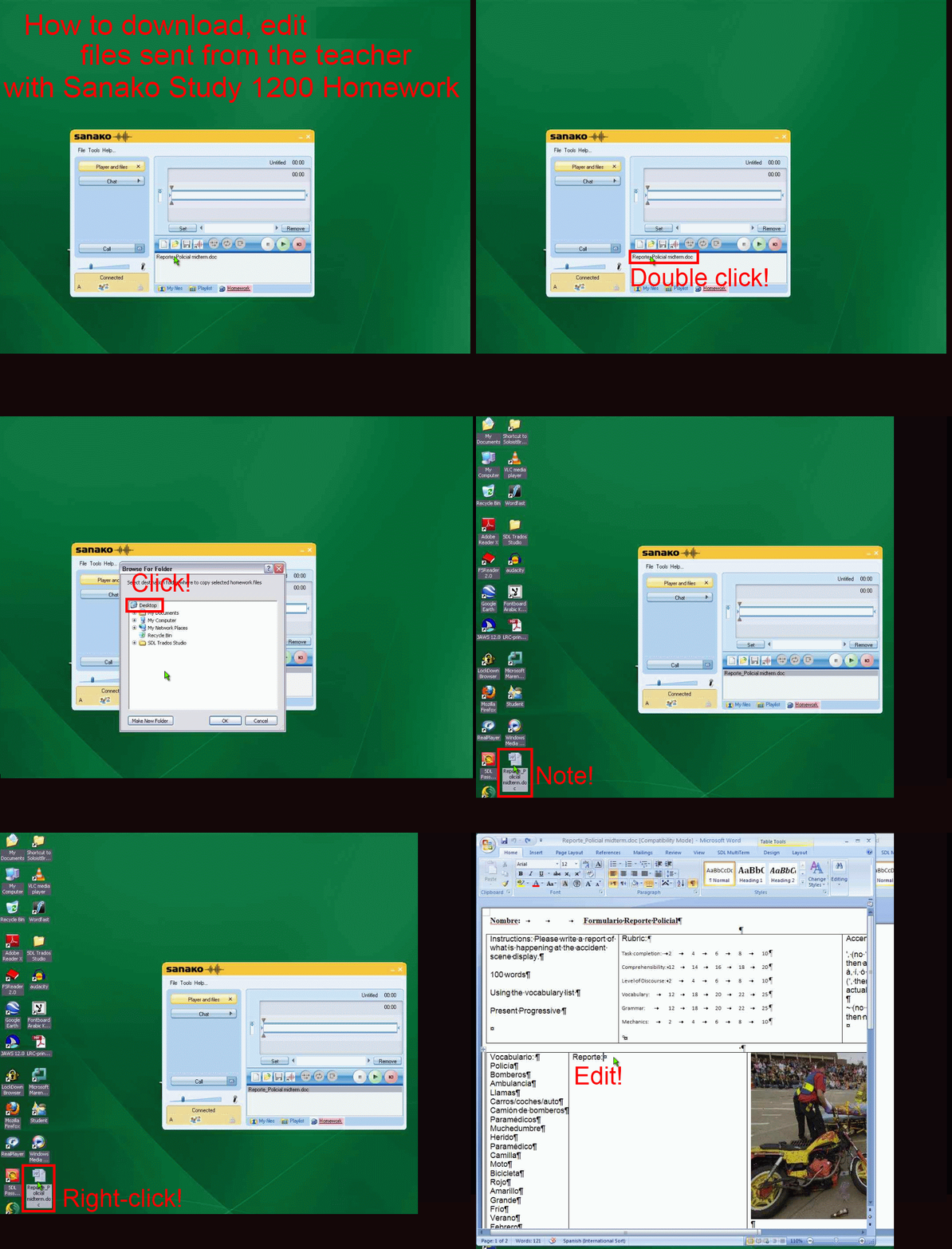
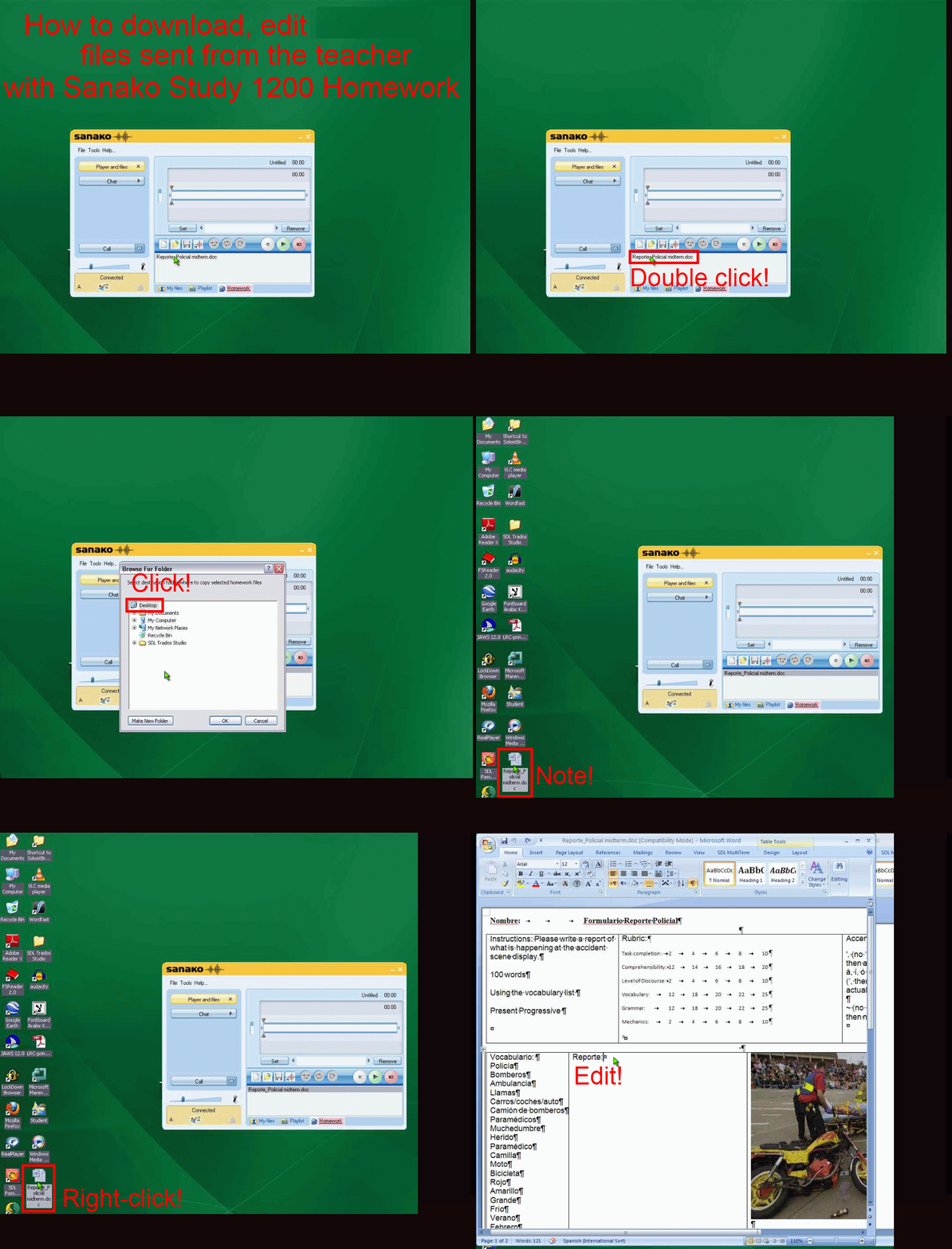
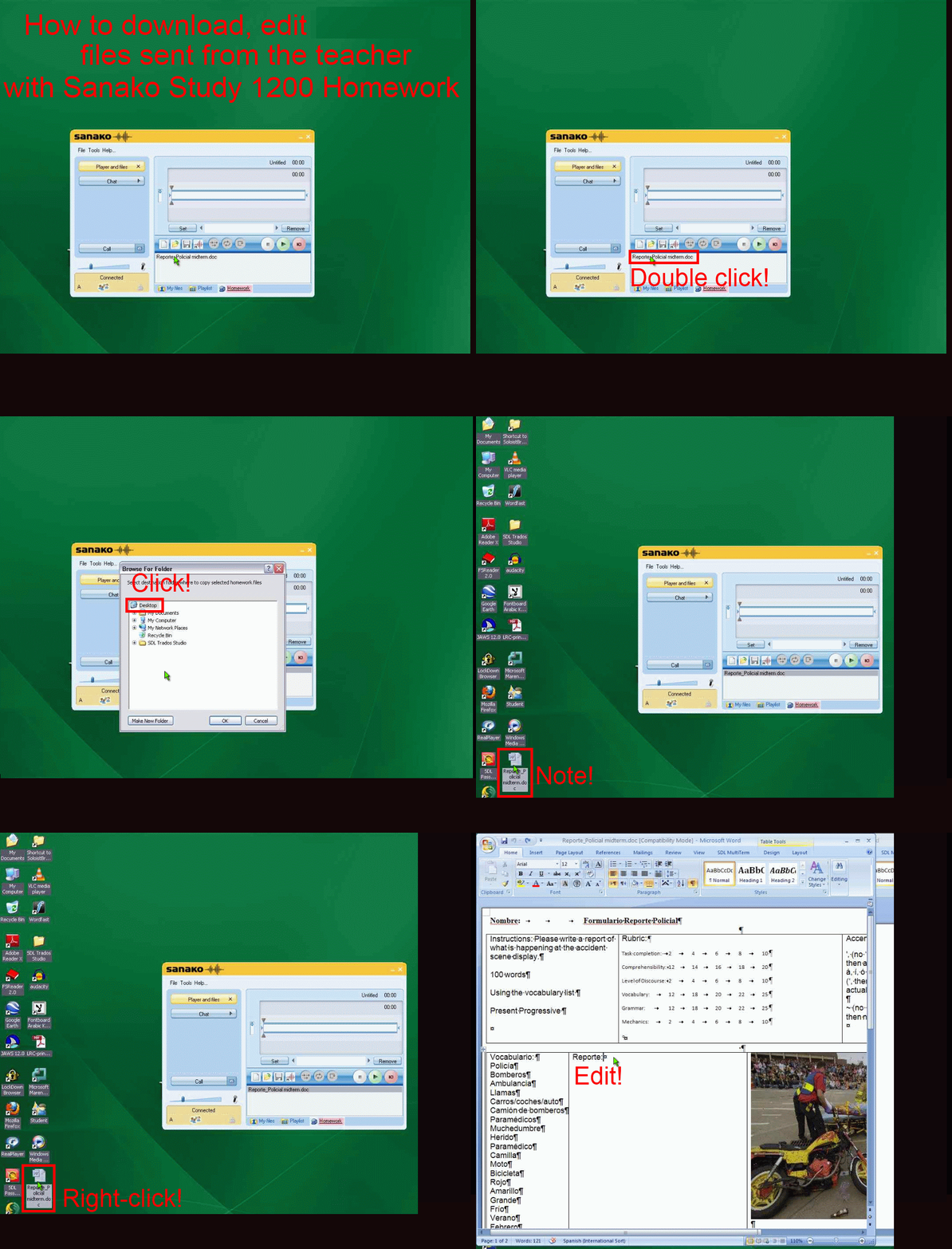
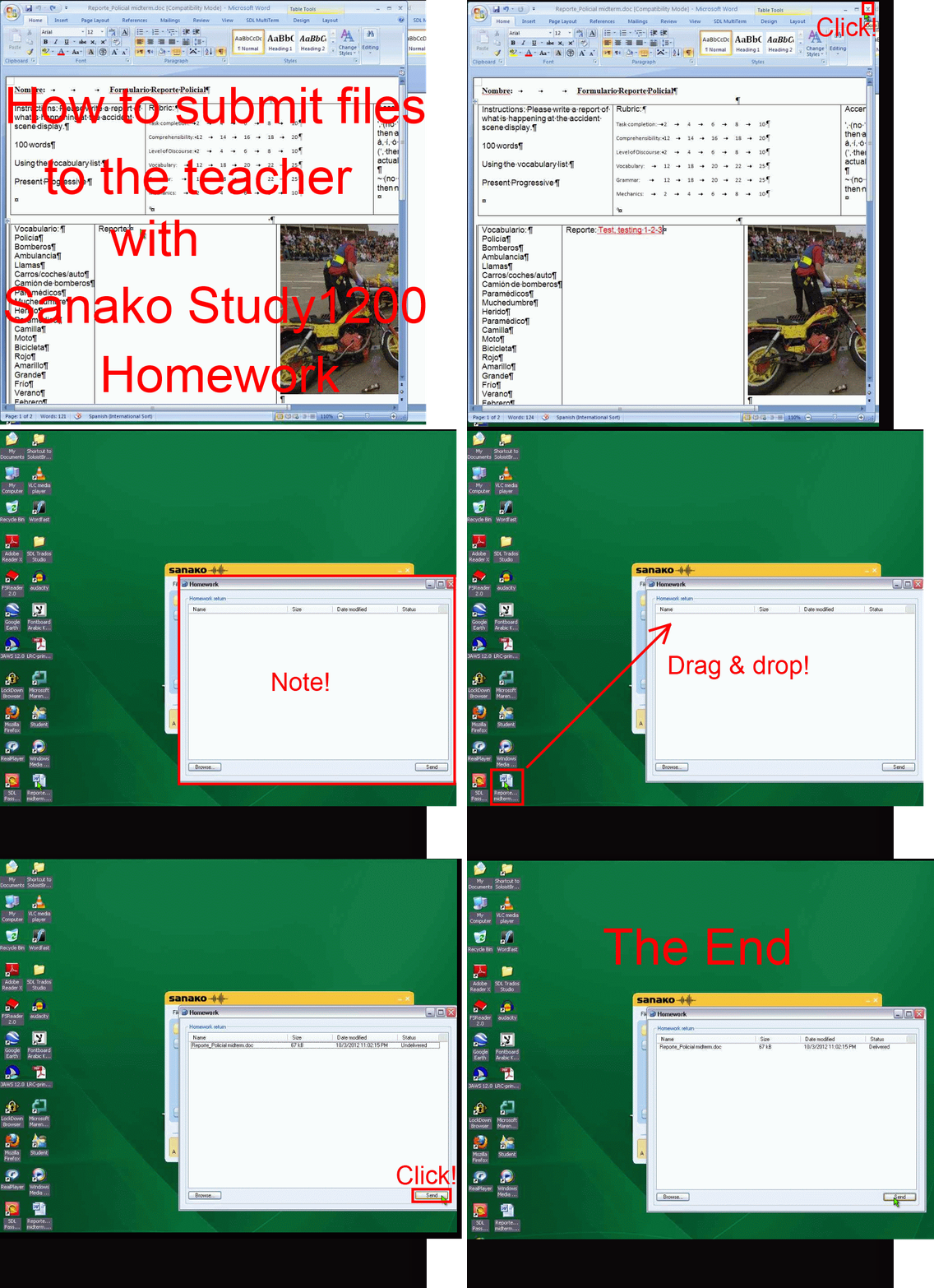
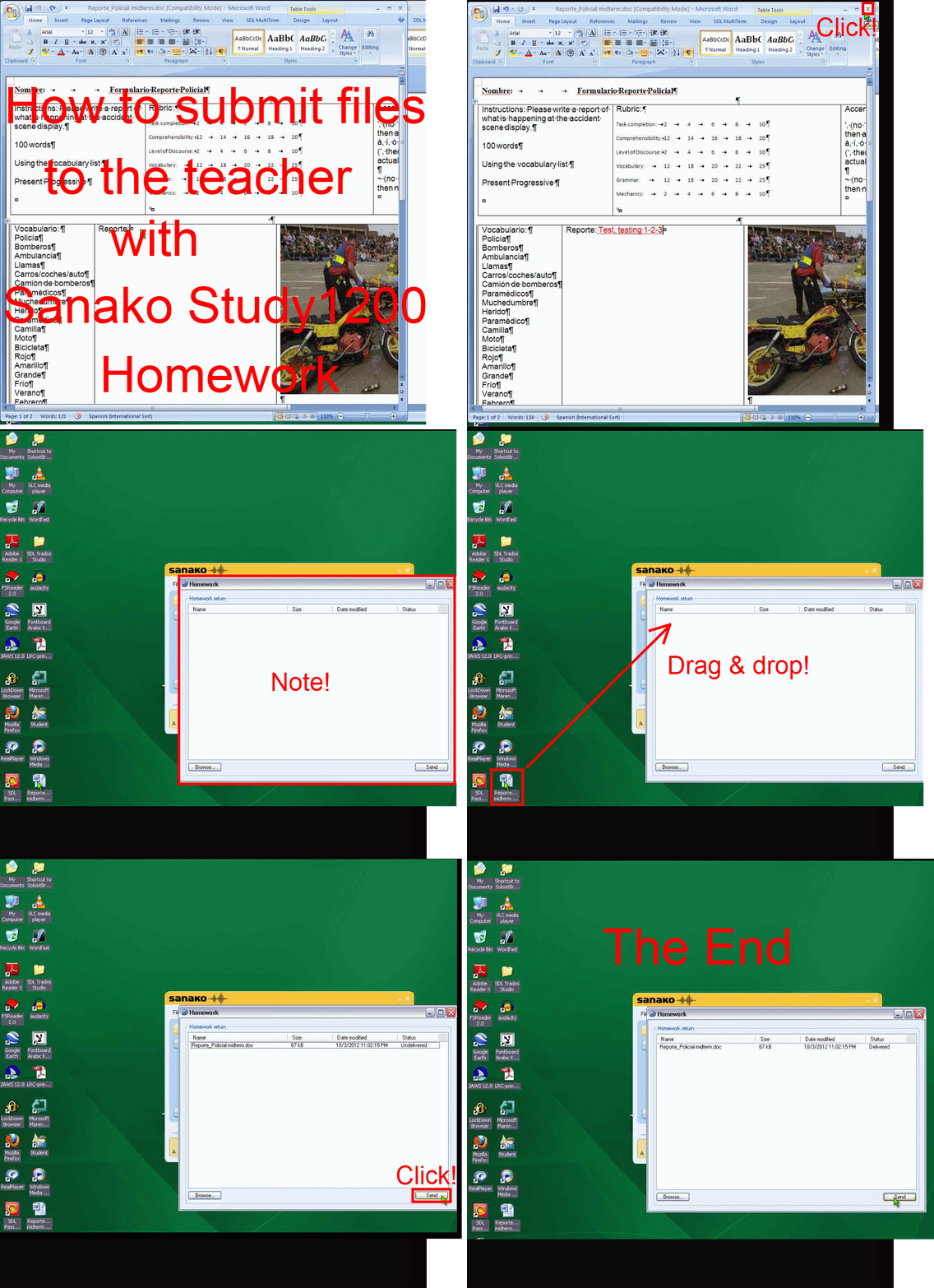
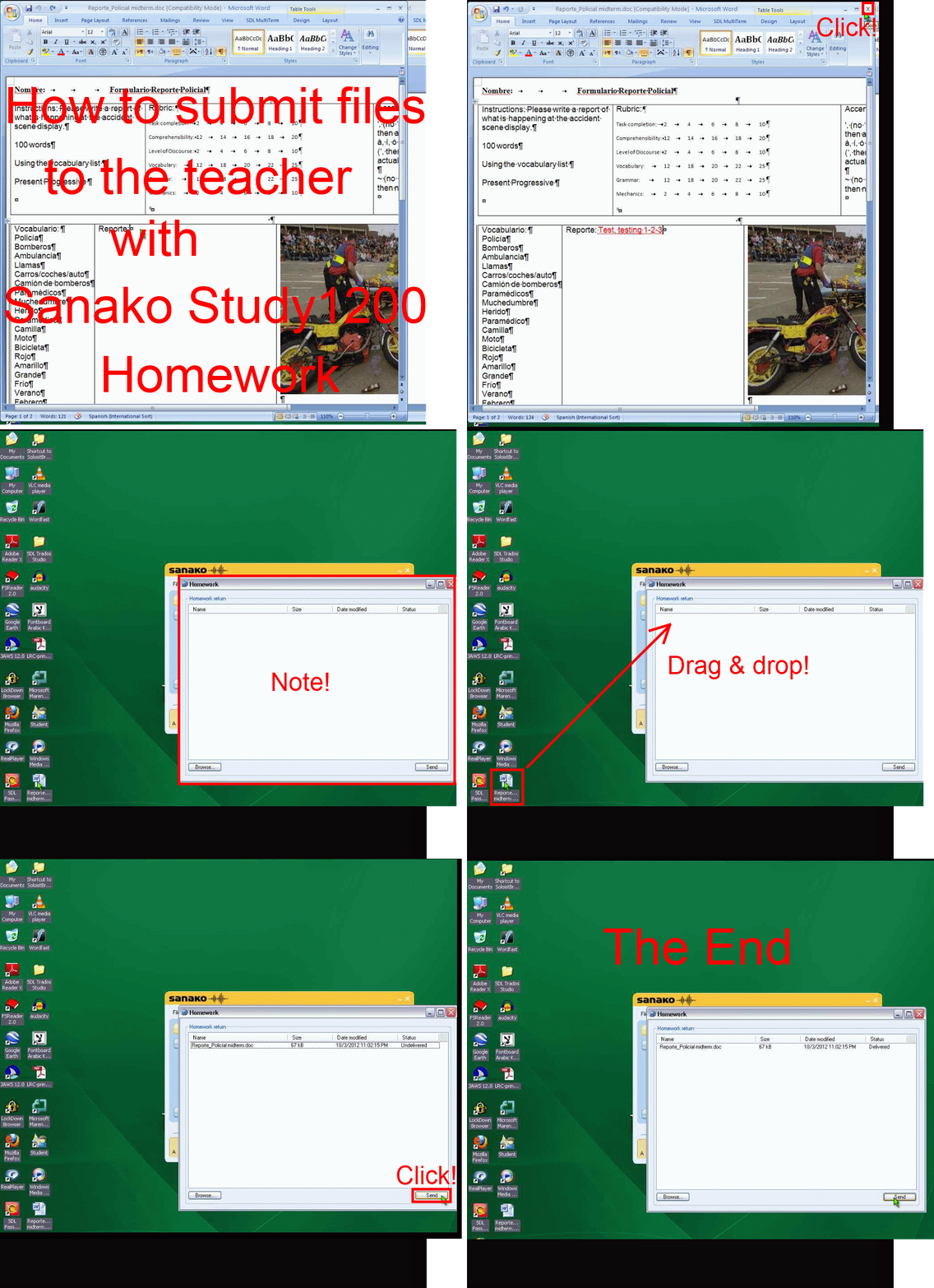
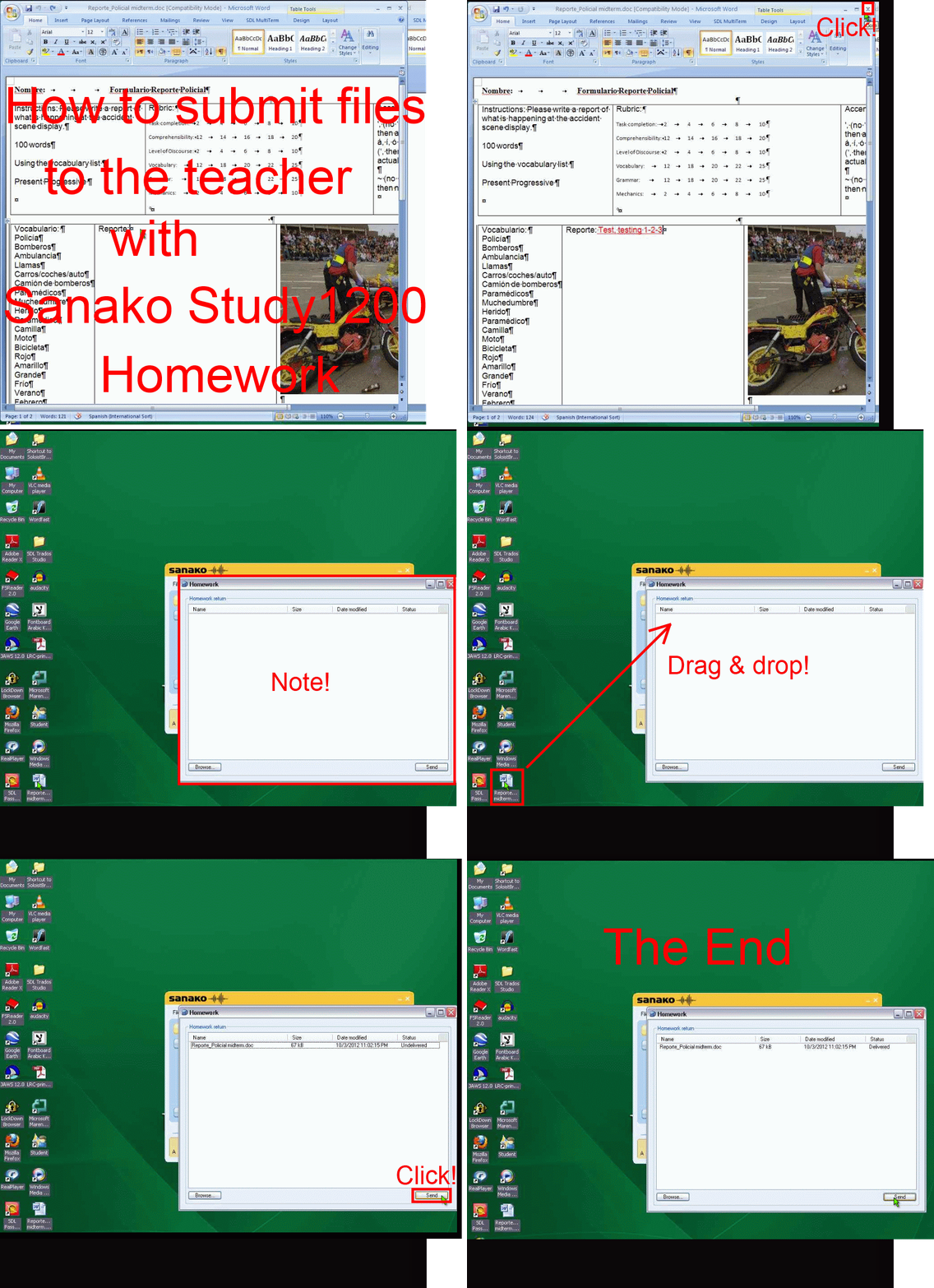
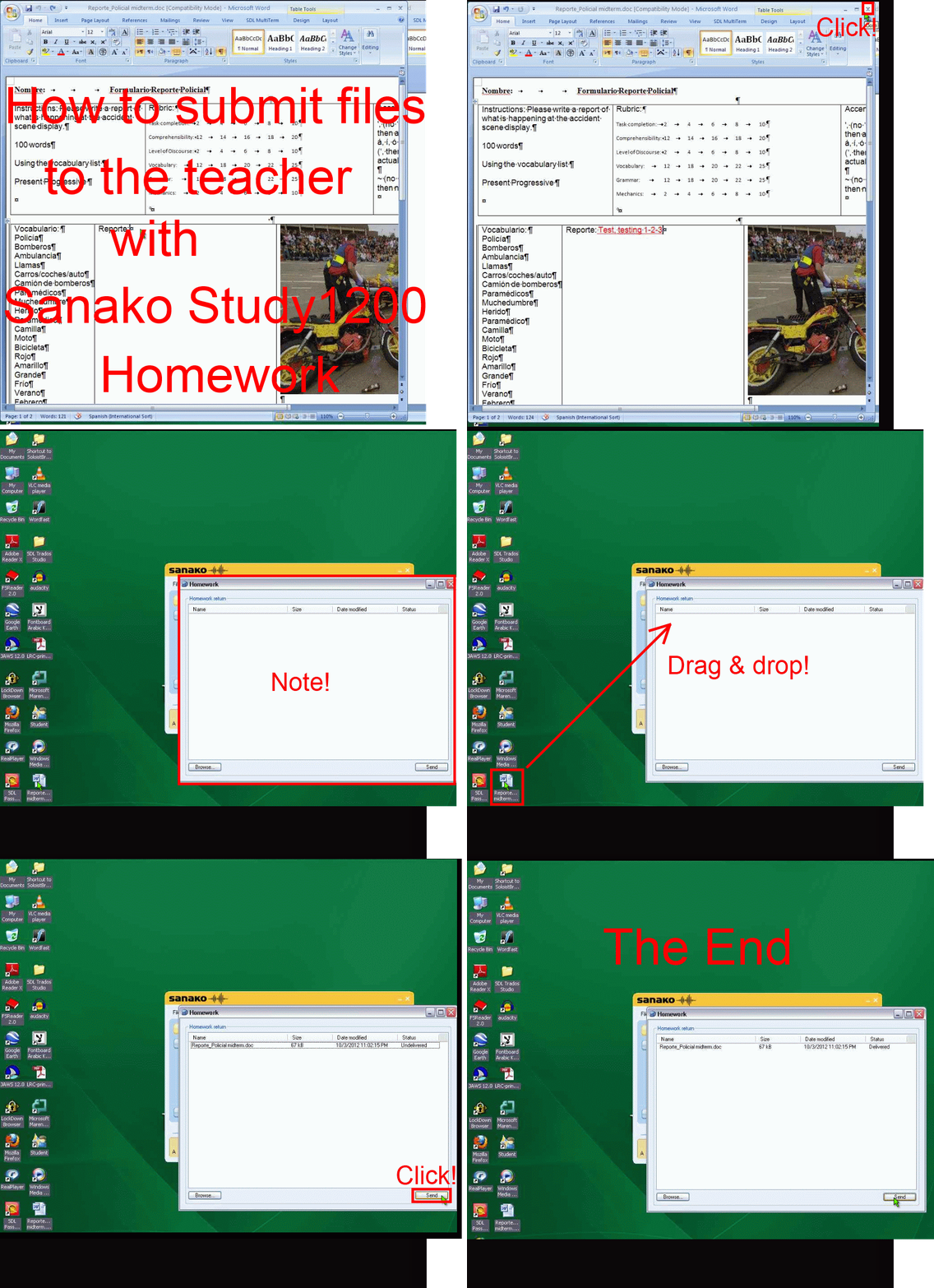
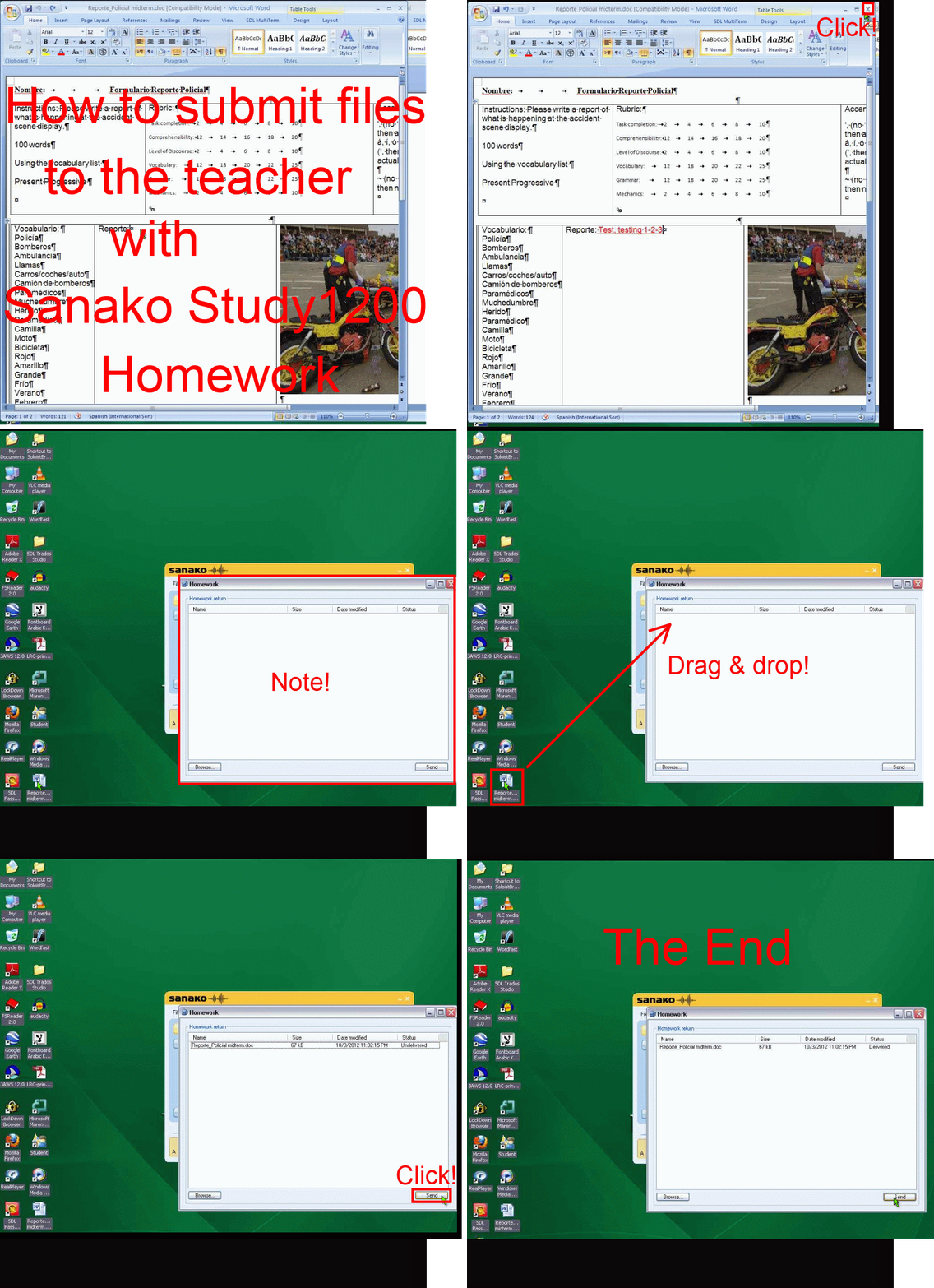
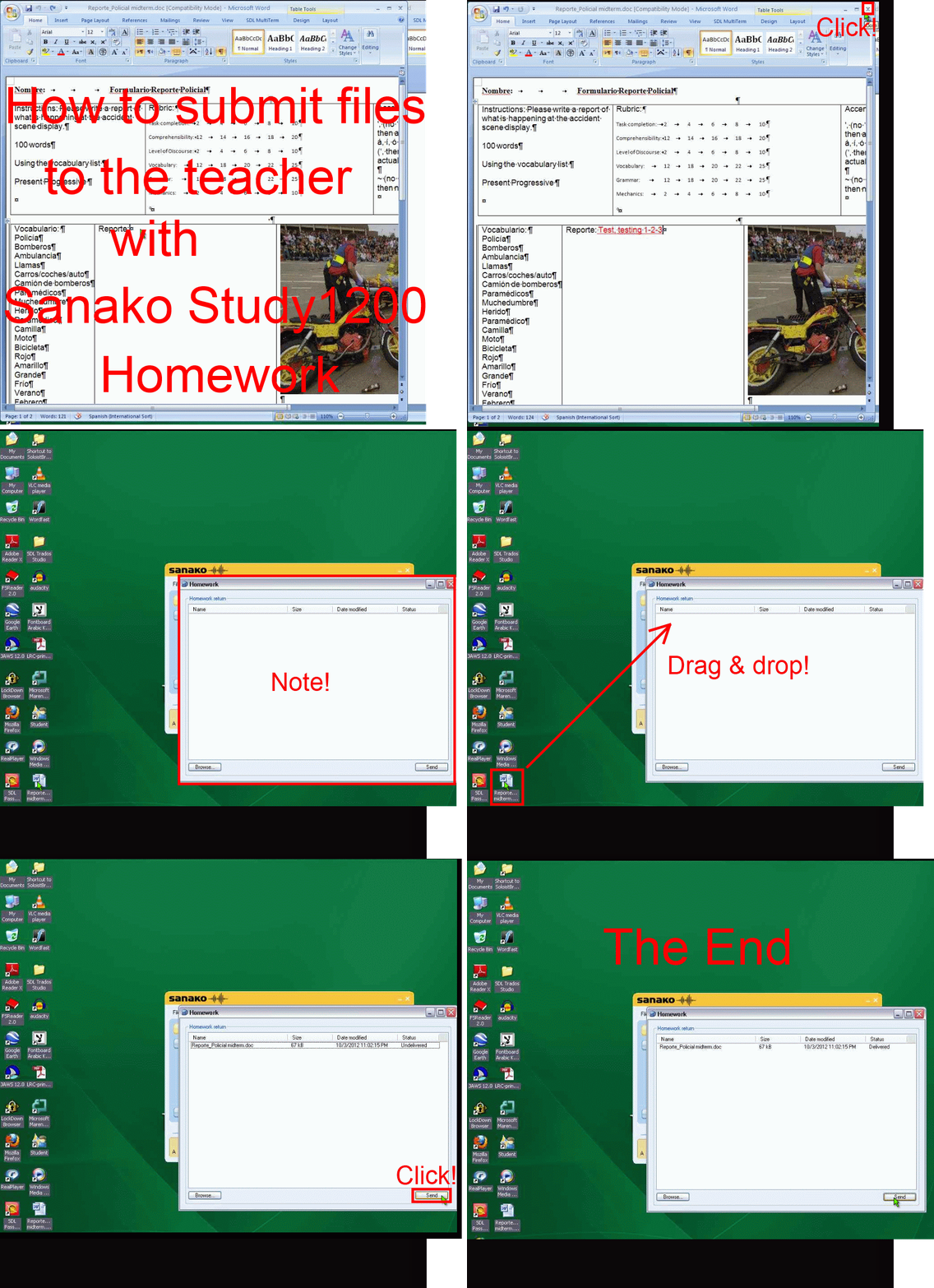
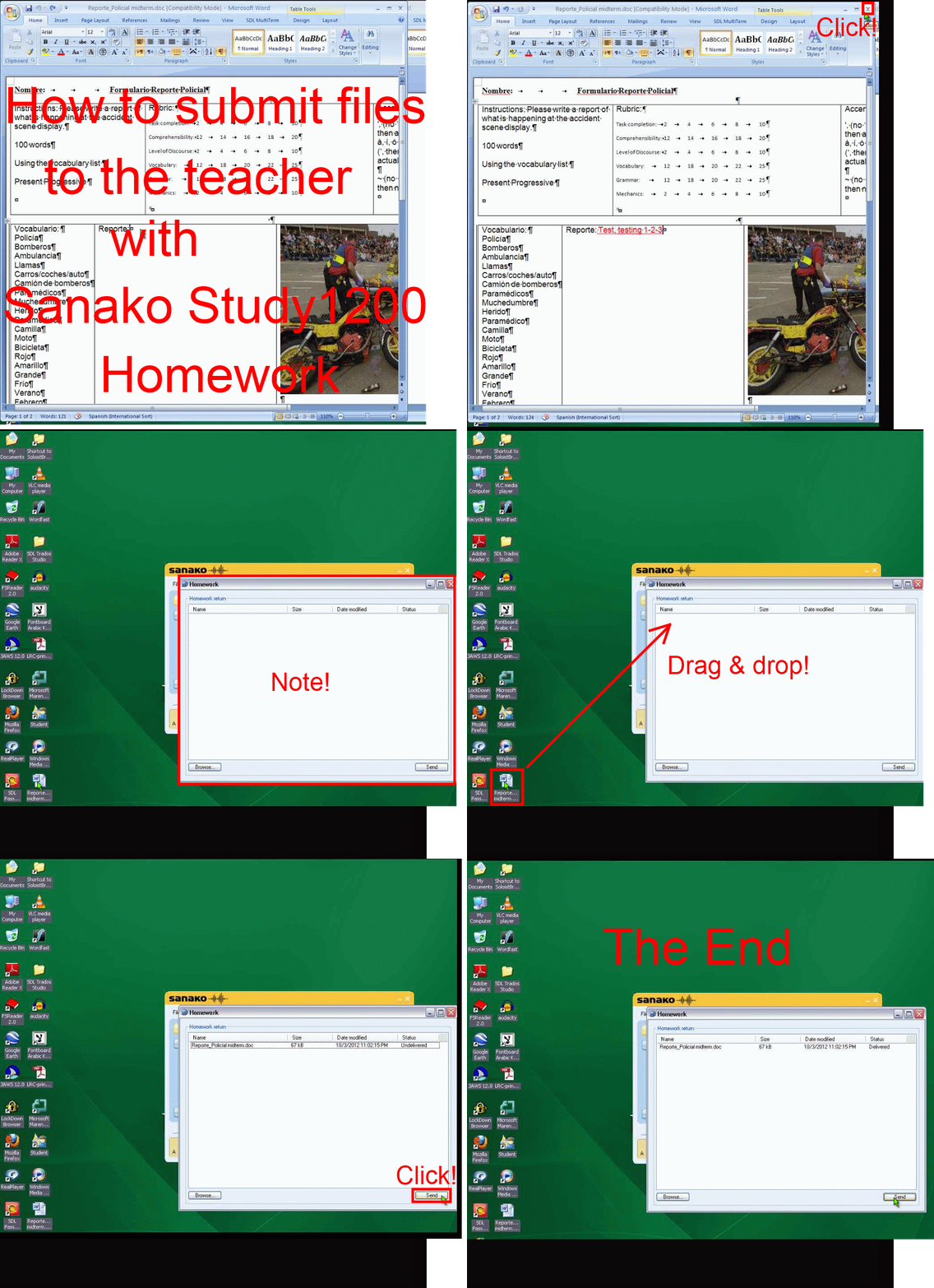
How student downloads, edits and submits files sent from the teacher with Sanako Study 1200 Homework –the ultimate training summary….
…using animated GIFs. (Here are the parts 1+2 that your teacher has to do). Slower? Click , 0.50sec, 0.75sec, 1sec, 2sec, 3sec, 4sec, 5sec, 6sec, 7sec, 8sec, 9sec, 10sec.
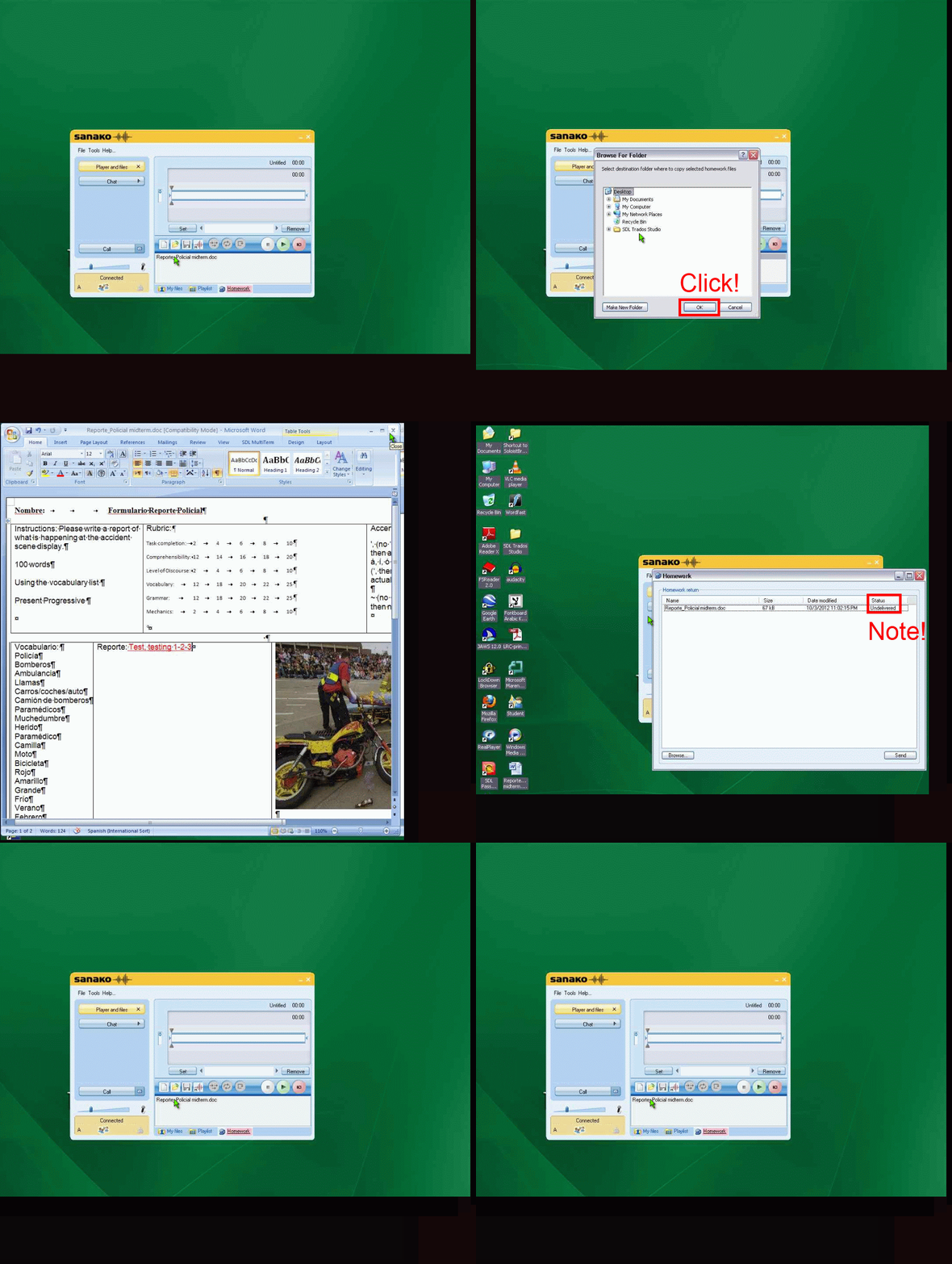
UPDATE: Now also split into
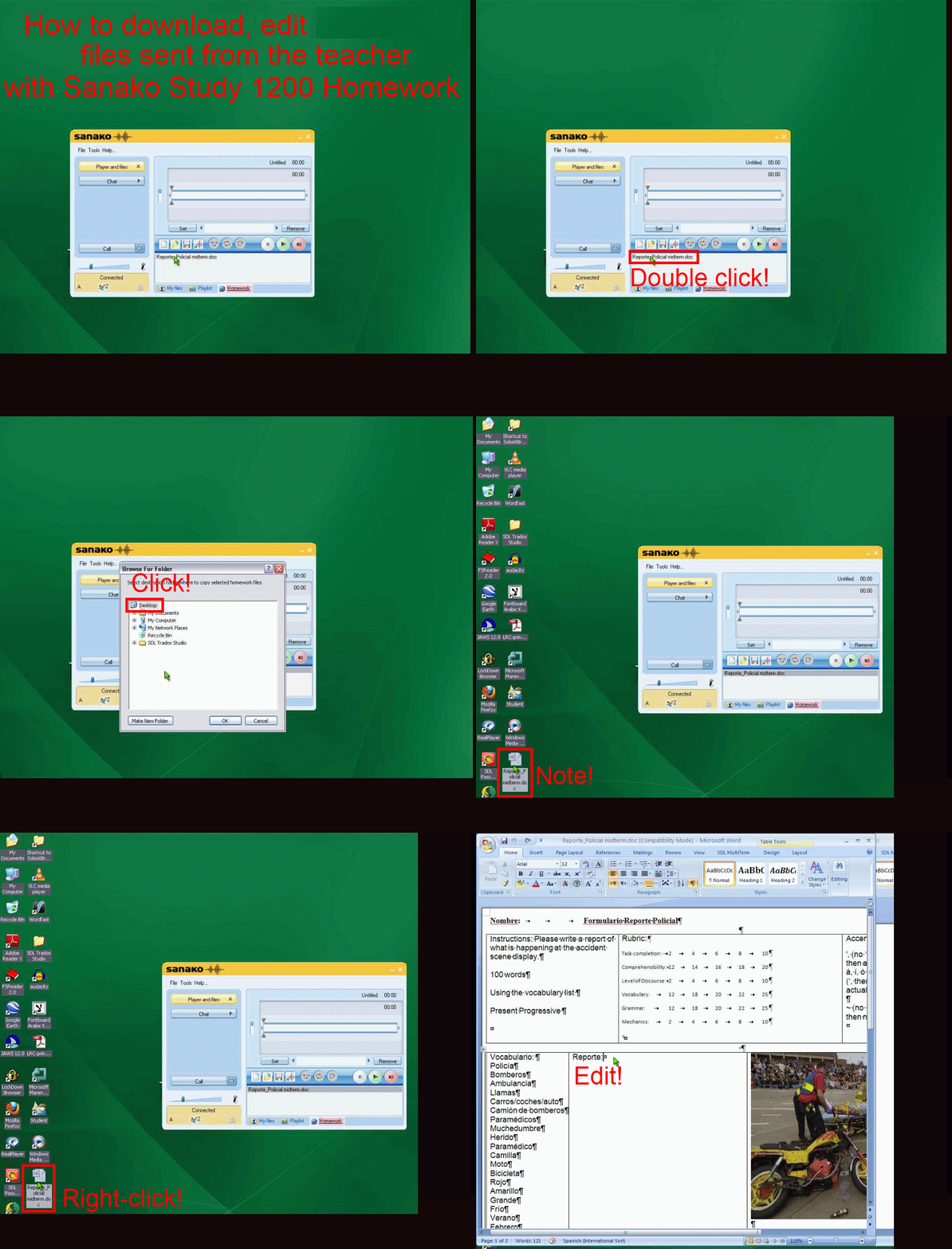
- PART 1: download from teacher (Here are the parts 1+2 that your teacher has to do). Slower? Click , 0.50sec, 0.75sec, 1sec, 2sec, 3sec, 4sec, 5sec, 6sec, 7sec, 8sec, 9sec, 10sec.

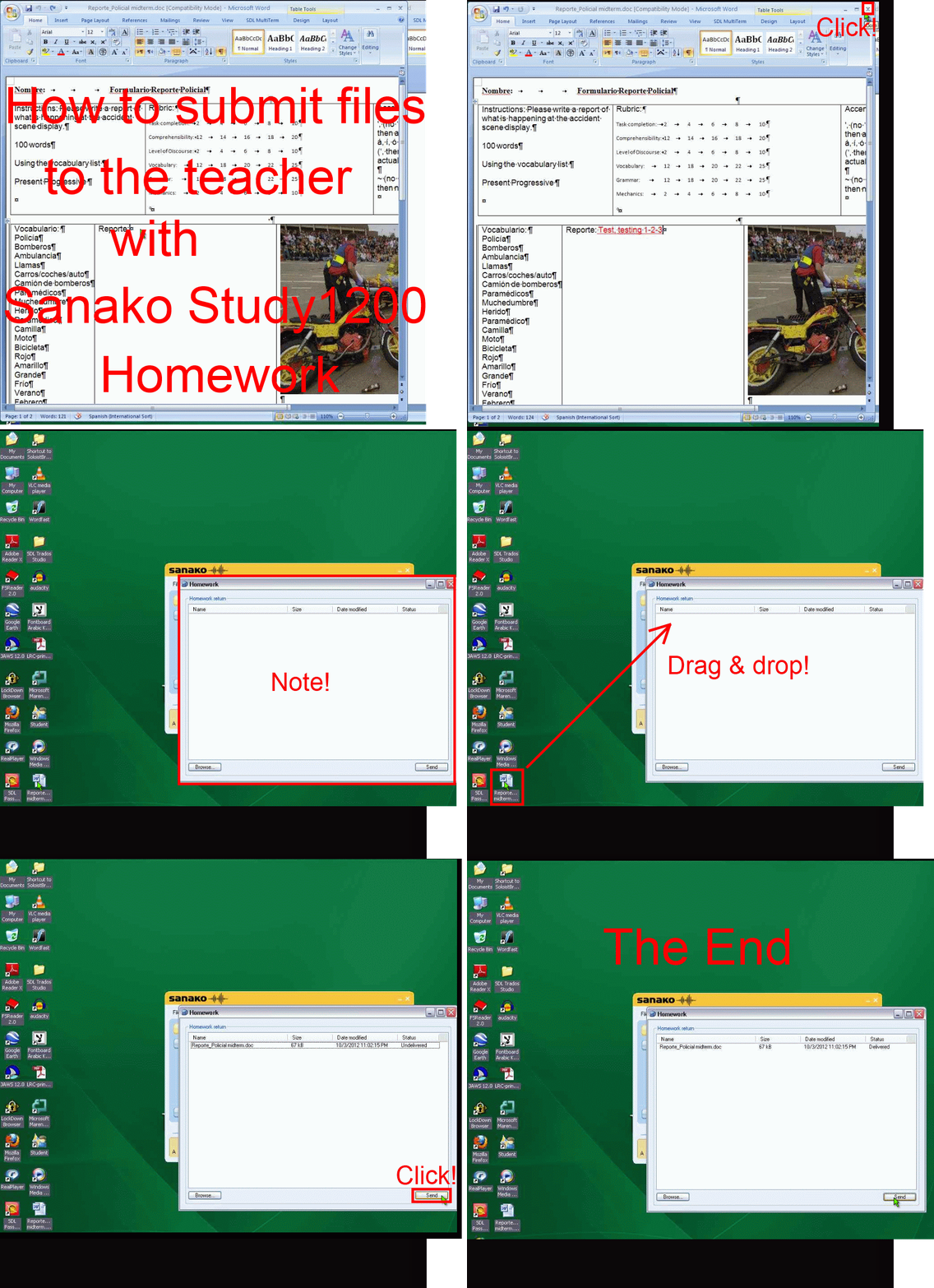
- PART 2: submission to teacher(Here are the parts 1+2 that your teacher has to do). Slower? Click , 0.50sec, 0.75sec, 1sec, 2sec, 3sec, 4sec, 5sec, 6sec, 7sec, 8sec, 9sec, 10sec.

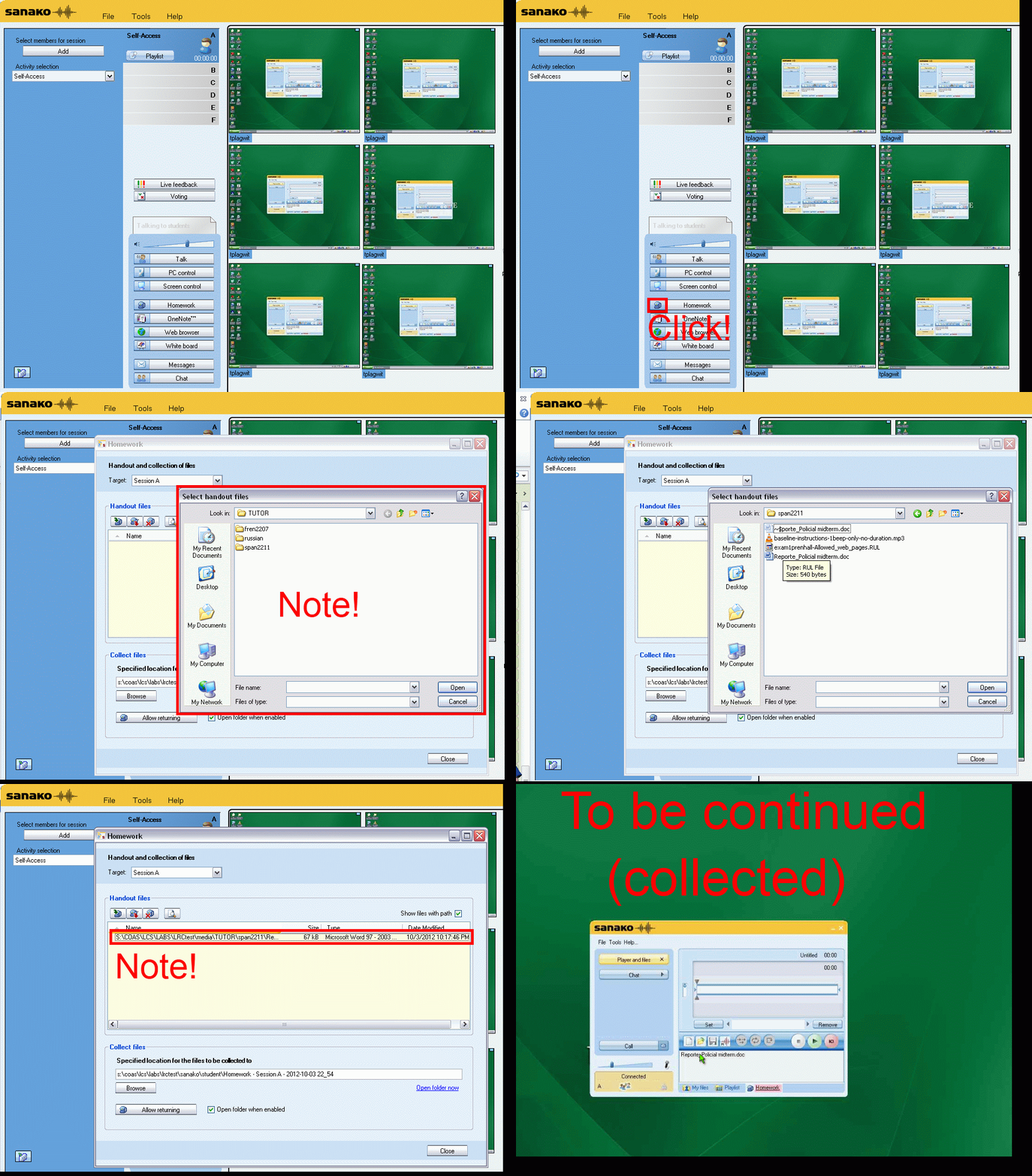
How a teachers gives files not meant for writing to students with Sanako Study 1200 Playlist –the ultimate training summary…
…using animated .gifs. Slower? Compact: 0.25sec,0.5sec, 0.75sec, 1sec, 1.5sec, 2sec, 3sec, 4sec, 5sec, 6sec, 7sec, 8sec, 9sec, 10sec. Or including unmarked frames: 0.25sec, 0.5sec, 0.75sec, 1sec, 1.5sec, 2sec, 3sec, 4sec, 5sec, 6sec, 7sec, 8sec, 9sec, 10sec. 1sec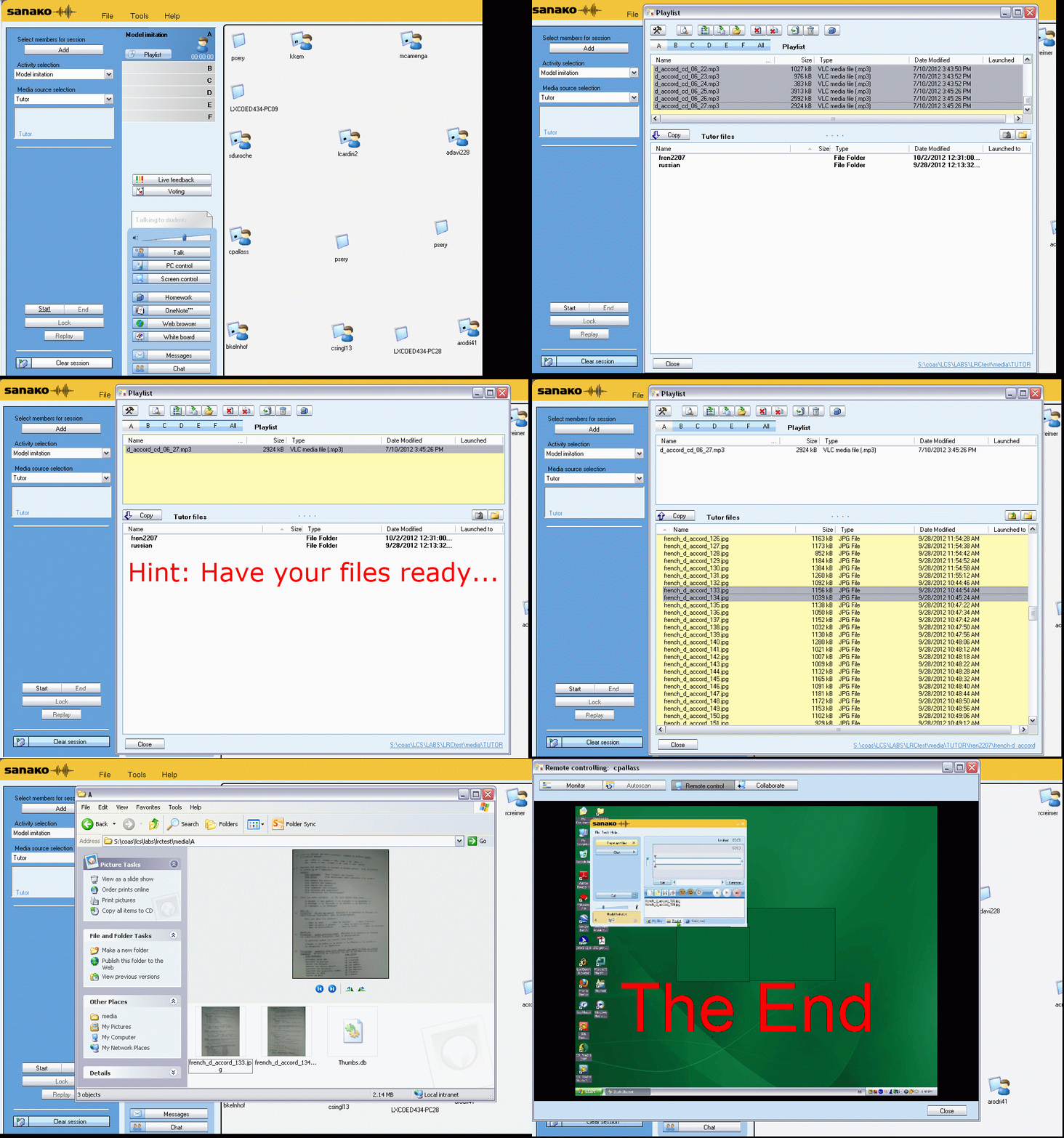
Or proceed manually:


Sanako Study 1200 Homework step-by-step
1. In the Sanako student player window, in the upper left of your screen, above the red “homework” tab, an MS-Word file will show in the list.
2. Click on this MS-Word file in the Sanako student player list.
3. A window will open that asks you to save the word file. Use the default, your Desktop. Click “OK” to save. The file will be added to your desktop.
4. Do whatever other activities your teacher assigned. Once the teacher aks you to do so, open the MS-Word file from the desktop.
5. Write in the MS-Word file what it asks you to do.
6. When done, close the MS-Word file.
7. MS-Word will ask you whether you want to save. Click “yes” (and do NOT “save as”, or change the file name or file format).
8. The file on your desktop will look the same, but it will have been updated with your input.
9. The teacher will open a window titled “homework” on your desktop.
10. Drag and drop the MS-Word file into this window.
11. If the file in the homework” window does not automatically say it was “delivered” to the teacher, click the lower right button: “Send”.
12. Once the file says “delivered”, you can go to the next task or log out.
13. If in doubt, ask for help. Use the Sanako student player button:“Call” to get into the queue. Somebody will connect to your headsets and screen ASAP.
Group conference with all students and the teacher using Sanako Study 1200
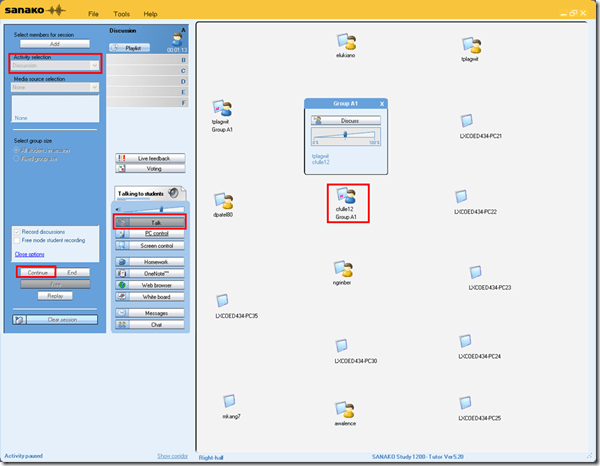
- To set up the maybe most common language classroom activity – everybody listening or talking to everbody else (whether student or teacher) –
-
try this with the Sanako Study 1200 – plus have no student fade off because of “incomprehensible input” caused by bad classroom acoustics and self-conscious learners mumbling –:
-
-
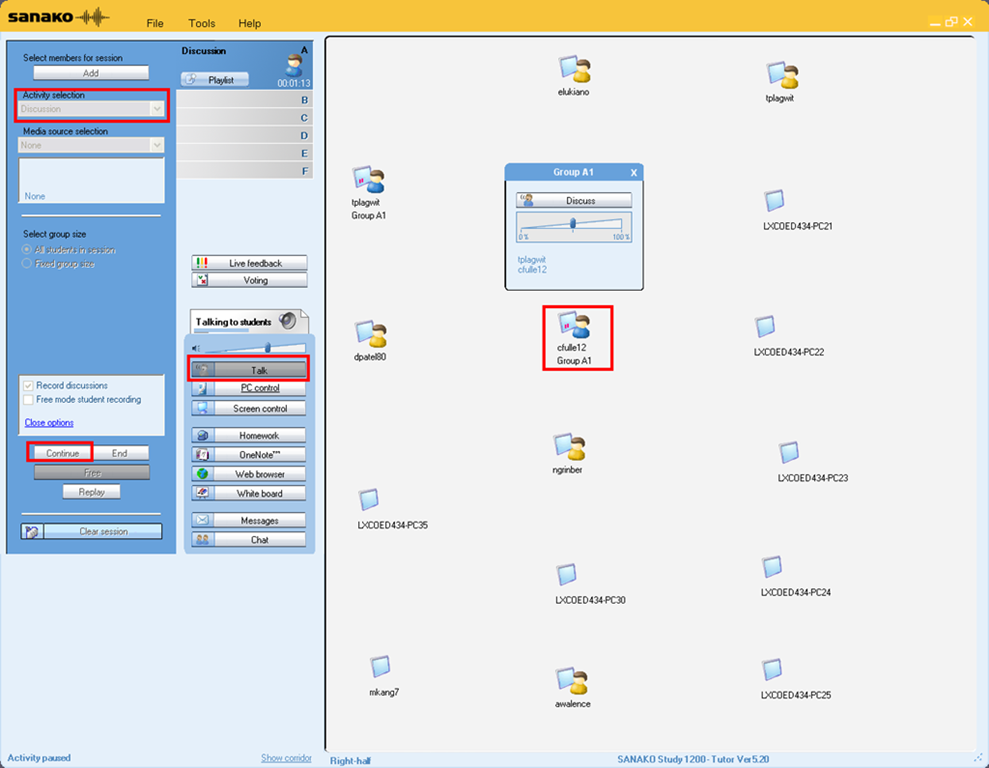
Activity pane: discussion, start –> students can talk with each other
-
Button:talk –> teacher can talk to students
-
Student icon / popup-menu: teacher can hear students – not only the one from the student icon, but anybody in discussion.


Questions? Read the About. Or just ask me a quick Our Databases: Resources with calendars -- Language learning material Moodle Sites, multimedia files -- films


FAQs for LRC student staff or for students or for teachers. To search our FAQs, in the browser addressbar, add after "https://plagwitz.wordpress.com/feed/?tag=faqs+/" "+TAG1" (from tag cloud below) OR "https://plagwitz.wordpress.com/feed/tag=faqs
&category_name=" "CAT1" (from category hierarchy below). OR search both categories and tags, and multiple TAGs/CATs (connect with "," for OR-search, with "+" for AND-search), like so: https://plagwitz.wordpress.com/feed/?tag=TAG1+TAG2+...TAGn&category_name=CAT1
+CAT2+...CATn"
Other ways to find help
If you cannot find it here, look there: 5,500 Language-Learning Links and Programs for learning or teaching 150 languages
Shortcuts:Our Lists, Our Maps, LRC Staff Moodle Site,LRC Project Moodle Site, 49erexpress, UNCC Moodle, Student Recordings: s:claslcslrcsanakostudent
Learning usage samples: Sanako oral exam, Kaltura webcam presentation, Dictation with speech recognition, Sanako written exam, Chinese and Japanese interactive stroke-order practice
Test the Sanako Installer, Webbrowser Popup Konfigurator for XP, or Windows7, faster LRC TeacherPC Log-in Let MS facilitate diacritics writing by installing for you US-International keyboard layout
This is my personal blog (Google+). The views expressed on these pages are mine alone and not those of my employer. The information in this weblog is provided “AS IS” with no warranties, and confers no rights.
 Thomas' Work Space