Archive
Automating language learning listening material creation with Google Translate text-to-speech: The technology
- A digital audio lab heavily depends on the availability of, but does not usually come with digital learning materials (and recent exceptions are exceptions for a reason) Some digital audio materials that come with your textbook may be adaptable. “Rolling your own” has all kinds of advantages (allows for personalization, for both teachers to express themselves, and for students to learn), but can be a chore.
- Can the LRC find a workaround? Here is one attempt: making Google translate (too often abused by students in its original interface) text-to-speech (unusable for learning material in its original interface since severely crippled) usable for digital audio learning material production, provided you have a source text in the target language.

- GoogleTTS can serve as the gateway to better suiting Google Translate text-to-speech features to the needs of the LRC:
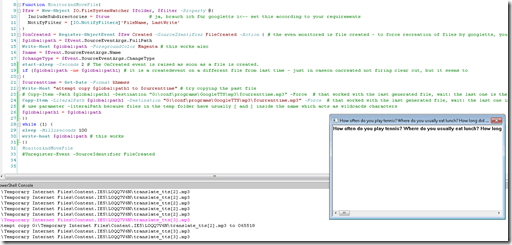 GoogleTTS allows for arbitrary-length input text (it chunks it automatically).
- GoogleTTS produces intermediate local audio files which we can postprocess.
- Google Translate’s automatic language recognition remains a sore point: it is not reliable. Unlike Google Translate, GoogleTTS has no interface to set the language manually when the automatic recognition fails.
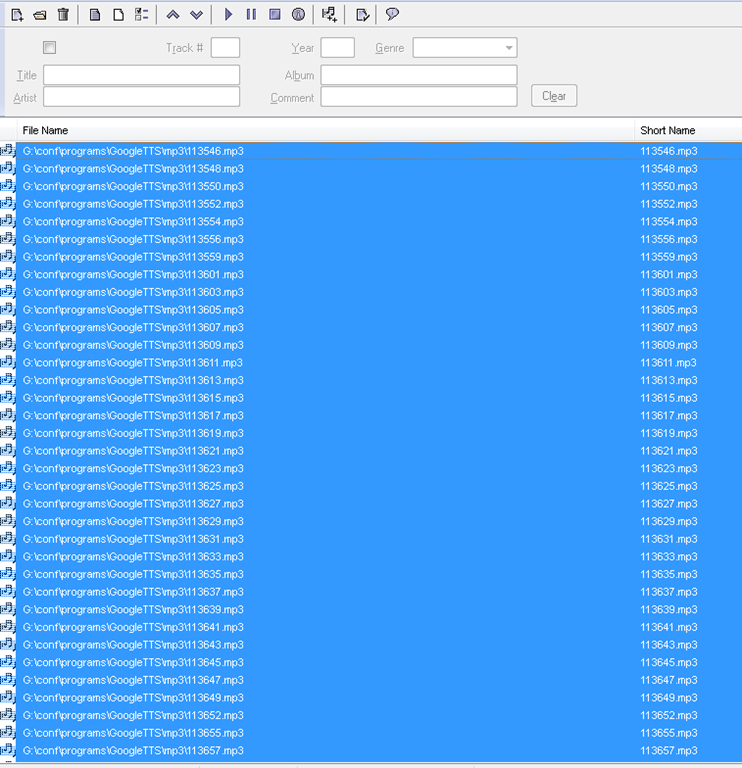
- Batch-download the files from Google Translate, using MS-PowerShell: <
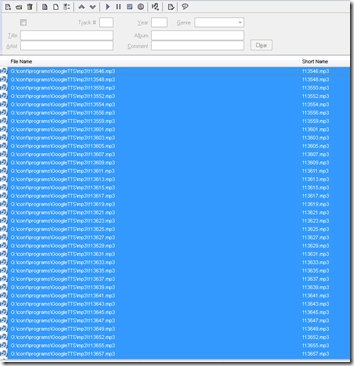
$global:folder = 'G:\Temporary Internet Files\Content.IE5' $filter = '*.mp3' # <-- set this according to your requirements $global:destination = 'G:\conf\programs\GoogleTTS\mp3' $global:path $global:path1 $currenttimeFunction MonitorAndMoveFile{ $fsw = New-Object IO.FileSystemWatcher $folder, $filter -Property @{ IncludeSubdirectories = $true # ja, brauch ich für googletts i<-- set this according to your requirements NotifyFilter = [IO.NotifyFilters]'FileName, LastWrite' } $onCreated = Register-ObjectEvent $fsw Created -SourceIdentifier FileCreated -Action { # the even monitored is file created - to force recreation of files by googletts, you may have to clear watched folder of all mp3 < 100kb first $global:path = $Event.SourceEventArgs.FullPath Write-Host $global:path -ForegroundColor Magenta # this works also $name = $Event.SourceEventArgs.Name $changeType = $Event.SourceEventArgs.ChangeType start-sleep -Seconds 2 # The OnCreated event is raised as soon as a file is created. if ($global:path -ne $global:path1) # it is a createdevent on a different file from last time - just in caseon oncreated not firing clear cut, but it seems to { $currenttime = Get-Date -Format yyyy-MM-dd-hhmmss Write-Host "attempt copy $global:path1 to $cuurrenttime" # try copying the past file # Copy-Item -Path $global:path1 -Destination "G:\conf\programs\GoogleTTS\mp3\$currenttime.mp3" -Force # that worked with the last generated file, wait: the last one is the one that remaisn behind, earlier ones get overwritten Copy-Item -LiteralPath $global:path1 -Destination "G:\conf\programs\GoogleTTS\mp3\$currenttime.mp3" -Force # that worked with the last generated file, wait: the last one is the one that remaisn behind, earlier ones get overwritten # use parameter -literalPath because files in the temp folder have usually [ and ] inside the name which acts as wildcards characters $global:path1 = $global:path }} while (1) { sleep -Milliseconds 100 write-host $global:path # this works }} MonitorAndMoveFile #Unregister-Event -SourceIdentifier FileCreated - Merge the downloaded files (wisely numbered sequentially):
- Fix minor errors in your audio editor:
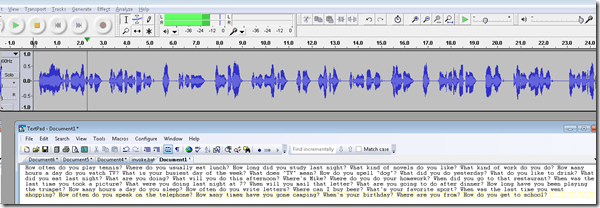
- Done:
- Here I have a lot of questions for a speaking exam in ESL, and with a much better accent than my own.
- Nifty, plus output sounds even better for German than for English. Note, there is no attempt to parse sentences semantically. Some languages chunk better than others (I made some little improvements in this regard to the original program). Other common problems include numbers and in German I find myself, when listening, tending to look up once in a while and shake a high school students by the shoulders, asking him: “Do you actually understand what you are reading?!”
 – which in my eyes is an indicator to the progress made in speech-synthesis.
 - Other examples include French,
- Hindi,
- Italian,
- Spanish.
- So can the LRC relieve teachers from recording their cue files for the digital audio lab listening comprehension and exam? Within limitiations.


How a teacher can show a model student screen to other student computers in Sanako Study 1200–the ultimate training summary…

How a teacher can divide a class into groups, each sharing audio and one screen, in Sanako Study 1200–the ultimate training summary…
- … using animated GIFS
- make groups (=sessions) like shown here;
- share audio/screen within each group so that (ideal for enforcing oral communication during a shared computer task)
Sanako Study 1200 V6.1 implements text-to-speech with language learner features
- Sanako continues its foray into learning materials – this time semi-automated (makes sense to me: what can be automated, will be automated) and into text-to-speech automation (makes sense to me: one of the more robust (since simpler) applications of AI to NLP) for pronunciation help (also makes sense to me: can help my language learners fight their fear of losing face).
- Text-to-speech looks like a great addition in Sanako Study 1200 V.61 for the language learner:

- especially since it
- includes play speed options
- allows for download of speech rendition for review
- can blend with a human expert in the face-to-face classroom
- while saving human experts time to record audio learning materials.
- Caveats:
- Would like to know more about IVONA voices.
- Pricing? Available Languages?
- especially since it
- We are still on Sanako 5.2, but will be losing our Deskbot text-to-speech wizard with XP soon – so coincidentally I have just been wondering whether we will be able to hack together a text-to-speech on Windows 7, maybe using Google translate voices, but without the Google translate features that are commonly abused by language learners? Update: Look here for automating Google translate text-to-speech.

How you can fix student homework “file save errors” on Sanako Study 1200 and Windows XP
- Background: We recently got our Sanako network share permissions set up to vendor specifications, and the privileges tightened up appropriately. Fortunately, in the process of this, I was warned to make sure Windows XP has the registry key set: MoveSecurityAttributes, as otherwise XP does not update the permissions when moving files between folders:
- Symptom: Here is how this seems to have played out with Sanako ”homework” files (which get sent from the teacher to the student for writing and submitted back), specifically with files that I had:
- uploaded from my office PC (XP without the MoveSecurityAttributes key) to the Sanako teacher share
- tried to deploy as homework from the Sanako Study 1200 teacher station (also XP without the MoveSecurityAttributes key), resulting in a “file save” error:

- Additional context:
- sending files to students failed, but not to teachers;
- student had not run out of file space on the network share;
- students did not lack permissions to the Sanako network share in general;
- we did not run into issues with Sanako exam audio recordings which are sent from the student PCs to the network share.
- Resolution:
- adding HKLM\SOFTWARE\Microsoft\Windows\CurrentVersion\Explorer\MoveSecurityAttributes, DWORD ,1, to the computer the files originates from:
- first the office pc: this did not fix the issue.
- then the teacher PC: this seems to have fixed the issue:

- Here is hoping that this can fix your “file save”error also.
- adding HKLM\SOFTWARE\Microsoft\Windows\CurrentVersion\Explorer\MoveSecurityAttributes, DWORD ,1, to the computer the files originates from:
- Update: Also consult Raymond Chen’s "Wait, so does moving a file recalculate inherited permissions or doesn’t it?", and the hearty discussion that ensued.


Protected: Block common translator, webmail and/or social web sites during LRC class by loading a RUL file in Sanako Study 1200
Recommended settings for a departmental Sanako Lite Recorder installation
The following settings are not in the default installation for the language lab, but rather manually overridden (in the Student Recorder Settings) for installation on faculty office computers: [HKEY_CURRENT_USER\Software\Sanako\Study\Student\Settings]
“My files directory”=”s:\\coas\\lcs\\lrc\\sanako\\teacher\\”
“AlwaysUseRecorderLiteVersion”=dword:00000001
The following setting obviously needs to be generalized:[HKEY_CURRENT_USER\Software\Sanako\Study\Student\Settings]
“Temporary files directory”=”C:\\Documents and Settings\\tplagwit\\Local Settings\\Temp\\”
The helper.exe architecture should be disabled outside of the Sanako classroom (details here):
[HKLM\SYSTEM\CurrentControlSet\Services\Sanako Helper]
“Start”==dword:0×00000004
and for backup:
[HKLM\SYSTEM\ControlSet001\Services\Sanako Helper]
“Start”=dword:0×00000004
Even with the helper.exe neutralized, the “associate media files” option appears too greedy – at least here I cannot get it to associate, as it seems to promise, the media files only when the student.exe is running, rather the following file associations changes seem to get baked into the registry permanently – so the following is not recommended (leave the checkbox in the settings unchecked):
[HKEY_CURRENT_USER\.mff]
“”=”StudyStudent.Document”
“Content Type”=”Application/StudyStudent.Document”
[HKEY_CURRENT_USER\StudyStudent.Document]
“”=”StudyStudent.Document”
[HKEY_CURRENT_USER\StudyStudent.Document\DefaultIcon]
“”=”C:\\Program Files\\Sanako\\Study\\Student\\Student.exe,0”
The following associations seem to be added when checking “associate media files”in admin settings , but it does not look like this association is limited to during run time of the recorder
[HKEY_CURRENT_USER\StudyStudent.Document\shell\open\command]
“”=”C:\\Program Files\\Sanako\\Study\\Student\\Student.exe %1”
[HKEY_CURRENT_USER\.dim]
“”=”StudyStudent.Document”
“Content Type”=”Application/StudyStudent.Document”
[HKEY_CURRENT_USER\.maa]
“”=”StudyStudent.Document”
“Content Type”=”Application/StudyStudent.Document”
[HKEY_CURRENT_USER\.wav]
“”=”StudyStudent.Document”
“Content Type”=”Application/StudyStudent.Document”
[HKEY_CURRENT_USER\.snd]
“”=”StudyStudent.Document”
“Content Type”=”Application/StudyStudent.Document”
[HKEY_CURRENT_USER\.au]
“”=”StudyStudent.Document”
“Content Type”=”Application/StudyStudent.Document”
[HKEY_CURRENT_USER\.aif]
“”=”StudyStudent.Document”
“Content Type”=”Application/StudyStudent.Document”
[HKEY_CURRENT_USER\.aic]
“”=”StudyStudent.Document”
“Content Type”=”Application/StudyStudent.Document”
[HKEY_CURRENT_USER\.aifc]
“”=”StudyStudent.Document”
“Content Type”=”Application/StudyStudent.Document”
[HKEY_CURRENT_USER\.aiff]
“”=”StudyStudent.Document”
“Content Type”=”Application/StudyStudent.Document”
[HKEY_CURRENT_USER\.asf]
“”=”StudyStudent.Document”
“Content Type”=”Application/StudyStudent.Document”
[HKEY_CURRENT_USER\.asx]
“”=”StudyStudent.Document”
“Content Type”=”Application/StudyStudent.Document”
[HKEY_CURRENT_USER\.wax]
“”=”StudyStudent.Document”
“Content Type”=”Application/StudyStudent.Document”
[HKEY_CURRENT_USER\.wm]
“”=”StudyStudent.Document”
“Content Type”=”Application/StudyStudent.Document”
[HKEY_CURRENT_USER\.wma]
“”=”StudyStudent.Document”
“Content Type”=”Application/StudyStudent.Document”
[HKEY_CURRENT_USER\.wmd]
“”=”StudyStudent.Document”
“Content Type”=”Application/StudyStudent.Document”
[HKEY_CURRENT_USER\.wmp]
“”=”StudyStudent.Document”
“Content Type”=”Application/StudyStudent.Document”
[HKEY_CURRENT_USER\.wmx]
“”=”StudyStudent.Document”
“Content Type”=”Application/StudyStudent.Document”
[HKEY_CURRENT_USER\.wp1]
“”=”StudyStudent.Document”
“Content Type”=”Application/StudyStudent.Document”
[HKEY_CURRENT_USER\.wvx]
“”=”StudyStudent.Document”
“Content Type”=”Application/StudyStudent.Document”
[HKEY_CURRENT_USER\.mid]
“”=”StudyStudent.Document”
“Content Type”=”Application/StudyStudent.Document”
[HKEY_CURRENT_USER\.midi]
“”=”StudyStudent.Document”
“Content Type”=”Application/StudyStudent.Document”
[HKEY_CURRENT_USER\.rmi]
“”=”StudyStudent.Document”
“Content Type”=”Application/StudyStudent.Document”
[HKEY_CURRENT_USER\.mp3]
“”=”StudyStudent.Document”
“Content Type”=”Application/StudyStudent.Document”
[HKEY_CURRENT_USER\.m3u]
“”=”StudyStudent.Document”
“Content Type”=”Application/StudyStudent.Document”
[HKEY_CURRENT_USER\.m1v]
“”=”StudyStudent.Document”
“Content Type”=”Application/StudyStudent.Document”
[HKEY_CURRENT_USER\.mp2]
“”=”StudyStudent.Document”
“Content Type”=”Application/StudyStudent.Document”
[HKEY_CURRENT_USER\.mpa]
“”=”StudyStudent.Document”
“Content Type”=”Application/StudyStudent.Document”
[HKEY_CURRENT_USER\.mpe]
“”=”StudyStudent.Document”
“Content Type”=”Application/StudyStudent.Document”
[HKEY_CURRENT_USER\.mpeg]
“”=”StudyStudent.Document”
“Content Type”=”Application/StudyStudent.Document”
[HKEY_CURRENT_USER\.dat]
“”=”StudyStudent.Document”
“Content Type”=”Application/StudyStudent.Document”
[HKEY_CURRENT_USER\.mp2v]
“”=”StudyStudent.Document”
“Content Type”=”Application/StudyStudent.Document”
[HKEY_CURRENT_USER\.mpv2]
“”=”StudyStudent.Document”
“Content Type”=”Application/StudyStudent.Document”
[HKEY_CURRENT_USER\.ogg]
“”=”StudyStudent.Document”
“Content Type”=”Application/StudyStudent.Document”
[HKEY_CURRENT_USER\.mov]
“”=”StudyStudent.Document”
“Content Type”=”Application/StudyStudent.Document”
[HKEY_CURRENT_USER\.qt]
“”=”StudyStudent.Document”
“Content Type”=”Application/StudyStudent.Document”
[HKEY_CURRENT_USER\.mp4]
“”=”StudyStudent.Document”
“Content Type”=”Application/StudyStudent.Document”
[HKEY_CURRENT_USER\.ra]
“”=”StudyStudent.Document”
“Content Type”=”Application/StudyStudent.Document”
[HKEY_CURRENT_USER\.rm]
“”=”StudyStudent.Document”
“Content Type”=”Application/StudyStudent.Document”
[HKEY_CURRENT_USER\.ram]
“”=”StudyStudent.Document”
“Content Type”=”Application/StudyStudent.Document”
[HKEY_CURRENT_USER\.rmm]
“”=”StudyStudent.Document”
“Content Type”=”Application/StudyStudent.Document”
[HKEY_CURRENT_USER\.rmx]
“”=”StudyStudent.Document”
“Content Type”=”Application/StudyStudent.Document”
[HKEY_CURRENT_USER\.swf]
“”=”StudyStudent.Document”
“Content Type”=”Application/StudyStudent.Document”
[HKEY_CURRENT_USER\.smi]
“”=”StudyStudent.Document”
“Content Type”=”Application/StudyStudent.Document”
[HKEY_CURRENT_USER\.rmj]
“”=”StudyStudent.Document”
“Content Type”=”Application/StudyStudent.Document”
[HKEY_CURRENT_USER\.rt]
“”=”StudyStudent.Document”
“Content Type”=”Application/StudyStudent.Document”
[HKEY_CURRENT_USER\.mnd]
“”=”StudyStudent.Document”
“Content Type”=”Application/StudyStudent.Document”
[HKEY_CURRENT_USER\.pls]
“”=”StudyStudent.Document”
“Content Type”=”Application/StudyStudent.Document”
How to install the Sanako Lite Recorder without it auto-starting and auto-restarting
- Problem:
- For a personal installation, but especially for a faculty-wide deploy, the default installation of the Sanako Lite Recorder seems to have too much of a footprint: Sanako Lite Recorder not only auto-starts (see e.g. the student icon in the notification area) with Windows, but also auto-restarts when exited –
- a useful feature of the classroom recorder from which the standalone recorder is derived, but not so much for a standalone recorder rollout. The feature is achieved by installing a service (helper.exe) that itself is during installation set to SERVICE_AUTO_START (0x00000002).
- This architecture also makes the installation option to “associate media files” with the Sanako Lite Recorder too greedy, even though it could be useful during the actual work of faculty with the Recorder.
- Workaround (for either manual reconfiguration after the install or to be integrated into the automated deployment):
- Can one set the underlying helper.exe service that gets installed during the Sanako Lite install to SERVICE_DEMAND_START (0x00000003)? Not tested. At best, this would help between computer restarts, but not when a teacher is done with editing the study recorder and tries to exit it (helper.exe, if itself started, will restarts the student.exe).
- Can one entirely disable this helper.exe service from services.msc, will the recorder still start? Testing with starting the student.exe and playing audio files did work. So one should try also during a deploy, use value SERVICE_DISABLED (0x00000004) for keys HKLM\SYSTEM\CurrentControlSet\Services\Sanako Helper\Start (and, in case something goes wrong later: HKLM\SYSTEM\ControlSet001\Services\Sanako Helper\Start).


Questions? Read the About. Or just ask me a quick Our Databases: Resources with calendars -- Language learning material Moodle Sites, multimedia files -- films


FAQs for LRC student staff or for students or for teachers. To search our FAQs, in the browser addressbar, add after "https://plagwitz.wordpress.com/feed/?tag=faqs+/" "+TAG1" (from tag cloud below) OR "https://plagwitz.wordpress.com/feed/tag=faqs
&category_name=" "CAT1" (from category hierarchy below). OR search both categories and tags, and multiple TAGs/CATs (connect with "," for OR-search, with "+" for AND-search), like so: https://plagwitz.wordpress.com/feed/?tag=TAG1+TAG2+...TAGn&category_name=CAT1
+CAT2+...CATn"
Other ways to find help
If you cannot find it here, look there: 5,500 Language-Learning Links and Programs for learning or teaching 150 languages
Shortcuts:Our Lists, Our Maps, LRC Staff Moodle Site,LRC Project Moodle Site, 49erexpress, UNCC Moodle, Student Recordings: s:claslcslrcsanakostudent
Learning usage samples: Sanako oral exam, Kaltura webcam presentation, Dictation with speech recognition, Sanako written exam, Chinese and Japanese interactive stroke-order practice
Test the Sanako Installer, Webbrowser Popup Konfigurator for XP, or Windows7, faster LRC TeacherPC Log-in Let MS facilitate diacritics writing by installing for you US-International keyboard layout
This is my personal blog (Google+). The views expressed on these pages are mine alone and not those of my employer. The information in this weblog is provided “AS IS” with no warranties, and confers no rights.
 Thomas' Work Space