Archive
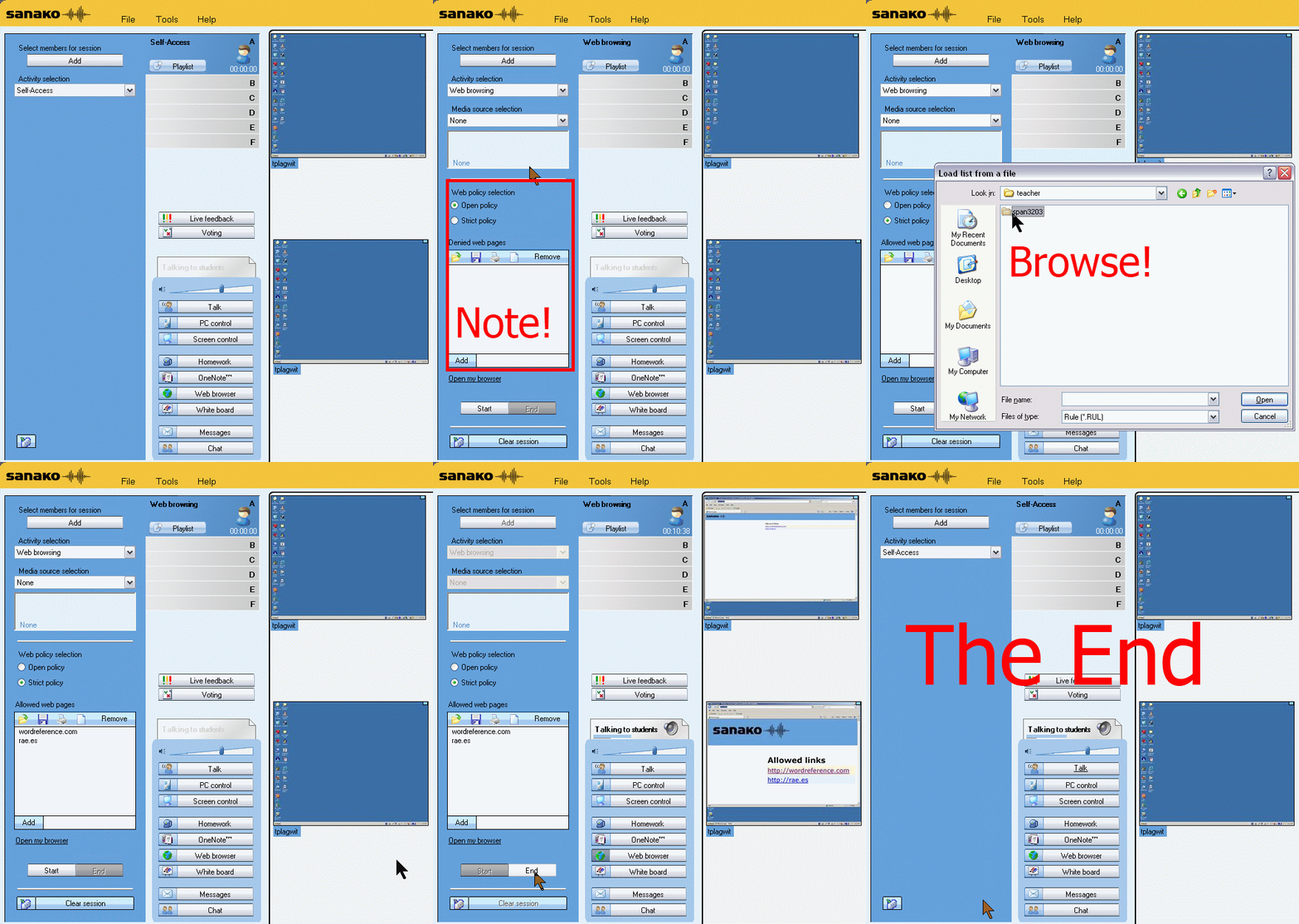
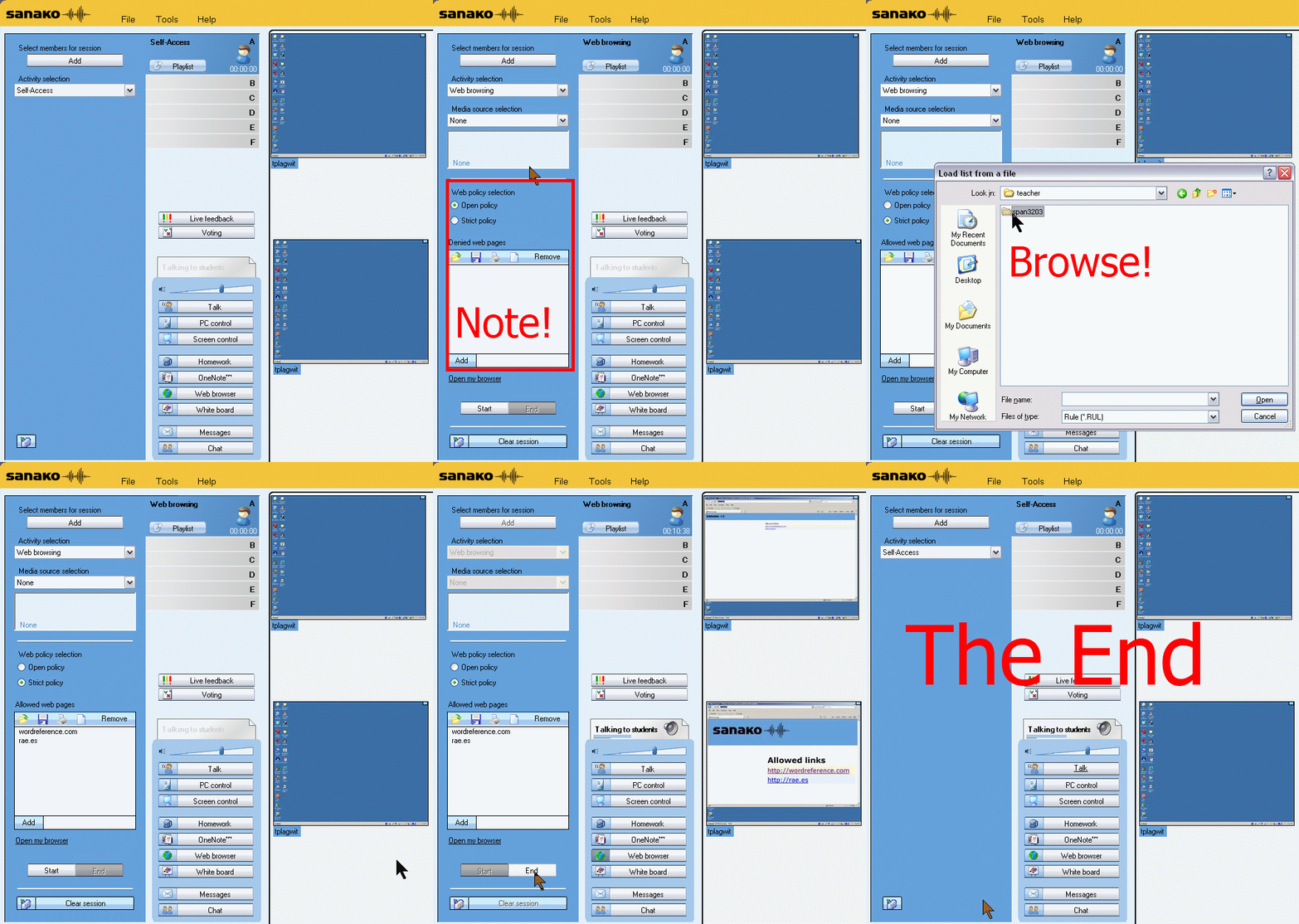
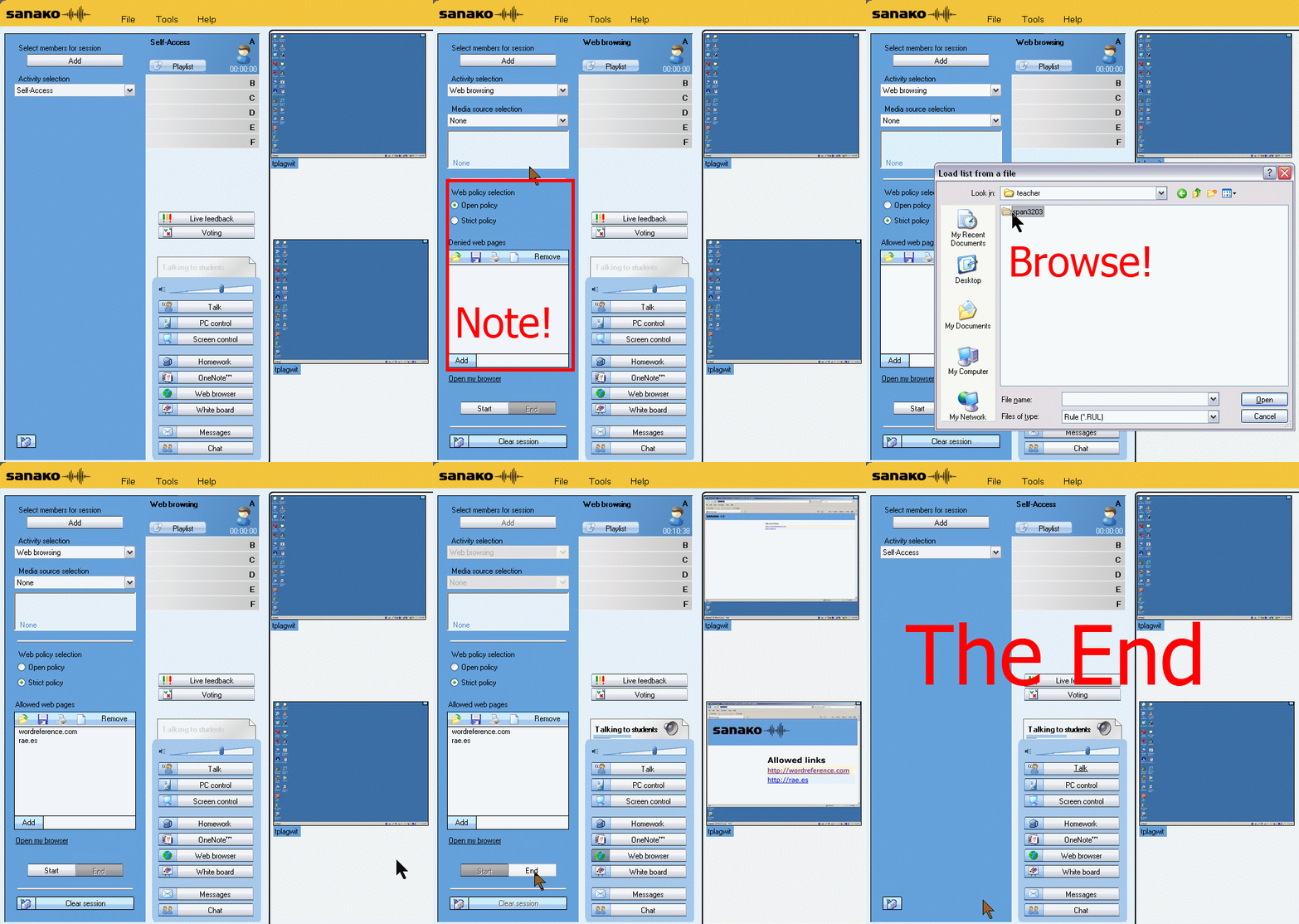
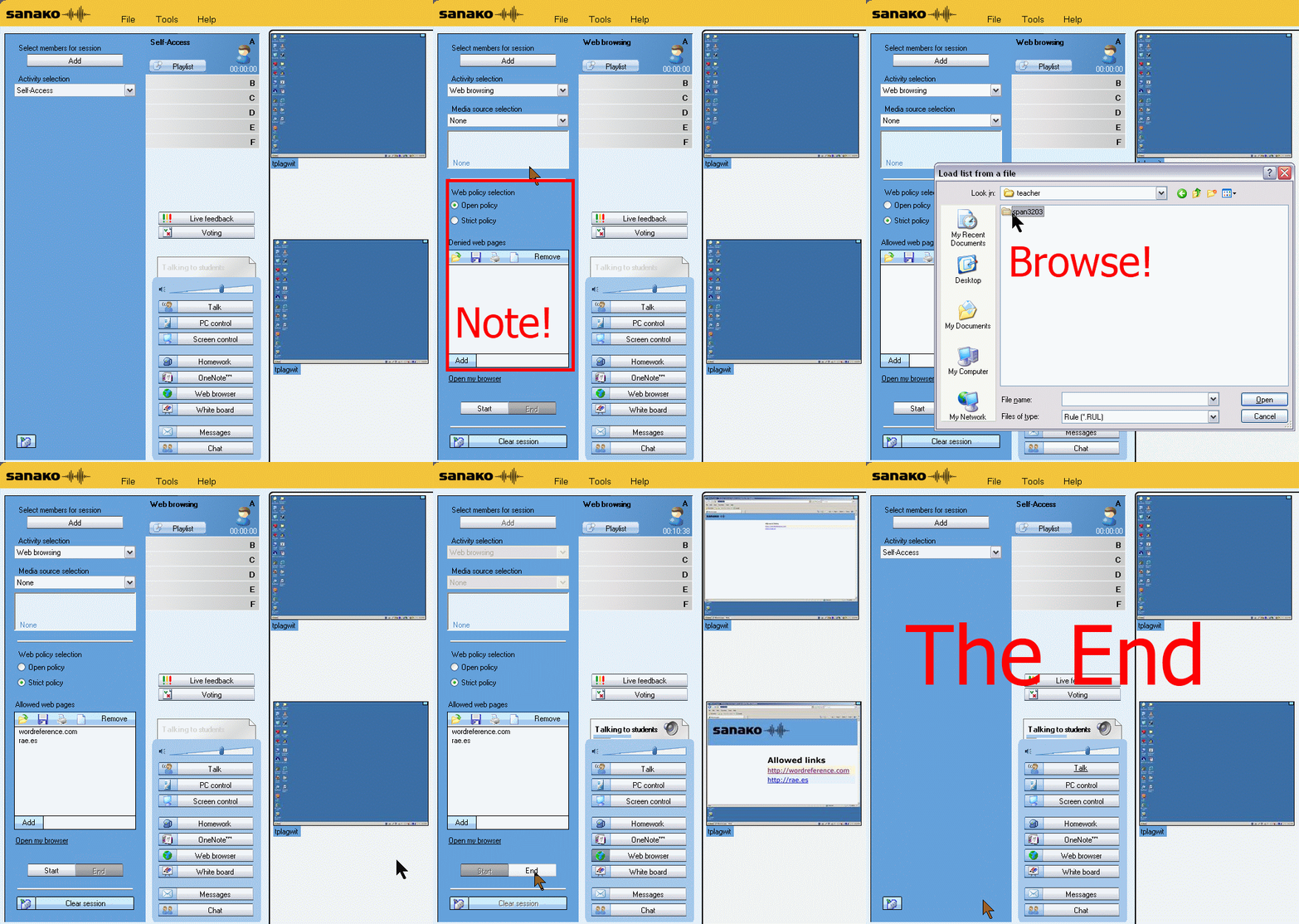
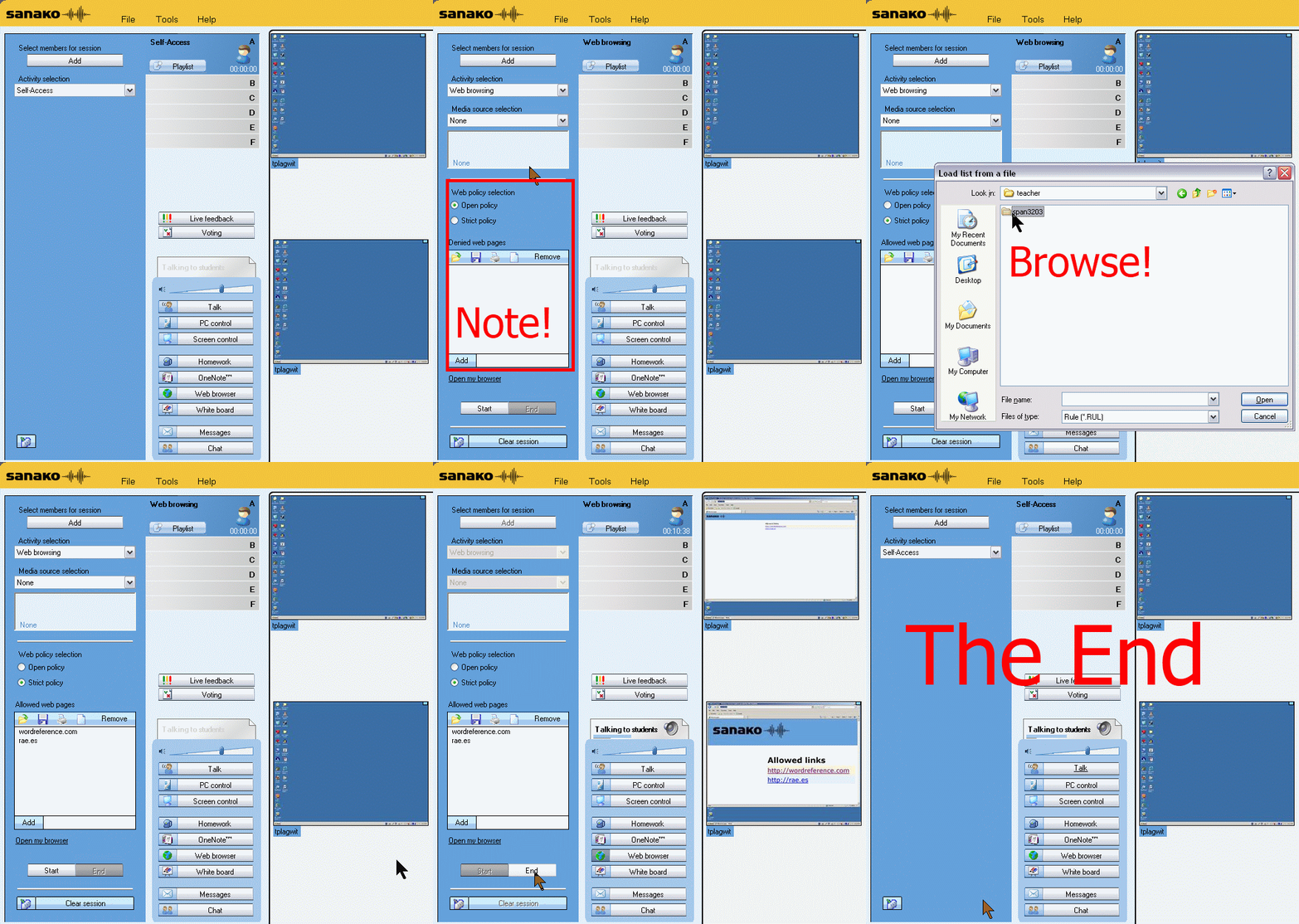
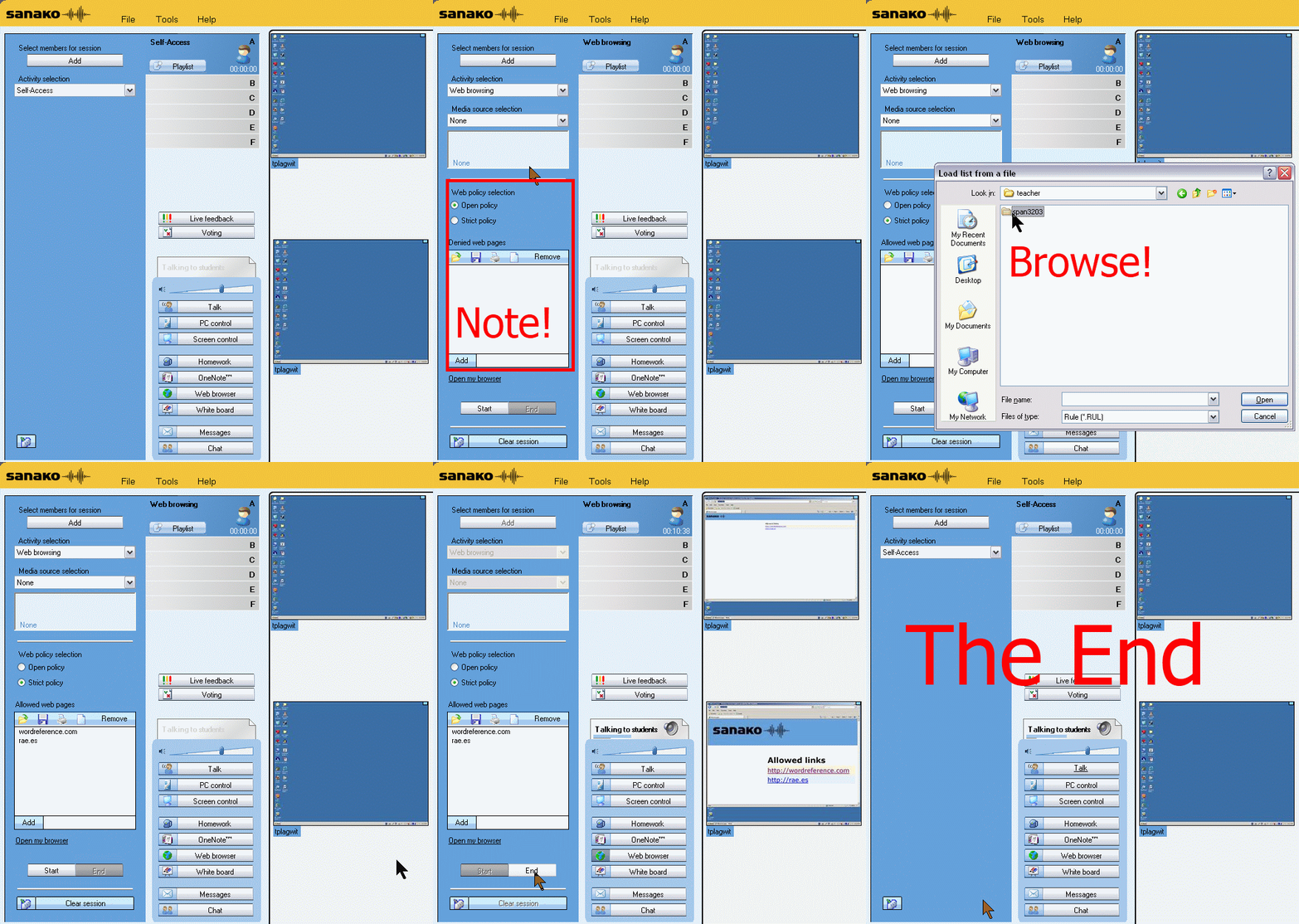
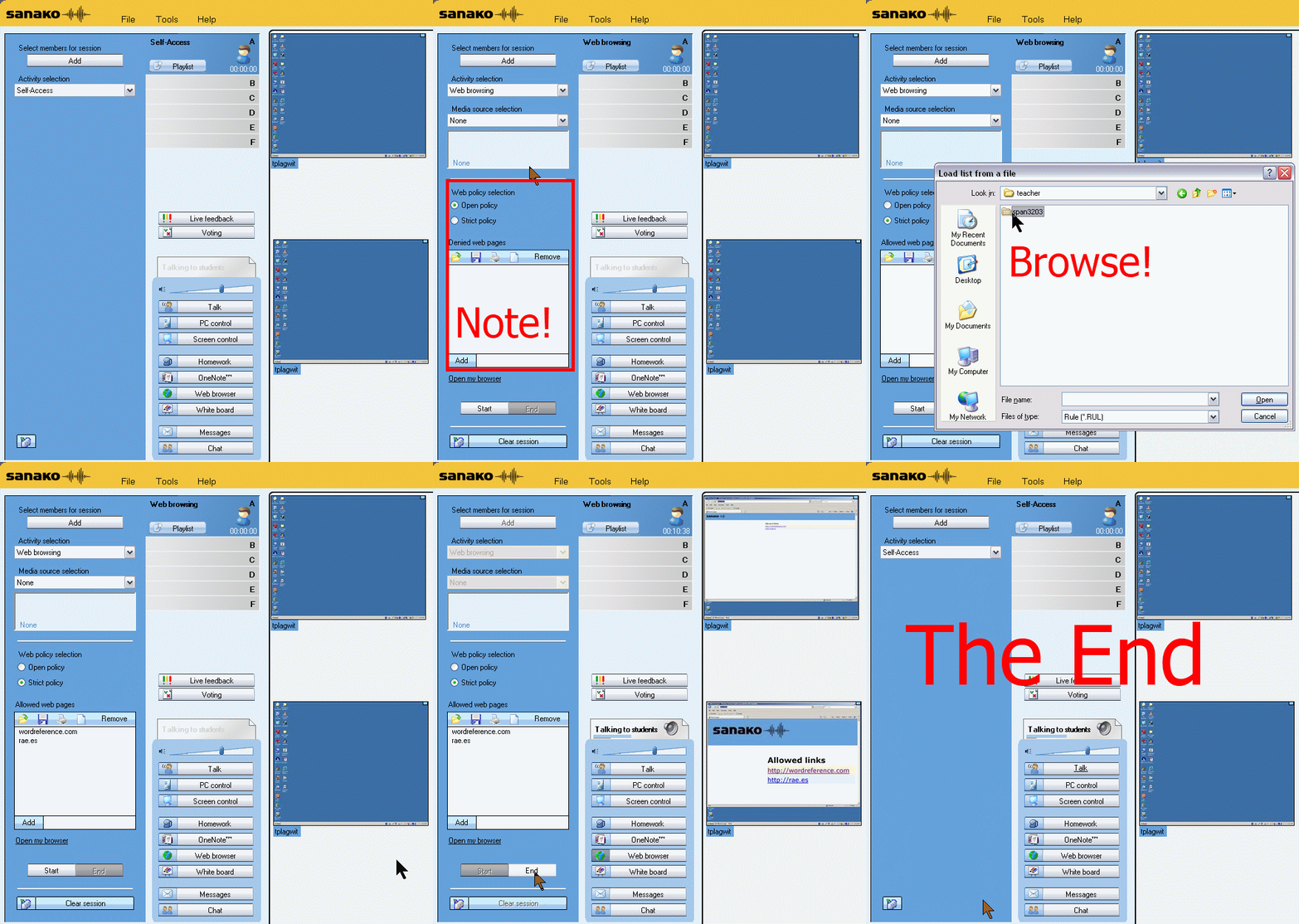
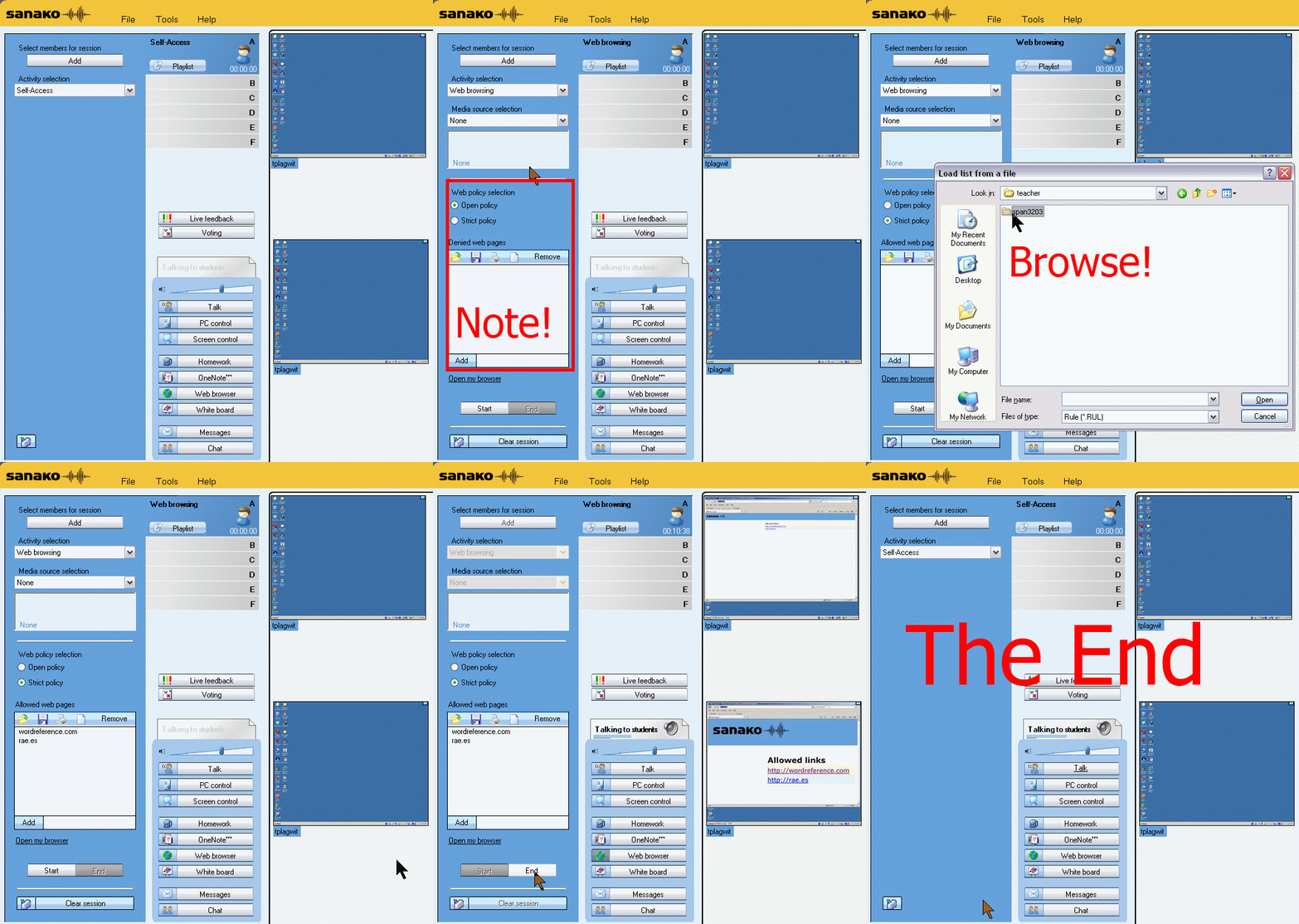
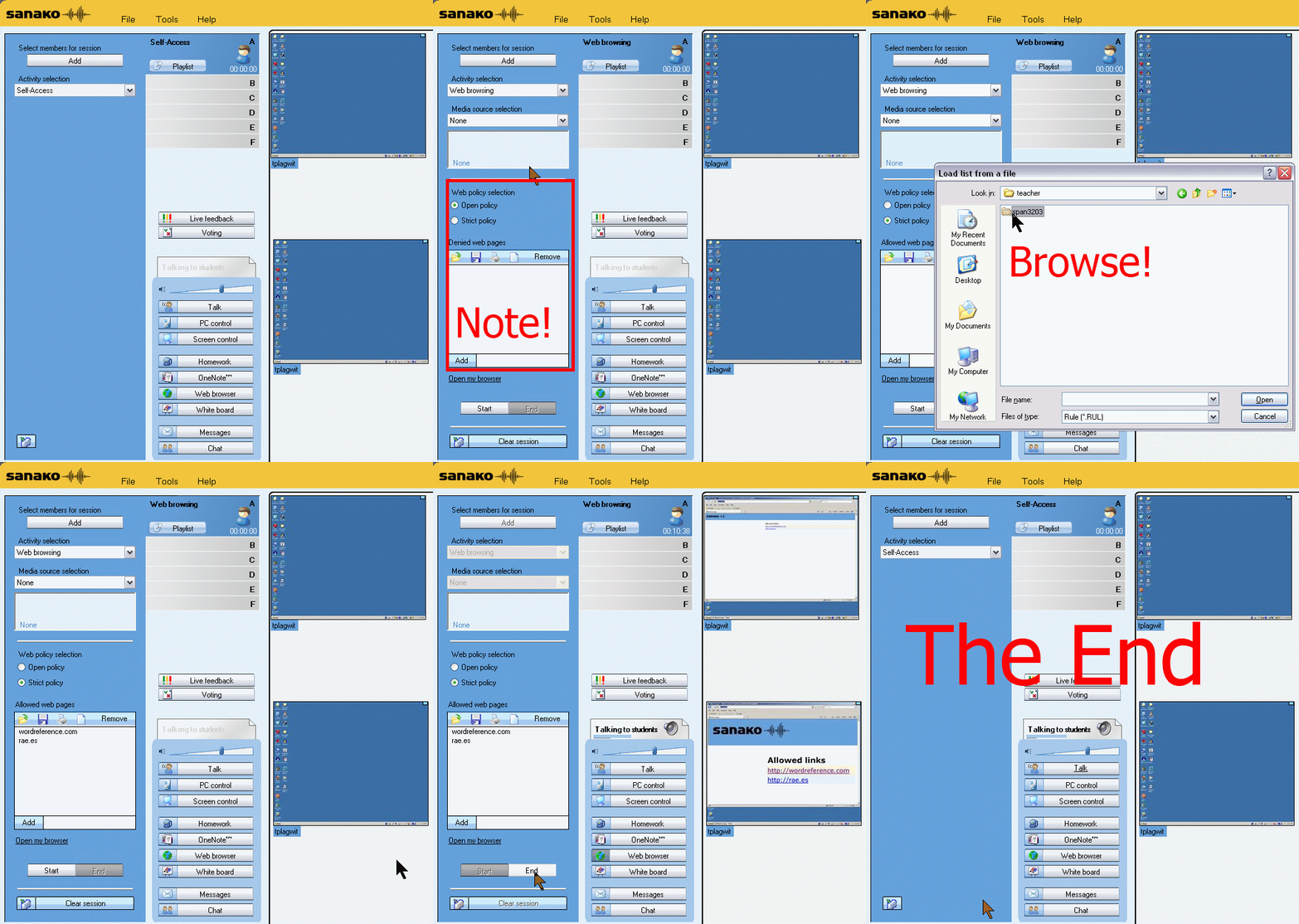
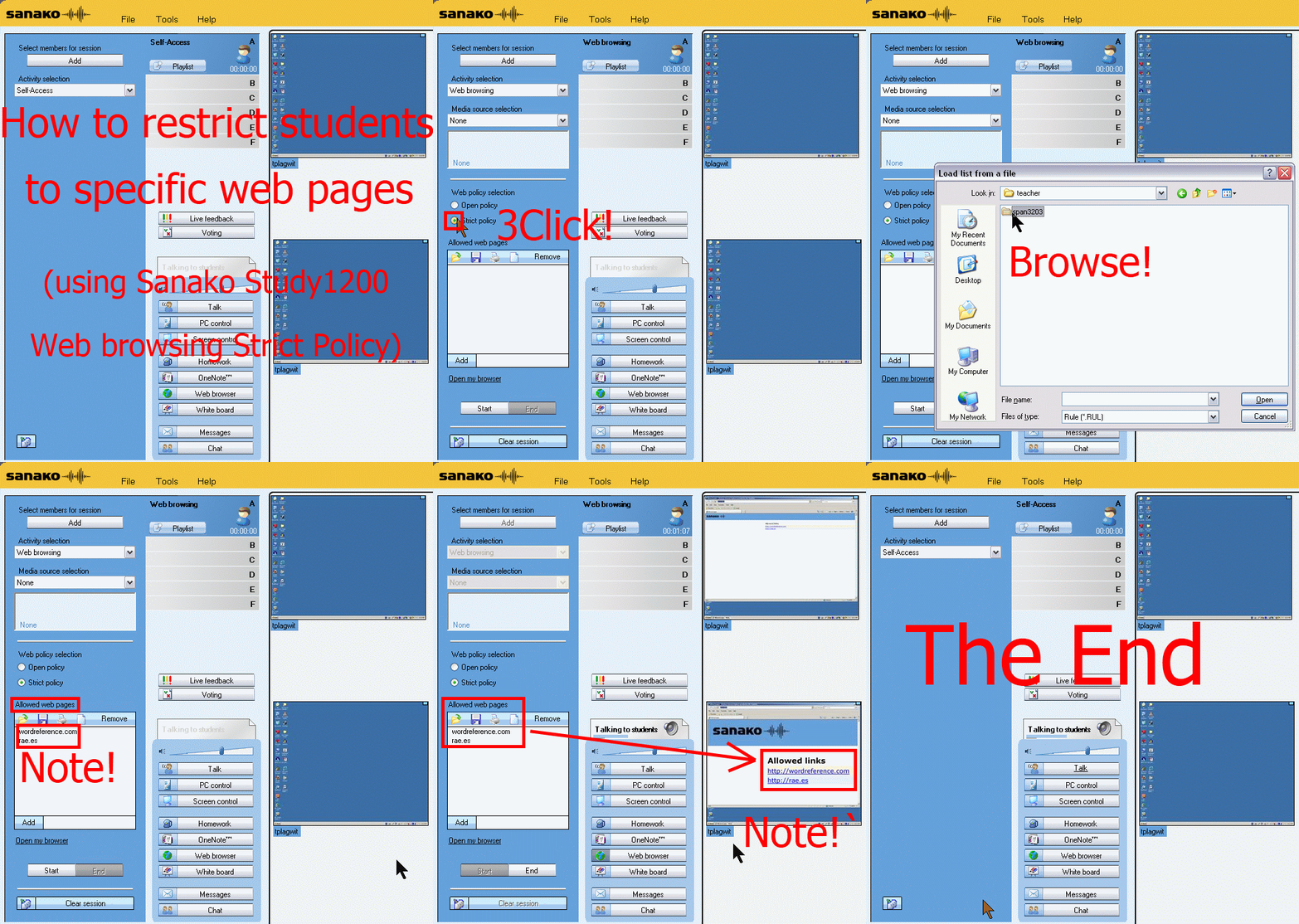
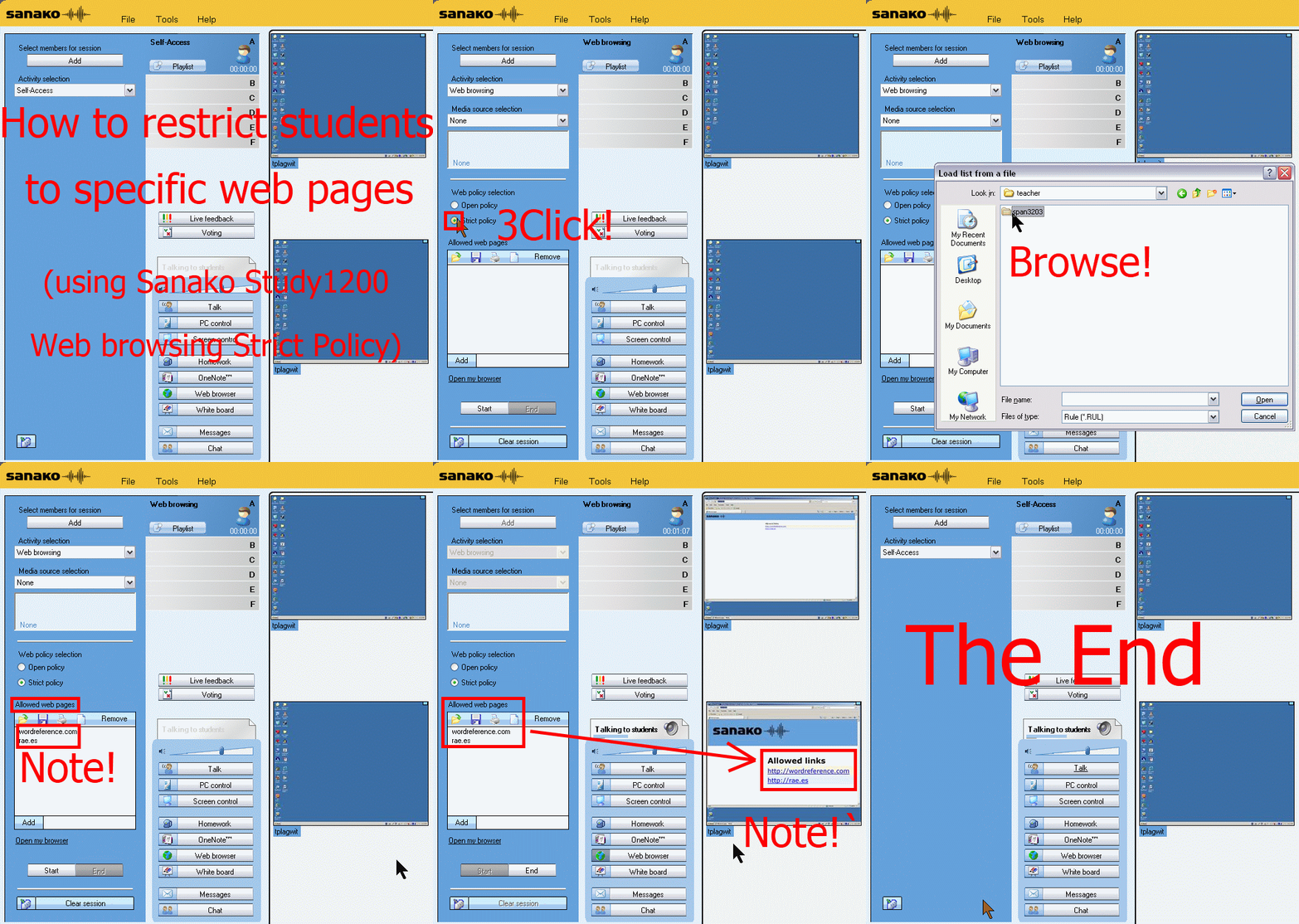
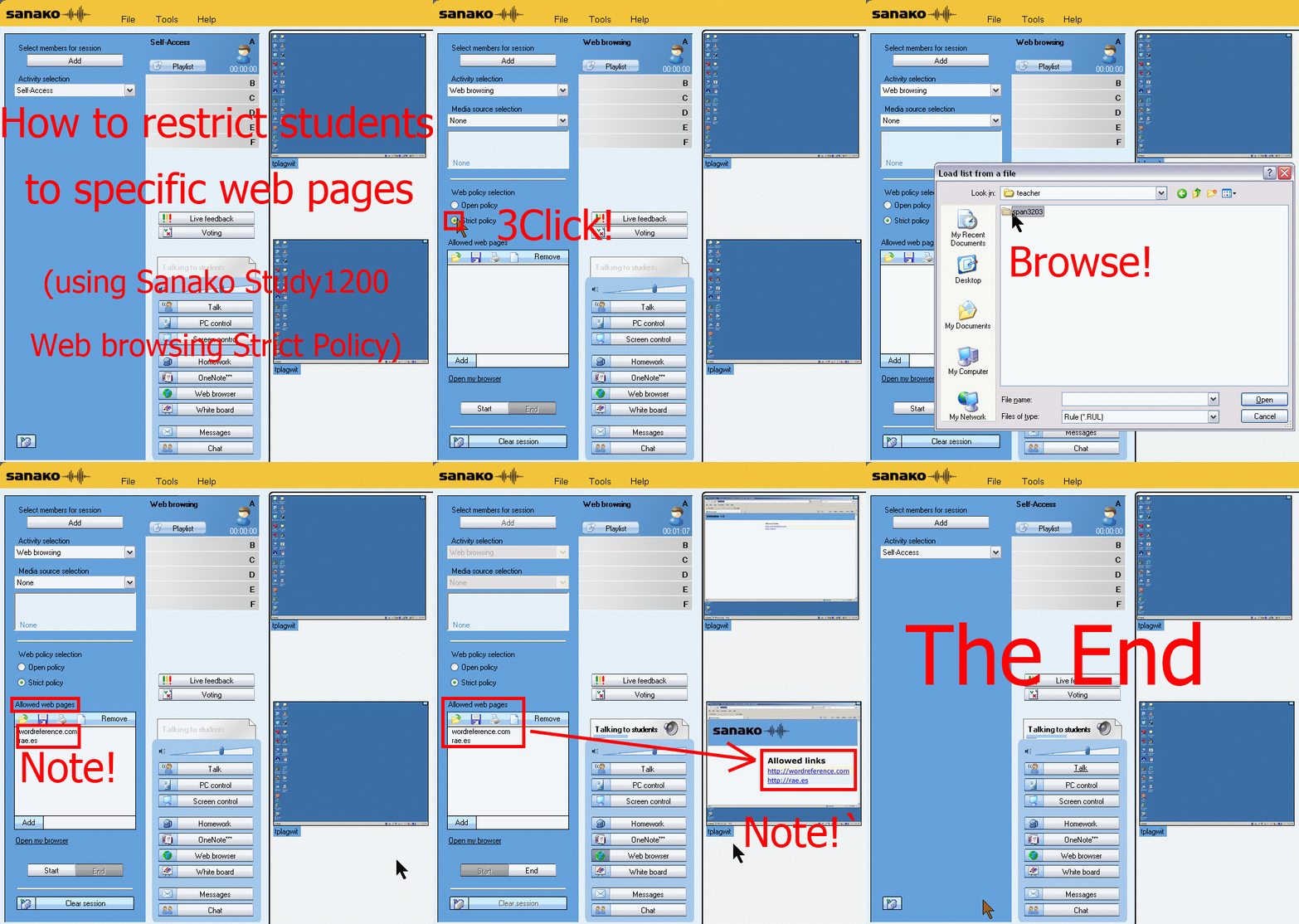
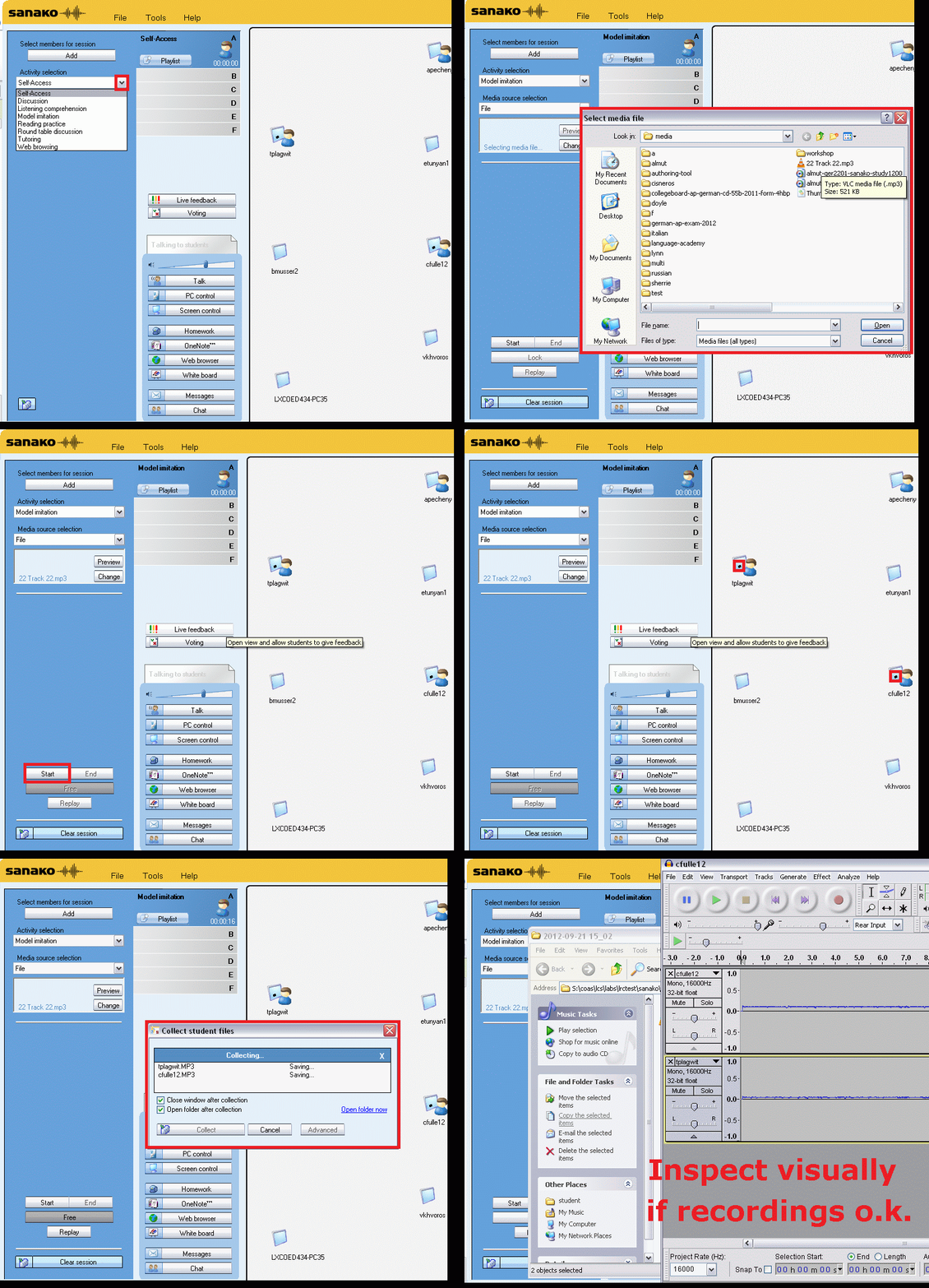
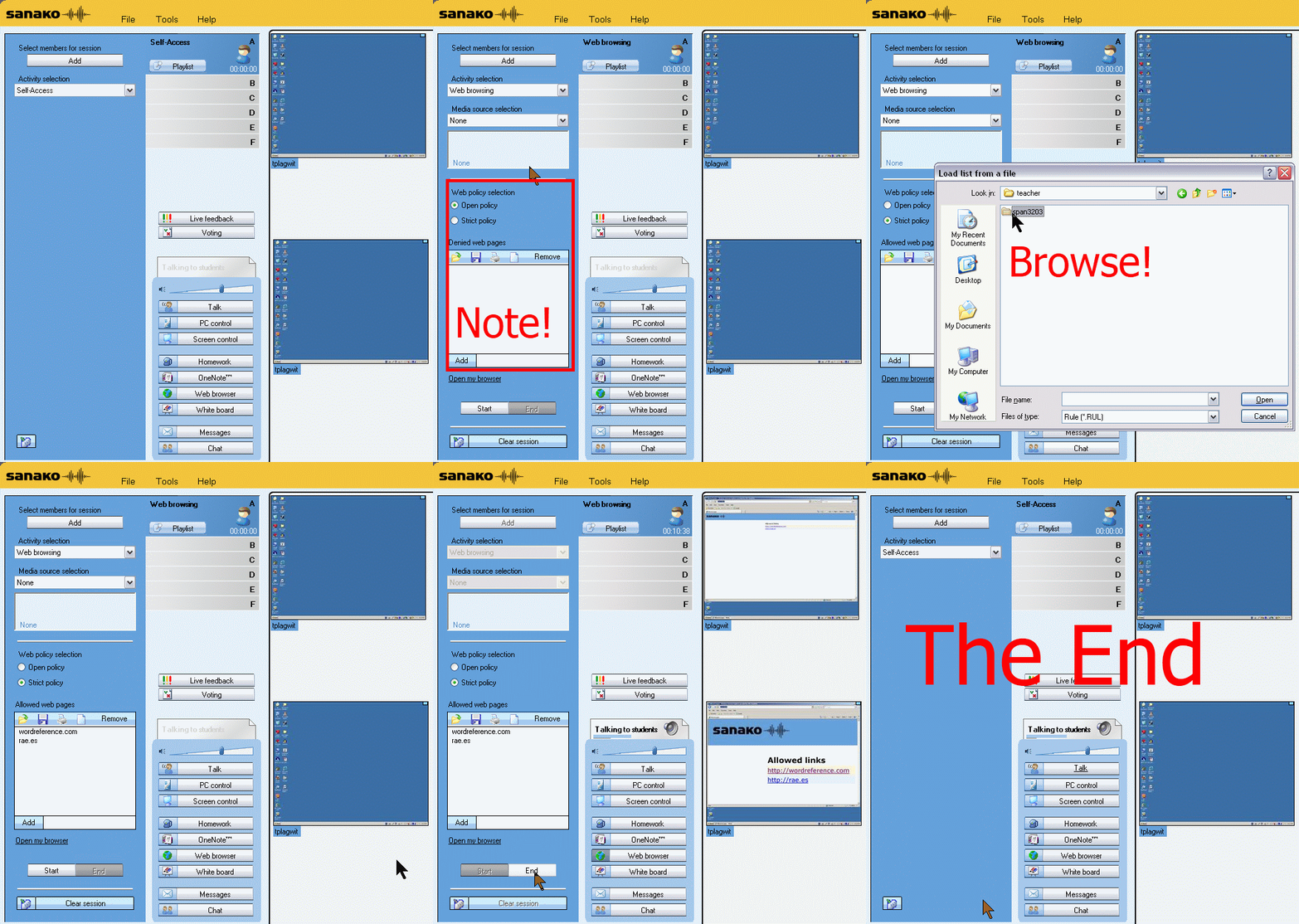
How teachers restrict students to allowed web pages with Sanako Study 1200 web browsing (strict) activity–the ultimate training summary
…using animated GIFs. Load the speed of your choosing (or several, use CTRL-Click to open links in a new tab) into the left screen of the teacher station before administering an oral exam, with the window active, press F5 in your web browser to restart the animation from the beginning:0.50sec,0.75sec,1sec,2sec,3sec,4sec,5sec,6sec,7sec,8sec,9sec,10sec
 .
.
Condensed (instructions only) for recap: 100cs, 200cs, 300cs, 400cs, 500cs, 600cs, 700cs, 800cs, 900cs, 1000cs. And if you need to pause:


Replacing the Sanako Authoring Tool
- Problem: Oral exams with visual cues have been popular, but the Sanako Authoring Tool we used to create them has been faded out. How can we quickl replace it?
- Workaround:
- collect your files in my Word template (left part of screenshot) like before (question/cue, repetitions, response pause time), including your images
- Save your MS-Word files as html.
- This will create a subfolder with media (right-side of screenshot). All your images are numbered sequentially in the order they appear in your template. Some are duplicated: select the first ones (the duplicate is a size reduction), plus the unique ones, and copy them to a new folder, e.g. “pictures”, on the Sanako teacher share, somewhere underneath your course folder where also your audio exam files resides.
- During the exam , you can display the pictures while playing the audio portion of your oral exam, from this folder sorted by name (= numbered sequentially) with the default teacher computer image viewer. No need even to fling out PowerPoint….

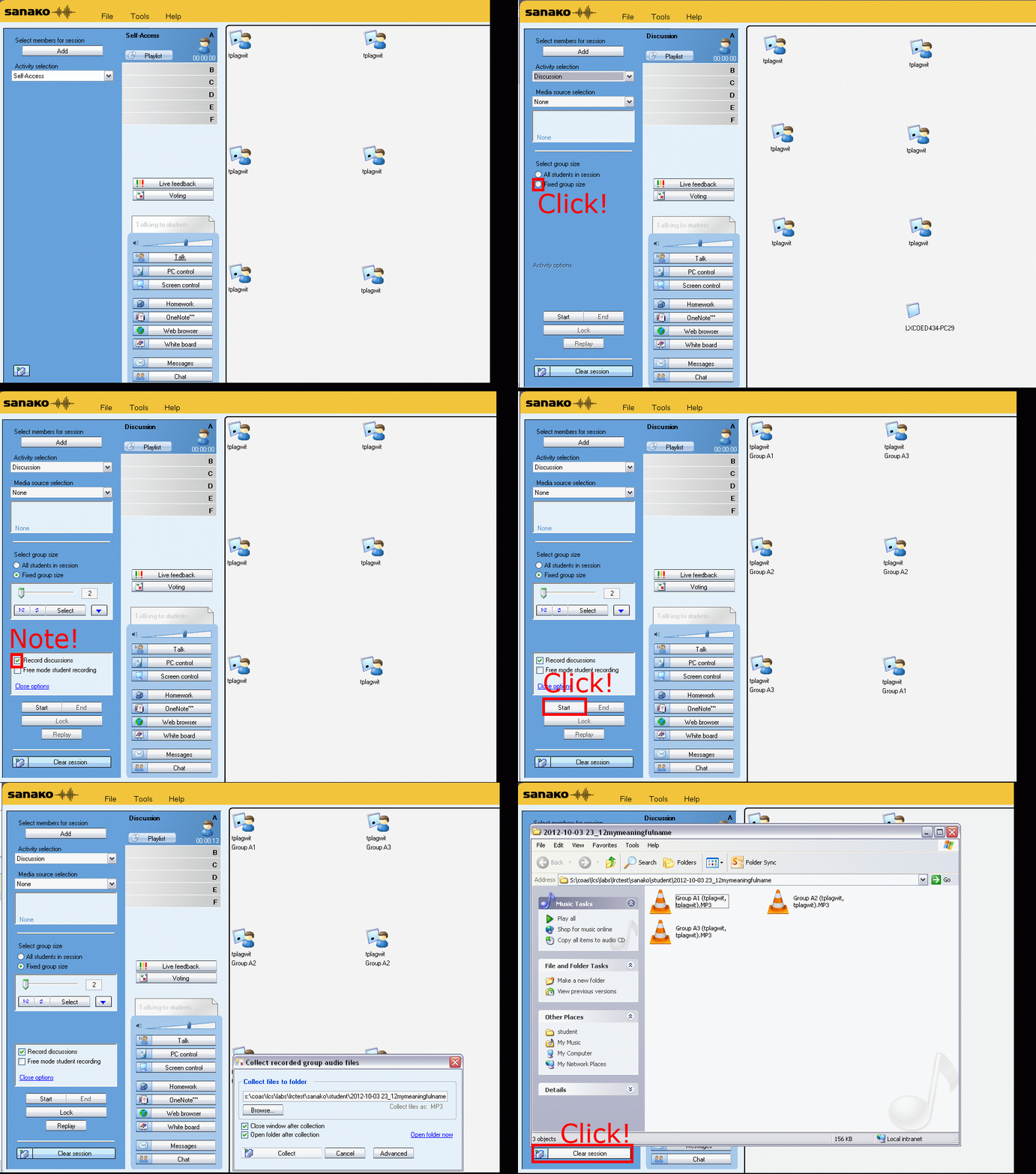
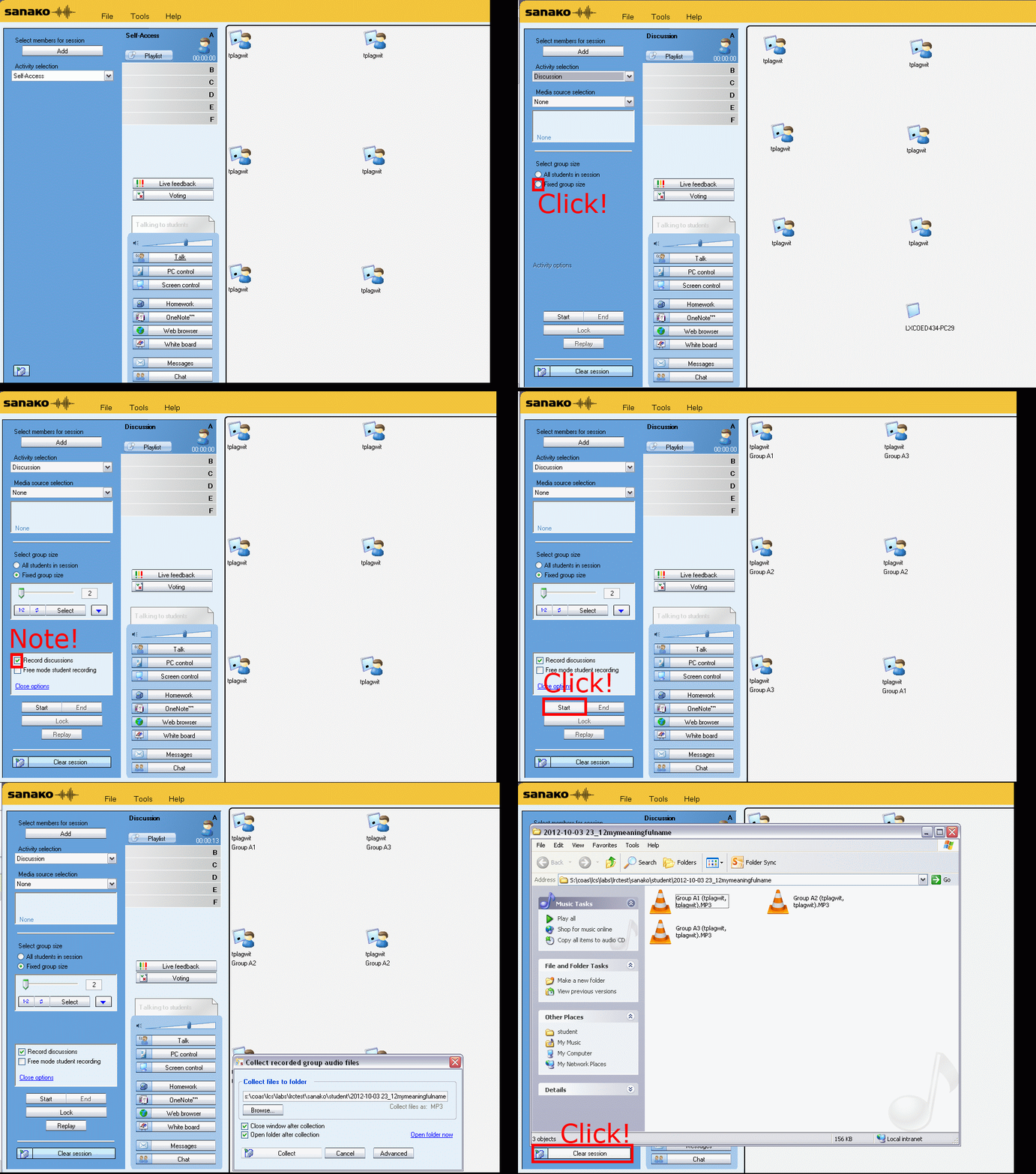
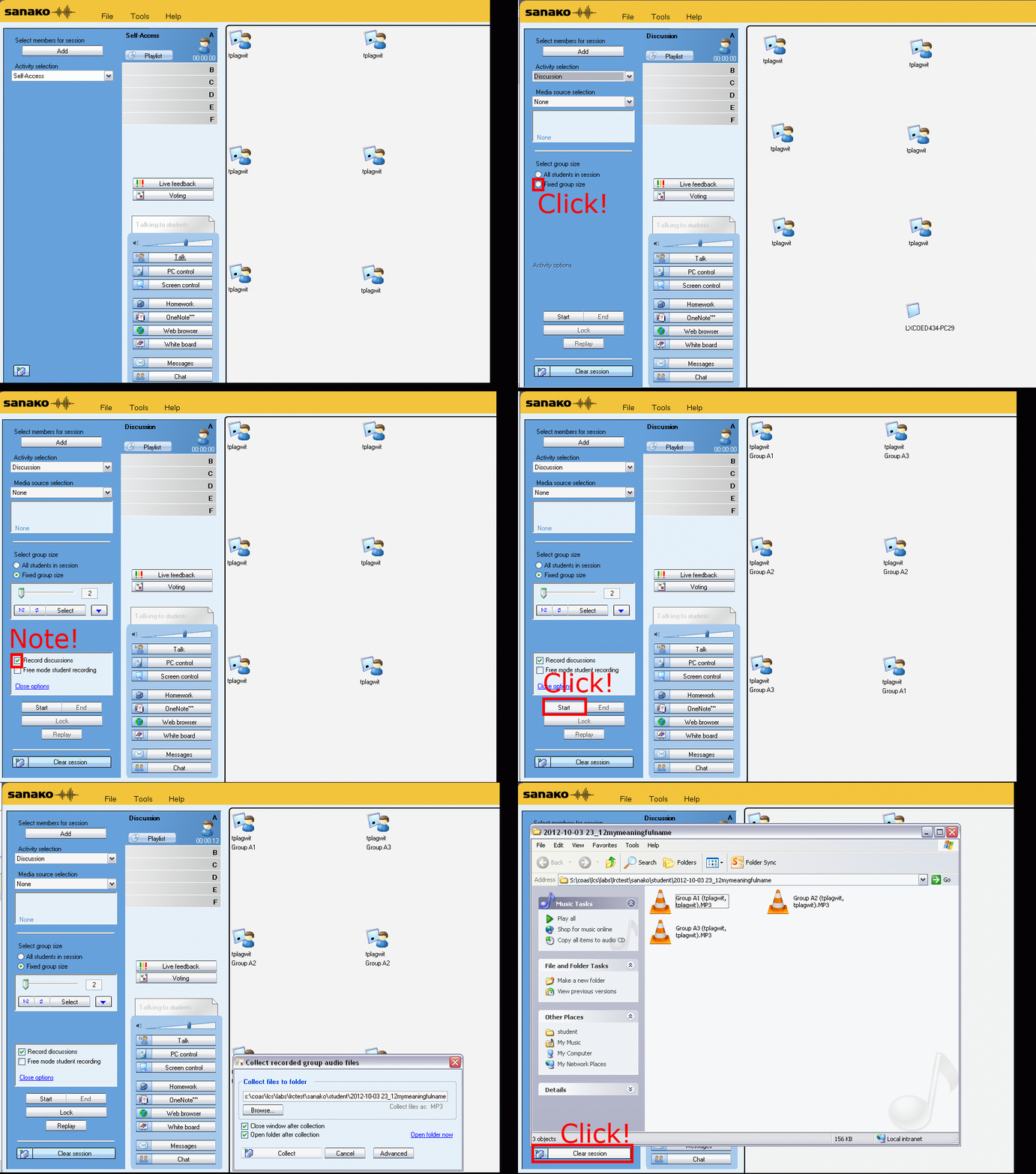
How teachers randomly pair and record students over their headphones with Sanako Study 1200–the ultimate training summary…
…thanks to animated gGIFs. Slower? 050ms, 075ms, 100ms, 200ms, 300ms, 400ms,500ms, 600ms, 700ms, 800ms,900ms, 1000ms. Load the speed of your choosing into the left screen of the teacher station before trying to pair your students, with the window active, press F5 to restart the animation from the beginning at any time:

How to link your LRC tutor calendar and Moodle metacourse from your Moodle course

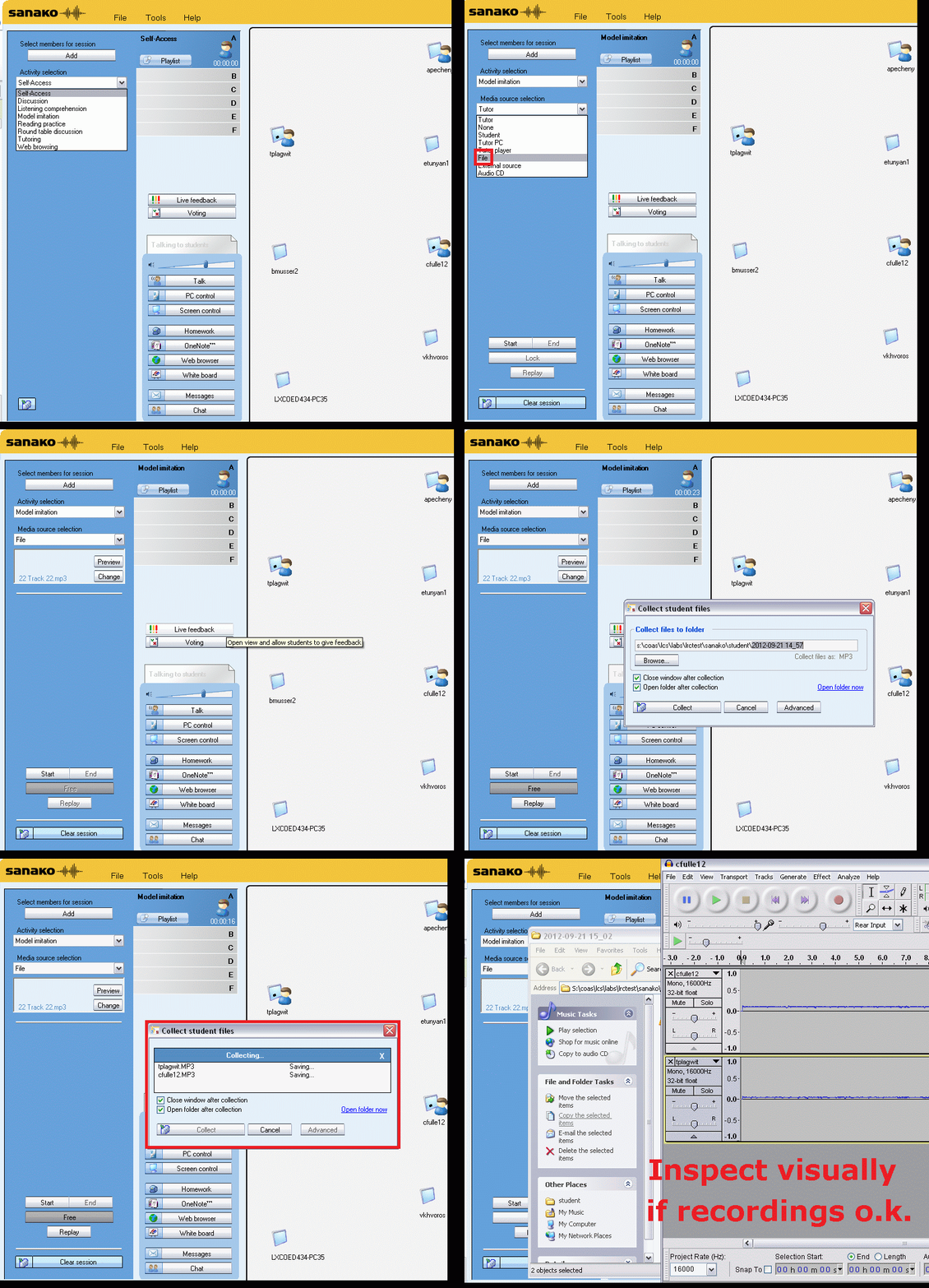
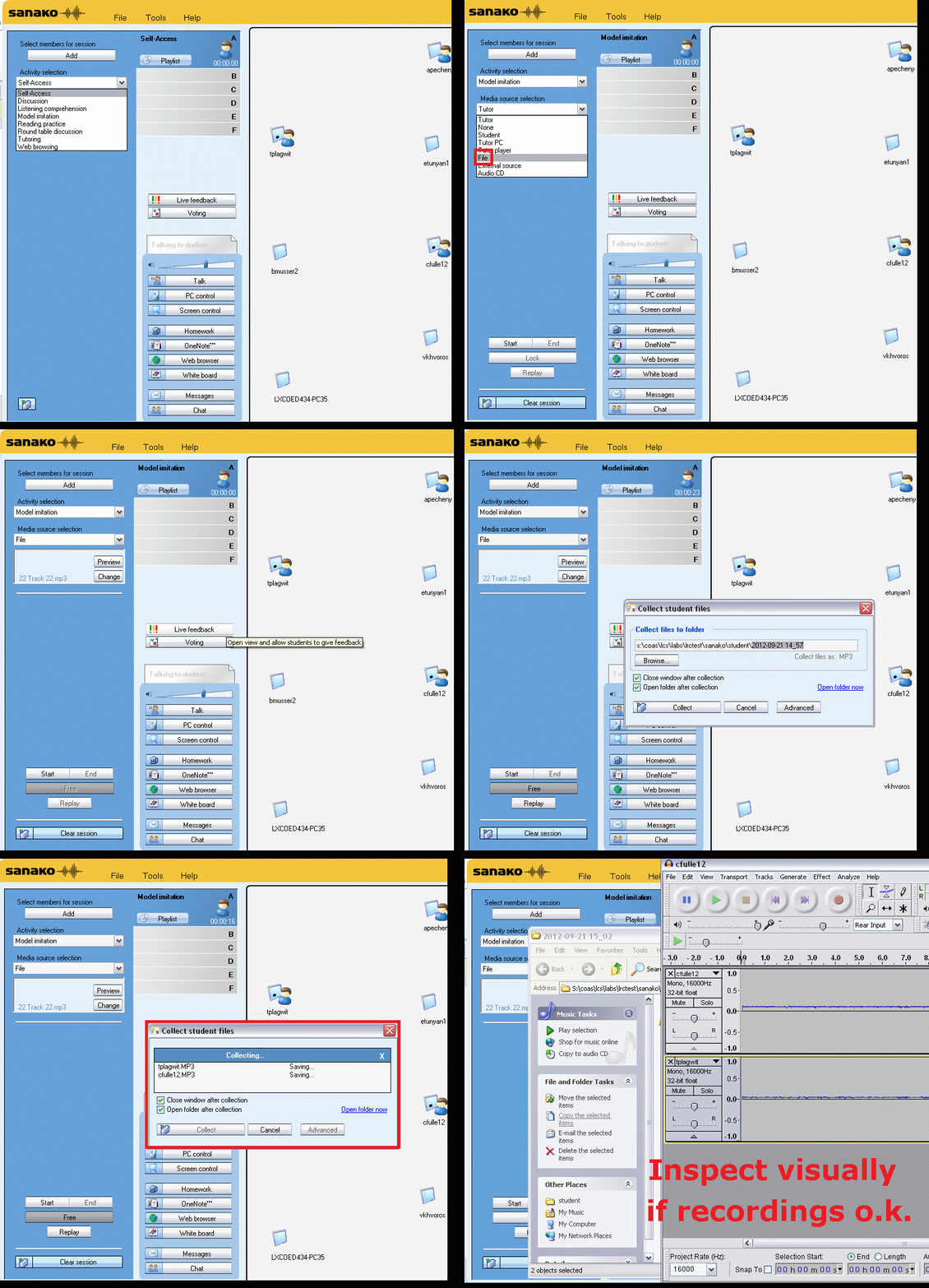
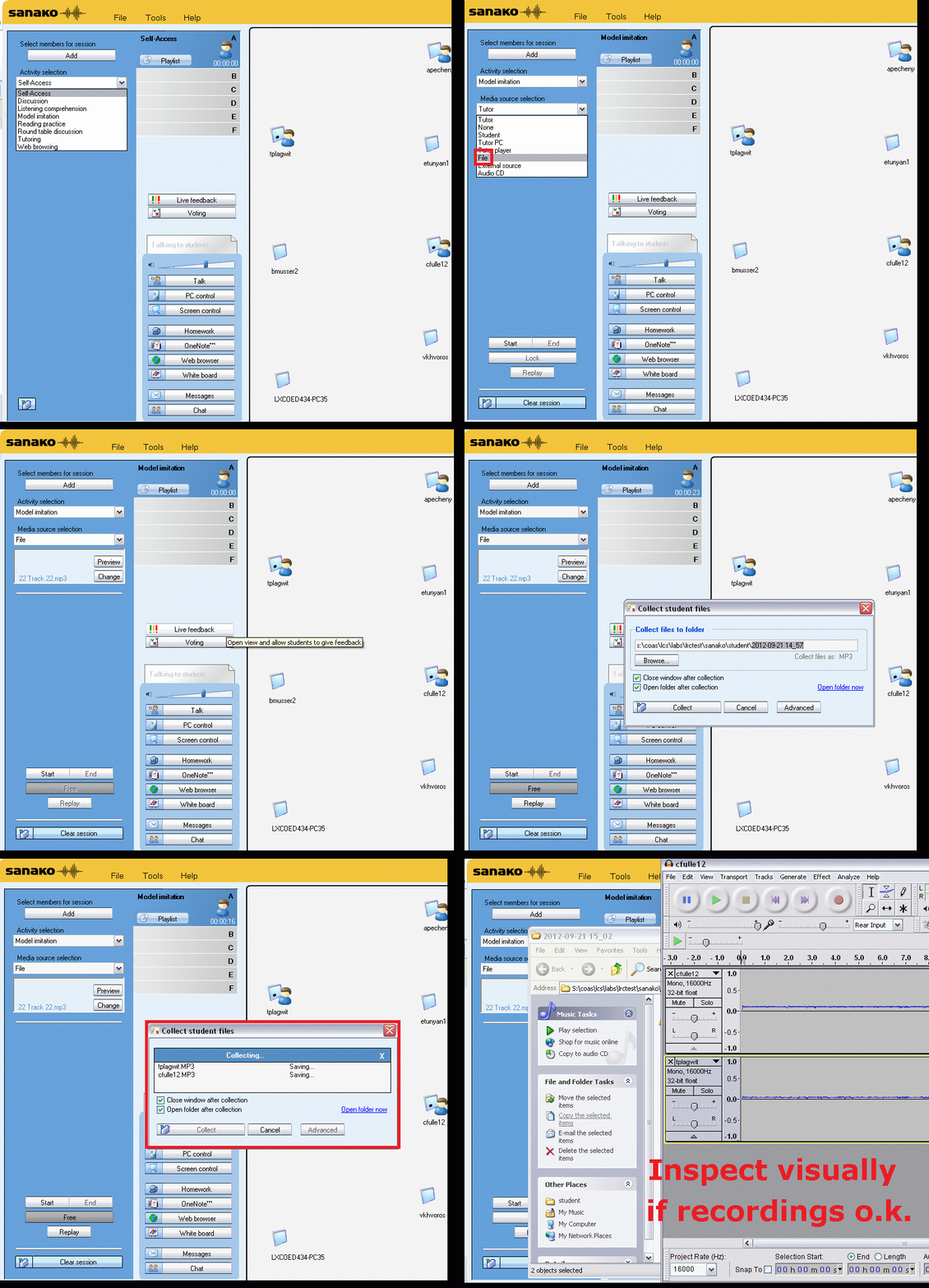
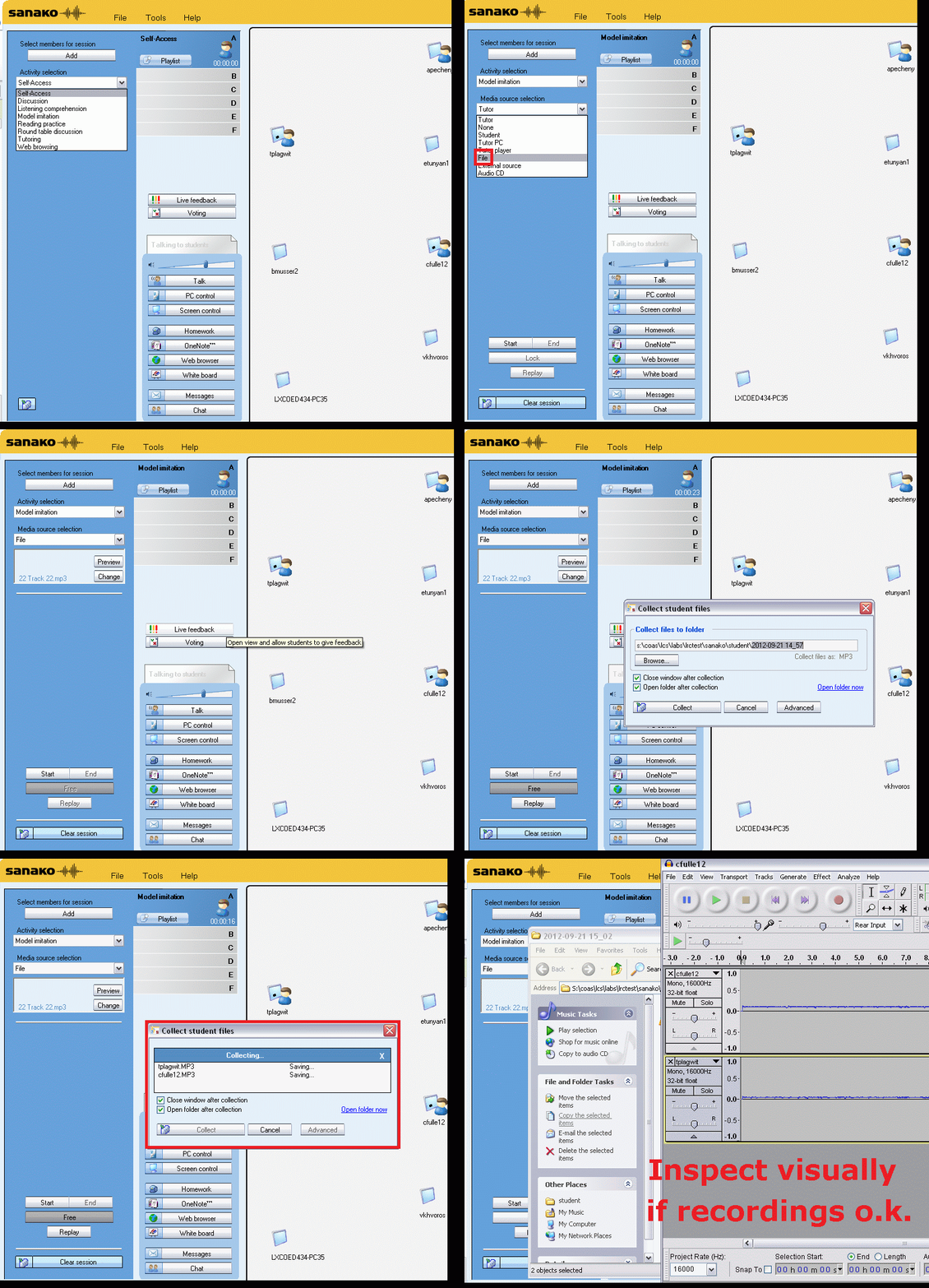
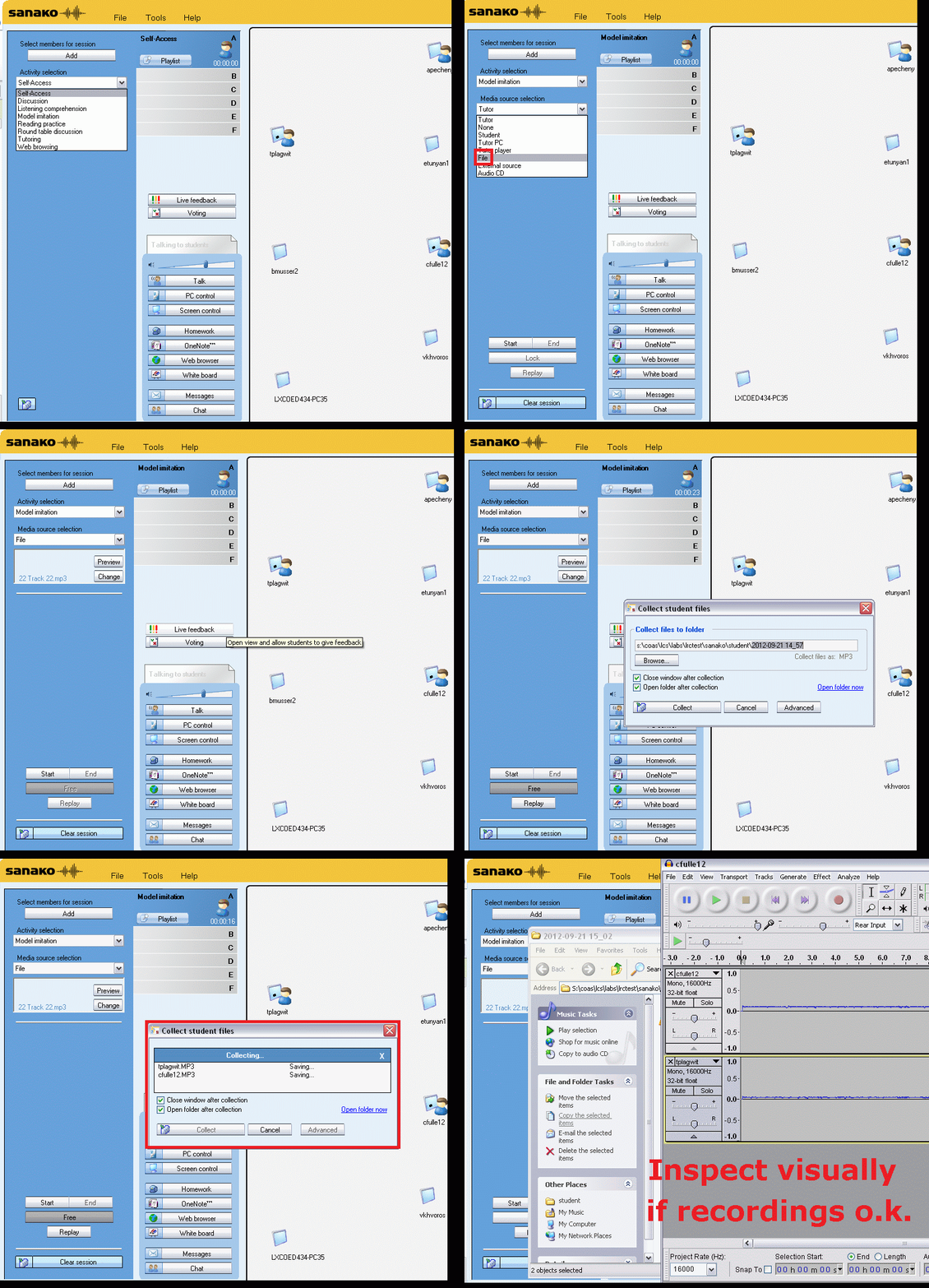
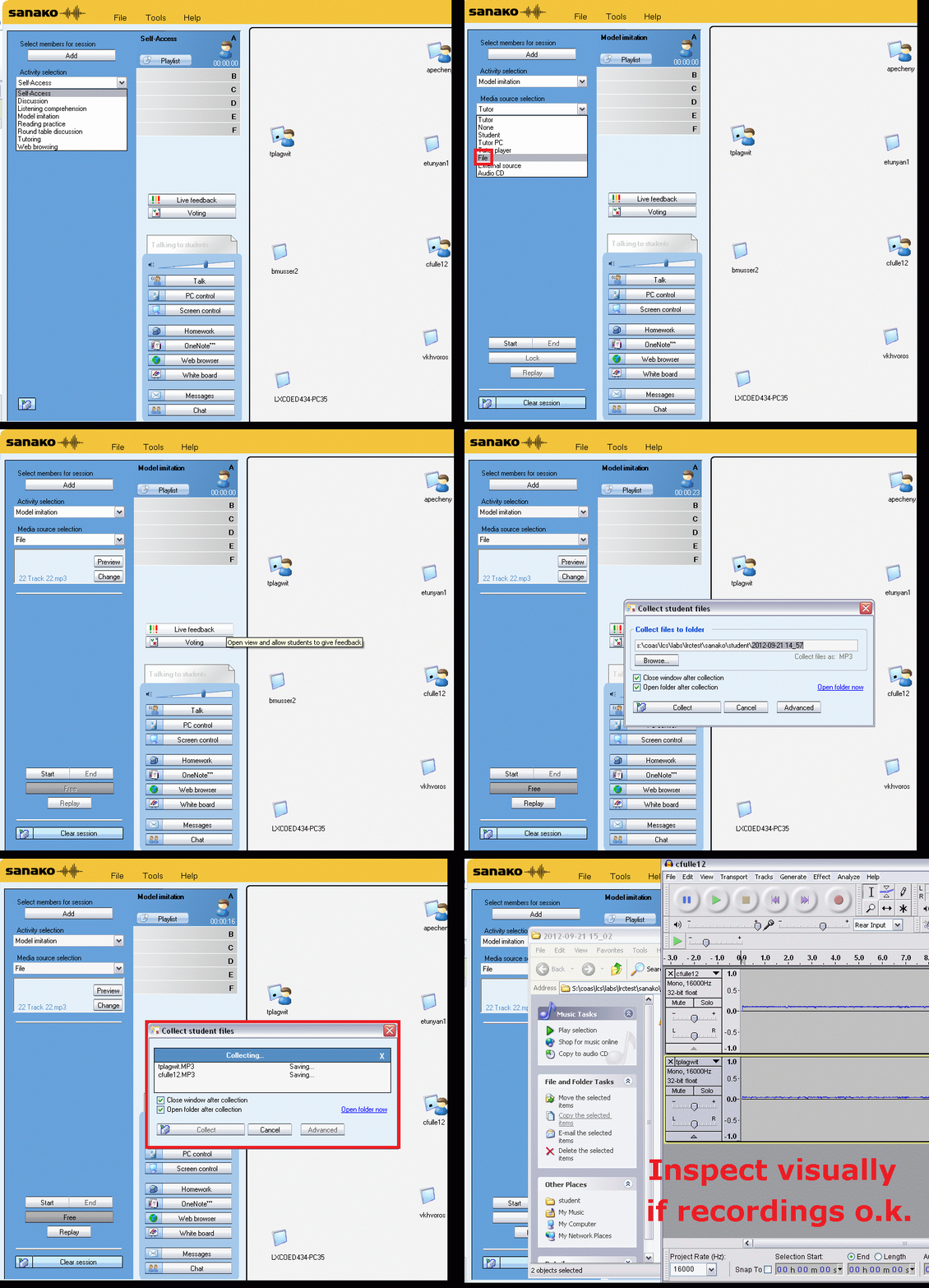
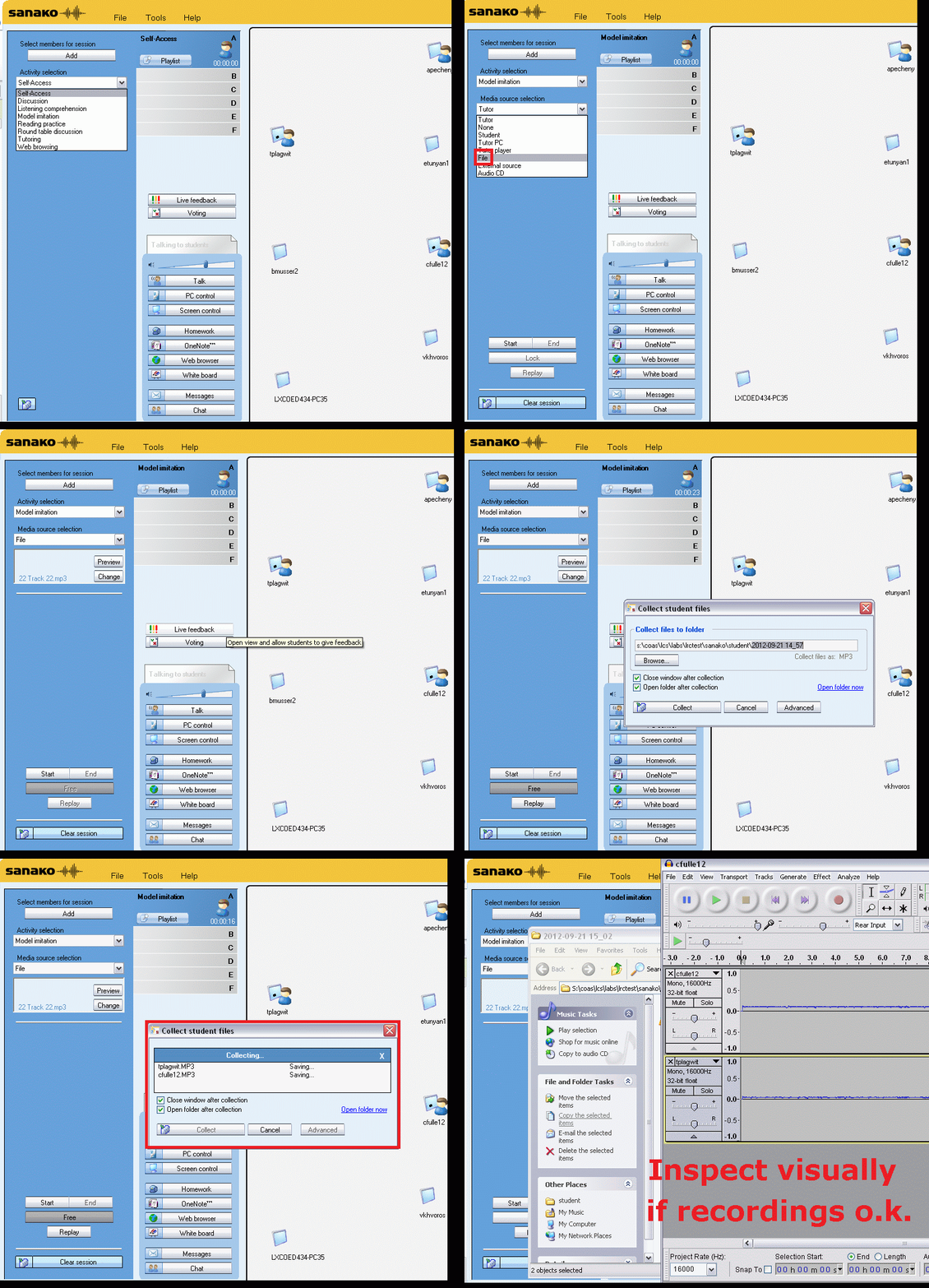
Oral assessments with Sanako model imitation – The ultimate training summary…
…using animated GIFs. Load the speed of your choosing (or several, use CTRL-Click to open links in a new tab) into the left screen of the teacher station before administering an oral exam, with the window active, press F5 in your web browser to restart the animation from the beginning. Slower? Expanded:050cs, 075cs, 100cs, 150cs, 200cs, 300cs, 400cs, 500cs, 1000cs.Or compact for recapitulation: 025cs, 050cs, 075cs, 100cs, 150cs, 200cs, 300cs, 400cs, 500cs, 600cs, 700cs, 800cs, 900cs, 1000cs. 
Film equipment booking FAQ
- Do not send the meeting request to lrchelp@uncc.edu or some other person you know in the LRC, but rather send to the equipment email as listed here. Your meeting request will reach this equipment item’s “Resource Attendant who manages the item.
- Do not attempt to book equipment items that are “blocked” on the Scheduling Assistant tab of your meeting request. The Attendant currently mails acceptance responses only to permanent staff, not to students (check for booking success instead using the calendars shared with you in your NINERMAIL), but still has her Scheduling Assistant update the equipment’s publically visible calendar with the booking (tentatively for students). You may have figured by now that TBA:the Resource Attendant and her Scheduling Assistant are actually robots, “Do more with less” and all.
- Do not write in the notes field “I would like a Boom Pole as well” or similar. Nobody but robots is supposed to look at your message, and Robots cannot process this note, and they do not need to: Just add all equipment items,that you plan to check out and back in at the same time, as additional recipients in the “Resources” textbox, as listed here, so that the Resource Attendant and her Scheduling Assistant can manage the sharing of the items.
- Do not load only a single equipment piece – you would be playing a time-consuming lottery with the availability of this item. Rather, load all equivalent equipment pieces in the “Resources” field (see explanation on list of bookable items ) that you could use. E.g. if you need a Vixia camera with a heavy tripod and a microphone, load (-> list of bookable items ) LRC Camera 11-14 and all LRC Tripods 01-04. Then compare availability lines in the scheduling assistant for these items: You will find more easily one Vixia camera and one heavy tripod that fits well into your schedule. Just remember to remove the other equivalent items that do not fit as well into your schedule, before sending the meeting request.
- New memory options from Summer 2013:
- Cameras do not include sd-cards anymore. If you need an LRC sd-card, you have to check it out (and back in) separately, by adding to the “resources:” LRCsd-card##
- Have no way of getting your footage off the camera when returning equipment. Don’t hog the equipment. You can now store your footage temporarily on an LRCthumbdrive##.



Questions? Read the About. Or just ask me a quick Our Databases: Resources with calendars -- Language learning material Moodle Sites, multimedia files -- films


FAQs for LRC student staff or for students or for teachers. To search our FAQs, in the browser addressbar, add after "https://plagwitz.wordpress.com/feed/?tag=faqs+/" "+TAG1" (from tag cloud below) OR "https://plagwitz.wordpress.com/feed/tag=faqs
&category_name=" "CAT1" (from category hierarchy below). OR search both categories and tags, and multiple TAGs/CATs (connect with "," for OR-search, with "+" for AND-search), like so: https://plagwitz.wordpress.com/feed/?tag=TAG1+TAG2+...TAGn&category_name=CAT1
+CAT2+...CATn"
Other ways to find help
If you cannot find it here, look there: 5,500 Language-Learning Links and Programs for learning or teaching 150 languages
Shortcuts:Our Lists, Our Maps, LRC Staff Moodle Site,LRC Project Moodle Site, 49erexpress, UNCC Moodle, Student Recordings: s:claslcslrcsanakostudent
Learning usage samples: Sanako oral exam, Kaltura webcam presentation, Dictation with speech recognition, Sanako written exam, Chinese and Japanese interactive stroke-order practice
Test the Sanako Installer, Webbrowser Popup Konfigurator for XP, or Windows7, faster LRC TeacherPC Log-in Let MS facilitate diacritics writing by installing for you US-International keyboard layout
This is my personal blog (Google+). The views expressed on these pages are mine alone and not those of my employer. The information in this weblog is provided “AS IS” with no warranties, and confers no rights.
 Thomas' Work Space