Archive
Archive for the ‘audience-is-any’ Category
How a teacher grades a Moodle MS-Word file upload assignment for writing
2012/01/18
1 comment
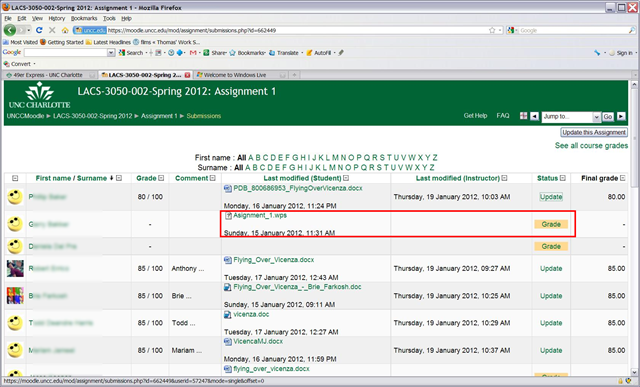
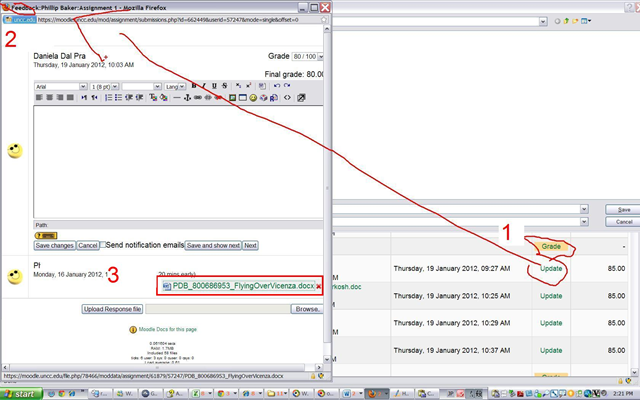
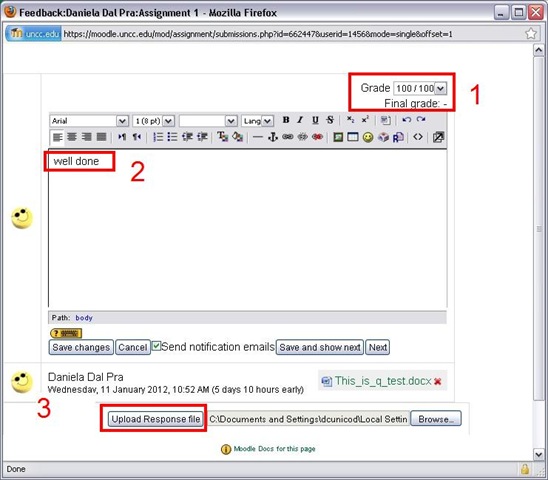
- Where students have submitted MS-Word files in the Gradebook, click (1) button “Grade”:
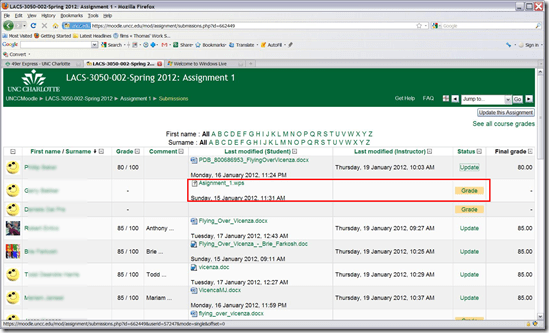
- This opens the (2) Feedback window, with the (3) student MS-Word submission:

- Download the student MS-Word submission by clicking on the link:

- open with MS-Word:

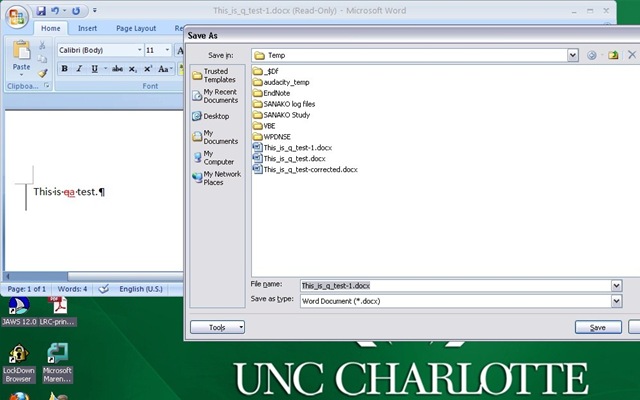
- Correct with track changes turned on (CTRL+SHIFT+E), and save:
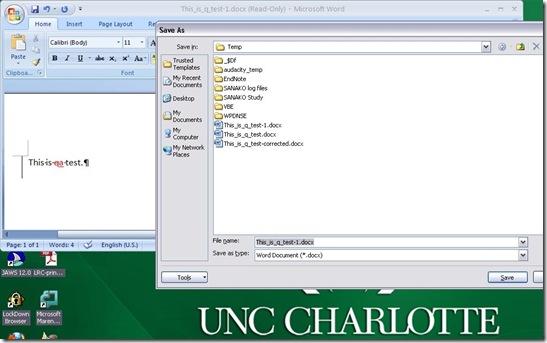
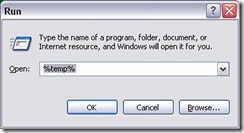
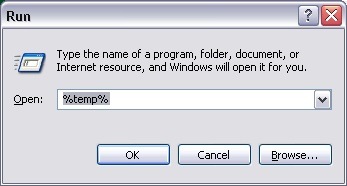
- YOU WILL SAVE under a different filename (suggest adding “_corrected”at the end) INTO YOUR DEFAULT TEMP DIRECTORY, here is a shortcut to get to it: key-combination WIN+R, %temp%, “ “OK”:
- Back in Moodle, select your response file from the temporary directory:
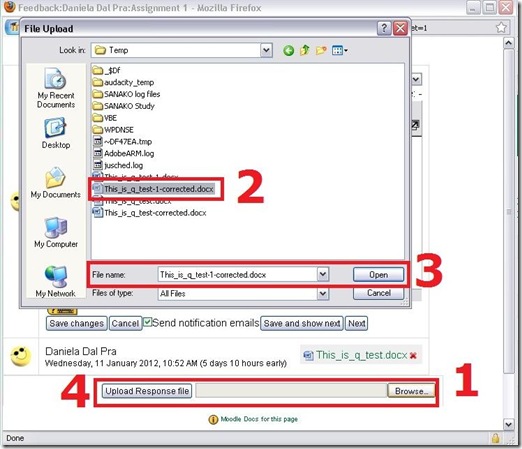
- Provide (1) Grade and (2) comment, then (3) upload the file:

- Done, you can move to “ Next”

- Which is where you are here: now repeat as above (provided student has submitted his file already)

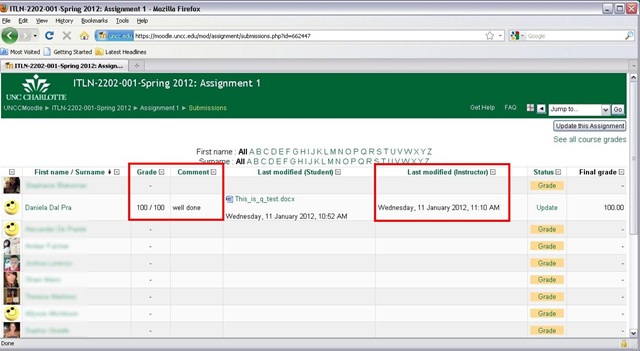
- Or view the gradebook, where your results are visible,

- including to the student.
- Instead of using the Moodle Response File feature, can I just make my corrections in MS-Word and copy/paste the resulting track changes markup into the Moodle Feedback Window Comment textbox? I would not try this. This way, you are not giving the students the full functionality of the track changes feature in MS-Word for them to continue working with the file. Moreover, whether the basic coloring of track MS-Word’s changes get preserved, will likely depend on how the web browser that you (and possibly the student later) uses supports the rich edit control of the comment textbox. If you just want to preserve the colors, I would instead try and Save as PDf from MS-Word 2007 and up, and send the PDF as a Response File.





Categories: all-languages, audience-is-teachers, lms, Writing
moodle, MS-Word, track-changes
How to track changes with MS-Word reviewing
2012/01/18
Leave a comment
- The classic tool during coauthoring, including providing corrective feedback during grading of assignments: Begin with this screencast (plays in Windows media player on Windows).
- Todo: How to combine this with MS-Word Web app?
Categories: audience-is-teachers
track-changes
How to view all assignments per student in a Moodle course
2012/01/18
Leave a comment
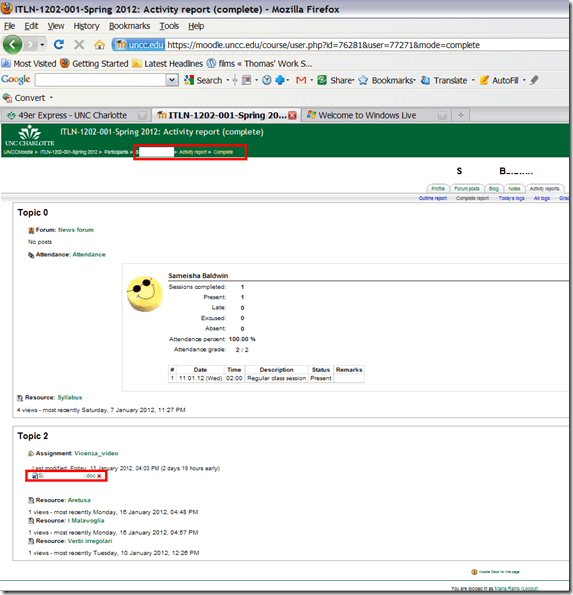
- follow the screencast from the gradebook, clicking on a student name in the row headers, “ activity reports”, “complete report” (plays in Windows media player on Windows).
- to get this (note the breadcrumbs on top pointing to “ Reports” / “ Complete” )):

Categories: audience-is-teachers, lms
1.9, gradebook, moodle
Students get an error when trying to open links from MS-Word file
2012/01/18
Leave a comment
- Error reads: “”this operation has been cancelled due to restrictions in effect on this computer”.
- Immediate workaround:
- right-click on the link, choose copy, open a web browser window
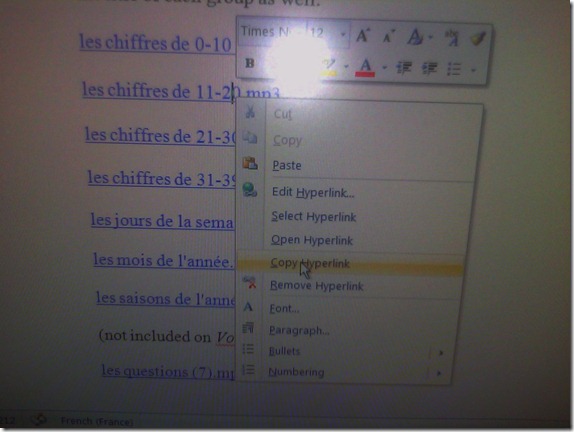 and paste the link into the address bar, browse to it from there.
 - File / Save as / Web page. From where you saved the web page, double click to open it in the your web browser, click the links form within there.

- Have you tried saving your MS-Word files to the new SkyDrive.live.com (login with your NINERNET password) yet? Students can choose to open MS-Word documents in either MS-Word or their web browser which should also bypass the problem.
- right-click on the link, choose copy, open a web browser window
- Solution: Investigating. Seems related to no “default browser set” in XP Control Panel / Internet options. If you cannot live with the workaround, do ask your System Administrator. Or stay tuned

Sanako comparative recording exercises using Moodle
2012/01/13
Leave a comment
- Comparative recordings are one of the best-established practices in SLA with technology. We can implement them here using:
- The Sanako Study 1200 language lab software installed in LRCRoomCoed434 facilitates comparative recordings by students, based on a teacher-provided model audio, with its student dual track recorder software.
- Moodle’s Simple file upload assignment aids in managing the workflow,
- from delivering the audio file with the model recording to the student
- to organizing, assessing and grading the student input.
- For the teacher
- to create such an exercise, she
- creates an audio recording that serves as a model for the student pronunciation – a special application of our Audacity recording introduction. It is advised, however, to insert clear cues for the student to start his repetition.
- creates a Moodle’s Simple file upload assignment to which she attaches the audio recording
- continue with How a teacher grades a Moodle simple file upload assignment
- to create such an exercise, she
-
For the students to take such an exercise:
- How a student takes a Moodle Simple file upload assignment
- TBA: Sanako Student Recorder
Categories: Absolute-Beginner, Arabic, audience-is-teachers, Beginner, documentation, e-languages, English, Farsi, French, German, Greek (modern), Intermediate, Italian, Japanese, Korean, Mandarin, Polish, Portuguese, Russian, software, Spanish, Speaking, Student-Computers, Yoruba
moodle, sanako-study-1200, student.exe
How a student takes a Moodle Single file upload assignment
2012/01/13
2 comments
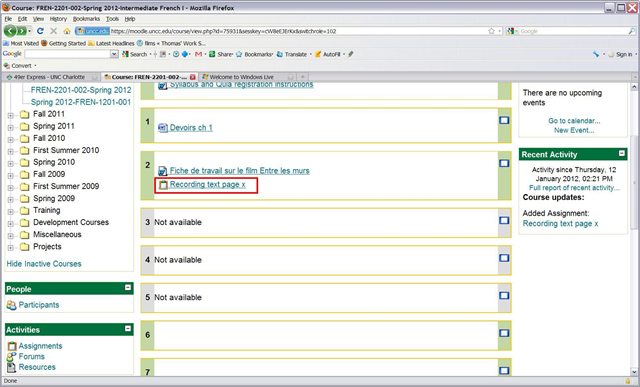
- Find your assignment:

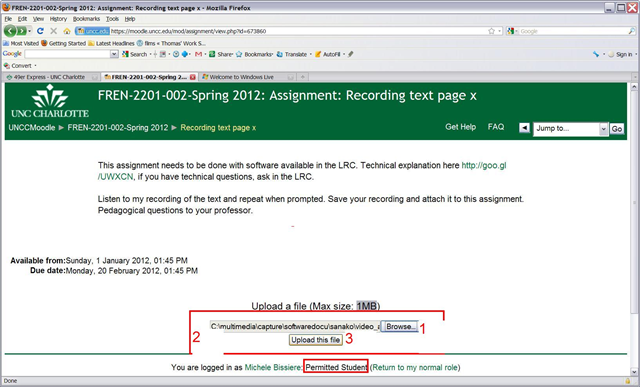
- read the assignment text:

- Create the file locally, according to the assignment text
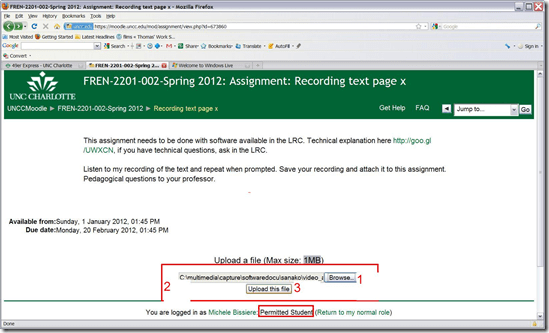
- Click the browse box and upload your file from your hard drive:
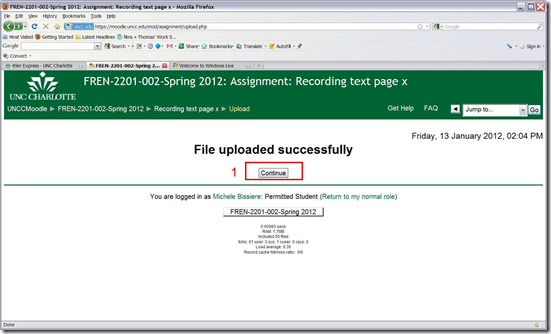
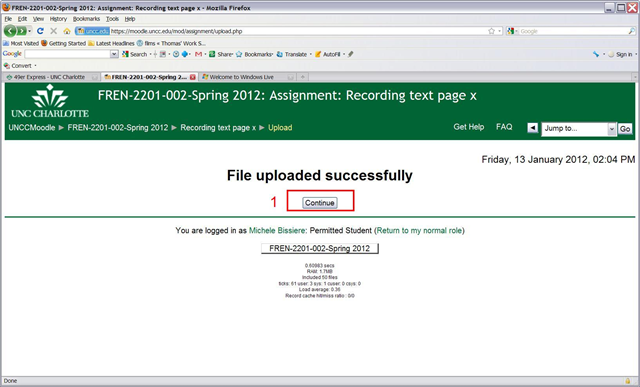
- Once the upload finishes, click: “ Continue”
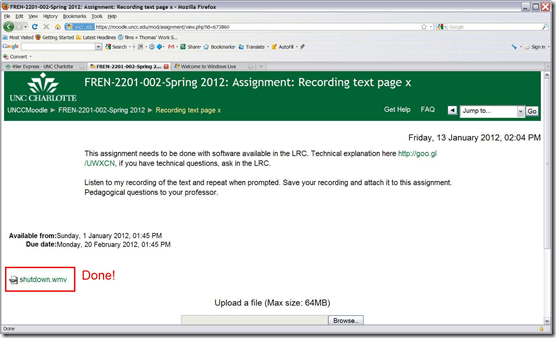
- You are done:
- Now wait for your grade.


Categories: assignments, audience-is-students, e-learning, lms
moodle, single-file-upload
How a teacher grades a Moodle simple file upload assignment
2012/01/13
1 comment
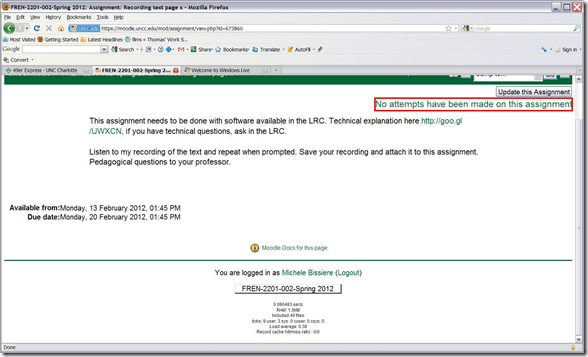
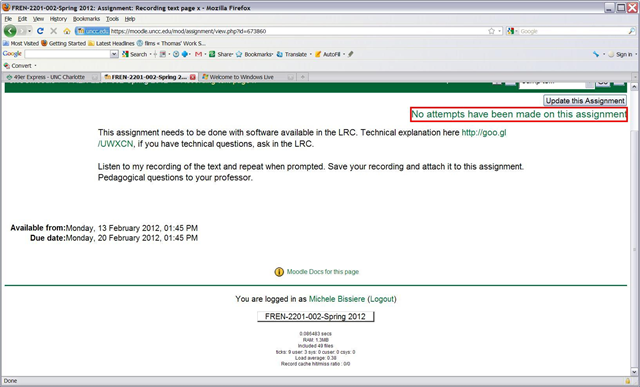
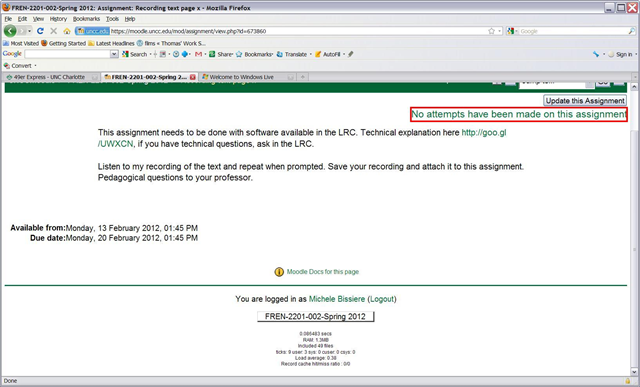
- When you initially createdyour single file upload assignment, there were no student submissions:
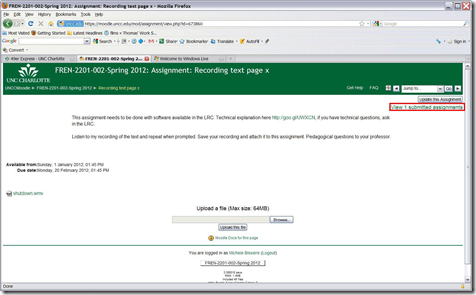
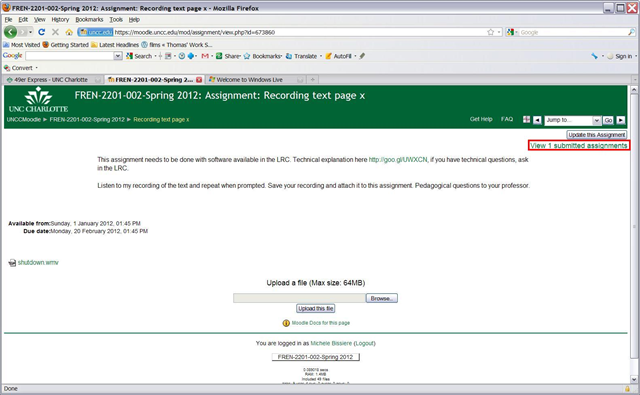
- Once there are, the link in the upper right of the assignment will tell you and take you right to the gradebook:
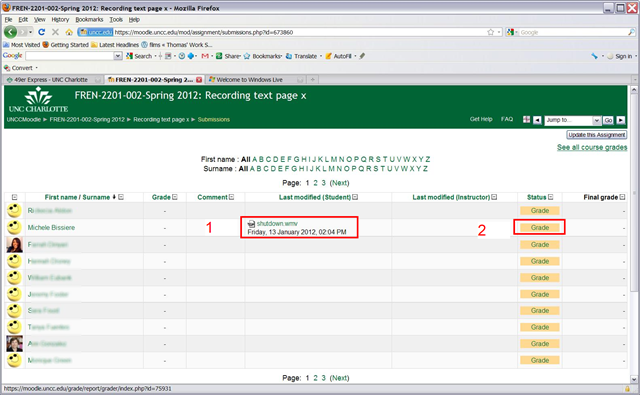
- Here you have an (1) overview who has submitted, and can click (2) to grade;

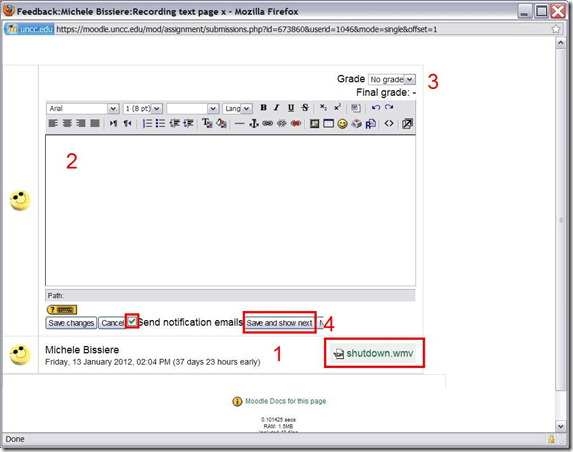
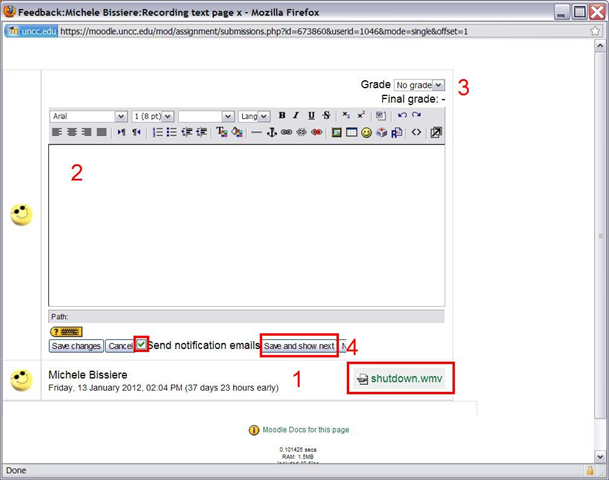
- In the grading dialogue, you can (1) download and open the file submission (see techniques of grading student audio submissions with Audacity), (2) write comments as you assess the file, (3) assign a final grade and (4) save and move on to the next submission (fastest, when you do batch grading, the notify student of your grading feedback is still useful under these circumstances, but even more so when you your self asked to be notified by email of student submissions as they come in: faster feedback)
Categories: assignments, audience-is-teachers, e-learning, lms, Speaking
audacity, moodle, simple-file-upload
How a teacher creates a Moodle Single file upload assignment, with optional attached file
2012/01/13
1 comment
- turn editing on
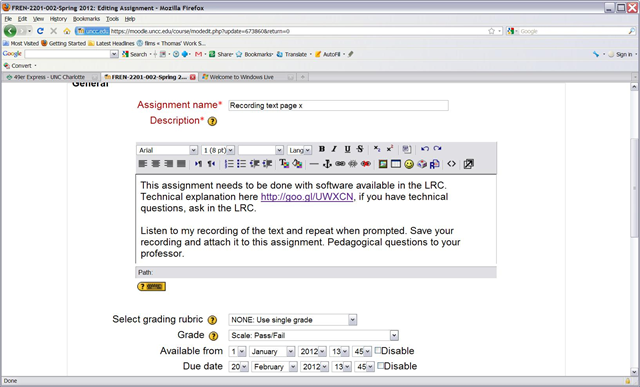
- add activity / simple file upload

- Write the assignment instructions

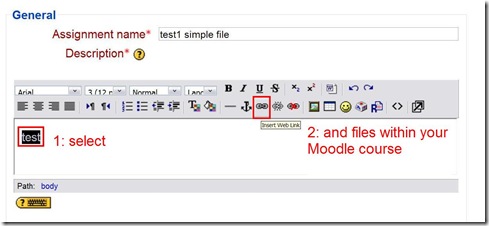
- For your students to be able to download a fle with additional information (e.g. the model recording), select some text pointing to it and click the link icon on the editor menu
- (1) button: “browse”, (2) click your file uploaded into your moodle course earlier, have the window close and (3) your URL appear (or type one manually, if the file is from the WWW), (4) click button: “ok”:

- Voilà, your link:
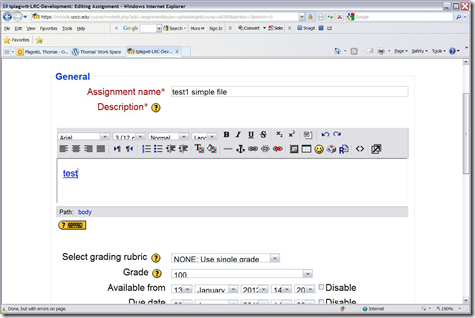
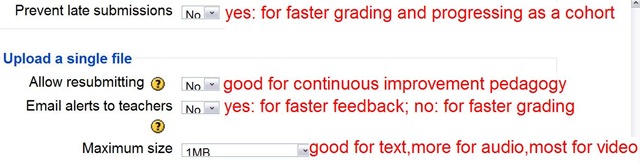
- set the other assignment options according to your needs :

- click button: “save and display”, you are done:





Questions? Read the About. Or just ask me a quick Our Databases: Resources with calendars -- Language learning material Moodle Sites, multimedia files -- films


FAQs for LRC student staff or for students or for teachers. To search our FAQs, in the browser addressbar, add after "https://plagwitz.wordpress.com/feed/?tag=faqs+/" "+TAG1" (from tag cloud below) OR "https://plagwitz.wordpress.com/feed/tag=faqs
&category_name=" "CAT1" (from category hierarchy below). OR search both categories and tags, and multiple TAGs/CATs (connect with "," for OR-search, with "+" for AND-search), like so: https://plagwitz.wordpress.com/feed/?tag=TAG1+TAG2+...TAGn&category_name=CAT1
+CAT2+...CATn"
Other ways to find help
If you cannot find it here, look there: 5,500 Language-Learning Links and Programs for learning or teaching 150 languages
Shortcuts:Our Lists, Our Maps, LRC Staff Moodle Site,LRC Project Moodle Site, 49erexpress, UNCC Moodle, Student Recordings: s:claslcslrcsanakostudent
Learning usage samples: Sanako oral exam, Kaltura webcam presentation, Dictation with speech recognition, Sanako written exam, Chinese and Japanese interactive stroke-order practice
Test the Sanako Installer, Webbrowser Popup Konfigurator for XP, or Windows7, faster LRC TeacherPC Log-in Let MS facilitate diacritics writing by installing for you US-International keyboard layout
This is my personal blog (Google+). The views expressed on these pages are mine alone and not those of my employer. The information in this weblog is provided “AS IS” with no warranties, and confers no rights.
 Thomas' Work Space