Archive
Phonetic transcription websites
Computerized Language resource centers are supposed to work wonders improving SLA students’ pronunciation: Can’t computers analyze and visualize sound for us?
However, it turned out there seems to be a considerable “impedance mismatch” not only between computers analyzing and understanding the signal, but also between a computer voice graph and the capability of a language learner to process and improve pronunciation on the basis of it.
Voice graphs may have some use for tonal languages. But can you even tell from a voice graph of a letter which sound is being produced?
Enter the traditional phonetic transcription that pre-computerized language learners remember from their paper dictionaries (provided you can teach your language learners phonetic symbol sets like the IPA). Not only are good online dictionaries perfectible capable of displaying phonetic symbol sets on the web (it’s all in Unicode nowadays).
There are now experimental programs that can automate the transcription of text into phonetic symbol sets for e.g. English, Portuguese or Spanish. The more advanced ones also come with text-to-speech.
You can provide your students with audio (or, text-to-speech capability provided) or text models and have them study the phonetic transcription, listen to the audio, and record their model imitation in the LRC. Maybe you will find that practice with recording and a phonetic transcription of the recorded text is more useful for your students’ pronunciation practice than a fancy voice graph.
Making audio cues for model imitation/question-response oral exams with Sanako Study 1200
We can easily record and post-process audio files in the LRC for use with the Sanako Study 1200 oral exam activities.
This can work not only for outcome exams (course- or chapter-wise), but also or formative assessment:
Think converting your textbook-based “drills” into Sanako, like repetitively recapitulating the newly acquired vocabulary item “donut” with different cues:
Example: “What can you do with [student can enter her favorite new vocabulary item for the current class] on [teacher can ask for one social web service after the other that her students likely are familiar with]?”. In response, student has to practice vocabularry item by forming sentences that fit the vocabulary item that fit like in the whiteboard example.
We can add to these recordings the features explained in the slide below.
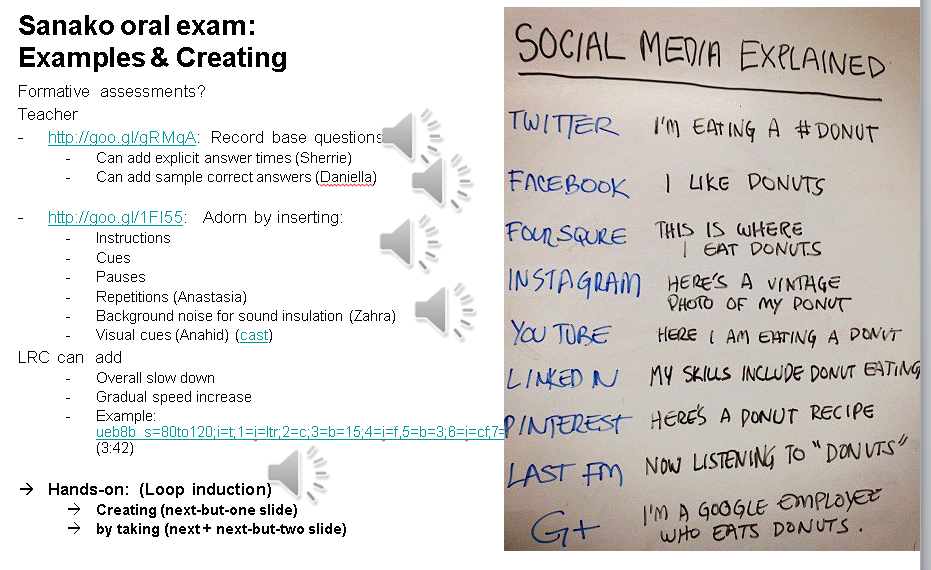
I’d be happy to play you examples from this slide – and more – in the LRC (not to be published here so that the exam files can be reused).
How to request minor hardware and office supplies for the LRC using 49ermart
- Go to https://49ermart.uncc.edu, log in with your NINERNET account.
- Search the approved providers, like CDW or Staples for minor hardware and office supplies.
- Put items in your shopping cart.

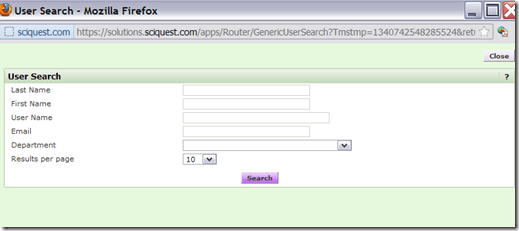
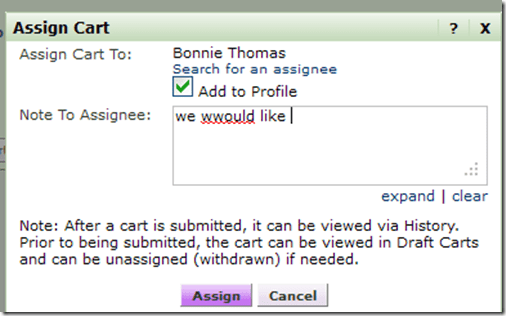
- Follow these steps to request the item:




Mac Mini (Mid 2010) Overview
Just trying to make the basic troubleshooting information more accessible from the field:

 Taken from: http://manuals.info.apple.com/en_US/Mac_mini_Mid2010_User_Guide.pdf
Protected: SelfReg – registration of devices on the UNCC network in 5 easy steps
Using NLP tools to automate production and correction of interactive learning materials for blended learning templates in the Language Resource Center. Presentation Calico 2012, Notre Dame University
View screencast  here.
here.
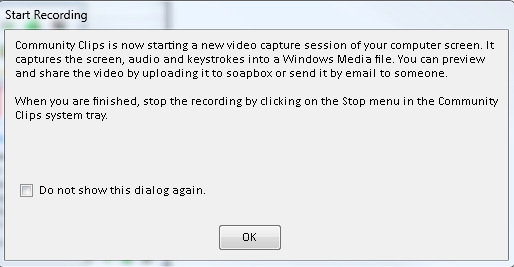
How to use the MS-Office Labs Community Clips Screen Capture Tool
- I seem to remember this initiative of having MS-Office users sharing tips and tricks using screencasts has been faded out – but the screen capture tool is still available, and it is not restricted to recording MS-Office applications.
- After download and install (here on Windows 7),

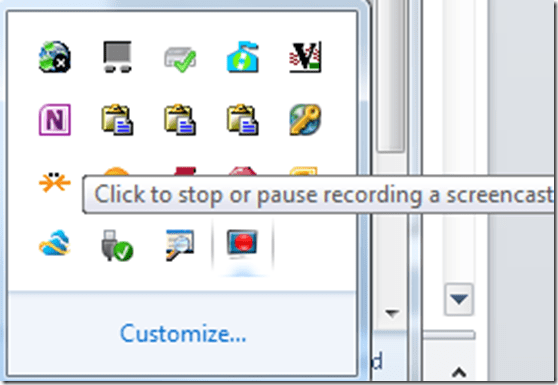
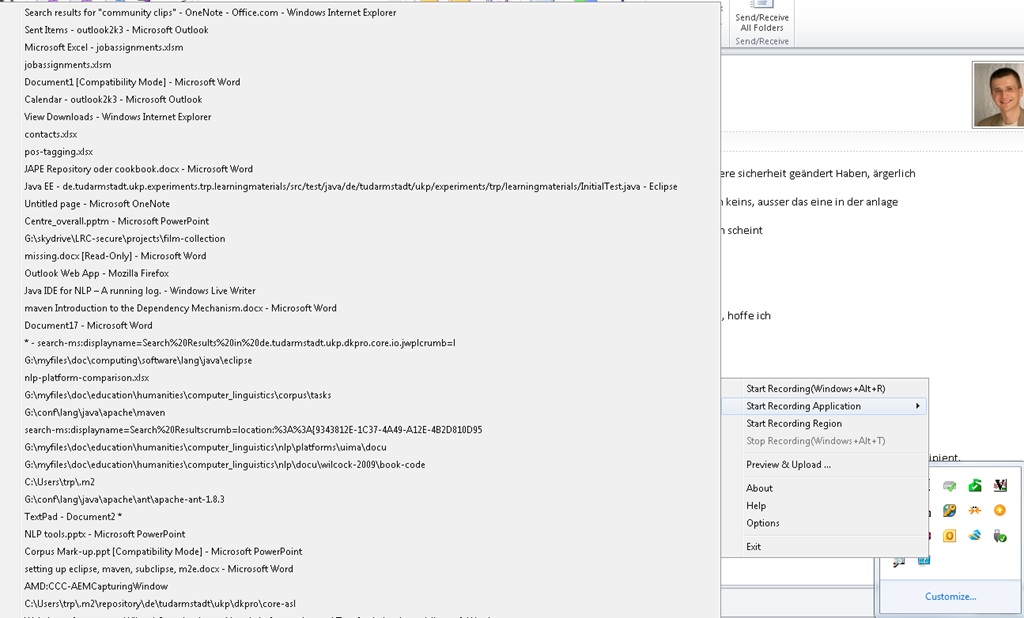
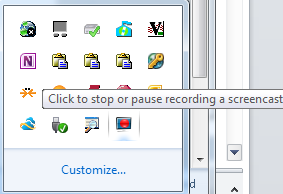
- click the community clips system tray icon to easily start a screen capture:
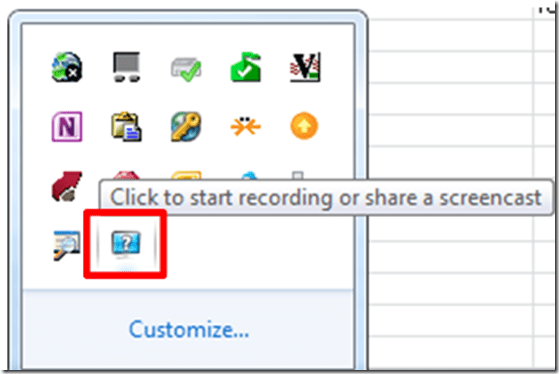
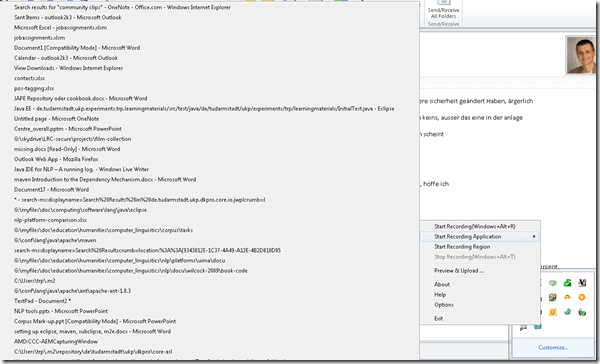
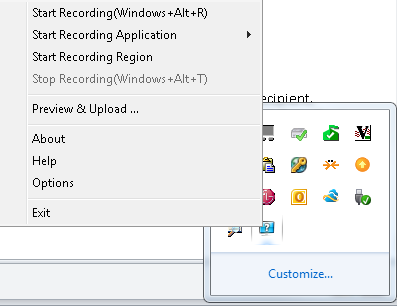
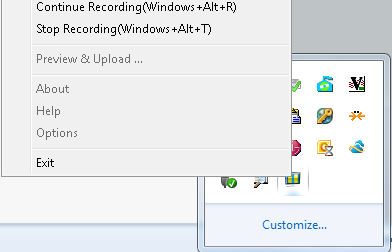
- Or access the context menu with advanced options:

- including restricting recording to specific windows:
- It does not start up very fast:

- It flashes a frame around the recorded area.
- This is a test…


- The preview starts automatically:
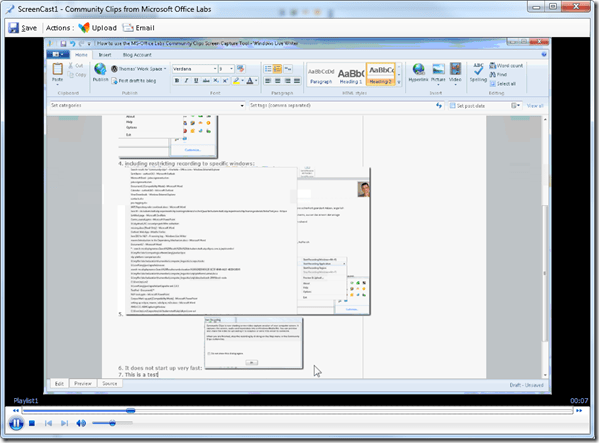
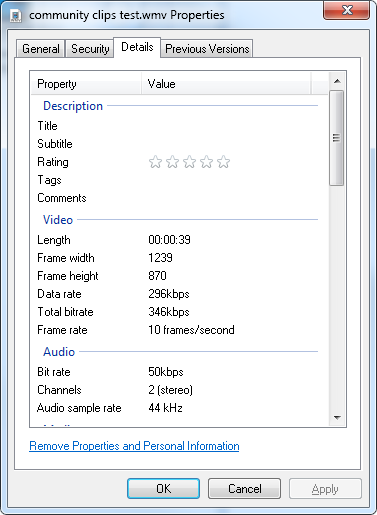
- About the file quality:

- Both the save and the email option
 work, only the built-in upload fails, likely due to the demise of MS-Soapbox:
  , but can be easily uploaded to other services, e.g. MS-SkyDrive
 - Unfortunately, like the Windows Media Encoder clips, it won’t preview without download on SkyDrive – unlike the (newer) MS-PowerPoint 2010-recorded screencasts:

- Still, the MS-Office Labs Community Clips Screen Capture Tool seems to have a friendlier interface than Windows Media Encoder, and is as free.








Questions? Read the About. Or just ask me a quick Our Databases: Resources with calendars -- Language learning material Moodle Sites, multimedia files -- films


FAQs for LRC student staff or for students or for teachers. To search our FAQs, in the browser addressbar, add after "https://plagwitz.wordpress.com/feed/?tag=faqs+/" "+TAG1" (from tag cloud below) OR "https://plagwitz.wordpress.com/feed/tag=faqs
&category_name=" "CAT1" (from category hierarchy below). OR search both categories and tags, and multiple TAGs/CATs (connect with "," for OR-search, with "+" for AND-search), like so: https://plagwitz.wordpress.com/feed/?tag=TAG1+TAG2+...TAGn&category_name=CAT1
+CAT2+...CATn"
Other ways to find help
If you cannot find it here, look there: 5,500 Language-Learning Links and Programs for learning or teaching 150 languages
Shortcuts:Our Lists, Our Maps, LRC Staff Moodle Site,LRC Project Moodle Site, 49erexpress, UNCC Moodle, Student Recordings: s:claslcslrcsanakostudent
Learning usage samples: Sanako oral exam, Kaltura webcam presentation, Dictation with speech recognition, Sanako written exam, Chinese and Japanese interactive stroke-order practice
Test the Sanako Installer, Webbrowser Popup Konfigurator for XP, or Windows7, faster LRC TeacherPC Log-in Let MS facilitate diacritics writing by installing for you US-International keyboard layout
This is my personal blog (Google+). The views expressed on these pages are mine alone and not those of my employer. The information in this weblog is provided “AS IS” with no warranties, and confers no rights.
 Thomas' Work Space